
What you’ll learn
What every field on the item Supplier tab does: vendor, prices and packaging for purchasing, and service settings for durable items.
You find the tab under Data management > Items. Open an item and select Supplier. The fields you see depend on the item type. Fields with a yellow background are required.
The Supplier tab at a glance
The tab has up to four sections. Which ones appear depends on whether the item is consumable, durable, an assembly or serialized.
| Section | Consumable | Durable | Assembly | Serialized durable |
|---|---|---|---|---|
| Purchasing information | All fields | All fields | Only Standard cost, Barcode and Package dimensions | All fields |
| Manufacturer information | Yes | Yes | No | Yes |
| Value added services | Yes | Yes | Yes | Yes |
| Service | No | Yes | Yes, without price, lead time and minimum quantity | Yes, plus the automatic service triggers |
Purchasing information
These fields tell CRIBWISE who supplies the item, what it costs and how it is packed. Purchase orders, standard cost and reorder quantities all come from here.
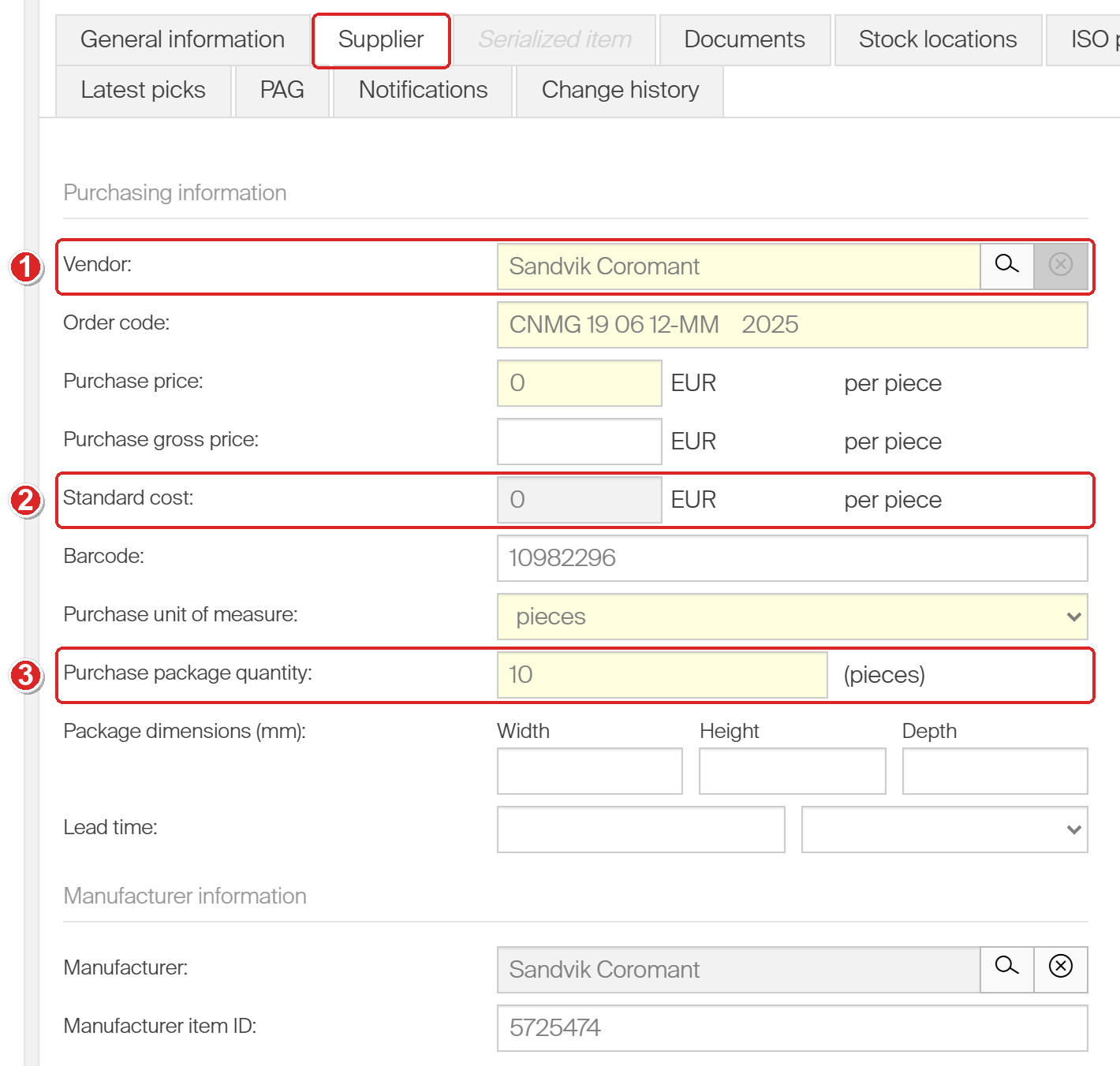
The Supplier tab of a consumable item: (1) Vendor, picked from your vendor list; (2) Standard cost, greyed out because the system calculates it; (3) Purchase package quantity, the multiple that scripts order in.
| Field | What it does |
|---|---|
| Vendor | The vendor you buy the item from. Purchase orders for the item go to this vendor. Select Search next to the field to pick a vendor from your vendor list, or Remove to clear it. You cannot type in the field. |
| Order code | The vendor’s own code for the item, for example its catalogue number. It is printed on purchase orders. |
| Purchase price | The net price of one purchase unit, in the vendor’s currency. It feeds the item’s standard cost. If the vendor uses another currency than the system, the price is converted for display. See currencies. |
| Purchase gross price | The gross price of one purchase unit, in the vendor’s currency. Optional. It never affects standard cost. |
| Standard cost | Read only. The system calculates it and shows it per dispense unit, in the system currency. It is used to value stock and to cost picks. See Understanding item costs. |
| Barcode | The item’s barcode. Operators can scan it to find the item, and items with a barcode appear on the barcode report. |
| Purchase unit of measure | The unit you buy the item in, for example pieces, boxes or packages. Purchase orders always use this unit. If it differs from the dispense unit on the General information tab, you also set a conversion ratio. See units of measure. |
| Purchase package quantity | How many purchase units come in one vendor package. The purchase unit is shown in brackets after the field. When a scheduled script adds the item to a purchase order, it always orders a multiple of this quantity. |
| Package dimensions (mm) | The Width, Height and Depth of the package in millimetres. Optional. |
| Lead time | How long the vendor takes to deliver, as a number plus Months, Weeks, Days or Hours. When an order becomes Active, the expected delivery date is calculated from it. A lead time set here overrides the one on the vendor. |
Note: Whether operators see a price, and which one, is set on device level.
Manufacturer information
These two fields record who makes the item, which may differ from who sells it.
| Field | What it does |
|---|---|
| Manufacturer | The item’s manufacturer. Select Search to pick one from your manufacturer list. If that manufacturer has an integration set up, item data can be fetched from the manufacturer. |
| Manufacturer item ID | The manufacturer’s own code for the item. |
Value added services
Use this section when you ask the vendor for extra work with each order, such as labelling or kitting. Select the Value added services check box to show the fields.
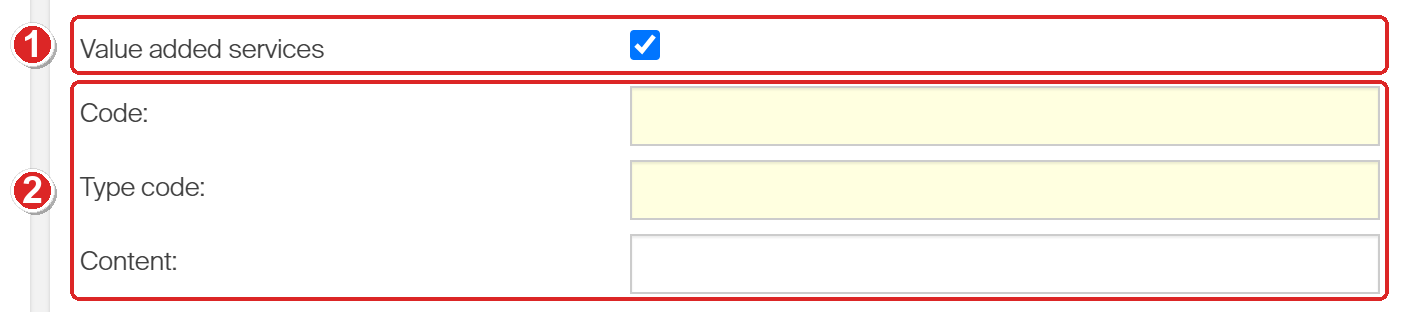
(1) The Value added services check box; (2) the three fields it reveals. Code and Type code are required.
| Field | What it does |
|---|---|
| Code | The code that identifies the service you request. Required. |
| Type code | The type of service. Required. |
| Content | Free text describing the service. Optional. |
These values can be added to order templates through template tags. They are also included in XML orders, including orders sent over the B2B interface.
Service
This section appears for durable items only, because only items that come back can be serviced, calibrated or reground. Select the Service check box to show the fields.
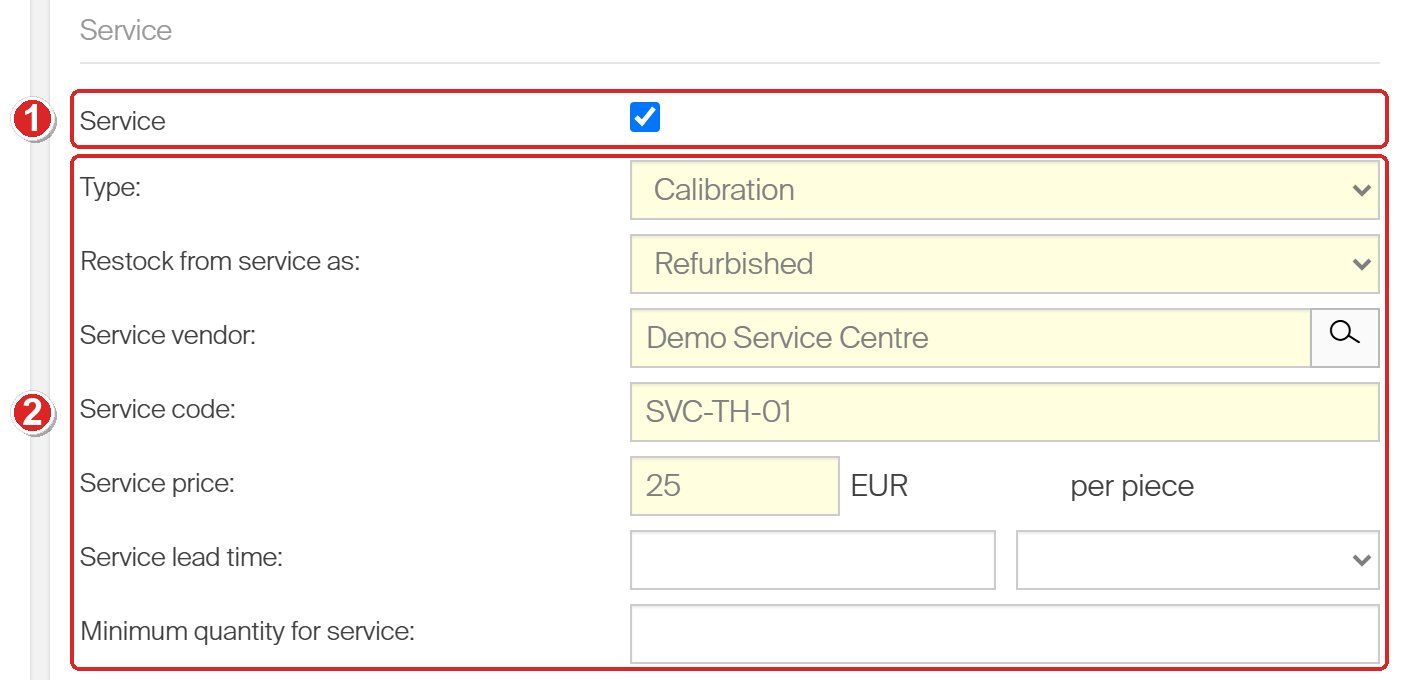
A durable item with service turned on: (1) the Service check box; (2) the fields that describe how the item is serviced. The yellow ones are required.
| Field | What it does |
|---|---|
| Type | Service, Calibration, Regrind, Indexing or Measure. The type is for reporting only. It does not change how the item moves through service. |
| Restock from service as | The condition the item comes back in: Used, Refurbished or New. The condition decides which location the item can be restocked to (the location needs a matching location rule), and sets the condition of a serialized item after restock. |
| Service vendor | Who does the service. Select Search to pick a vendor. For an internal vendor, items go on a service list. For an external vendor, they go on a service order. |
| Service code | The service vendor’s code for the item. It is printed on service orders. |
| Service price | The price of servicing one dispense unit, in the service vendor’s currency. If that differs from the system currency, the converted price is shown. |
| Service lead time | How long service takes, as a number plus Months, Weeks, Days or Hours. When a service order becomes Active, the expected return date is calculated from it. A lead time set here overrides the one on the vendor. |
| Minimum quantity for service | The fewest pieces waiting for service before a scheduled script adds them to a service order or list. Below this number, the script leaves them alone. The script’s own minimum total still applies. See service order scripts. You can still add the item to a service order or list by hand. |
Note: For an assembly, the Service section shows only Type, Restock from service as, Service vendor and Service code. Service price, Service lead time and Minimum quantity for service are hidden.
Automatic service triggers for serialized items
A serialized item gets extra fields that send each instance (the physical item with its own serial number) to service automatically. When an instance meets a trigger, its condition changes to For service. You can combine triggers, and the first one met applies. Leave a field empty to switch that trigger off.
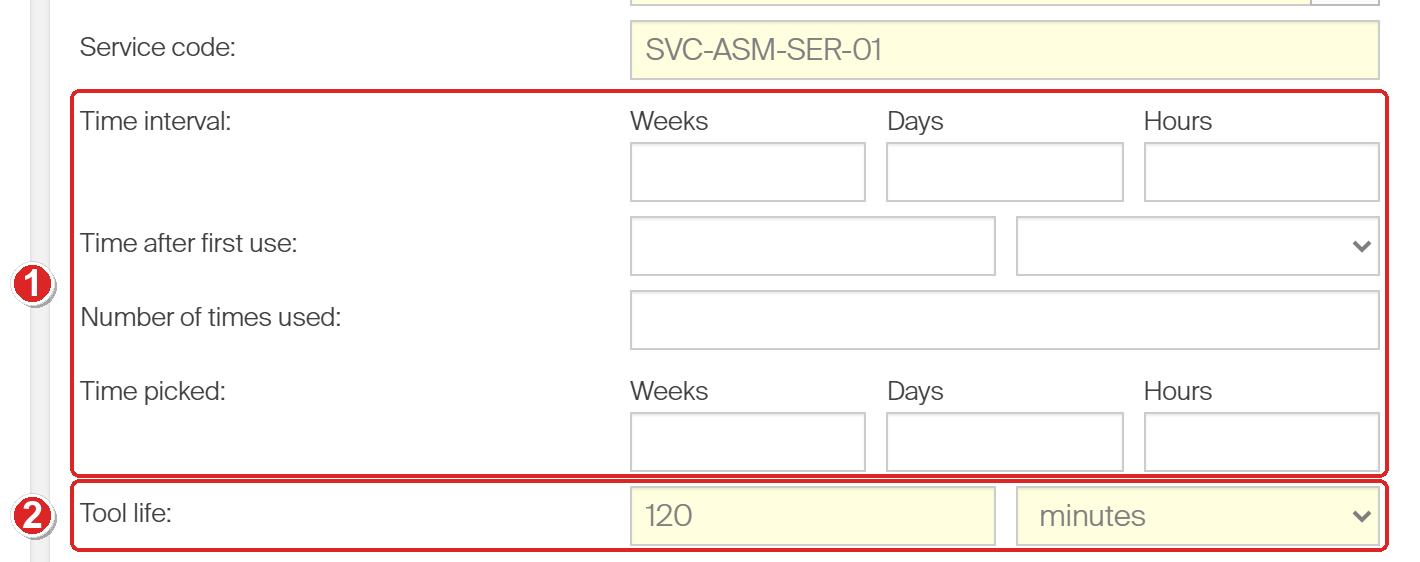
A serialized assembly: (1) the four time and usage triggers; (2) Tool life, which only serialized assemblies with tool life tracking have.
| Field | Sends an instance to service… |
|---|---|
| Time interval | After a set time (Weeks, Days, Hours). The clock starts when the instance is restocked, from an order or from service. |
| Time after first use | A set time after its first use, as a number plus Months, Weeks, Days or Hours. The first pick after a restock counts as the first use. |
| Number of times used | After it has been used this many times. One pick and return counts as one use. When the item is moved to a new cost allocation with the move function, each cost allocation counts as one use. |
| Time picked | After it has spent a set time in production (Weeks, Days, Hours). Time in production runs from pick to return. |
| Tool life | When the consumed tool life, entered by operators at each return, reaches this target. The unit is pieces, minutes or meters. The field only appears on serialized durable assemblies when tool life tracking is turned on. See tool life tracking. |
What an assembly’s Supplier tab shows
An assembly is built from other items, so you never buy it from a vendor. Its Supplier tab is much shorter: there is no vendor, order code, price, purchase unit, package quantity, lead time or manufacturer.
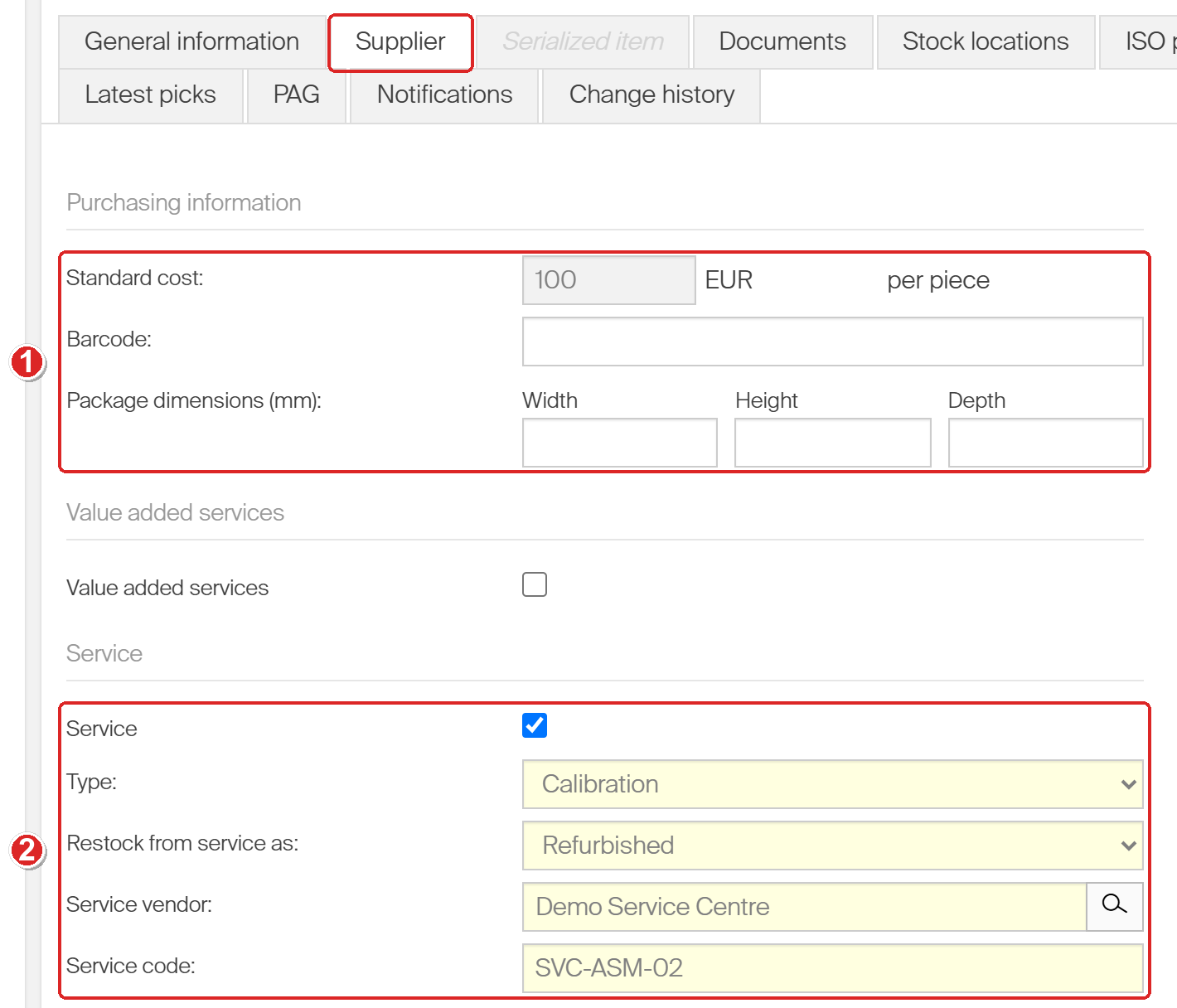
The Supplier tab of an assembly: (1) the only three purchasing fields left, Standard cost, Barcode and Package dimensions; (2) a shorter Service section without price, lead time or minimum quantity.
The components are purchased on their own items. See Understanding assemblies.
Common confusion
| People often think… | But actually… |
|---|---|
| Every item has the same Supplier tab. | Assemblies have no vendor, prices or manufacturer. Consumables have no Service section. Only serialized items have the automatic service triggers. |
| A vendor is only needed once the item is Released. | Vendor, Order code, Purchase price and Purchase package quantity are required in every status except Defined, including Phase in. |
| You can type in the standard cost. | Standard cost is always calculated. Change the purchase price, or how standard cost is calculated, instead. |
| Only one service trigger applies at a time. | You can set several. The instance goes to service as soon as the first one is met. |
| The service Type changes how service works. | It is a label for reporting. The service vendor (internal or external) decides whether items go on a service list or a service order. |
Take action
Setting up a new item? Go to How to create an item manually for the step-by-step guide. Then let a purchase order script reorder it automatically.
Related articles
- Item fields and settings reference – the General information tab, where item type, status and dispense unit are set.
- Understanding item costs: standard cost and usage cost – how the purchase price becomes standard cost.
- How to manage vendors – create the vendors and service vendors you pick on this tab.
- Understanding purchase order scripts: automated reorder rules – how package quantities shape automatic orders.
- Understanding service order scripts: automated service and calibration rules – how items waiting for service reach a service order or list.
- How to set up tool life tracking and automatic service triggers – set the Tool life target and record consumed tool life.
- Understanding assemblies and bill-of-materials – why an assembly’s Supplier tab is shorter.