
What you’ll learn
An assembly is a durable item built from other items, such as a tool holder and its insert that leave the crib as one tool. Learn how it differs from an ordinary durable item: where its standard cost comes from, how it gets into stock, and why it never goes on a purchase order.
Assembly versus durable item
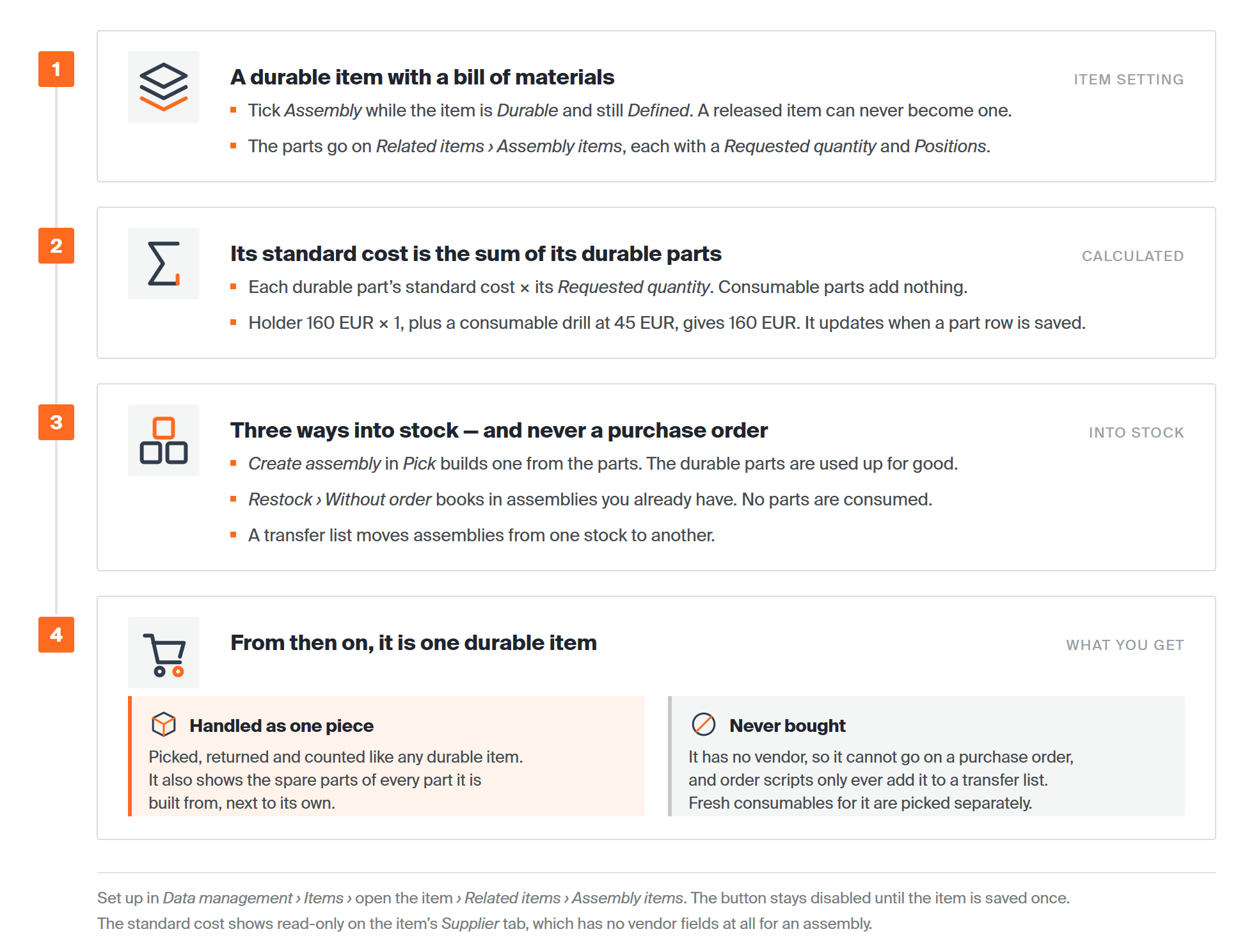
An assembly is a durable item with a bill of materials. Most of what you know about durable items still applies. The differences are in how it is bought, costed and stocked.
| Durable item | Assembly | |
|---|---|---|
| How it is set up | Item type Durable | Item type Durable with Assembly ticked. You can only tick it while the item is still in Defined status. |
| Parts | None | A bill of materials under Related items > Assembly items. Each part has a Requested quantity and Positions. |
| Vendor | Required once the item leaves Defined | None. The Supplier tab has no vendor, order code or purchase price fields. |
| Purchase order | Added by hand or by a purchase order script | Never. A script can add it to a transfer list instead. |
| Standard cost | From the purchase price or the average acquisition cost | The sum of its durable parts’ standard costs, each multiplied by its requested quantity. Consumable parts are not counted. |
| Getting it into stock | Restock with or without an order | Build it on the Shop Floor Interface (SFI), or restock without an order |
| Spare parts | Its own | Its own, plus the spare parts of every part it is built from |
How an assembly’s standard cost is worked out
You never enter a standard cost for an assembly. CRIBWISE adds up the standard cost of each durable part, multiplied by its requested quantity. Consumable parts add nothing, because they are picked and used up separately.
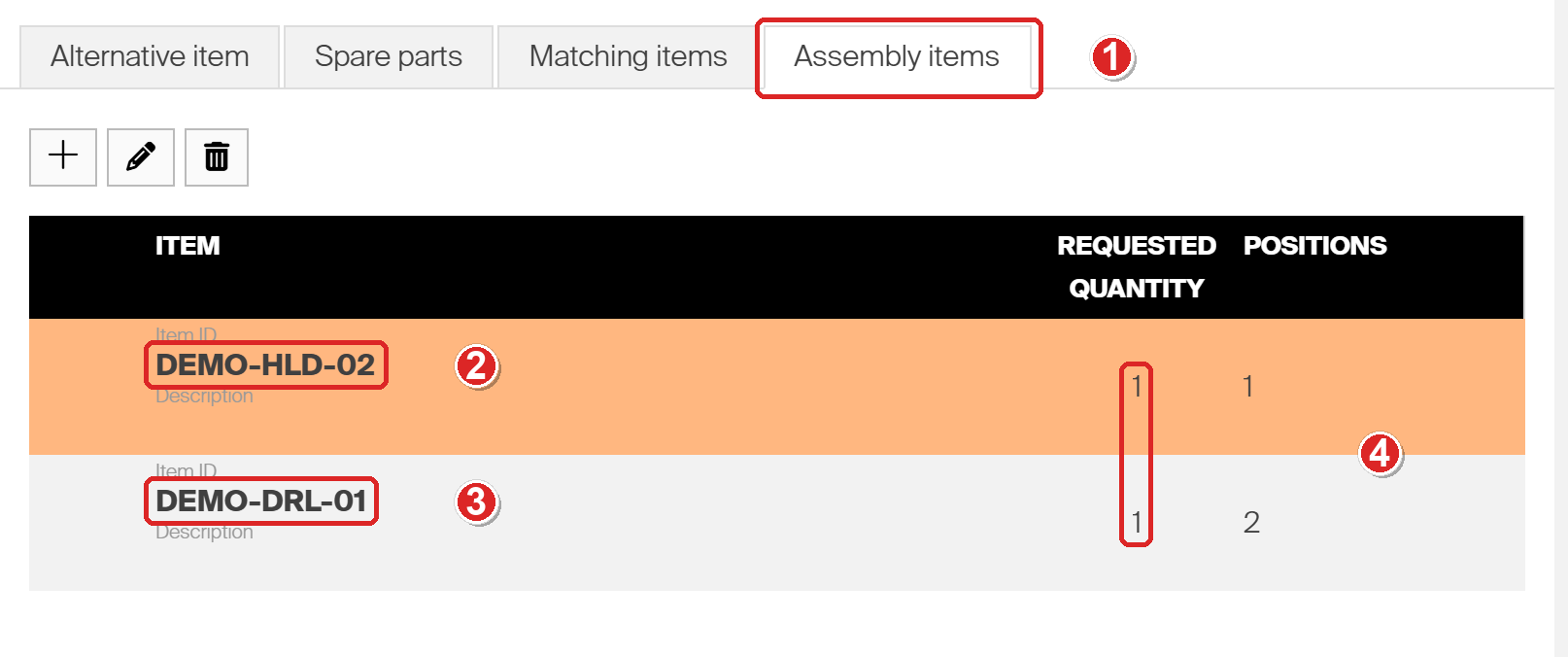
- The Assembly items tab of the Related items panel holds the bill of materials.
- DEMO-HLD-02, a durable drill holder with a standard cost of 160 EUR. It counts towards the assembly’s cost.
- DEMO-DRL-01, a consumable drill at 45 EUR. It is part of the assembly but does not count towards its cost.
- Requested quantity: one of each per assembly.
So the assembly’s standard cost is 160 × 1 = 160 EUR, not 205 EUR. You can see the result, read-only, on the item’s Supplier tab.
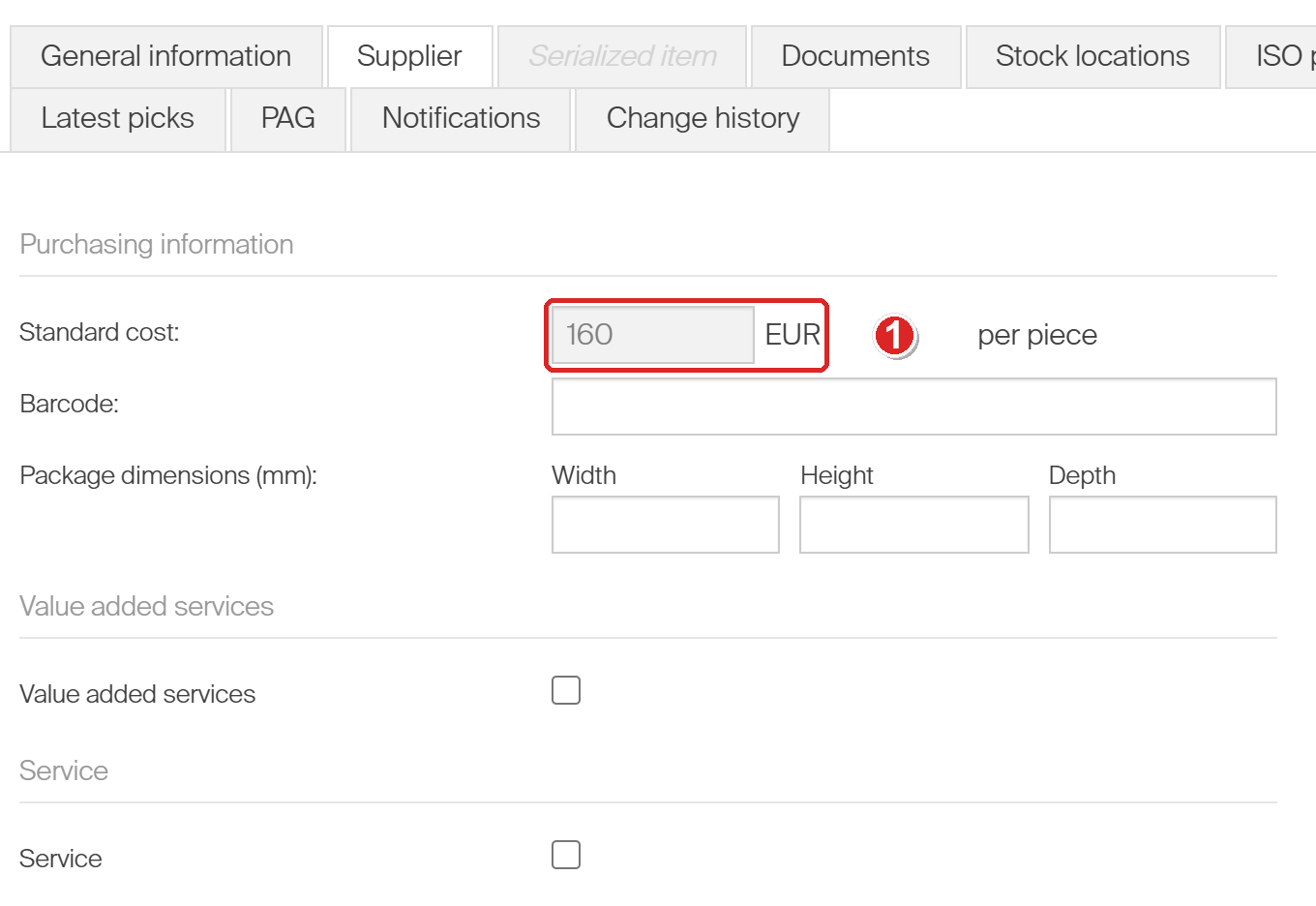
- Standard cost is greyed out because it is calculated. On an assembly, it is the only purchasing field there is.
The value follows the bill of materials. When we raised the holder’s requested quantity to 2 on the test system, the assembly’s standard cost changed to 320 EUR as soon as the row was saved. It also follows the standard cost of the durable parts when theirs changes.
Note: Standard cost is not the same as what a pick of the assembly costs. That depends on the assembly’s own Usage cost structure and Cost on the General information tab. See Understanding item costs: standard cost and usage cost.
How an assembly gets into stock
An assembly has no vendor, so it is never bought. There are three ways to get one into a storage device instead.
| Route | Where | What happens to the parts | Use it when |
|---|---|---|---|
| Create assembly while picking | SFI, Pick | The durable parts are picked and used up. The consumable parts are picked too, if they are available. | You build the tool from parts in the crib. |
| Restock > Without order | SFI, Stock management | Nothing. You book in assemblies that already exist. | You start up a new crib, or assemblies arrive ready-built. |
| Transfer list | Admin Portal, Order lists > Transfer lists | Nothing. The assemblies move between stocks. | A satellite stock needs assemblies from the central stock. |
A built assembly is checked out to the person who built it. It only goes into stock once someone assigns it to a location under Stock management > Assign item.
Important: Only the durable parts are needed to build an assembly. A consumable part with no stock does not block the build. The durable parts used in an assembly cannot be returned on their own afterwards. A serialized part gets the status In assembly.
Assemblies appear in the Restock > Without order list like any other assigned item. The quantity screen looks the same as for a bought item, except that the vendor is empty.
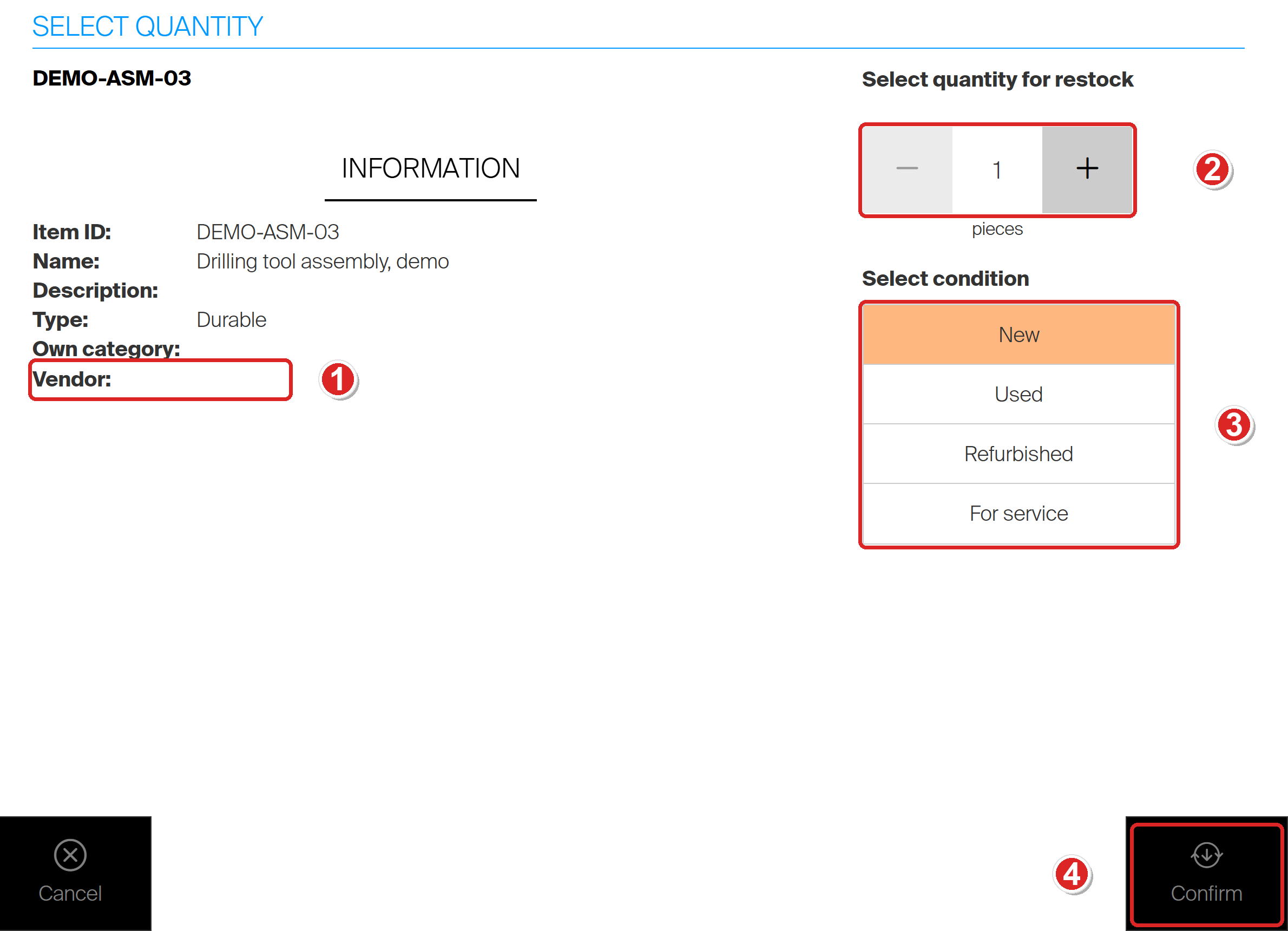
- Vendor is empty, because an assembly is never bought.
- Set how many assemblies you are booking in.
- Choose their condition.
- Confirm books them into stock. No parts are taken from the device.
Assemblies on the Shop Floor Interface
- Once it is in a location, an assembly is picked, returned and counted like any durable item, as one piece.
- An assembly you have not built yet has no stock. It only shows in Pick when Show items not assigned in this device is switched on.
- When a tool in use needs a fresh insert, you do not rebuild it. Open Related items for the assembly and pick the consumable from there.
- A serialized assembly can track tool life, so it is sent for service automatically once its target is reached.
Common confusion
| People often think… | But actually… |
|---|---|
| An assembly can be ordered from a vendor. | It has no vendor and never goes on a purchase order. Build it on the SFI, restock it without an order, or move it on a transfer list. |
| An assembly cannot be restocked. | It can, through Restock > Without order. That books in assemblies you already have, without using any parts. |
| The standard cost of an assembly is the total of all its parts. | Only the durable parts count, each multiplied by its requested quantity. |
| You can type in a standard cost for an assembly. | It is always calculated. The field on the Supplier tab is read-only. |
| All parts must be in stock to build an assembly. | Only the durable ones. A missing consumable is left out, and you pick it separately later. |
| A part can be taken back out of an assembly. | The durable parts used in an assembly cannot be returned on their own. |
| Any durable item can be turned into an assembly later. | Only while it is still in Defined status. A released item can never become an assembly. |
Take action
Ready to set one up? Define the assembly and its parts in How to set up an assembly in the Admin Portal. Then build, stock and pick it with How to create, stock, and pick an assembly on the Shop Floor Interface.
Related articles
- How to set up an assembly in the Admin Portal – create the item and its bill of materials.
- How to create, stock, and pick an assembly on the Shop Floor Interface – build an assembly, put it in a location and pick it.
- Item relations: alternatives, substitutes, and assemblies – how assembly items sit next to alternatives and spare parts.
- Understanding item costs: standard cost and usage cost – what standard cost is and what a pick costs.
- How to restock items on the Shop Floor Interface – restock without an order, step by step.
- Understanding transfer lists – how assemblies move between central and satellite stocks.
- How to set up tool life tracking and automatic service triggers – target tool life on a serialized assembly.