
What you can do
Give an assembly serial numbers when you need to follow each built assembly on its own: who has it, how often it was used, and when it is due for service. Every assembly you build is then one instance with its own serial number, and the steps of building, picking, returning and service ask which serial number you mean.
This article covers what serial numbers change for an assembly. The flows themselves are in Assemblies: Building and stocking, Assemblies: Picking and returning and Assemblies: Service.
The example is assembly ASM-FINE-BORE-50, Fine boring assembly Ø20–50, serial number FB-26-001. It is built from the boring head base BOR-HEAD-FB (serial number BH-26-001) and an insert. Its rule sends it for service after two uses, done in-house by Demo Service Centre.
Before you start
- Serialized ticked on the assembly item, together with Durable and Assembly. Set it while the item is still in Defined status, because the type locks after that. See Assemblies: Setup.
- For service rules: Service ticked on the assembly’s Supplier tab, with a Service vendor.
What changes with serial numbers
| Step | Without serial numbers | With serial numbers |
|---|---|---|
| Build | The assembly is created. | The serial number of the new assembly is asked first, in Set new serial number. Serialized parts ask which of their serial numbers go in. |
| Pick | The row on Items to pick is already ticked. | The row is not ticked. Ticking it opens Select serial number(s) for item. |
| Return | You return a quantity. | You return a serial number. Serial number info shows its remaining picks when it has a rule. |
| Service | Only by Return > For service. | Also by rules that count uses or time, and by a target service date. |
| Pick for service and restock | You set a quantity. | A serial number dialog opens. On restock the serial number is preselected. |
| Admin Portal | Quantities per location and condition. | Each serial number has its own status, location and Last service on the Serialized item tab. |
Service rules that need serial numbers
You set the service rule on the assembly item, in the Service section of its Supplier tab. It works exactly as on any serialized durable item. The rule counts the uses of the assembly, not the uses of its parts.
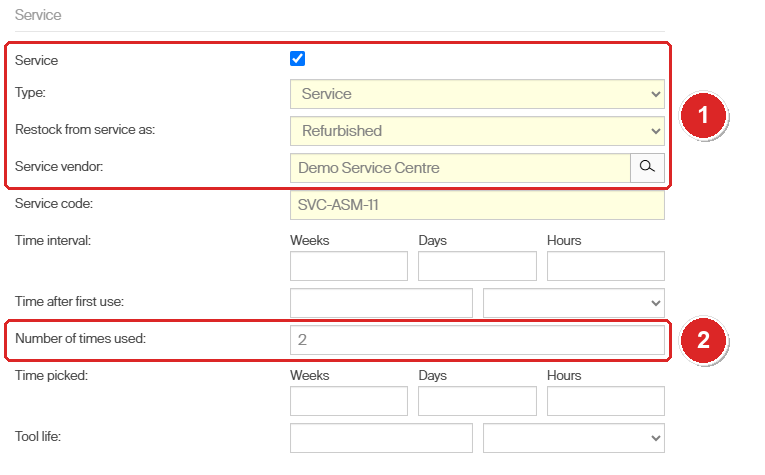
Service is ticked, with the type, the condition after restock and the vendor (1). The assembly is due after two uses (2).
Any of these makes the assembly’s serial number For service:
- The pick limit is reached. With Number of times used, the return that uses up the last pick sets the serial number to For service, not the pick. Every return counts, also a return as New, such as the first return right after the assembly is built.
- Return > For service. A user who is allowed to return for service can send the assembly early, before its limit. FM-26-002, an assembly of ASM-FACE-MILL-63, went to service this way.
- Target service date. Set a date on the serial number in the Admin Portal. Once it has passed, the task Lock serialized instances sets it to For service the next time it runs. A return does not apply the date, and a date that is not later than Last service is ignored. The assembly can still be picked until the task has run.
- Time rules. Time interval and Time after first use on the item set a date as well, which the same task applies. The Supplier tab also offers Time picked and Tool life; see How to set up tool life tracking and automatic service triggers.
Whichever rule is met first wins. An assembly that is For service stays in its location but can no longer be picked.
Before the last return, the operator can see what is left. On the return screen, Serial number info shows the remaining number of picks.
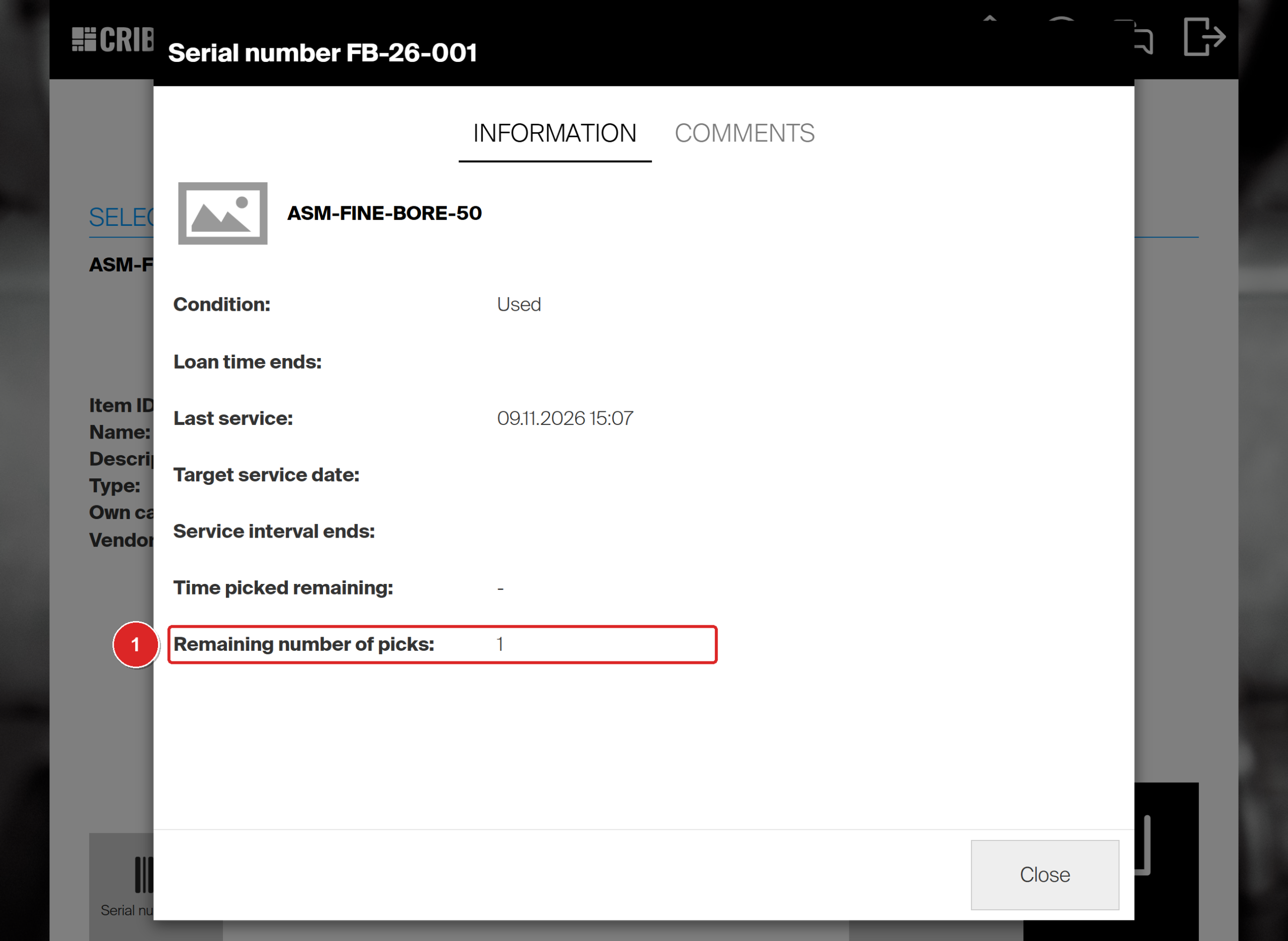
One pick left (1). Returning the assembly uses it up.
Once it is returned, open the assembly item in the Admin Portal, go to its Serialized item tab and double-click the serial number.
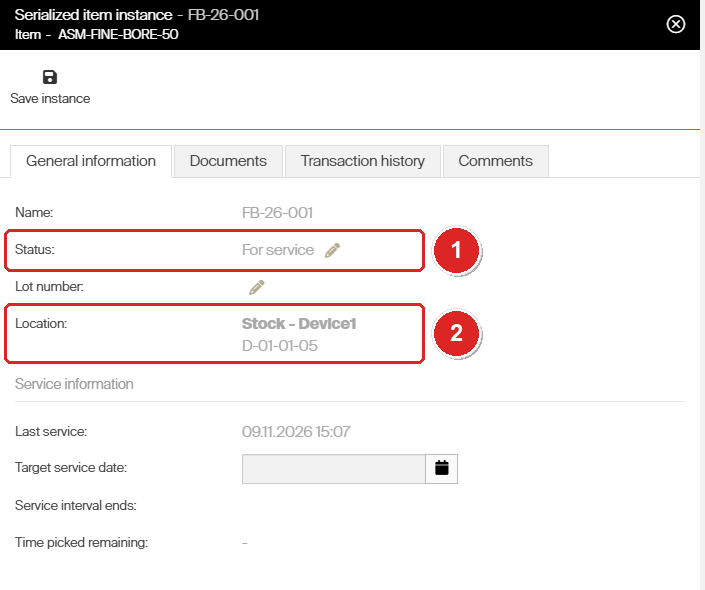
The status is For service (1). The assembly is still in its stock location (2).
Service with serial numbers
The service steps are the ones in Assemblies: Service. With serial numbers, two dialogs are added.
Pick for service
Tick the assembly on the service list, set the quantity and select Confirm.
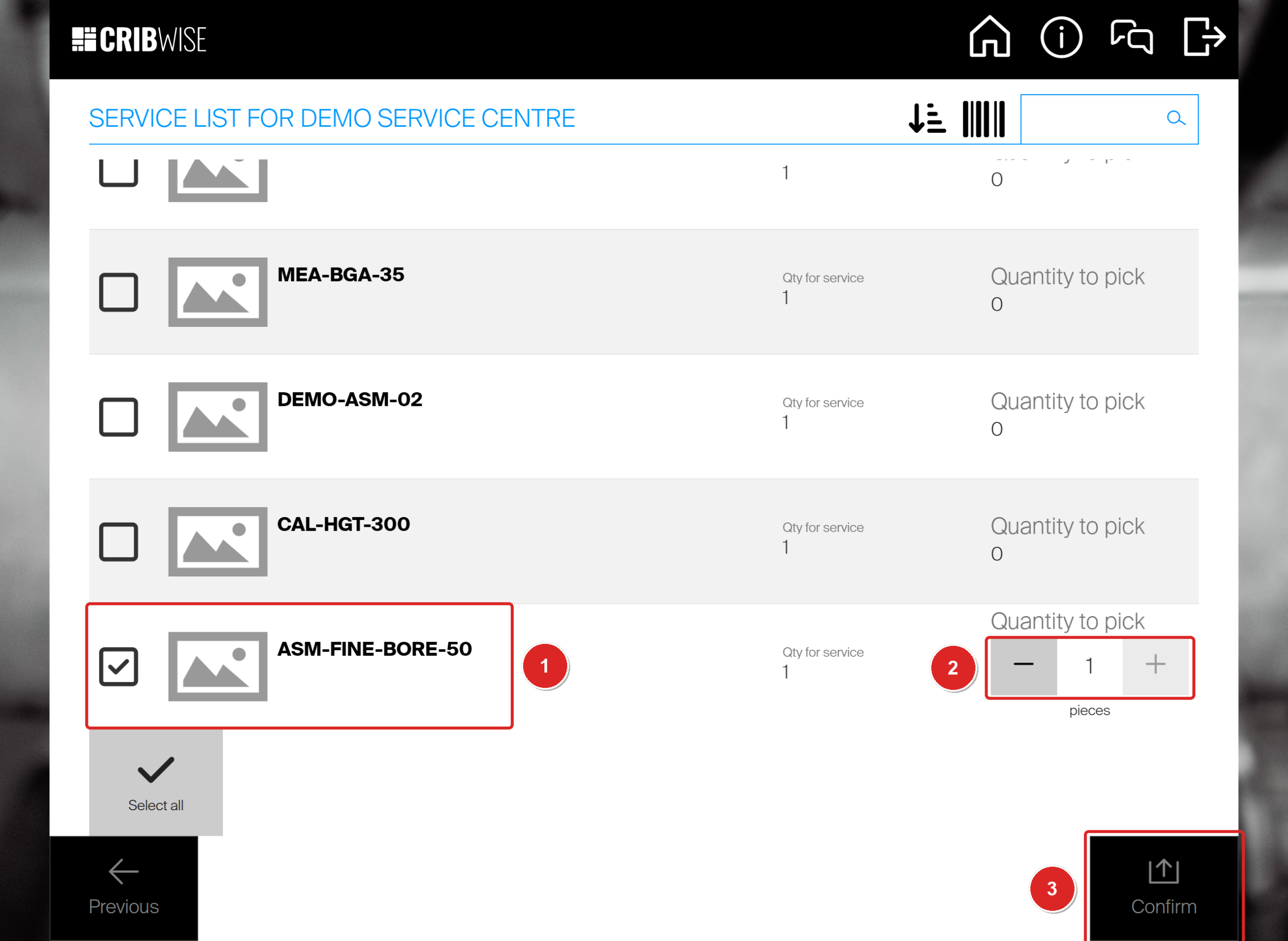
Tick the assembly (1), set the quantity (2), then Confirm (3).
Then tick the row on Items to pick. The serial number dialog opens. Make sure only your serial number is ticked, select Confirm, then Picking finished.
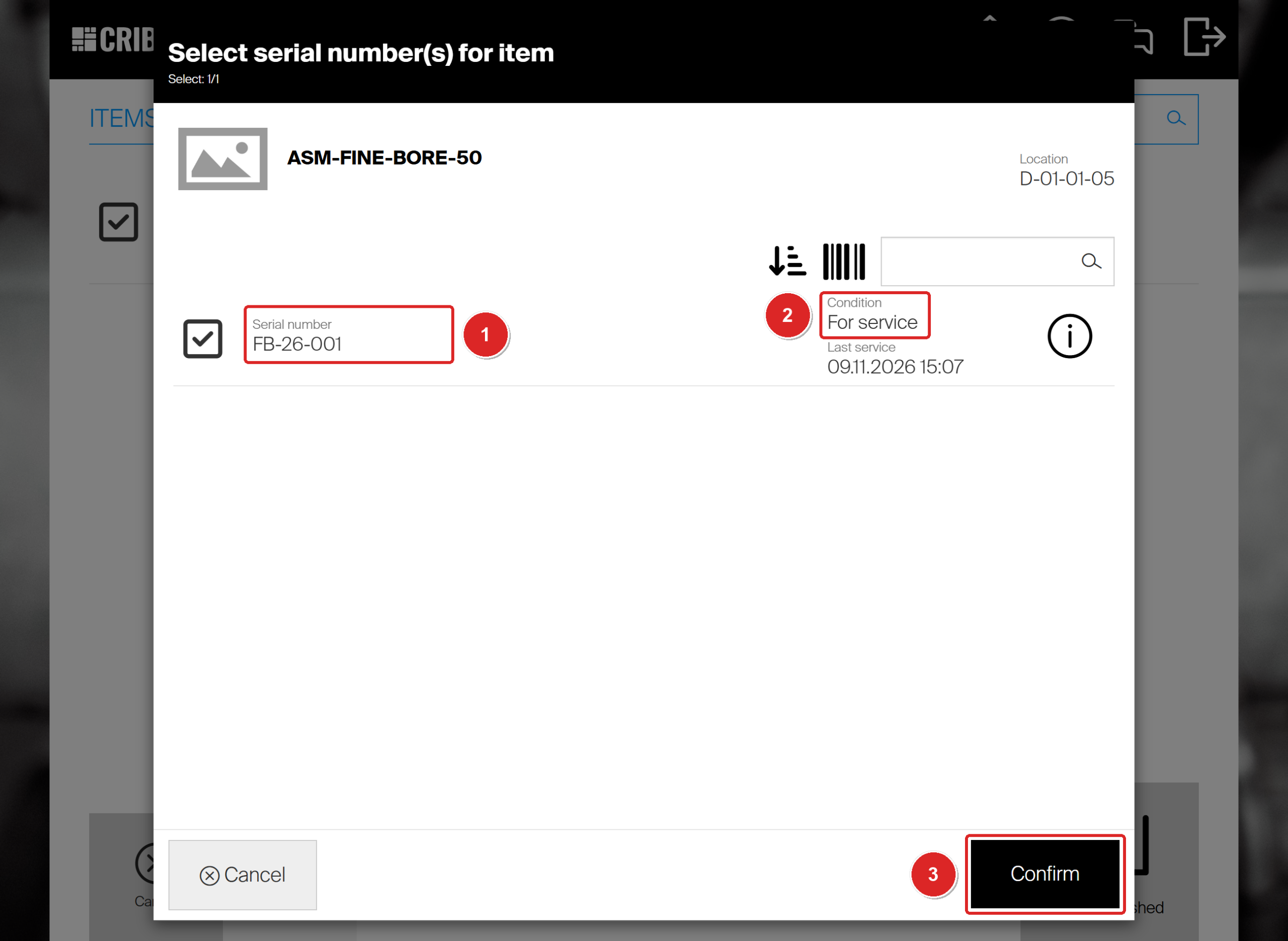
The assembly serial numbers that wait for service are listed and ticked (1), with the condition For service (2). The parts are not listed: the assembly goes as one piece. Select Confirm (3).
The serial number is now In service. Its location is the service list, not a stock location.
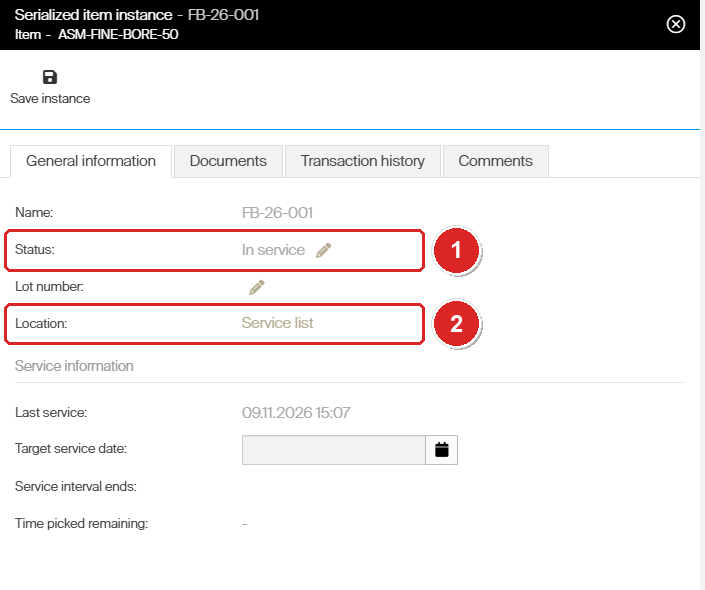
In service (1), located on the service list (2) while the workshop has it.
Restock from service
Select the service list and the assembly, confirm the quantity, put the assembly in the location shown and tick its row. The serial number dialog opens with the serial number already selected.
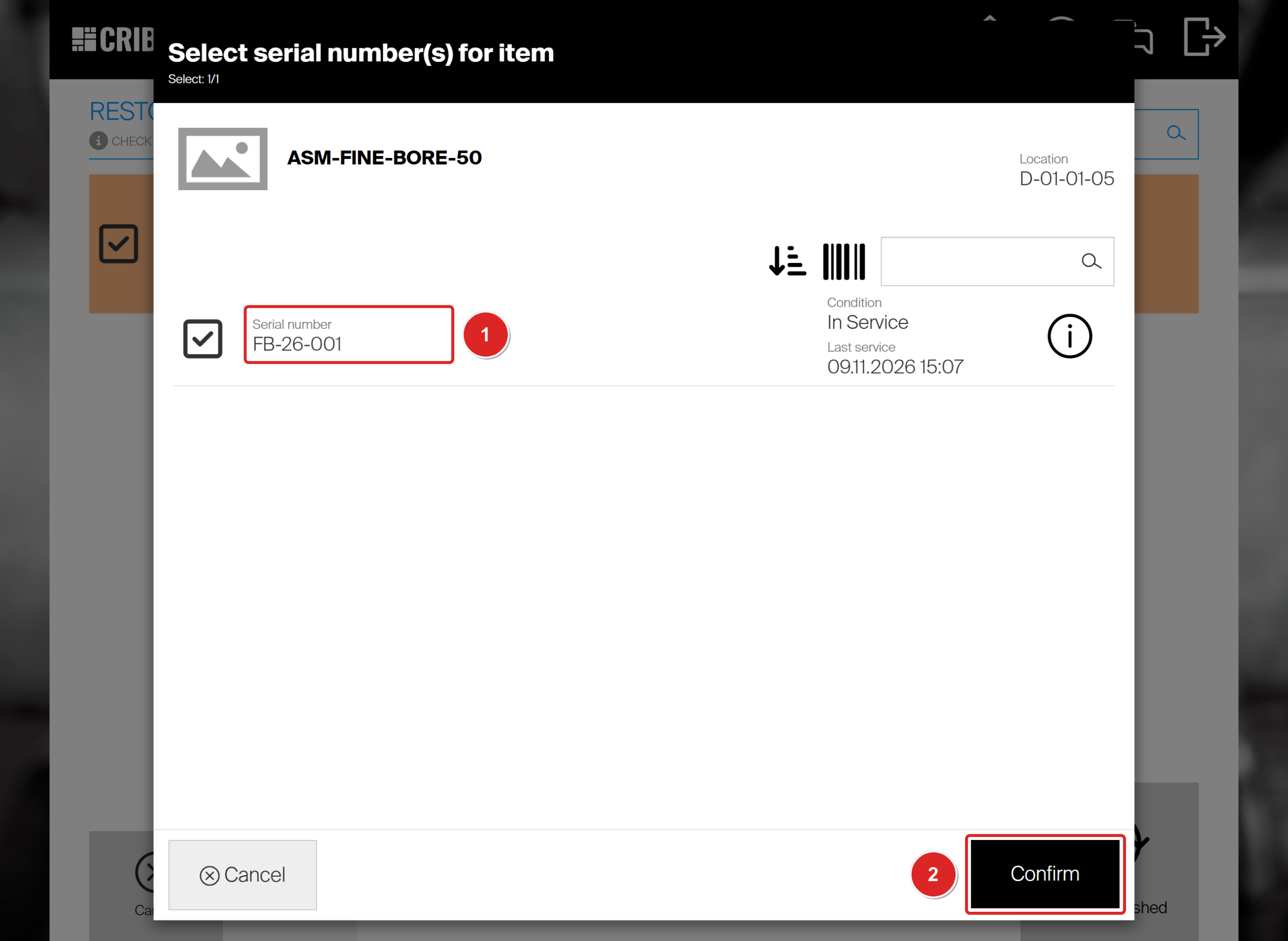
The serial number is preselected (1). Do not tap it, or you deselect it. Select Confirm (2).
Success: The serial number is Refurbished, back in its stock location, and Last service shows the restock date. Its pick counter starts again, so it can be used twice before its next service.
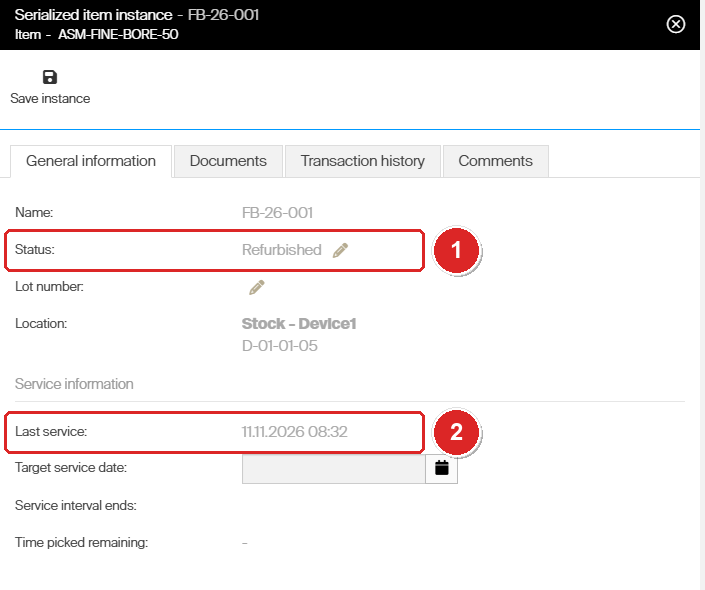
Refurbished (1) with the date of this service (2).
Parts with serial numbers
A serialized part inside an assembly keeps its own serial number, but it is not used on its own:
- Status In assembly, location In production. The part shows this whether its assembly is in stock or away at service.
- No transactions and no picks. Picking, returning, picking for service and restocking the assembly book nothing on its parts. The boring head base BH-26-001 had no change at all while FB-26-001 went through two uses, Pick for service and the restock.
- Their own service rules do not run. A part’s pick counter does not move while it sits in an assembly. End mill EM-26-003 has its own rule of two uses, but its assembly EA-26-001 has been used three times and the end mill still counts none. Put the rule on the assembly.
- The same parts come back. The restock does not ask about parts. The assembly returns with the serial numbers it left with.
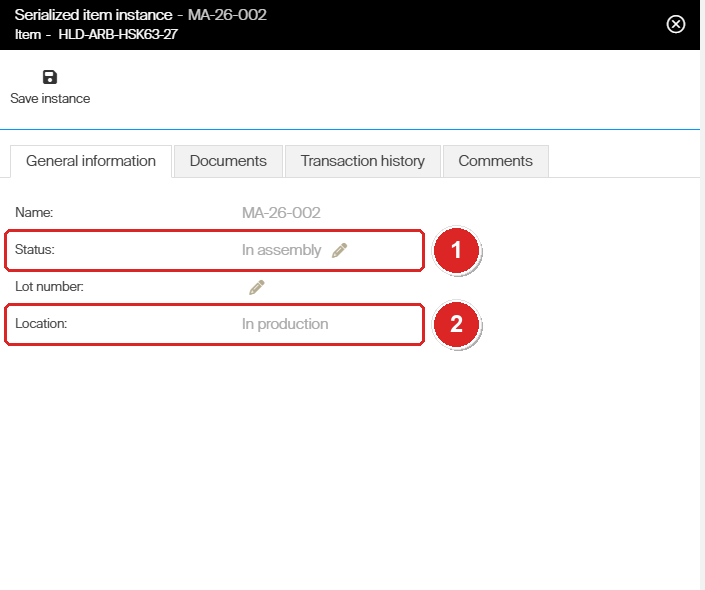
Milling arbor MA-26-002, a part of face mill assembly FM-26-002, stays In assembly (1), located In production (2), while its assembly is at the workshop.
Troubleshooting
| Problem | Cause | Fix |
|---|---|---|
| Serialized cannot be ticked on the assembly item. | The item is no longer in Defined status. | Set it while the item is Defined, or create a new item. |
| The assembly is not offered on Pick. | Its serial number is For service or In service. | Finish the service and restock it. Pick another serial number of the assembly meanwhile. |
| Picking finished does nothing. | The serial number dialog was not confirmed. | Tick the row again and confirm the serial number. |
| A part reached its own service limit, but nothing happened. | A part inside an assembly is not picked or returned, so its own rule does not count. | Put the service rule on the assembly item. |
| A passed target service date did not change the status. | The date is applied by the task Lock serialized instances, not by a return. A date that is not later than Last service is ignored. | Wait for the task, or run it under Administration > Tasks. |
| Restock saves nothing. | The preselected serial number was tapped and is now deselected. | Tick it again before Confirm. |
Next steps
- Run a service – the full Pick for service and restock steps are in Assemblies: Service.
- Follow a serial number – its history and the serialized overview are in Assemblies: Tracking.
Related articles
- Assemblies: Service — the service steps for any assembly.
- Assemblies: Picking and returning — the picks and returns that count toward the service rule.
- Assemblies: Tracking — follow assemblies, their serial numbers and their parts.
- Serialized items: Service — the same rules for a single serialized item.
- How to set up tool life tracking and automatic service triggers — every service trigger on the Supplier tab.