
What you can do
Set a tool life target on a serialized tool assembly so CRIBWISE asks the operator how much life was used at every return, and sends the assembly for service as soon as the target is reached.
Tool life is tracked per serial number. Each instance carries its own consumed and remaining life, and stops being available for picking once it has used up the target.
Before you start
- The item must be Durable, Serialized and Assembly. Set all three before the item leaves Defined status — CRIBWISE locks the three controls once it does, and a released item can never be converted.
- Tool life must be switched on for your CRIBWISE account. If the Tool life field never appears even on a durable serialized assembly, contact CRIBWISE support.
- You need an internal vendor to perform the service. The service vendor picker only offers internal vendors — external vendors are filtered out.
- Decide the target and its unit. Tool life is measured in pieces, minutes or meters.
Important: An assembly that reaches its target cannot be picked again. Plan the target against a real service interval, not a round number.
Quick start
Experienced users — set up tool life tracking in 5 steps:
- Create the item as Durable, Serialized and Assembly.
- Open the Supplier tab and tick Service.
- Select the service type and an internal service vendor, and enter a service code.
- Enter the tool life target and its unit.
- Save the item.
Need more detail? Follow the full steps below.
Steps
Step 1 — Classify the item as a durable serialized assembly
The Tool life field only appears when all three classifications are set, so get them right before you save.
- Go to Data management > Items and select New item.
- Enter the item ID and name.
- Under Classification, select Durable.
- Tick Serialized.
- Tick Assembly.
- Fill in Usage cost structure and Cost — both are required for a durable item.

Durable (1), Serialized (2) and Assembly (3) must all be set. They grey out permanently once the item leaves Defined status.
Note: Add the parts the assembly is built from in Related items > Assembly items. That button stays disabled until the item has been saved once.
Step 2 — Set the service details and the tool life target
- Open the Supplier tab on the item.
- Tick Service. The service fields appear below it.
- Select the Type of service — Service, Calibration, Regrind, Indexing or Measure.
- Select Restock from service as — the condition the assembly gets when it comes back.
- Select the Service vendor with the search button beside the field.
- Enter a Service code.
- Enter the target in Tool life and select its unit.
- Select Save item.
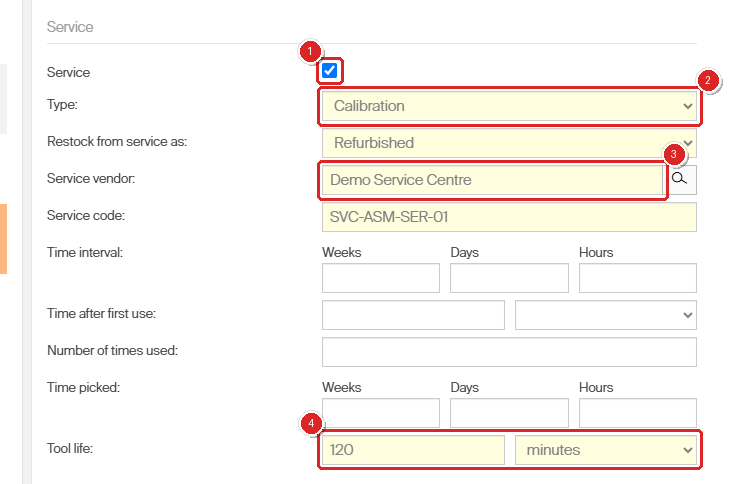
Service (1), Type (2) and Service vendor (3) are required. The Tool life target and its unit (4) sit at the bottom of the section.
| Field | Required | What to enter |
| Type | Yes | Service, Calibration, Regrind, Indexing or Measure. |
| Restock from service as | Yes | Used, Refurbished or New — the condition the serviced assembly returns in. |
| Service vendor | Yes | An internal vendor. Only internal vendors appear in the picker. |
| Service code | Yes | Your reference for the service, for example SVC-ASM-SER-01. |
| Tool life | No | The target, plus pieces, minutes or meters. Leave it empty to run service on time or usage triggers instead. |
Success: The Tool life field keeps its value after a reload, and every return of a serial number of this item now goes through an extra Tool life step.
Note: Service price, Service lead time and Minimum quantity for service are hidden for assemblies. They apply to non-assembly items only.
Step 3 — Record consumed tool life at every return
Operators do this part on the Shop Floor Interface. No extra training is needed — the step is inserted into the return they already know.
- Select Return on the main menu.
- Select Used.
- Select the serial number being returned.
- Read Remaining tool life to see what is left on that instance.
- Enter the amount used in Consumed tool life.
- Select Confirm and finish the return as usual.
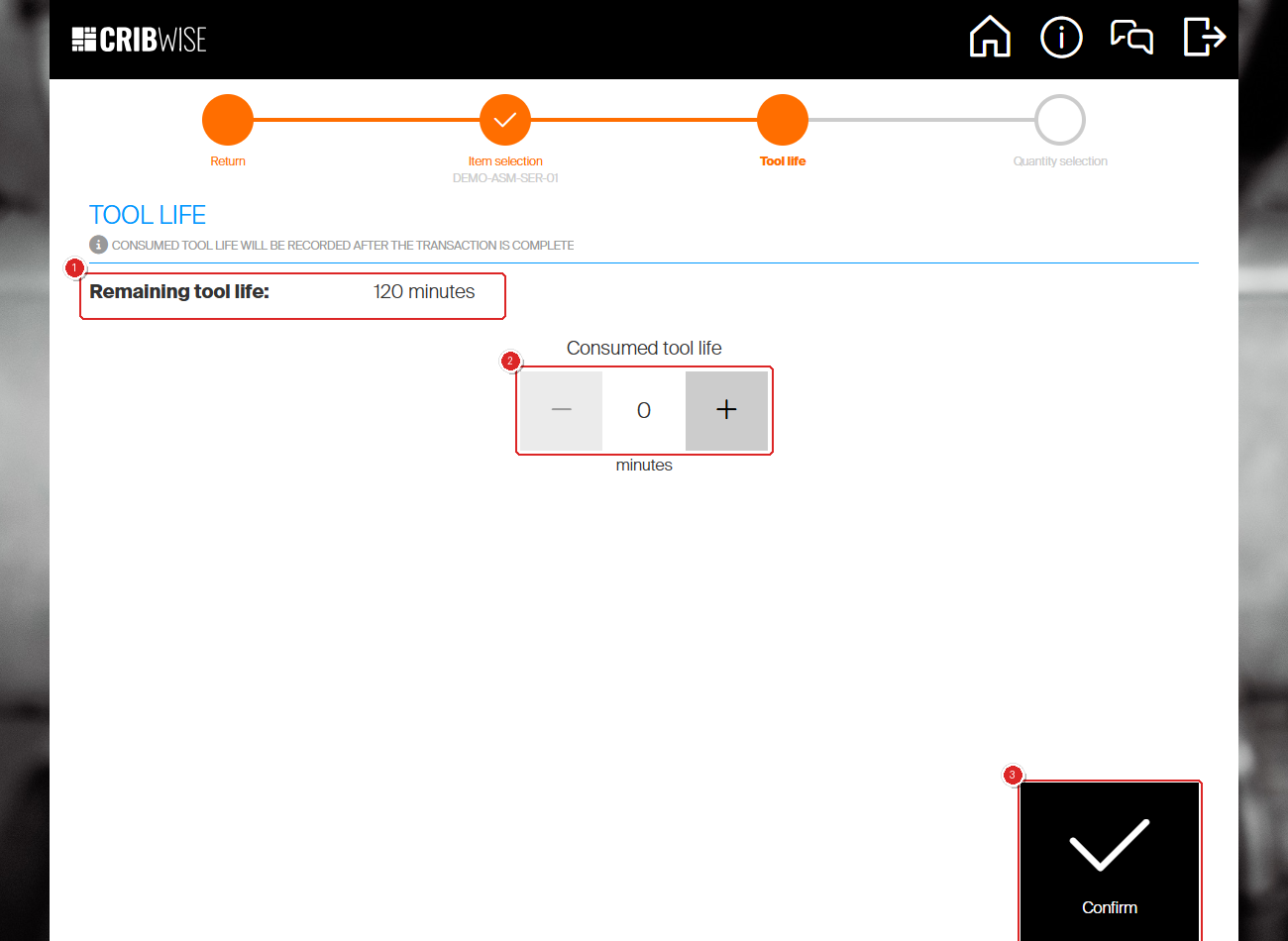
The Tool life step sits between Item selection and Quantity selection. It shows the remaining life (1), takes the consumed amount (2), and passes on with Confirm (3).
Important: Consumed tool life is recorded only when the whole return is complete and the assembly is back in a location. A return that is cancelled part way through leaves the figure unchanged.
Consumed amounts add up across returns. An instance with a 120-minute target that came back with 40 minutes shows 80 minutes remaining on its next return.
Step 4 — Follow tool life in the serialized item overview
The tool life columns are hidden by default. Switch them on once and they stay on for your user.
- Go to Overviews > Serialized items.
- Select the Columns button above the grid.
- Tick Tool life remaining, Tool life consumed and Tool life status.
- Select Save.
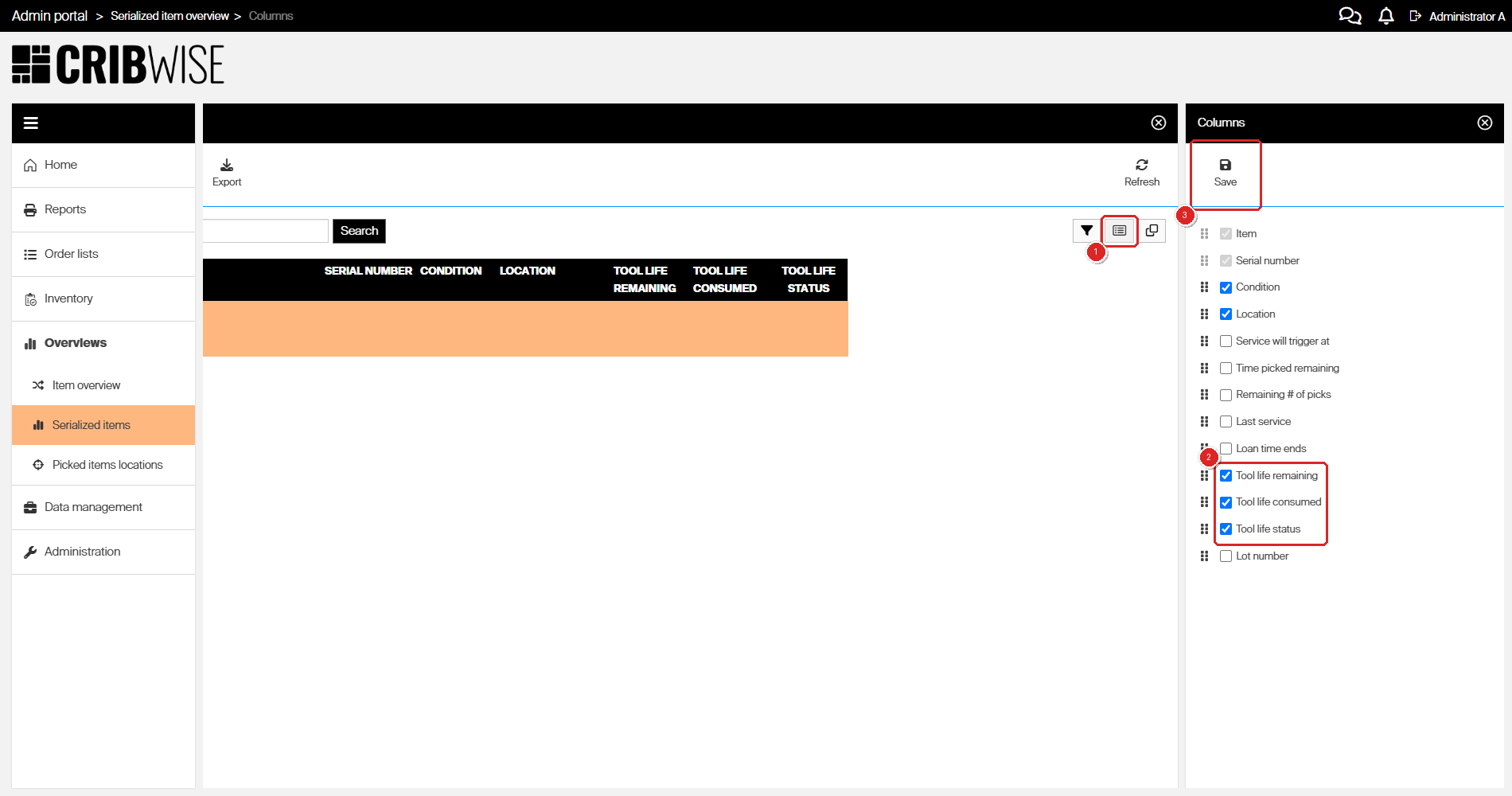
Open the Columns panel (1), tick the three tool life columns (2) and Save (3).
Select Expand all to see the individual serial numbers under each item.
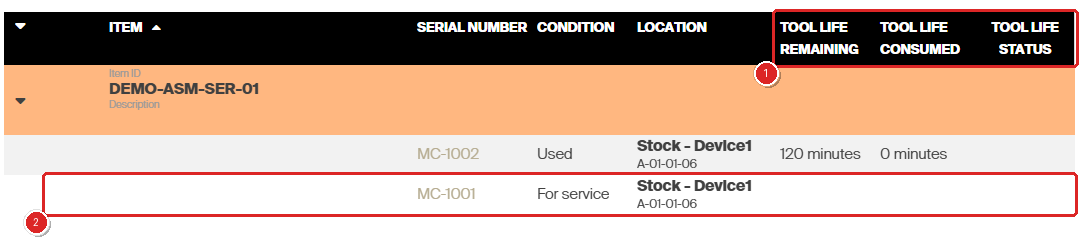
The three tool life columns (1). The instance that used up its target (2) now reads For service and its tool life figures are cleared.
Success: Every serial number of the assembly shows its remaining and consumed tool life, and a new serial number starts at 0 consumed.
What happens when the target is reached
As soon as the consumed total meets or passes the target, CRIBWISE changes that serial number’s condition to For service. From then on:
- The instance is no longer offered for picking. The quantity available on the pick screen drops by one, while the other instances of the same item stay pickable.
- Its tool life figures are cleared in the serialized item overview, and the condition column reads For service.
- The assembly can be sent to the service vendor through the normal service route, and comes back in the condition set in Restock from service as.
Warning: There is no field anywhere for editing consumed tool life by hand. The only way it changes is through a return, so an assembly that is set for service has to go through service to become available again.
Next steps
- Put the assembly on a service list — see Understanding service lists for how items set for service reach the vendor.
- Add the components — open Related items > Assembly items on the item and record what the assembly is built from.
Troubleshooting
| Problem | Likely cause | Fix |
| There is no Tool life field on the Supplier tab. | The item is not Durable, Serialized and Assembly, or Service is not ticked. | Check all three classifications and the Service checkbox. If they are all set and the field is still missing, tool life is not switched on for your account — contact CRIBWISE support. |
| The Serialized and Assembly boxes are greyed out. | The item has already left Defined status. | Create a new item with the right classification. An existing item cannot be converted. |
| The service vendor picker is empty or missing the vendor you want. | Only internal vendors can service an assembly. | Create the vendor as internal. A vendor cannot be switched to internal after it is saved. |
| The return never asks for consumed tool life. | The instance is being returned as New, or the item has no tool life target. | Return it under Used, and check that Tool life has a value on the Supplier tab. |
| A return was cancelled and the tool life did not change. | Consumed tool life is recorded only when the return completes. | Redo the return and finish it so the assembly is placed in a location. |
| An assembly cannot be picked any more. | Its consumed tool life reached the target, so it is set for service. | Send it for service. It becomes pickable again when it is restocked from service. |
Related articles
- How to set up an assembly in the Admin Portal — create the assembly and record its components.
- How to create and assign a serialized item — give the assembly a location and its first serial numbers.
- Understanding the serialized item overview — every column in the grid where tool life is shown.
- Managing serialized items and serial numbers — the statuses a single instance moves through.
- Understanding service lists — how items set for service reach the service vendor.
- How to manage vendors — create the internal vendor that performs the service.