
What you’ll learn
Every setting on the Admin Portal System settings page, in one line each — what it changes, which ones only unlock other settings, and which ones switch a whole feature on or off.
Open the page from Administration > System settings. Settings are shared by all users, so a change affects everyone.
How the page works
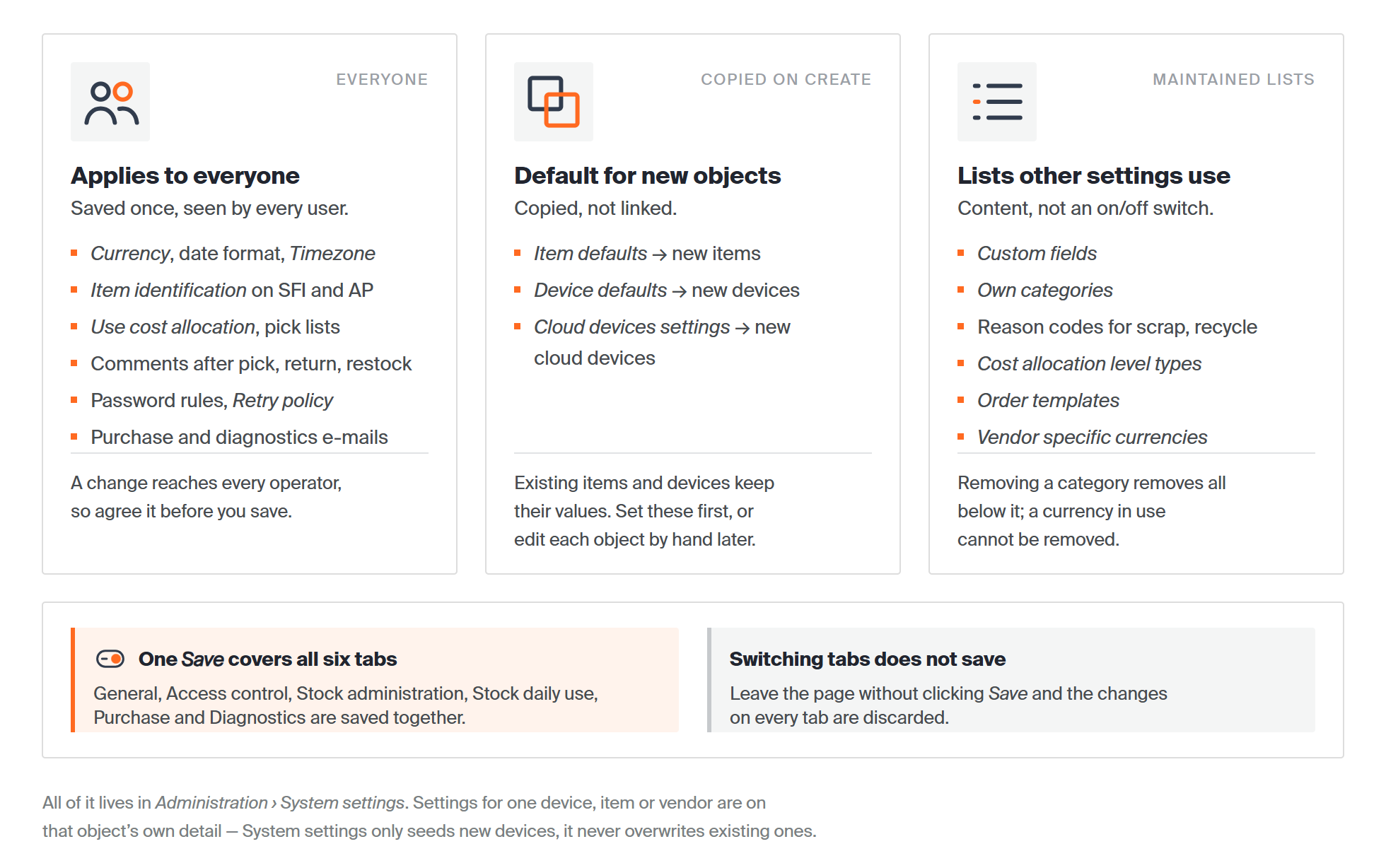
Three kinds of setting sit on the same page, and one Save covers all six tabs.
- Six tabs — General, Access control, Stock administration, Stock daily use, Purchase, Diagnostics.
- One Save. The Save button at the top of the page saves every tab at once. Switching tabs does not save; leaving the page without saving discards everything.
- Defaults are copied, not linked. Item defaults, Device defaults and Cloud devices settings apply to objects created after the change. Items and devices that already exist keep their own values.
Tip: Set the defaults before you create your items and devices. Afterwards you have to edit each one individually.
General
Company details, your provider’s contact, and how numbers, dates and money are shown.
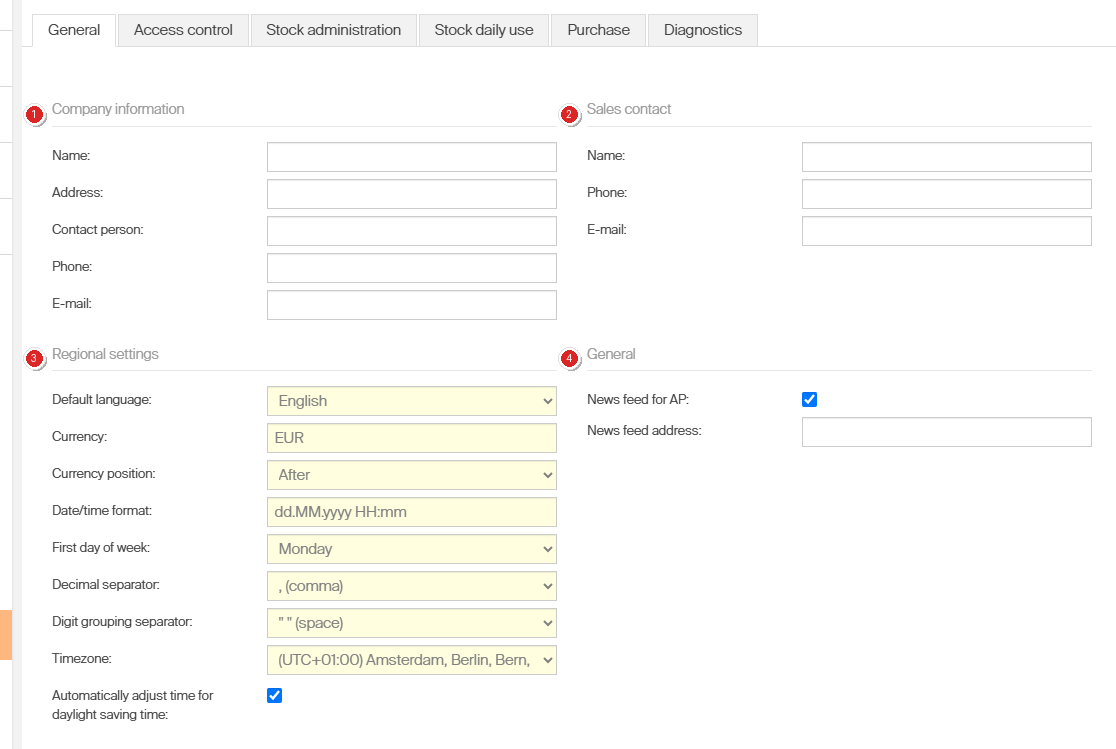
The General tab: (1) Company information, (2) Sales contact, (3) Regional settings, (4) news feed.
| Setting | What it does |
|---|---|
| Upload / Remove customer logo | Sets or clears the customer logo used by the application. Example: upload a 300×100 PNG of your company mark; Remove customer logo puts the default back. |
| Company information — Name, Address, Contact person, Phone, E-mail | Your company details. Used when purchase orders are created, and in reports. Example: the address you type here is the one a vendor reads on the order you send them. |
| Sales contact — Name, Phone, E-mail | The contact person at your system provider. Example: your CRIBWISE partner, so an operator with a broken machine can find who to call. |
| Default language | Portal language for users who have no language of their own. The login screen always uses it. Example: set German and a new user sees German until they pick a language on their own profile. It also decides the language of item descriptions in BI data and in scheduled reports. |
| Currency | System currency for all prices and stock values. Example: EUR — every transaction value and stock value is then counted in euro, and a vendor price in another currency is converted into it. |
| Currency position | Shows the currency Before or After the amount. Example: Before gives € 12,50, After gives 12,50 €. |
| Date/time format | Pattern for dates and times: d days, M months, y years, H hours, m minutes, s seconds, a AM/PM.Example: the default dd.MM.yyyy HH:mm shows 21.09.2026 14:05; yyyy-MM-dd HH:mm shows 2026-09-21 14:05. |
| First day of week | Starts the week on Sunday or Monday. Example: pick Monday for European calendars, so a date picker opens with Monday in the first column. |
| Decimal separator | Comma or dot. Must differ from the grouping separator. Example: comma gives 12,50, dot gives 12.50. |
| Digit grouping separator | Space, comma or dot. Must differ from the decimal separator. Example: space gives 1 250,00, comma gives 1,250.00. |
| Timezone | Timezone this customer’s dates and times are shown in. Example: (UTC+01:00) Amsterdam, Berlin, Bern, Rome, Stockholm, Vienna — a pick made at 14:05 local time is stamped 14:05 in reports and the event log. |
| Automatically adjust time for daylight saving time | Follows daylight saving time in that timezone. Example: on, a Stockholm tenant moves to UTC+02:00 in summer by itself; off, timestamps stay an hour behind the wall clock. |
| News feed for AP | Shows a news feed on the login screen. Example: switch it on to greet users with your own maintenance notices instead of an empty login page. |
| News feed address | Address of that feed. Atom 1.0, RSS 1.0 and RSS 2.0 are supported. Example: https://intranet.example.com/maintenance/feed.xml — without an address the switch has nothing to show. |
Note: A user’s own language preference always wins over Default language, in both the Admin Portal and the Shop Floor Interface.
Access control
Password rules, account lockout, who may reach the portal from outside, and deleted-user data.
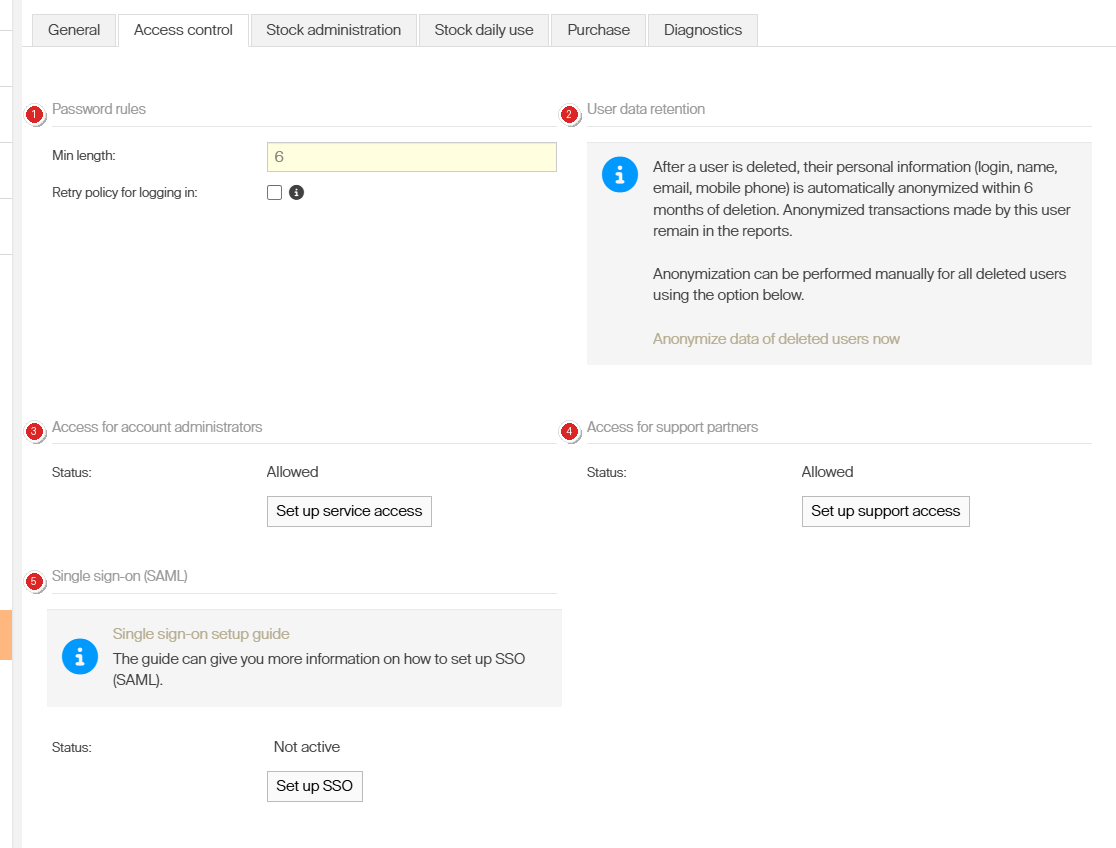
The Access control tab: (1) Password rules, (2) User data retention, (3) account administrator access, (4) support partner access, (5) single sign-on.
| Setting | What it does |
|---|---|
| Min length | Minimum number of characters in a user password. Example: 6 is the value on a new tenant; raise it to 12 and the next password change is rejected until it is long enough. |
| Retry policy for logging in | Locks an account after too many failed logins. Counts for the Admin Portal and the Shop Floor Interface together. Example: an operator who mistypes at the machine three times is locked out of the portal as well, and a locked account cannot get in by card, barcode or Coges key either. |
| Max number of login attempts | Failed logins allowed before the lock. A valid login resets the count. Needs Retry policy on. Example: 5 — the fifth wrong password locks the account, and one correct login before that clears the tally. |
| Reset period | Minutes until a locked account unlocks itself. Empty means an administrator has to unlock it in User management. Needs Retry policy on. Example: 30 lets a forgetful operator try again after half an hour; empty suits a site where every lockout should be looked at by a person. |
| E-mails (locked accounts) | Addresses notified whenever an account is locked. Needs Retry policy on. Example: your shift supervisor, so somebody can unlock an operator mid-shift instead of waiting for the reset period. |
| Access for account administrators — Set up service access | Allows or blocks account administrators from the Customer Management Portal. Allowed by default; can be granted for 1 hour or 1 day only. Example: block it permanently, then grant 1 hour when you open a support case — access switches itself off when the hour is up. |
| Access for support partners — Set up support access | The same control for support partners. Example: leave support access on while a rollout is running, and close it once your own administrators know the system. |
| Single sign-on (SAML) — Set up SSO | Activates SAML single sign-on with your identity provider. Shows Not active until it is set up. Example: point it at Okta or Auth0 so operators use their company account instead of a CRIBWISE password. |
| Anonymize data of deleted users now | Runs the anonymization of deleted users immediately instead of waiting for the automatic 6 months. Example: a leaver asks to be erased today: run it, and their login, name, e-mail and mobile number are replaced by a technical ID everywhere — their transactions stay in the reports. |
Important: Before you block account administrators, make sure your own Admin Portal users can manage the system. A locked-out tenant cannot be recovered from the portal.
Note: A locked account cannot log in by RFID card, barcode or Coges key either.
Stock administration
Defaults for new items and devices, your own fields, and your category tree.
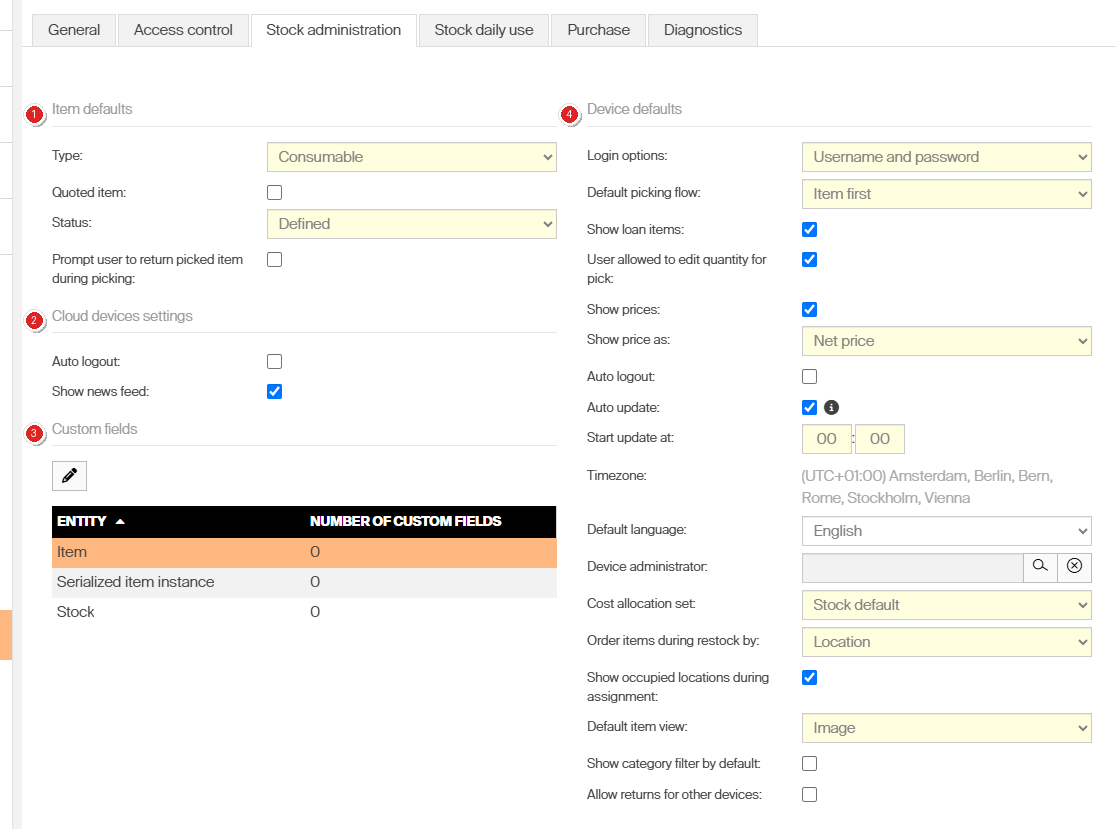
The Stock administration tab: (1) Item defaults, (2) Cloud devices settings, (3) Custom fields, (4) Device defaults.
Item defaults
| Setting | What it does |
|---|---|
| Type | Type a new item starts with: Consumable or Durable. Example: a catalog of drill inserts is mostly consumable, so leave Consumable and switch the few torque wrenches to Durable by hand. |
| Quoted item | New items are created with the Quoted item flag set. Example: leave it off for a normal stocked catalog and tick it on the single item that needs it. |
| Status | Status a new item starts with: Defined, Phase in, Released, Phase out or Obsolete. Example: Defined keeps a freshly imported catalog out of daily use until somebody reviews it; Released suits a tenant where every new item should be pickable at once. |
| Prompt user to return picked item during picking | New items ask the operator to hand back the one already picked when they pick again. Example: on for a milling cutter, so the worn one comes back as the new one goes out — this is the prompt that asks for a recycle reason code. |
Custom fields
| Setting | What it does |
|---|---|
| Custom fields | Adds your own fields to three entities — Item, Serialized item instance and Stock. They appear on the General information tab, and can be searched on. Example: a Coating field on the item and an Owner field on the stock; both can then identify an item on the SFI. |
Cloud devices settings
| Setting | What it does |
|---|---|
| Auto logout | Logs an idle cloud device out. Reveals Inactivity logout time. Example: a browser device left open on a shared PC closes itself after 5 minutes. |
| Show news feed | Shows the news feed on cloud devices. Example: an operator opening a browser device sees the same notices as the login screen. |
Device defaults
Every setting here is the value a newly created device gets. Existing devices are unaffected.
| Setting | What it does |
|---|---|
| Login options | Username and password, or Card or Coges. Example: choose Card or Coges where operators wear gloves and a keyboard is slow. |
| Default picking flow | Item first or Cost allocation first — the order the operator is asked. Example: Cost allocation first suits a shop where everything picked in one visit belongs to the same job; Item first suits ad-hoc picking. |
| Show loan items | Loan items are offered on the device. Example: on for a tool crib that lends out measuring equipment, off for a pure consumables machine. |
| User allowed to edit quantity for pick | The operator may change the quantity instead of taking the dispense quantity. Example: off on a coil-spring machine that always dispenses one, on where a box of 10 is normal but 3 happens. |
| Show prices | Prices are visible on the device. Example: on to make operators think twice about an expensive insert; off where cost is not their business. |
| Show price as | Net price or Gross price. Example: Net price for an internal cost view, Gross price where the tax-inclusive figure is the familiar one. |
| Auto logout | Logs an idle operator out. Reveals Inactivity logout time. Example: an operator who walks away mid-pick is logged out, so the next person does not pick on their name. |
| Auto update | Lets the device update itself. Reveals Start update at (hours, minutes) and its timezone. Example: set 02:00 so devices take new software at night instead of in the middle of a shift. |
| Default language | Language the device starts in. Example: a device on the shop floor in Brno starts in Czech even though the portal runs in English. |
| Device administrator | The user who administers the device. Picked from existing users. Example: the shift lead who restocks that machine, so requests land with them rather than with IT. |
| Cost allocation set | Which cost allocation set the device asks for: Stock default, No cost allocation, or one of your sets. Example: Stock default lets the stock decide, No cost allocation suits a device where picks are not charged on. |
| Order items during restock by | Restock list sorted by Location or by Item. Example: Location walks the person filling a carousel drawer by drawer; Item suits unpacking a delivery item by item. |
| Show occupied locations during assignment | Occupied locations stay visible when you assign items. Example: on to see what already sits in drawer 4 before you put a second item there. |
| Default item view | What the operator sees first: Image, Drawing or Item information. Example: Image for a catalog with photos, Drawing where operators pick by technical drawing, Item information where the numbers matter more than the picture. |
| Show category filter by default | The category filter is open when the item list appears. Example: on for a 5,000-item catalog so nobody scrolls; off for a machine holding 40 items. |
| Allow returns for other devices | An item picked from one device may be returned to this one. Example: on for a central return station, so a tool picked in hall 1 can come back in hall 2. |
Own categories
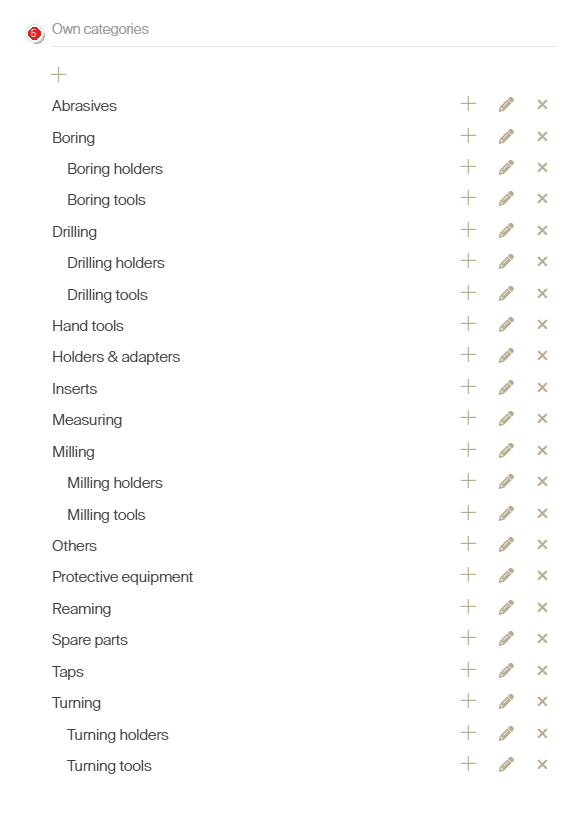
(5) Own categories, lower right on the same tab: the category tree, with add, edit and remove on every row.
| Setting | What it does |
|---|---|
| Own categories | Your own category tree for items. Used for search and reporting. Build it with the add, edit and remove buttons — removing a category also removes everything under it. Example: Milling > Milling holders and Milling > Milling tools, so a report can show spend per tool family. |
Stock daily use
These settings shape what operators do on the Shop Floor Interface.
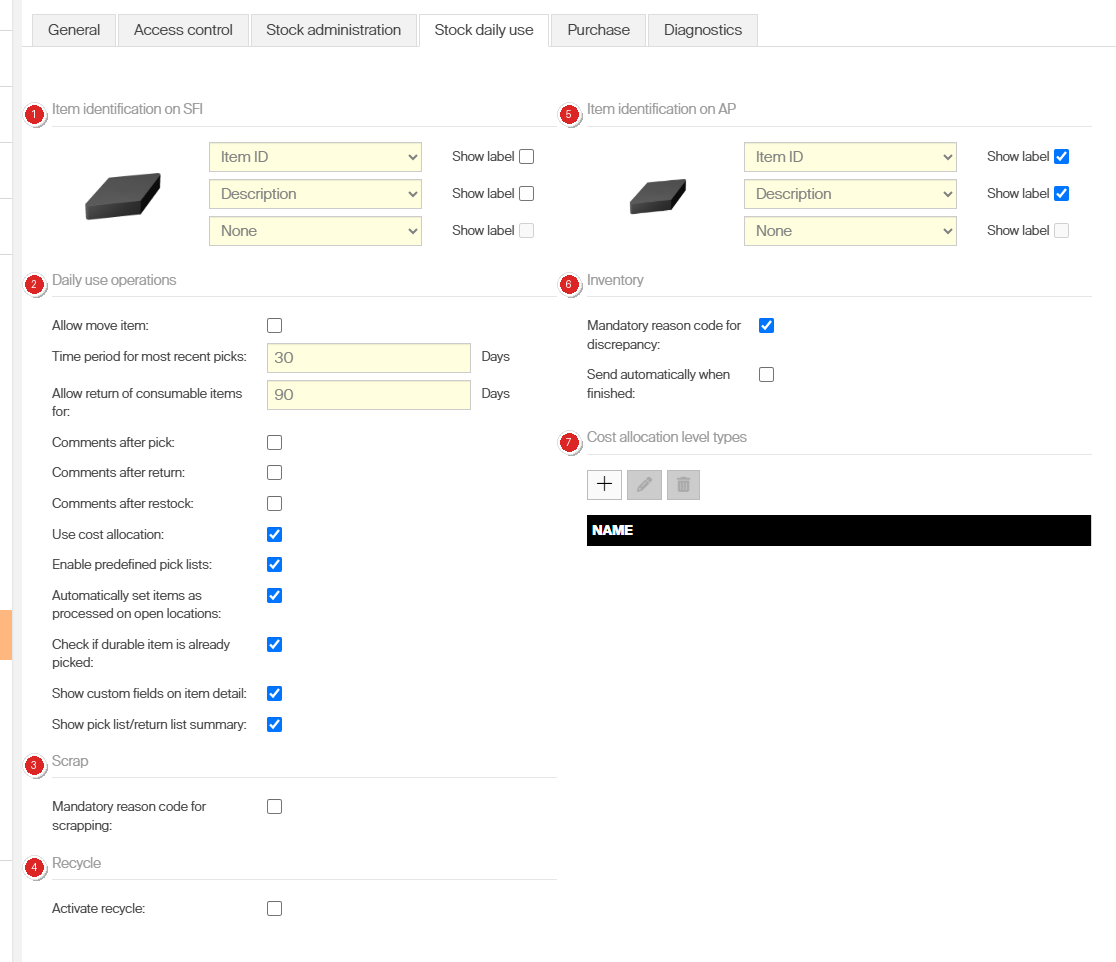
The Stock daily use tab: (1) Item identification on SFI, (2) Daily use operations, (3) Scrap, (4) Recycle, (5) Item identification on AP, (6) Inventory, (7) Cost allocation level types.
Item identification
| Setting | What it does |
|---|---|
| Item identification on SFI | Up to three fields that identify an item on every SFI screen. One is the minimum. Choose from Description, Dispense quantity, Item ID, Item name, Manufacturer, Own category, Type, Vendor — and your own custom fields. Example: Item ID + Description covers most sites; add Manufacturer where two vendors supply the same insert. |
| Item identification on AP | The same choice for Admin Portal screens. Example: administrators usually want Item ID first, because that is what they search and import by. |
| Show label | Prints the field name next to the value. One tick per field. Example: on shows Dispense quantity: 10, off shows just 10. |
Daily use operations
| Setting | What it does |
|---|---|
| Allow move item | Lets an operator move a picked item to another cost allocation without physically returning it. Example: a fixture booked to job 1001 is needed on job 1002: move it, and the cost follows without a trip to the machine. Needs Use cost allocation on. |
| Time period for most recent picks | Days that count as “recent”. Recent picks are sorted to the top of the pick list. Example: 30 — what an operator used last month is offered first, instead of alphabetically. |
| Allow return of consumable items for | Days a picked consumable can still be returned as unused. After that it disappears from the return list. Example: 90 — an unopened box picked in June can go back in August, but one from last year cannot. |
| Comments after pick | Asks for a comment after a pick. Comments show in the raw transaction report and the event log. Example: an operator notes “broke during setup”, and the reason is on the transaction months later. |
| Comments after return | The same, after a return. Example: “edge chipped, needs regrind” travels with the return instead of on a sticky note. |
| Comments after restock | The same, after a restock — with or without an order. Example: “two boxes short, vendor informed” explains a delivery that did not match the order. |
| Use cost allocation | Master switch for cost allocation. Off means no cost allocation step when picking or returning, no Allow move item, and no cost allocation management in the Admin Portal. Example: on where picks are charged to a job, machine or department; off where the crib simply hands tools out. |
| Enable predefined pick lists | Master switch for pick lists. Off removes the pick list flow on the SFI, the pick list ERP interfaces, and the related permissions. Example: on where work orders arrive from an ERP as a list of tools to collect. |
| Automatically set items as processed on open locations | On open storage devices, all items count as picked or restocked by default instead of being ticked one by one. Example: on for a Lista drawer cabinet where an operator takes the whole row; off where each line must be confirmed. |
| Check if durable item is already picked | Warns the operator when the same durable item is already picked on the same physical cost allocation, and offers to pick another, scrap the old one, or cancel. Example: a second identical end mill is requested for machine 7: the warning catches the tool that never came back. |
| Show custom fields on item detail | Shows your custom item fields on the SFI item row and item detail. Example: a Coating field you defined appears next to the item while the operator picks. |
| Show pick list/return list summary | Adds a summary step before the physical dispense or placement starts. Example: an operator collecting eight items checks the list once, instead of discovering a mistake at the machine. |
Scrap, recycle and inventory
| Setting | What it does |
|---|---|
| Mandatory reason code for scrapping | The operator must pick a reason code when scrapping. Reveals Reason codes for scrap — the list they choose from. Example: codes such as Worn out, Broken in setup and Damaged in transport turn scrap into something a report can group. |
| Activate recycle | Allows items to be returned for recycling, and triggers the notification on weight-controlled devices. Reveals Reason codes for recycle. Example: carbide inserts go back into a weighed bin, and the recycler is alerted when it is full. |
| Inventory — Mandatory reason code for discrepancy | The operator must give a reason when the counted quantity differs from the expected one. Example: counting 8 where the system says 10 asks why — Miscount, Theft, Broken — instead of silently correcting the figure. |
| Inventory — Send automatically when finished | E-mails the inventory summary as soon as an inventory is finished. Example: the crib manager gets the count and its discrepancies without asking for a report. |
| Cost allocation level types | A list you maintain; empty to begin with. The product does not document what it adds. Example: the ten Step types in a cost allocation set — Component, Department, Machine, Operation, Order, Organization, Production cell, Project, Site and Work order — are built in, and do not come from this list. Example: the built-in types already cover Component, Department, Machine, Operation, Order, Organization, Production cell, Project, Site and Work order. |
Purchase
Ordering rules, ABC thresholds, standard cost, and purchase e-mails.
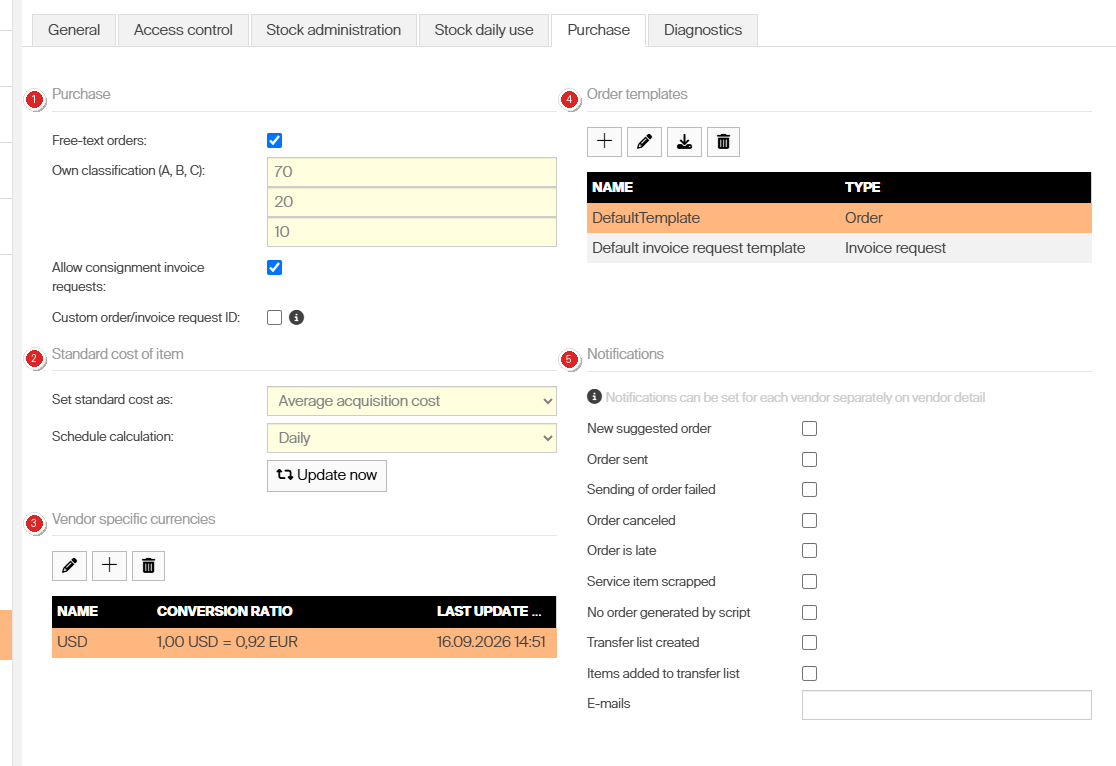
The Purchase tab: (1) Purchase, (2) Standard cost of item, (3) Vendor specific currencies, (4) Order templates, (5) Notifications.
| Setting | What it does |
|---|---|
| Free-text orders | Lets you add items that are not in the database to a purchase order. Example: order one special grinding wheel for a single job without creating a catalog item for it. |
| Own classification (A, B, C) | The three ABC thresholds, in percent. They must add up to 100. Example: 70 / 20 / 10 — the items making up the first 70% of value become A, the next 20% B, the rest C. |
| Allow consignment invoice requests | Turns on consignment invoice requests: the scheduled per-vendor request of consumed quantities, and access to earlier requests. Example: a vendor owns the inserts in your machine and invoices monthly for what was consumed. |
| Custom order/invoice request ID | Off, IDs are generated by the system. On, they come from your own number range. Reveals From and To. Example: off gives <system ID>-<customer ID>-<order number>-PO; on gives the numbers your finance team expects. |
| From / To | The number range. The system takes the lowest free number and keeps the length you type, so 00001 continues as 00002. Used numbers are never reused.Example: 10000 to 19999 reserves a block for CRIBWISE orders inside your ERP numbering. |
| Set standard cost as | Standard cost comes from Average acquisition cost or Purchase cost. Example: Average acquisition cost smooths a price that moved three times this year; Purchase cost follows the current vendor price. |
| Schedule calculation | How often standard cost is recalculated: Never, Daily, Weekly, Monthly or Yearly. Update now runs it immediately. Example: Daily keeps stock value current; Monthly matches a finance period, and Update now covers a price list that just changed. |
| Vendor specific currencies | Extra currencies a vendor can use, each with a conversion ratio to the system currency. A currency in use cannot be removed. Example: 1,00 USD = 0,92 EUR lets a US vendor quote in dollars while your stock value stays in euro. |
| Order templates | The templates used for orders and invoices. Upload new ones or download the existing ones; the type decides where a template can be used. Example: a template of type Order carries your logo and terms onto every purchase order you send. |
| Notifications — E-mails | Addresses that receive every purchase event ticked below. Example: purchasing@example.com — one list covers all nine events, so add a shared mailbox rather than a person. |
Important: If a custom number range runs out, no new order or invoice can be created.
Note: Allow consignment invoice requests does not gate consignment itself. The Consignment flag on an item–device assignment stays available with this setting off.
Purchase notification events
Tick an event, and every vendor in the system is checked against it. The nine events, and which can also be set on a single vendor:

The nine events (1) and the recipient field (2). One recipient list covers every event ticked here.
| Event | Fires when | Per vendor too |
|---|---|---|
| New suggested order | A scheduled script creates an order in suggested state, or the ERP interface sets one to suggested. | Yes |
| Order sent | An order reaches its target — B2B, web service, FTP or e-mail. | Yes |
| Sending of order failed | Sending fails. The automatic retry does not send a second e-mail. | Yes |
| Order canceled | An active order is canceled, by hand or by the ERP interface. | Yes |
| Order is late | An order holds an item whose expected delivery date has passed. Checked hourly. | Yes |
| Service item scrapped | An item on a service order is scrapped, from either interface or the ERP. | Yes |
| No order generated by script | A scheduled run finishes without creating an order or adding an item. | No |
| Transfer list created | A transfer list is created, by script or by hand. | No |
| Items added to transfer list | Items are added to an existing transfer list. | No |
Diagnostics
E-mails about the health of the system and its integrations — not about stock or purchasing.

The diagnostics recipients (1) and the 24 event categories (2).
| Setting | What it does |
|---|---|
| Receivers — E-mails | Addresses that receive the categories you tick. Example: your IT mailbox rather than a person, since these are system alerts nobody should own alone. |
| Categories | 24 event types. Only ticked ones are sent. Example: tick ERP, Synchronization error and Task failure while an integration is being set up, and leave Application start off unless you want mail on every restart. |
The product shows the 24 as one list. Grouped by what they report:
| Group | Categories |
|---|---|
| Application | Application start, Application closed, Application error, User interface error, Auto update, Loading data failure |
| Tasks and reports | Task started, Task finished, Task failure, Scheduled reports |
| Integrations and data | ERP, B2B, Customers, Manufacturer integration error, Synchronization info, Synchronization error, Item import error, Matching items |
| Devices and stock | Vending machine, Vending machine error, Stock, Cancel pick many |
| Logins | AP user login, SFI user login |
Settings that work in combination
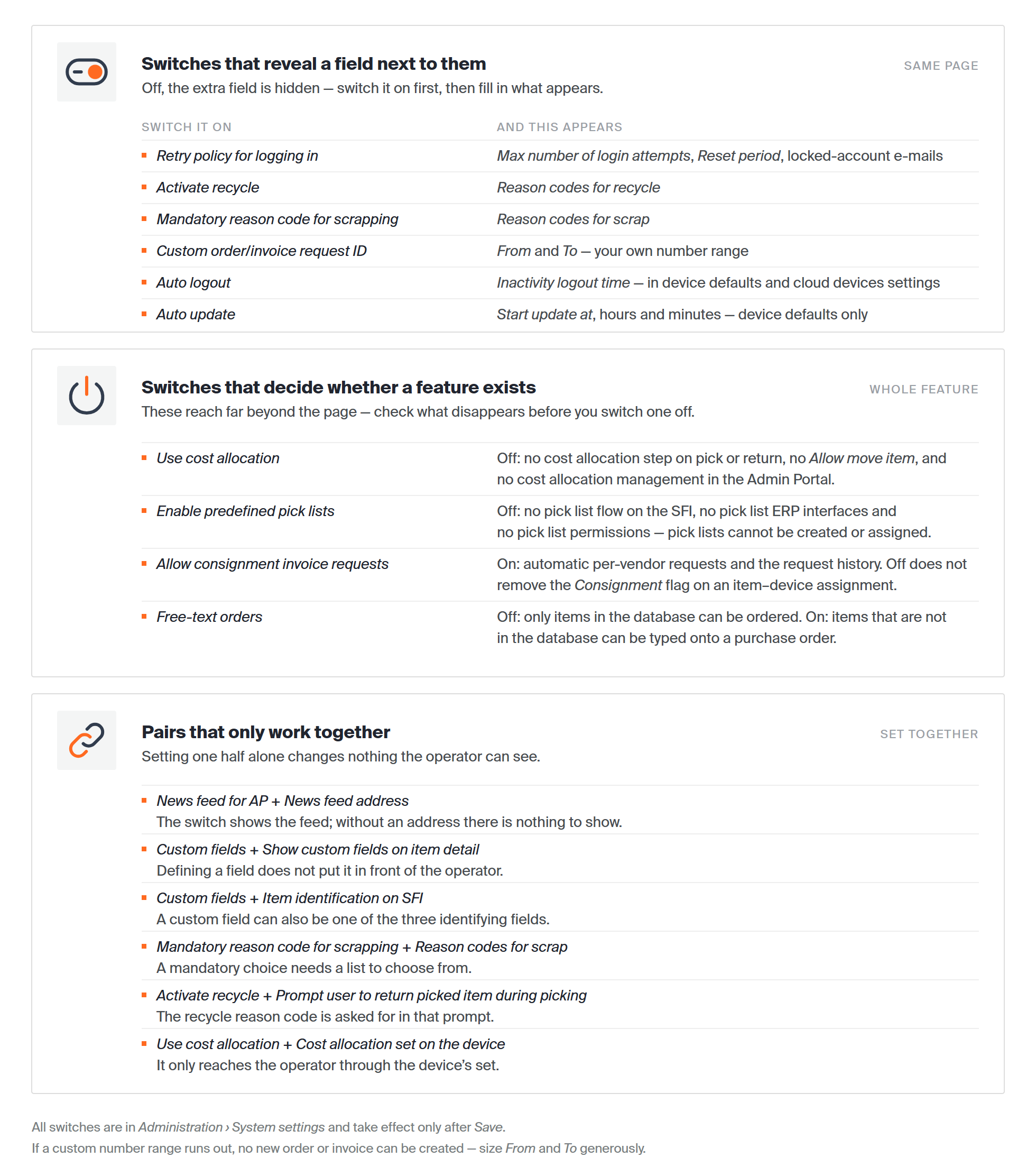
Some switches only reveal a field next to them, others decide whether a whole feature exists, and some settings only work in pairs.
Switches that reveal a field
| Switch it on | And this appears |
|---|---|
| Retry policy for logging in | Max number of login attempts, Reset period, and the locked-account e-mails |
| Activate recycle | Reason codes for recycle |
| Mandatory reason code for scrapping | Reason codes for scrap |
| Custom order/invoice request ID | From and To — the number range |
| Auto logout (device defaults or cloud devices) | Inactivity logout time |
| Auto update | Start update at, in hours and minutes |
Switches that decide whether a feature exists
| Switch | Off | On |
|---|---|---|
| Use cost allocation | No cost allocation step on pick or return, no move item, no cost allocation management in the Admin Portal | Cost allocation is asked for according to each device’s set |
| Enable predefined pick lists | No pick list flow on the SFI, no pick list ERP interfaces, no pick list permissions | Pick lists can be created, assigned and picked |
| Allow consignment invoice requests | No consignment invoice requests | Automatic per-vendor requests, and the request history |
| Free-text orders | Only items in the database can be ordered | Ad-hoc items can be typed onto an order |
Pairs worth setting together
| Combination | Why |
|---|---|
| News feed for AP + News feed address | The switch shows the feed; without an address there is nothing to show. |
| Custom fields + Show custom fields on item detail | Defining a field does not put it in front of the operator. |
| Custom fields + Item identification on SFI | A custom field can also become one of the three identifying fields. |
| Mandatory reason code for scrapping + Reason codes for scrap | A mandatory choice needs a list to choose from. The list only appears once the switch is on. |
| Activate recycle + Prompt user to return picked item during picking | The recycle reason code is asked for during the return-while-picking prompt. |
| Use cost allocation + Cost allocation set on the device | Cost allocation only reaches the operator through the set the device uses. |
Settings that are not on this page
| Looking for | Where it lives |
|---|---|
| Settings for one device | The device’s own detail. System settings only seeds new devices. |
| Settings and notifications for one item | The item’s detail. |
| Notifications and order settings for one vendor | The vendor’s detail. |
| What a user or group may do | User management, Group management, Product access groups. |
| Shifts | Administration > Shift management. |
| ERP, B2B and BI connections | Administration > Integration. |
| Cost allocation sets and their values | Data management > Cost allocation. See How to create and manage cost allocation sets. |
Take action
To change a setting: open Administration > System settings, edit any tab, and click Save once.
Related articles
- How to create and use custom fields — build the fields you add on the Stock administration tab.
- How to create and manage cost allocation sets — what a device asks the operator once cost allocation is on.
- Understanding ABC classification — how items are classified against the thresholds you set here.
- How to configure item notifications — the notifications that belong to a single item.
- How to manage vendors — purchase notifications and order settings for one vendor.
- How to configure Single Sign-On (SSO) — the full SAML setup behind the Access control status.