
What you’ll learn
Follow your assemblies in the Admin Portal once they are built and in use: how many you have and what they are worth, who has one out right now, which condition each serial number is in, which parts are built into them, and what has happened to them. It also covers the history in reports and in the BI feed, and what happens when an assembly is scrapped.
The example is the serialized assembly ASM-DRILL-20, Drilling assembly Ø20. It is built from the drill body DRL-BODY-20 (durable, serialized) and a solid carbide drill (consumable). Two have been built: DA-26-001 is out with an operator, and DA-26-002 was scrapped.
Where to find what
| Question | Where to look in the Admin Portal |
|---|---|
| How many assemblies do we have, and what are they worth? | Reports > Report viewer > Inventory |
| Who has an assembly out right now? | Overviews > Picked items locations |
| What does one assembly cost, and when did that change? | The assembly item, Supplier tab and Change history tab |
| Where is each serial number, and in which condition? | Overviews > Serialized items |
| Which parts are built into assemblies? | Overviews > Serialized items, searched for the part |
| What has happened to one assembly? | The serial number’s Transaction history, the Raw transaction report and the BI feed RawTransactions |
Stock and value of your assemblies
The Inventory report lists every item in each device with its standard cost, its value and the quantity in stock. Assemblies are listed like any other durable item.
- Select Reports, then Report viewer.
- Double-click Inventory.
- Type part of your assembly item IDs into the Item ID filter above the column. If the filters are hidden, select Show inline filters.
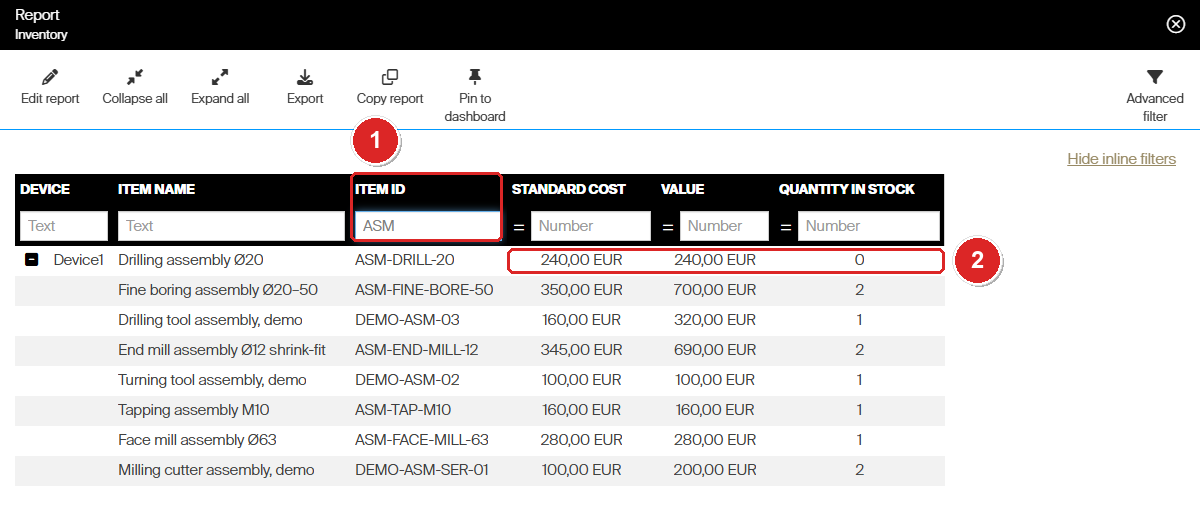
The Item ID filter set to ASM (1). ASM-DRILL-20 has nothing in stock but is worth 240 EUR (2), because one assembly is out in production.
How the value is worked out:
- Value = (quantity in stock + assemblies picked and not yet returned) × standard cost. An assembly that someone has picked still belongs to you, so it still counts. ASM-DRILL-20 shows 0 in stock and 240 EUR: DA-26-001 is out, and the standard cost is 240 EUR.
- Scrapped assemblies do not count. DA-26-002 adds nothing.
- Assemblies away at service do not count either. The face mill assembly ASM-FACE-MILL-63 has two serial numbers, one in stock and one In service. The report shows 1 in stock and 280 EUR, the value of one.
- Parts are not counted twice. A durable part inside an assembly is no longer in stock, so its value is carried by the assembly only. The drill body DRL-BODY-20 has three serial numbers, but two are built into assemblies. The report shows 1 in stock and 240 EUR for it.
To see who has the assemblies that are out, open Overviews > Picked items locations and select Expand all. Every durable item that is picked and not returned is listed with the person who picked it and when.
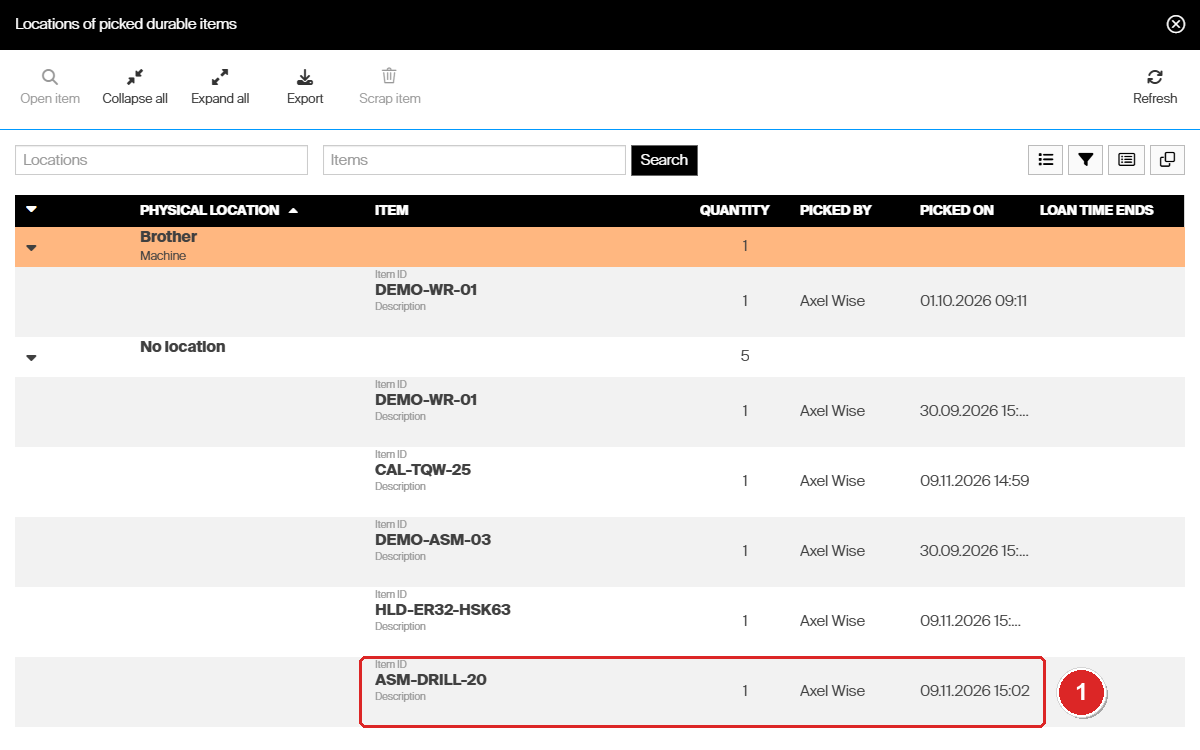
ASM-DRILL-20 has been out with Axel Wise since 09.11.2026 (1). This is the assembly that the Inventory report still counts.
Note: A newly built assembly starts out checked out to the person who built it, so it shows here until it is returned. See Assemblies: Building and stocking.
Standard cost and when it is recalculated
You never type in a standard cost for an assembly. CRIBWISE works it out from the bill of materials: the standard cost of each durable part multiplied by its requested quantity. Consumable parts add nothing. ASM-DRILL-20 is 240 EUR, the cost of its drill body, and the drill does not count. Assemblies: Understanding the concept explains the formula with more examples.
When the figure changes:
- When the bill of materials is saved. Adding or removing a part, or changing its requested quantity, recalculates the assembly’s standard cost straight away. There is nothing to run.
- When a part’s own standard cost changes. The assembly follows at the next standard cost recalculation, not before. On our test system, with Set standard cost as Average acquisition cost, we raised the purchase price of the tool holder DEMO-TH-01 from 100 to 110 EUR. Its standard cost and that of its assemblies DEMO-ASM-02 and DEMO-ASM-20 stayed at 100 EUR until the recalculation ran, and then all three read 110 EUR. The schedule is set under Administration > System settings > Purchase > Standard cost of item, in Schedule calculation. Update now runs it immediately. The message says the recalculation was scheduled, but it starts straight away and the new figures appear within seconds. See Understanding item costs: standard cost and usage cost.
The current figure is shown, read-only, as Standard cost on the assembly’s Supplier tab. To see when it changed, open the assembly item and select the Change history tab.
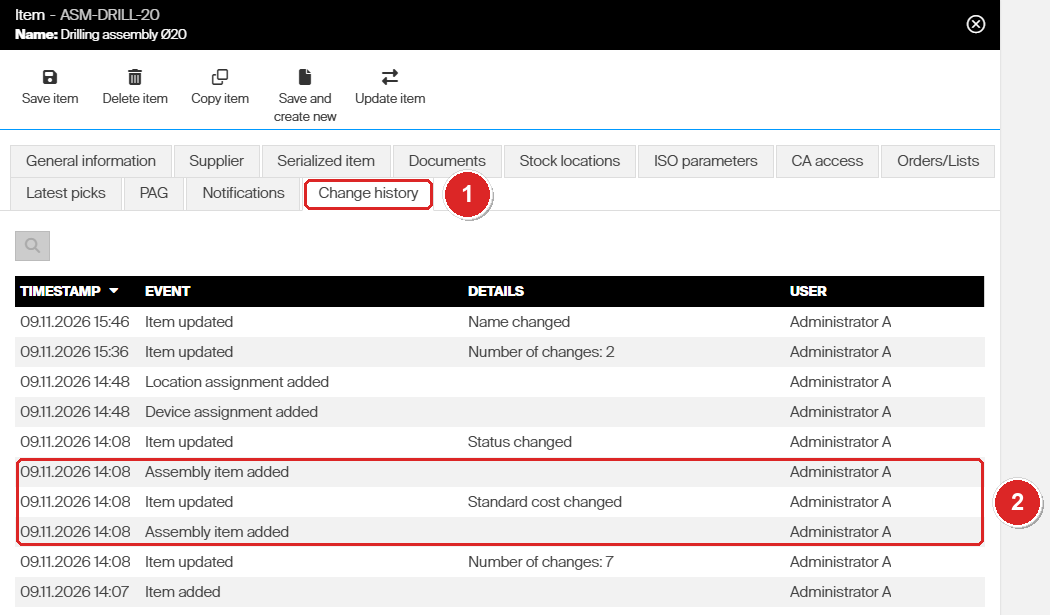
The Change history tab (1). Adding the assembly items and the Standard cost changed entry happened in the same minute (2).
Note: Standard cost is what an assembly is worth in stock. What a pick of the assembly costs comes from its own Usage cost structure and Cost on the General information tab.
Assembly serial numbers in the serialized overview
A serialized assembly is tracked like any other serialized item. Every assembly you build has its own serial number, condition and location, and the Serialized items overview lists them all, scrapped ones included.
- Select Overviews, then Serialized items.
- Type the assembly item ID into the search box and select Search.
- Expand the item with the arrow, or select Expand all.
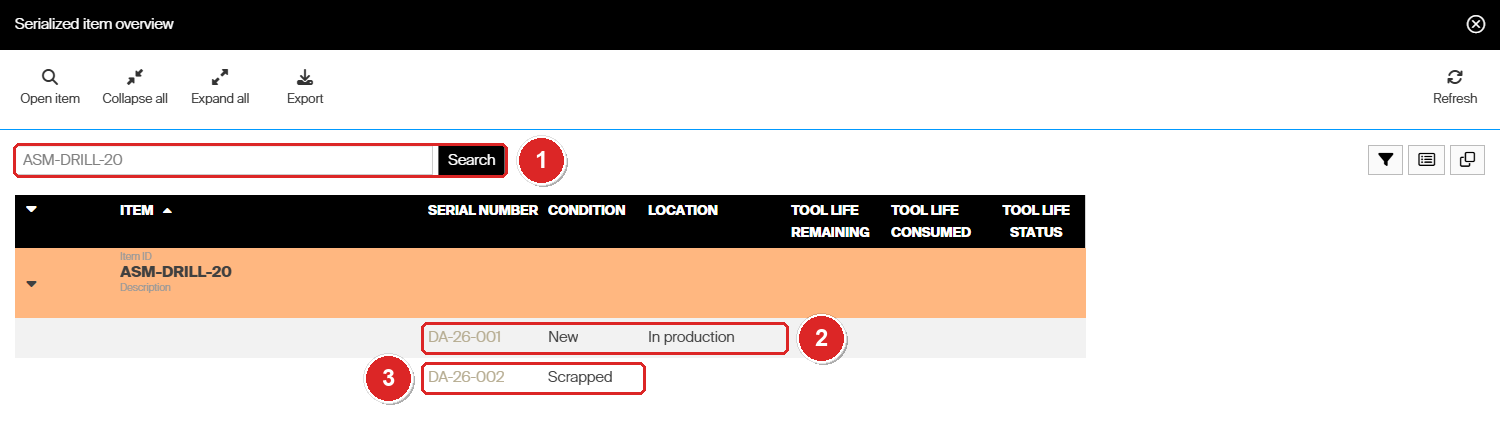
Search for the assembly (1). DA-26-001 is out in production (2). DA-26-002 was scrapped and stays in the list (3).
What the Location column shows for an assembly serial number:
| The assembly is… | Condition | Location |
|---|---|---|
| In stock | New, Used or Refurbished | Its stock, device and location address |
| Picked, including right after it was built | The condition it was picked in | In production |
| Waiting for service | For service | Its stock location |
| Away at service | In service | Service list, or the service order |
| Scrapped | Scrapped | Empty |
An assembly keeps its condition while it is out. DA-26-001 was returned new once and picked again, so it still reads New. The condition only changes when the assembly is returned, serviced or scrapped.
To list only assemblies, open the Advanced filter and set Assembly to show only assemblies. The filters, columns and saved views work as for any serialized item; see Serialized items: Tracking.
Component parts: In assembly
When an assembly is built, each serialized durable part used in it gets the status In assembly. It leaves its stock location, and its location shows In production. It keeps both for as long as it is part of the assembly: while the assembly is in stock, out with an operator, or away at service.
Search the overview for the part’s item ID to see which of its serial numbers are built in and which are free:
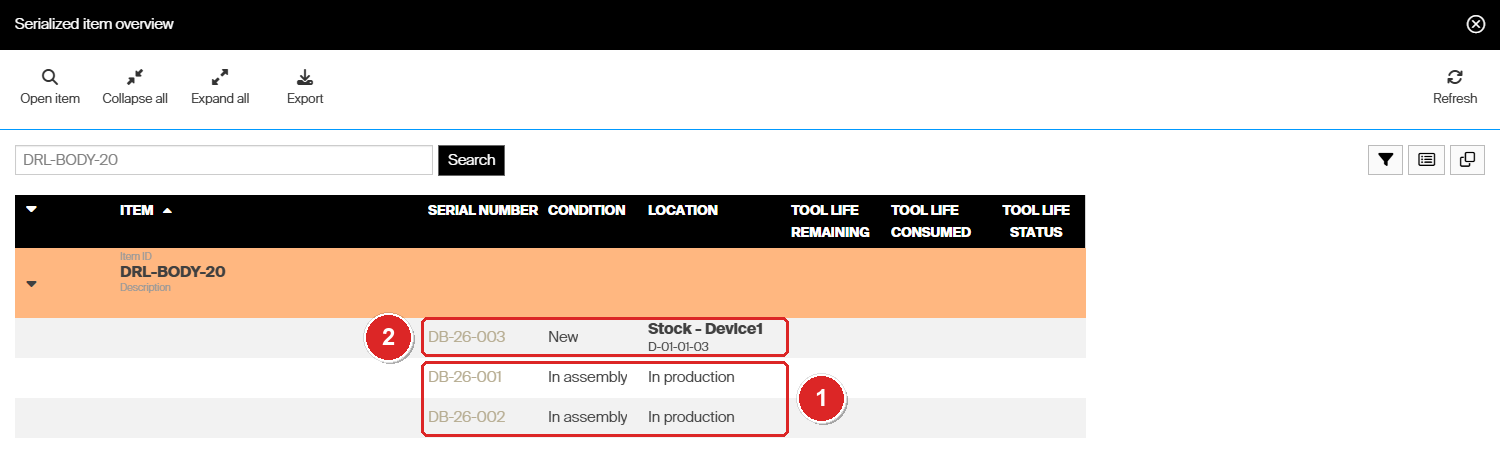
Two drill bodies are built into assemblies (1). The third is free and in stock (2).
The same list is on the part’s own item, on its Serialized item tab. A part that is In assembly:
- cannot be picked, returned or serviced on its own
- gets no transactions while its assembly is used, serviced or restocked
- does not count towards its own service rule
- is not counted in the part’s stock or value
Note: The Admin Portal does not show which assembly serial number a part is built into. If you need that link, write it in a comment on the part’s or the assembly’s instance, see Comments in Serialized items: Tracking.
Non-serialized durable parts, such as a holder without serial numbers, simply leave stock when the assembly is built. You see this in the history, as described next.
History of an assembly
On the serial number
Open the assembly item, go to its Serialized item tab and double-click a serial number. The Transaction history tab lists everything that happened to that assembly. Here is the fine boring assembly FB-26-001 after two uses and one service:
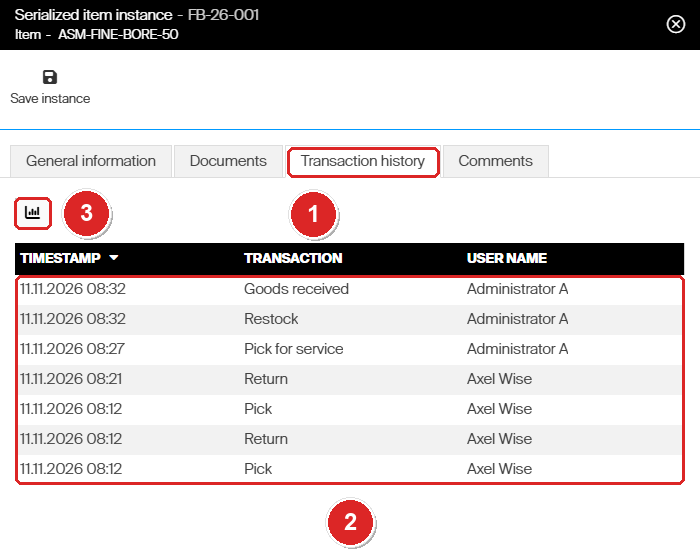
The Transaction history tab (1) with the picks, returns, pick for service and restock of this one assembly (2). The button (3) opens the full transaction report.
In the Raw transaction report
Every transaction is also in Reports > Report viewer > Raw transaction report, with the item ID, the serial number and the user. Filter the Item ID column to narrow it down.
Building an assembly writes one row for the assembly and one for each part, all at the same moment:
| Row | Transaction type | What it means |
|---|---|---|
| The assembly | Pick | The new assembly is checked out to the builder. It has no stock location, because it did not come out of a location. A pick of an assembly carries its usage cost. |
| Each durable part | Withdraw | The part leaves its stock location and goes into the assembly. A serialized part shows its serial number. |
| Each consumable part | Pick | An ordinary pick of the consumable, with its own cost. |
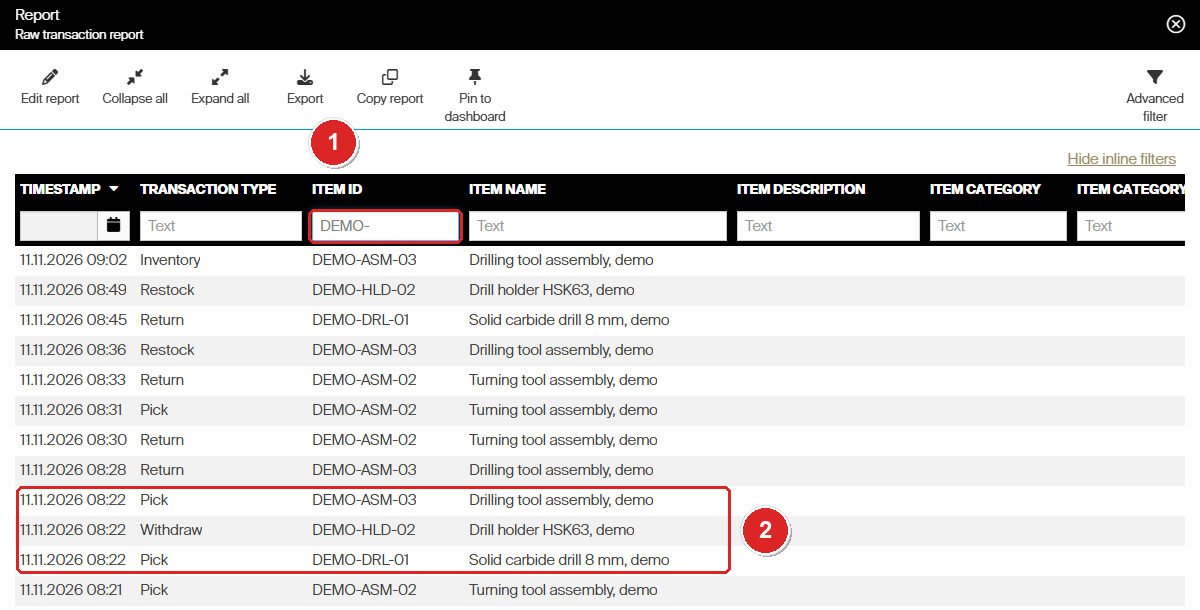
Filtered on the item IDs (1). One build of the drilling tool assembly DEMO-ASM-03 (2): the assembly is picked, its holder is withdrawn and its drill is picked, all at 08:22.
After that, the assembly’s own rows follow its life: Pick, Return, Pick for service, Restock, Goods received and Scrap. The parts get no more rows while they are built in.
In the BI feed
The BI feed RawTransactions holds the same transactions for Power BI, Excel or any other OData client. Two fields are useful for assemblies:
- IsAssembly is
trueon every row of an assembly item. Use it to get the history of all assemblies at once. - ItemTechnicalId is the item’s internal ID. It never changes, even if the item ID is renamed. Use it to get the full history of one assembly item.
For example, with [AP_base_uri] being the host your Admin Portal runs on:
[AP_base_uri]/Reporting/Integration/RawTransactions?$filter=IsAssembly eq true
[AP_base_uri]/Reporting/Integration/RawTransactions?$filter=ItemTechnicalId eq 'Stock.Item321305'
[AP_base_uri]/Reporting/Integration/RawTransactions?$filter=ItemTechnicalId eq 'Stock.Item321305' and SerialNumber eq 'DA-26-001'
To find an item’s ItemTechnicalId, filter the feed once by its item ID (PartNumber eq 'ASM-DRILL-20') and read the value from any row.
Important: A transaction keeps the item ID it was booked with. ASM-DRILL-20 was renamed from DEMO-ASM-13 after its first assemblies were built, so its earlier transactions still read DEMO-ASM-13. Filtering the Raw transaction report on ASM-DRILL-20 finds none of them, and the Transaction history of a serial number only lists the transactions booked under the current item ID. In the BI feed, ItemTechnicalId returns all of them.
Tip: On the RawTransactions feed, a misspelled field name in
$filterdoes not cause an error. It returns no rows. If a filter returns nothing, check the spelling against the feed’s$metadatafirst. See BI interface: connect a BI tool to CRIBWISE reporting data.
Scrapping an assembly, and taking one apart
Scrapping works as for any durable item: return the assembly with the condition Scrap, see Assemblies: Picking and returning. A serialized assembly then shows Scrapped, it stays in the serialized overview, and it no longer counts in stock or value. The history gets a Scrap row for the assembly.
The parts are not touched by the scrap. Their serial numbers keep the status In assembly, and they do not return to stock. DB-26-002, the drill body of the scrapped DA-26-002, still shows In assembly in the screenshot under Component parts: In assembly above.
Taking an assembly apart is not possible in CRIBWISE. Neither the Admin Portal nor the Shop Floor Interface has a function that dismantles an assembly or returns its parts to stock. Once a part is built in, it stays part of that assembly.
Warning: If parts physically come out of an assembly, for example when you salvage a holder from a scrapped tool, the only way to change a part’s record is to change its instance status by hand on its instance detail in the Admin Portal. Use it only for exceptions, as described under Change instance status in Serialized items: Tracking.
Common confusion
| People often think… | But actually… |
|---|---|
| An assembly that is out of stock is worth nothing. | Assemblies that are picked and not returned still count. ASM-DRILL-20 has 0 in stock and a value of 240 EUR. |
| Parts inside an assembly are counted twice, once in the part and once in the assembly. | A built-in part is no longer in stock, so only the assembly carries its value. |
| The standard cost of an assembly only changes when the recalculation runs. | It changes straight away when the bill of materials is saved. Changes to a part’s own standard cost follow with the recalculation. |
| Scrapping an assembly scraps or frees its parts. | The parts stay In assembly. Nothing returns to stock. |
| An assembly can be taken apart and its parts restocked. | There is no dismantle function. A part’s status can only be changed by hand, for exceptions. |
| The serial number of a part tells you which assembly it is in. | It shows only In assembly and In production. Keep the link in a comment if you need it. |
| Filtering a report on the item ID shows the whole history. | Only the transactions booked under that item ID. After a rename, use ItemTechnicalId in the BI feed. |
Take action
New to assemblies? Start with Assemblies: Understanding the concept.
Want this data in Power BI or Excel? Connect to the reporting feeds with BI interface: connect a BI tool to CRIBWISE reporting data.
Related articles
- Assemblies: Service — send an assembly for service and restock it, with the statuses along the way.
- Assemblies: Picking and returning — the picks and returns that make up most of an assembly’s history, and returning one as scrap.
- Assemblies: Serial numbers – how serial numbers change the build, picks, returns and service of an assembly.
- Serialized items: Tracking — the serialized overview, its filters and columns, and the instance detail.
- Understanding the picked items locations overview — every durable item that is out, and where.
- Default reports reference: 19 built-in reports — the Inventory and Raw transaction reports and the others.
- Understanding item costs: standard cost and usage cost — standard cost, its recalculation and the cost of a pick.
- BI interface: connect a BI tool to CRIBWISE reporting data — the RawTransactions feed and its fields.