
What you can do
Scrap an assembly at the end of its life: return it as Scrap on the Shop Floor Interface, or scrap it from the list of picked items in the Admin Portal. The assembly leaves stock and stock value, and it can never be returned again.
The assembly is scrapped as one item. Its parts are not freed and do not come back to stock, because an assembly cannot be taken apart in CRIBWISE.
The example is DEMO-ASM-03, Drilling tool assembly, demo, an assembly without serial numbers. It is built from the drill holder DEMO-HLD-02 (durable) and the drill DEMO-DRL-01 (consumable). For an assembly with serial numbers the steps are the same, and the differences are described under What happens to the component parts below.
Before you start
- The assembly must be picked. Scrapping works on a pick that has not been returned: an assembly someone took out, or one that was just built, because a new assembly starts out checked out to the person who built it. An assembly that sits in stock cannot be scrapped directly, see Scrap an assembly that is in stock below.
- A Shop Floor Interface login that may return as scrap. The operator in this example sees the tiles New, Used and Scrap under Return.
- For the Admin Portal route, an Admin Portal login with access to Overviews > Picked items locations.
- Scrap reasons, if you want them. To make operators choose why a tool is scrapped, tick Mandatory reason code for scrapping under Administration > System settings > Stock daily use and add your reasons to Reason codes for scrap. The list is then shown at every scrap. Without the setting, the reason is Scrap. See All system settings quick reference.
Warning: Scrapping cannot be undone. A scrapped assembly can no longer be returned or picked, and its parts stay built in. If the tool is still usable, return it as New or Used instead, see Assemblies: Picking and returning.
Quick start
Experienced users – scrap an assembly in 4 steps:
- On the main menu, select Return, then Scrap.
- Select the assembly. Check the Picked on date if the same assembly is listed more than once.
- Choose a scrap reason if you are asked for one, and check the quantity.
- Select Scrap. The scrap summary confirms it.
Need more detail? Follow the full steps below.
Ways to scrap an assembly
| Where the assembly is | How to scrap it |
|---|---|
| Picked, with the operator | Return > Scrap on the Shop Floor Interface, described below. |
| Picked, but the operator cannot return it, for example because it broke in the machine or was lost | Scrap item in Overviews > Picked items locations in the Admin Portal, see Scrap an assembly from the Admin Portal below. |
| In stock | Pick it first, then scrap it, see Scrap an assembly that is in stock below. |
| At service | Stock management > Restock, select the service list, then Cancel or scrap items. Assemblies are listed there like any other service item. See Assemblies: Service for the service flow. |
Every route books the same Scrap transaction on the assembly.
Steps
Step 1 — Choose Scrap
- On the main menu, select Return.
- Select Scrap.
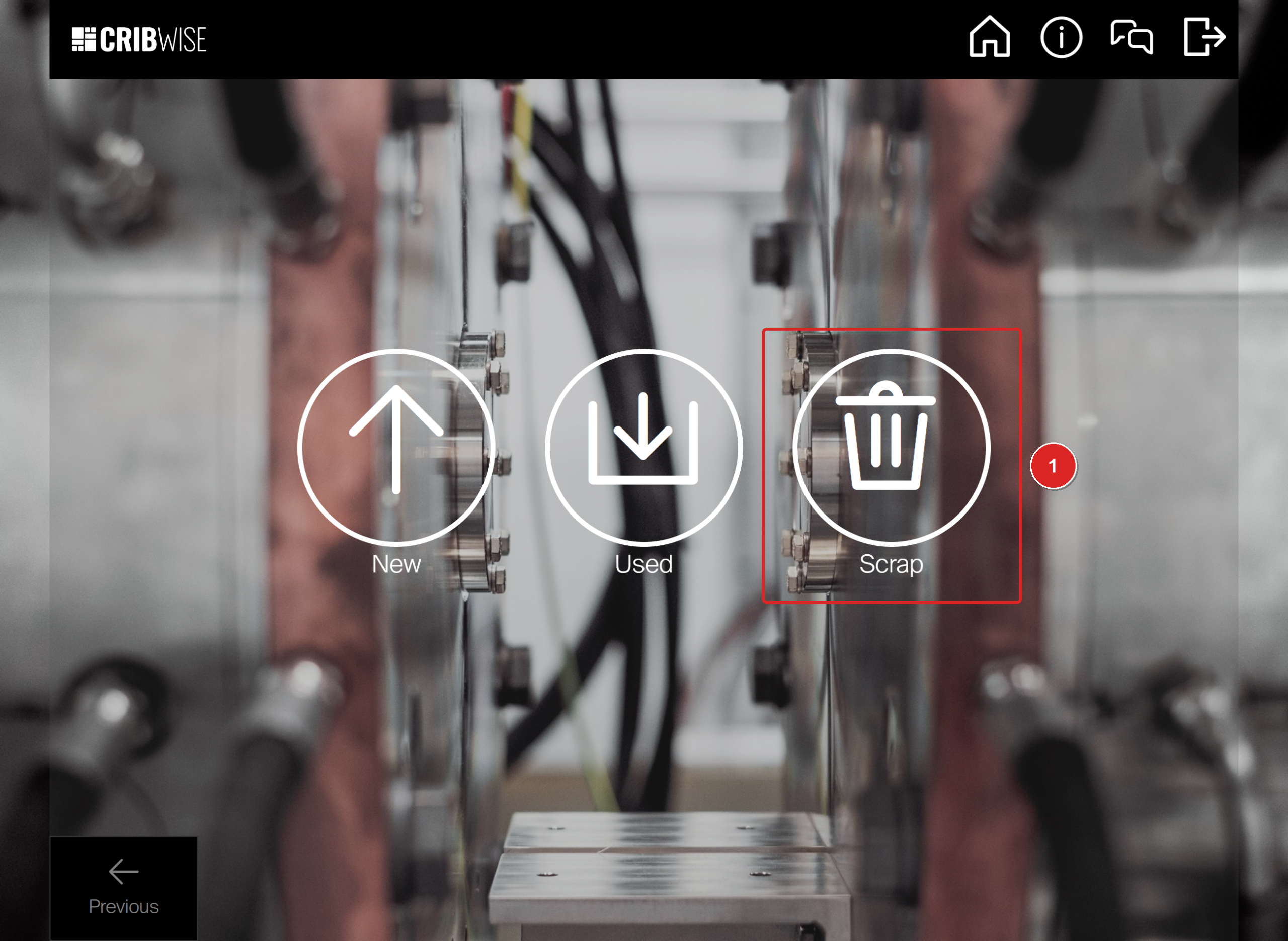
The Return screen. Select Scrap (1).
Step 2 — Select the assembly
- Select the assembly you are scrapping. The list shows the durable items that are picked and not yet returned, with the date they were picked.
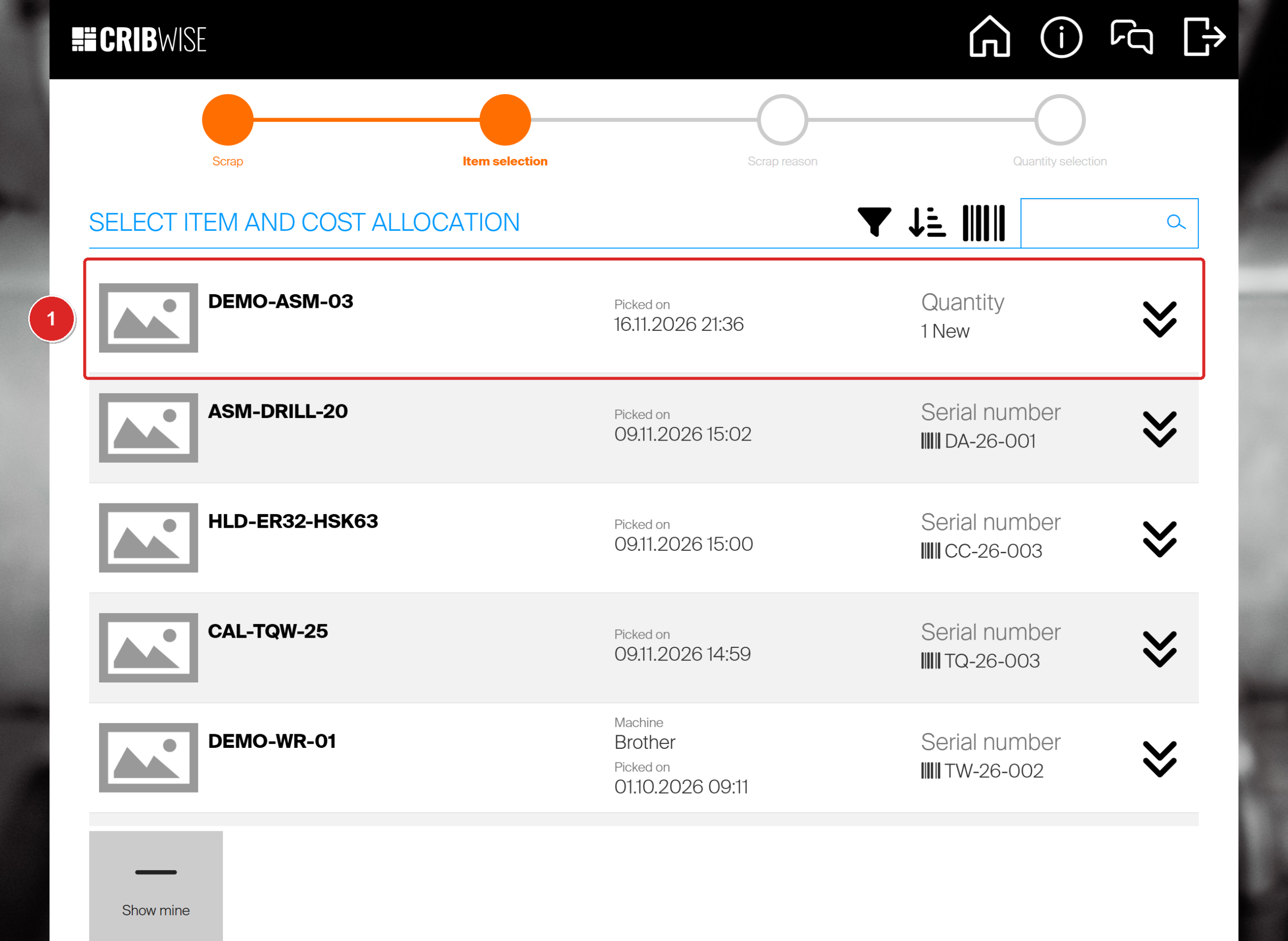
DEMO-ASM-03 picked on 16.11.2026 (1). Another DEMO-ASM-03, picked on 30.09.2026, is further down the list, so check the date.
An assembly with serial numbers is listed once per serial number, with the serial number on the line, as ASM-DRILL-20 is here.
Step 3 — Choose the reason and scrap it
- Choose a Scrap reason if the list of reasons is shown. When no reason is required, this step completes by itself with the reason Scrap.
- Check the quantity. It starts at the quantity you picked.
- Select Scrap. To scrap several items in one go, select Add to scrap list instead and add the next one.
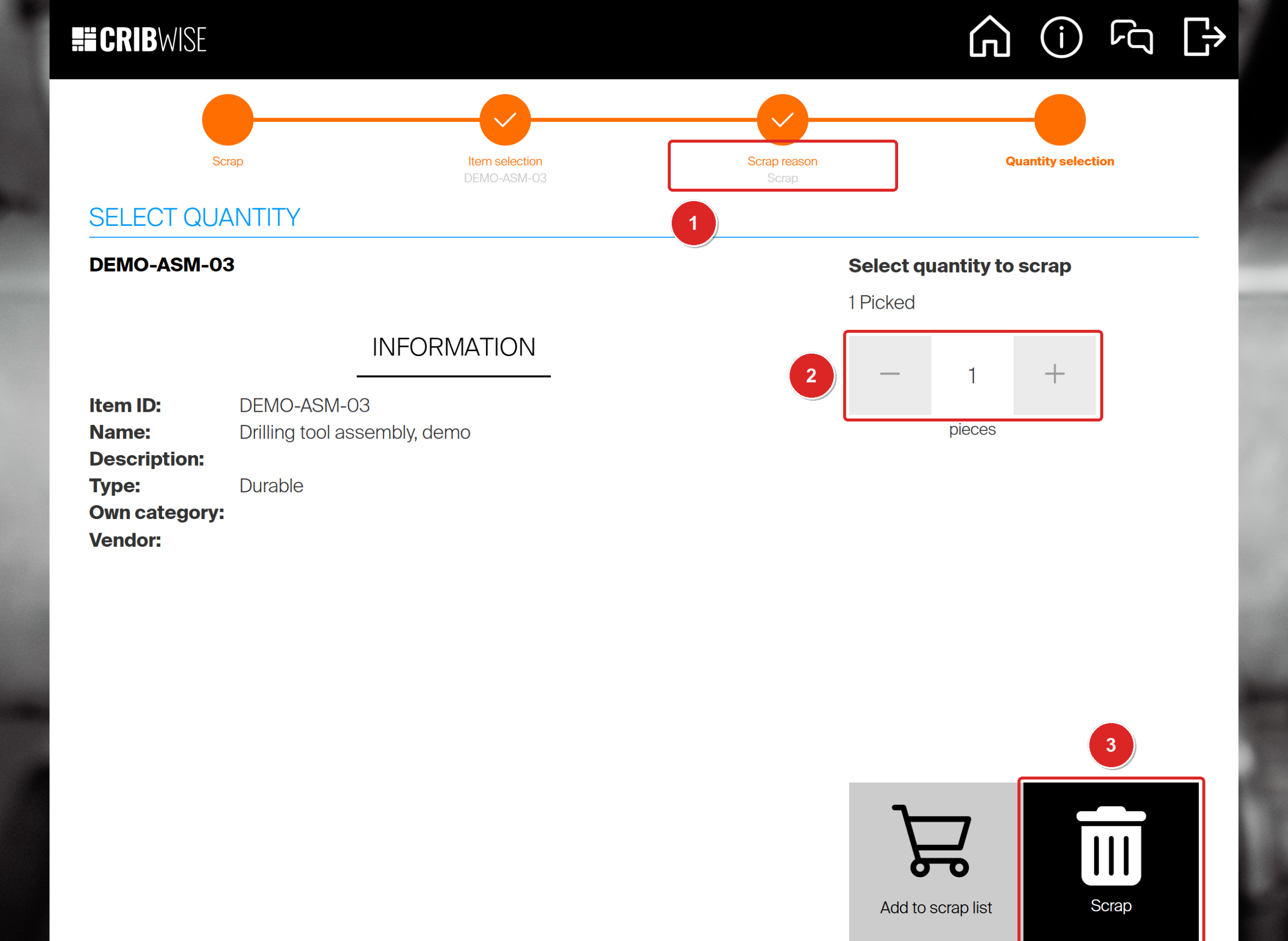
The scrap reason Scrap was filled in by itself (1). Check the quantity (2), then select Scrap (3).
The assembly is scrapped at once. There is no location step, because nothing goes back into the device.
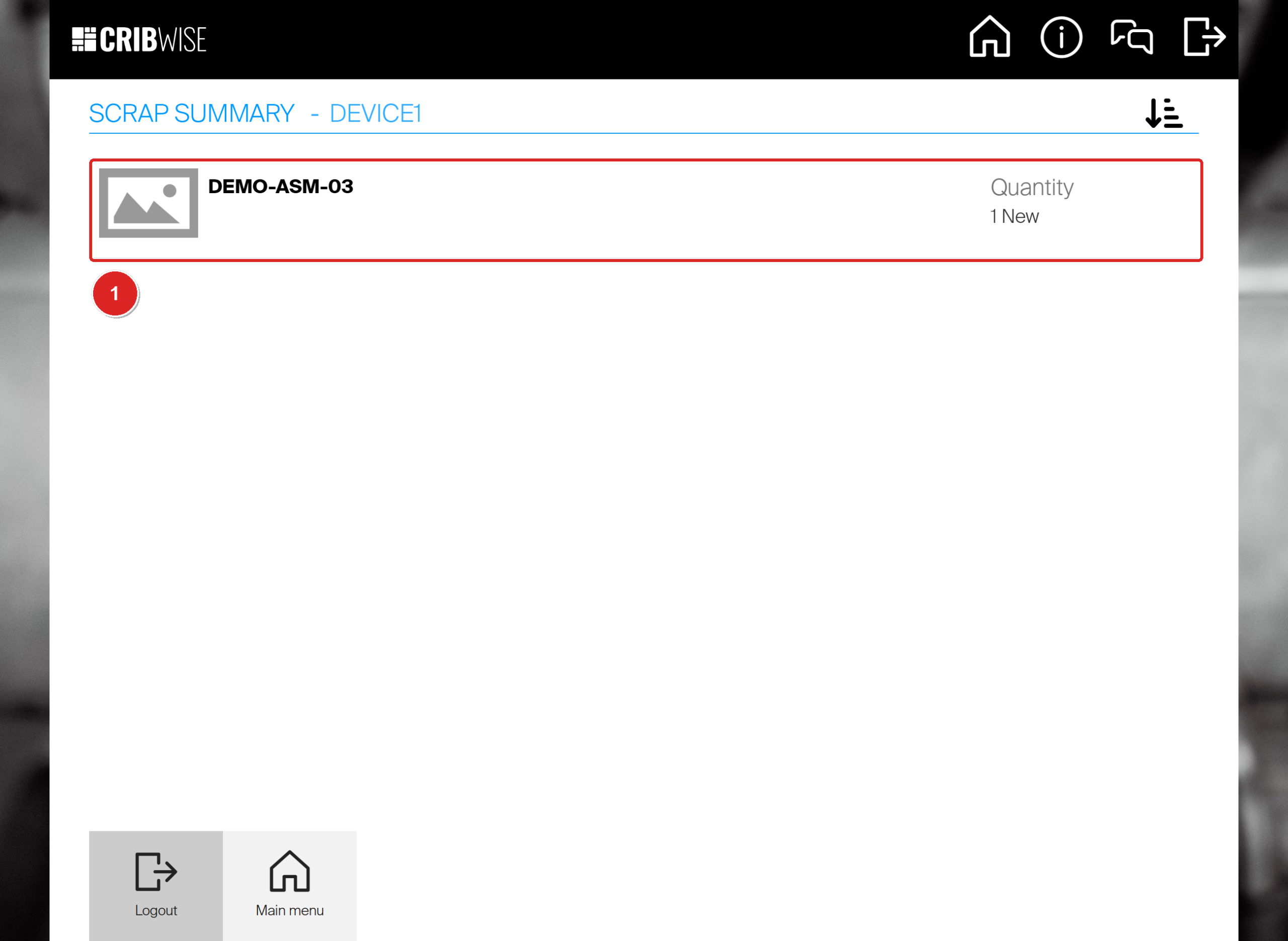
The scrap summary lists the scrapped assembly (1). Select Main menu or Logout.
Success: The assembly is scrapped. It has left the list of picked items and can no longer be returned.
Scrap an assembly from the Admin Portal
Use this when the operator cannot return the assembly, for example because it broke in the machine. It is the same operation as Return > Scrap, done from the office.
- Select Overviews, then Picked items locations, and select Expand all.
- Select the line of the assembly. Check Picked on and Picked by to find the right one.
- Select Scrap item.
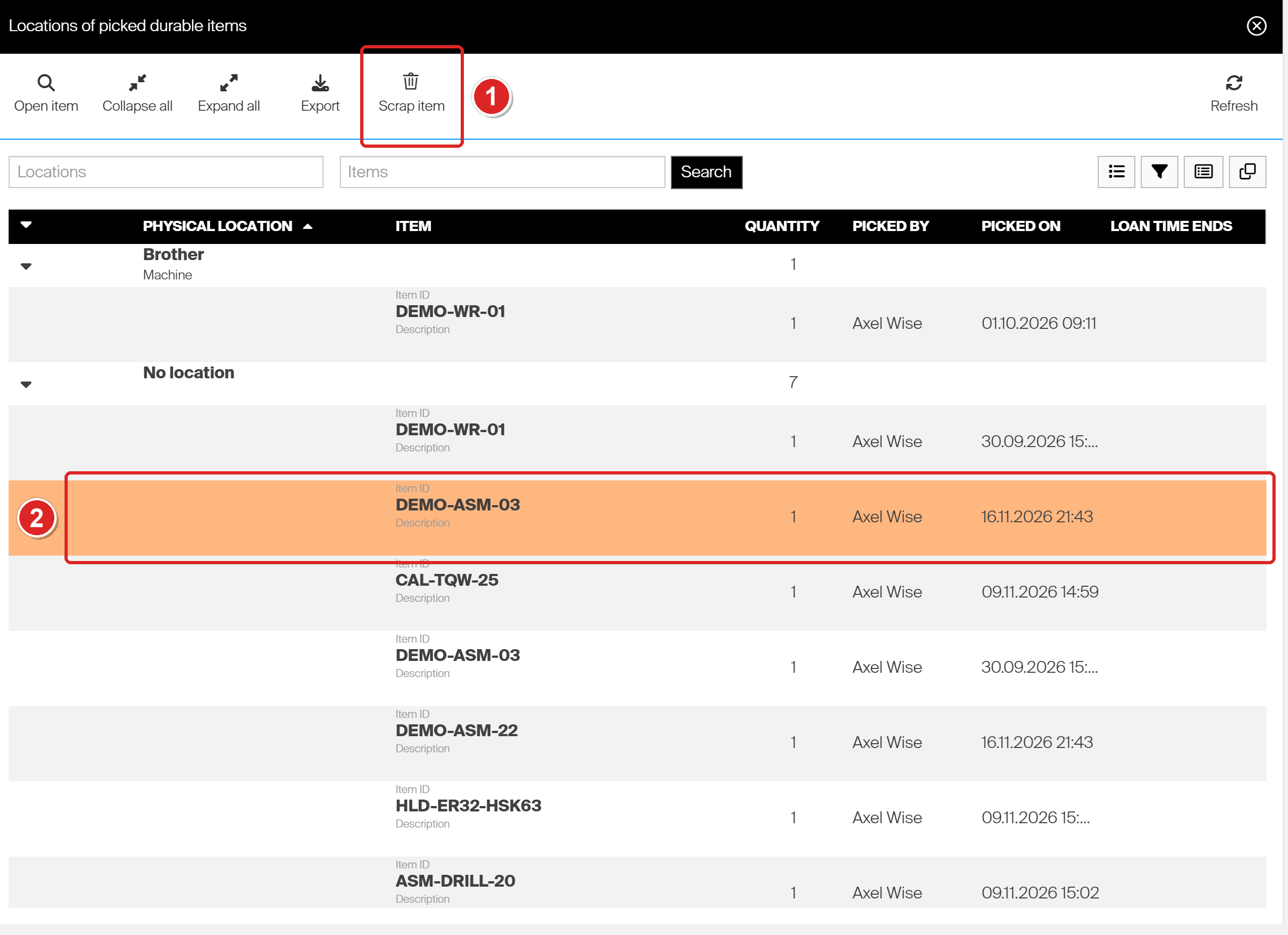
Select Scrap item (1) with the assembly line selected (2).
- Check the line in Scrap picked items. To scrap fewer than the picked quantity, use Change scrap quantity.
- Select Scrap items.
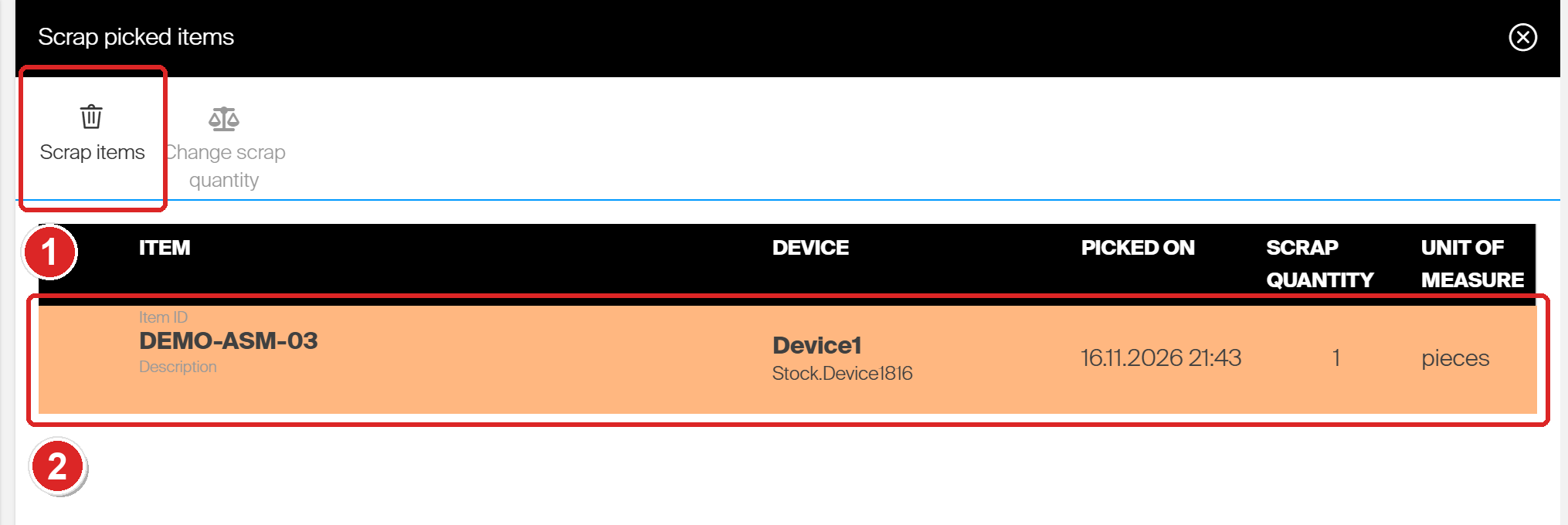
Select Scrap items (1) to scrap the line below it (2).
- Answer Yes to the question. If your system requires a scrap reason, choose one.
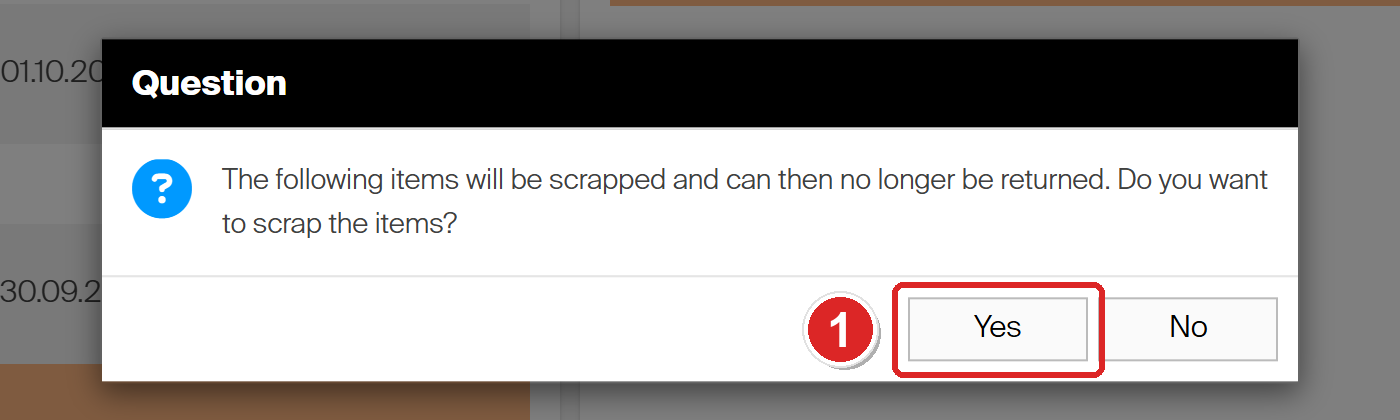
Answer Yes (1). The message Selected picks were scrapped confirms it.
The full description of this overview is in Picked items location tracking reference.
Scrap an assembly that is in stock
Neither the Shop Floor Interface nor the Admin Portal scraps an assembly straight from its stock location. Both scrap routes work on picks. To scrap a damaged assembly that is still in stock:
- Pick it, as described in Assemblies: Picking and returning.
- Return it as Scrap, as in the steps above.
The pick books the assembly’s usage cost on the person or cost allocation that picks it, like any other pick.
If an assembly is missing from its location, correct the count with Stock management > Inventory instead. That books an Inventory transaction with the difference in quantity and value and the reason you give, not a Scrap transaction.
For an assembly with serial numbers, the instance status cannot be set to Scrapped by hand while the instance is in the device. The Admin Portal answers Cannot set status to Scrapped, In Service or In Assembly when instance is in device.
What happens to the component parts
Scrapping books nothing on the parts. They left stock when the assembly was built and they do not come back:
| Part | When the assembly was built | When the assembly is scrapped |
|---|---|---|
| Durable part without serial numbers, here the drill holder DEMO-HLD-02 | One piece is withdrawn from its location. | Nothing. It does not return to stock. The two DEMO-ASM-03 built and scrapped for this example left two Withdraw rows on DEMO-HLD-02 and nothing else. |
| Consumable part, here the drill DEMO-DRL-01 | Picked and used up like any consumable. | Nothing. |
| Durable part with serial numbers | The serial number gets the status In assembly, location In production. | The serial number keeps In assembly and In production. It is not scrapped and not freed. |
The serialized example on the demo system is the drilling assembly ASM-DRILL-20. Its serial number DA-26-002 was scrapped, and the drill body inside it, DB-26-002, still shows In assembly and In production:
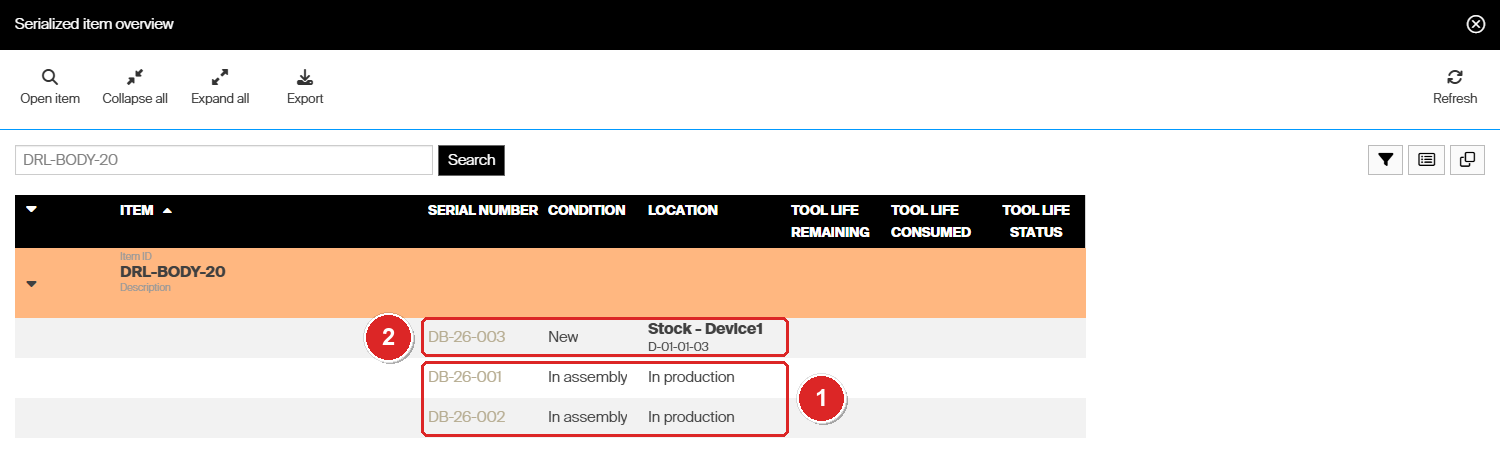
DB-26-001 and DB-26-002 are built into assemblies, DB-26-002 into the scrapped DA-26-002 (1). Only DB-26-003 is free and in stock (2).
The scrapped assembly serial number itself shows the status Scrapped and stays in the serialized overview.
An assembly cannot be taken apart
CRIBWISE has no function that dismantles an assembly or returns its parts to stock, neither on the Shop Floor Interface nor in the Admin Portal. Once a part is built in, it stays part of that assembly, also after the assembly is scrapped.
Note: If you salvage a part from a scrapped assembly, for example a holder that is still good, the only way to change a serialized part’s record is Edit status on its instance detail in the Admin Portal (Set new instance status). The product warns that changing the status by hand can make the instance behave unexpectedly, so use it only for exceptions, as described in Serialized items: Tracking. A part without serial numbers can be put back with Stock management > Restock > Without order, which books new stock.
What scrapping books
- One Scrap transaction on the assembly, with the quantity, the user, the reason in the comment and no stock location. Its price is 0. The cost was booked earlier: the assembly’s usage cost when it was picked, here 20.50 EUR, and the consumable part when the assembly was built. See Assemblies: Usage cost and standard cost.
- No transaction on the parts.
- Stock value goes down by the standard cost. A picked assembly still counts in the Inventory report until it is returned. Once scrapped, it no longer counts. DEMO-ASM-03 has a standard cost of 160 EUR. After the two scraps the report shows 1 in stock and 320 EUR, for the one in stock and one that is still out with an operator.
- The parts’ value is gone with the assembly. The built-in parts were no longer in stock, so the value of the scrapped assembly was their only value.
The Scrap row shows in the Raw transaction report and in the BI feed within a few minutes. How to follow it up is described in Assemblies: Tracking.
Troubleshooting
| Problem | Cause | Fix |
|---|---|---|
| The assembly is not in the Scrap list. | It is not picked. It is in stock, or it was already returned or scrapped. | Pick it first, see Scrap an assembly that is in stock below. |
| There is no Scrap tile under Return. | Your login may not return as scrap. | Ask an administrator for the permission to return as scrap, or scrap the assembly from the Admin Portal. |
| The same assembly is listed twice. | Two units are picked, for example one built today and an older one. | Check Picked on, and for serialized assemblies the serial number. |
| The wizard does not move past Scrap reason. | A scrap reason is mandatory in the system settings. | Choose one of the reasons in the list. |
| The parts did not come back to stock after scrapping. | This is how assemblies work. There is no dismantle function. | For a salvaged part, see the note under An assembly cannot be taken apart below. |
| The Admin Portal does not scrap the pick. | Scrapping from the Admin Portal needs a device on version 1.51 or later, and several picks can only be scrapped together if they come from the same device. | Scrap on the Shop Floor Interface, or scrap the picks device by device. |
Next steps
- Replace it – build a new assembly from fresh parts, as shown in Assemblies: Building and stocking.
- Follow it up – find the Scrap row and the serial numbers of the parts in Assemblies: Tracking.
Related articles
- Assemblies: Understanding the concept — what an assembly is and how its parts belong to it.
- Assemblies: Picking and returning — every return condition, including Scrap.
- Assemblies: Serial numbers — serial numbers on assemblies and on their parts.
- Assemblies: Tracking — stock, value and history of assemblies and their parts.
- Assemblies: Building and stocking — build a replacement.
- How to return, scrap, and recycle items in SFI — the return options and scrap reasons for every item.
- Picked items location tracking reference — scrapping picks from the Admin Portal.