
What you’ll learn
CRIBWISE ships with 19 built-in reports covering consumption, stock, purchasing and barcode labels. Use this page to find the report that already answers your question — and to see which one to copy when nothing fits.
Note: Built-in reports cannot be renamed, edited or deleted. You can open, filter, export, schedule and copy them. Anything you want to change has to be changed in a copy — see How to run, filter, and schedule a pre-defined report.
The three report types at a glance
| Tabular | Graphical | Barcode | |
|---|---|---|---|
| How many are built in | 10 | 8 | 1 |
| What you get | A grid you can group, sort and filter column by column | A chart | A printable list of item barcodes |
| Inline column filters | Yes | No — use Advanced filter | No |
| Collapse and expand groups | Yes | No | No |
| Best for | Detail you want to read row by row, or export to Excel | A share or a trend you want to see in one glance | Labels for shelves, bins and drawers |
How to tell a built-in report from your own
Open Reports > Report viewer. The Type column is what separates the two.
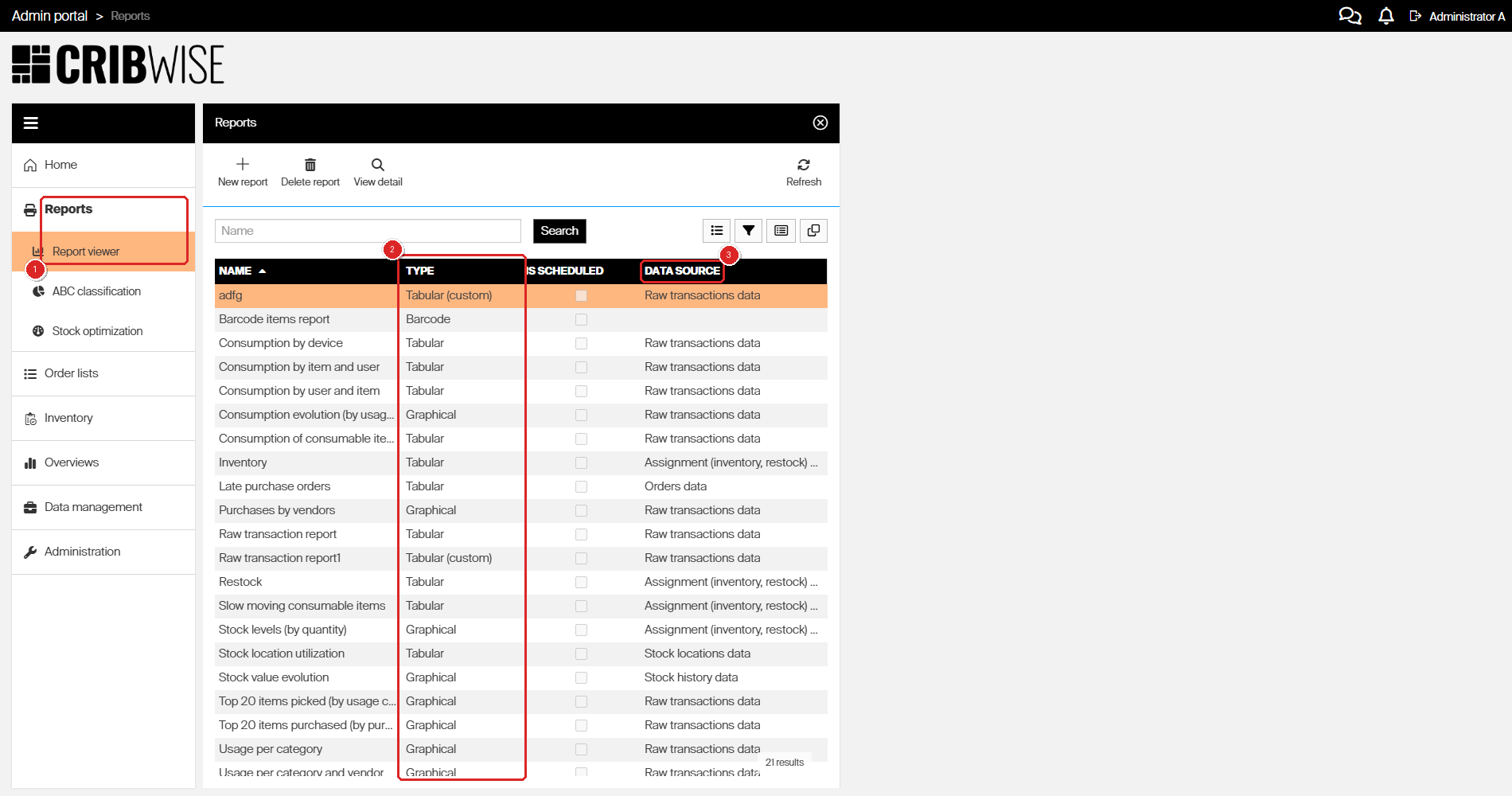
Reports > Report viewer (1) lists every report. The Type column (2) separates the built-in reports from your own, and Data source (3) shows which data each one reads.
- Tabular, Graphical and Barcode — built into the product. Every customer has these, and they are the same everywhere.
- Tabular (custom) and Graphical (custom) — created on your own system. These are the only reports you can edit, rename and delete.
The Data source column tells you which data a report reads, and therefore which columns and filters it can offer. See Report data sources reference for every field in every data source.
Pick a report by the question you are asking
| What you want to know | Open this report |
|---|---|
| Every single transaction, with nothing aggregated away | Raw transaction report |
| What each machine or cabinet costs to feed | Consumption by device |
| Which users consume the most, and what they take | Consumption by user and item |
| Who is consuming a particular item | Consumption by item and user |
| How much of each consumable was used in a period | Consumption of consumable items |
| What is in stock right now, and what it is worth | Inventory |
| What needs restocking, and how much is missing | Restock |
| Which consumables are barely being picked | Slow moving consumable items |
| Which purchase orders are overdue | Late purchase orders |
| How the locations in your storage devices are being used | Stock location utilization |
| Where the money goes, by item category | Usage per category, or Usage per category and vendor |
| Whether consumption is trending up or down | Consumption evolution (by usage cost) |
| Which items dominate consumption cost | Top 20 items picked (by usage cost) |
| Which items dominate purchasing spend | Top 20 items purchased (by purchase price) |
| How much you buy from each vendor | Purchases by vendors |
| How many pieces each of your stocks is holding | Stock levels (by quantity) |
| Whether total stock value is growing or shrinking | Stock value evolution |
| Barcodes to print for shelves and bins | Barcode items report |
The 10 built-in tabular reports
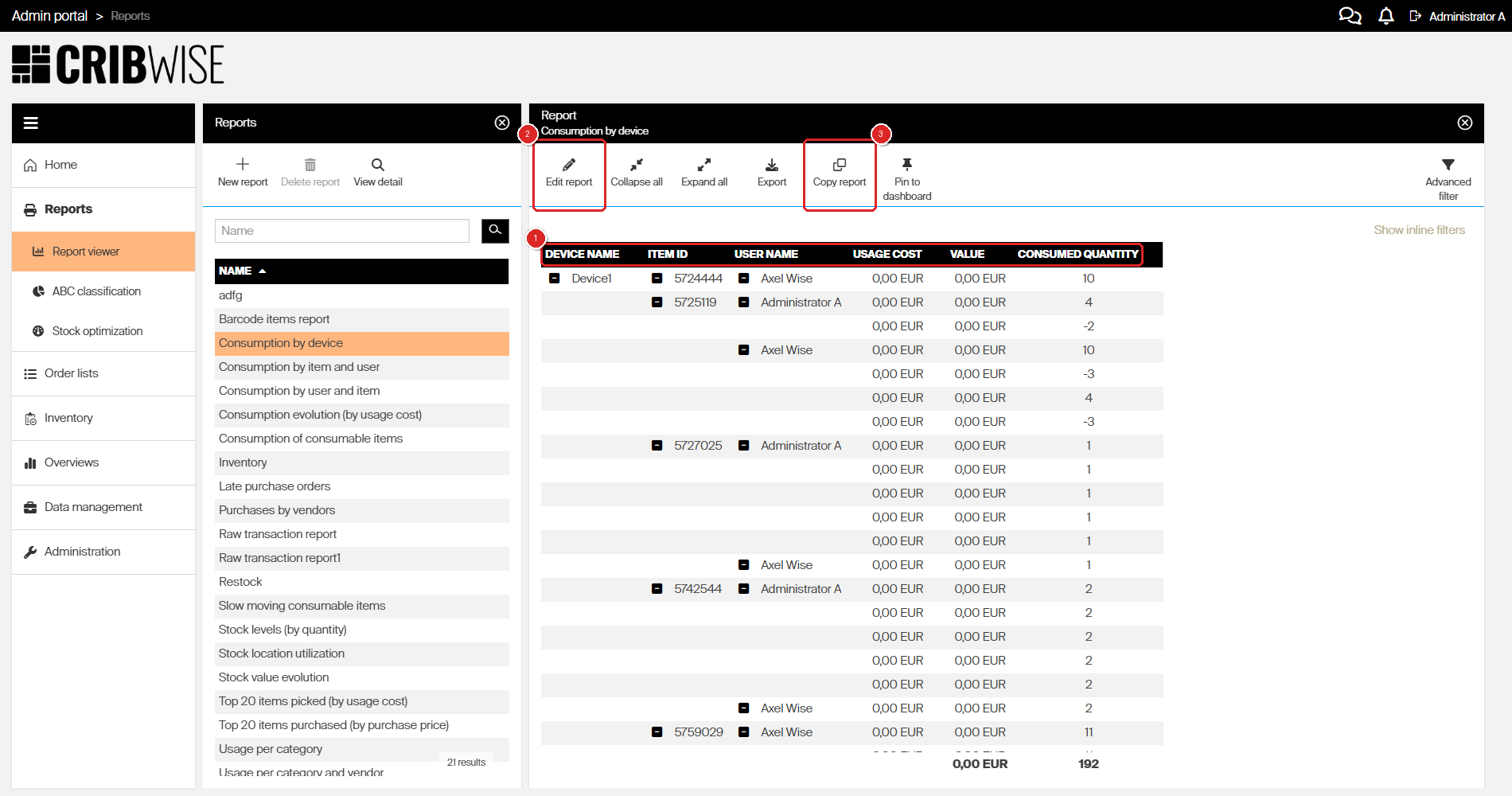
A built-in tabular report. The columns (1) are fixed by the report definition. Edit report (2) offers only the Scheduler tab here, so use Copy report (3) to get a version you can change. Delete report is greyed out.
| Report | Data source | What it shows | Columns |
|---|---|---|---|
| Raw transaction report | Raw transactions data | One row per transaction — picks, returns, restocks, scraps, goods received, cancellations, price updates and more. The widest built-in report, and the usual starting point when you copy one. | 33 columns, from Timestamp and Transaction type through to Usage cost, Value and Value discrepancy. Cost allocation fields are not included — add them in a copy. |
| Consumption by device | Raw transactions data | Pick, return and scrap totals grouped by device, then item, then user. Tells you what each machine or cabinet costs to feed. | Device name, Item ID, User name, Usage cost, Value, Consumed quantity |
| Consumption by user and item | Raw transactions data | The same totals grouped by user first, then item — who consumes what. | User name, Item ID, Consumed quantity, Value |
| Consumption by item and user | Raw transactions data | The same totals grouped by item first, then user — who is consuming a given item. | Item ID, User name, Consumed quantity, Value |
| Consumption of consumable items | Raw transactions data | Total consumption of consumable items over the period you filter to. Consumed quantity is picks minus the items handed back unused. | Item name, Item ID, Consumed quantity |
| Inventory | Assignment (inventory, restock) data | Every item assigned to a device, with the quantity on hand and what it is worth at standard cost. | Device, Item name, Item ID, Standard cost, Value, Quantity in stock |
| Restock | Assignment (inventory, restock) data | Current stock against the min, max and order point of every assignment, plus how much is missing to reach max. | Device, Item name, Item ID, Quantity in stock, Missing to max, Min quantity, Max quantity, Order point |
| Slow moving consumable items | Assignment (inventory, restock) data | Assigned consumables ordered by fewest picks, so the items nobody uses surface at the top of each device. | Device, Item ID, Item name, Item description, Item category, Number of picks, Quantity in stock, Value |
| Late purchase orders | Orders data | Purchase order lines that were not received or cancelled by their expected date. Service orders are excluded. | Order ID, Item ID, Expected date |
| Stock location utilization | Stock locations data | Every location in every stock, broken down by device, storage device and module, with the item currently assigned to it. | Stock, Device name, Storage device name, Module, Location, Item ID |
Tip: The three Consumption by… reports read the same data and differ only in grouping order. Pick the one whose first column matches the question you are answering and you save yourself most of the filtering.
The 8 built-in chart reports
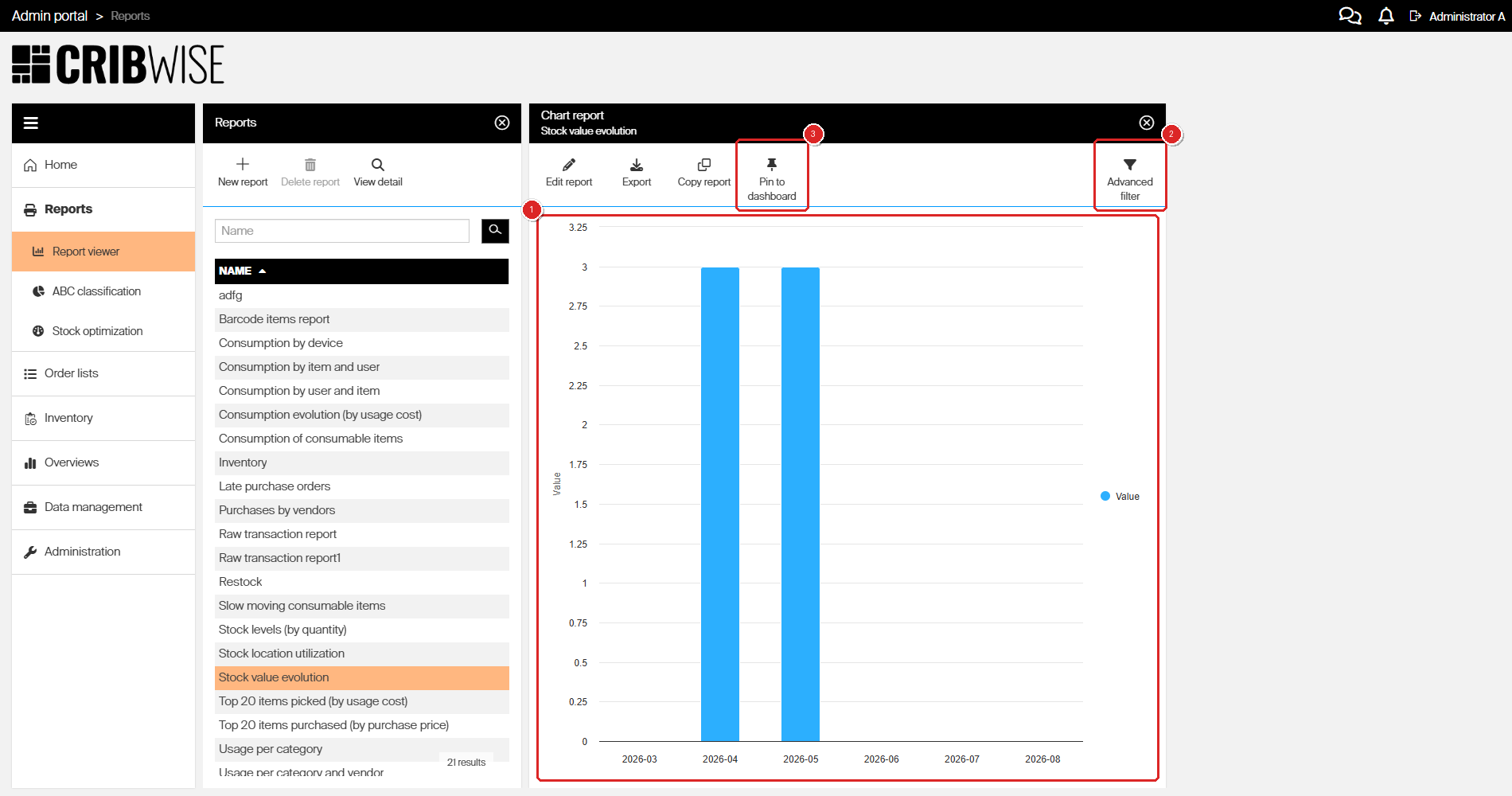
A built-in chart report. There is no grid (1), so there are no inline filters — narrow the data with Advanced filter (2). Pin to dashboard (3) puts the chart on the Admin Portal home screen.
Chart reports have no grid, so there are no columns to list. What matters is what goes on each axis.
| Report | Chart | Data source | What it plots |
|---|---|---|---|
| Usage per category | Pie | Raw transactions data | One slice per item category. Shows which categories your consumption sits in. |
| Usage per category and vendor | Stacked column | Raw transactions data | Item category across the bottom, Value up the side, one colour per vendor. The same picture as above, with each category broken down by who you buy it from. |
| Consumption evolution (by usage cost) | Line | Raw transactions data | Month (YYYY-MM) across the bottom, Value up the side. The only built-in report that shows a consumption trend over time. |
| Top 20 items picked (by usage cost) | Column | Raw transactions data | One column per item ID, tallest first. Shows the handful of items that account for most of your consumption. |
| Top 20 items purchased (by purchase price) | Column | Raw transactions data | One column per item ID, based on purchased quantity multiplied by price per piece. Shows where your purchasing spend goes. |
| Purchases by vendors | Column | Raw transactions data | One column per vendor. Shows how your purchasing spend is spread across suppliers. |
| Stock levels (by quantity) | Column | Assignment (inventory, restock) data | One column per stock, with Quantity in stock up the side. Shows how many pieces each stock is holding right now. |
| Stock value evolution | Column | Stock history data | One column per month, six months in total: the closing value of the last five months plus the current month so far. Value is quantity multiplied by standard cost. |
Note: On the cost charts the vertical axis is labelled Value, not Usage cost — including on the two reports whose names say usage cost.
The barcode report
Barcode items report is the only built-in report of type Barcode. It produces a printable list of item barcodes rather than a grid or a chart, so it has no data source and none of the grid tools apply to it.
Live data or reporting data
Reports do not all read data of the same freshness, and this is the most common surprise. CRIBWISE regenerates reporting data from transactions on a schedule — it does not update the moment somebody picks an item. Reports on current stock read live data instead.
| Freshness | Reports | What it means for you |
|---|---|---|
| Live data — as of right now | Inventory, Restock, Stock location utilization, Stock levels (by quantity) | What you see is the current stock situation. Reopen the report and it can change. |
| Reporting data — regenerated on a schedule | Everything built on Raw transactions data, Orders data or Stock history data | A pick from ten minutes ago may not be there yet. Do not use these reports to confirm that a single transaction went through. |
Slow moving consumable items mixes both: the assignments and quantities are live, the pick counts come from reporting data.
Analyses that are not in the report viewer
Four things behave like reports but live elsewhere in CRIBWISE:
- Reports > ABC classification — ranks items by their share of total picking cost. See Understanding ABC classification.
- Reports > Stock optimization — suggests min, max and order point values from real consumption. See How to optimize stock levels and order points.
- The item overview dashboard — one item’s stock, consumption and orders on a single screen. See Item overview dashboard reference.
- The BI interface — the same reporting data exposed to your own BI tool. See BI interface.
Common confusion
| People often think… | But actually… |
|---|---|
| A built-in report can be adjusted if you have enough privileges | No privilege unlocks a built-in report. Opening Edit report on one gives you the Scheduler tab and nothing else. Click Copy report, save under a new name, and edit the copy. |
| A report shows only the items, vendors, devices and stocks the user is allowed to see | Report data ignores those restrictions. Anyone who can open a report sees every row in it. Control this with report privileges and by limiting which reports a user group may open. |
| An order that has been fully received cannot appear in Late purchase orders | It can. The report is about the expected date, not the current state — a line that arrived after its expected date stays in the report. |
| A negative quantity or cost is an error | It is an item returned as new. Both the quantity and the usage cost are refunded. Returning a durable item as used or scrapped refunds neither. |
| Quantity and Consumed quantity are the same thing | Quantity is what moved. Consumed quantity is what was actually used up — picks minus the items returned as new. |
Take action
Found the report you need? Go to How to run, filter, and schedule a pre-defined report to open it, narrow it down, export it, and have it emailed to you automatically.
Nothing close enough? Copy the nearest built-in report and change the copy — How to create a custom report walks through the report designer field by field.
Related articles
- Reporting overview: charts, tables, dashboards, and BI — every way to get data out of CRIBWISE.
- How to run, filter, and schedule a pre-defined report — open, filter, export and schedule any report in this list.
- How to create a custom report — the report designer field by field, including every chart type.
- Report data sources reference — every field each data source makes available.
- Understanding tabular and chart reports — how the two report types differ and when to use each.
- How to use report filters — filters saved in a definition, applied every time the report runs.
- How to configure dashboard widgets — pin any of these reports to the Admin Portal home screen.