
What you’ll learn
Which of the five CRIBWISE report data sources holds the data you need, and every field in each one – with whether you can filter on it, group by it, or sum it in a custom report.
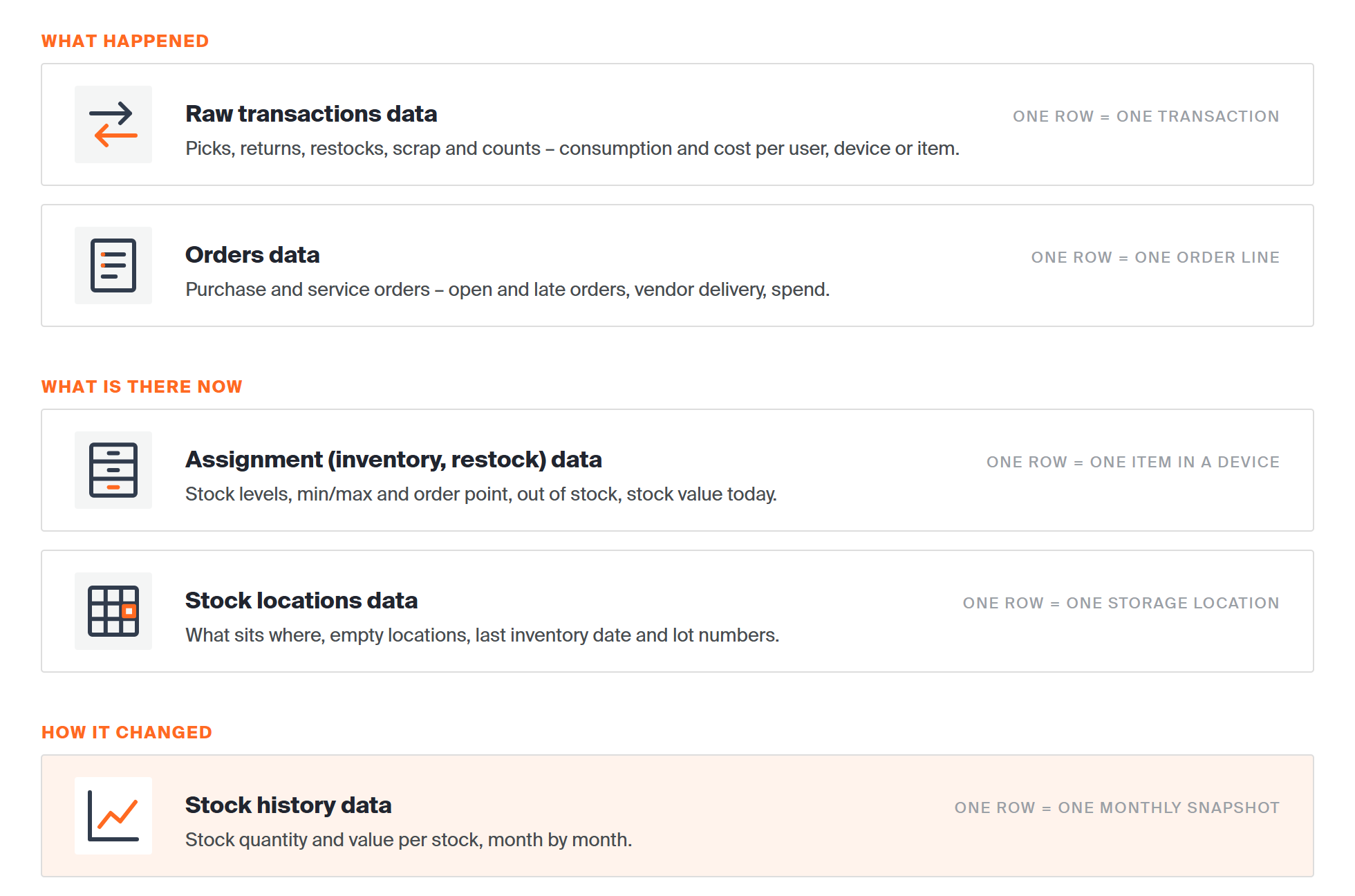
Pick the data source by the question you are asking. You choose it in the DataSource list when you create a report, and it cannot be changed after the first save.
The five data sources at a glance
Every custom report is built on exactly one data source, chosen in the DataSource list of the report definition. The data source decides which fields the report can show, filter and total. You cannot change it after the report is saved.
| Data source | What one row is | Use it for | Fields | Date fields to filter on |
|---|---|---|---|---|
| Raw transactions data | One transaction | Consumption and cost per user, device, item or cost allocation; audit trails; purchase history. | 94 | Timestamp |
| Assignment (inventory, restock) data | One item in one device | Stock levels, items at order point or out of stock, restock and reorder lists, stock value today. | 55 | – |
| Stock locations data | One storage location | Location utilisation, empty locations, what sits where, lot numbers per location. | 39 | Last inventory date |
| Orders data | One order line | Open and late orders, vendor delivery performance, purchase spend. | 42 | Order date, Expected date, Requested delivery date |
| Stock history data | One monthly snapshot | Stock value and quantity trends over months. | 11 | Snapshot date |
Tip: Not sure which to pick? If the question is about what happened, use Raw transactions data or Orders data. If it is about what is there now, use Assignment data or Stock locations data. For how stock changed month by month, use Stock history data.
How to read the field tables
The field tables below mirror the report designer. When you save a new report, the Report definition tab lists every field of its data source under AVAILABLE FIELDS, and you drag fields into three boxes on the right.
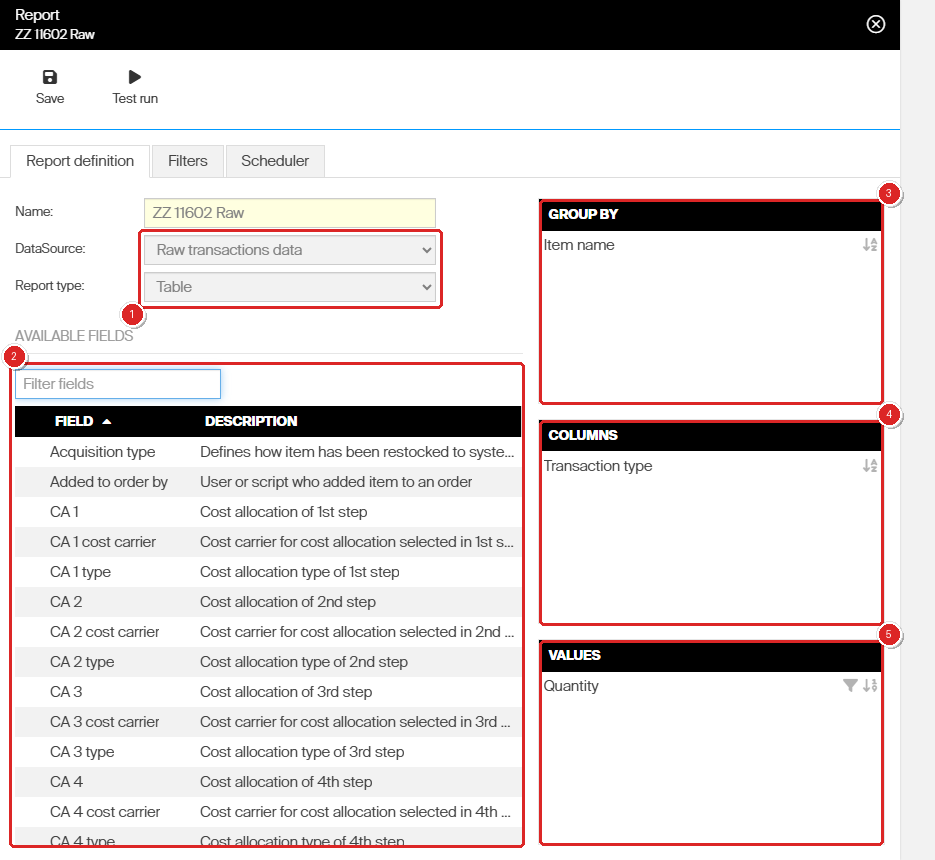
The report definition of a Table report on Raw transactions data. (1) DataSource and Report type, (2) the available fields with their descriptions, (3) GROUP BY, (4) COLUMNS and (5) VALUES.
| Column in the tables | What Yes means |
|---|---|
| Filter | The field appears on the report’s Filters tab, so you can restrict the report to certain values of it. |
| Group by | You can drop the field into GROUP BY or COLUMNS to split the report into rows or columns by its values. |
| Values | The field is a number you can drop into VALUES to total it. The designer refuses anything else – a text field such as Item name dropped on VALUES is simply not added. |
Note: A field marked – in every column can still be shown in a report, it just cannot be filtered, grouped or totalled. The field list only appears after the first Save of a new report – before that the definition shows just Name, DataSource and Report type.
Fields marked Yes in the Filter column appear on the report’s Filters tab. For the period values and controls there, see How to use report filters.
Raw transactions data
Every movement and change of stock – picks, returns, restocks, scrap, inventory counts, moves – plus the purchasing and service events, one row per transaction.
Use it for: Consumption and cost per user, device, item or cost allocation; audit trails; purchase history.
| Field | Description | Filter | Group by | Values |
|---|---|---|---|---|
| Acquisition type | Defines how item has been restocked to system (from purchase, service, transfer). | – | Yes | – |
| Added to order by | User or script who added item to an order. | – | Yes | – |
| CA 1–CA 8 | Cost allocation selected in step 1–8. | Yes | Yes | – |
| CA 1–CA 8 cost carrier | Cost carrier of the cost allocation selected in step 1–8. | – | Yes | – |
| CA 1–CA 8 type | Cost allocation type of step 1–8. | – | Yes | – |
| Comment | User comment after pick, return or restock. | – | – | – |
| Consumed quantity | Quantity actually consumed by the transaction. | – | Yes | Yes |
| Currency | Currency. | Yes | Yes | – |
| Device ID | ID of device. | – | Yes | – |
| Device name | Name of device. | Yes | Yes | – |
| GL account | General ledger account. | Yes | Yes | – |
| Is assembly | Indicates if item is assembly. | Yes | Yes | – |
| Is consignment | Specifies if item in transaction is handled as consignment. | Yes | Yes | – |
| Is serialized | Indicates if item is serialized. | Yes | Yes | – |
| Item category | Category of item (without parent categories). | Yes | Yes | – |
| Item category tree | Category of item (with parent categories). | – | Yes | – |
| Item description | Description of item in user’s language. | – | Yes | – |
| Item ID | ID of item. | Yes | Yes | – |
| Item name | Name of item. | Yes | Yes | – |
| Item type | Consumable/Durable item. | Yes | Yes | – |
| Lead time | Lead time (in days) to purchase new items from vendor. | – | – | – |
| Lot number | Lot (batch) number of the item. Filled in only for items with lot tracking turned on. | – | Yes | – |
| Manufacturer ID | ID of item’s manufacturer. | – | Yes | – |
| Manufacturer item ID | Manufacturer’s identification of an item. | – | Yes | – |
| Manufacturer name | Name of item’s manufacturer. | Yes | Yes | – |
| Minimum quantity for service | Minimum quantity needed before service can be provided for an item. | – | – | Yes |
| Order code | Vendor-related ordering code. | Yes | Yes | – |
| Order currency | Currency of an order. | Yes | Yes | – |
| Order gross price per unit | Gross price per order unit of measure, in the vendor currency. Purchase-related transactions only. | – | – | Yes |
| Order ID | ID of order (for transactions related with purchasing and service). | – | Yes | – |
| Order line reference | Reference to item line in an order. | – | Yes | – |
| Order price per unit | Price per order unit of measure, in the vendor currency. Purchase-related transactions only. | – | – | Yes |
| Order quantity | Ordered quantity, in the order unit of measure. Purchase-related transactions only. | – | Yes | Yes |
| Order reference | Order reference from order (for transactions related with purchasing and service). | – | Yes | – |
| Order unit of measure | Unit of measure on the order. Purchase-related transactions only. | Yes | Yes | – |
| Own classification | ABC classification of the item. | Yes | Yes | – |
| Pick list | Pick list name reference. | – | Yes | – |
| Pick list ID | Pick list ID reference. | Yes | Yes | – |
| Purchase currency | Purchase currency. | Yes | Yes | – |
| Purchase gross price per unit | Purchase gross price per unit. | – | – | Yes |
| Purchase package quantity | Quantity in single purchasing package. | – | – | Yes |
| Purchase price per unit | Purchase price per unit. | – | – | Yes |
| Purchase unit of measure | Purchase unit of measure. | Yes | Yes | – |
| Quantity | Quantity moved by the transaction. The meaning depends on the transaction type (picked, returned, purchased…). Always in the dispense unit of measure. | – | – | Yes |
| Quantity before transaction | Quantity in location before transaction was performed. | – | Yes | Yes |
| Quantity discrepancy | Quantity discrepancy from inventory operation. | – | – | Yes |
| Serial number | Serial number of item. | Yes | Yes | – |
| Service code | Service vendor-related ordering code. | Yes | Yes | – |
| Service lead time | Lead time (in days) to service item by service vendor. | – | – | – |
| Service price per unit | Service price per unit. | – | – | Yes |
| Service type | Type of service provided by service vendor. | Yes | Yes | – |
| Service vendor ID | ID of item’s service vendor. | – | Yes | – |
| Service vendor name | Name of item’s service vendor. | Yes | Yes | – |
| Stock location name | Name of stock location and storage device. | – | Yes | – |
| Stock location rule | Location rule according to item location assignment. | Yes | Yes | – |
| Stock name | Name of stock. | Yes | Yes | – |
| Timestamp | Date and time of the transaction. This is the field the report date filter works on. | Yes | – | – |
| Total order gross price | Total order gross price, in the vendor currency. Purchase-related transactions only. | – | – | Yes |
| Total order price | Total order price, in the vendor currency. Purchase-related transactions only. | – | – | Yes |
| Transaction type | Type of transaction – see Transaction types below. | Yes | Yes | – |
| Type of return | Defines how item has been returned (used, not used, for service). | – | Yes | – |
| Unit of measure | Unit of measure. | Yes | Yes | – |
| Usage cost | Cost of the items consumed by the transaction. | – | – | Yes |
| User group | User group of user. | Yes | Yes | – |
| User login | Login of the user who performed the operation, with the customer short-name prefix. | – | Yes | – |
| User name | Full name of user. | Yes | Yes | – |
| Value | Value of the transaction, based on the transaction type. | – | – | Yes |
| Value discrepancy | Value discrepancy from inventory operation. | – | – | Yes |
| Vendor ID | ID of item’s vendor. | – | Yes | – |
| Vendor name | Name of item’s vendor. | Yes | Yes | – |
| Week | Week number of the transaction (ISO 8601: week 1 is the first week of the year with a Thursday). | – | Yes | – |
| Year | Year of transaction. | – | Yes | – |
| Year-Month | Year and month of the transaction, for example 2026-05. | – | Yes | – |
Transaction types
The Transaction type field holds one of these values:
| Value | Written when |
|---|---|
| Pick | An item was taken from a device by a pick. |
| Return | An item was returned to a device. |
| Restock | An item was restocked, with or without an order or list. |
| Scrap | A picked item was scrapped. |
| Withdraw | An item was removed from a location outside a pick: unassigned from a location or device, moved to another location, its location removed or disabled, its device deleted, or taken to build a new assembly. |
| Placement | An item was placed in a location: assigned to a new location or moved to one. |
| Inventory | An inventory count set the correct quantity on a location. |
| GoodsReceived | An ordered item was received, in the Admin Portal or the Shop Floor Interface. |
| PickForService | An item on a service list or order was picked to be sent for service. |
| PickForTransfer | An item on a transfer list was picked to be restocked in a satellite stock. |
| ScrapOrderQuantity | An item on a service order was scrapped during service. |
| CancelOrderQuantity | An item on an order was cancelled and will not be received. Also written when an active order is cancelled or deleted. |
| PriceUpdate | The standard cost of an item was updated because of recent orders. |
| Purchased | A new item or a service was purchased (the order was set to active). Acquisition type tells a purchase of new items from a purchase of service. |
Assignment (inventory, restock) data
The current stock situation for each item in each device: quantities by condition, min/max and order point, value, and the item’s vendor, manufacturer and service settings.
Use it for: Stock levels, items at order point or out of stock, restock and reorder lists, stock value today.
| Field | Description | Filter | Group by | Values |
|---|---|---|---|---|
| Critical quantity | Critical quantity of the item in the device, based on its critical level and order point. | – | – | Yes |
| Currency | Currency. | Yes | Yes | – |
| Device | Name of device. | Yes | Yes | – |
| Device ID | ID of device. | Yes | Yes | – |
| GL account | General ledger account. | Yes | Yes | – |
| Gross price per unit | Purchase gross price per unit from the vendor. | – | – | Yes |
| Is assembly | Indicates if item is assembly. | Yes | Yes | – |
| Is at order point | Indicates if quantity in stock is at or below order point. Considering picked items for durables. | Yes | Yes | – |
| Is out of stock | Indicates if item quantity in device is zero. | Yes | Yes | – |
| Is quoted | Indicates if item is quoted and will not be automatically added to order by scheduled script. | Yes | Yes | – |
| Is serialized | Indicates if item is serialized. | Yes | Yes | – |
| Is serviced | Indicates if service is active for item. | Yes | Yes | – |
| Item category | Category of item (without parent categories). | Yes | Yes | – |
| Item description | Description of item in user’s language. | Yes | Yes | – |
| Item ID | ID of item. | – | Yes | – |
| Item name | Name of item. | Yes | Yes | – |
| Item status | Defined / released / outgoing / obsolete. | Yes | Yes | – |
| Item stock status | Item stock status. | Yes | Yes | – |
| Item type | Consumable/Durable item. | Yes | Yes | – |
| Lead time | Lead time (in days) to purchase new items from vendor. | – | – | Yes |
| Manufacturer ID | ID of item’s manufacturer. | – | Yes | – |
| Manufacturer item ID | Manufacturer’s identification of an item. | Yes | Yes | – |
| Manufacturer name | Name of item’s manufacturer. | Yes | Yes | – |
| Max quantity | Maximum quantity that can be placed in the locations. | – | – | Yes |
| Min quantity | Minimum quantity required to be available. | – | – | Yes |
| Minimum quantity for service | Minimum quantity needed before service can be provided for an item. | – | – | Yes |
| Missing to max | Quantity missing to fill everything to max. | – | – | Yes |
| Number of picks | Number of picking operations from transactions data for selected period. | Yes | – | Yes |
| Number of returns | Number of return operations from transactions data for selected period. | Yes | – | Yes |
| Order code | Vendor-related ordering code. | – | Yes | – |
| Order point | Quantity when the orders will be automatically created. | – | – | Yes |
| Picked quantity | Number of items picked and still out in production. Durable items only. | – | – | Yes |
| Price per unit | Price per unit of the item. | – | – | Yes |
| Purchase currency | Purchase currency. | Yes | Yes | – |
| Purchase gross price per unit | Purchase gross price per unit. | – | – | Yes |
| Purchase package quantity | Quantity in single purchasing package. | – | – | Yes |
| Purchase price per unit | Purchase price per unit. | – | – | Yes |
| Purchase unit of measure | Purchase unit of measure. | Yes | Yes | – |
| Quantity for service | Number of items waiting for service. | – | – | Yes |
| Quantity in stock | Available quantity in stock. | – | – | Yes |
| Quantity of new | Current available quantity of item in condition New. | – | – | Yes |
| Quantity of refurbished | Current available quantity of item in condition Refurbished. | – | – | Yes |
| Quantity of used | Current available quantity of item in condition Used. | – | – | Yes |
| Service code | Service vendor-related ordering code. | – | Yes | – |
| Service lead time | Lead time (in days) to service item by service vendor. | – | – | Yes |
| Service price per unit | Service price per unit. | – | – | Yes |
| Service type | Type of service provided by service vendor. | Yes | Yes | – |
| Service vendor ID | ID of item’s service vendor. | – | Yes | – |
| Service vendor name | Name of item’s service vendor. | Yes | Yes | – |
| Standard cost | Standard cost of the item. | – | – | Yes |
| Stock | Name of stock. | Yes | Yes | – |
| Unit of measure | Unit of measure. | Yes | Yes | – |
| Value | Cost of all the items (quantity * standard cost). | – | – | Yes |
| Vendor ID | ID of item’s vendor. | – | Yes | – |
| Vendor name | Name of item’s vendor. | Yes | Yes | – |
Stock locations data
The storage locations themselves – stock, device, storage device and module – and the item assigned to each, with its physical quantity and last inventory date.
Use it for: Location utilisation, empty locations, what sits where, lot numbers per location.
| Field | Description | Filter | Group by | Values |
|---|---|---|---|---|
| Currency | Currency. | Yes | Yes | – |
| Device ID | ID of device. | – | Yes | – |
| Device name | Name of device. | Yes | Yes | – |
| Has items assigned | Indicates if any items are assigned to a location. | Yes | Yes | – |
| Is cloud | Indicates if a device is a cloud device. | Yes | Yes | – |
| Item description | Description of assigned item. | – | Yes | – |
| Item ID | ID of assigned item. | Yes | Yes | – |
| Item location rule | Rule for item conditions that can be placed at a location. | Yes | Yes | – |
| Item name | Name of assigned item. | Yes | Yes | – |
| Last inventory date | Date of last inventory performed for item in location. | Yes | – | – |
| Lead time | Lead time (in days) to purchase new items from vendor. | – | – | – |
| Location | Name of location. | – | Yes | – |
| Location full name | Name of a location with stock, device, storage device and module. | – | Yes | – |
| Lot number | Lot (batch) number of the item. Filled in only for items with lot tracking turned on. | – | Yes | – |
| Manufacturer ID | ID of item’s manufacturer. | – | Yes | – |
| Manufacturer item ID | Manufacturer’s identification of an item. | – | Yes | – |
| Manufacturer name | Name of item’s manufacturer. | Yes | Yes | – |
| Minimum quantity for service | Minimum quantity needed before service can be provided for an item. | Yes | Yes | Yes |
| Module | Name of module (if any). | – | Yes | – |
| Order code | Vendor-related ordering code. | – | Yes | – |
| Physical max quantity | Maximum quantity of items that can be placed at a location. | – | Yes | Yes |
| Physical quantity | Current quantity of items at a location. | Yes | Yes | Yes |
| Purchase currency | Purchase currency. | Yes | Yes | – |
| Purchase gross price per unit | Purchase gross price per unit. | – | – | Yes |
| Purchase package quantity | Quantity in single purchasing package. | – | – | Yes |
| Purchase price per unit | Purchase price per unit. | – | – | Yes |
| Purchase unit of measure | Purchase unit of measure. | Yes | Yes | – |
| Service code | Service vendor-related ordering code. | – | Yes | – |
| Service lead time | Lead time (in days) to service item by service vendor. | – | – | – |
| Service price per unit | Service price per unit. | – | – | Yes |
| Service type | Type of service provided by service vendor. | Yes | Yes | – |
| Service vendor ID | ID of item’s service vendor. | – | Yes | – |
| Service vendor name | Name of item’s service vendor. | Yes | Yes | – |
| Stock | Name of stock. | Yes | Yes | – |
| Storage device name | Name of storage device. | Yes | Yes | – |
| Storage device type | Type of storage device. | Yes | Yes | – |
| Unit of measure | Unit of measure. | Yes | Yes | – |
| Vendor ID | ID of item’s vendor. | – | Yes | – |
| Vendor name | Name of item’s vendor. | Yes | Yes | – |
Orders data
Purchase and service orders, one row per order line, with quantities received, restocked and cancelled, dates and delivery precision.
Use it for: Open and late orders, vendor delivery performance, purchase spend.
| Field | Description | Filter | Group by | Values |
|---|---|---|---|---|
| Cancelled / scrapped quantity | Quantity cancelled for purchase order or scrapped for service orders. | – | – | Yes |
| Currency | Currency. | Yes | Yes | – |
| Delivery precission | Quantity received in time, as a percentage of the total quantity. (The designer spells the field precission.) | – | – | – |
| Device ID | ID of device. | – | Yes | – |
| Device name | Name of device. | Yes | Yes | – |
| Expected date | Expected delivery date for the order item. | Yes | – | – |
| GL account | General ledger account. | Yes | Yes | – |
| Is consignment | Specifies if item in transaction is handled as consignment. | Yes | Yes | – |
| Item description | Description of item in user’s language. | – | Yes | – |
| Item ID | ID of item. | Yes | Yes | – |
| Item name | Name of item. | Yes | Yes | – |
| Late | True for order items where expected date is in the past and quantity received in time is less than quantity. | Yes | Yes | – |
| Lead time | Lead time (in days) to purchase new items from vendor. | – | Yes | – |
| Line number | Line number of item in order. | – | Yes | – |
| Manufacturer ID | ID of item’s manufacturer. | – | Yes | – |
| Manufacturer item ID | Manufacturer’s identification of an item. | Yes | Yes | – |
| Manufacturer name | Name of item’s manufacturer. | Yes | Yes | – |
| Order code | Vendor-related ordering code. | Yes | Yes | – |
| Order date | Create date of the order. | Yes | – | – |
| Order ID | ID of order (for transactions related with purchasing and service). | – | Yes | – |
| Order item notes | Notes for the order item. | – | Yes | – |
| Order line reference | Reference to item line in an order. | – | Yes | – |
| Order notes | Notes for the order. | – | Yes | – |
| Order reference | Order reference from order (for transactions related with purchasing and service). | – | Yes | – |
| Order status | Status of the order. | Yes | Yes | – |
| Picked quantity | Quantity already picked from the device for service. | – | – | Yes |
| Purchase gross price per unit | Purchase gross price per unit. | – | – | Yes |
| Purchase price per unit | Purchase price per unit. | – | – | Yes |
| Purchase unit of measure | Purchase unit of measure. | Yes | Yes | – |
| Quantity | Ordered quantity on the order line. | – | – | Yes |
| Quantity in time | Quantity received + cancelled / scrapped in time of the expected date. | – | – | Yes |
| Received quantity | Quantity already received. | – | – | Yes |
| Requested delivery date | Requested delivery date for the order item. | Yes | – | – |
| Restocked quantity | Quantity already restocked to target device. | – | – | Yes |
| Stock name | Name of stock. | Yes | Yes | – |
| Total gross price | Total gross price calculated as number of items * price per unit. | – | – | Yes |
| Total price | Total price calculated as number of items * price per unit. | – | – | Yes |
| Type | Type of the order. | Yes | Yes | – |
| Vendor ID | ID of item’s vendor. | – | Yes | – |
| Vendor name | Name of item’s vendor. | Yes | Yes | – |
| Year | Year of transaction. | – | Yes | – |
| Year-Month | Year and month of the transaction, for example 2026-05. | – | Yes | – |
Stock history data
A monthly snapshot of stock quantity and value per stock, item type and condition.
Use it for: Stock value and quantity trends over months.
| Field | Description | Filter | Group by | Values |
|---|---|---|---|---|
| Assignment rule | Condition of the item (new / used / refurbished / for service). | Yes | Yes | – |
| Average consumption | Average consumption of the item. | – | – | – |
| Is assembly | Indicates if item is assembly. | Yes | Yes | – |
| Is serialized | Indicates if item is serialized. | Yes | Yes | – |
| Item type | Consumable/Durable item. | Yes | Yes | – |
| Quantity | Quantity in stock at the snapshot. | – | – | Yes |
| Snapshot date | The beginning of the month to which the data belongs to. | Yes | – | – |
| Stock name | Name of stock. | Yes | Yes | – |
| Turnover | Stock turnover. | – | – | – |
| Value | Stock value at the snapshot. | – | – | Yes |
| Year-Month | Year and month of the snapshot, for example 2026-05. | – | Yes | – |
Note: Each row is bound to the first day of its month (Snapshot date). Stock history data has no item-level fields such as Item ID – for stock per item, use Assignment data.
Common confusion
| People often think… | But actually… |
|---|---|
| Every field can be filtered on. | Only the fields with Yes in the Filter column appear on the Filters tab. |
| Any field can go into VALUES. | Only numeric fields marked Yes under Values. Dates and text are refused. |
| The same field name means the same thing in every source. | Not always. Quantity is the moved quantity in Raw transactions data, the ordered quantity in Orders data and the stock quantity in Stock history data. |
| All data sources are live. | Not quite. A new transaction reaches Raw transactions data within about a minute, not the moment it happens. Reports on current stock read live data. |
| A data source respects item and device restrictions. | Reporting data is not limited by restrictions on items, vendors, devices or stocks. Restrict who can open the report instead. |
| Lot numbers cannot be reported on. | Lot number is a field in Raw transactions data and Stock locations data. You can show it and group by it, but not filter on it. |
Take action
Found the fields you need? Build the report with How to create a custom report, then narrow it with report filters.
Related articles
- How to create a custom report – build a report on one of these data sources.
- How to use report filters – filter on the fields marked Filter.
- How to run, filter, and schedule a report – run, export and email a report once it is built.
- Default reports reference – built-in reports that already use these sources.
- Reporting overview: charts, tables, dashboards, and BI – all the ways to consume this data.
- BI interface: connect a BI tool to CRIBWISE reporting data – the same data through an external BI tool.
- How to turn on lot and batch tracking for an item – fill the Lot number field.