
What the manufacturer field is for
A manufacturer is the company that produces a tool, while a vendor is the company you buy it from. Vendors may resell products from multiple manufacturers, so CRIBWISE keeps them as separate records. See How to manage vendors.
A manufacturer record only contains the Manufacturer ID and Name.
The Manufacturer field on an item is mainly used for catalog updates. Together with the Manufacturer item ID, it identifies the corresponding manufacturer article so CRIBWISE can update the item’s data from an external catalog.
It is possible to use the manufacturer tag when making an order template or for tracking purpose in a report.
What you can do
Create, rename, and delete the manufacturers your items come from, so every item can be traced back to the company that made it and kept up to date from that manufacturer’s catalog.
Before you start
- You need Admin Portal access with permission to use the Data management menu.
- Decide your Manufacturer ID convention before you add records in bulk — the ID is what integrations and imports refer to.
- A manufacturer needs only two values: an ID and a name. Both are mandatory and both must be unique.
Quick start
Experienced users — add a manufacturer in 4 steps:
- Go to Data management > Manufacturers.
- Click New manufacturer.
- Enter a Manufacturer ID and a Name.
- Click Save manufacturer.
Need more detail? Follow the full steps below.
Steps
Step 1 — Open the manufacturer list
- In the sidebar, open Data management.
- Select Manufacturers.
The list opens showing every manufacturer in your system, with its ID and Name. The result count at the bottom right tells you how many records you have.
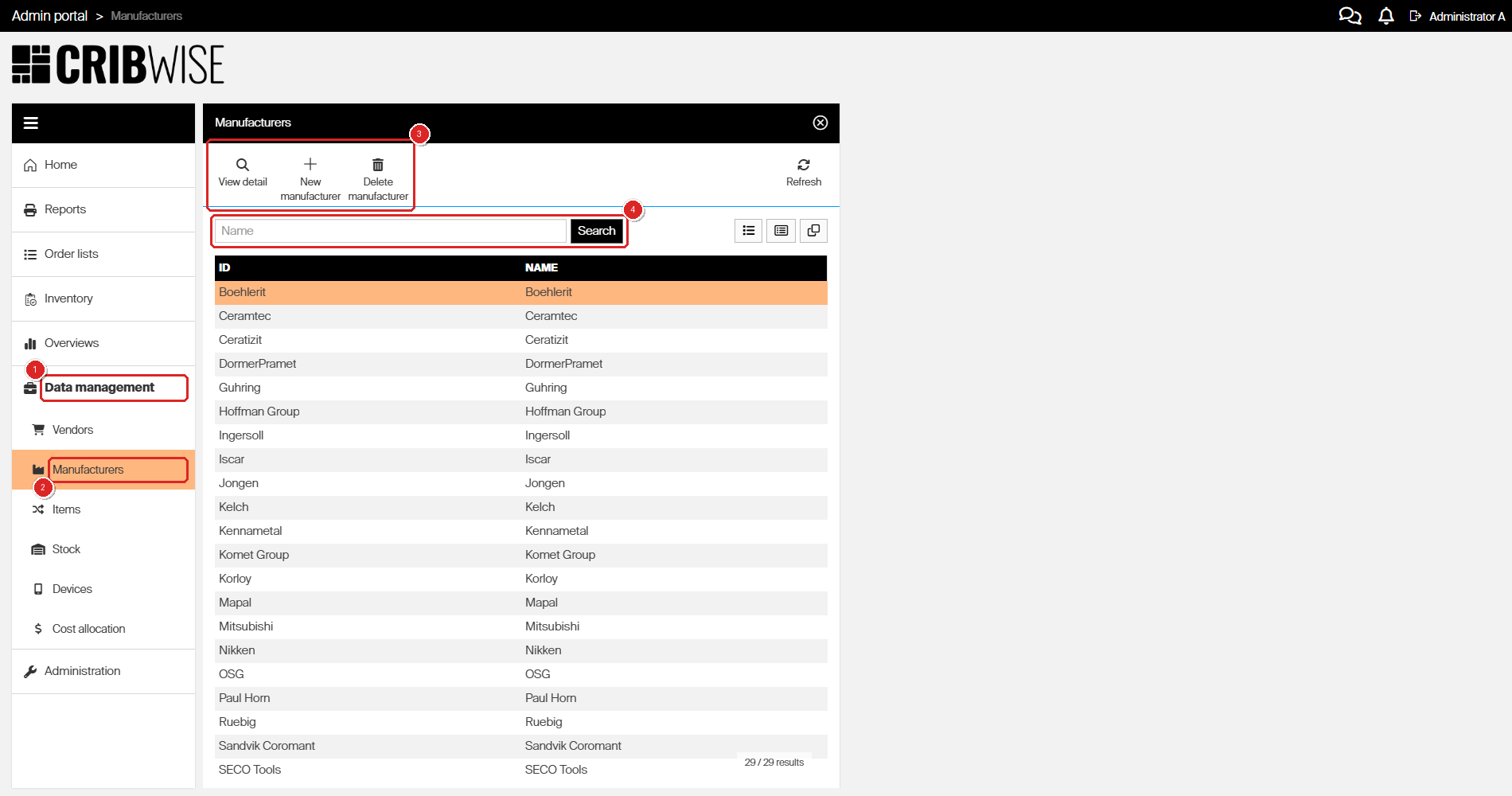
The manufacturer list. The toolbar (3) holds every action you need; the search field (4) filters the list by name.
Tip: On a long list, type into the search field and click Search rather than scrolling. The list is paged, so a manufacturer near the end of the alphabet may not be on screen yet.
Step 2 — Create a manufacturer
- Click New manufacturer.
- Enter the Manufacturer ID.
- Enter the Name.
Both fields sit on the General information tab and are shaded yellow, which marks them as mandatory.
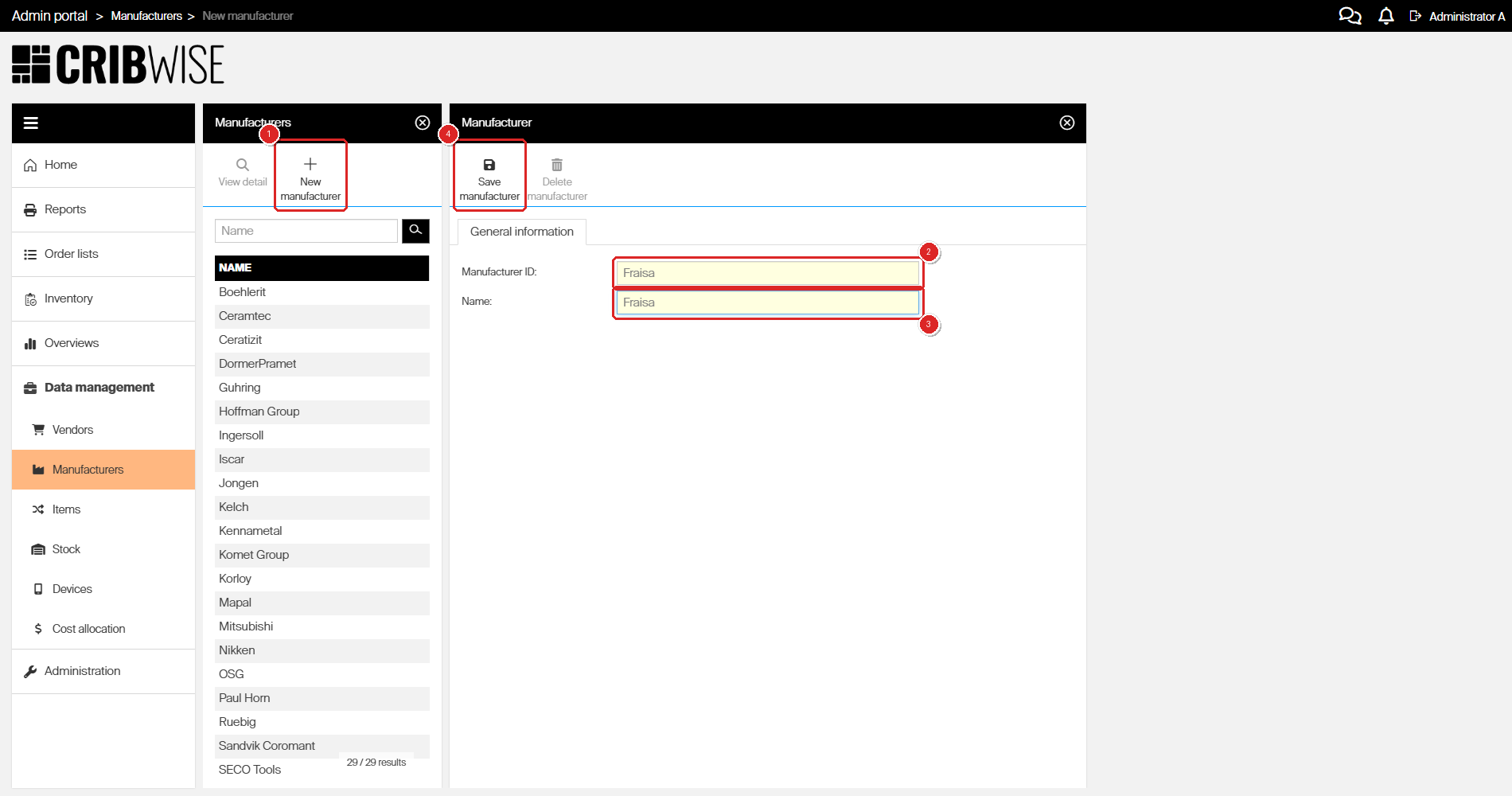
The new manufacturer form. Yellow shading marks the mandatory fields.
| Field | Required | What to enter |
|---|---|---|
| Manufacturer ID | Yes | Your unique identifier for the manufacturer. This is the value integrations and imports refer to, so keep it short and stable. Must be unique. |
| Name | Yes | The manufacturer’s name as your team knows it. This is what appears in the manufacturer picker on an item. Must be unique. |
Tip: Using the same value for both fields is fine and common — most of the pre-loaded manufacturers in CRIBWISE do exactly that.
Step 3 — Save
Click Save manufacturer.
Success: a green message confirms The Manufacturer [name] has been successfully saved, and the new record appears in the list with the result count increased by one.
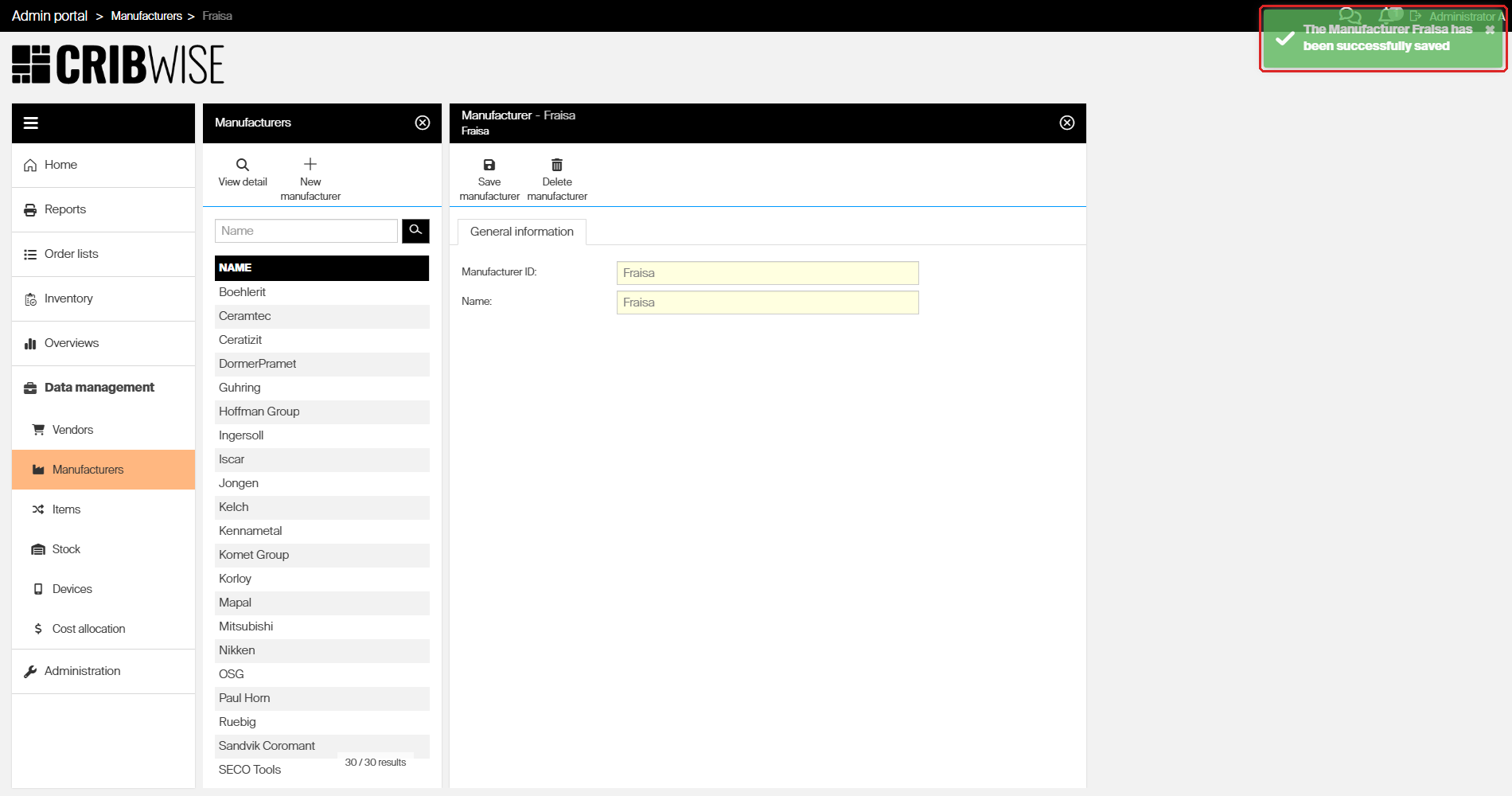
The confirmation message, and the manufacturer now in the list.
Step 4 — Edit a manufacturer
- Select the manufacturer in the list.
- Click View detail.
- Change the Manufacturer ID or the Name.
- Click Save manufacturer.
Both fields stay editable after the record exists, so you can correct a typo in either one.
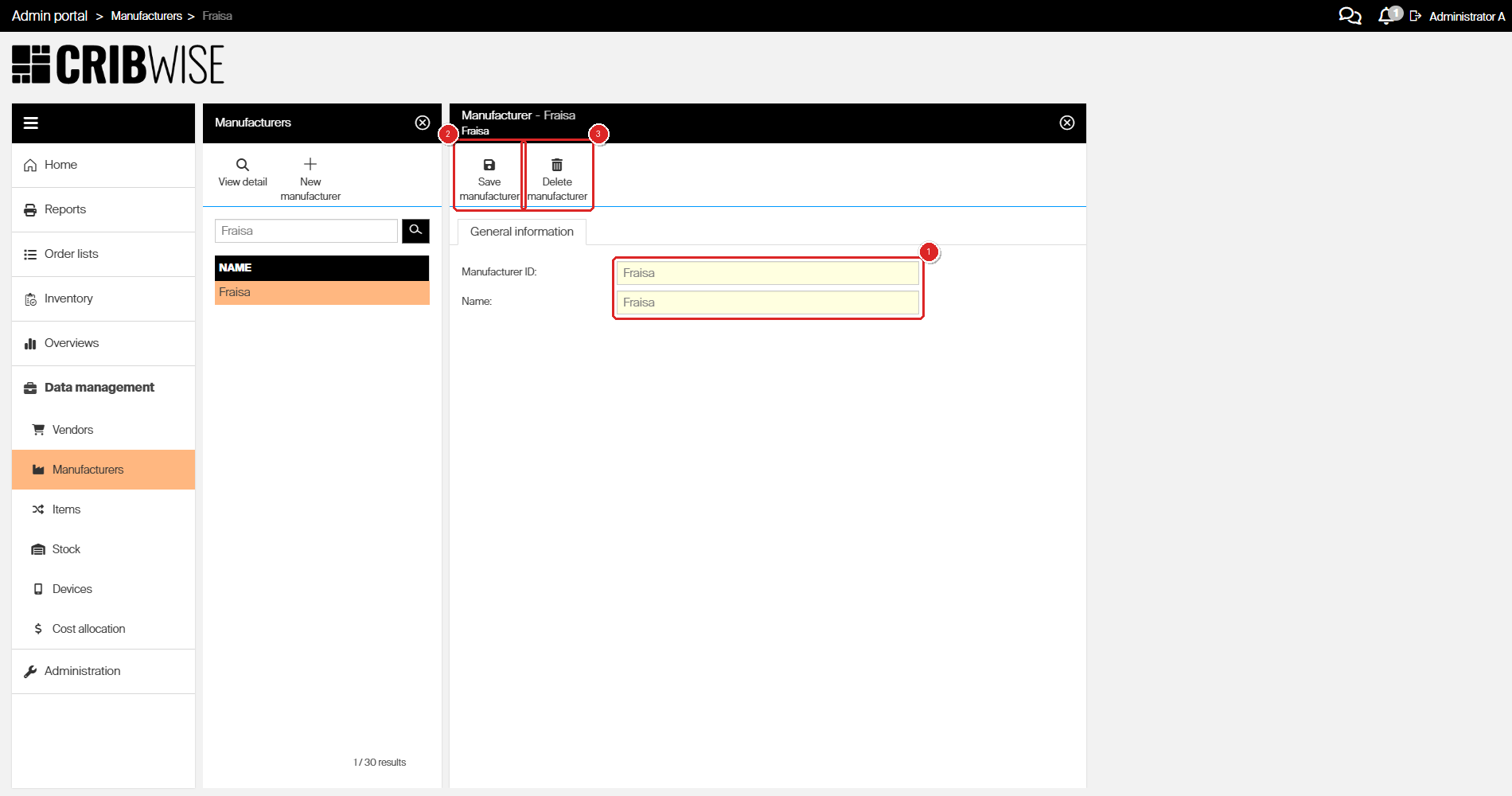
The detail view. Both fields (1) can be changed, then saved (2). The same view is where you delete the record (3).
Important: Changing a Manufacturer ID that an integration or an import file already uses will break the match on the next run. Update the ID on both sides, or leave it alone and change only the name.
Step 5 — Delete a manufacturer
- Select the manufacturer in the list, or open it with View detail.
- Click Delete manufacturer.
- Confirm with Yes.
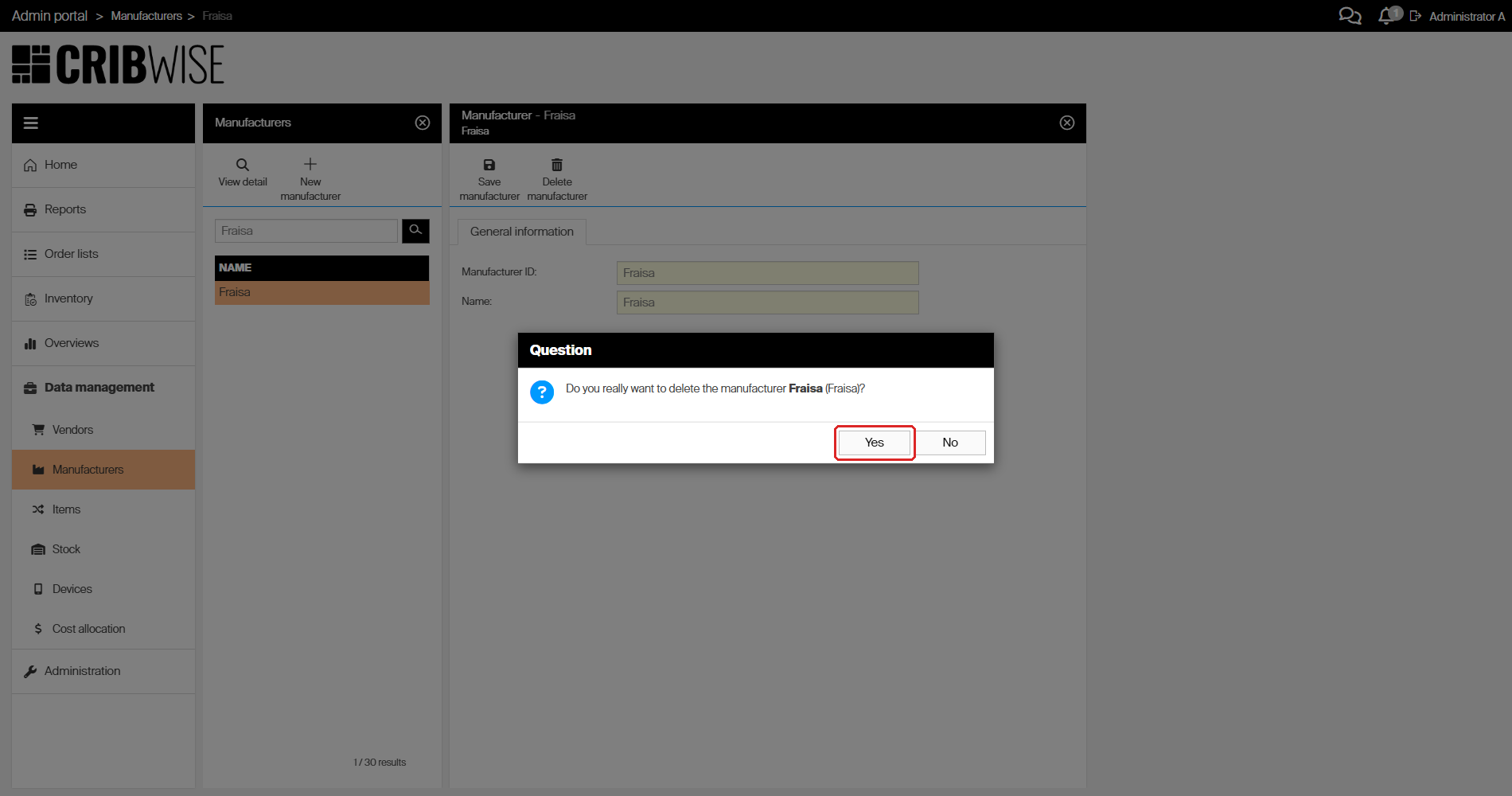
The confirmation names the manufacturer and its ID, so you can check you have the right record before confirming.
Success: the message The Manufacturer [name] has been deleted appears and the record leaves the list.
Warning: A manufacturer that is assigned to any item cannot be deleted. CRIBWISE refuses with Cannot remove manufacturer with assigned items and the record stays. Reassign the items first.
Where manufacturers are used
The list you maintain here is the set of options available on an item. On an item, open the Supplier tab and look under Manufacturer information:
- Manufacturer — chosen from your manufacturer list. Use the magnifier to open the picker, or the cross to clear it.
- Manufacturer item ID — the manufacturer’s own code for that item, typed in directly. It is the key CRIBWISE matches on when it updates items from an external catalog.
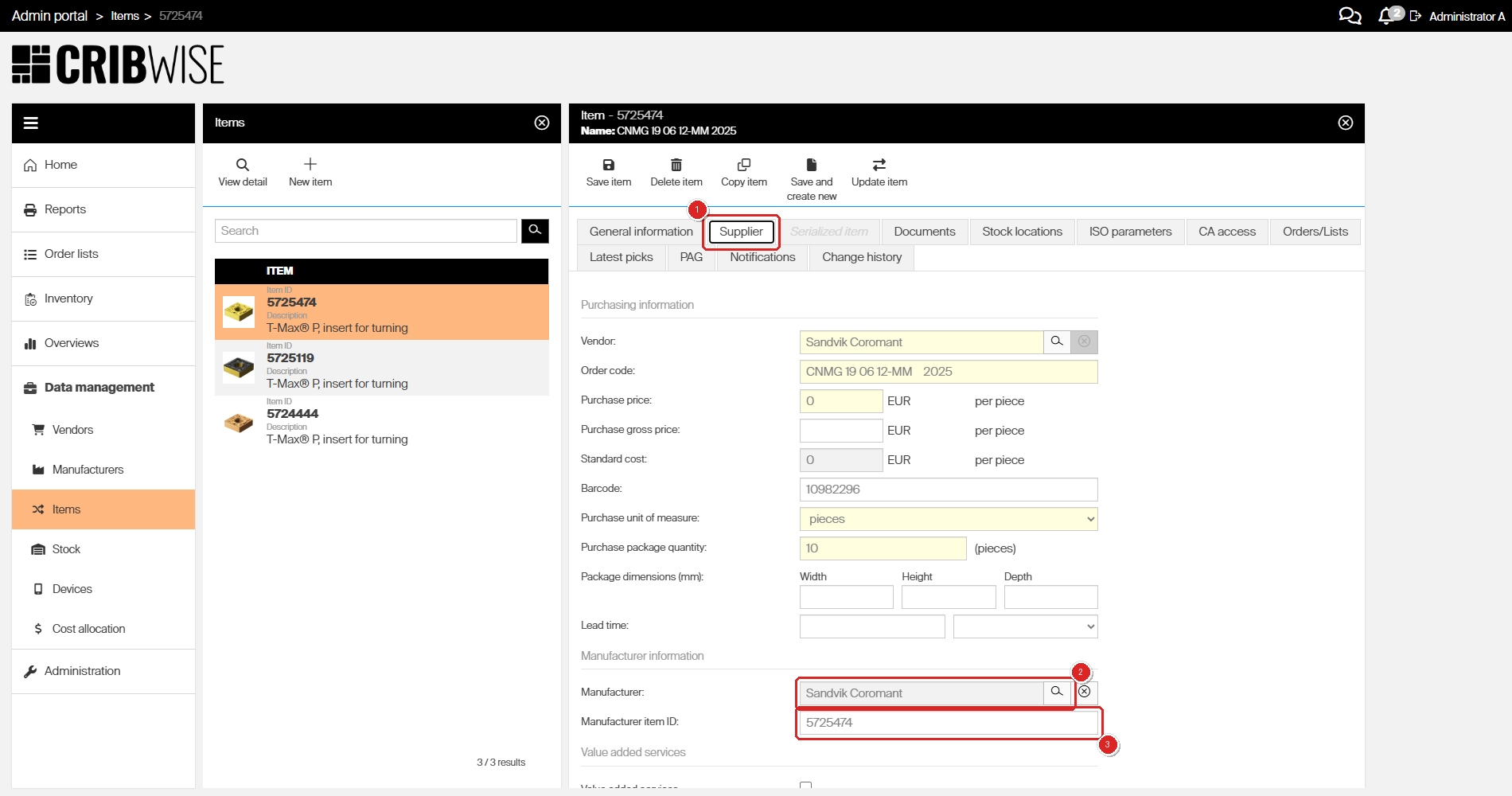
Manufacturer information on an item: the Supplier tab (1), the Manufacturer field and its picker (2), and the Manufacturer item ID (3).
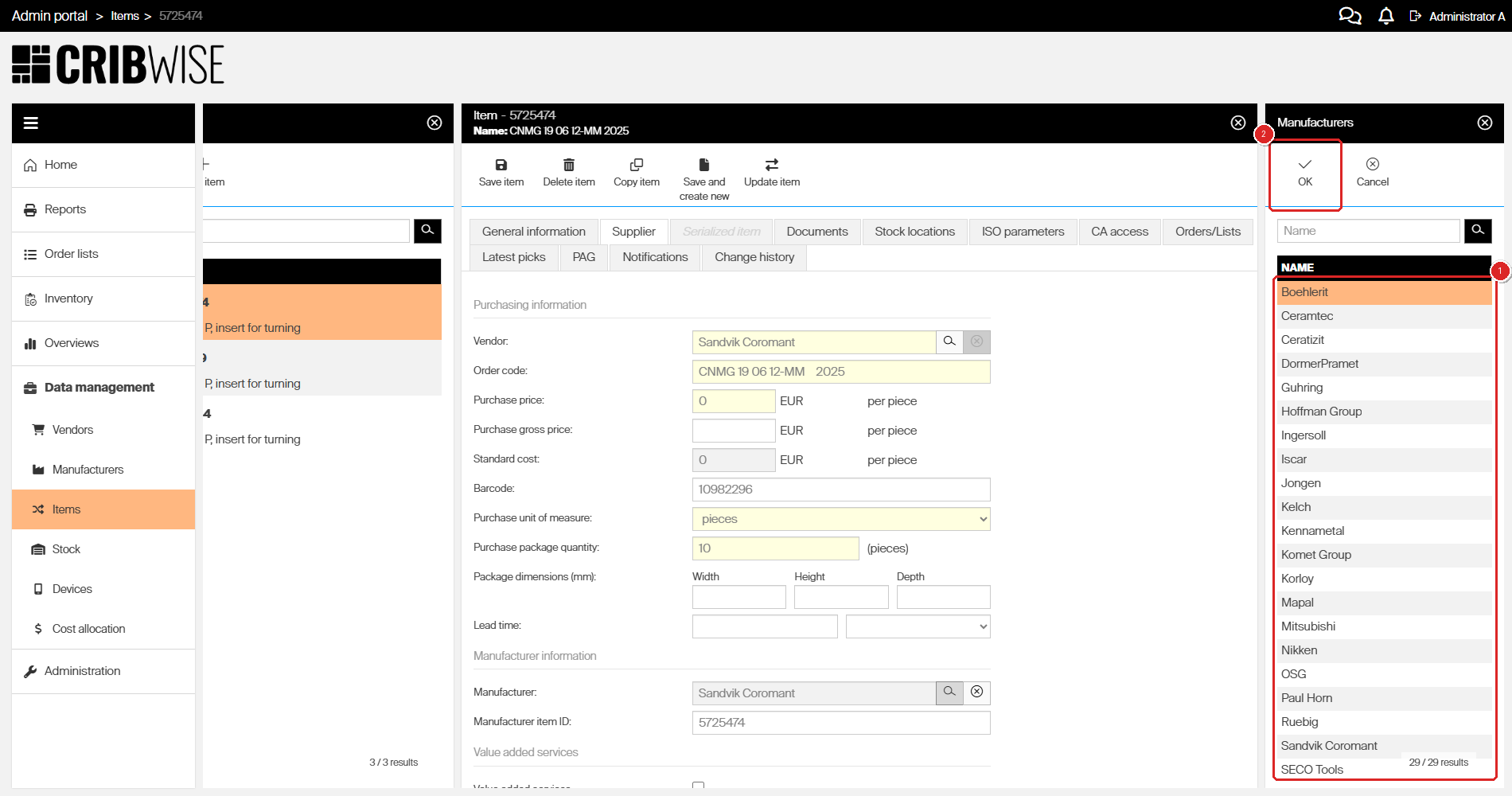
The picker (1) lists exactly what you maintain under Data management. Select a manufacturer and confirm with OK (2). If a manufacturer is missing here, add it first.
Note: Manufacturers can also be created over the API, with the same rules as here:
ManufacturerIdandNameare both mandatory and both must be unique. There is no update or delete endpoint, so renaming and deleting stay in the Admin Portal. See How to create manufacturers with the REST API.
Next steps
- Assign the manufacturer to your items — set Manufacturer and Manufacturer item ID on the item’s Supplier tab. See Best practices for configuring item fields.
- Keep item data current — with the Manufacturer item ID filled in, CRIBWISE can refresh item data from the manufacturer’s catalog. See How to update items from an external catalog.
Troubleshooting
| Problem | Likely cause | Fix |
|---|---|---|
| The message Cannot remove manufacturer with assigned items appears and the manufacturer is still listed. | At least one item still references the manufacturer. | Open each affected item, go to Supplier > Manufacturer information, and pick a different manufacturer or clear the field. Then delete the manufacturer. |
| Saving fails with Has non-unique ID. | Another manufacturer already uses that Manufacturer ID. | Search the list for the existing record. Reuse it, or enter a different ID. |
| Saving fails with Non-unique name. | Another manufacturer already uses that name. | Names must be unique too. Check for an existing record before creating a near-duplicate. |
| Both fields turn red and nothing is saved. | Manufacturer ID or Name is empty. | Fill in both fields, then click Save manufacturer again. |
| A manufacturer you added is not in the item’s manufacturer picker. | The picker list is paged, so records further down the alphabet are not on screen. | Type the name into the picker’s search field and search, instead of scrolling. |
| You missed the confirmation or error message. | Messages disappear after a few seconds. | Open the bell icon in the top-right corner. Every message is kept there with a timestamp. |
Related articles
- How to manage vendors — the companion task: maintaining the suppliers you buy items from.
- Best practices for configuring item fields — what to put in Manufacturer, Manufacturer item ID, and every other item field.
- Item fields and settings reference — every field on an item, described one by one.
- How to import items from a catalog — bring items in from a manufacturer or supplier catalog.
- How to update items from an external catalog — refresh item data using the Manufacturer item ID.
- How to create manufacturers with the REST API — create and update manufacturers over the API.
- Admin Portal permissions reference — which roles can reach the Data management menu.