
What you’ll learn
Open storage is the CRIBWISE storage device type for shelves, racks, and open bins — storage with no lock and no electronics. This card lists the settings an open storage device needs and shows how its stock locations are named.
For the click-by-click procedure, follow How to configure storage devices. This page is the settings summary you check while you fill that form in.
Open storage at a glance
| Open storage | Location controlled | |
|---|---|---|
| Physical equivalent | Shelves, racks, open bins, pallet places | Cabinets, carousels, lifts, spiral machines |
| Manufacturer | Not asked for — the field does not appear | Required. Pick the model from the list |
| Communication port or IP address | Not asked for — the fields do not appear | Required, so CRIBWISE can talk to the hardware |
| Storage modules | None. Open storage has no modules | One module per drawer, shelf, or coil line |
| Stock locations come from | The three dimension ranges on the storage device itself | The dimension ranges on each module |
| Works on a cloud device | Yes | No. Saving one on a cloud device fails |
| Locks and unlocks compartments | No | Yes |
Note: Open storage is the only type that works on a cloud device. If the device has Is cloud device set, choose Open storage or attach the cabinet to a device installed on a physical computer.
Storage device settings
Choosing Open storage in Type reduces the form to a name, three dimension ranges, and an optional default compartment size.
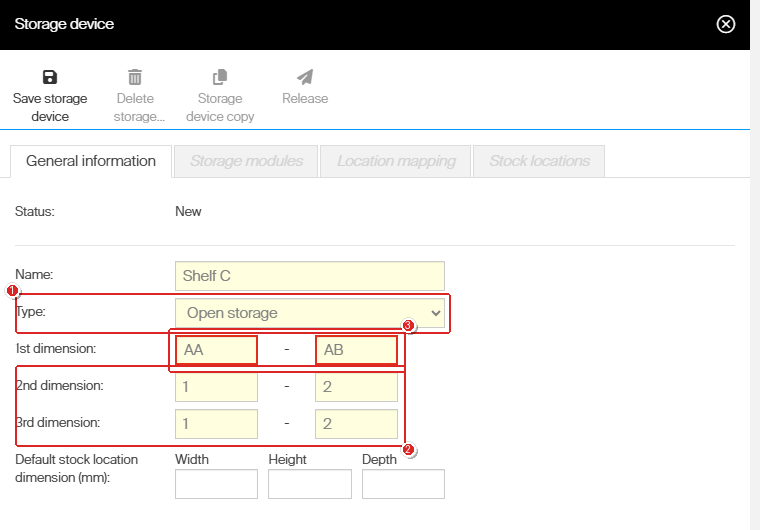
The Type field (1) decides which other fields the form asks for — no manufacturer, port, or IP address appears for open storage. The dimension ranges (2) generate every stock location. A two-letter range (3) is rejected: the boxes are outlined and the save is blocked.
| Setting | Required | What to enter |
|---|---|---|
| Status | — | Read-only. New until you release the storage device. |
| Name | Yes | What the shelf or rack is called on the shop floor. It becomes the first part of every stock location name, so keep it short. Up to 127 characters. |
| Type | Yes | Set to Open storage. The other options are Location controlled and Location controlled (Coil). |
| 1st dimension | Yes | A from-value and a to-value. See the rules below. |
| 2nd dimension | Yes | A from-value and a to-value. |
| 3rd dimension | Yes | A from-value and a to-value. |
| Default stock location dimension (mm) | No | The Width, Height, and Depth of one compartment. Applied to every generated location. |
Important: All six dimension boxes must be filled. Open storage has three dimensions even when the shelf only really has two — set the unused one to a single value, such as 1 to 1.
What the dimension ranges accept
- A value is either a number or a single letter from A to Z.
- A two-letter value such as AA is rejected. The from- and to-boxes are outlined and Save storage device does nothing.
- Numbers are not capped at 99. A range ending at 100 saves without complaint.
- The three dimensions can mix styles — numbers on one, letters on another.
Warning: The number of stock locations is the three ranges multiplied together. A range of 1–20 by A–E by 1–10 is 1,000 locations, generated in one go. Check the arithmetic before you save.
How stock locations are named
CRIBWISE generates one stock location for every combination of the three ranges, as soon as you save. The name is built from the storage device name and the three dimension values:
- Pattern: storage device name–1st–2nd–3rd
- Numeric values are padded to two digits, so 1 becomes 01.
- Letters are used exactly as typed.
| Storage device | Ranges | Locations generated |
|---|---|---|
Shelf A |
1–3 by A–B by 1–2 | 12 locations, Shelf A-01-A-01 through Shelf A-03-B-02 |
Rack 1 |
1–2 by 1–2 by 1–1 | 4 locations, Rack 1-01-01-01 through Rack 1-02-02-01 |
The grid below shows the same rule for a device with the ranges 1–3, 1–5, and 1–2 — 30 locations in all.
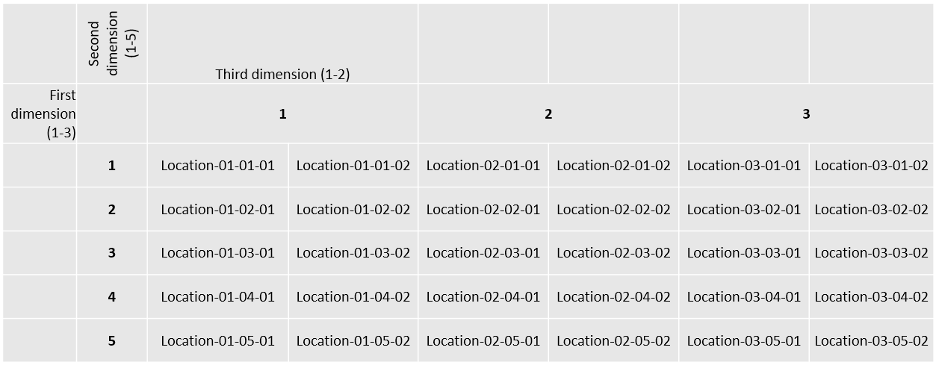
Every combination of the three ranges becomes one stock location. The first dimension runs across the columns, the second down the rows, and the third splits each column in two.
Take action
- Create the storage device — How to configure storage devices walks through the form, the generated locations, and releasing the device.
- Check the other models — Supported storage devices — configuration reference lists the module type and dimension ranges for every location-controlled model.
- Take a location out of use — How to disable and re-enable a stock location, rather than deleting it.
Related articles
- How to configure storage devices — the full procedure for open storage and location controlled devices.
- Supported storage devices — configuration reference — module type and dimension ranges per manufacturer and model.
- How to create and manage devices — the device a storage device is attached to, including the cloud device setting.
- How to create and manage stocks — the stock that owns the device and its locations.
- How to disable and re-enable a stock location — retire a compartment without deleting it.
- How to find Device ID and Storage Device ID — the identifiers used in integrations and support tickets.