
Find the Device ID or Storage device ID for a piece of hardware so you can include it in a support request. Both IDs are read straight from the Admin Portal — no access to the physical device is needed.
Which ID does support need?
Send the ID that matches the hardware you have a problem with.
| Your hardware | Send this | Where to find it |
|---|---|---|
| Main device — the terminal or PC running the Shop Floor Interface | Device ID | Data management > Devices, in the Device ID column |
| Extension device — a storage device attached to and controlled by a main device | Storage device ID | Device detail > Storage devices tab |
Tip: Not sure which one you have? Start with the main device’s Device ID. Every storage device attached to it is listed in its device detail, so that ID is the safest thing to send.
Before you start
- You need access to Data management > Devices in the Admin Portal. If that menu entry is missing, your user group does not have device permissions — see the Admin Portal permissions reference.
- The device must already exist in the Admin Portal. A Device ID is generated the first time a device is saved.
- Know the name of the device you are reporting on, so you can find it in the list.
Note: You can read both IDs even when the device is offline or has not been installed yet. The IDs are stored in the Admin Portal, not on the hardware.
Quick start
Experienced users — find either ID in 5 steps:
- Go to Data management > Devices.
- Read the Device ID column for the main device.
- For an extension device, select the device and click View detail.
- Open the Storage devices tab.
- Read the Storage device ID column.
Need more detail? Follow the full steps below.
Steps
Step 1 — Open the device list
- Log in to the Admin Portal.
- In the left-hand menu, select Data management.
- Select Devices.
The Devices list opens, showing every device in the system.
Step 2 — Read the Device ID
Find your device by name, then read the value in the Device ID column. IDs look like Stock.Device12065.
If there are many devices, type the name into the Name field and click Search.
This is the ID to send for any problem with the main device. If the hardware you are reporting on is an extension device, continue to Step 3.
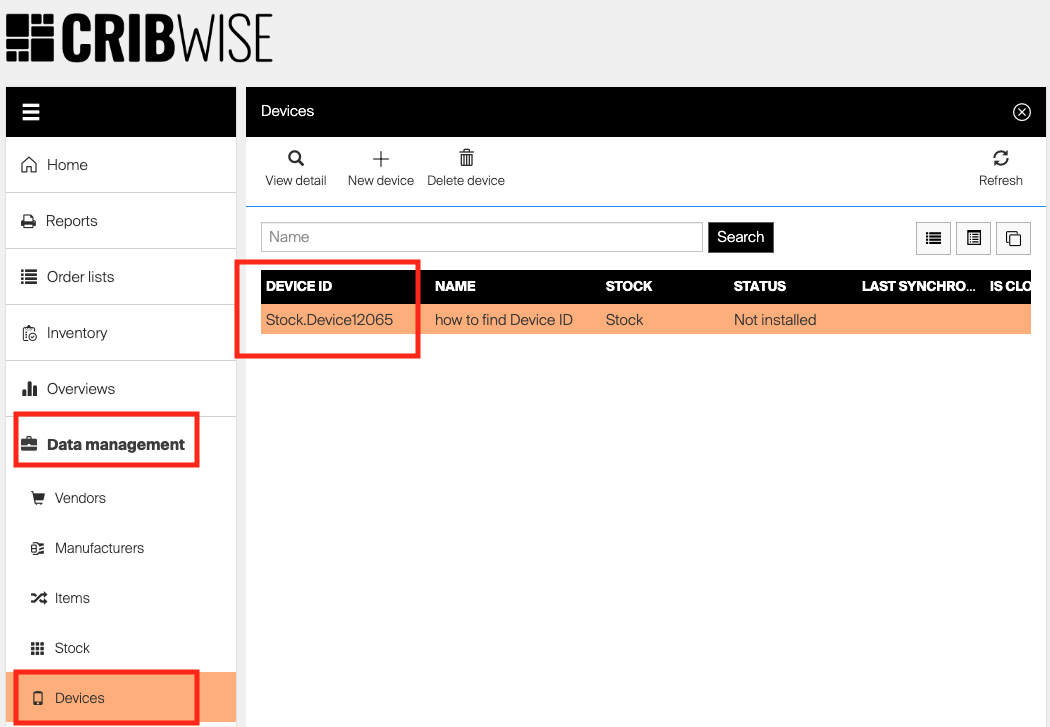
The Devices list under Data management. The Device ID column holds the ID support needs for the main device.
Step 3 — Open the device detail
- Select the row for the main device that controls your extension device.
- Click View detail.
The device detail opens on the General information tab.
Step 4 — Read the Storage device ID
- Open the Storage devices tab.
- Find your extension device by name in the list.
- Read the value in the Storage device ID column. IDs look like
Stock.StorageDevice41428.
The tab lists every storage device attached to and controlled by this device, along with its Type and Status.

The Storage devices tab inside a device detail. Each attached storage device has its own Storage device ID.
Success: You have an ID in the form Stock.Device12065 or Stock.StorageDevice41428. Copy it into your support request.
Next steps
- Send the request — email help@cribwise.com with the ID, the device name, and a description of the problem. Include the Status shown in the list, and any error message from the Shop Floor Interface.
- Give a support partner access — if a partner needs to investigate in your system, see How to set up support partner access.
Troubleshooting
| Problem | Likely cause | Fix |
|---|---|---|
| Devices is missing from the Data management menu | Your user group does not have device permissions. | Ask an administrator to grant device access. See the Admin Portal permissions reference. |
| The Devices list is empty | No device has been created in the Admin Portal yet. | Create the device first — see How to create and manage devices. The ID is generated when the device is saved. |
| Support says the ID you sent is the wrong one | A Device ID and a Storage device ID are easy to mix up. | Check the middle of the ID: a main device reads .Device, an extension device reads .StorageDevice. |
| The Storage devices tab is empty | No storage device has been attached to this device. | Add one from the tab, or check whether the extension device is attached to a different main device. See How to configure storage devices. |
| You cannot tell which device in the list is the one on the shop floor | Device names do not match the physical labels. | Check the Stock column to narrow it down, then open the detail and check the Contact person and Device administrator fields. |
Related articles
- How to create and manage devices — create devices, read every field in the device detail, and understand the toolbar actions.
- How to configure storage devices — attach storage devices, prepare modules and locations, and release them to production.
- Supported storage devices — configuration reference — which storage device models CRIBWISE supports and how each is configured.
- How to set up support partner access — let a support partner investigate in your system.
- CRIBWISE Hardware Configuration Possibilities — how main devices and extension devices fit together.