
What you can do
Log in to the CRIBWISE Admin Portal with your username and password. This article also covers first-login prompts, resetting a forgotten password, and the key icon the portal owner uses when everyone else is locked out.
Before you start
- The web address of your Admin Portal. It ends with your portal name — for example
https://app.cribwise.com/AdminPortal/yourportal. - A username and password. An administrator creates these for you — see How to create and manage users.
- A supported browser — see System requirements and supported browsers.
- To use Administrator login: the e-mail address and password of the account administrator that was registered when the portal was created.
Note: Your Admin Portal access is separate from the Shop Floor Interface. A user who can pick items at a device does not automatically get into the Admin Portal — they see User does not have access. To log in at a device instead, see How to log in to the Shop Floor Interface.
Quick start
Experienced users — log in in 4 steps:
- Open your Admin Portal address
- Enter your username
- Enter your password
- Select the Login button (the tick)
Locked out of the portal? Skip to Log in as the portal owner with the key icon.
Need more detail? Follow the full steps below.
Steps
Step 1 — Open your Admin Portal address
Enter the address of your Admin Portal in your browser. The login screen opens.
If you do not know the address, ask a colleague who already has access, or check the welcome e-mail sent when your portal was created.
Step 2 — Enter your username and password
- Enter your username in the first field — the one with the person icon.
- Enter your password in the second field — the one with the padlock icon.
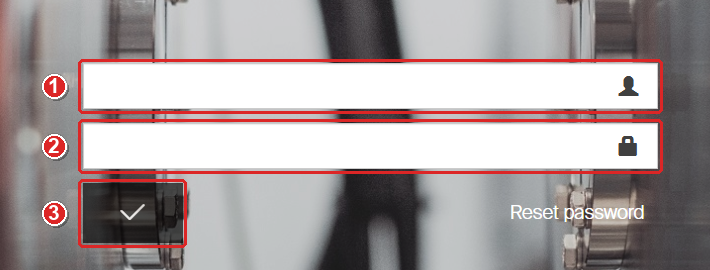
The login panel. Enter your username (1) and password (2), then select Login (3). Reset password sits to the right of the Login button.
Step 3 — Select Login
Select the Login button — the tick below the password field. You can also press Enter.
Success: The Admin Portal opens on the Home dashboard. Your name is shown in the top-right corner of the window.
The very first time you log in, you may see one or two prompts before the portal opens — see First-login prompts.
First-login prompts
Accept the Acceptable Use Policy
On your first login, the Acceptable Use Policy opens before the portal does.
- Scroll the policy text all the way to the end. Accept and continue stays disabled until you do.
- Select Accept and continue.
If you select Decline, you return to the login screen and cannot open the portal. You only accept the policy once.
Set a new password during login
An administrator can require you to change your password at next login. New users usually get this prompt, because the option is ticked by default when a user is created. When it is set, a Change password screen opens before the portal does.
- Enter your username and current password, then select Login.
- Enter your new password in the Set new password field.
- Enter it again in the Confirm password field.
- Select the tick button. It is enabled once both fields are filled in.
Success: The Admin Portal opens with your new password in place.
If the two entries differ, both fields are cleared and Password does not match is shown — enter them again. To leave without changing anything, select the arrow button (Back to login screen); your password stays unchanged.
To set this requirement for someone else, see How to create and manage users.
Reset a forgotten password
If you forget your password, or simply want a new one, request a temporary password from the login screen.
- Select Reset password next to the Login button.
- Enter your Username.
- Enter the E-mail address registered for that username.
- Select the tick button to send the request.
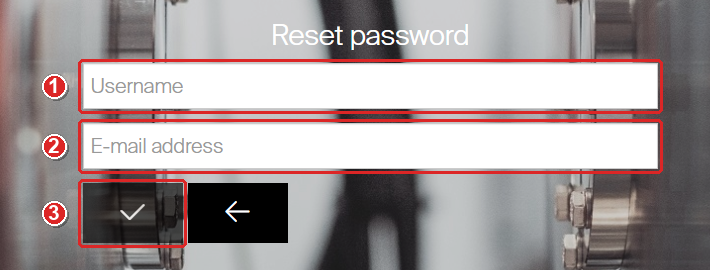
The Reset password panel asks for your username (1) and the e-mail address registered for it (2). Select the tick (3) to send. The arrow button returns you to the login screen.
Both values must belong to the same user — this is how the portal confirms who you are. If they do not match, you see User with selected username and e-mail address does not exist and nothing is sent. If they match, a temporary password is sent to that e-mail address.
Use the temporary password to log in, then set a new password when prompted.
Note: Your existing password keeps working. Requesting a temporary password does not cancel it. The temporary password expires — once it has, request a new one.
For both reset routes — your own user and the portal owner account — see How to reset an administrator’s password (AP). An administrator can also reset a password for you — see How to reset a user’s password from Admin Portal.
Log in as the portal owner with the key icon
The key icon in the top-right corner of the login panel switches to Administrator login. This logs you in as the account administrator — the portal owner — using the e-mail address registered when the portal was created.
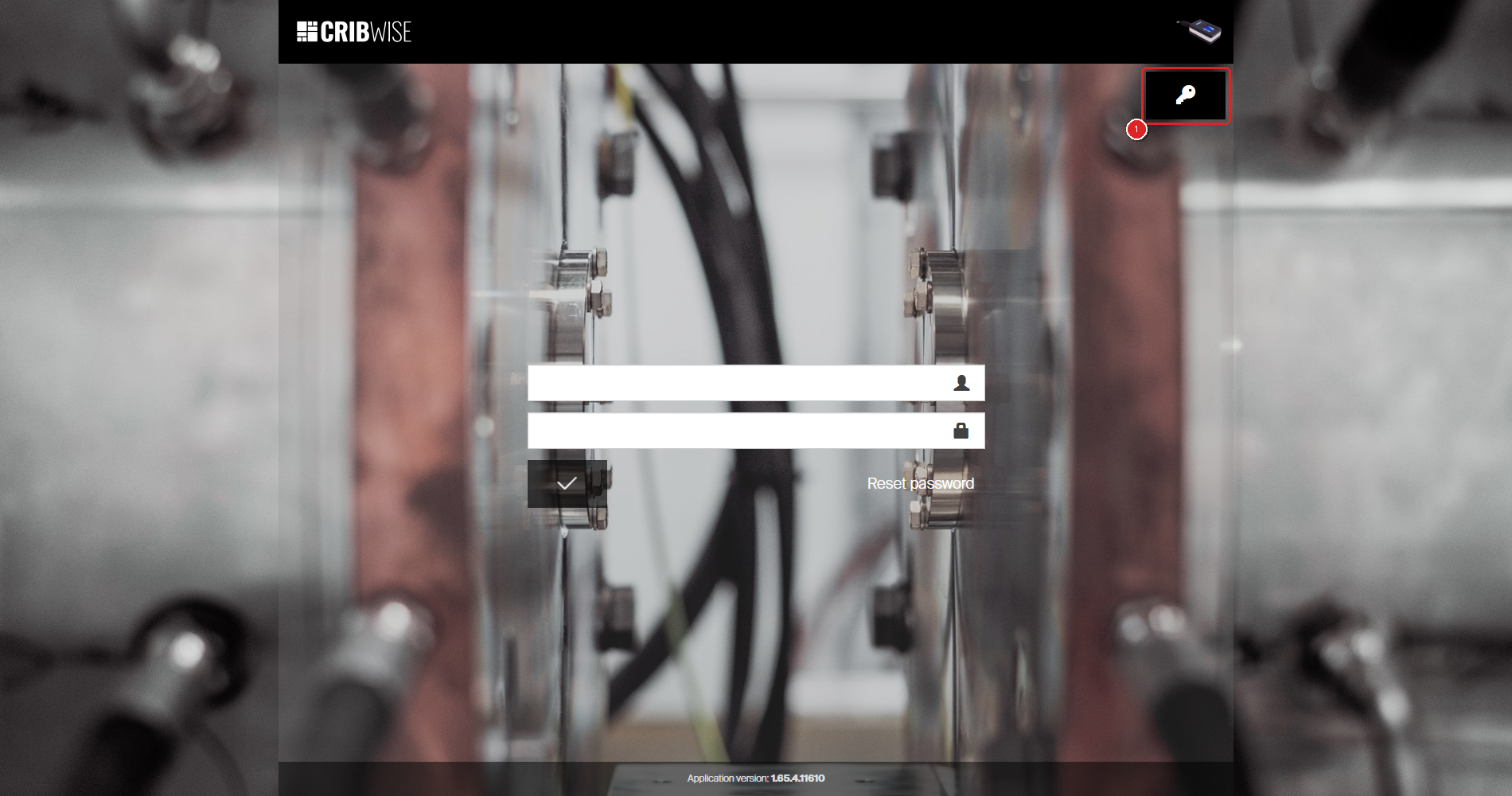
The key icon (1) sits in the top-right corner of the login panel, just below the black header bar.
Why this login always works
The account administrator is not an Admin Portal user. It is authenticated against the e-mail account registered with CRIBWISE, outside the portal’s own user list.
That is what makes it the way back in. Administrator login keeps working when:
- Every administrator user is locked out or has a forgotten password.
- The last user with permission to manage users was deleted.
- No Admin Portal users exist at all — for example in a brand new portal.
Important: Keep the account administrator e-mail address and password somewhere safe, and make sure more than one person can reach that mailbox. If nobody can log in as a normal user and nobody can reach the account administrator mailbox, no one can open the portal.
Use the key icon
- Select the key icon in the top-right corner of the login panel.
- Enter the account administrator e-mail address.
- Enter the password for that account.
- Select Sign in.
The key icon, close up.
To go back to the normal login form, select Login by user.
Success: The Admin Portal opens with account administrator access.
Tip: Once you are in, create or unlock a normal administrator user straight away so day-to-day work does not depend on the owner account. See How to add an administrator user.
Setting up a brand new portal? The first owner login follows the activation e-mail — see How to activate a new portal and create your first user.
If the key icon is not shown
The key icon only appears when your portal is set up for Administrator login. If it is missing from the login screen, that sign-in method is not configured for your portal — contact your CRIBWISE distributor or support.
Forgotten the account administrator password? It cannot be reset from the Admin Portal Reset password panel. Use the Forgot your password link on the administrator sign-in screen instead — see How to recover your account administrator password.
Troubleshooting
| Problem | Likely cause | Fix |
|---|---|---|
| Wrong user name or password or Invalid username or password | Typo, or the password was changed | Retry carefully, then use Reset password to get a temporary password by e-mail. |
| User does not exist | The username is misspelled, or no user with that name exists in this portal | Check the spelling and the portal name at the end of the address. Ask an administrator to confirm your username. |
| User does not have access or User does not currently have permission to access Admin Portal | The user exists but has no Admin Portal permission — for example a Shop Floor Interface operator | An administrator must grant Admin Portal access — see the Admin Portal permissions reference. |
| Account is locked | Too many failed attempts, or an administrator locked the account | Ask another administrator to unlock it. If nobody can log in, use the key icon to log in as the portal owner. |
| Cannot authenticate because user validity is expired | The user has a validity end date that has passed | An administrator must extend or remove the validity date on the user record. |
| User is not fully set up in the database yet. Please try again later. | The user was just created and is still being set up | Wait about a minute and log in again. |
| Password does not match or Password is too short on the Change password screen | The two entries differ, or the new password is below the minimum length shown in the message | Enter the same, long enough password in both fields. |
| User with selected username and e-mail address does not exist | The e-mail address entered in Reset password is not the one stored on that user | Try the address you were registered with, or ask an administrator to check the e-mail address on your user. |
| Temporary password has expired | Too long between requesting the temporary password and using it | Select Reset password again and use the new temporary password promptly. |
| No reset e-mail arrives | The mail was filtered, or the e-mail address on the user record is out of date | Check the junk folder. Then ask an administrator to confirm the e-mail address stored on your user. |
| Customer is disabled, Customer trial period has expired or License agreement not accepted | A problem with the portal’s account, not with your user | Contact your account administrator or your CRIBWISE distributor. |
| Administrator login failed or Invalid account | The e-mail address used is not the registered account administrator | Use the exact e-mail address registered when the portal was created. |
| The key icon is not on the login screen | Administrator login is not configured for this portal | Contact your CRIBWISE distributor or support. |
Related articles
- Getting started with Admin Portal: layout, navigation, and lists — find your way around once you are logged in.
- How to reset an administrator’s password (AP) — both reset routes, for portal users and for the owner account.
- How to activate a new portal and create your first user — the first owner login on a brand new portal.
- How to log in to the Shop Floor Interface — log in at a device to pick and return items.
- How to create and manage users — create logins, set e-mail addresses, and require a password change.
- Admin Portal permissions reference — what each Admin Portal permission controls.
- How to configure Single Sign-On (SSO) — let users sign in with your company identity provider instead.