
Read time: ~9 minutes
Applies to: Shop Floor Interface · All deployments
What you can do
Sign in to the Shop Floor Interface with your CRIBWISE user name and password, or with a card, key or fingerprint on an SFI that has the reader attached. This article covers both, plus choosing a device, changing a forced password and where to find support information.
Before you start
- You need a CRIBWISE user account whose group has Shop floor interface users ticked. An administrator sets that on the user group.
- For the browser version, you need the SFI address for your site. Ask your system administrator – it is not the same address as the Admin Portal.
- For a card, key or fingerprint, the reader has to be attached to the PC running the SFI application. Card and fingerprint login are not available in a browser.
Quick start
Experienced users – sign in in 3 steps:
- Type your user name in the top field.
- Type your password in the field below it.
- Select the check mark.
Need more detail? Follow the full steps below.
Steps
Step 1 — Open the Shop Floor Interface
On a shop-floor PC, the SFI application is usually already running and showing the login screen. In a browser, go to the address your administrator gave you.
Step 2 — Enter your user name
Select the top field, marked with a person icon, and type your user name.
Step 3 — Enter your password
Select the field below it, marked with a padlock icon, and type your password.
Step 4 — Select the check mark
The sign-in control is the dark check mark button under the two fields. There is no button labelled “Login”.
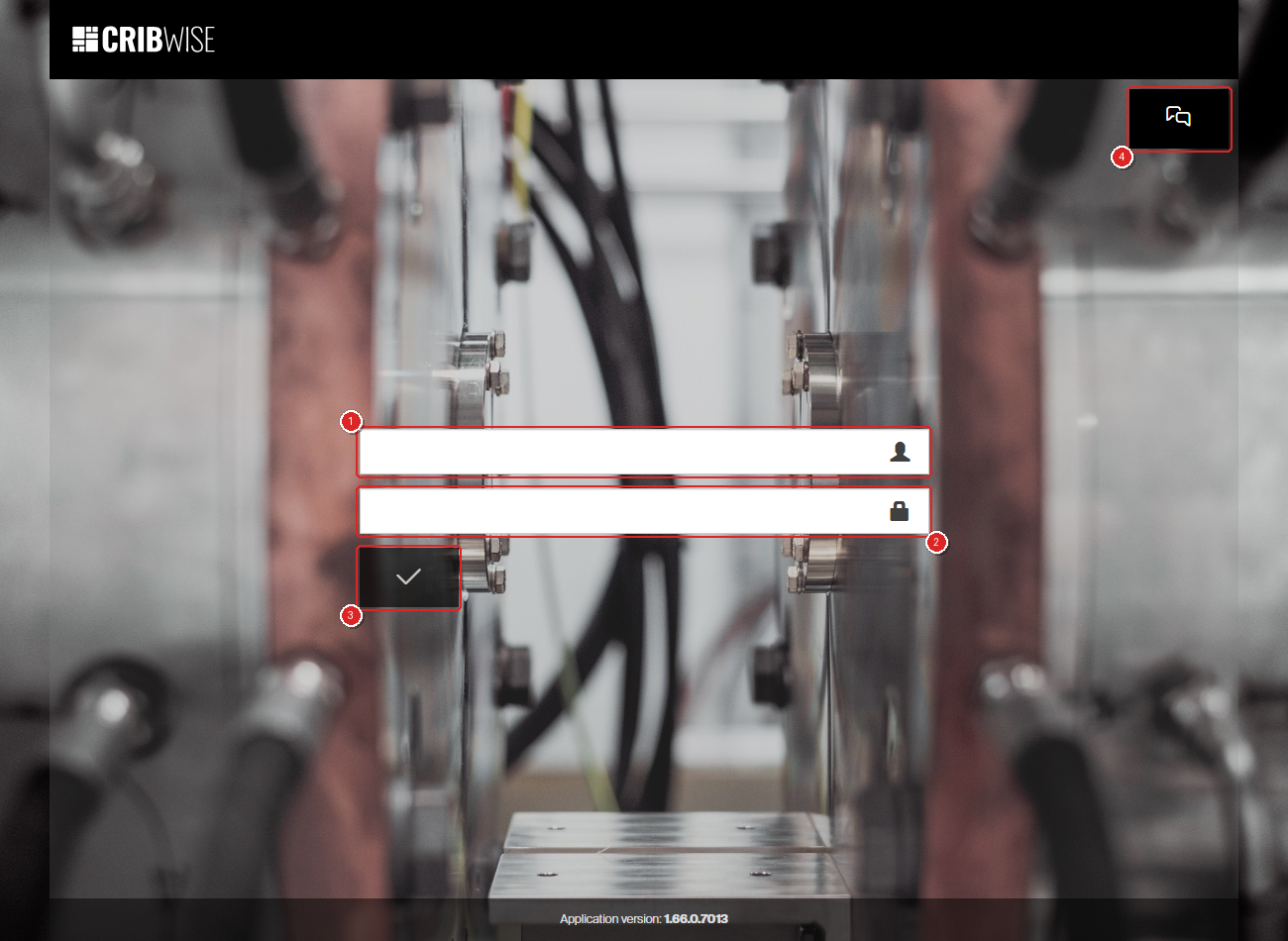
The login screen in a browser: user name (1), password (2), the check mark that signs you in (3) and the support button (4).
Success: The main menu opens, showing the tiles your role gives you – Pick and Return for a shop-floor operator, with Pick list and Stock management added for a stock administrator.
Step 5 — Choose your device (browser only, and if there are more than 1 device)
If more than one cloud device is available to you, a device selection screen appears before the menu. Select the device you are standing at.
The screen does not appear at all when only one cloud device is available to you, which is the usual case.
- A device that a stock administrator has locked cannot be selected. Ask them to unlock it.
- Tick Remember choice to skip this screen next time.
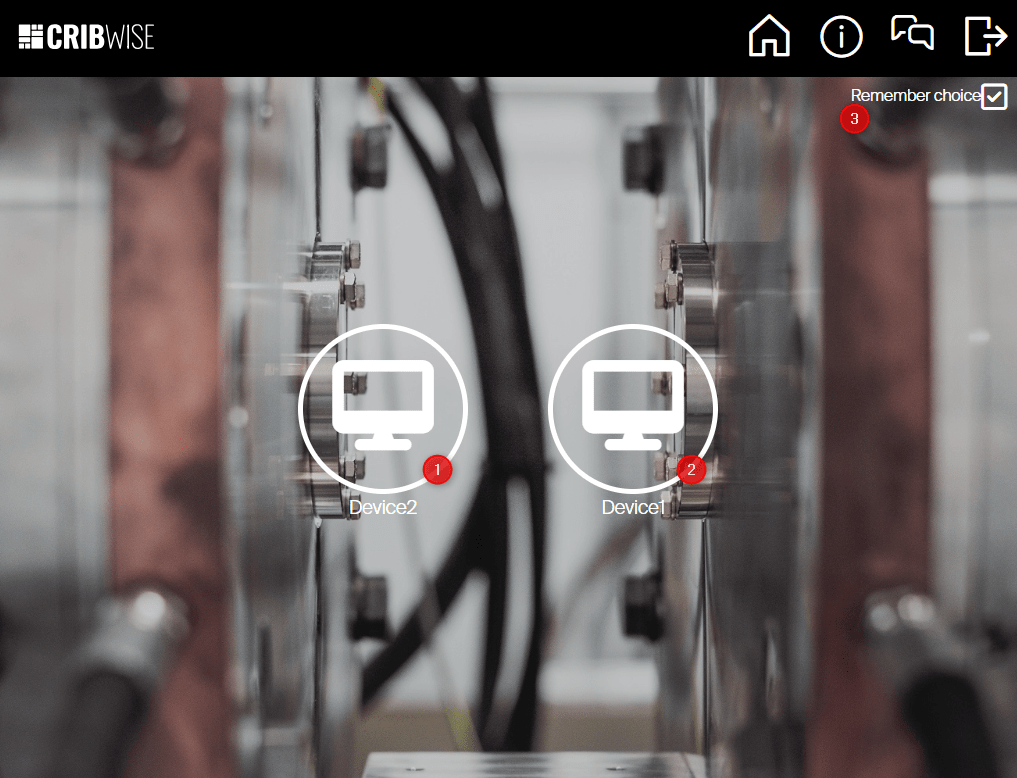
Each cloud device you may use appears as a tile (1, 2). Remember choice (3) skips this screen on your next sign-in.
To move to a different device afterwards, select Device information in the header and then Switch device. Switch device only appears when you have more than one cloud device.
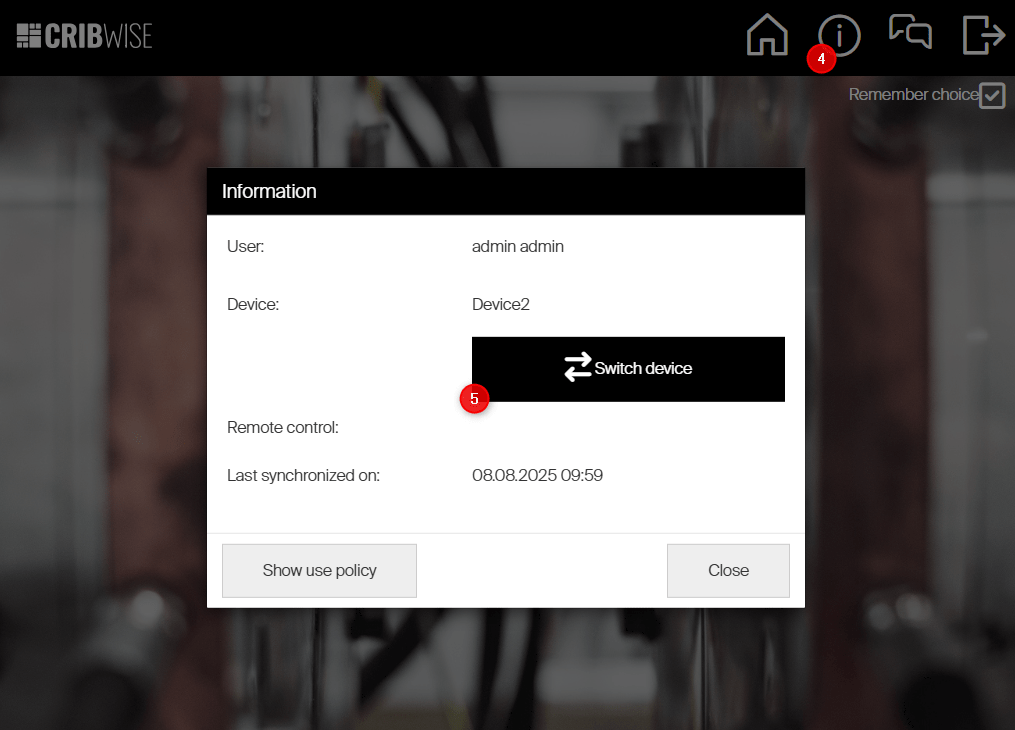
The Device information icon in the header (4) opens the Information dialog, where Switch device (5) sends you back to the device selection screen.
Set a new password at sign-in
If an administrator has flagged your account for a password change, the SFI asks for a new password immediately after you sign in, and will not open until you set one.
- Type the new password.
- Type it again to confirm.
- Confirm the change.
Success: The main menu opens. If you leave without setting a new password, you are returned to the login screen and the prompt appears again the next time you sign in.
Sign in with a card, key or fingerprint
On a PC running the SFI application, you can sign in with an RFID card, a barcode, a Coges key or a fingerprint instead of typing. Select the button with the card icon next to the check mark to switch between typing and the reader, and select it again to switch back.
Note: This is available only in the SFI application on a PC with the reader attached. The Shop Floor Interface in a browser has no card icon and accepts a user name and password only.
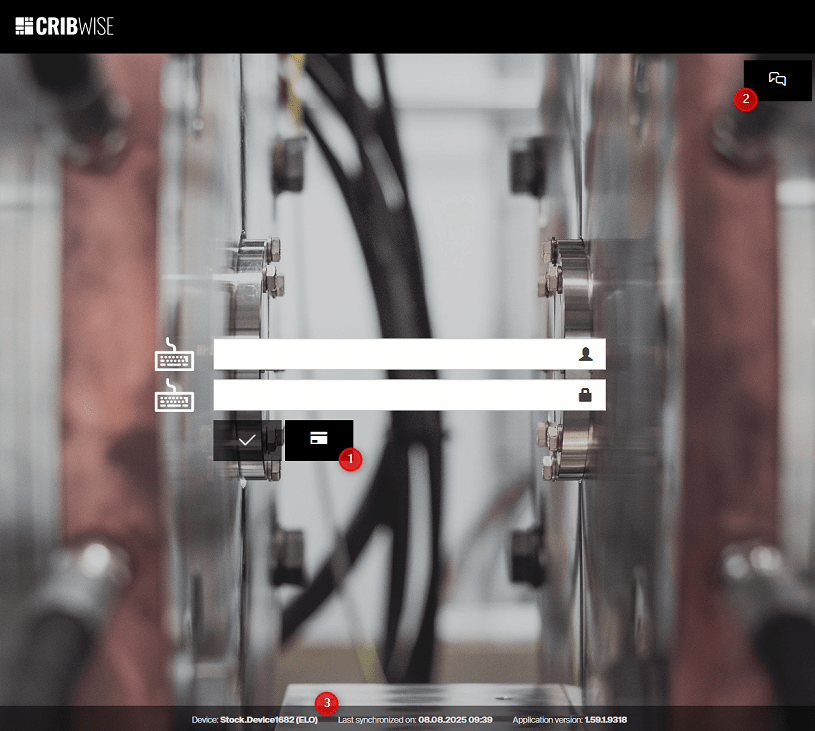
The PC application login screen. The card icon (1) switches to the reader, the support button (2) sends a diagnostic message, and the footer (3) shows the device name, the last synchronization time and the application version. In a browser the footer shows the application version only.
Register a new method
You register your own card, key or fingerprint on the PC you use. Fingerprint login needs the DigitalPersona driver installed – see Install the fingerprint reader driver below.
- Sign in with your user name and password, or with a method you have already registered.
- Select Device information in the header.
- Select Setup login methods. The screen lists RFID/Code – which covers RFID cards, barcodes and Coges keys – and Fingerprint. A row is missing when the matching reader is not connected or not configured.
- Select the plus icon on the row you want to add.
- Sign in again when prompted. This confirms you own the account.
- Present the key: scan the card, scan the barcode, touch the Coges key, or start the fingerprint enrollment.
- For a fingerprint, scan the same finger several times and follow the on-screen instructions until enrollment finishes.
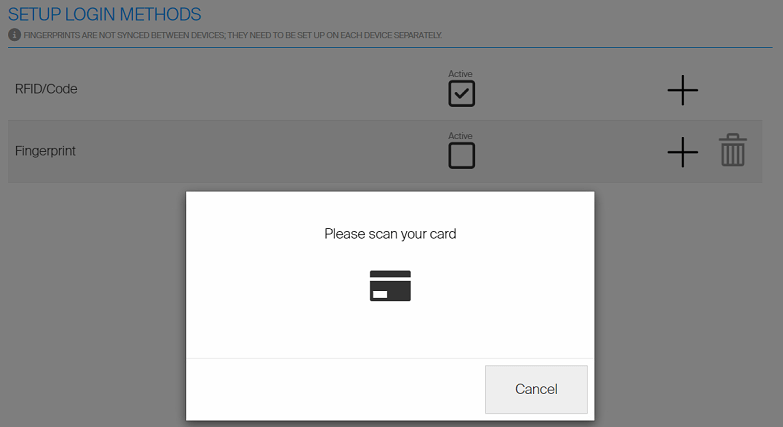
Registering a card. The dialog waits for the reader; Cancel backs out. Fingerprint is still unticked here.
Success: The method shows as Active in the list and works at your next sign-in.
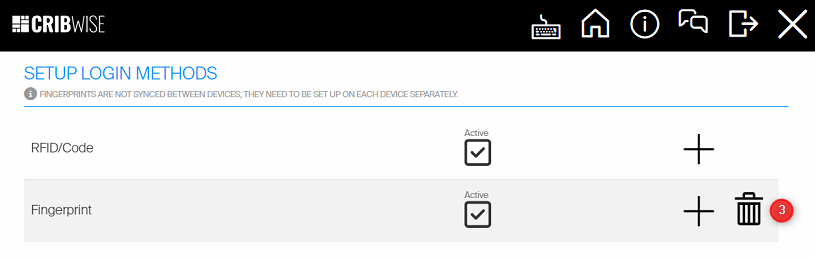
Both methods Active after enrollment. The trash icon (3) removes your registered fingerprints.
Repeat the steps to register more cards, keys or fingers. Several can be active at once.
Important: A registered card, barcode or Coges key works on any SFI. A fingerprint is stored on the PC where you enrolled it, is never synchronized to the cloud or to another device, and has to be enrolled again on every SFI where you want to use it.
Remove a registered method
Select the trash icon on the Fingerprint row to delete your own fingerprints from that PC. To remove a registered card, barcode or Coges key, ask your system administrator – you cannot do it yourself.
Install the fingerprint reader driver
The fingerprint reader needs the DigitalPersona biometric driver installed on the PC running the SFI. Install it before you enroll a fingerprint, or the Fingerprint row will not appear in Setup login methods.
Supported login accessories
| Method | Tested hardware |
|---|---|
| Fingerprint | HID Global U.are.U 4500 (DigitalPersona) |
| RFID | rfIDEAS RDR-80xxxxU |
| Coges key | All models |
| Barcode | Any USB barcode scanner |
Fingerprint login was added in release 1.58 and works with DigitalPersona readers. For the wider list of scanners and RFID readers CRIBWISE support has tested, including the card types the readers accept, see Supported hardware accessories: scanners and RFID readers.
Find device and support information
Two places tell you which device you are on and how to reach support.
- Before you sign in. On a PC the footer of the login screen shows the device name, the time of the last synchronization and the application version. In a browser it shows the application version only. Read these out when you contact support.
- After you sign in. Select Device information in the header for the signed-in user, the device, the remote-control status and the last synchronization time. Show use policy in the same dialog opens the acceptable use policy for your site.
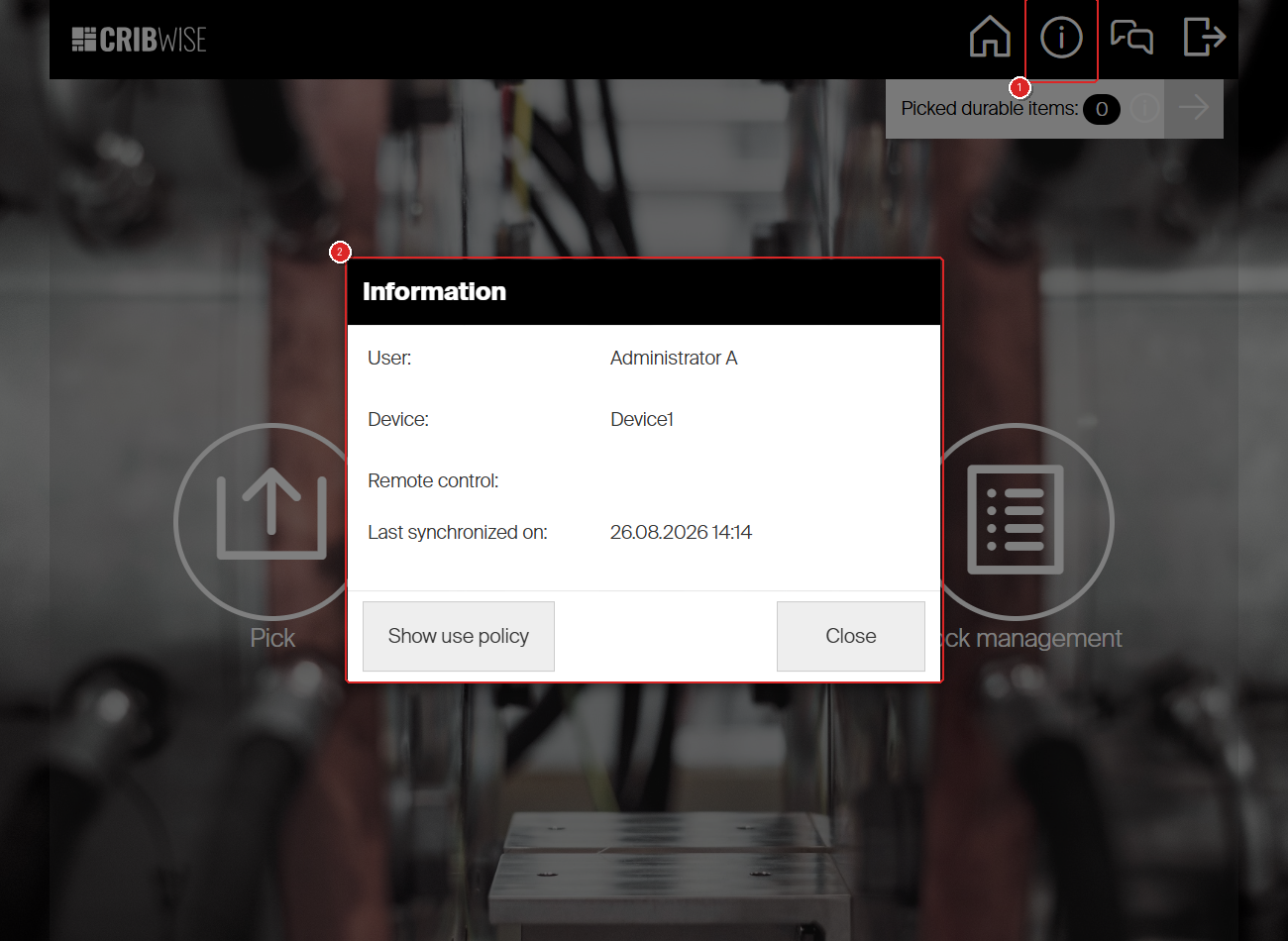
Device information (1) opens the Information dialog (2). This is the fastest way to tell support which device you are standing at.
The support button – the speech-bubble icon, on the login screen and in the header – sends a message to your support team together with diagnostic information about the device. Use it when the application behaves unexpectedly.
Troubleshooting
| Problem | Likely cause | Fix |
|---|---|---|
| User does not exist | The user name is misspelled, or the account was deleted. | Check the spelling with your stock administrator. This message is about the user name only – the password was never checked. |
| Wrong user name or password | The user name exists but the password does not match. | Try again. If it keeps failing, ask an administrator to reset your password – see How to reset a user’s password from Admin Portal. |
| Nothing happens when you select the check mark | One of the two fields is empty. The button does not submit an incomplete form. | Fill in both fields. |
| You sign in but the SFI does not open | Your account has no Shop floor interface users role, or the SFI is not enabled for you on this device. | Ask a stock administrator to check the role on your user group. |
| There is no card icon on the login screen | You are using the Shop Floor Interface in a browser. | Card, key and fingerprint login work only in the SFI application on a PC with the reader attached. |
| The device you need cannot be selected | A stock administrator has locked it. | Ask them to unlock it – see How to create and manage devices. |
| The device selection screen never appears | Only one cloud device is available to you, or Remember choice is ticked. | Select Device information > Switch device. |
| Fingerprint is missing from Setup login methods | The reader is not connected, or the DigitalPersona driver is not installed on this PC. | Connect the reader and install the driver linked above, then reopen the screen. |
| Your fingerprint works on one SFI but not another | Fingerprints are stored on the PC where they were enrolled. | Enroll the same finger again on the other SFI. |
| You are asked to set a new password every time | The password change was never completed. | Set and confirm the new password in the same session instead of returning to the login screen. |
Related articles
- Getting started with Shop Floor Interface: layout and menus – what each tile and header icon does once you are in.
- How to reset a user’s password from Admin Portal – how an administrator clears a forgotten password.
- Supported hardware accessories: scanners and RFID readers – the tested readers and the card types they accept.
- How to create and manage devices – how devices are created, assigned to users and locked.
- System requirements and supported browsers – what the browser version of the SFI needs.
- How to update SFI application when auto update cannot be started? – what to do when the PC application will not update itself.