
How to reset a user’s password
Read time: ~2 minutes
Applies to: Admin Portal and Shopfloor interface
What you can do
Reset a user’s password and unlock accounts that are locked due to too many failed login attempts.
Before you start
- You need Administrator privileges in Admin Portal.
- Know the user’s login name or be able to find them in the user list.
Quick start
Experienced users — reset a password in 4 steps:
- Go to Administration > User management.
- Open the user’s detail page.
- Click Change password in the toolbar.
- Enter the new password twice.
- (Optionally) Enable ‘User must change password at next login’, then save.
Need more detail? Follow the full steps below.
Steps
Step 1 — Find the user
- In the left sidebar, click Administration.
- Click User management.
- Find the user in the list. Use the Search button in the toolbar to filter by name or login if needed.
- Double-click the user to open their detail page.
Step 2 — Change the password
- Click Change password in the toolbar (key icon).
- Two new fields appear on the form: Password and Confirm password.
- Enter the new password in both fields. The password must meet the minimum length configured in system settings. Default is 6 characters.
- Optionally enable User must change password at next login — this forces the user to set their own password when they next log in either on AP or SFI.
- Click Save user.
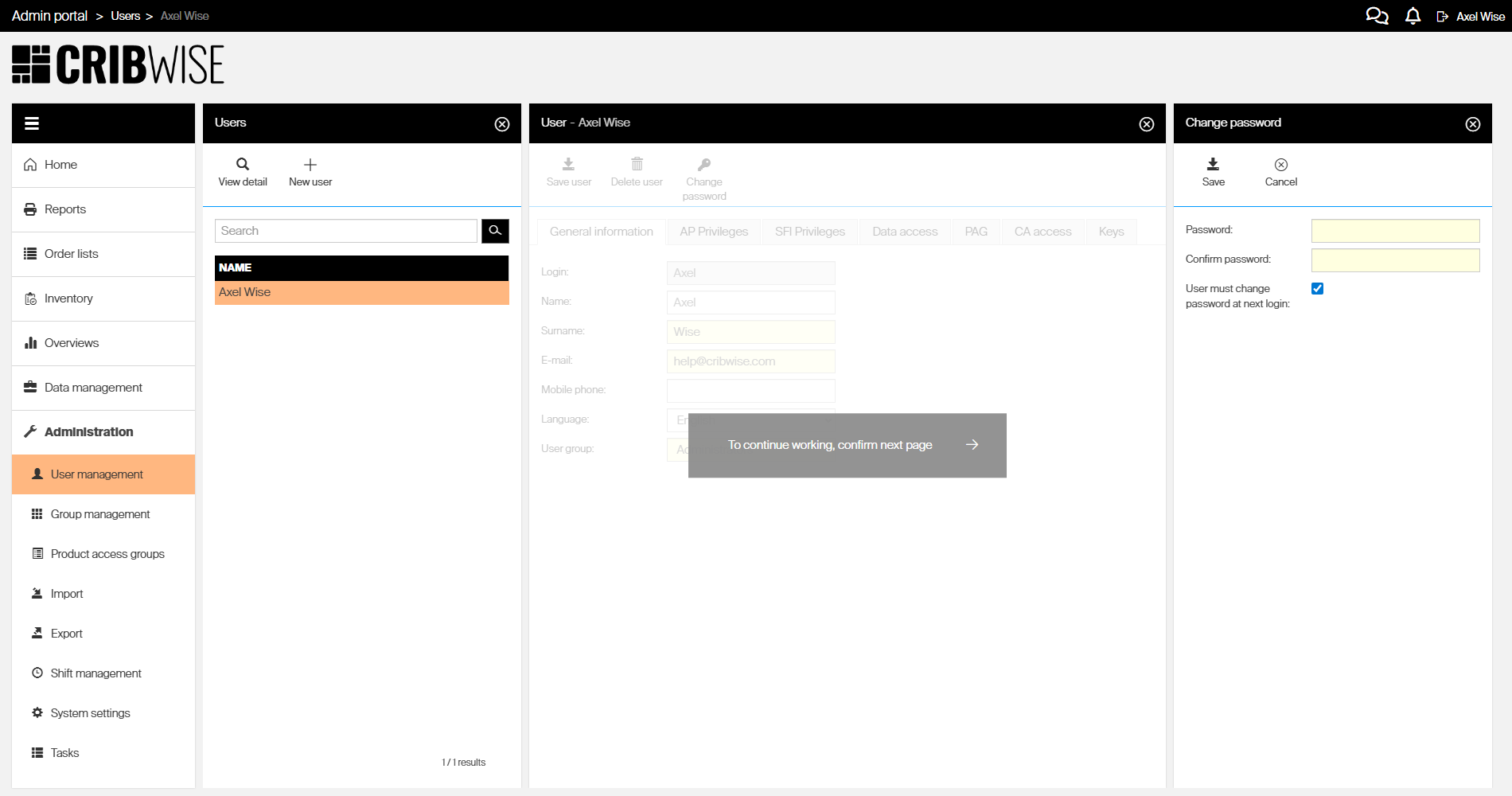
After clicking Change password, the Password and Confirm password fields appear on the user detail form.
Success: The user can now log in with the new password. Allow up to 15–20 minutes for the updated password to propagate to on-premise devices running CRIBWISE.
Unlock a locked account
If a user’s account is locked due to too many invalid login attempts:
- Open the user’s detail page in User management.
- A message at the top of the form shows that the account is locked (and when it will automatically unlock, if configured).
- Click Unlock in the toolbar (lock icon) to immediately reactivate the account.
Tip: To configure automatic unlock timing and the number of allowed login attempts, go to System settings > Access control.
Troubleshooting
| Problem | Likely cause | Fix |
|---|---|---|
| “Passwords do not match” error | The two password fields contain different values | Re-enter the password carefully in both fields |
| Password is rejected as too short | The password does not meet the minimum length set in system settings | Use a longer password — check the minimum length in System settings > Access control |
| User still cannot log in after reset | The password has not propagated to on-premise devices yet | Wait 15–20 minutes, then try again |