
What this covers
System settings enables to change basic system behavior and information about the customer. Settings are shared for all users. There are several settings groups – General, Access control, Stock administration, Stock daily use, Purchase, and Diagnostics – each described below.
General
General tab contains basic information about current customer, contact information to SMS contact person and locale settings of the system.
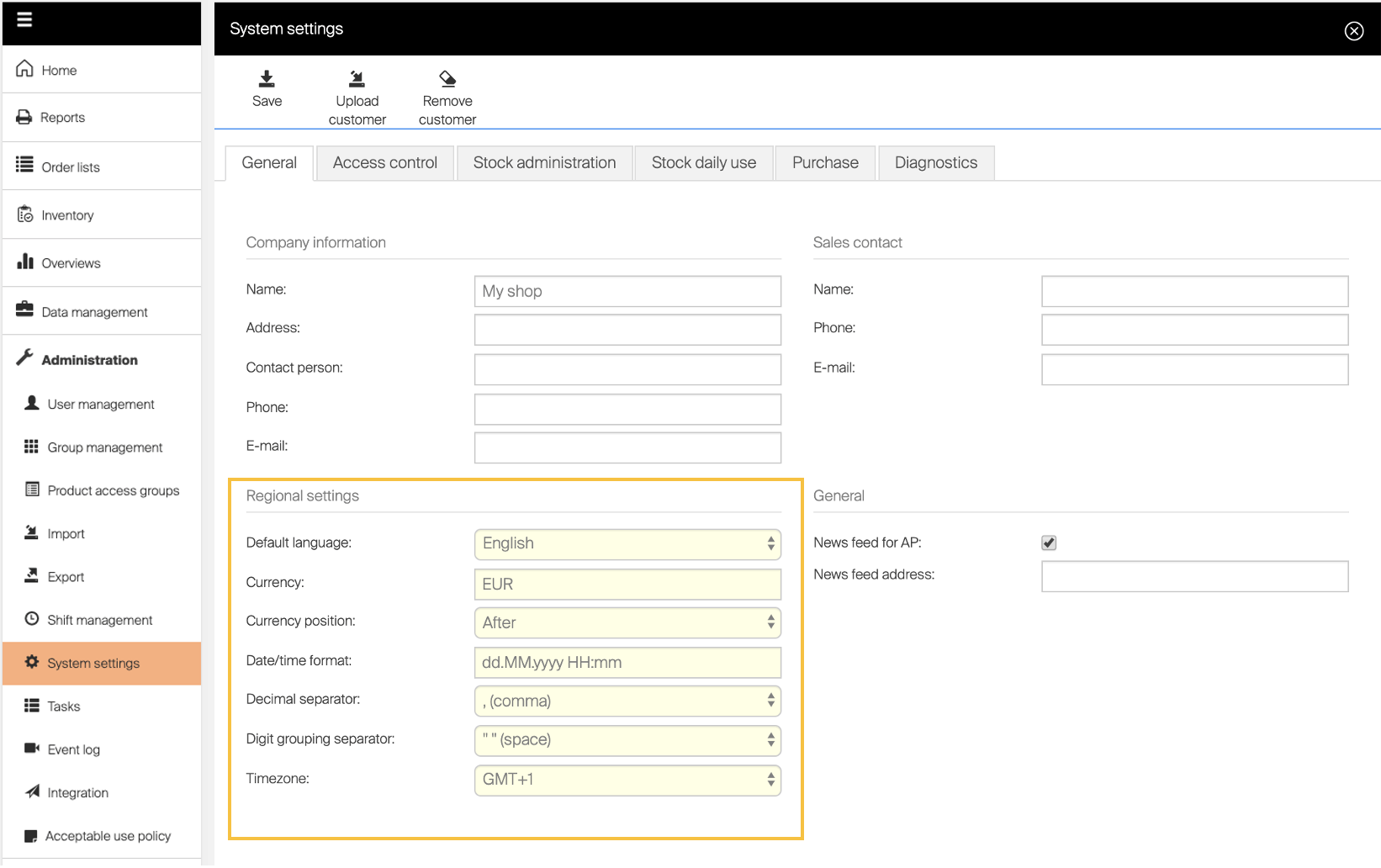
| Option name | Functionality |
|---|---|
| Company information group | Specifies information about current customer. These information are used for creation of purchase orders and reporting |
| Sales contact group | Specifies contact person from system provider |
| Default language | Sets default language of Admin portal application. Default language is shown for users without language preference set. Login screen to AP uses always default language. Whenever a user have a preferred language this will override any system language setting in both AdminPortal and ShopFloor interface. When item description translations are available, descriptions are in default system language in data provided by BI interface and reports sent by scheduled reports. |
| Currency | Sets default currency used in application. Value of transactions and stock will be based on this currency. |
| Currency position | Defines if currency is show before or after a value |
| Date/time format | Defines format of date and time. Use following values to define format: d – days M – months Y – years H – hours m – minutes s – seconds a – AM/PM Default value dd.MM.yyyy HH:mm |
| Decimal separator | Defines decimal separator used for number values. Must be different from grouping separator |
| Digit grouping separator | Defines grouping separator used for number values. Must be different from decimal separator |
| Timezone | Defines timezone used for this customer |
| News feed for AP | Sets if news feed will be available on the SFI login screen. |
| News feed address | Defines source of the news displayed on SFI login screen (if allowed). Valid news sources are feeds using format Atom 1.0, RSS 1.0, RSS 2.0. |
Note: Today offers full system translations in 20 different languages! Swedish, English, Norwegian, Danish, Czech, Chinese (simplified), Chinese (traditional), Finnish, French, German, Hungarian, Italian, Japanese, Korean, Polish, Portugese, Slovenian, Spanish, Turkish, Russian.
Access control
This section contains security rules and options.
Password rules
This section allows to setup rules and policies related to user password requirements.
| Option name | Functionality |
|---|---|
| Min password length | Sets minimum password length for users |
| Retry policy for login | Enables maximum amount of invalid login attempts before account is locked. Locked account can be automatically unlocked after given time period or manually by administrator in User management. Retry policy is valid for both AP and SFI. Locking account in one application will affect also the second. If account is locked, it is not possible to login by RFID, barcode or Coges. |
| Max number of login attempts | Sets how many invalid login attempts user could try before his account is locked. Valid login resets invalid attempts for a user. |
| Reset period | Sets time period in minutes after locked account will be automatically unlocked. Leave empty to disable automatic unlocking of accounts (unlock could be then done only manually in User management, in detail of affected user). |
| Recipients of e-mail notification about locked accounts | If specified, set email address(es) will receive notification when any account is locked. |
Access for account administrators
It is possible to control if users outside of the Admin Portal are able to access the portal. These users include account administrators from Customer Management Portal and support partners.
Access for these users is allowed by default. To restrict the access, select Setup service access and set option Allow service access to disable.
Important: Before restricting the access, please ensure there are Admin Portal users with sufficient privileges to manage the system.
It is possible to set access for account administrators for limited time period (1 hour or 1 day). Once allowed, access is automatically disabled once this period pass.
Single sign-on (SAML)
This section allows to setup and activate single sign-on with external identity provider using SAML standard. For more information about the setup, see Single sign-on article.
User data retention
This section provides information about retention of data for deleted users. For all deleted users, personal information of these users is automatically anonymized after 6 months after deletion of the user. Following is included in the personal information:
- user login,
- user first name and last name,
- email,
- mobile phone.
During anonymization, this information is removed from all data and transactions and is replaced by technical ID of the deleted user. All transactions made by this user remain in database.
It is possible to invoke anonymization of data of recently deleted users manually, without waiting for the automatic 6 months period, by selecting an option Anonymize data of deleted users now. After selecting the option, confirm start of the process.
The process can take several minutes, based on number of recently deleted users. You can continue working while the anonymization process is running.
Stock administration
Stock administration tab contains information about stock structure, default values for new objects. Own category tree structure can be created on this tab. When structure is defined, items can be assigned to categories, used for searching and reporting purposes.
Item defaults
| Option name | Functionality |
|---|---|
| Type | Default value for new items |
| Quoted item | Default value for new items |
| Status | Default value for new items |
| Customizable fields | Option to add custom fields to item detail. Fields are shown on general information tab on item. Custom fields can be used for searching or can be shown for items on SFI as part of item identification |
Device defaults
| Option name | Functionality |
|---|---|
| Login options | Default value for new devices |
| Default picking flow | Default value for new devices |
| Hide username | Default value for new devices |
| Show loan items | Default value for new devices |
| User allow to edit quantity for pick | Default value for new devices |
| Verify quantity before take | Default value for new devices |
| Allow empty password | Default value for new devices |
| Show prices | Default value for new devices |
| Show price as | Default value for new devices |
| Auto log out | Default value for new devices. When selected, time in minutes must be entered |
| Auto update | Default value for new devices. When selected, time must be entered |
| Synchronization period | Default value for new devices |
| Default language | Default value for new devices |
| Device administrator | Default value for new devices. Administrator can be selected from existing users |
| Cost allocation set | Default value for new devices |
Stocks
| Option name | Functionality |
|---|---|
| Customizable fields | Option to add custom fields to stock detail. Fields are shown on general information tab on stock |
Own categories
To create and manage category structure, use following controls:
 Create a new category on selected level
 Edit selected category
 Remove selected category and all categories assigned to it
Stock daily use
Stock daily use settings affect flows performed by end users on SFI application.
| Option name | Functionality |
|---|---|
| Item identification on SFI | Selection of fields visible on SFI for item entity in all screens. Up to three fields can be shown. Single field is minimum. If custom fields are specified for item, they will be posible to select. If “Show label” is checked, field label is shown together with value (f.e. Dispense quantity: 10) |
| Item identification on AP | Selection of fields visible on AP for item entity in all screens. First row of item information can be selected, second row is fixed to item description (shown in user language) |
| Allow move item | Turns on/off functionality to move picked item to different CA without need of physical pick and return |
| Time period for most recent picks | Sets time period in days to determine most recent picks. List of items during pick is then sorted with most recent items in this period on top |
| Allow return consumable items for | Sets time period in days during which picked consumable item can be returned as not used. Items picked outside this period cannot be returned anymore and will no longer appear in the list of picked items during the return process. |
| Comments after pick | Enables option to add comment after pick is performed. These comments are then shown for related pick(s) in raw transaction report and in event log |
| Comments after return | Enables option to add comment after return is performed. These comments are then shown for related return(s) in raw transaction report and in event log |
| Comments after restock | Enables option to add comment after restock from order or without order is performed. These comments are then shown for related restock(s) in raw transaction report and in event log |
| Activate recycle | Enables option to return items for recycle and sets trigger on weight controlled devices to notify recipients |
| Reason codes for recycle | If Activate recycle is on, reason codes for recycle operation can be specified. Operator then must select a reason code when recycle for specific item is performed due to Prompt user to return picked item during picking (see Manage item). |
| Use cost allocation | Sets if cost allocation is used in the system. If turned off, CA selection during picking and returning is disabled, move item functionality is disabled and all CA management options on AP are disabled. |
| Enable predefined pick lists | Sets if pick lists will be available in the system. Affects availability of pick lists related ERP interfaces, starting of pick pick list flow on SFI and setting of permissions on user and user group level to start pick pick list flow on SFI |
| Automatically set items as processed on open locations | Specifies if all items are selected as processed (picked, restocked, etc.) by default when working with open storage devices or several locations at once on f.e Lista LDC. If not checked, user must select each item as processed when picking from these locations. |
| Check if durable item is already picked | If checked, system will notify user during pick if there is the same item already picked in the same cost allocation. User then can decide how to proceed (pick another one, scrap existing picks, cancel operation). Only durable items and physical cost allocations are considered. |
| Show custom fields on item detail | If checked, custom fields defined for items are shown on SFI in expanded item row during pick and on item detail during selection of quantity for pick or return |
| Show pick list/return list summary | If checked, summary step is added on SFI during picking and returning when user selects to add item to pick list/return list. User can see list of all items in the list before the dispense/placement operation with physical items starts. |
| Mandatory reason code for scrapping | Sets if reason code must be selected when items are scrapped |
| Reason codes for scrap | If reason code for scrapping is mandatory, list of available reason codes must be defined. Content of this list is then presented to user during scrap operation |
| Inventory – Mandatory reason code for discrepancy | If checked, user is forced to specify reason code when performing inventory and expected quantity in location is different than real quantity entered by the user. |
| Inventory – Send automatically when finished | When selected, inventory summary when inventory is finished is automatically send to defined recipient email addresses |
Purchase
Purchase section is related to define settings for creating purchase orders and ABC classification of item.
| Option name | Functionality |
|---|---|
| Free-text orders | Enables option to add custom items to purchase orders (items not defined in database) |
| Own classification (A, B, C) | Options specify thresholds for calculation of ABC classification for items. Thresholds are in %, total sum of all three classes must be 100. Classification of items against these thresholds is described in ABC classification |
| Allow consignment invoice requests | Turns on/off option to handle consignments within the system. When on, following functionality will be available:
|
| Custom order/invoice ID | Sets if orders and invoices will have ID generated by system or if they will have ID set according custom number range. If turned off, all orders will have ID generated in format <system ID>-<customer ID>-<order number>-<PO for purchase orders, SO for service orders>.
All invoices will have ID generated in format Invoice<n>. If turned on, custom range for ID numbering can be specified. When creating a new order or invoice, system will automatically pick lowest available number from that range and will set it as order or invoice ID (numbers already used are not used again even when order or invoice is deleted). System respects length of number specified as From – if the number if set as “00001”, then numbering will goes as “00001”, “00002”, etc.
When the From number is lowered, system will pick the next available number from this new value the next time new order or invoice is about to be created. Both system generated and custom IDs can be extended by order ID prefix if such prefix is set on vendor detail, scheduled script or during manual order creation. |
| Standard cost of items | Specifies how standard cost is determined for all items and how often the standard cost is automatically recalculated. Standard cost recalculation can be invoked immediately by Update now (  ) button. ) button. |
| Order templates | Order templates available in the system with option to upload a new template or download existing templates. Template can be set for purchase or invoices. Template type defines for which operations template can be used |
| Notifications | Options to activate email notifications for purchasing related actions. Described in more detail in following section |
| Vendor specific currencies | List of custom currencies, which can be used by a vendor for purchasing and service of items. For any vendor specific currency, conversion ratio to system default currency must be specified. This conversion ratio will be then used to recalculate prices and costs to the system currency. Unlimited amount of vendor specific currencies can be specified. Currency cannot be removed if it is used by any vendor. See currencies for more information. |
Purchase notifications
On system level, several email notifications can be activated to inform selected email recipients about purchasing related events. Once notifications are activated, actions related to all vendors in system are checked to trigger notifications.
To enable notifications related only to specific vendor, set notifications on vendor level. Following notifications are available:
| Action | Trigger of email notification |
|---|---|
| New suggested order | Triggered once order is created by scheduled script in suggested state or status of order is changed to suggested by ERP interface |
| Order sent | Triggered when order is successfully sent to defined target (via B2B, Web service, FTP or email). If order is sent to multiple targets, all targets where the order has been successfully sent are aggregated in single email notification. |
| Sending of order failed | Triggered when sending or order to defined target fails after changing order to active state or by manually re-sending an active order (to B2B, Web service, FTP or email). If sending of the order fails the next time during automatic retry of the sending, email notification is not sent anymore. If order fails to be sent to multiple targets, all targets where the order has not been successfully sent are aggregated in single email notification. |
| Order cancelled | Triggered when active order is cancelled (manually or by ERP interface) |
| Order is late | Triggered late order is detected (order containing at least one item with passed expected date of delivery). Email notification is sent only once per late order. Check of late orders is performed every one hour |
| Service item scrapped | Triggered when scrap of item from service order is performed from AP, SFI or via ERP interface |
| No order generated by script | Triggered when scheduled script run is finished and there was no change performed by the script (no order created and no items added to existing orders). This notification is not available for purchase notifications set on vendor as this action is not directly related to any vendor |
Diagnostics
Diagnostics serves to automatically send notification when specific system events are triggered.
To enable diagnostics functionality, enter recipients email addresses and select event category.
Related articles
- Understanding ABC classification – how items are classified against the thresholds you set here.
- Understanding item costs: standard cost and usage cost – how standard cost is calculated and recalculated.
- How to configure currencies for purchasing – set up vendor-specific and system currencies.
- How to configure Single Sign-On (SSO) – full SAML single sign-on setup.
- How to manage vendors – set purchase notifications and order settings per vendor.