
Read time: ~6 minutes
Applies to: Admin Portal · Shop Floor Interface
What you’ll learn
How transfer lists move items from a central stock to a satellite stock in CRIBWISE — what puts an item on a list, who picks it, and where it is restocked. Understanding this explains why some satellite items are ordered from a vendor and others are requested internally.
Transfer lists at a glance
| Transfer list | Purchase order | |
|---|---|---|
| Moves items from | Your own central stock | An external vendor |
| Stateful? | No — stateless, like service lists | Yes — has a status |
| Integration settings needed | None. Everything happens internally | Yes, to send the order out |
| Package size used | Dispense package | Purchase package |
| Can hold assemblies | Yes | No |
Note: A stock is central or satellite depending on its Type. When you set a stock to satellite, you must name its central stock before the stock can be saved. See How to create and manage stocks.
How a transfer list works
An item is added to a transfer list when a new piece is needed in a satellite stock. From there, the flow has three stages.

| Stage | Where it happens | What happens |
|---|---|---|
| 1. Create transfer list | Admin Portal, or automatically | A scheduled script adds items needed in the satellite stock, or you create the list manually |
| 2. Pick items at central | Any device in the central stock | An operator picks the requested items. They are then shown as in transfer |
| 3. Restock items at satellite | The target device in the satellite stock | The picked items are restocked into the satellite device |
Stage 1 — The list is created
A transfer list is created in one of two ways:
- Automatically, by a scheduled purchase order script. When stock in a satellite device runs down, the script adds the item to a transfer list instead of a purchase order — requesting it from central stock rather than buying it.
- Manually, in the Admin Portal.
Scripts add an item only when a whole dispense package fits, so a transfer list never asks for a part-package.
Stage 2 — Items are picked at central stock
Once an item is on a transfer list, it can be picked on any device belonging to the central stock. On the Shop Floor Interface, the operator selects Pick for transfer in the Stock management menu. Picked items then show as in transfer.
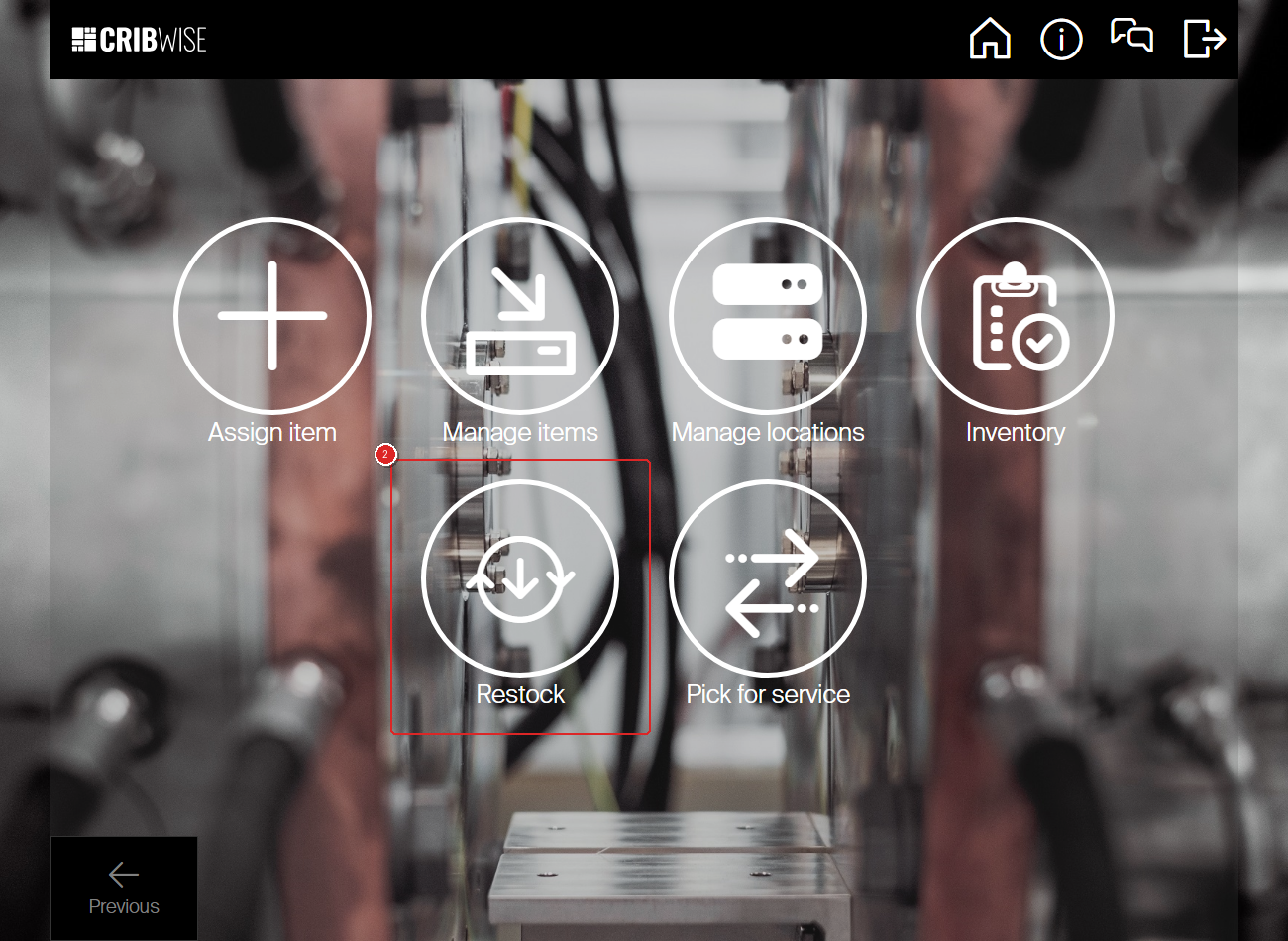
The Stock management menu holds both ends of a transfer. Restock (outlined) completes stage 3 at the satellite. Pick for transfer appears in this same menu — but only on a device that belongs to a central stock, which is why it is absent here.
Two things can vary during the pick:
- If the operator has the change quantity during picking privilege, they can pick more than the transfer list requested. The extra quantity can then be restocked at the satellite.
- If some quantity is not available on the central device, the operator can cancel that quantity during the pick.
Important: If Pick for transfer is missing from the Stock management menu, the device is not in a central stock. Transfer picking is only offered on central-stock devices.
Stage 3 — Items are restocked at the satellite
Once picked from central stock, the items can be restocked on the target device in the satellite stock using Restock in the Stock management menu.
Items keep their condition across the transfer. An item picked from a location with the rule Used on the central device is restocked into a location with the same rule on the satellite device.
See How to restock items on the Shop Floor Interface for the restock flow itself.
When an item skips the transfer list
Not every satellite item comes from central stock. Set Order directly to satellite in the item-device assignment and CRIBWISE puts the item on a purchase order for the satellite device instead of requesting it internally.
This option can only be set on satellite devices. You set it with the rest of the purchase information — max quantity, min quantity, order point — when assigning the item. See How to assign an item to a location (Shop Floor Interface).
Tip: Use Order directly to satellite for bulky or fast-moving consumables where routing through central stock adds handling without adding value.
What can and cannot go on a transfer list
| Item | On a transfer list? | On a purchase order? |
|---|---|---|
| Normal item | Yes | Yes |
| Item of type Assembly | Yes — this is the only way a script can source one | No |
| Item in state Phase out (Outgoing) | Yes | No |
| Item in state Obsolete | No — scripts ignore it | No |
| Item set as quoted | No — scripts ignore it; add it manually | No — add it manually |
Keeping central stock supplied
Transfer lists draw stock out of the central stock, so the central stock has to be replenished to keep up. A purchase order script can account for this with the Consider transfer demands option.
With it switched on, when the script checks devices of a central stock it also counts what is still owed to transfer lists — requested quantity minus picked quantity — and orders to cover it.
Three limits are worth knowing:
- If an item on a transfer list is not assigned in any device of the related central stock, it will not be ordered.
- If the item is assigned in several central-stock devices, only the first device found has its purchase information increased.
- The option changes nothing for devices in normal or satellite stocks. It applies to central stock only.
Satellite devices are always evaluated before central devices within a script, so a single run can create a transfer list for a satellite device and immediately account for that demand when ordering for the central stock.
For the full rule set and a worked example, see Understanding purchase order scripts.
Common confusion
| People often think… | But actually… |
|---|---|
| A transfer list is a kind of order that needs integration set up. | Transfer lists are stateless and entirely internal. No integration settings are involved. |
| Items must be picked on one specific central device. | An item on a transfer list can be picked on any device in the central stock. |
| Pick for transfer is missing, so transfer lists are broken. | The option only appears on central-stock devices. On a satellite device it is correctly hidden. |
| Lowering order points on central-stock items covers transfer demand. | Scripts ignore transfer lists unless Consider transfer demands is switched on. |
| A used item transferred from central arrives as new. | Condition is preserved. An item picked from a Used location is restocked to a Used location. |
Take action
Ready to run a transfer? Follow How to transfer items between stocks for the step-by-step flow. To have transfer lists built for you, set up a script as described in Understanding purchase order scripts.
Related articles
- How to transfer items between stocks — the picking and restocking procedure for a transfer list.
- Understanding service lists — the other stateless list type, which behaves the same way.
- Understanding purchase order scripts — how scripts build transfer lists and the Consider transfer demands option.
- How to create and manage stocks — set a stock’s type and pair a satellite with its central stock.
- How to assign an item to a location (Shop Floor Interface) — where Order directly to satellite is set.
- How to restock items on the Shop Floor Interface — completing stage 3 at the satellite device.