
What you can do
Send purchase orders straight into a Sandvik brand vendor’s system over B2B, instead of emailing them. Set the vendor up once, then pick B2B as the sending option on each order or scheduled script.
B2B (business-to-business) is a direct electronic link between CRIBWISE and the vendor’s order system. CRIBWISE sends the order as XML and the vendor’s system answers with an acknowledgment – no attachment, no mailbox in between. The order is processed immediately at the vendor, speeding up the process of ordering greatly.
Before you start
- Administrator access to the Admin Portal, under Data management > Vendors and Order lists.
- The vendor record already exists – see How to manage vendors.
- Your customer number with that vendor. Ask the vendor for it – you also need to know which of their national sales companies you order from, for the Integration ID in step 2.
Important: B2B works with the Sandvik Group brands only – Sandvik Coromant, Seco Tools, Walter and Dormer Pramet. These are the same brands whose catalogs you can import items from. For any other vendor, use web service, FTP or e-mail instead.
Quick start
Experienced users – set up B2B ordering in 5 steps:
- On the vendor, fill in Customer number on General information.
- On the Integration tab, enter the Integration ID and set B2B integration to Production or Testing.
- Select Save vendor.
- Open the order – or the scheduled script – and tick B2B on Send options.
- Save, then send the order.
Need more detail? Follow the full steps below.
Steps
Step 1 – Add your customer number to the vendor
The customer number is how the vendor’s system knows which account the order belongs to. Without it, the order has no buyer.
- Go to Data management > Vendors.
- Select the vendor, then View detail.
- On the General information tab (1), enter your account number with that vendor in Customer number (2).
- Select Save vendor (3).

The Customer number field on the vendor’s General information tab.
Tip: A single order can use a different number. Tick Custom Customer number on the order’s General information tab to override the vendor’s value for that order only.
Step 2 – Turn on the B2B integration
- Open the Integration tab (1).
- Enter the Integration ID (2). It is the vendor’s three-letter brand code followed by the two-letter country code of the sales company that receives the order – for example CORSE for Sandvik Coromant in Sweden.
- Under B2B integration (3), choose Production to send to the vendor’s live system, or Testing to send to their test system.
- Select Save vendor (4).

The Integration tab. None is the default and means this vendor takes no B2B orders.
| B2B integration | What it does |
|---|---|
| None | The default. Orders for this vendor never reach a B2B system, even if B2B is ticked on the order. |
| Production | Orders go to the vendor’s live system and are treated as real orders. |
| Testing | Orders go to the vendor’s test system. Use this while you verify the setup. |
The Integration ID routes the order to the right national sales company, so the country code matters as much as the brand. Some examples of how the two parts combine:
| Brand | Brand code | Example Integration ID | Goes to |
|---|---|---|---|
| Sandvik Coromant | COR | CORSE | Sandvik Coromant, Sweden |
| Sandvik Coromant | COR | CORCZ | Sandvik Coromant, Czech Republic |
| Seco Tools | SEC | SECSE | Seco Tools, Sweden |
| Walter | WAL | WALDE | Walter, Germany |
| Dormer Pramet | DOR | DORGB | Dormer Pramet, United Kingdom |
Swap the last two characters for the country you order from: SECDE for Seco Tools in Germany, WALSE for Walter in Sweden, and so on.
Note: The IDs above are examples of the pattern, not a complete list. Confirm the exact code with the vendor before you save – an ID with the wrong country code is still a valid ID, and the order simply arrives at the wrong sales company.
Step 3 – Create the order
Skip this step if you order through a scheduled script – see B2B on a scheduled script below.
- Go to Order lists > Purchase orders.
- Select New order.
- Set Order type to Purchase (1). It is mandatory – the order will not save without it.
- Choose the B2B vendor in Vendor (2).
- Choose the Stock the items are ordered for (3).
- Select Save order (4).
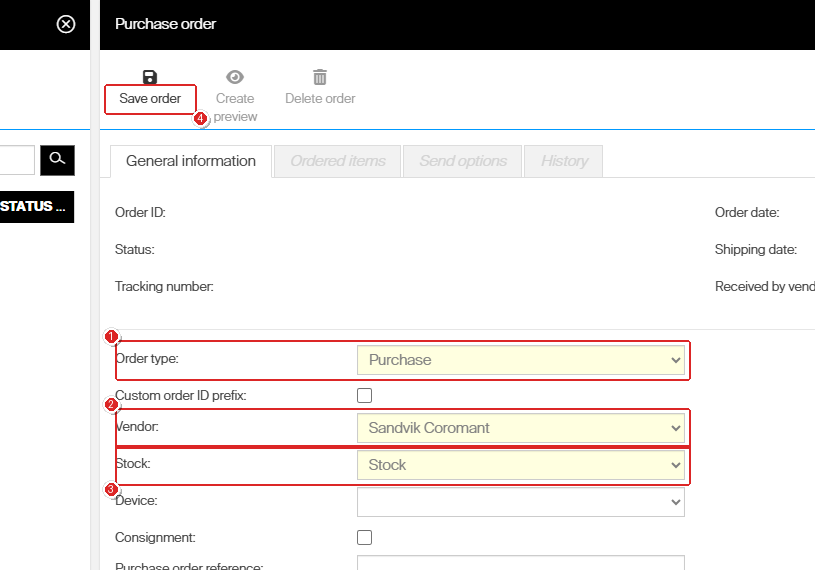
A new purchase order. Ordered items and Send options stay greyed out until the order is saved.
Add the items you want on the Ordered items tab. For the full ordering procedure, see How to create manual purchase orders.
Step 4 – Choose B2B as the sending option
- Open the Send options tab (1).
- Tick B2B (2).
- Leave Web service, FTP and Mail unticked (3) unless you also want a copy sent that way.
- Select Save order (4).
- Select Send order (5).

Send options with B2B ticked. Send order stays greyed out until the order has at least one item.
Important: The B2B tick box can be ticked for any vendor, including one with B2B integration set to None. Ticking it is not a guarantee – the order only reaches the vendor when the customer number, the Integration ID and the B2B target are all set on that vendor.
Only if the vendor’s system supports order acknowledgement will the Tracking number and Received by vendor be filled.
B2B on a scheduled script
Scheduled scripts carry their own send options, set once per script rather than per order. Every order the script creates inherits them.
- Go to Order lists > Scheduled scripts.
- Open the script, then its Send options tab.
- Tick B2B.
- Save the script.
The vendor setup in steps 1 and 2 is still required. A script that creates orders for several vendors sends over B2B only for the vendors that are set up for it. For the whole procedure, see How to set up scheduled purchase and service scripts.
Next steps
- Check the acknowledgment came back – open the order and look at Tracking number and Received by vendor. See How to view and filter purchase orders.
- Switch from Testing to Production – once the vendor confirms the test orders arrived correctly, change B2B integration on the vendor to Production.
Troubleshooting
| Problem | Likely cause | Fix |
|---|---|---|
| The order was sent, but the vendor never received it | B2B integration on the vendor is still None, or the Integration ID is empty | Open the vendor’s Integration tab, set Production or Testing, and fill in the Integration ID. Then send the order again. |
| The order reached the vendor, but the wrong national sales company | The country code in the Integration ID is wrong | Correct the last two characters on the vendor’s Integration tab – CORSE is Sandvik Coromant Sweden, CORCZ is Sandvik Coromant Czech Republic. Then send the order again. |
| The vendor rejects the order or cannot identify the account | Customer number is missing or wrong on the vendor | Confirm the number with the vendor and enter it on General information. It is sent as the buyer ID on every order. |
| The Send options tab is greyed out | The order has not been saved yet | Set Order type, Vendor and Stock, then select Save order. The tab unlocks after the first save. |
| Send order is greyed out | The order has no items | Add at least one item on the Ordered items tab, save, then send. |
| There is no B2B option that works for this vendor | The vendor is not a Sandvik Group brand | B2B is available for Sandvik Coromant, Seco Tools, Walter and Dormer Pramet only. Use web service, FTP or e-mail for other vendors. |
| Test orders reached the vendor’s live system | B2B integration was set to Production | Set it to Testing while you are verifying, and tell the vendor to cancel the orders that got through. |
Related articles
- How to manage vendors – the full vendor record, including the other integration channels.
- How to create manual purchase orders – creating and sending an order end to end.
- How to set up scheduled purchase and service scripts – automated ordering, where send options are set per script.
- B2B interface – technical documentation – the XML structures behind the order request and order acknowledgment.
- How to view and filter purchase orders – checking order status and the vendor’s response.
- Consignment management: setup, ordering, and invoicing – B2B is also used for consignment invoice requests.