
What you’ll learn
How consignment works in CRIBWISE: marking an item-device assignment as consigned, ordering consigned items separately, and letting the system generate and send consignment invoice requests from actual consumption.
The stock administrator decides which items in which devices are handled this way. Consigned and normally purchased items can coexist, and the same item can be consigned in one device and purchased normally in another.
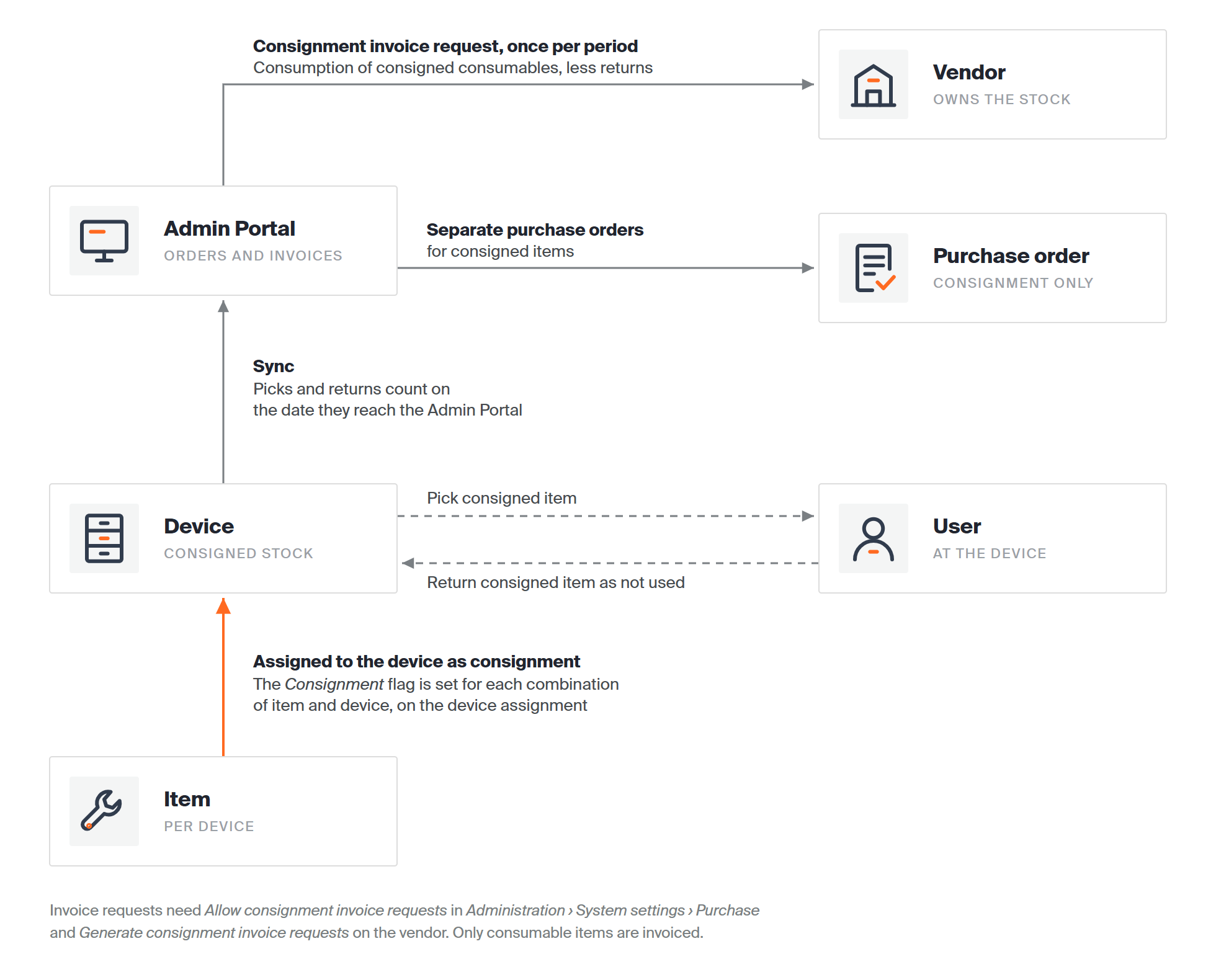
The consignment flow from assignment to invoice request.
What consignment changes
| Area | What happens |
| Assignment | An item is assigned to a device with the Consignment flag, marking it as consigned in that device. |
| Ordering | Consigned items go on separate orders for new items, which can use a different order template. |
| Invoicing | The consumed quantity of consigned consumables can be sent to the vendor weekly, biweekly or monthly. Items returned as not used are deducted. |
Setting the system up for consignment
Consignment is set for each combination of item and device, on the item’s device assignment: the same item can be consigned in one device and bought normally in another. Setting it up takes six steps, covered with screenshots in How to set up consignment for an item: confirm that consignment invoicing is allowed, set the consignment order template on the vendor, flag the device assignment as consigned, turn on consignment invoicing for the vendor, order the consigned items, and find the generated invoice requests.
Those items can afterwards only go on purchase orders set for consignment, and their consumed quantity goes on a consignment invoice request if invoicing is set on the item’s vendor.
Note: For invoice requests to be generated at all, Allow consignment invoice requests must be ticked on the Purchase tab of system settings. It does not gate the flag itself – with the setting off, the Consignment option is still available on the assignment and on a purchase order.
Ordering consignment items
Consigned and non-consigned items cannot share an order. To create one, follow How to view and filter purchase orders and select the Consignment option for the new order.
A scheduled script that creates purchase orders automatically creates separate orders with the Consignment setting whenever a consigned item is to be ordered.
Consignment invoicing
The system can calculate the consumed quantity of consumable items marked as consignment and give it to the vendor as a consignment invoice request. A request always covers consumption during one period, and is generated at the end of it.
| Period | How it is defined |
| Weekly | Set the first day of the week. The request covers that day until the day before the same day the next week. |
| Biweekly | Set the first day of the week. The request covers that day until the day before the same day two weeks later. |
| Monthly | Set the first day of the month. The request covers that day until the day before the same day the next month. |
Important: With a monthly period starting on day 31, the period ends the day before the 31st of the following months. Where a month has only 30 days, the invoice period becomes longer than one month.
The total consumed quantity within a period is calculated as:

Consumption within the period, less items returned as not used.
Note: The date of a pick or return is the date the event is synchronised to the Admin Portal, so every event is counted even when a device does not synchronise regularly.
Setting it up on the vendor
Select Generate consignment invoice requests on the vendor detail and specify the period and the distribution channels. When the vendor is saved, the period for the next invoice is generated from the current date – the current week or current month.
To have a request sent as soon as it is generated, specify at least one distribution channel and set Send automatically. Without it, the request is only created and must be sent by hand.
A request is generated the day after its period ends and appears in the list of invoice requests. The system then sets the dates of the next period and shows them on the vendor detail.
Warning: Changing the period can mean that quantities already sent on one invoice request are also added to a new one.
Managing consignment invoice requests
A request is in one of two states:
| Prepared | Created but not sent. Send it by hand from the request detail. Requests get this status when Send automatically is not checked on the vendor. |
| Sent | Sent to the vendor – either automatically, or by hand from the request detail. |
Manage them under Consignment invoice requests in the Order lists menu.
 |
Opens the detail of the selected invoice request. |
 |
Deletes the selected request. No new request is created for that period again. |
 |
Enables multi-selection for mass delete. |
On the request detail:
 |
Saves your changes. Only the send options can be changed; everything else is read-only. |
 |
Sends the request to the vendor, using the channels and formats in the send options. Channel settings come from the vendor detail, integration tab. |
 |
Replaces Send invoice once the status is Sent, and resends to the specified channels. |
 |
Generates a preview in the formats selected in the send options, downloadable from the notification bar. No preview is possible for a B2B message. |
General information
All fields are read-only.
| Field | What it shows |
| Invoice request ID | Automatically generated ID of the request. |
| Vendor | The vendor the request is generated for. It contains only consumption of items assigned to that vendor. |
| Stock | The stock the request is generated for. It contains only consumption within that stock. |
| Date send | When the request was sent. Empty while it is Prepared. |
| From | Start of the period. Only consumption inside it is included. |
| To | End of the period. |
Invoiced items
Read-only. The list holds every consumable item treated as consignment that was consumed during the period, aggregated per item. Consumed quantity is always in pieces.
Send options
Choose the channels used to send the request. When it is sent or resent, it goes to all selected channels in the selected formats. The defaults come from the vendor detail, Consignment invoicing tab.
Note: B2B, web service, FTP and email settings are configured on the vendor detail.
For PDF and Excel a template can be selected – the list holds only templates of type invoice request from system settings. With email as a channel, a custom subject and body can be set, overriding the email content configured for the vendor.
Common confusion
| People often think… | But actually… |
| Flagging an item as consigned covers every device it is in. | The flag is set for each combination of item and device, so the same item can be consigned in one device and bought normally in another. |
| Consigned items can share an order with normal ones. | They cannot – consigned items always get their own order. |
| An invoice request bills what was picked. | It bills consumption, so items returned as not used are deducted. |
| A deleted invoice request will be regenerated. | No new request is created for that period again. |
| Durable items can be invoiced by consignment. | Invoicing covers consumable items marked as consignment. |
Take action
Ready to start? Follow How to set up consignment for an item – it takes you from the system setting to the first generated invoice request.
Related articles
- How to set up consignment for an item – the six setup steps, from the system setting to the first invoice request.
- System settings – the Allow consignment invoice requests setting on the Purchase tab.
- How to manage vendors – invoicing period, distribution channels and templates.
- Understanding purchase order scripts: automated reorder rules – how consigned items are ordered automatically.
- How to manage invoice templates – the PDF and Excel templates used for a request.