
What you can do
Install the CRIBWISE Shop Floor Interface (SFI) application on a Windows computer and connect it to its device in the Admin Portal. The installer also sets up everything the SFI needs to run, such as .NET and SQL Server LocalDB.
Before you start
- A Windows 10 or 11 computer that meets the system requirements.
- Administrator rights on that computer. Windows asks for permission before the installation starts.
- A network connection from the computer to your Admin Portal. The installer checks your settings against the Admin Portal before it installs anything.
- Your Customer ID and Customer Secret. Find them in the Customer Management Portal (CMP), or ask your sales contact.
- A device for this computer in the Admin Portal, and its Device ID. To create one, see How to create and manage devices.
Important: Keep the Customer Secret confidential. Do not share it, and blur it in any screenshot you send.
Note: First synchronization may take a while so be paient. See the status on the admin portal.
Quick start
Experienced users – install the SFI in 5 steps:
- Download the installer package for your brand, unzip it and run Installer.exe.
- Select Install next to Shop Floor Interface Application.
- Enter the Customer Secret, Customer ID, Admin Portal Address and Device Id. Leave Coges COM port empty.
- Tick Agree with Terms and Conditions. When the Errors field stays empty, select Proceed.
- Select Proceed again, wait for the installation to finish, then select Restart Windows now.
Need more detail? Follow the full steps below.
Steps
Step 1 — Download the installer package
Each brand has its own installer package. Download the one for the brand of your Admin Portal – the logo you see when you log in.
| Brand | Installer package |
| CRIBWISE | CribWise_SFI_Installer.zip |
| SecoPoint | SecoPoint_SFI_Installer.zip |
| ToolLogistics | ToolLogistics_SFI_Installer.zip |
| ToolStation | ToolStation_SFI_Installer.zip |
| Prolog | Prolog_SFI_Installer.zip |
The links always point to the latest version.
Step 2 — Unzip the package and run the installer
- Right-click the downloaded .zip file and select Extract All.
- Open the extracted folder.
- Double-click Installer.exe.
The CRIBWISE Application Manager opens. It installs and manages the SFI on this computer.
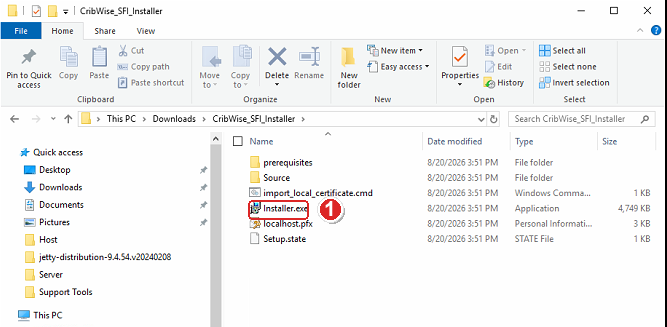
The unzipped package. Run Installer.exe (1), and leave the other files and folders where they are – the installer needs them.
Step 3 — Select Install
The Application Manager reads You have not installed any application yet and lists Shop Floor Interface Application under Other available apps.
- Select Install next to Shop Floor Interface Application.
The installation settings form opens.
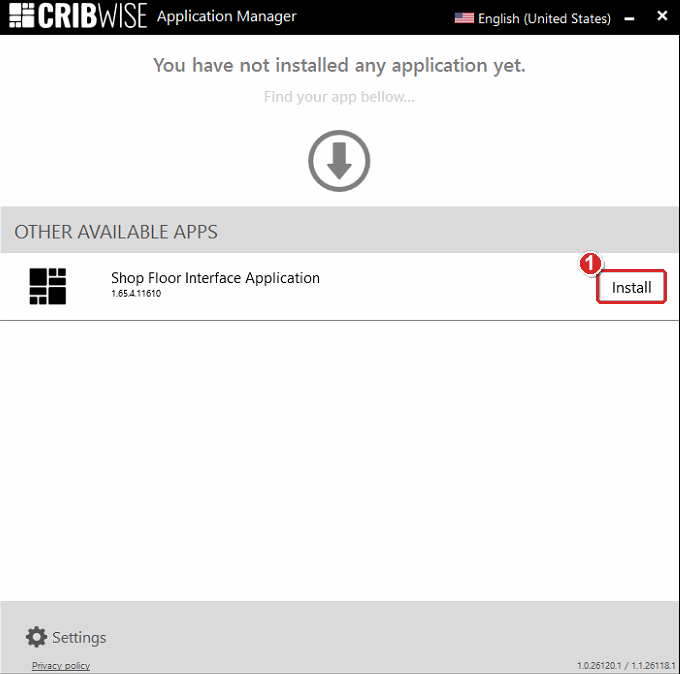
The Application Manager before anything is installed. Select Install (1). The version number below the name is the version that will be installed.
Step 4 — Enter the installation settings
Fill in the four fields that connect this computer to your Admin Portal. Copy and paste the values where you can – one wrong character makes the check in step 5 fail.
| Field | What to enter |
| (1) Customer Secret | The secret from the CMP or from your sales contact. |
| (2) Customer ID | The customer number from the CMP or from your sales contact, for example 417. |
| (3) Admin Portal Address | The address of your Admin Portal without the /AdminPortal/ part and your portal name. It is different for each brand. For example, if you log in at https://app.cribwise.com/AdminPortal/yourportal, enter https://app.cribwise.com |
| (4) Device Id | The Device ID of this computer’s device in the Admin Portal, written exactly as the Admin Portal shows it, for example Stock.Device1682. See Find the Device ID below. |
| (5) Coges COM port | Leave empty. |
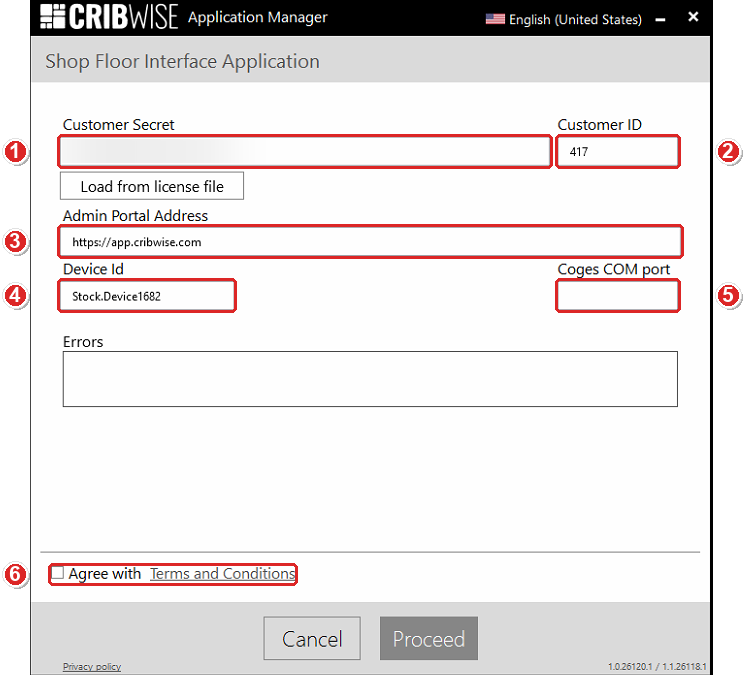
The installation settings form. Fill in fields 1–4, leave 5 empty, then tick Agree with Terms and Conditions (6) in step 5. The Customer Secret is blurred here.
Find the Device ID
- Log in to the Admin Portal.
- Go to Data management > Devices.
- Find the device for this computer and copy the value in the Device ID column.
The Status column shows whether another computer already uses the device. Not installed means the Device ID is free. Synchronized or Not synchronized means an earlier installation is still paired with it – you will need step 6.
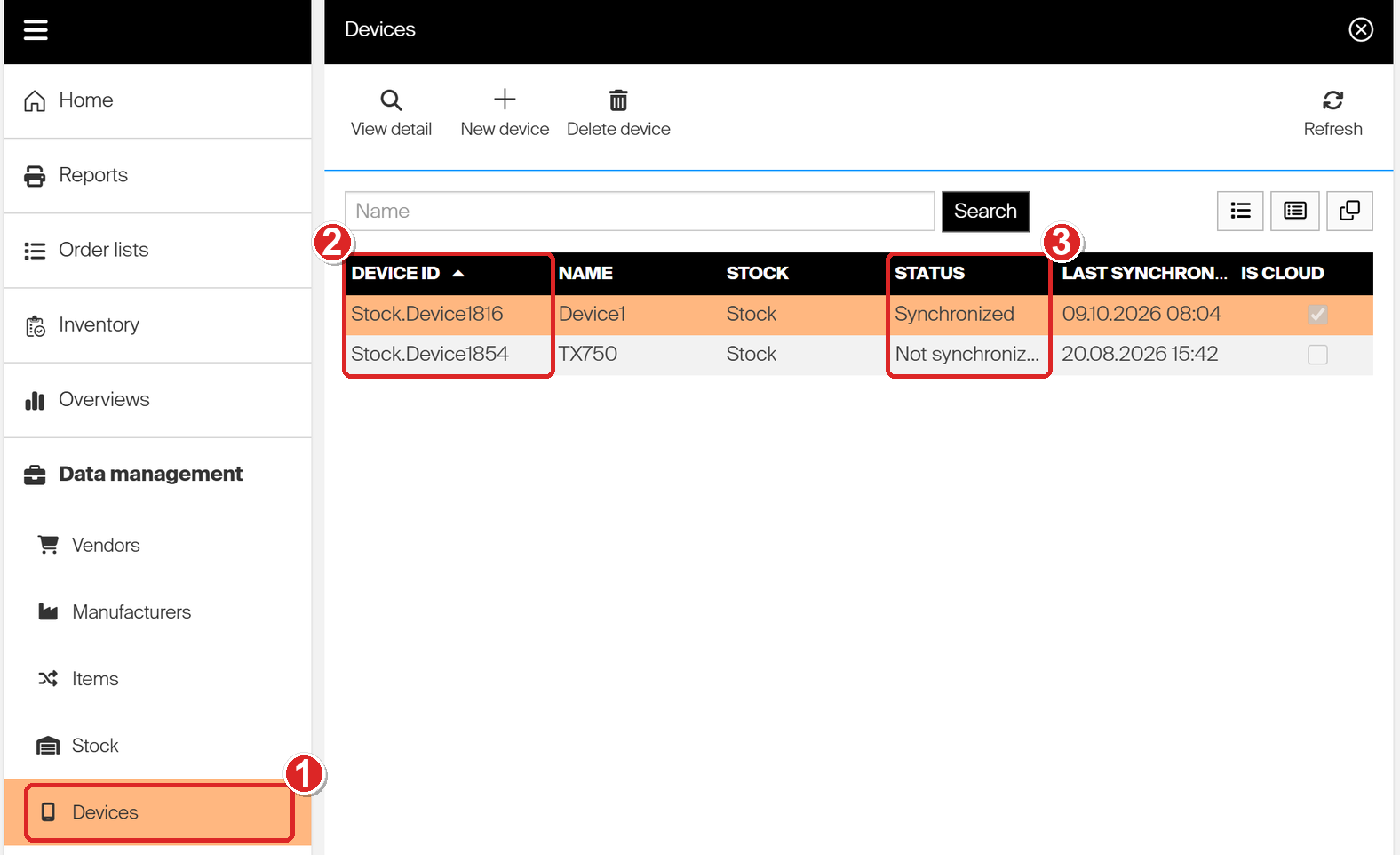
Data management > Devices (1) in the Admin Portal. Copy the ID from the Device ID column (2). The Status column (3) shows whether an installation is already paired with the device.
Step 5 — Accept the terms and check the result
- Tick Agree with Terms and Conditions.
Ticking the box checks your settings against the Admin Portal.
- If the Errors field stays empty, the settings are correct. Select Proceed and continue with step 7.
- If the Errors field reads Customer validation has failed, Proceed stays grey with a red exclamation mark next to it. Continue with step 6.
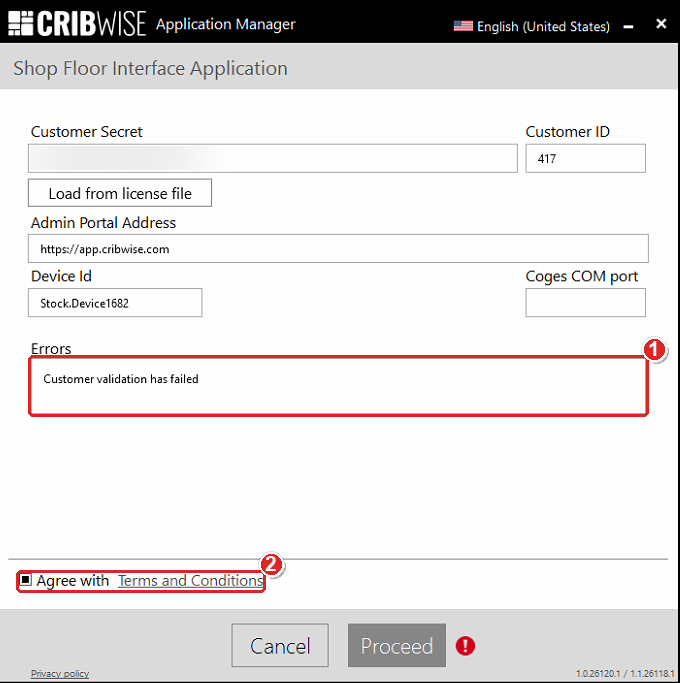
A failed check. The Errors field (1) reads Customer validation has failed. After you correct the settings, untick and tick Agree with Terms and Conditions (2) to check again.
Step 6 — Fix a failed check
Skip this step if the Errors field stayed empty.
- Check each value again: Customer Secret, Customer ID, Admin Portal Address and Device Id. Look for typos, extra spaces and the wrong brand address.
- Untick Agree with Terms and Conditions.
- Tick it again to repeat the check.
If the check still fails, the device may be paired with another computer. This happens when you reinstall the SFI on a new computer, or the device was used before. The Admin Portal pairs each device with one computer, by that computer’s MAC address. Detach the device so it can pair with the new computer:
- In the Admin Portal, go to Data management > Devices.
- Select the device and select View detail.
- Check that the ID field shows the Device ID you entered in the installer.
- Select Detach device in the toolbar.
- Back in the installer, untick and tick Agree with Terms and Conditions.
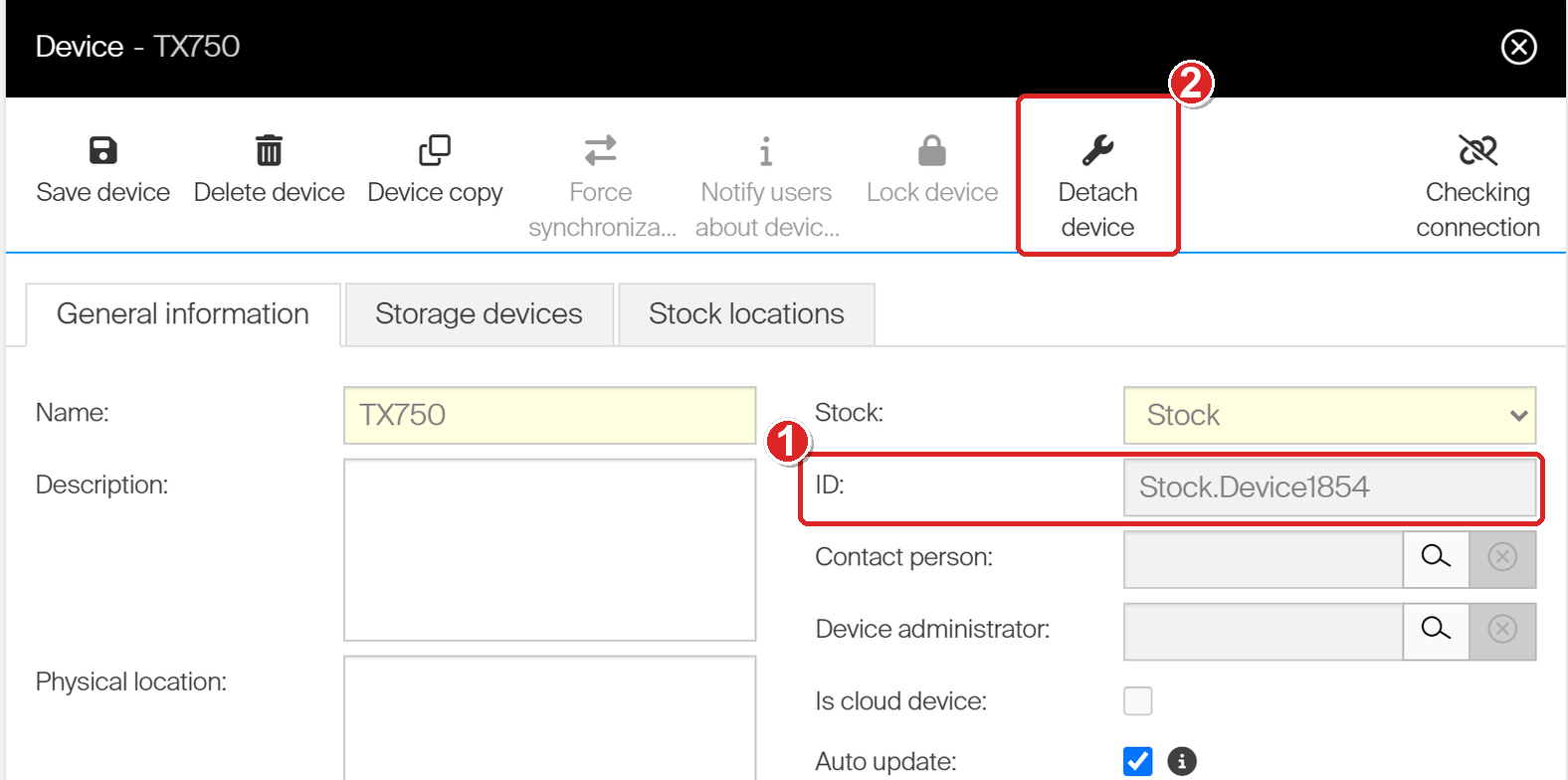
The device detail in the Admin Portal. Check the ID (1), then select Detach device (2) so the device can pair with the new computer.
Warning: Detach device runs as soon as you select it. There is no confirmation dialog. The computer that used the device before can no longer synchronize with it, so only detach a device whose old computer is no longer in use.
Step 7 — Start the installation
After Proceed, the Application Manager returns to its app list with Install ticked.
- Check that Install is ticked next to Shop Floor Interface Application.
- Select Proceed.
- If Windows asks whether to allow the app to make changes, select Yes.
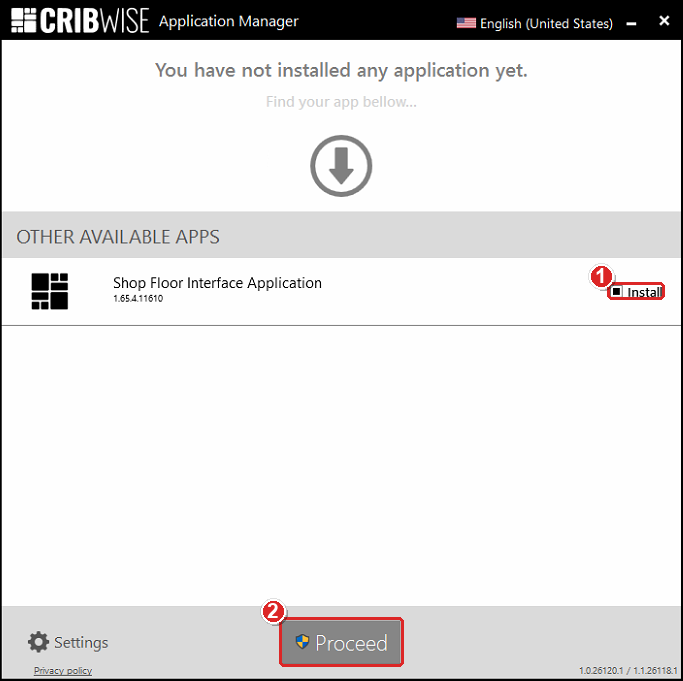
Ready to install. Install is ticked (1). The shield on Proceed (2) means Windows asks for administrator permission.
Step 8 — Wait for the installation to finish
The Application Manager first installs the prerequisites – the Microsoft components the SFI needs, listed in the system requirements – and then the SFI itself. The status line counts the prerequisites, for example Installing prerequisite 2 of 4.
No action is needed. Keep the computer switched on until the installation finishes.
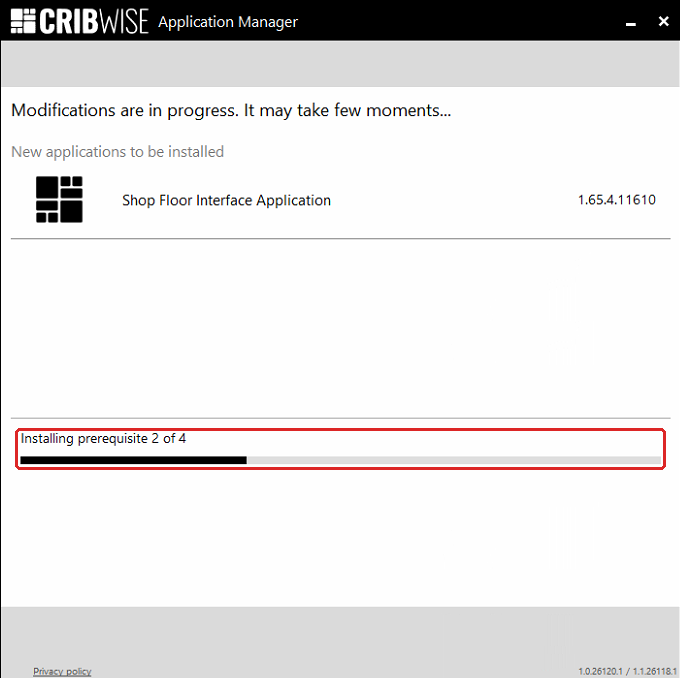
The installation in progress. The status line and progress bar show how far it has come.
Step 9 — Restart Windows
The Application Manager shows Congratulations! and Process successfully completed, with the installed version marked Installed.
- Select Restart Windows now.
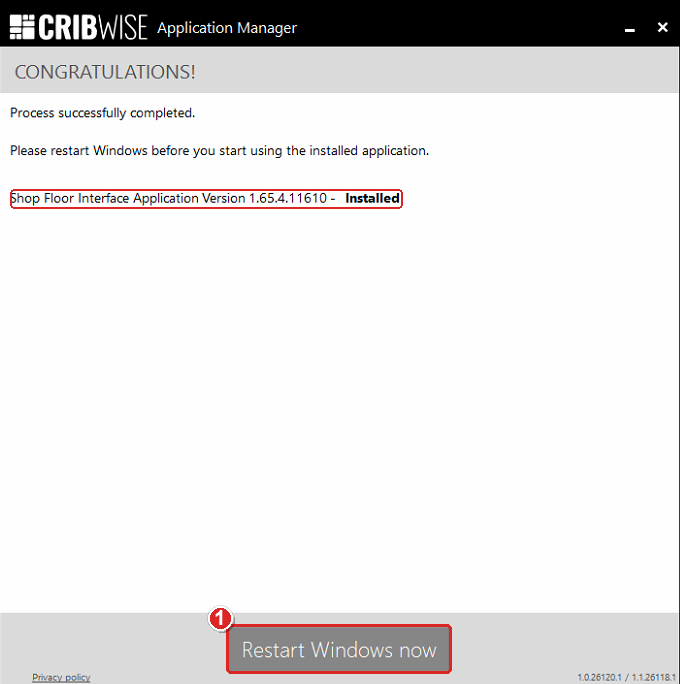
The installation is complete. Select Restart Windows now (1) – the SFI cannot be used before Windows restarts.
Success: After the restart, the SFI starts on its own when Windows starts and shows its login screen. It will do this every time the computer starts. In the Admin Portal, the device’s Status changes to Synchronized once the SFI has synchronized for the first time.
Change an installation later
Make every later change to the SFI installation in the Application Manager. To open it, type application manager in the Windows taskbar search.
Important: If you need a different Customer ID, Device ID or Customer Secret, uninstall the SFI in the Application Manager first. Then install it again from step 3 with the new values.
To move the SFI to a new computer, install it on the new computer and detach the device as described in step 6. To update to a newer version, see How to update SFI manually.
Next steps
- Log in to the SFI – sign in for the first time and register cards or other login methods. See How to log in to the Shop Floor Interface.
- Set up the device – choose login options, picking flow and automatic updates. See How to create and manage devices.
Troubleshooting
| Problem | Likely cause | Fix |
| The Errors field reads Customer validation has failed | One of the four settings is wrong, or an extra space was copied with it. | Check each value, then untick and tick Agree with Terms and Conditions. See step 6. |
| The check still fails, although every value is correct | The device is paired with another computer – its status in the Admin Portal is Synchronized or Not synchronized. | Select Detach device on the device in the Admin Portal, then repeat the check. See step 6. |
| The check fails whatever you enter | The Admin Portal Address includes /AdminPortal/ and your portal name, or belongs to another brand. |
Enter only the start of the address, for example https://app.cribwise.com or https://secopoint.secotools.com. |
| The check fails and the Admin Portal is not reachable from the computer | A firewall or proxy blocks the connection. | Open the addresses and ports listed in the system requirements. |
| Proceed stays grey | Agree with Terms and Conditions is not ticked, or the check failed. | Tick the box. If an error appears, follow step 6. |
| Windows asks for an administrator password | You are not an administrator on this computer. | Ask your IT department to run the installation, or to give you administrator rights for it. |
| The SFI does not start after the installation | Windows has not been restarted yet. | Restart the computer. The SFI starts when Windows starts. |
| A new Customer ID, Device ID or Customer Secret has no effect | The values are set when the SFI is installed. | Uninstall the SFI in the Application Manager, then install it again with the new values. |
Related articles
- System requirements and supported browsers – the computer, prerequisites and network access the SFI needs.
- How to create and manage devices – create the device the SFI connects to, and understand its statuses and the Detach device action.
- How to find Device ID and Storage Device ID – where each ID is shown in the Admin Portal.
- How to log in to the Shop Floor Interface – the first thing to do after the installation.
- How to update SFI manually – install a newer version when automatic update is off.
- Getting started with Shop Floor Interface: layout and menus – find your way around the SFI.
- How to install on-premise – set up an Admin Portal on your own server.