
What you can do
Reset a forgotten Admin Portal password — either your own portal user login, or the portal owner account that the whole portal falls back on.
These are two different flows on two different screens. Start by working out which one you need.
Important: The portal owner password cannot be reset from the Reset password panel. That panel only knows about Admin Portal users. The owner account is authenticated on its e-mail address, outside the portal’s user list, so it has its own reset route.
Before you start
- You know your portal’s web address. It ends with your portal name — for example
https://app.cribwise.com/AdminPortal/yourportal. - For a portal user reset: you can open the mailbox of the e-mail address stored on your user record. If you are not sure which address that is, ask an administrator to check it.
Reset a portal user password
Use this when you sign in with a username and password and have forgotten the password, or simply want a new one.
Step 1 — Open the Reset password panel
- Open your portal address. The login screen opens.
- Select Reset password, to the right of the Login button.
Step 2 — Identify yourself
- Enter your Username.
- Enter the E-mail address registered for that username.
- Confirm to send the request.
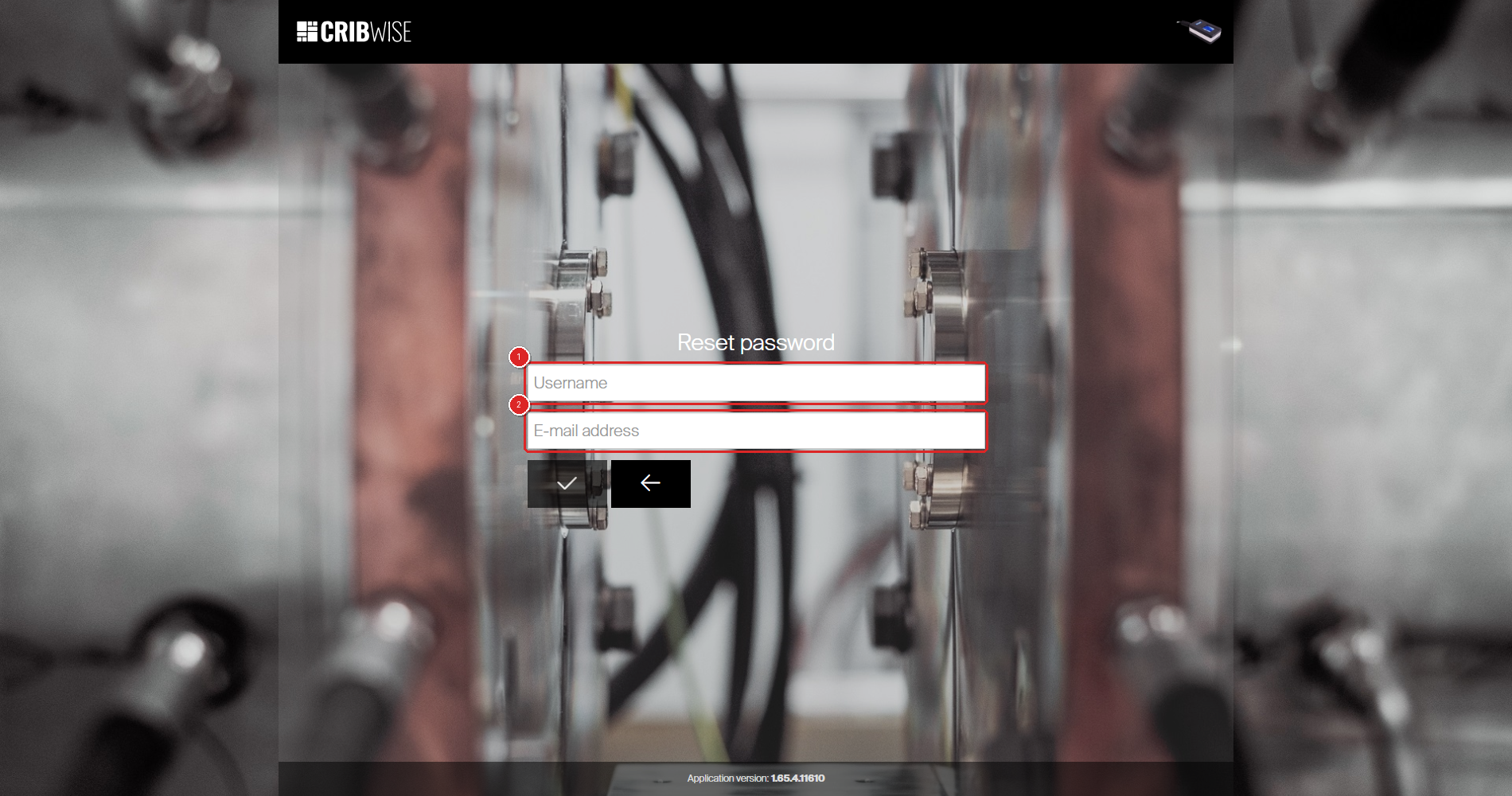
Both values must belong to the same user: (1) the username and (2) the e-mail address stored on it.
Tip: Requiring both values is how the portal confirms who you are. If either one belongs to a different user, no e-mail is sent — and you are not told which of the two was wrong.
Step 3 — Sign in with the temporary password
- Open the e-mail and copy the temporary password.
- Sign in with your username and the temporary password.
- Set a new password when prompted.
Success: The Admin Portal opens and your new password is active.
Note: Your old password keeps working till a new one been set. Requesting a temporary password does not cancel it, so if the old one comes back to you, you can still use it. The temporary password does expire — if it stops working, request a new one.
What an administrator can do instead
If you can reach a colleague who administers the portal, they can reset your password from inside it — no e-mail round trip needed. They open your user record, select Change password, and can tick User must change password at next login so you pick your own.
See How to reset a user’s password.
Troubleshooting
| Problem | Likely cause | Fix |
|---|---|---|
| No reset e-mail arrives | The e-mail address stored on your user record is wrong or out of date, or the message was filtered. | Check the junk folder. Then ask an administrator to confirm the address on your user record. |
| The Reset password request seems to do nothing | The username and e-mail address belong to different users. | Both must match the same user. Ask an administrator which address is stored on your login. |
| The temporary password is rejected | It has expired, or it was copied with a leading or trailing space. | Retype it by hand. If it has expired, request a new one. |
| Continue does nothing on the owner reset screen | The verification code has not been verified yet. | Select Verify code first, then Continue. |
| No verification code arrives | The message was blocked or treated as spam by the mail server. | Check the junk folder and any mail filtering. Then try again. |
| “Account is locked” | Too many failed attempts, or an administrator locked the account. | Ask another administrator to unlock it. If nobody can sign in, use the owner reset above. |
| The key icon is not on the login screen | Administrator login is not configured for this portal. | Contact your CRIBWISE distributor or support. |
| Nobody can sign in, and the owner mailbox is unreachable | Every user is locked out and the owner address is no longer monitored. | Contact your support partner. Owner e-mail changes cannot be made from inside the portal. |
Related articles
- Getting started with Admin Portal: layout, navigation, and lists — the normal login, and what the key icon is for.
- How to activate a new portal and create your first user — first-time setup, where the owner account is used.
- How to reset a user’s password — how an administrator resets a password for someone else.
- How to create and manage users — where the e-mail address used for resets is stored.
- Admin Portal permissions reference — what each Admin Portal permission controls.