
What you can do
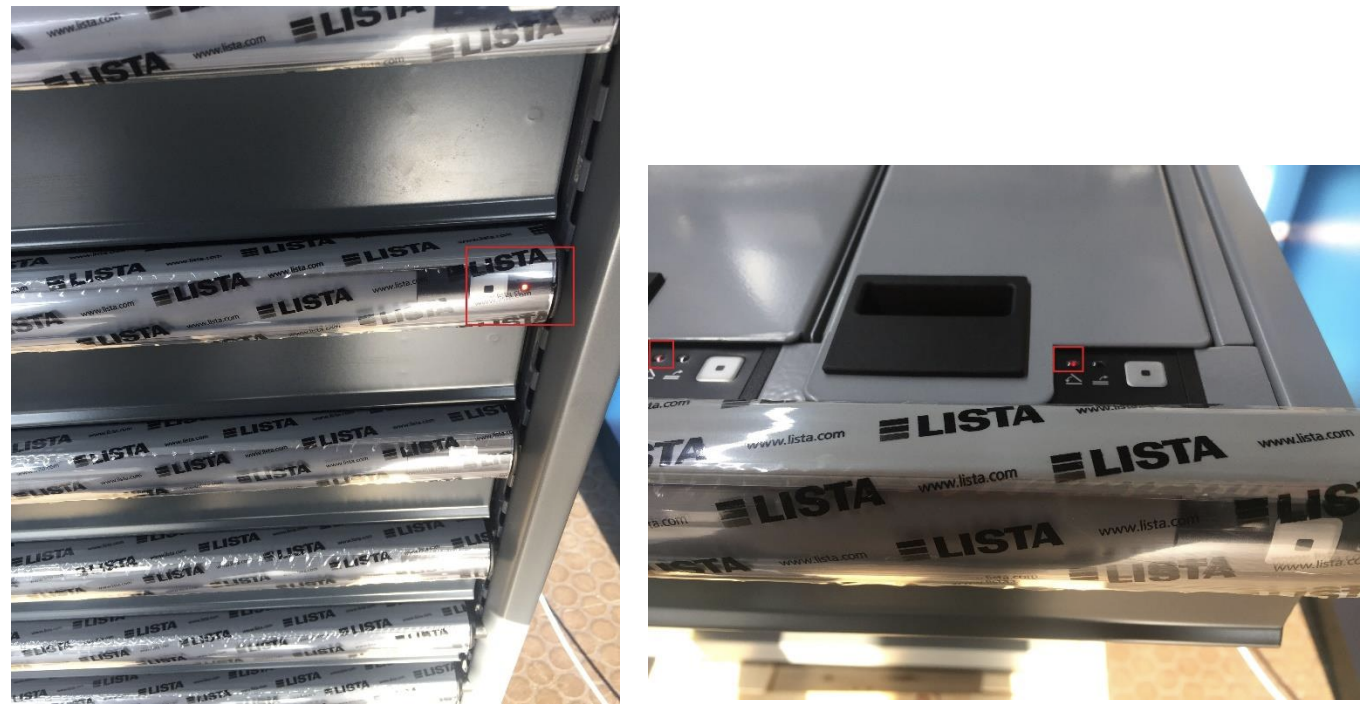
Reprogram the Lista control box from the Shop Floor Interface computer to fix a blinking lid in a Lista cabinet, using the LEC Programmer utility and the cabinet’s config file.
Before you start
- The Lista CD, including the LEC Programmer software and the config file.
- If you don’t have it, contact your Cribwise support partner
- The COM port the control box is connected on.
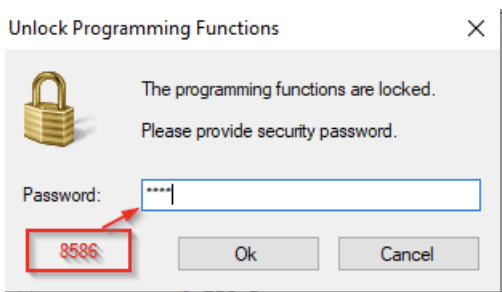
- The password for the compartment settings: 8586.
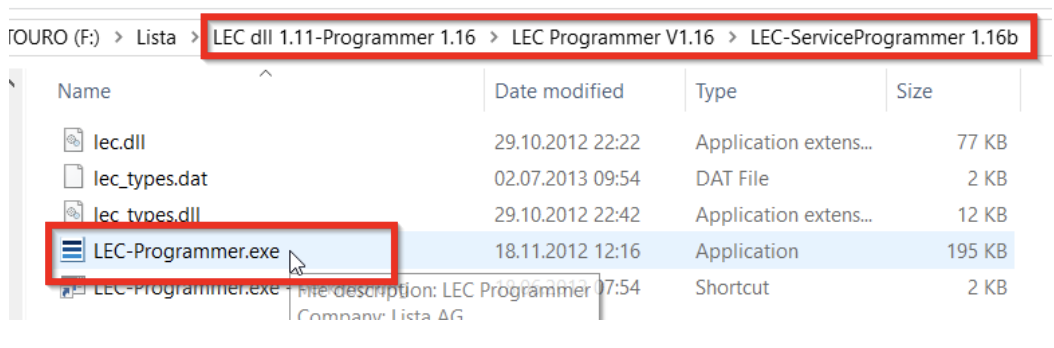
The Lista CD looks like this:

Utility:
[SFI Desktop]\Installer – LEC dll programmer 1.16\LEC programmer\LEC-Programmer.exe
Quick start
Experienced users — reprogram the control box in 5 steps:
- Run LEC-Programmer.exe, choose the COM port and click Connect.
- Open the config file for the cabinet.
- Click Compartments and enter the password.
- Select the compartment type and number from the config file, then push the button next to the blinking LED.
- Click Learn Comp. Count, then disconnect and close.
Need more detail? Follow the full steps below.
Steps
Step 1 — Connect to the control box
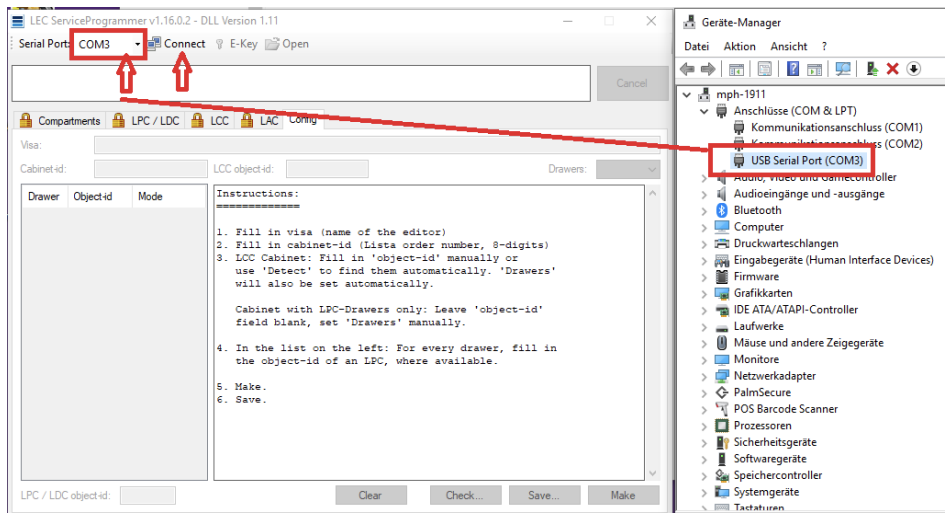
- Run the LEC-Programmer.exe
- Choose the identified COM Port
- Click Connect
Step 2 — Open the config file
- Click Open
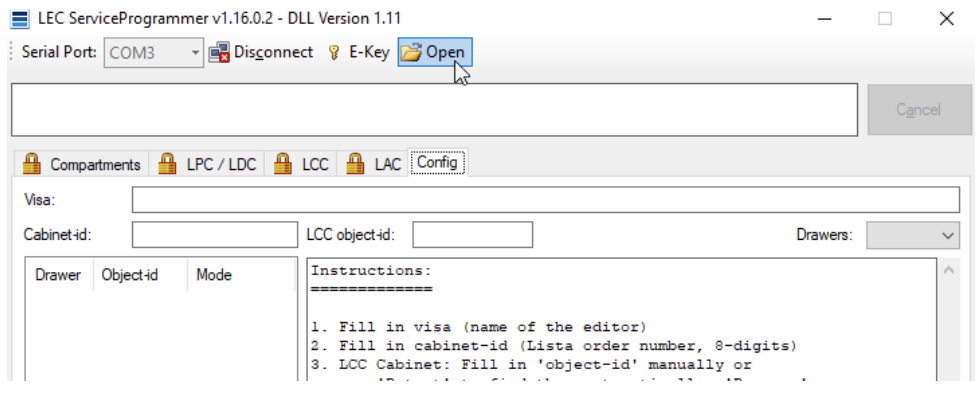
- Look for the config file and choose the right one, if you have several cabinets.
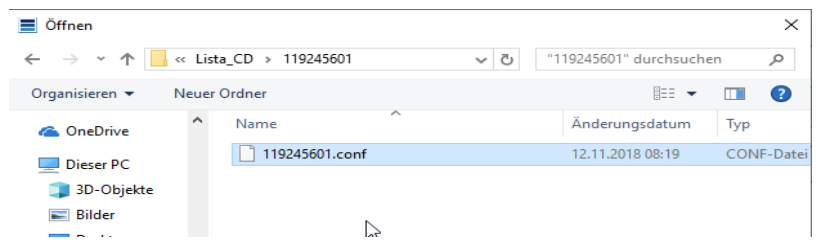
Step 3 — Open the compartment settings
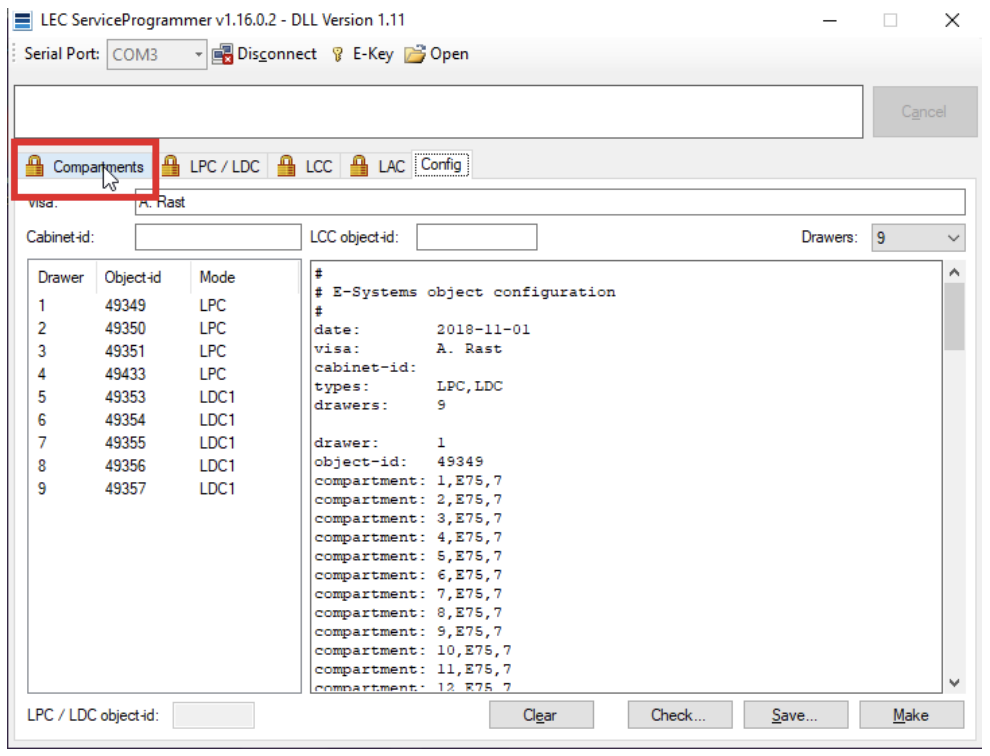
- A list with all the drawers will be shown. Click on Compartments.
- Enter the password ( 8586 )
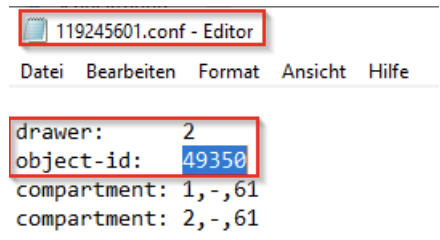
Step 4 — Find the object ID in the config file
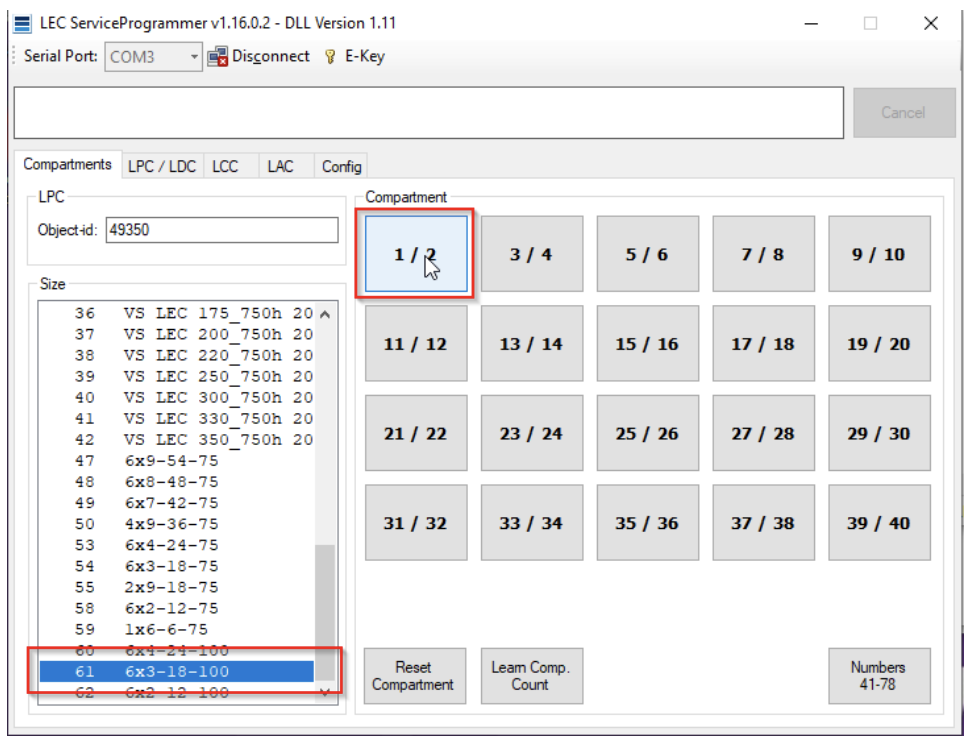
- Find the right object ID in the config file. In this case it is in the second drawer the 1st and the 2nd lid.
Step 5 — Program the lid
- Highlight the right compartment type and click the button with the right compartment number. You can see the number of type in the config file. In this example is it the No. 61. Compartment 1 and 2 are of type 61. See above picture. Click on the affected lid.
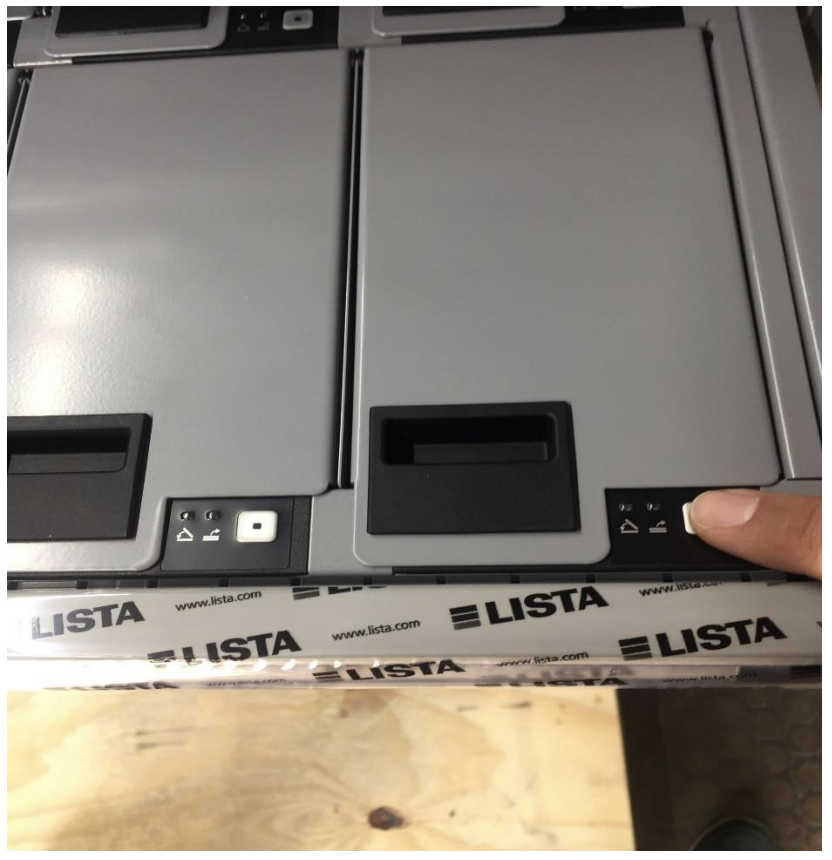
- Push the button close to the blinking LED.
Step 6 — Relearn the compartment count and disconnect
- Following should appear. Instead of 1/2, the newly configured lid should appear
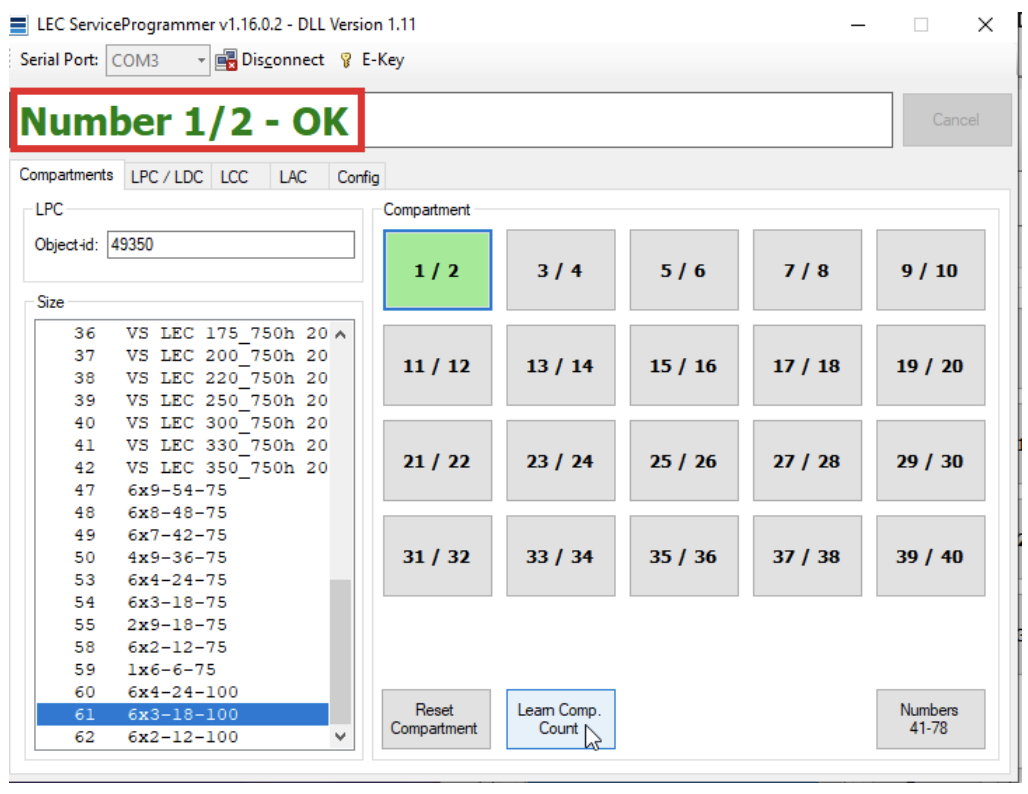
- Click on the button Learn Comp. Count. After a few seconds the right number of lids should be displayed.
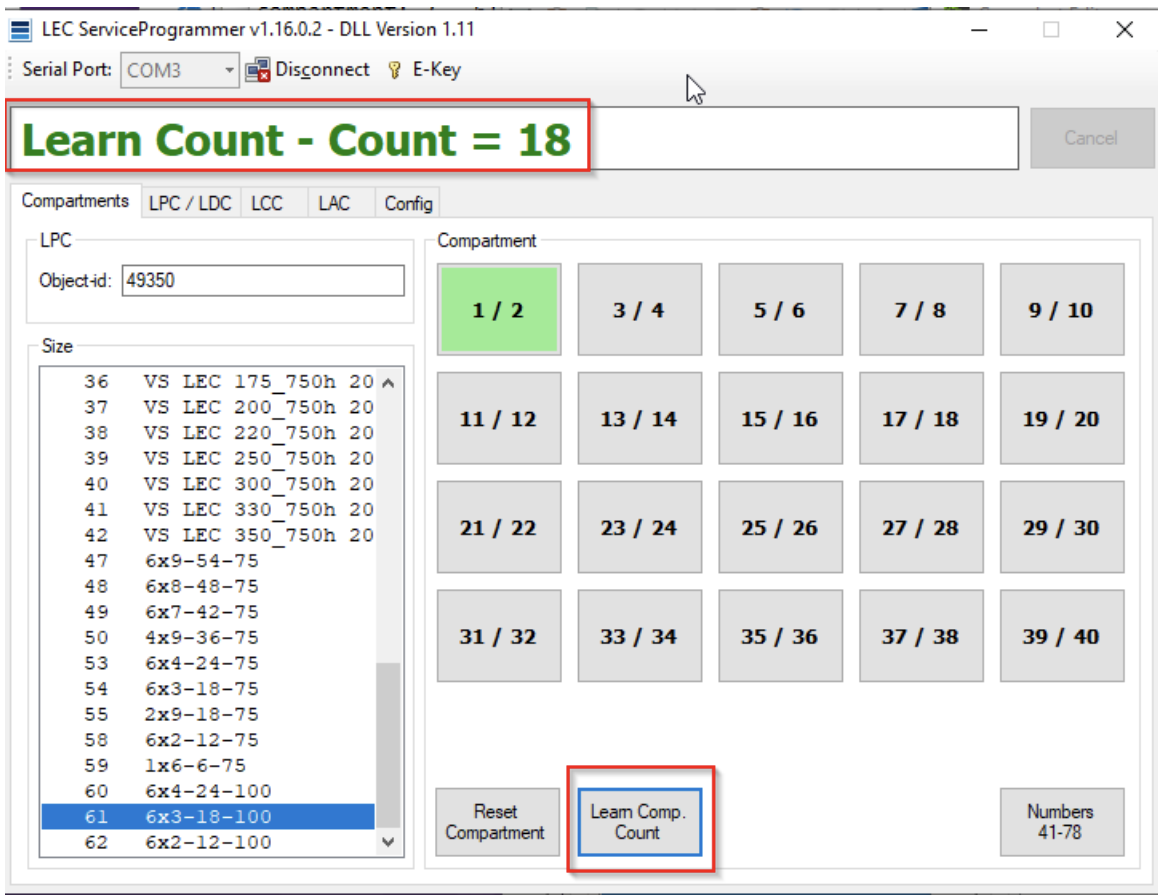
- Disconnect and Close
Success: The newly configured lid appears instead of 1/2, and after Learn Comp. Count the right number of lids is displayed.
Troubleshooting
| Problem | Likely cause | Fix |
|---|---|---|
| The download link for the LEC Programmer software does not work | The software is hosted outside CRIBWISE. | Contact CRIBWISE support for the file. |
| The programmer does not connect to the control box | The wrong COM port is selected. | Choose the identified COM Port in step 1, then click Connect again. |
| You are not sure which config file to open | Each cabinet has its own config file. | In step 2, choose the config file for the cabinet you are working on. |
| You cannot tell which compartment to click | The object ID and the compartment type number come from the config file. | Look up the object ID in the config file (step 4), read its type number, then select that type and click the matching compartment number. |
| The wrong number of lids is displayed after programming | The compartment count has not been relearned. | Click Learn Comp. Count and wait a few seconds. |
Related articles
- Lista LPC, LDC — storage device setup — storage device settings, module structure and the location configurations for LPC and LDC drawers.
- Lista 2023 — storage device setup — how the newer Lista controller is set up and how its locations are created from the Shop Floor Interface.
- Supported storage devices — configuration reference — which storage device models CRIBWISE supports and how each is configured.
- How to find Device ID and Storage Device ID — the IDs to include when you report a hardware problem to support.
- CRIBWISE Hardware Configuration Possibilities — how main devices and storage devices fit together.