
What you can do
Create purchase orders in CRIBWISE from your ERP, update the quantities on them as goods arrive, and send an order to the vendor — all through four /ERP/PurchaseOrder/ endpoints. One call can carry a whole order with every ordered item on it.
The interface creates and updates. There is no endpoint that deletes an order: an order is stopped by setting its status to Cancelled, and deleted only in the Admin Portal under Order lists > Purchase orders.
Endpoints
| Method | Endpoint | What it does | Answers with |
|---|---|---|---|
| POST | [AP_base_uri]/ERP/PurchaseOrder/Create |
Queues a new purchase order together with its ordered items. | A request GUID |
| POST | [AP_base_uri]/ERP/PurchaseOrder/UpdateQuantity |
Queues quantity and expected-date changes on items in an existing order. | A request GUID |
| POST | [AP_base_uri]/ERP/PurchaseOrder/UpdateOrder |
Queues status, shipping, reference, and note changes on an existing order. | A request GUID |
| GET | [AP_base_uri]/ERP/PurchaseOrder/GetRequestResult |
Returns the outcome of any of the three calls above, identified by its GUID. | The result object |
[AP_base_uri] is the host your Admin Portal runs on, without the portal path. If you open the portal at https://solutionaddress.com/adminportal/yourcompany, the base address is https://solutionaddress.com. See the CRIBWISE REST API endpoint overview for the full endpoint list.
Note: These endpoints create purchase orders only. Orders of type Service have their own interface — see How to manage service orders with the REST API.
Before you start
- An API key, exchanged for a bearer token that every call carries in its
Authorizationheader — see How to authenticate with the REST API. - The IDs in your payload must already exist in CRIBWISE. Vendor, stock, device, item, and order template values are validated against the database on every call.
- Decide whether the order is device level (one device, set on the order) or stock level (one stock, with the device set per ordered item). You cannot set a device in both places.
- All quantities are in the item’s purchase unit of measure, not its dispense unit of measure — see How to configure units of measure.
- All dates and times are UTC.
Important: A
200fromCreate,UpdateQuantity, orUpdateOrdermeans the request was queued, not that the order changed. Validation errors are reported only byGetRequestResult, so an integration that stops at the200will miss every one of them.
Quick start
Experienced users — create and send an order in 5 steps:
- Exchange your API key for a bearer token.
- POST the order and its items to
[AP_base_uri]/ERP/PurchaseOrder/Create. - Read the request GUID from the
200response. - GET
/ERP/PurchaseOrder/GetRequestResult?requestGuid={GUID}untilStatusisCompleted, and store the returned order and item IDs. - POST
Status: "Active"to/ERP/PurchaseOrder/UpdateOrderto send the order to the vendor.
Need more detail? Follow the full steps below.
Steps
Step 1 — Collect the values your payload has to match
Five fields point at data that already exists in CRIBWISE. Look them up before you build the payload — a wrong value fails validation silently, in the request result rather than in the response.
| Payload field | Where the value comes from |
|---|---|
VendorId |
Vendor ID on the vendor detail, under Data management > Vendors. This is the vendor’s ID, not its name. |
StockName |
The stock’s Name, under Data management > Stock. |
DeviceId |
ID on the device detail’s General information tab, under Data management > Devices. The device list shows names, so open the device to read its ID. |
PurchaseOrderItems[].ItemId |
Item ID on the item detail, under Data management > Items. |
PdfTemplateName, ExcelTemplateName |
A template Name of type Order in the Order templates list, under Administration > System settings > Purchase. |
The vendor detail also holds three defaults the payload can override or depend on.
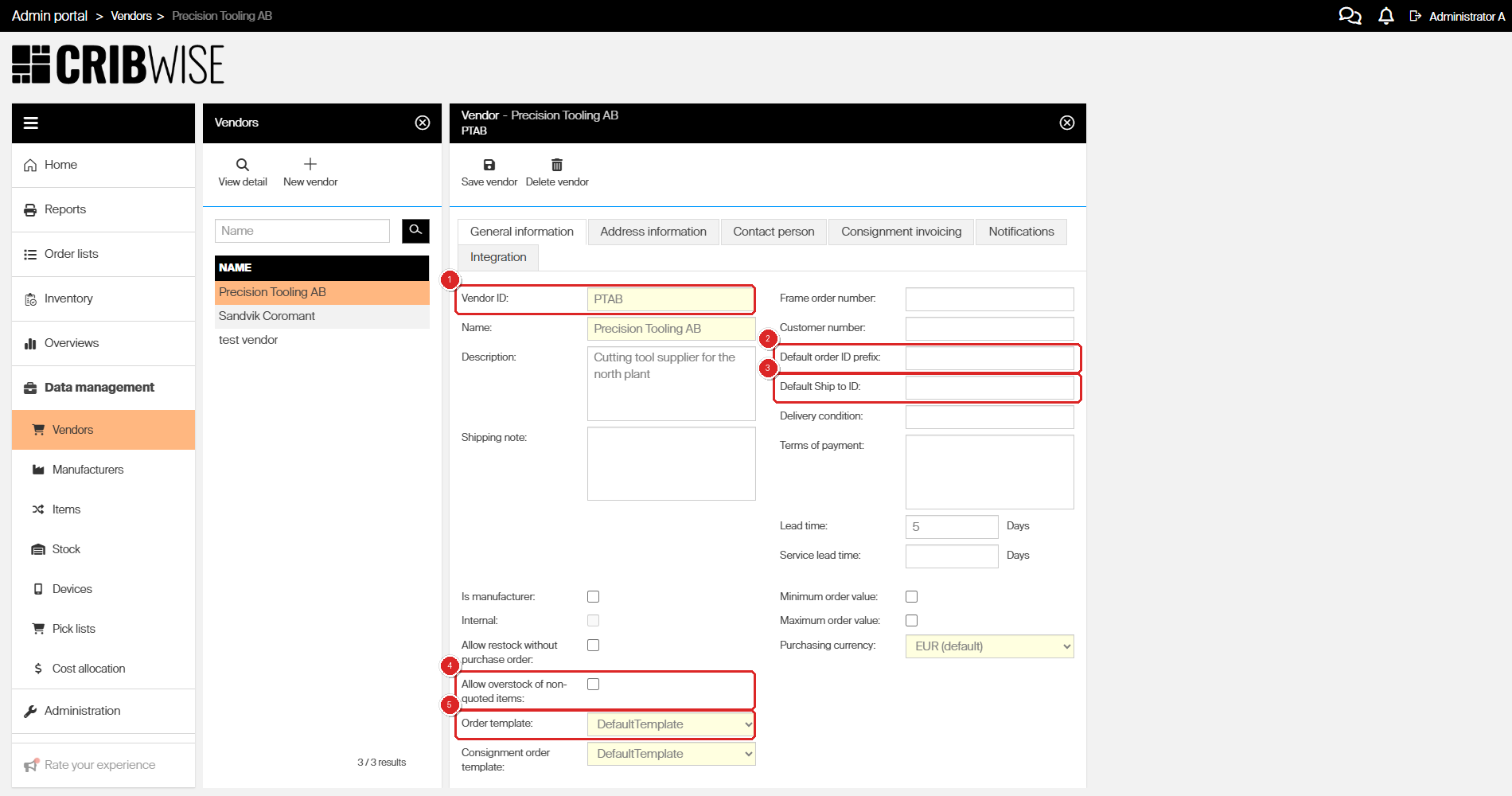
The vendor detail supplies VendorId (1) and the defaults that CustomIdPrefix (2) and CustomShipToId (3) override. Allow overstock of non-quoted items (4) decides whether you can raise a quantity on an active order, and Order template (5) is the vendor’s default document template.
Step 2 — Create the order
POST the order to [AP_base_uri]/ERP/PurchaseOrder/Create. One call creates one order with all of its ordered items.
{
  "VendorId": "string",
  "StockName": "string",
  "DeviceId": "string",
  "Status": "string",
  "IsConsignment": true,
  "Reference": "string",
  "Notes": "string",
  "CustomIdPrefix": "string",
  "CustomShipToId": "string",
  "SendOptions": {
    "Channel": {
      "IsB2B": true,
      "IsFtp": true,
      "IsEmail": true
    },
    "FTP": {
      "IsXml": true,
      "IsPdf": true,
      "IsExcel": true,
      "PdfTemplateName": "string",
      "ExcelTemplateName": "string"
    },
    "Email": {
      "IsXml": true,
      "IsPdf": true,
      "IsExcel": true,
      "PdfTemplateName": "string",
      "ExcelTemplateName": "string"
    }
  },
  "PurchaseOrderItems": [
    {
      "CustomItemId": "string",
      "CustomItemQuantity": 0,
      "CustomItemPricePerPiece": 0,
      "ItemId": "string",
      "DeviceId": "string",
      "TotalQuantity": 0,
      "Note": "string",
      "LineReference": "string"
    }
  ]
}
Three business rules are enforced on every create call:
- If a device is set on the order, it cannot be set on an item, and the other way round.
- If PDF or Excel is switched on for e-mail or FTP, the matching template field must name an existing template.
- If a custom item is defined on a line, that line cannot also carry an
ItemId, and the other way round.
The status you create the order in
Status is optional, and what you put in it decides how far the order travels immediately.
| Status in the payload | What happens on creation |
|---|---|
| Empty | The order is created as New. Nothing is sent and no transactions are raised. |
Suggested |
The order waits for someone to approve it in the Admin Portal. |
New |
Same as leaving the field empty. |
Active |
Purchase transactions are raised for the ordered items, and the order is sent to the vendor if sending is configured. |
Cancelled |
Purchase transactions are raised and the order can still be sent, then cancel transactions are raised for the same items. |
Warning: Creating an order directly as Active sends it to the vendor in the same call. Use New or Suggested while you are testing an integration, then move the order on with
UpdateOrder.
Send options
SendOptions mirrors the Send options tab of the order. Channel picks the channels, and the FTP and Email objects pick the document formats for each one.
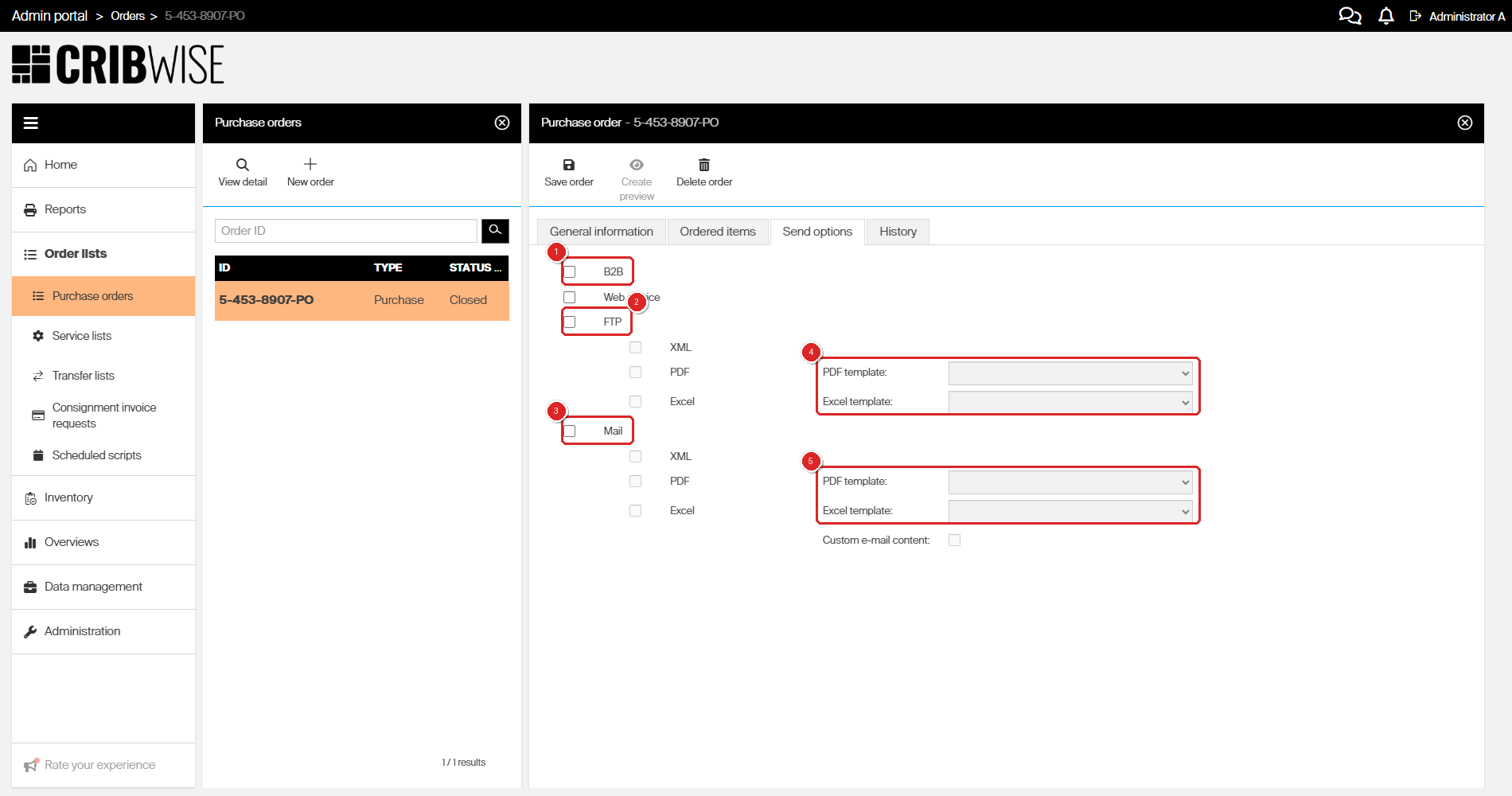
IsB2B (1), IsFtp (2), and IsEmail (3) switch the three channels the API can use. The template fields under FTP (4) and Mail (5) must name a template whenever the matching PDF or Excel format is on.
Warning:
FTPandPdfTemplateNameandExcelTemplateName. Older documentation showedPdfTemplateandExcelTemplateunder
Web service and Custom e-mail content on the same tab have no counterpart in the schema. Set them in the Admin Portal, or leave them to the vendor’s own sending options — see How to customize purchase order email templates.
Custom items
A line with CustomItemId, CustomItemQuantity, and CustomItemPricePerPiece orders something that is not in the item database — a free-text line. Free-text lines are only accepted when Free-text orders is enabled under Administration > System settings > Purchase.
Step 3 — Update quantities as goods move
POST changes to [AP_base_uri]/ERP/PurchaseOrder/UpdateQuantity. Send only the fields you want to change; OrderId is always mandatory.
{
  "OrderId": "string",
  "PurchaseOrderItems": [
    {
      "Id": "string",
      "ItemId": "string",
      "DeviceId": "string",
      "ReceivedQuantity": 0,
      "CancelledQuantity": 0,
      "TotalQuantity": 0,
      "ExpectedDate": "2026-11-09T11:29:37.501Z"
    }
  ]
}
Each field lands in a column of the order’s Ordered items tab.
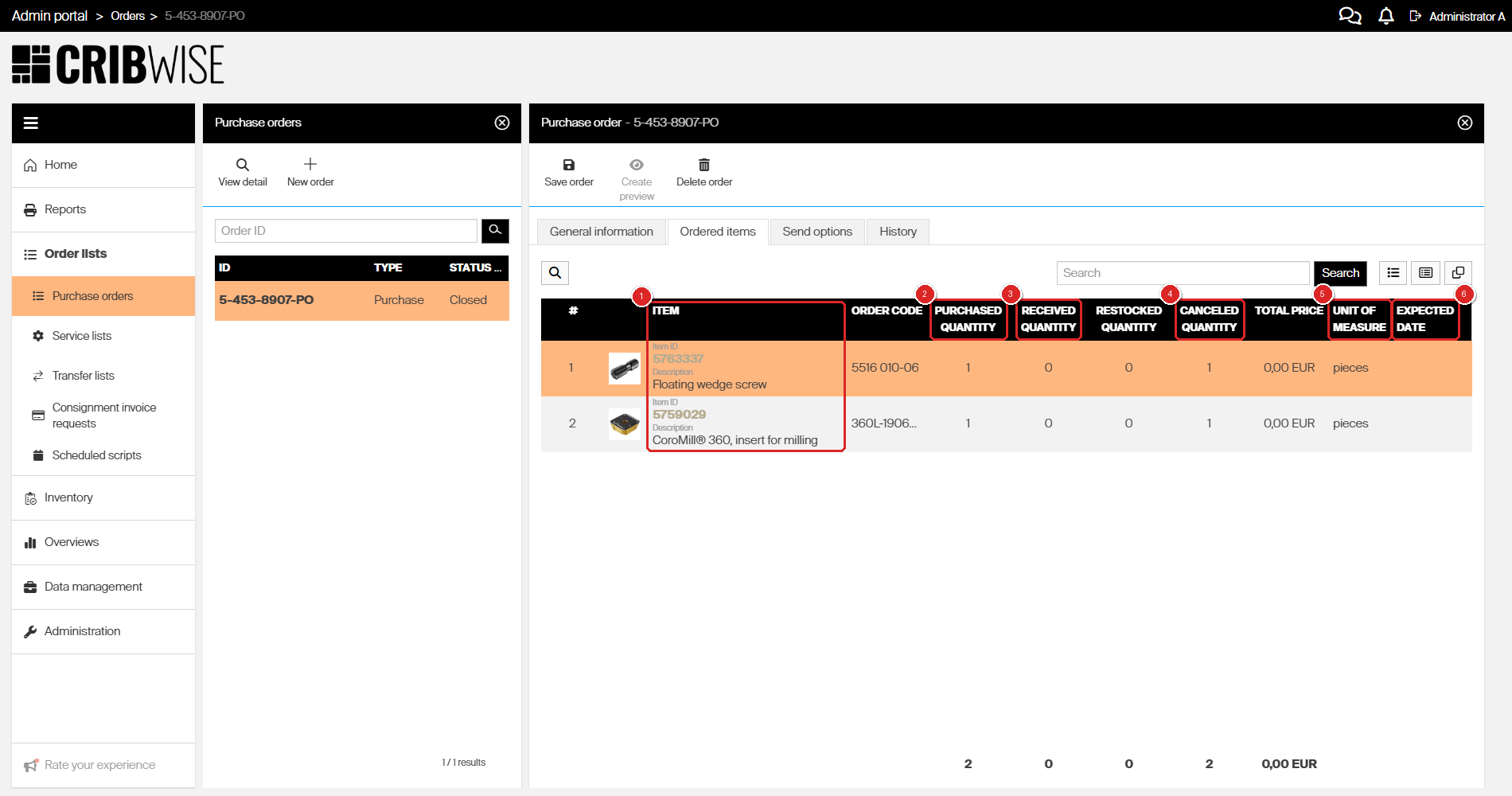
The Item column (1) shows the ItemId of every line. TotalQuantity is Purchased quantity (2), ReceivedQuantity is Received quantity (3), CancelledQuantity is Canceled quantity (4), quantities are counted in the Unit of measure shown (5), and ExpectedDate is Expected date (6). Restocked quantity is maintained by CRIBWISE and cannot be set through the API.
Which quantity can change in which status
| Field | New | Suggested | Active | Closed | Cancelled |
|---|---|---|---|---|---|
ReceivedQuantity |
— | — | Yes | — | — |
CancelledQuantity |
— | — | Yes | — | — |
TotalQuantity |
Yes | Yes | Increase only | — | — |
ExpectedDate |
— | — | Yes | — | — |
On an Active order, TotalQuantity can only be raised, and only for items classified as Quoted or bought from a vendor with Allow overstock of non-quoted items switched on. It can never be lowered: to order less than planned, put the difference in CancelledQuantity instead.
Two ways to point at a line
An item line is identified either by its business IDs or by its technical ID. Use one or the other, never both.
| Business reference | Technical reference | |
|---|---|---|
| Fields to send | ItemId, plus DeviceId on stock-level orders. Leave Id out. |
Id only. ItemId and DeviceId must be empty or absent. |
| Where the value comes from | The item detail and the device detail. | The Create request result, in the form PurchaseOrderItem123456. |
| When to use it | Normal case, when each item appears once in the order. | Required when the order holds more than one line for the same item. |
Tip: Store the
PurchaseOrderItemIDs from the create result with your own order record. They are the only reliable way to update an order that carries repeated items, and they cannot be looked up later through this interface.
Step 4 — Update the order and send it
POST changes to [AP_base_uri]/ERP/PurchaseOrder/UpdateOrder. This is the call that moves an order forward: setting Status to Active sends it to the vendor.
{
  "OrderId": "string",
  "Status": "string",
  "ShippingDate": "2026-11-09T11:29:37.505Z",
  "ReceivedByVendorDate": "2026-11-09T11:29:37.505Z",
  "TrackingNumber": "string",
  "Reference": "string",
  "Notes": "string",
  "CustomShipToId": "string"
}
OrderId and Status are both mandatory: the contract requires a status on every update call, so send the order’s current status when you only want to change a date, a reference, or a note.
The rest of the fields map to the order’s General information tab.
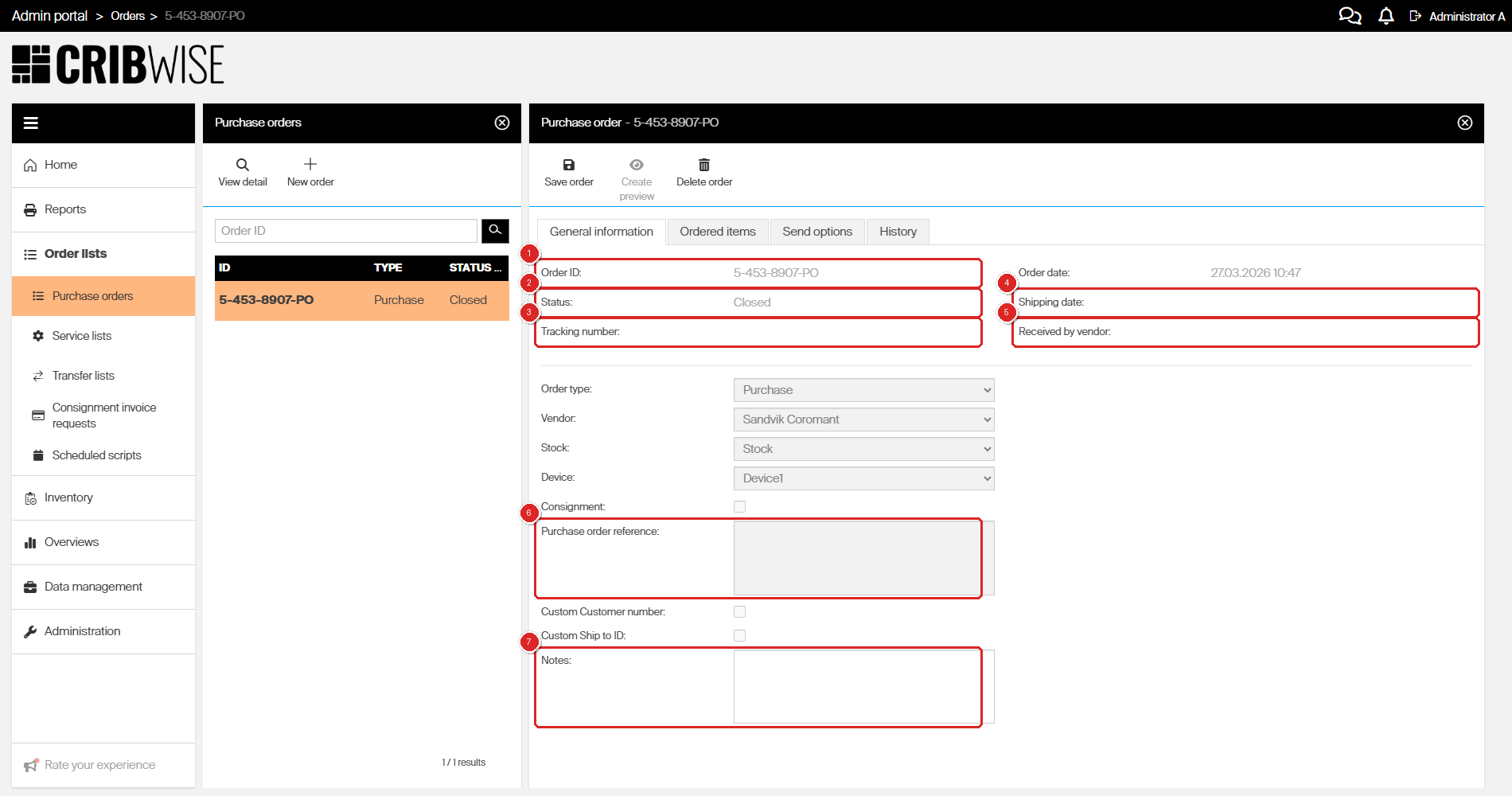
OrderId is Order ID (1), Status is Status (2), TrackingNumber is Tracking number (3), ShippingDate is Shipping date (4), ReceivedByVendorDate is Received by vendor (5), Reference is Purchase order reference (6), and Notes is Notes (7).
Which status changes are allowed
| Current status | Can be changed to |
|---|---|
| New | Suggested, Active, Cancelled |
| Suggested | Active, Cancelled |
| Active | Cancelled |
| Closed | Nothing — the order is finished |
| Cancelled | Nothing — the order is finished |
Note:
StatusacceptsSuggested,Active, andCancelledonly. New is set by CRIBWISE when the interface creates an order, and Closed is set by CRIBWISE once every item on the order has been restocked or cancelled. Neither can be set by hand.
Which field can change in which status
| Field | New | Suggested | Active | Closed | Cancelled |
|---|---|---|---|---|---|
Status |
Yes | Yes | Yes | — | — |
ShippingDate |
— | — | Yes | — | — |
ReceivedByVendorDate |
— | — | Yes | — | — |
TrackingNumber |
— | — | Yes | — | — |
Reference |
Yes | Yes | Yes | — | — |
Notes |
Yes | Yes | Yes | Yes | Yes |
OrderId identifies the order and is never updated by this call.
Step 5 — Read the request result
Each of the three POST calls answers 200 with the GUID of the queued request — a bare JSON string, not an object:
"3f2504e0-4f89-11d3-9a0c-0305e82c3301"
Keep it. Passing it to GetRequestResult is the only way to find out what the queued work actually did.
| Parameter | Value |
|---|---|
requestGuid |
The GUID returned by the POST call. |
The response carries a status for the request as a whole and a status for every object the request touched.
{
  "Message": "string",
  "Status": "Created",
  "PurchaseOrder": {
    "Id": "string",
    "Status": "None",
    "Errors": [
      "string"
    ],
    "PurchaseOrderItems": [
      {
        "Id": "string",
        "ItemId": "string",
        "Status": "None",
        "Errors": [
          "string"
        ]
      }
    ]
  }
}
| Request status | What it means |
|---|---|
Created |
The request has been received but is not in the task queue yet. |
Ready |
The request is in the task queue, waiting to run. |
Scheduled |
The request is scheduled to run later. |
Running |
The changes are being applied. |
Completed |
Everything the request asked for has finished. Read the object statuses to see what each change did. |
Failed |
The request could not be performed. |
| Object status | What it means |
|---|---|
Created |
The order or item line was created. |
Updated |
The order or item line was updated. |
Deleted |
The object was deleted. |
None |
Nothing happened to it — either it failed validation, or the request asked for no change to it. Check Errors to tell the two apart. |
Validation errors are listed per object in its own Errors array, naming the parameter that was invalid.
Tip: A request can report
Completedwhile an object inside it sits atNone. Always read the object statuses, not just the request status.
Success: Status is Completed, every Errors array is empty, and PurchaseOrder.Status is Created or Updated. The order now appears in the Admin Portal under Order lists > Purchase orders, and PurchaseOrder.Id is the Order ID you pass to later update calls.
Field reference
Lengths are the maximum number of characters accepted. Quantities are 32-bit integers, prices are decimals, and dates are UTC.
Order — Create
| Field | Type | Max length | What it does |
|---|---|---|---|
VendorId |
string | 50 | The vendor the order goes to. Must match a Vendor ID that exists. |
StockName |
string | 50 | The stock the order belongs to. Must match a stock Name that exists. |
DeviceId |
string | 50 | The device the order belongs to, for a device-level order. Leave it out on a stock-level order and set the device per item instead. |
Status |
string | — | One of Suggested, New, Active, Cancelled. Empty creates the order as New. |
IsConsignment |
boolean | — | Consignment on the order. See Consignment management: setup, ordering, and invoicing. |
Reference |
string | 400 | Purchase order reference — your own reference for the order. |
Notes |
string | 4000 | Notes on the order. |
CustomIdPrefix |
string | 10 | Overrides the vendor’s Default order ID prefix for this order. Letters a-z, A-Z, and _ only. |
CustomShipToId |
string | 60 | Overrides the vendor’s Default Ship to ID for this order. |
SendOptions — Create
| Field | Type | Max length | What it does |
|---|---|---|---|
Channel.IsB2B |
boolean | — | Sends the order over the B2B channel. |
Channel.IsFtp |
boolean | — | Sends the order to the vendor’s FTP destination. |
Channel.IsEmail |
boolean | — | Sends the order by Mail. |
FTP.IsXml, FTP.IsPdf, FTP.IsExcel |
boolean | — | The document formats attached to the FTP delivery. |
FTP.PdfTemplateName |
string | 50 | The order template used for the FTP PDF. Mandatory when FTP.IsPdf is true. |
FTP.ExcelTemplateName |
string | 50 | The order template used for the FTP Excel file. Mandatory when FTP.IsExcel is true. |
Email.IsXml, Email.IsPdf, Email.IsExcel |
boolean | — | The document formats attached to the e-mail. |
Email.PdfTemplateName |
string | 50 | The order template used for the e-mailed PDF. Mandatory when Email.IsPdf is true. |
Email.ExcelTemplateName |
string | 50 | The order template used for the e-mailed Excel file. Mandatory when Email.IsExcel is true. |
PurchaseOrderItems — Create
| Field | Type | Max length | What it does |
|---|---|---|---|
ItemId |
string | 50 | The item to order. Must match an Item ID that exists. Not allowed on a custom item line. |
DeviceId |
string | 50 | The target device for this line, on a stock-level order. Not allowed when the device is set on the order. |
TotalQuantity |
number | — | The quantity ordered, in the item’s purchase unit of measure. Shown as Purchased quantity. |
Note |
string | 4000 | A note on the item line. |
LineReference |
string | 400 | Your own reference for the item line. |
CustomItemId |
string | 50 | Identifier for a free-text item that is not in the database. Not allowed together with ItemId. |
CustomItemQuantity |
number | — | The quantity ordered of the free-text item. |
CustomItemPricePerPiece |
number | — | The unit price of the free-text item. |
UpdateQuantity
| Field | Type | Max length | What it does |
|---|---|---|---|
OrderId |
string | 50 | Mandatory. The Order ID of the order to change. |
PurchaseOrderItems[].Id |
string | 50 | The technical ID of the line, from the create result. Used instead of ItemId and DeviceId. |
PurchaseOrderItems[].ItemId |
string | 50 | The item on the line. Used instead of Id. |
PurchaseOrderItems[].DeviceId |
string | 50 | The target device of the line on stock-level orders. Used instead of Id. |
PurchaseOrderItems[].ReceivedQuantity |
number | — | How much has arrived. Active orders only. |
PurchaseOrderItems[].CancelledQuantity |
number | — | How much will not arrive. Active orders only. |
PurchaseOrderItems[].TotalQuantity |
number | — | The ordered quantity. Can only be raised on an active order, and only for quoted items or vendors that allow overstocking. |
PurchaseOrderItems[].ExpectedDate |
date-time | — | When the goods are expected, in UTC. Active orders only. |
UpdateOrder
| Field | Type | Max length | What it does |
|---|---|---|---|
OrderId |
string | 50 | Mandatory. The Order ID of the order to change. |
Status |
string | — | Mandatory. One of Suggested, Active, Cancelled. Active sends the order to the vendor. |
ShippingDate |
date-time | — | Shipping date, in UTC. Active orders only. |
ReceivedByVendorDate |
date-time | — | Received by vendor, in UTC. Active orders only. |
TrackingNumber |
string | 50 | Tracking number of the shipment. Active orders only. |
Reference |
string | 400 | Purchase order reference. Not editable once the order is closed or cancelled. |
Notes |
string | 4000 | Notes. The only field that can still be changed on a closed or cancelled order. |
CustomShipToId |
string | 60 | Overrides the vendor’s Default Ship to ID for this order. Present in the live contract, and not covered by the status table above. |
Check the contract on your own installation
Your Admin Portal host serves a Swagger page for these interfaces at [AP_base_uri]/ERP/swagger, and the raw definition at [AP_base_uri]/ERP/swagger/docs/v1. It lists the endpoints and the exact contract your version exposes, which is the quickest way to settle a question about a property name.
Tip: A property the contract does not list is dropped without an error. If a value never arrives in CRIBWISE and the request result shows no error against it, compare your payload with
PurchaseOrderDto,PurchaseOrderQuantityDto, orPurchaseOrderChangeDtoon that page.
Next steps
- Watch the order in the Admin Portal — the History tab of the order logs every status change your integration makes. See How to view and filter purchase orders.
- Let CRIBWISE raise the orders instead — scheduled scripts create purchase orders from stock levels, so your ERP only has to receive them. See Understanding purchase order scripts: automated reorder rules.
- Keep the item data in sync — purchase prices, order codes, and purchase units of measure come from the item interface. See How to manage items with the REST API.
Troubleshooting
| Problem | Likely cause | Fix |
|---|---|---|
The call answers 200 but no order appears in the Admin Portal. |
The request was queued and then failed validation. The response never carries validation errors. | GET GetRequestResult with the returned GUID and read the Errors array of each object. |
The create request result names DeviceId as invalid. |
A device is set both on the order and on an item line, or the device ID does not exist. | Set the device on the order (device level) or on each item (stock level), never both. Read the ID from the device detail’s General information tab. |
| The order is created but no PDF or Excel document is sent. | The format is switched on without a template, or the template was written into a property name the contract does not have. | Set PdfTemplateName and ExcelTemplateName — in the FTP object, the Email object, or both — to a template of type Order. |
| A free-text item line is rejected. | The line carries both CustomItemId and ItemId, or Free-text orders is switched off. |
Send one or the other, and enable Free-text orders under Administration > System settings > Purchase. |
TotalQuantity is ignored on an active order. |
You tried to lower it, or to raise it for a non-quoted item from a vendor that does not allow overstocking. | To order less, send the difference as CancelledQuantity. To raise it, classify the item as Quoted or enable Allow overstock of non-quoted items on the vendor. |
| The wrong line is updated, or the line cannot be found. | The order holds two lines for the same item, so ItemId is ambiguous. |
Reference the line by its Id from the create result instead of by ItemId and DeviceId. |
UpdateOrder rejects the status you sent. |
New and Closed are set by CRIBWISE, and a closed or cancelled order accepts no further status change. |
Send only Suggested, Active, or Cancelled, and check the current status first. |
| Quantities are wrong by a fixed factor. | The quantity was sent in the dispense unit of measure. | Convert to the item’s Purchase unit of measure, shown on the item detail’s Supplier tab. |
Related articles
- CRIBWISE REST API — endpoint overview — every endpoint, the base address, and how a queued call works.
- How to authenticate with the REST API — how to create an API key and exchange it for a bearer token.
- How to manage service orders with the REST API — the same pattern for orders that send items away for service.
- How to create vendors with the REST API — create the vendors these orders point at.
- How to view and filter purchase orders — find and check the orders your integration created.
- How to configure units of measure — the difference between the purchase and dispense unit of measure.
- How to customize purchase order email templates — the order templates the send options point at.