
Read time: ~7 minutes
Applies to: Shop Floor Interface · Admin Portal
This overview brings together:
- How to return, scrap, and recycle items in SFI – returning an item with the condition For service
- How to set up tool life tracking and automatic service triggers – automatic service when a tool-life limit is reached
- Understanding service lists – service by an internal vendor
- Understanding service order scripts – service orders for an external vendor
- How to pick items for a service order – taking the items out of the device
- How to restock items on the Shop Floor Interface – putting them back after service
Read this page for the whole picture, then follow the links for the steps.
What you’ll learn
Follow a service item through CRIBWISE from pick to restock, so you know why it was sent for service, where it is now and what happens next. You will see where items are picked, why they come back for service, how a service list or service order is created, and how they return to stock.
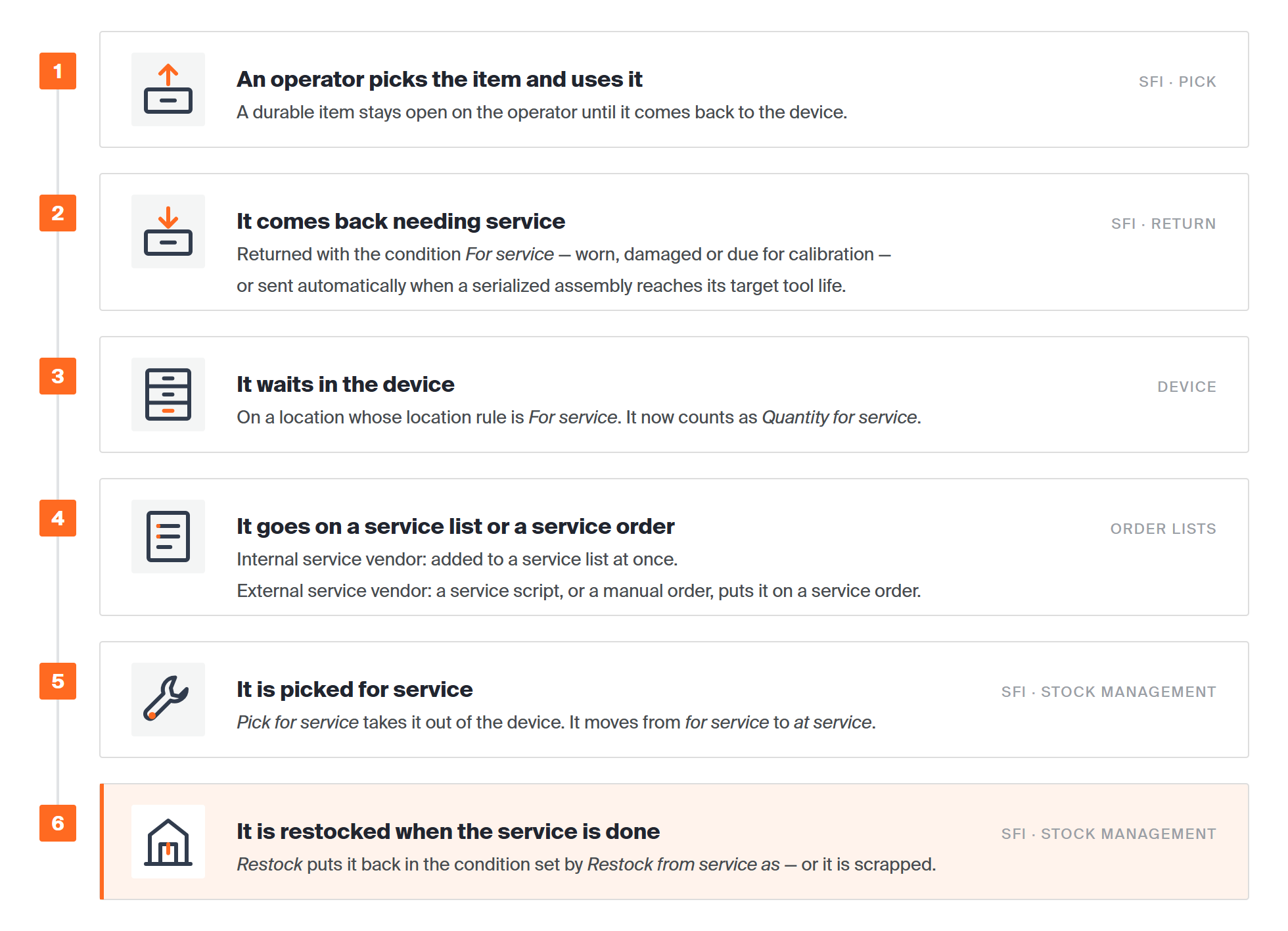
The six stages of one item’s service flow. Stages 1, 2, 5 and 6 happen on the Shop Floor Interface; stage 4 is visible in the Admin Portal under Order lists.
An item only takes this path if it is serviced rather than thrown away — typically a durable tool that is reground, repaired or calibrated and then used again. Each section below explains one part of the picture.
The service flow at a glance
| Stage | Where it happens | Who does it | What changes |
|---|---|---|---|
| 1. Picked and used | Shop Floor Interface > Pick | Operator | A durable item stays open on the operator until it comes back. |
| 2. Returned for service | Shop Floor Interface > Return > For service, or a tool-life limit | Operator, or the system | The item goes back into the device on a For service location. |
| 3. Waiting in the device | The storage device | — | It counts as Quantity for service for that device. |
| 4. On a service list or order | Admin Portal > Order lists | The system, a service script, or a buyer | Internal vendor: service list. External vendor: service order. |
| 5. Picked for service | Shop Floor Interface > Stock management > Pick for service | Stock administrator | The quantity moves from for service to at service. |
| 6. Restocked | Shop Floor Interface > Stock management > Restock | Stock administrator | The item is back in stock in the condition set by Restock from service as, or it is scrapped. |
Where service items are picked
A service item starts life like any other item: an operator takes it from a storage device with Pick on the Shop Floor Interface. The difference is that it is durable — it is expected back. Until it is returned, it stays open as a pick on that operator, and it appears in their Return list with the date it was picked.
Items are picked twice in this flow, by different people and from different menus. The first pick (Pick) takes a working item out for use. The second pick (Stock management > Pick for service) takes the returned item out again so it can go to the service vendor. That second pick is covered in Service list or service order and in How to pick items for a service order.
Why items are returned for service
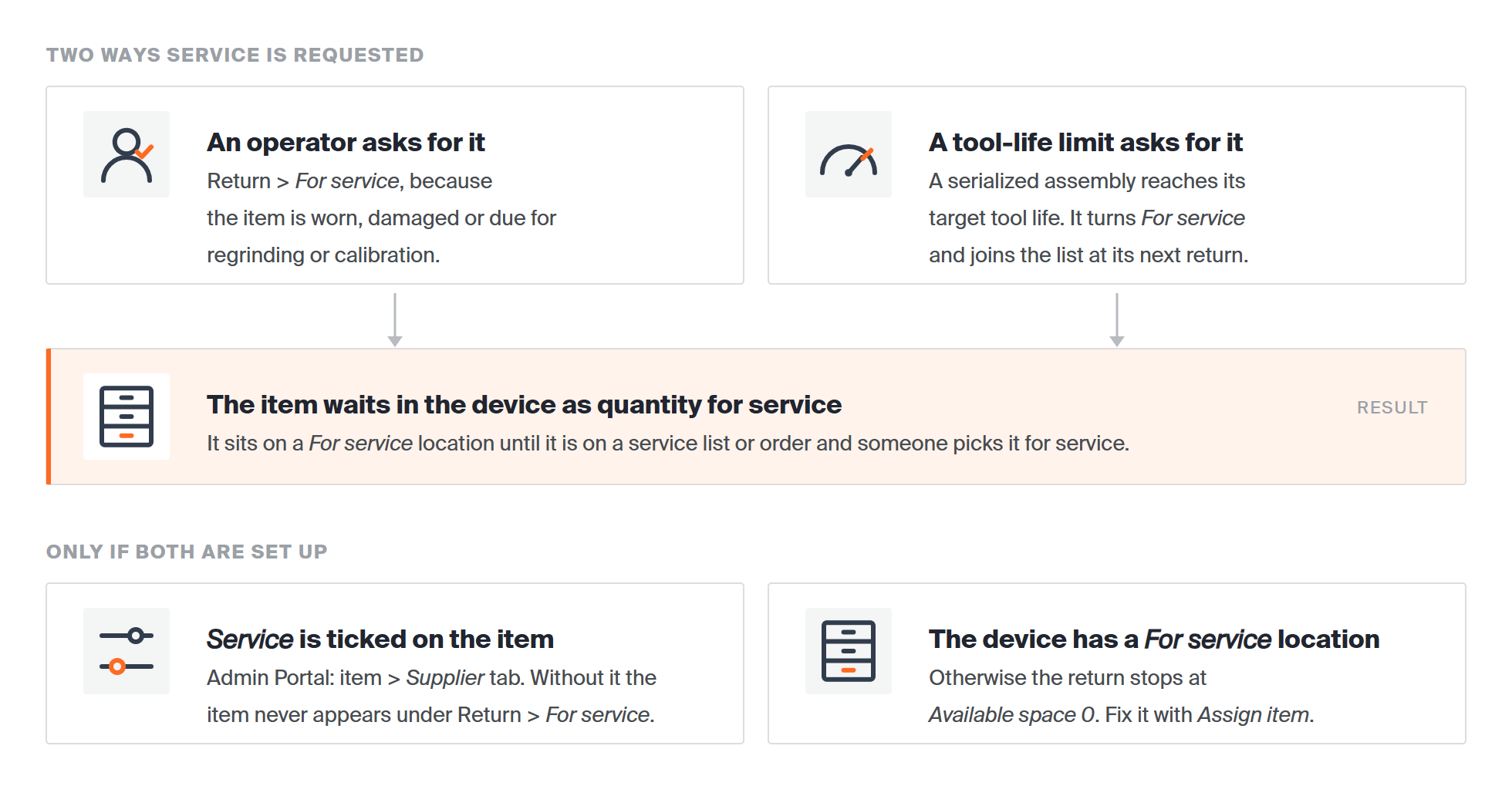
Two triggers, one result, and the two settings that must be in place for either trigger to work.
An operator asks for it. When the tool is worn, damaged, or due for regrinding or calibration, the operator returns it with the condition For service instead of New or Used. The item goes back into the device, onto a location reserved for items waiting for service.
A tool-life limit asks for it. A serialized assembly can carry a target tool life. The operator enters the consumed tool life at every return, and once the target is reached the assembly turns For service and joins the service list at its next return. It cannot be picked again until it has been serviced. See How to set up tool life tracking and automatic service triggers.
Either way, the item now waits in the device and counts towards that device’s Quantity for service. Two settings must be in place first:
- Service is ticked on the item’s Supplier tab in the Admin Portal, with a Service vendor. Until it is, the item never appears under Return > For service. The same tab holds Service price, Service lead time, Minimum quantity for service and Restock from service as — see Item supplier settings reference.
- The device has a location whose Location rule is For service. Without one, the return stops at Available space 0; fix it with Assign item on that same screen.
Service list or service order
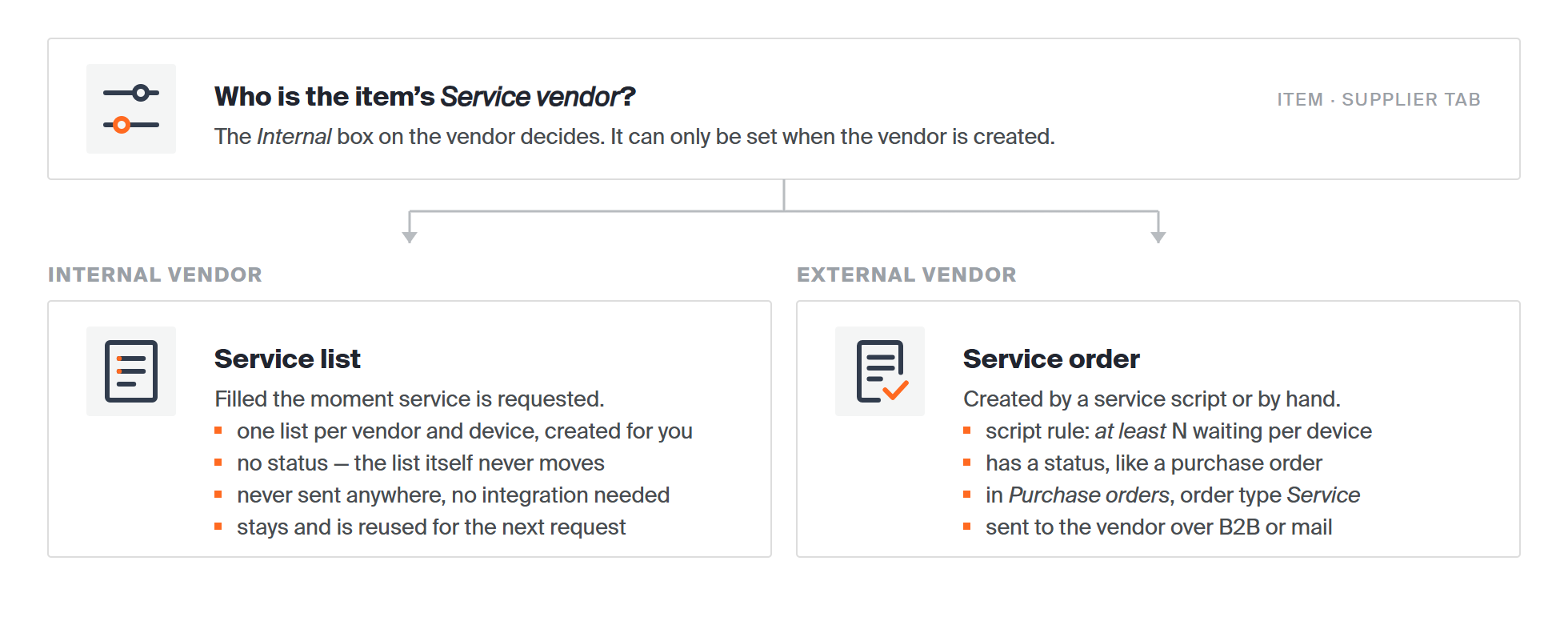
One setting decides the route: whether the item’s service vendor is internal.
Internal vendor — service list. When your own workshop does the service, the item is added to a service list the moment it is returned for service. CRIBWISE keeps one list per vendor and device and creates it for you the first time. The list has no status, is never sent anywhere and needs no integration settings; it simply stays and is reused for the next request. That makes the internal route fast: the item can be picked for service straight away. See Understanding service lists.
External vendor — service order. When an outside company does the service, the item waits in the device until a service order is created. A scheduled service script does this automatically: when the quantity for service in a device is at least the script’s threshold, it places all of it on one service order. A buyer can also create the order by hand, and an ERP can create one through the REST API. Service orders live in the Purchase orders grid with the order type Service, have a status like a purchase order, and are sent to the vendor over B2B or mail. See Understanding service order scripts.
Note: The Internal box on a vendor can only be set when the vendor is created. To move an item from the external to the internal route, create a new internal vendor and select it as the item’s Service vendor.
Once the item is on a list or an order, a stock administrator opens Stock management > Pick for service. The Select service list screen shows each list or order with two counts — Quantity at service and Qty for service. Picking takes the item out of the device and moves it from one count to the other.
Restocking after service
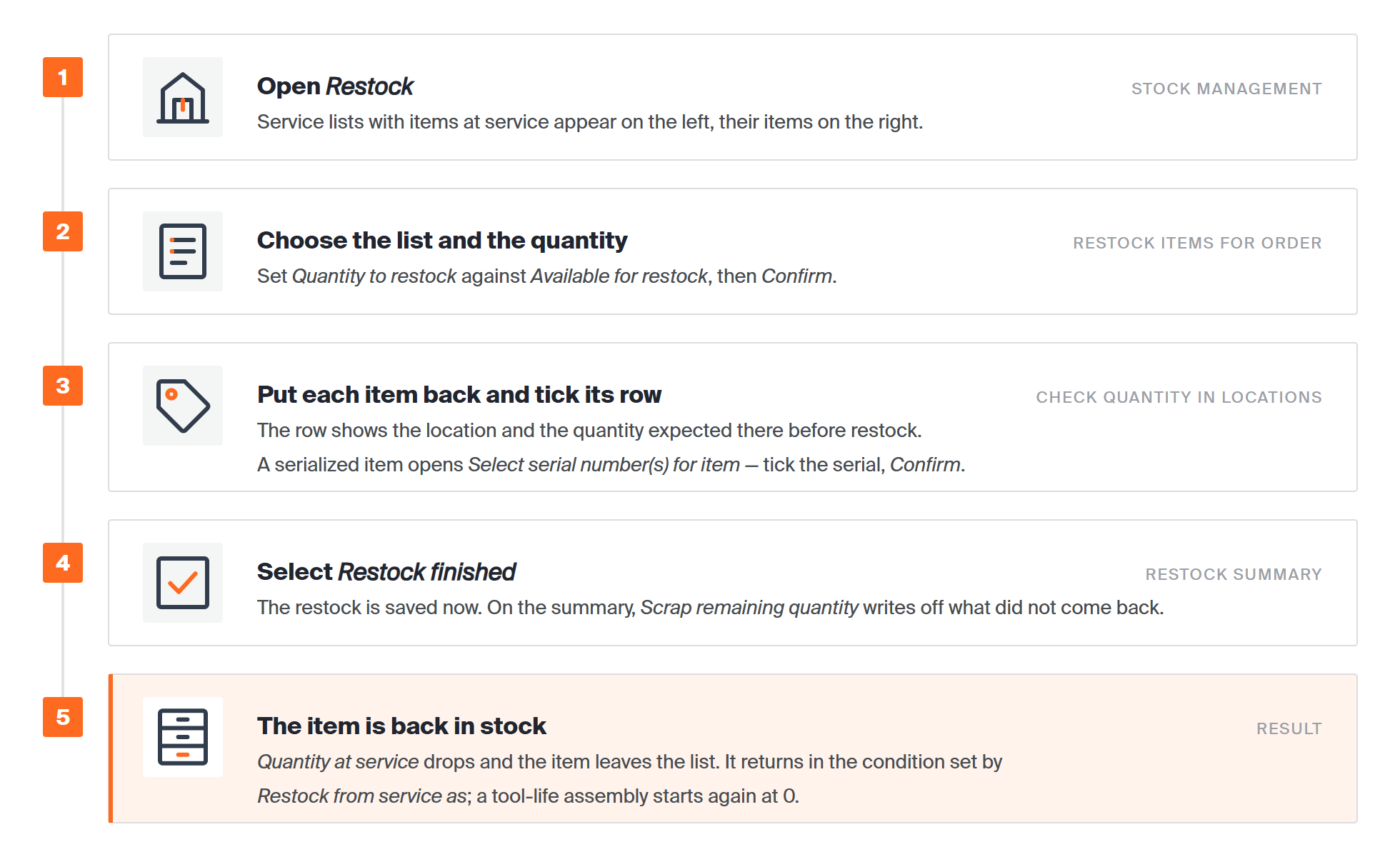
How a serviced item gets back into the device. The labels in grey are the titles of the Shop Floor Interface screens.
When the serviced item comes back, it is restocked from the same Stock management > Restock screen used for deliveries. A service list with items at service appears on the left, with its items on the right. Selecting the list opens Restock items for order, where you set Quantity to restock against Available for restock.
The next screen, Check quantity in locations before restock, tells you where each item goes and how many should already be there. Tick each row as you put the item back; a serialized item asks for its serial number first. The restock is saved when you select Restock finished. On the Restock summary, Scrap remaining quantity writes off anything that did not come back from service.
Three things change once the item is restocked:
- Quantity at service drops and the item leaves the service list.
- The item returns in the condition set by Restock from service as on its Supplier tab. That condition decides which location rule the item needs and, for a serialized item, its condition after restock.
- A serialized assembly with tool-life tracking starts again at a consumed tool life of 0.
Tip: An item that cannot be repaired does not have to be restocked. Use Cancel or scrap items on the Restock screen, or scrap it from the Admin Portal; scrapping also removes it from the list.
Common confusion
| People often think… | But actually… |
|---|---|
| Returning an item For service sends it to the vendor. | It only puts it back in the device, on a For service location. Someone still has to pick it for service. |
| A service script creates service lists. | Scripts create service orders for external vendors. Items for an internal vendor are added to a list the moment service is requested. |
| A service script sends only the surplus above its threshold. | When the quantity for service in a device is at least the threshold, the script places all of it on the order. |
| There is a separate Service orders menu. | Service orders sit in the Purchase orders grid with the order type Service. |
| Picking for service needs the operator login. | Pick for service and Restock are under Stock management, which a shop-floor operator login usually does not show. |
| A service list disappears once it is empty. | It stays and is reused. It only drops off the Pick for service screen while nothing is waiting. |
Take action
- Ready to start the flow? Return an item with How to return, scrap, and recycle items in SFI.
- Items waiting? Take them out with How to pick items for a service order.
- External vendor? Automate the orders with How to set up scheduled purchase and service scripts.
Related articles
- How to pick items for a service order – the full Pick for service flow, including serialized items.
- Understanding service lists – the internal route in detail.
- Understanding service order scripts – how a script decides when to create a service order.
- Understanding purchasing and service workflows – how service fits next to purchasing and transfers.
- How to set up tool life tracking and automatic service triggers – automatic service for serialized assemblies.
- Item supplier settings reference – every service field on the item’s Supplier tab.
- How to manage service orders with the REST API – creating and reading service orders from an ERP.