
What you’ll learn
Let the operator choose which location a restocked or returned item goes into, instead of letting CRIBWISE pick the location. That is what Special handling for restock and return does, and this page explains when to use it.
The setting sits on the item, not on the device or the user. Turn it on for one item and every restock and return of that item asks the operator where the goods should go.
Important: Items with special handling can only be restocked and returned to open storage devices in the current version. On a locked or automated device the operator cannot choose a location.
Special handling at a glance
| Special handling off (default) | Special handling on | |
|---|---|---|
| Who chooses the location | CRIBWISE | The operator, on screen |
| Extra screen in the flow | None | Select locations for restock / Select location for return |
| Split across several locations | No | Yes — type a quantity per location |
| Storage devices supported | All | Open storage only |
| Good fit for | Items with one fixed home location and stable quantities | Bulk items, long or awkward goods, items stored in several places |
Where the setting lives
Open the item in the Admin Portal (Data management > Items, then View detail) and scroll the General information tab down to Special handling. The checkbox is available for both consumable and durable items, and its own tooltip sums it up: it enables restocking and return of the item to specific locations selected by the operator during the process.

(1) Special handling for restock and return on item 5725119. Tick it, then select Save item.
Note: The setting takes effect on the next restock or return. Picks are not affected, and stock already in a location is not moved.
What changes when you restock
A normal restock goes straight from the quantity step to Restock items, where CRIBWISE has already filled in the target location. With special handling, one screen appears in between: Select locations for restock.
Each row on that screen is a location the item is assigned to. The row shows how much is in the location now and its physical maximum, so the operator can judge what fits before typing a figure.
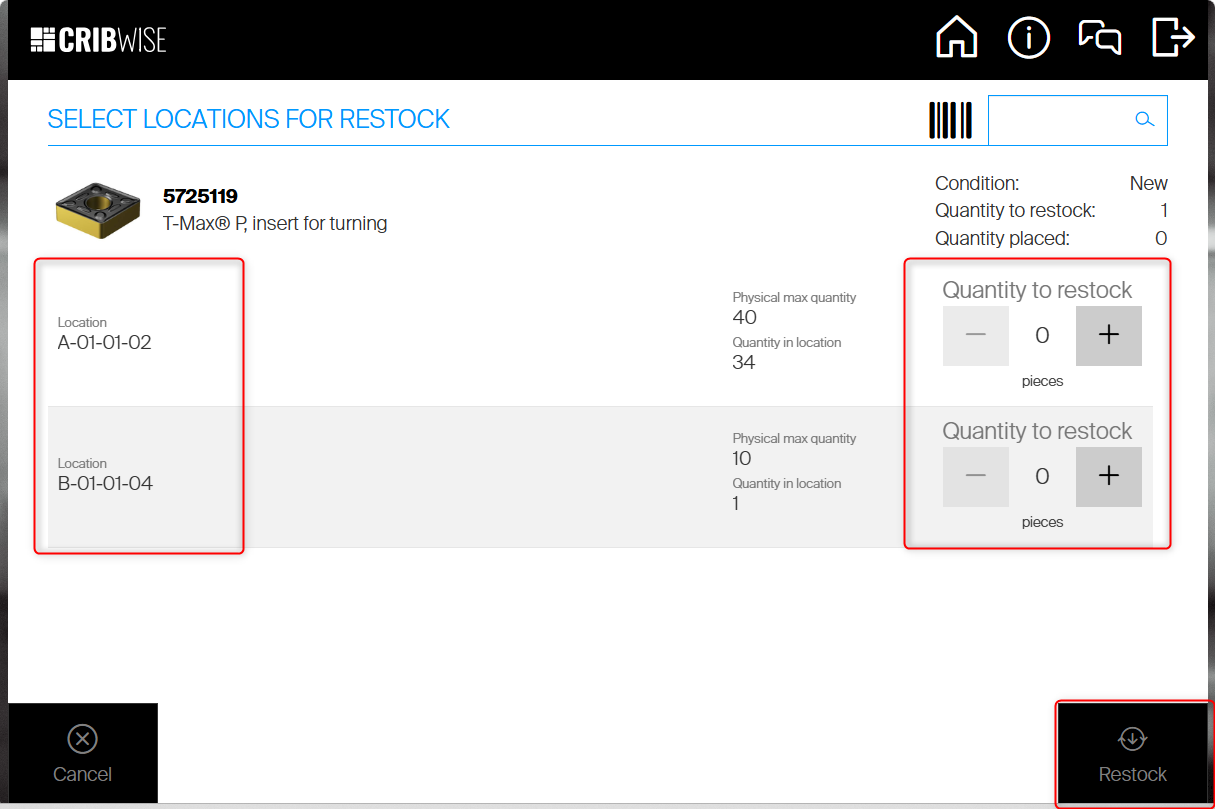
From there the flow is the normal one: tick the row to confirm the goods are physically in place, select Restock finished, and read the Restock summary.
When you return
Returns behave the same way. After the operator selects the pick and the quantity, Select location for return appears instead of a system-assigned location.
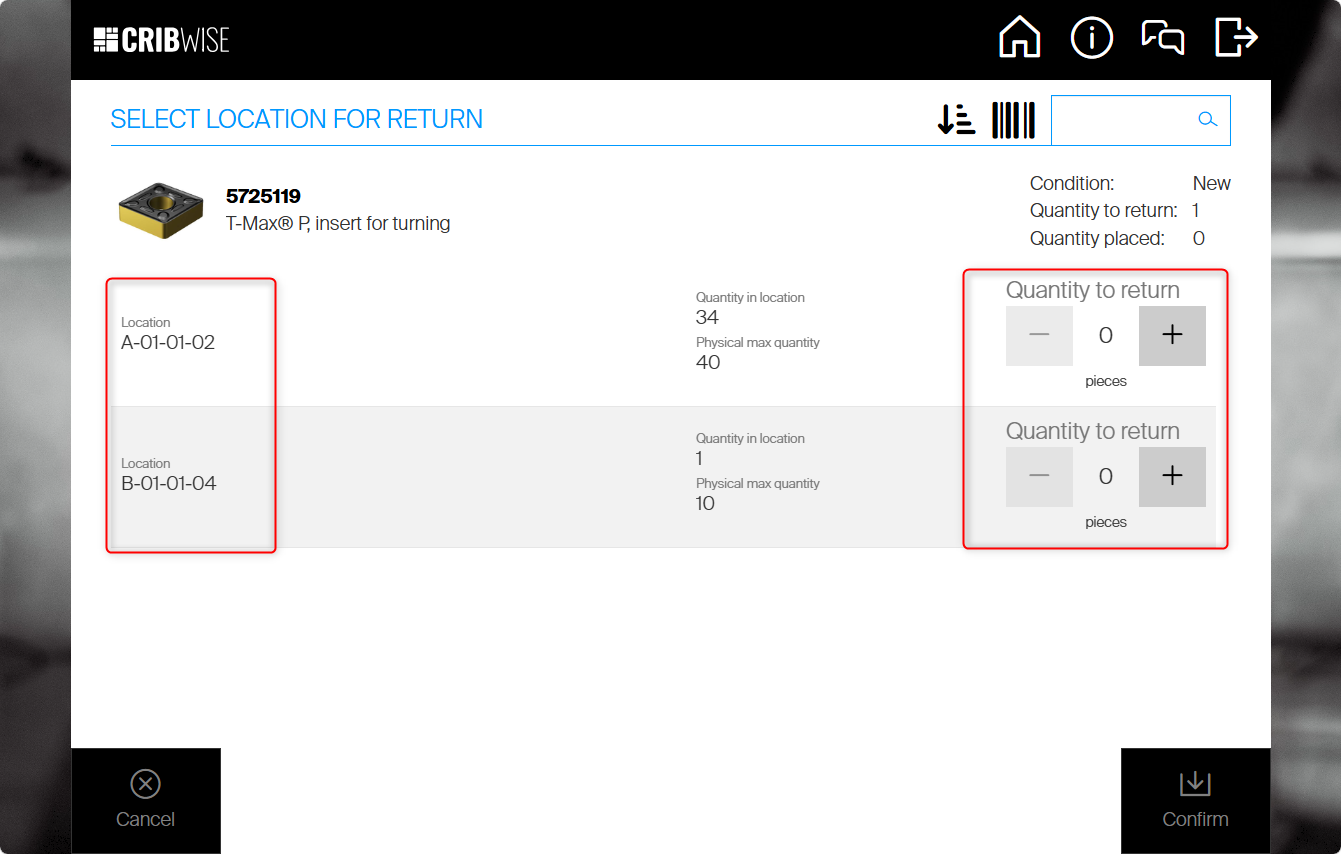
Choose the location and how many you like to place in each.
When to turn it on
- The item lives in more than one place. Bar stock, abrasives or gloves spread over several shelves are placed where there is room, not where a rule says.
- Deliveries vary in size. A pallet that does not fit one location can be split across two in the same restock.
- The physical goods decide. Long, heavy or awkward items go where they physically fit, and the operator can see that; CRIBWISE cannot.
Leave it off for items with one fixed home location. The extra screen is a step the operator has to complete every time, and for a single-location item it only slows the flow down.
Tip: Turn it on for a couple of items first and ask the operators. It is a per-item setting, so there is nothing to roll back centrally — clear the checkbox and the flow returns to normal.
Common confusion
| People often think… | But actually… |
|---|---|
| It changes picking too | Only restock and return. Picking is untouched — the setting has no effect on which location an operator picks from. |
| It is a device or user setting | It is a field on the item. Every device and every operator handling that item gets the extra screen. |
| The operator can place goods anywhere | Only in locations the item is already assigned to. Assign the item to a location first, then it becomes a row on the screen. |
| The operator must place the whole quantity | Confirm and Restock work with a partial quantity placed, so a mis-tapped operation can complete with less than expected. Check Quantity placed before continuing. |
| It has to be set by hand | The item REST API exposes it as HasSpecialHandling, so an integration or a mass update can set it — see How to manage items with the REST API. |
Take action
Ready to switch it on? Open the item and tick the checkbox as described in How to create an item manually, then try one restock with How to restock items on the Shop Floor Interface.
Related articles
- How to restock items on the Shop Floor Interface — the full restock flow, with and without a purchase order.
- How to return, scrap, and recycle items in SFI — the return flow, including the special-handling placement screen.
- How to create an item manually — where the Special handling section sits on a new item.
- Item fields and settings reference — every field on the item screen, tab by tab.
- How to assign an item to a location — how a location becomes a row on the placement screen.
- Open storage — storage device setup — the device type special handling requires.
- How to manage items with the REST API — setting
HasSpecialHandlingfrom an integration.