
What you’ll learn
The BI interface publishes CRIBWISE reporting data as an OData feed that Excel, Power BI or any OData client can read. This article lists the seven feeds, shows how to authenticate, and documents every field each one returns.
Feed addresses on this page are relative to [AP_base_uri] – the host your Admin Portal runs on, without the portal path. If you sign in at https://example.cribwise.com/AdminPortal/acme, the base is https://example.cribwise.com.
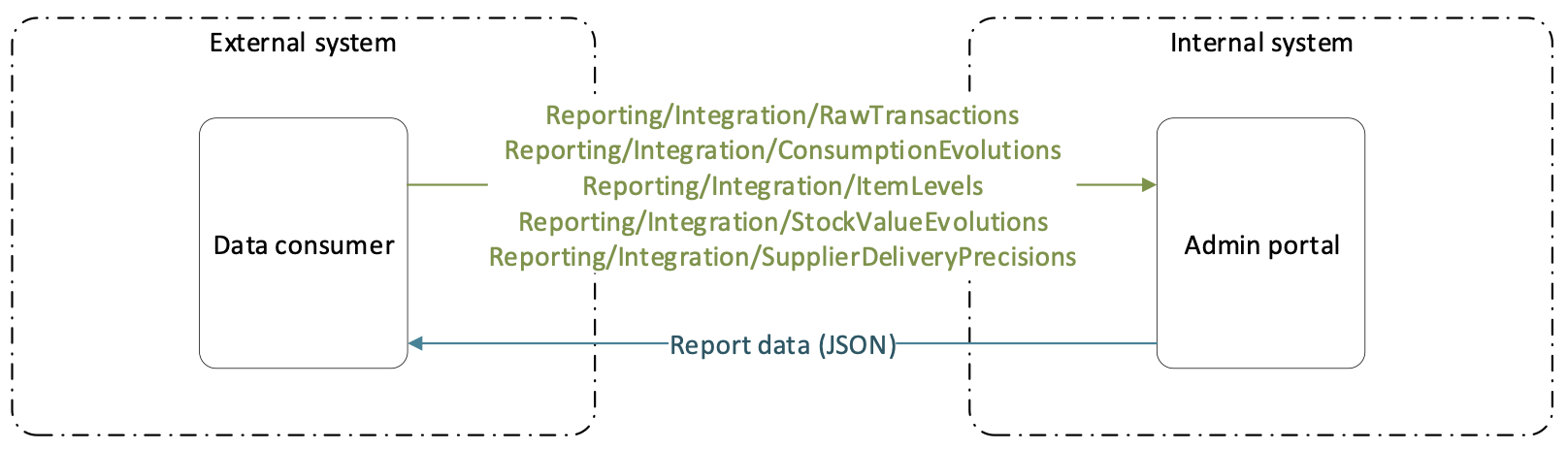
The data consumer drives every call and CRIBWISE never calls back. The diagram dates from release 1.39 and shows five feeds; there are now seven, listed below.
The seven feeds at a glance
| Feed | Address | What it holds | One row per |
|---|---|---|---|
| Raw transactions | /Reporting/Integration/RawTransactions |
Every transaction ever made in the system, with cost allocation, item, device, user and price detail. | Transaction |
| Item levels | /Reporting/Integration/ItemLevels |
Current quantity of each item in each device, against its critical quantity, minimum, maximum and order point. | Item in a device |
| Consumption evolutions | /Reporting/Integration/ConsumptionEvolutions |
Month-end snapshots of quantity and value consumed, per stock and item type. | Month, stock and item type |
| Stock value evolutions | /Reporting/Integration/StockValueEvolutions |
Month-end snapshots of stock quantity and value, with consumption and turnover. | Month, stock, item type and condition |
| Supplier delivery precisions | /Reporting/Integration/SupplierDeliveryPrecisions |
Every ordered item with the quantity received by its expected date. | Purchase order line |
| Picked items locations | /Reporting/Integration/PickedItemsLocations |
Durable items currently out in production, and where they are. | Picked durable item |
| Stock locations | /Reporting/Integration/StockLocations |
Every physical location in every device, with its assigned item and quantity. | Location |
Important: The Stock locations feed was added in release 1.47 and needs the API Access add-on. The other six feeds are part of the standard reporting module.
The feed list above is not something you have to trust. Open [AP_base_uri]/Reporting/Integration/$metadata in a browser and your own installation will answer with its complete OData contract – every feed, every field and every type. Release 1.61 made that document valid OData so Excel and other clients can read it directly. Treat it, not this page, as the authority for your version.
Before you start
- Decide how the client will authenticate – a CRIBWISE user with basic authentication, or an API key with a bearer token. Excel and Power BI connect with basic authentication; scripted integrations should use a key.
- For basic authentication, you need a user whose group has both Admin portal users and BI users ticked, and you need the customer short name from your Admin Portal URL.
- For token authentication, you need an API key. See How to authenticate with the REST API.
- An OData client. Excel, Power BI, Tableau and Qlik all read OData; so does any HTTP library.
Warning: The BI feeds ignore data-access restrictions. Restrictions on items, vendors, devices or stocks limit what a user sees in the Admin Portal, but they do not limit what the feeds return – see Reporting overview: charts, tables, dashboards, and BI. Anyone you give BI access to can read the whole tenant, including purchase prices.
Authenticate to the feeds
All seven feeds accept the same two authentication methods.
Basic authentication with a CRIBWISE user
Send the user name as customerShortName\userName – a backslash, not a slash – with the user’s own password. The customer short name is the last part of your Admin Portal URL. For https://example.cribwise.com/AdminPortal/acme the user jsmith signs in as acme\jsmith.
| Setting | Value |
|---|---|
| Authentication type | Basic |
| User name | customerShortName\userName |
| Password | The user’s Admin Portal password |
| Realm sent on a challenge | Basic realm=ExternalReportingAPI |
The two group roles that decide whether the call succeeds sit on the General information tab of the user group, under Administration > Group management.
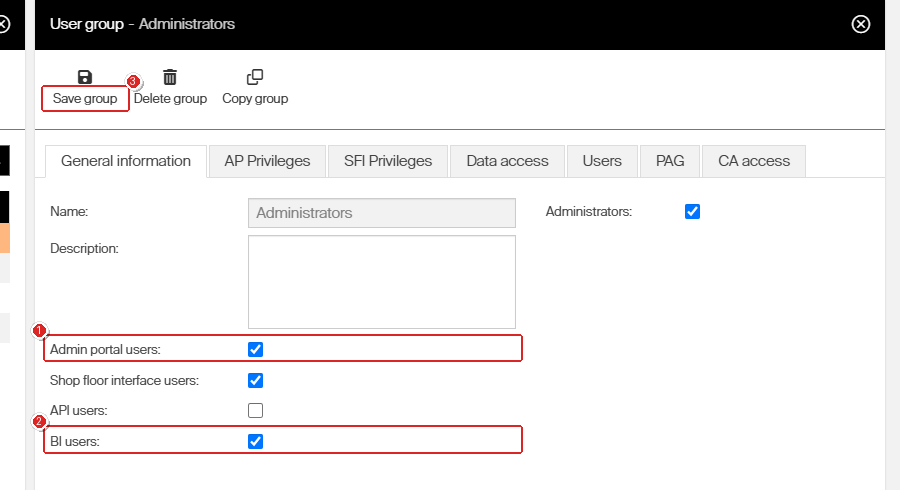
Tick both Admin portal users (1) and BI users (2) on the group, then Save group (3). Saving recalculates the access control lists, so the change takes effect at once.
Ticking only one of the two is the most common reason a feed refuses a user, and the answer tells you which one is missing:
| Admin portal users | BI users | The feed answers |
|---|---|---|
| ✗ | ✗ | 401 with an empty body |
| ✗ | ✓ | 403 Forbidden |
| ✓ | ✗ | 401 with an empty body |
| ✓ | ✓ | 200 and the data |
One exception is worth knowing about: a group with Administrators ticked reads the feeds even with BI users cleared. That is why an administrator’s own account can look like proof that the role is unnecessary. Test with the account the integration will actually use.
Token authentication with an API key
Exchange an API key for a bearer token at the token endpoint, then send the token as an Authorization: Bearer <token> header on every feed call. The full procedure, including how to create the key, is in How to authenticate with the REST API.
POST [AP_base_uri]/adminportalidentity/connect/token
Content-Type: application/x-www-form-urlencoded

client_id=erp_client&client_secret=<your API key>&grant_type=client_credentials&scope=erp_api
The same key that opens the ERP REST endpoints opens all seven BI feeds. A token is valid for the number of seconds in the response’s expires_in field – one hour on a current installation – so ask for a new one rather than hard-coding a lifetime.
Note: A token carries no user, so no user needs the BI users or API users role for token authentication to work. Both roles were cleared on the tenant while all seven feeds were read with a token. Group roles govern basic authentication only.
A newly created key is not accepted immediately. On a cloud tenant the token endpoint answered invalid_client for about three and a half minutes before it issued the first token, so wait and retry before assuming the key is wrong.
Connect from Excel
Excel is the quickest way to prove a feed works. The steps below use basic authentication against a cloud installation.
- In the Admin Portal, tick Admin portal users and BI users on the group of the user Excel will sign in as, then select Save group.
- In Excel, go to Data > Get Data > From Other Sources > From OData Feed.
- Enter the feed address, for example
https://example.cribwise.com/Reporting/Integration/RawTransactions, and select OK. - Select Basic in the credentials pane.
- Enter the user name as
customerShortName\userNameand the password. - Select Connect.
- Select Load to put the rows on a sheet, or Transform Data to shape the query first.
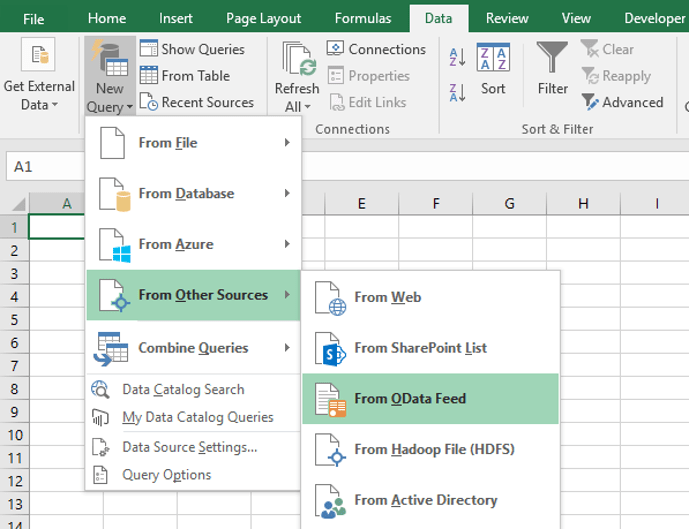
Step 2 in an older Excel ribbon, where the command sits under Get External Data > New Query. In current versions the path is Data > Get Data > From Other Sources > From OData Feed.
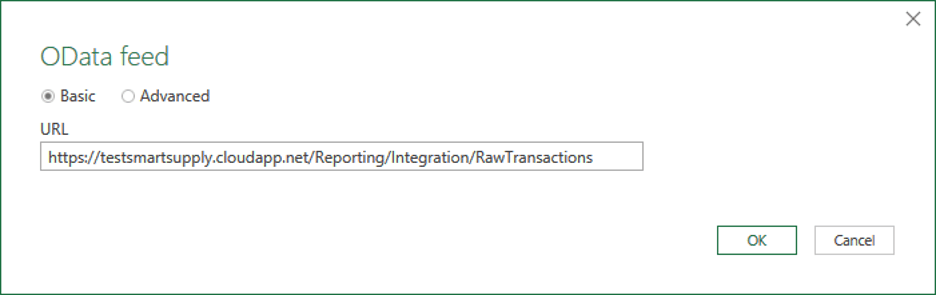
Step 3. Use your own host in place of the example, and keep https for a cloud installation.
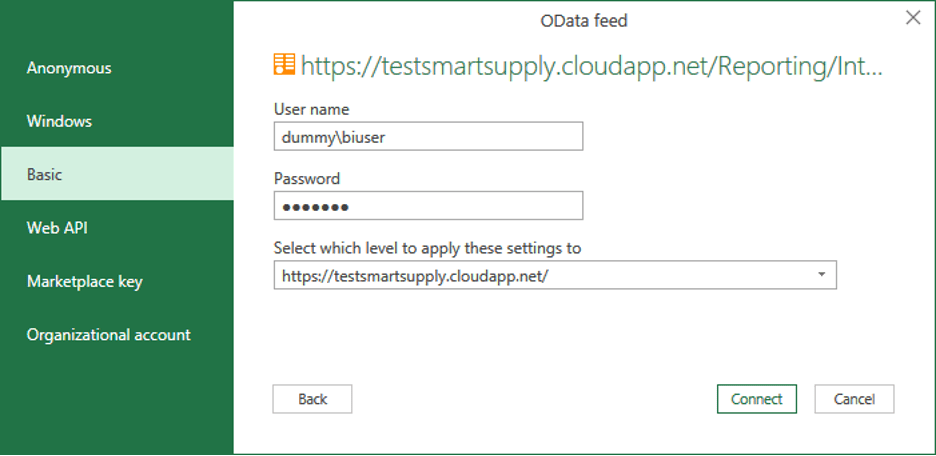
Steps 4 to 6. The user name carries the customer short name and a backslash; without them the feed answers 401.
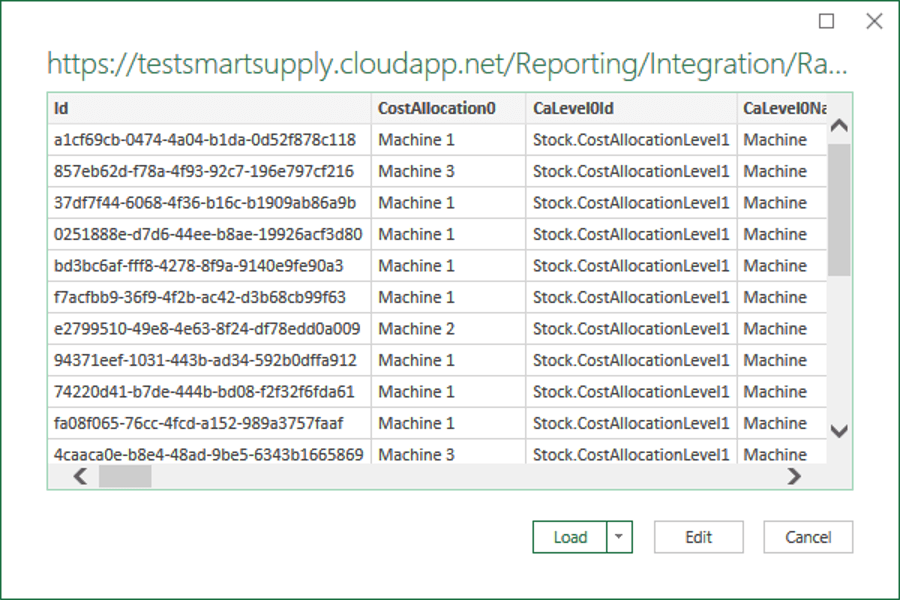
Step 7. Rows in the preview mean the feed, the credentials and both group roles are all correct.
Success: The preview lists rows and Excel loads them onto a sheet. The same check in a browser looks like this:

The ItemLevels feed answering in a browser. Note the value of ItemStockStatusId: Ok, not OK.
Connect to an on-premise installation
The procedure is the same, but the address differs in two ways. An on-premise Admin Portal serves the feeds over plain http on port 8080:
http://192.168.1.20:8080/Reporting/Integration/RawTransactionsReplace 192.168.1.20 with the IP address, computer name or DNS record of the Admin Portal server.

An on-premise feed address: http, an IP address or host name, and port 8080.
Warning: On-premise traffic is not encrypted. The user name, the password and every price in the response cross the network in clear text, so keep the feed on a trusted network segment or put a reverse proxy with TLS in front of it.
Filter, sort and trim the data
Every feed is a standard OData collection, so you can narrow it with query options instead of downloading everything. The most useful pattern is polling: ask only for transactions created since the last run.
[AP_base_uri]/Reporting/Integration/RawTransactions?$filter=CreatedOn gt 2026-01-01T00:00:00.000ZFilter on CreatedOn, not TimeStamp. TimeStamp is when the transaction happened on the device; CreatedOn is when it reached the Admin Portal’s reporting data. A device that synchronises late produces an old TimeStamp with a fresh CreatedOn, so polling on CreatedOn is the only way not to miss it.
Not every OData option is enabled. These were tested against a live feed:
| Option | Supported | Notes |
|---|---|---|
$filter |
Yes | Comparison operators and functions such as contains() both work. |
$orderby |
Yes | asc and desc. |
$top |
Yes | — |
$skip |
Yes | Combine with $top and $orderby to page through a large feed. |
$select |
Yes | Cuts a 114-field transaction row down to the handful you need. |
$count |
No | 400: Query option ‘Count’ is not allowed. |
$expand |
No | 400. The feeds have no navigation properties to expand. |
$apply |
No | 400. Aggregate in your own tool, not in the query. |
$format |
No | 400. The feeds always answer JSON. |
Warning: On the Raw transactions and Item levels feeds a misspelled field name fails silently. Both are declared open types so they can carry custom fields, which means any property name is accepted:
$filteron a field that does not exist answers200with zero rows,$selectanswers200with empty objects, and$orderbyreturns everything unsorted. The other five feeds reject the same typo with400 Could not find a property named …. If a filter suddenly returns nothing, check the spelling before you conclude there is no data.
Custom fields cannot be filtered by their own name. Reference them as CustomField1, CustomField2 or CustomField3 instead. For the full query syntax, see the OData URI conventions specification.
Feed names are plural and the path is case-sensitive, so both /Reporting/Integration/RawTransaction and /reporting/integration/rawtransactions fail with 404.
Feed reference
Each section below gives the address and the fields the feed returns. Two conventions run through all of them:
- Fields come in pairs. A field ending in
Idcarries a stable key; the field without the suffix carries the same value translated into the system language. Match on theId. See How to manage language translations for which language that is. - If your tenant has item custom fields, the Raw transactions and Item levels feeds add one property per custom field, named after the field itself, holding up to 400 characters.
Raw transactions
[AP_base_uri]/Reporting/Integration/RawTransactionsEvery transaction in the system. What Price and Quantity mean depends on TransactionTypeId. Quantity is always expressed in the item’s dispense unit of measure – the unit an operator picks in – never in the purchase unit.
| TransactionTypeId | What happened | Price | Quantity |
|---|---|---|---|
Pick |
Item taken from a device by a pick operation | Cost of the pick | Picked quantity |
Return |
Item returned to a device | Refund of the pick cost if the item is returned unused | Returned quantity |
PriceUpdate |
Standard cost recalculated from recent orders | New standard cost | Not set |
Scrap |
Picked item scrapped as a return operation | Not set | Scrapped quantity |
ScrapOrderQuantity |
Item on a service order or list scrapped during service | Not set | Scrapped quantity |
CancelOrderQuantity |
Item on a purchase order cancelled before delivery | Not set | Cancelled quantity |
GoodsReceived |
Item on a purchase order received from the vendor | Not set | Received quantity |
Inventory |
Inventory counted on a location | Not set | Counted quantity on the location |
PickForService |
Item picked against a service list or service order | Not set | Picked quantity |
PickForTransfer |
Item picked for transfer from a central stock to a satellite device | Not set | Picked quantity |
Restock |
Item restocked, with or without a reference to an order or list | Not set | Restocked quantity |
Withdraw |
Item removed from a location without a pick operation | Not set | Quantity taken from the location |
Placement |
Item placed on a location without a return operation | Not set | Quantity placed on the location |
Purchased |
Item purchased or service ordered by activating an order | Purchase price | Purchased quantity |
Match on TransactionTypeId, never on TransactionType. The second one is the translated label and differs even in English: Purchased reads as Purchase, GoodsReceived as Goods received, and CancelOrderQuantity as Canceled quantity changes.
{
  "@odata.context": "string",
  "value": [
    {
      "Id": "string",
      "CostAllocation0": "string",
      "CaLevel0Id": "string",
      "CaLevel0Name": "string",
      "Ca0CostCarrier": "string",
      "CostAllocation1": "string",
      "CaLevel1Id": "string",
      "CaLevel1Name": "string",
      "Ca1CostCarrier": "string",
      "CostAllocation2": "string",
      "CaLevel2Id": "string",
      "CaLevel2Name": "string",
      "Ca2CostCarrier": "string",
      "CostAllocation3": "string",
      "CaLevel3Id": "string",
      "CaLevel3Name": "string",
      "Ca3CostCarrier": "string",
      "CostAllocation4": "string",
      "CaLevel4Id": "string",
      "CaLevel4Name": "string",
      "Ca4CostCarrier": "string",
      "CostAllocation5": "string",
      "CaLevel5Id": "string",
      "CaLevel5Name": "string",
      "Ca5CostCarrier": "string",
      "CostAllocation6": "string",
      "CaLevel6Id": "string",
      "CaLevel6Name": "string",
      "Ca6CostCarrier": "string",
      "CostAllocation7": "string",
      "CaLevel7Id": "string",
      "CaLevel7Name": "string",
      "Ca7CostCarrier": "string",
      "PhysicalCA": "string",
      "PhysicalCALevelId": "string",
      "PhysicalCALevelName": "string",
      "TimeStamp": "2026-03-19T20:41:53.276Z",
      "CreatedOn": "2026-03-19T20:41:53.276Z",
      "TransactionTypeId": "string",    <-- enum - see the transaction types table above
      "TransactionType": "string",    <-- translated into the system language
      "PartNumber": "string",
      "ProductName": "string",
      "ItemType": 0,    <-- numeric code: 1 = Consumable, 2 = Durable
      "ItemTypeId": "string",    <-- enum ("Consumable", "Durable")
      "ItemTypeText": "string",    <-- translated into the system language
      "ItemOwnClassification": "string",
      "ItemTechnicalId": "string",    <-- the internal record key, added in release 1.48
      "OrderCode": "string",
      "User": "string",
      "UserFullName": "string",
      "Quantity": 0,
      "QuantityBeforeTransaction": 0,
      "UnitOfIssue": "string",
      "GLAccount": "string",
      "Description": "string",
      "Category": "string",
      "CategoryId": "string",
      "CategoryPath": "string",
      "IsConsignment": true,
      "IsAssembly": true,
      "IsSerialized": true,
      "DeviceId": "string",
      "DeviceName": "string",
      "StockLocation": "string",
      "StockLocationName": "string",
      "StockLocationRule": "string",    <-- translated into the system language
      "StockLocationRuleId": "string",    <-- enum ("New", "Used", "Refurbished", "ForService", "Any")
      "StockId": "string",
      "StockName": "string",
      "SerialNumber": "string",
      "TransactionId": "string",
      "VendorId": "string",
      "VendorBusinessId": "string",
      "VendorName": "string",
      "ManufacturerId": "string",
      "ManufacturerBusinessId": "string",
      "ManufacturerName": "string",
      "OrderId": "string",
      "OrderReference": "string",
      "AddedToOrderBy": "string",
      "UserId": "string",
      "FirstName": "string",
      "LastName": "string",
      "UserGroup": "string",
      "Price": 0,
      "PurchasePrice": 0,
      "PurchaseGrossPrice": 0,
      "TypeOfReturnId": "string",    <-- enum ("NotUsed", "Used", "ForService", "Move")
      "TypeOfReturn": "string",    <-- translated into the system language
      "Comment": "string",
      "PurchaseCurrency": "string",
      "PurchaseCurrencyPosition": "string",    <-- enum ("Before", "After")
      "Currency": "string",
      "CurrencyPosition": "string",    <-- enum ("Before", "After")
      "AcquisitionTypeId": "string",    <-- enum ("Purchase", "Service", "Transfer")
      "AcquisitionType": "string",    <-- translated into the system language
      "ServiceTypeId": "string",    <-- set on service transactions only
      "ServiceType": "string",    <-- translated into the system language
      "QuantityDiscrepancy": 0,
      "ValueDiscrepancy": 0,
      "PickListId": "string",
      "PickListName": "string",
      "UnitPrice": 0,
      "ConsumedQuantity": 0,
      "UnitOfMeasure": "string",
      "UnitOfMeasureId": "string",
      "PurchaseUnitOfMeasure": "string",
      "PurchaseUnitOfMeasureId": "string",
      "PurchasedQuantity": 0,
      "PurchasePricePerPiece": 0,
      "PurchaseGrossPricePerPiece": 0,
      "Year": "string",
      "YearMonth": "string",
      "Week": 0
    }
  ]
}
Item levels
[AP_base_uri]/Reporting/Integration/ItemLevelsThe current quantity of each item in each device, with the critical quantity set for that item in that device. Only items assigned to a device appear. NumberOfPicks and NumberOfReturns are counted from the historical transactions of that item in that device.
{
  "@odata.context": "string",
  "value": [
    {
      "Id": "string",
      "ItemName": "string",
      "ItemId": "string",
      "ItemDescription": "string",
      "DeviceId": "string",
      "DeviceName": "string",
      "ItemCategory": "string",
      "StandardCost": 0,
      "PricePerPiece": 0,
      "GrossPricePerPiece": 0,
      "TotalCost": 0,
      "Quantity": 0,
      "NewQuantity": 0,
      "UsedQuantity": 0,
      "RefurbishedQuantity": 0,
      "PickedQuantity": 0,
      "ForServiceQuantity": 0,
      "CriticalQuantity": 0,
      "UnitOfMeasureId": "string",
      "UnitOfMeasure": "string",
      "IsOutOfStock": true,
      "ItemStockStatusId": "string",    <-- enum ("Ok", "Alert", "Critical") - note the casing
      "ItemStockStatus": "string",    <-- translated into the system language
      "ItemTypeId": "string",    <-- enum ("Consumable", "Durable")
      "ItemType": "string",    <-- translated into the system language
      "IsAssembly": true,
      "IsSerialized": true,
      "IsQuoted": true,
      "HasServiceCalibration": true,
      "Min": 0,
      "Max": 0,
      "MissingToMax": 0,
      "OrderPoint": 0,
      "IsAtOrderPoint": true,
      "LeadTime": 0,
      "NumberOfPicks": 0,
      "NumberOfReturns": 0
    }
  ]
}
Consumption evolutions
[AP_base_uri]/Reporting/Integration/ConsumptionEvolutionsOne month-end snapshot per stock and item type, holding the quantity and value consumed during that month. The day component of SnapshotDate carries no meaning.
{
  "@odata.context": "string",
  "value": [
    {
      "Id": "string",
      "SnapshotDate": "2026-03-19T20:41:53.276Z",    <-- the month the snapshot covers; the day is irrelevant
      "ItemTypeId": "string",    <-- enum ("Consumable", "Durable")
      "ItemType": "string",    <-- translated into the system language
      "StockId": "string",
      "StockName": "string",
      "Quantity": 0,
      "Value": 0,
      "IsAssembly": true
    }
  ]
}
Stock value evolutions
[AP_base_uri]/Reporting/Integration/StockValueEvolutionsOne month-end snapshot per stock, item type and location rule (the condition of the item), holding quantity and value. Consumption, AverageConsumption and Turnover are calculated for consumable items only and are empty for durables.
Average consumption is the month’s consumption as a percentage of the average stock value over the period:

How AverageConsumption is calculated.
Turnover annualises that figure into stock turns per year:

How Turnover is calculated.
{
  "@odata.context": "string",
  "value": [
    {
      "Id": "string",
      "SnapshotDate": "2026-03-19T20:41:53.276Z",    <-- the month the snapshot covers; the day is irrelevant
      "LocationAssignmentRuleId": "string",    <-- enum ("NotUsed", "Used", "Refurbished", "ForService", "Any")
      "LocationAssignmentRule": "string",    <-- translated into the system language
      "ItemTypeId": "string",    <-- enum ("Consumable", "Durable")
      "ItemType": "string",    <-- translated into the system language
      "StockId": "string",
      "StockName": "string",
      "Quantity": 0,
      "Value": 0,
      "OneMonthAgoValue": 0,
      "TwoMonthsAgoValue": 0,
      "Consumption": 0,
      "AverageConsumption": 0,
      "Turnover": 0,
      "TimeStampYearMonth": "string",
      "IsAssembly": true,
      "IsSerialized": true
    }
  ]
}
Supplier delivery precisions
[AP_base_uri]/Reporting/Integration/SupplierDeliveryPrecisionsOne row per ordered item on a purchase order. Once an item’s expected date has passed, QuantityInTime holds how much of it was received or cancelled by that date, and DeliveryPrecision is (QuantityInTime / TotalQuantity) * 100. Both stay empty while the expected date is still in the future or was never set. ReceivedQuantity and CanceledQuantity always show the current state, regardless of the expected date.
{
  "@odata.context": "string",
  "value": [
    {
      "Id": "string",
      "OrderId": "string",
      "ItemId": "string",
      "ItemName": "string",
      "ItemDescription": "string",
      "OrderCode": "string",
      "OrderReference": "string",
      "VendorId": "string",
      "VendorName": "string",
      "OrderItemId": "string",
      "TotalQuantity": 0,
      "ReceivedQuantity": 0,
      "CanceledQuantity": 0,
      "QuantityInTime": 0,    <-- empty until the expected date has passed
      "DeliveryPrecision": 0,    <-- (QuantityInTime / TotalQuantity) * 100
      "ExpectedDate": "2026-03-19T20:41:53.276Z",
      "PurchaseUnitOfMeasure": "string",
      "PurchaseUnitOfMeasureId": "string"
    }
  ]
}
Picked items locations
[AP_base_uri]/Reporting/Integration/PickedItemsLocationsDurable items that are picked and still out in production. Where the physical location is known it is reported, based on the physical cost allocation step and value chosen during the pick. A tenant with nothing picked answers 200 with an empty value array.
{
  "@odata.context": "string",
  "value": [
    {
      "Id": "string",
      "PhysicalLocation": "string",    <-- from the physical cost allocation step chosen during the pick
      "PhysicalLocationType": "string",
      "Quantity": 0,
      "ItemId": "string",
      "ItemName": "string",
      "ItemDescription": "string",
      "ItemCategory": "string",
      "ItemTypeId": "string",    <-- enum ("Consumable", "Durable")
      "ItemType": "string",    <-- translated into the system language
      "IsAssembly": true,
      "IsSerialized": true,
      "LoanTimeEnds": "2026-03-19T20:41:53.276Z",
      "PickedBy": "string",
      "PickedByFullName": "string",
      "PickedOn": "2026-03-19T20:41:53.276Z"
    }
  ]
}
Stock locations
[AP_base_uri]/Reporting/Integration/StockLocationsOne row per physical location in every device, whether or not an item is assigned to it. HasItemsAssigned tells the two apart; on an unassigned location the item fields are empty. Added in release 1.47 and requires the API Access add-on.
{
  "@odata.context": "string",
  "value": [
    {
      "Id": "string",
      "ItemName": "string",
      "ItemId": "string",
      "ItemDescription": "string",
      "StockName": "string",
      "DeviceId": "string",
      "DeviceName": "string",
      "IsCloud": true,
      "StorageModule": "string",
      "LocationFullName": "string",
      "LocationName": "string",
      "HasItemsAssigned": true,
      "PhysicalMaxQuantity": 0,
      "PhysicalQuantity": 0,
      "ItemLocationRule": "string",    <-- translated into the system language
      "ItemLocationRuleId": "string",    <-- enum ("NotUsed", "Used", "Refurbished", "ForService")
      "StorageDeviceName": "string",
      "StorageDeviceType": "string",    <-- translated into the system language
      "StorageDeviceTypeId": "string"    <-- enum ("LocationControlled", "OpenStorageDevice")
    }
  ]
}
Common confusion
| People often think… | But actually… |
|---|---|
| The feed address starts from the Admin Portal URL you sign in with. | It starts from the host only. Keeping the /AdminPortal/<customer> path in the address returns 404. |
| Ticking BI users is enough. | Admin portal users has to be ticked as well, or the feed answers 403 Forbidden. Only an Administrators group gets in without it. |
| Token authentication needs a user with the API users role. | A token has no user at all. An API key alone reads all seven feeds with every group role cleared. |
ItemStockStatusId is OK. |
It is Ok. A case-sensitive comparison against "OK" never matches. |
| An empty result means there is no matching data. | On the transaction and item level feeds it can also mean a misspelled field name in $filter, which those two feeds accept without complaint. |
| A user restricted to one stock in the Admin Portal sees only that stock in the feed. | Data-access restrictions do not reach the BI feeds. The feed returns the whole tenant. |
| The field list on this page is the contract. | Your installation is. Ask it for /Reporting/Integration/$metadata and compare. |
Troubleshooting
| Problem | Likely cause | Fix |
|---|---|---|
401 with an empty body |
Wrong password, or the user name is missing the customerShortName\ prefix, or the group has no BI users role. |
Check the prefix and the backslash first, then the two group roles on the General information tab. |
403 Forbidden |
The group has BI users but not Admin portal users. | Tick Admin portal users as well and save the group. |
401 with an OData error body reading Authorization has been denied for this request |
No credentials were sent at all, or a bearer token was sent without the Bearer prefix. |
Check that the client is really sending the header. Excel only sends credentials after you choose Basic in the credentials pane. |
404 on a feed address that looks right |
The address includes the Admin Portal path, or the feed name is singular or in the wrong case. | Use <host>/Reporting/Integration/<FeedName> with the exact plural name from the table above. |
invalid_client from the token endpoint with a key you just created |
A new key takes a few minutes to become usable. | Wait about four minutes and retry before replacing the key. |
400 Query option ‘…’ is not allowed |
The query uses $count, $expand, $apply or $format. |
Remove the option. Count and aggregate in your own tool. |
| A filter returns no rows although the data is there | A misspelled field name on the transaction or item level feed, which is accepted silently. | Check the spelling against /Reporting/Integration/$metadata. |
| Status or type comparisons never match | The code is matching the translated label, or the wrong casing – for example OK instead of Ok. |
Match on the Id field and copy the value from a real response. |
| New transactions are missing from a nightly pull | The filter uses TimeStamp, so transactions from a device that synchronised late fall outside the window. |
Filter on CreatedOn instead. |
Take action
Ready to connect? Tick Admin portal users and BI users on the group of the account your BI tool will use, then point the tool at [AP_base_uri]/Reporting/Integration/ItemLevels – it is the smallest feed, so it is the fastest way to confirm the address and the credentials. For a scripted integration, create an API key first with How to authenticate with the REST API.
Related articles
- How to authenticate with the REST API – create an API key and exchange it for the bearer token these feeds accept.
- How to create and configure a user group – where the Admin portal users and BI users roles live.
- Admin Portal permissions reference – what every other privilege on a user group controls.
- Reporting overview: charts, tables, dashboards, and BI – every way to get data out of CRIBWISE, and how they differ.
- Default reports reference: 19 built-in reports – the same data as ready-made reports in the Admin Portal.
- CRIBWISE REST API — endpoint overview – the write side of the API, which the same key unlocks.
- How to create and use custom fields – define the custom fields that appear as extra properties in these feeds.