
What you can do
Add your own SSL certificate to an on-premise CRIBWISE Admin Portal, so browsers, the Shop Floor Interface (SFI) and API clients connect over a trusted HTTPS connection. You install the certificate on the server, bind it with a short script, and make sure every PC trusts it.
Important! This process needs to be done every time the admin portal is updated with a new version. The update will replace any existing certificate and you will have to add it back after the update has finished.
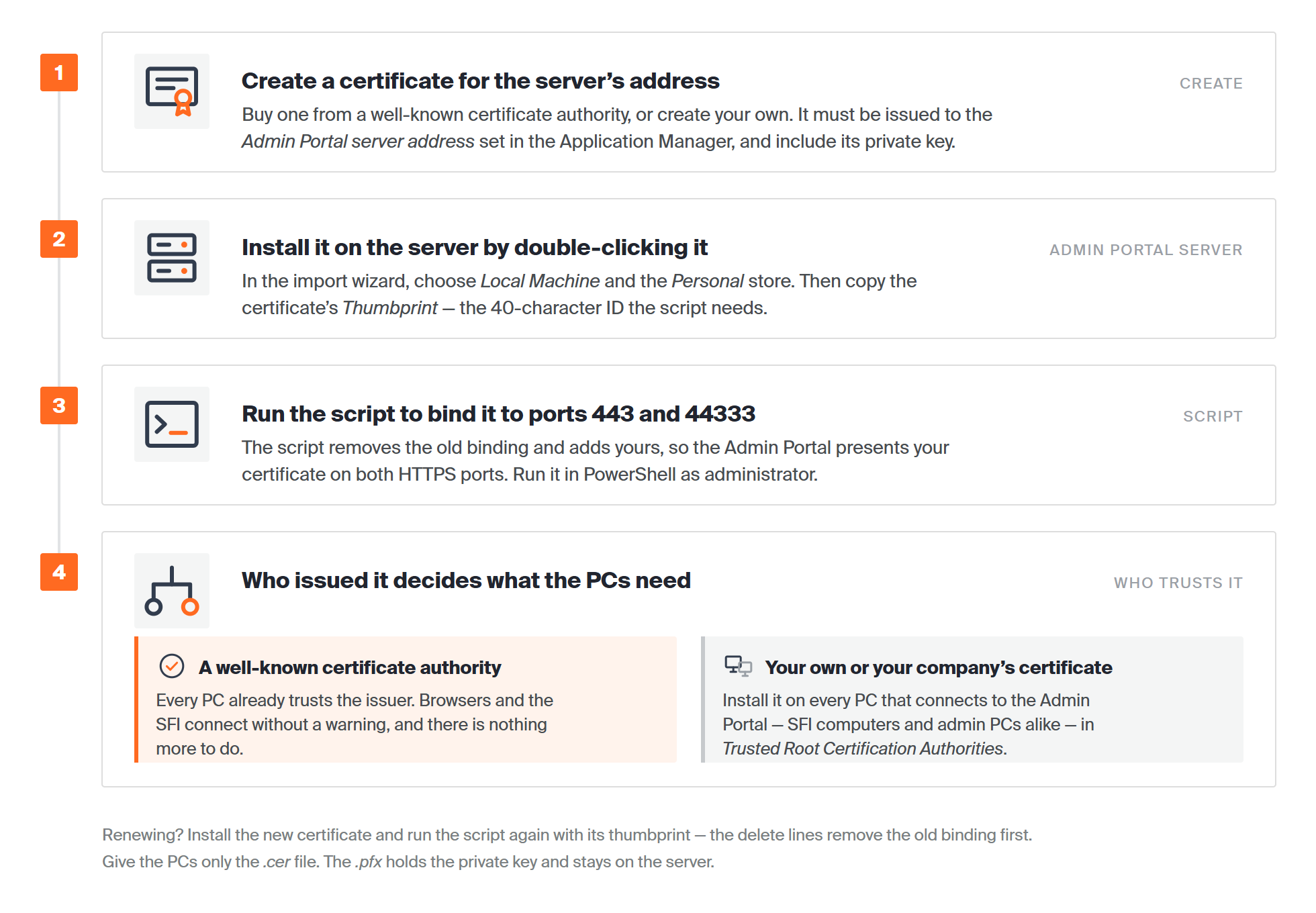
The whole job in four steps. Step 4 only applies when the certificate does not come from a well-known certificate authority.
Before you start
- An on-premise Admin Portal that is already installed. See How to install on-premise.
- Administrator rights on the Admin Portal server.
- The Admin Portal server address that you entered in the Application Manager – for example
cribwise.yourcompany.com. The SFI and every browser use this address, so the certificate must be issued to it. - Either a certificate from a certificate authority (usually a
.pfxfile and its password), or permission to create your own. - If many PCs must trust your own certificate, someone in IT who can push certificates with Group Policy or Intune.
Important: The script removes the current binding before it adds yours. For a few seconds, nothing can connect to the Admin Portal over HTTPS. Run it when no one is picking or syncing.
Quick start
Experienced administrators – add your certificate in 5 steps:
- Create a certificate issued to the Admin Portal server address, with its private key.
- Double-click the
.pfxfile on the server and import it to Local Machine › Personal. - Copy the certificate’s thumbprint.
- Run the binding script below in PowerShell as administrator, with your thumbprint in
$certHash. - Install the certificate on every PC that connects, unless it comes from a well-known certificate authority.
Need more detail? Follow the full steps below.
Steps
Step 1 — Create the certificate
You have two choices. A certificate from a well-known certificate authority is trusted by every PC straight away. A certificate you create yourself is free, but every PC that connects must be told to trust it in step 5.
If you buy the certificate, request it for the Admin Portal server address and ask for it as a .pfx file, which holds the certificate and its private key. Check these points before you continue:
| What to check | Why |
| The server address is listed under Subject Alternative Name | Browsers compare the address in the address bar with this list. If the address is missing, they warn even when the certificate is trusted. |
| The private key is included | Without the private key, Windows cannot use the certificate for HTTPS and the script fails. |
| It is issued for Server Authentication | This is the purpose a web server certificate needs. |
| It is valid for long enough | When it expires, every connection fails. Note the end date so you can renew in time. |
If you create your own certificate, run this on the Admin Portal server in PowerShell as administrator. Replace the address with your Admin Portal server address:
$cert = New-SelfSignedCertificate -DnsName "cribwise.yourcompany.com" -CertStoreLocation Cert:\LocalMachine\My -NotAfter (Get-Date).AddYears(3)
$cert.Thumbprint
The command creates the certificate directly in Local Machine › Personal and prints its thumbprint. Copy the thumbprint, skip step 2, and continue with step 4.
If the Admin Portal server address is an IP address, the certificate must contain that IP address instead of a name. Public certificate authorities do not issue certificates for internal IP addresses, so use a name where you can.
Step 2 — Install the certificate on the Admin Portal server
- Copy the
.pfxfile to the Admin Portal server. - Double-click the file. The Certificate Import Wizard opens.
- Under Store Location, select Local Machine, then select Next. If Windows asks for permission, select Yes.
- Select Next to confirm the file.
- Enter the password of the
.pfxfile, then select Next. - Select Place all certificates in the following store, then select Browse.
- Select Personal, then select OK.
- Select Next, then Finish.
Windows confirms with The import was successful.
Important: Choose Local Machine, not Current User. The binding only works with certificates in the computer’s own store.
Step 3 — Copy the thumbprint
The thumbprint is a 40-character ID that tells the script which certificate to use. To list the certificates on the server with their thumbprints, run this in PowerShell:
Get-ChildItem Cert:\LocalMachine\My | Format-List Subject, Thumbprint, NotAfter
Find your certificate by its Subject and end date (NotAfter), and copy its Thumbprint.
Tip: Copy the thumbprint from PowerShell rather than from the certificate’s Details tab. The Details tab can copy an invisible character at the start, which makes the script fail.
Step 4 — Run the script
The script binds your certificate to the two HTTPS ports of the Admin Portal: 443 and 44333. It does this for all addresses (0.0.0.0) and for the server itself (127.0.0.1). First it deletes any existing binding on each port, then it adds yours.
- On the Admin Portal server, right-click Start and open Windows PowerShell (Admin) or Terminal (Admin).
- Paste the script below.
- Replace the value of
$certHashwith your thumbprint. Keep$appIdexactly as it is. - Press Enter to run it.
[string]$certHash = "PASTE-YOUR-THUMBPRINT-HERE"
[string]$appId = "{214124cd-d05b-4309-9af9-9caa44b2b74a}"

& netsh http delete sslcert ipport=0.0.0.0:443
& netsh http delete sslcert ipport=0.0.0.0:44333
& netsh http delete sslcert ipport=127.0.0.1:443
& netsh http delete sslcert ipport=127.0.0.1:44333

& netsh http add sslcert ipport=0.0.0.0:443 certhash=$certHash appid=$appId
& netsh http add sslcert ipport=0.0.0.0:44333 certhash=$certHash appid=$appId
& netsh http add sslcert ipport=127.0.0.1:443 certhash=$certHash appid=$appId
& netsh http add sslcert ipport=127.0.0.1:44333 certhash=$certHash appid=$appId
Each add line answers SSL Certificate successfully added. A delete line that answers The system cannot find the file specified only means there was no binding on that port yet. You can ignore it.
To check the result, run this and compare Certificate Hash with your thumbprint:
netsh http show sslcert ipport=0.0.0.0:44333
Step 5 — Install the certificate on every PC that connects
If the certificate comes from a well-known certificate authority, skip this step – every PC already trusts it.
If you created the certificate yourself, every PC that connects to the Admin Portal must trust it. That includes every SFI computer, every PC where someone opens the Admin Portal in a browser, and any server that calls the CRIBWISE API.
First, export the certificate without its private key. On the Admin Portal server, run this in PowerShell with your thumbprint:
Export-Certificate -Cert Cert:\LocalMachine\My\PASTE-YOUR-THUMBPRINT-HERE -FilePath C:\Temp\cribwise-ap.cer
Warning: Give the PCs only the
.cerfile. Never copy the.pfxfile to them. It holds the private key, and anyone who has it can pose as your Admin Portal.
Then, on each PC:
- Copy
cribwise-ap.certo the PC. - Double-click the file, then select Install Certificate.
- Under Store Location, select Local Machine, then select Next.
- Select Place all certificates in the following store, then select Browse.
- Select Trusted Root Certification Authorities, then select OK.
- Select Next, then Finish.
For many PCs, ask IT to deploy the .cer file instead. In Group Policy, it goes under Computer Configuration › Policies › Windows Settings › Security Settings › Public Key Policies › Trusted Root Certification Authorities.
If your company’s own certificate authority issued the certificate, the PCs need that authority’s root certificate, not the server certificate. On company-managed PCs, IT has often installed it already.
Success: On a PC that connects to the Admin Portal, open it in Edge or Chrome using the server address. The page opens with no warning, and the padlock shows that the connection is secure. In the Admin Portal, under Data management › Devices, your SFI devices keep the status Synchronized.
Renewing the certificate
Certificates expire, and when one does, nothing can connect. Renew before the end date:
- Create or buy the new certificate (step 1).
- Install it on the Admin Portal server (step 2).
- Run the script again with the new thumbprint (steps 3 and 4). The
deletelines remove the old binding first. - If you created the certificate yourself, install the new
.cerfile on every PC (step 5). If it comes from a certificate authority, the PCs need nothing new.
Next steps
- Install the SFI on new computers – use the same server address the certificate is issued to. See How to install the Shop Floor Interface (SFI).
- Note the renewal date – add a reminder a few weeks before the certificate expires.
- Re-check after an update – after you update the Admin Portal, run
netsh http show sslcert ipport=0.0.0.0:44333and confirm that the hash is still yours.
Troubleshooting
| Problem | Likely cause | Fix |
The browser warns Your connection isn’t private with NET::ERR_CERT_AUTHORITY_INVALID |
The PC does not trust the certificate’s issuer. | Install the certificate on that PC in Trusted Root Certification Authorities (step 5). |
The browser warns with NET::ERR_CERT_COMMON_NAME_INVALID |
The address in the address bar is not in the certificate. | Use the address the certificate is issued to, or get a new certificate that includes the address you use (step 1). |
An add line fails with Error: 1312 |
The certificate has no private key, or it is in the Current User store. | Import the .pfx file again, into Local Machine › Personal (step 2). |
An add line fails with The parameter is incorrect |
The thumbprint contains spaces or a hidden character. | Copy the thumbprint from PowerShell (step 3) and run the script again. |
A delete line answers The system cannot find the file specified |
There was no binding on that port yet. | Nothing. The add lines still run. |
| SFI devices stop synchronizing after the change | The SFI computer does not trust the new certificate. | Install the certificate on that computer (step 5). Then check the device status under Data management › Devices. |
| Firefox still warns, but Edge and Chrome do not | Firefox can keep its own list of trusted certificates. | Import the .cer file in Firefox under Settings › Privacy & Security › View Certificates › Authorities, or ask IT to make Firefox use the Windows certificates. |
| The browser still shows the old certificate | The browser reused an open connection, or the script did not change the binding. | Close all browser windows and try again. If it persists, run netsh http show sslcert and compare Certificate Hash with your thumbprint. |
Related articles
- How to install on-premise – set up the Admin Portal server and its server address.
- How to update the on-premise Admin Portal – install a newer version on your server.
- System requirements and supported browsers – the ports the SFI and the API use to reach the Admin Portal.
- How to install the Shop Floor Interface (SFI) – connect an SFI computer to your Admin Portal address.
- How to create and manage devices – check that each device still synchronizes.
- CRIBWISE technical and organisational security measures – how CRIBWISE protects your data.