
What you can do
Create and manage users in the Customer Management Portal, assign the roles that control what each one can see and do, and understand what happens when all roles are removed.
Role descriptions
| Role | What it gives access to |
| Super Admin | All functionality. |
| Supplier | All supplier-related functionality. |
| Brand | All brand and sales unit functionality. |
| Sales Unit (All Access) | All sales unit functionality. |
| Order Manager | Sign up new customers, and create and manage hardware orders and quotes. No Admin Portal access. |
| Sales Unit (Limited with Admin Portal access) | Create trial customers and add quotes without seeing prices. Admin Portal access. |
| Sales Unit (Limited without Admin Portal access) | Create trial customers and add quotes without seeing prices. No Admin Portal access. |
| Customer Account Administrator | View customer details without seeing prices, manage customer account administrators. Admin Portal access. |
The full matrix is in Permissions and data access 1.51 (XLSX).
Before you start
- You can only assign roles at your own level or lower.
- Only new users can be created – an existing user is given roles instead.
- Have the new user’s email address ready.
Steps
Step 1 — Open the user list
Manage Supplier, Brand, Sales Unit and Customer Account Admin users on the Users tab of the respective supplier, brand, sales unit or customer view.
Brand and Sales Unit (All Access) users can also open the User list in the left menu and manage every user from there.
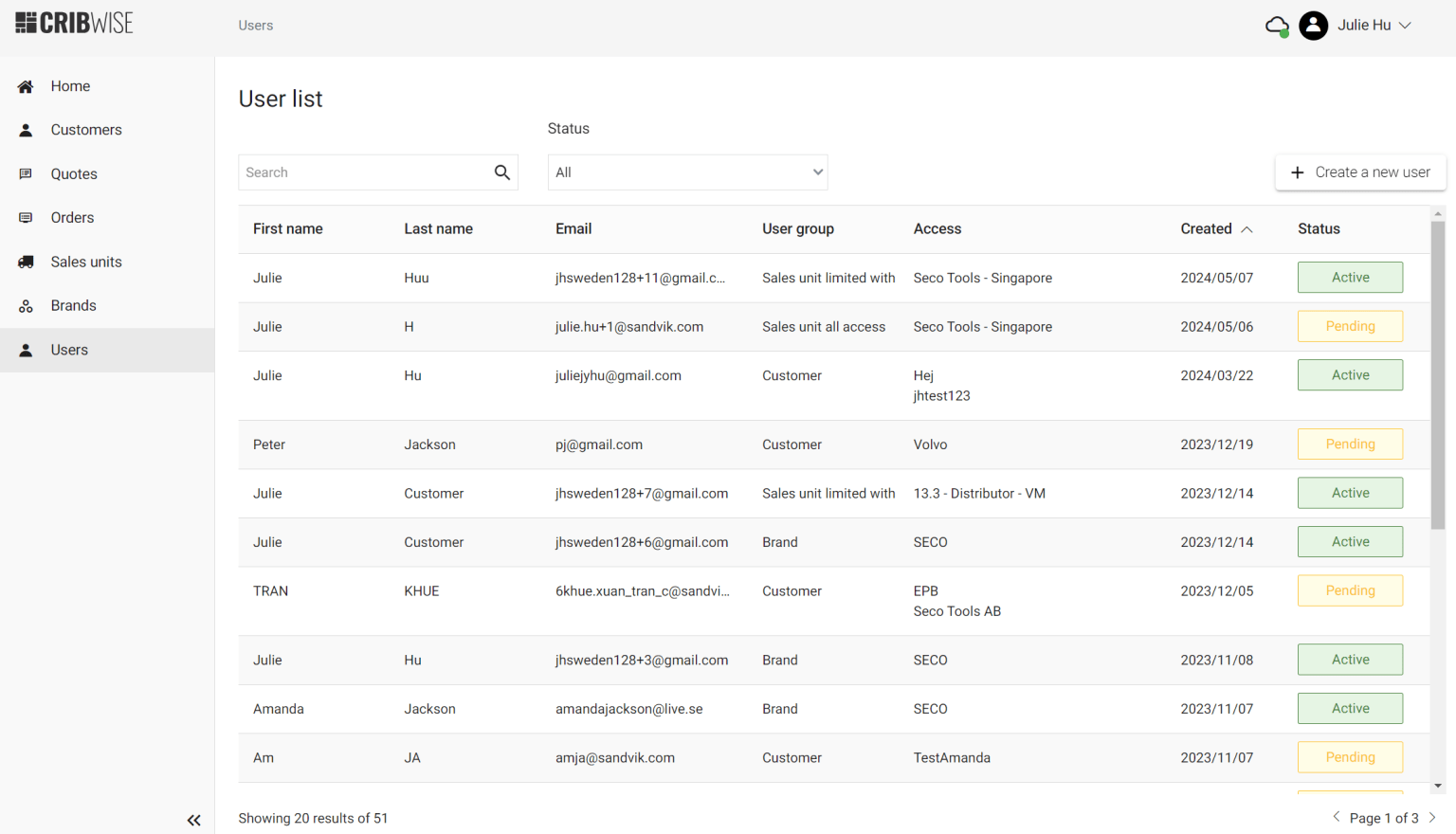
The CMP user list.
Step 2 — Create a user
- Add a new user with their email address.
- Select at least one role – a role is mandatory before saving.
- Save.
Several roles can be assigned to one user. A user with the Customer Account Admin role cannot also hold a Brand or Sales Unit role.
Success: The user is created with the status Pending. It changes to Active once they activate their account and accept the terms and conditions.
Step 3 — Manage roles
Roles can be added, changed or removed within your own permissions. If every role is removed from a user, the user is flagged for future removal.
Warning: A user without any role is deleted automatically after 30 days, to comply with GDPR.
Troubleshooting
| Problem | Likely cause | Fix |
| The user cannot be saved. | No role was selected. | Select at least one role before saving. |
| A role you need is not offered. | You can only assign roles at your own level or lower. | Ask a user at a higher level to assign it. |
| A Customer Account Admin cannot be given a Sales Unit role. | The two role families are mutually exclusive. | Use separate users for the two responsibilities. |
| The user status stays Pending. | They have not activated the account and accepted the terms. | Ask the user to complete the activation mail and accept the terms and conditions. |
Related articles
- How to manage customer account administrators (distributors) – the account administrators of an end customer.
- How to create and manage users – the separate users inside the Admin Portal and SFI.
- How to create a customer account (distributors) – where a customer account and its first admin come from.
- Terms of Service and Data Processing Agreements – the terms a new user accepts at activation.