
What you can do
Add, disable and reactivate customer account administrators for an end customer from the Customer Management Portal at app.cribwise.com.
An account administrator has access to both the Admin Portal and the CMP for that customer, so removing one closes both doors at once.
Before you start
- You need a distributor account administrator or a customer account administrator role to log in to app.cribwise.com and manage existing accounts.
- Have the email address of the user you want to add.
Note: The first account administrator of an end customer is the user registered in the sign-up flow. That user signs off the CRIBWISE terms and conditions.
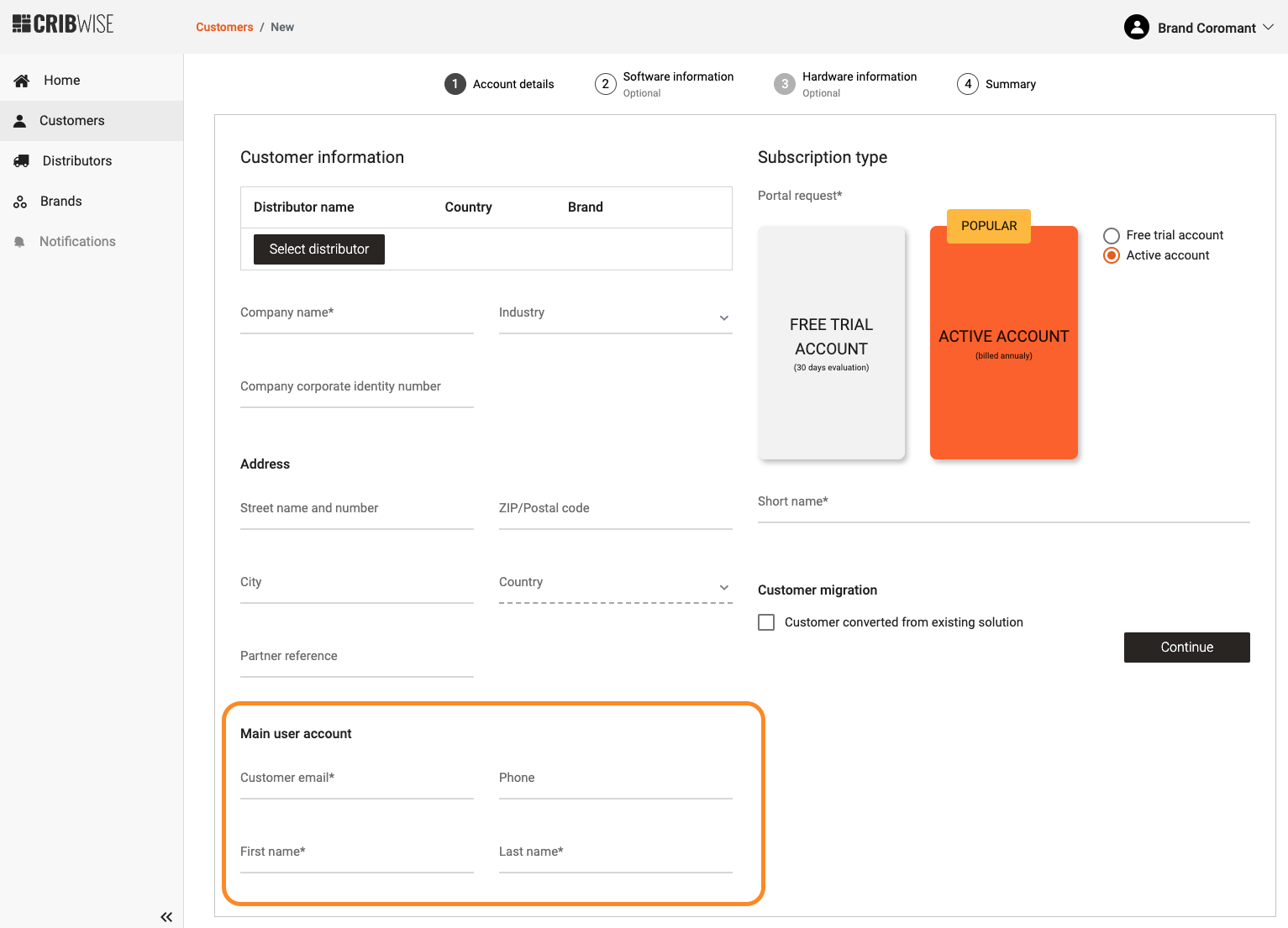
Log in at app.cribwise.com to manage existing accounts.
Quick start
Experienced users – manage administrators in 3 steps:
- Open the customer account and its Customer account administrators tab.
- Click + New user to add an administrator.
- Use Remove in the action menu (…) to disable one.
Steps
Step 1 — Open the customer account administrators tab
Open the customer account and select the Customer account administrators tab. It lists everyone who administrates that end customer.
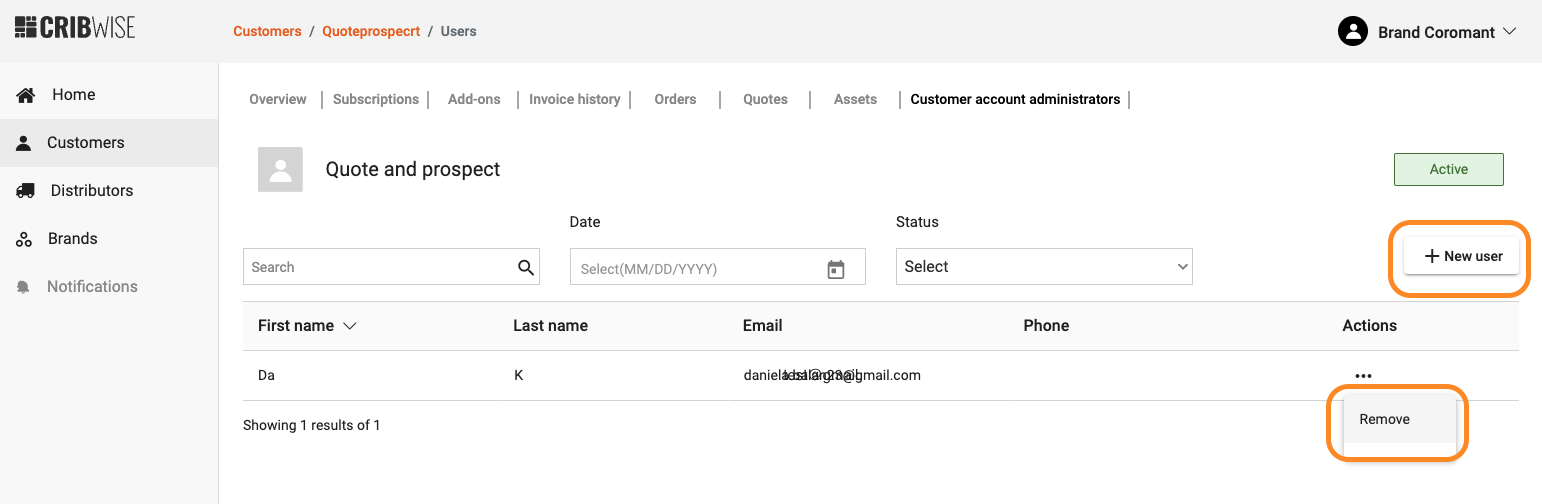
The Customer account administrators tab of a customer account.
Step 2 — Add an administrator
- Click + New user.
- Fill in the user details.
- Save.
Success: The new user appears in the list and can log in to the Admin Portal and the CMP.
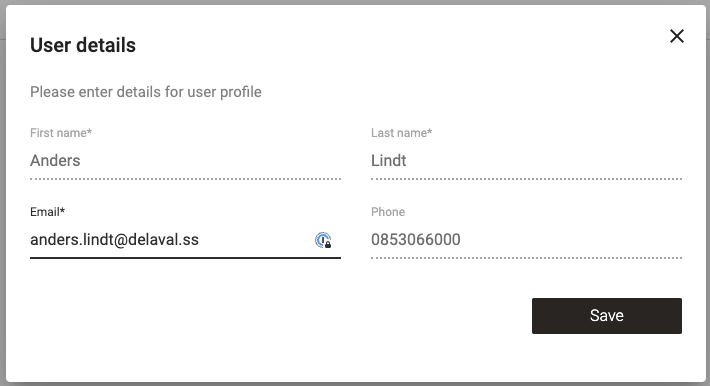
Adding an account administrator for the end customer.
Step 3 — Disable or reactivate an administrator
To disable an active user, choose Remove from the action menu (…) on their row. Once the user is removed from the list, their access to the Admin Portal and the CMP is disabled.
To reactivate a user, click + New user and fill in their email address. Everything else is filled in automatically.
Troubleshooting
| Problem | Likely cause | Fix |
| You cannot log in to app.cribwise.com. | Your user has neither the distributor nor the customer account administrator role. | Ask an existing account administrator to add you. |
| A removed user still expects access. | Removal disables both Admin Portal and CMP access. | Reactivate the user with + New user and their email address. |
| Re-adding a user asks for details you do not have. | The email address entered does not match the removed account. | Enter the exact email address used before – the remaining fields then fill in automatically. |
Related articles
- How to manage users in the Customer Management Portal (CMP) – user management in the CMP more broadly.
- How to create a customer account (distributors) – where the first account administrator comes from.
- How to change a customer account (distributors) – edit an existing customer account.
- How to create and manage users – the separate users who work inside the Admin Portal and SFI.