
What you can do
Request a hardware quote from a supplier in the Customer Management Portal, follow it until the supplier answers, and accept it to move straight into the purchase order flow.
Before you start
- You need the distributor account administrator role to log in at app.cribwise.com and request quotes.
- A quote can be requested for any account type: trial, prospect, active or future.
- Have the hardware specification and any configuration files ready.
Important: A hardware quote is valid for 30 days. After that it becomes Expired/Inactive and a new request is needed for the same specification.
Quick start
Experienced users – request a quote in 4 steps:
- Press Request quote on the home screen, or + New supplier quote request on the customer account.
- Select the sales unit and the customer.
- Add the hardware and attach configuration files.
- Confirm the quote request.
Steps
Step 1 — Start the quote request
There are two ways in. From the home screen, press Request quote.
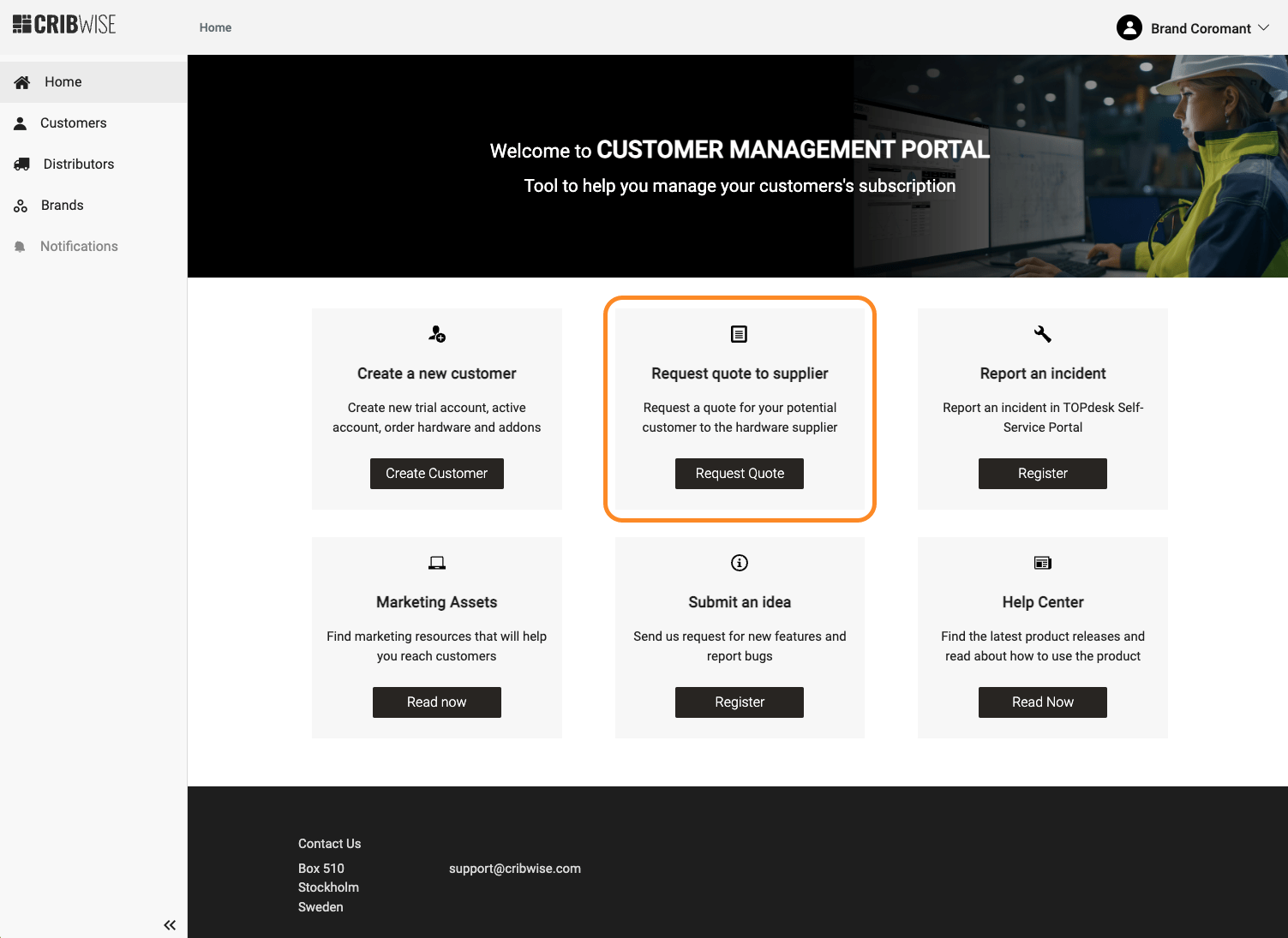
Starting a quote request from the home screen.
Or open the customer account, go to the Quote tab and click + New supplier quote request.
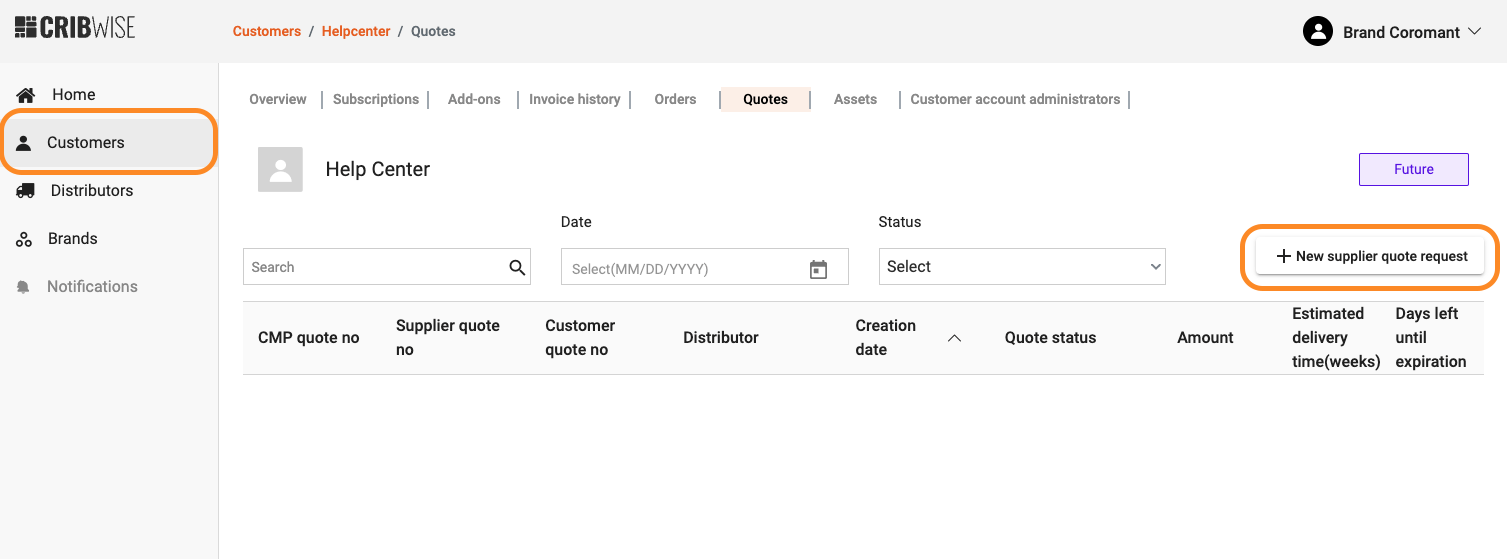
Starting a quote request from the customer account.
Step 2 — Select the sales unit
If you are assigned to one distributor, it is preselected on the quote request.
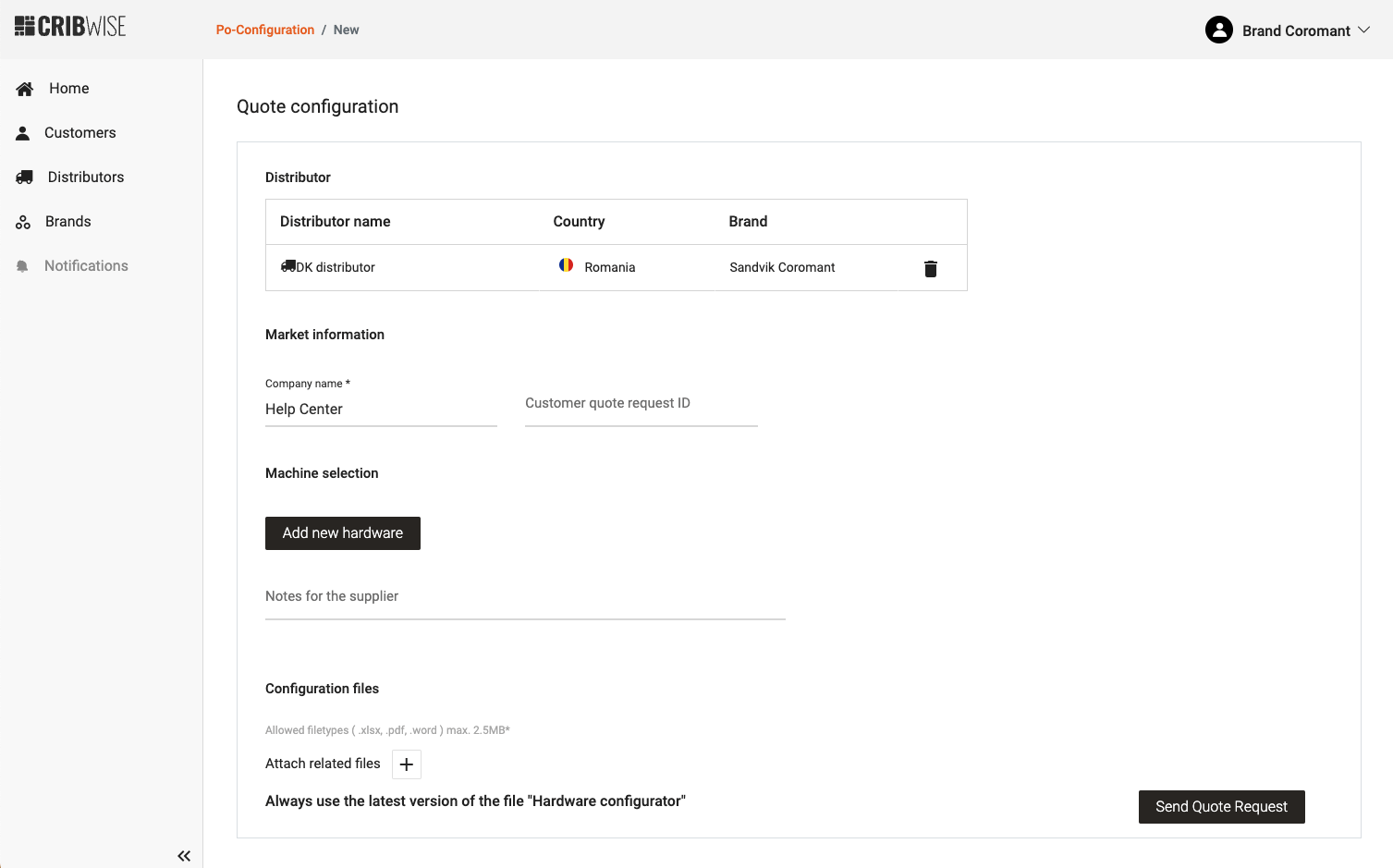
A single distributor is filled in for you.
If you are assigned to several, click Select distributor and choose the sales unit.

Choosing the sales unit.
To change the sales unit on the quote, click the trash can icon and select another distributor.

Changing the sales unit.
Step 3 — Choose the customer
When the flow was started from a customer account, all customer information is prefilled.
When it was started from the home screen, enter the company name. Clicking the Company name field shows a dropdown of all available customers.
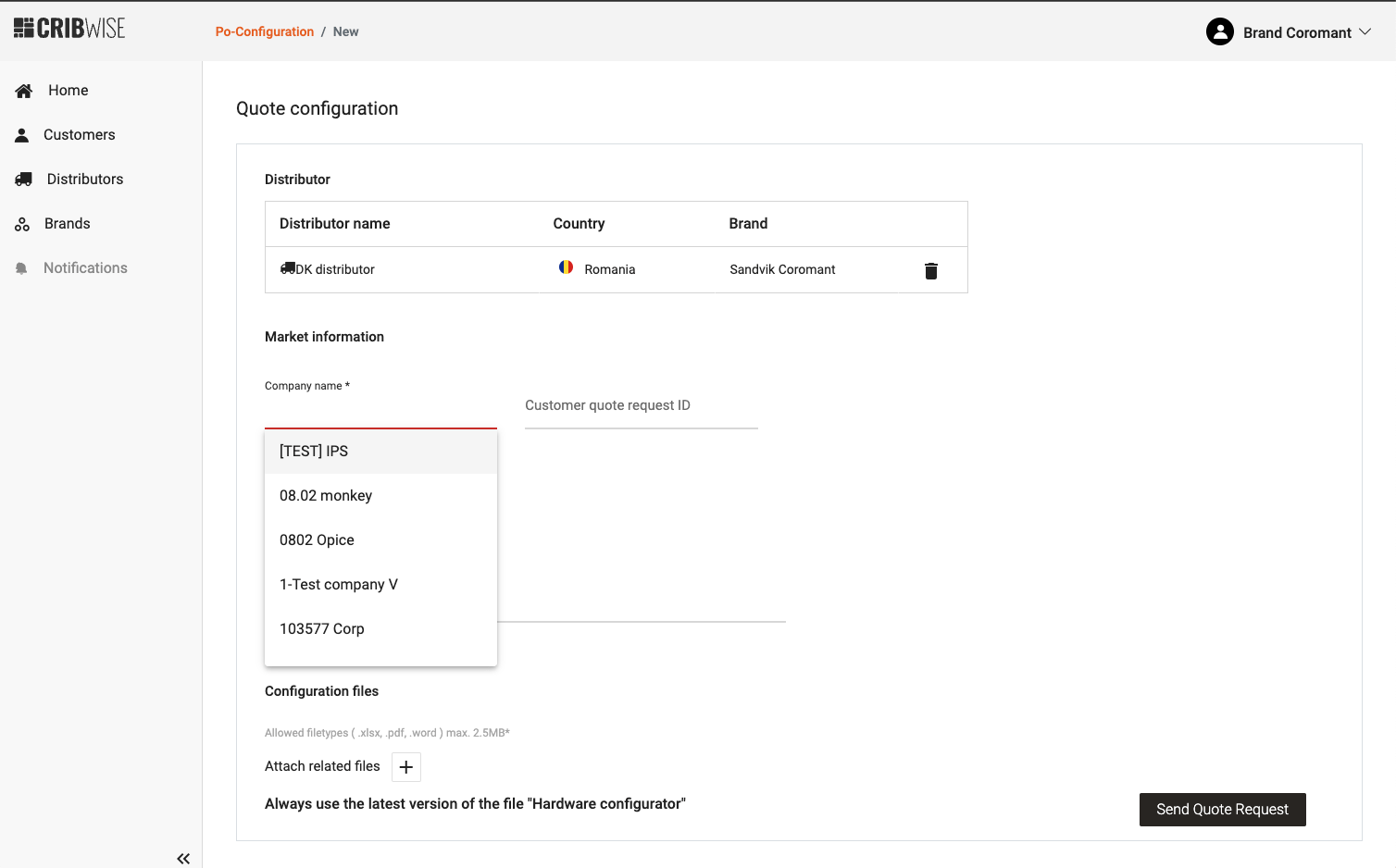
Selecting the customer.
The list filters as you type.
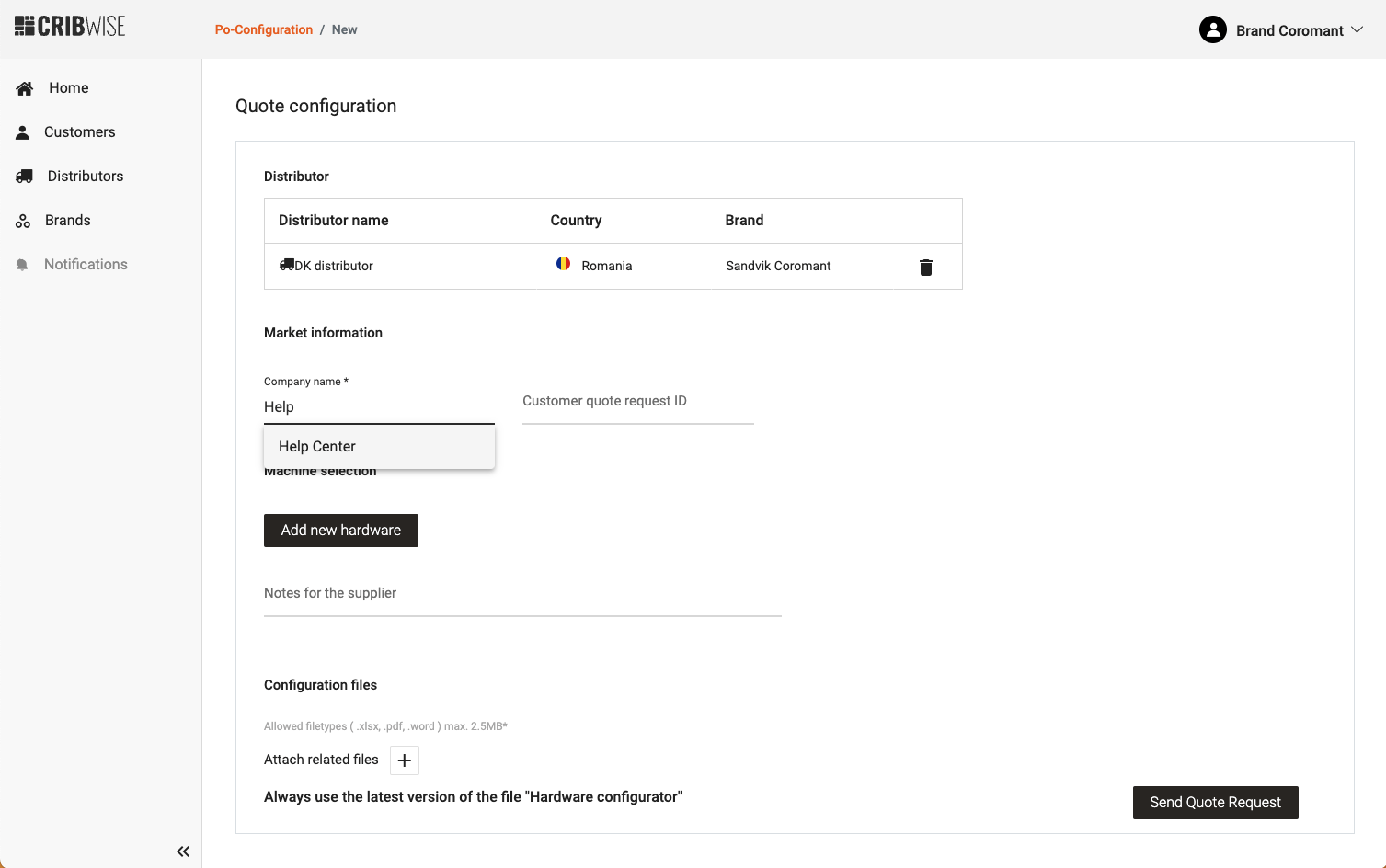
Typing filters the list.
To quote a potential customer instead, create a prospect in the pop-up that appears.

Creating a prospect from the quote flow.
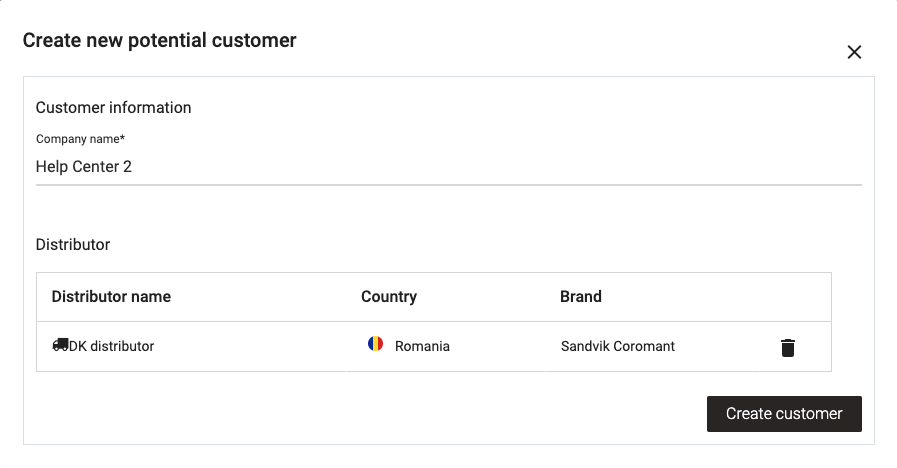
Confirming creates the customer with prospect status.
Step 4 — Add hardware and confirm
- Add the hardware items.
- Attach the configuration files.
- Confirm the quote request.
Success: The request is stored in the quote list with status New, and an email goes automatically to you and to the supplier.
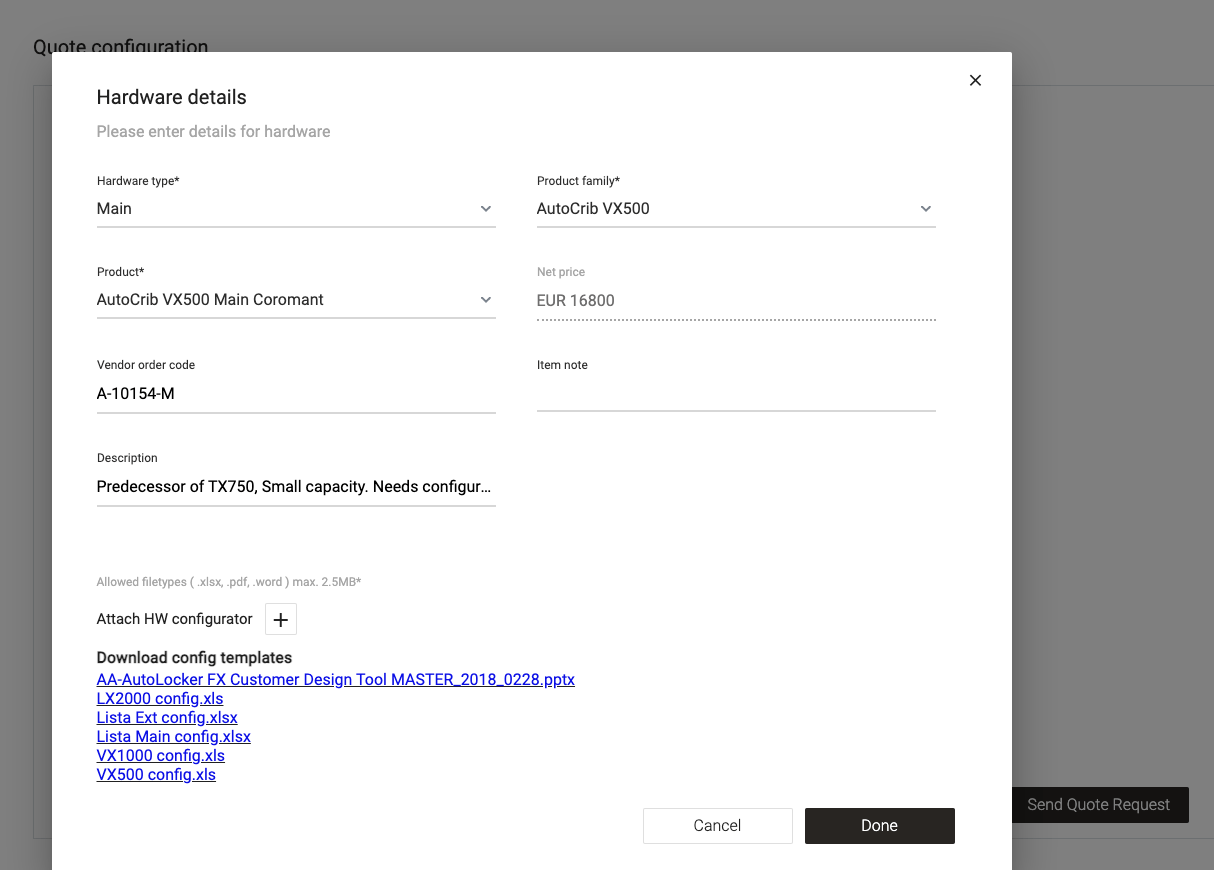
Adding hardware and configuration files.
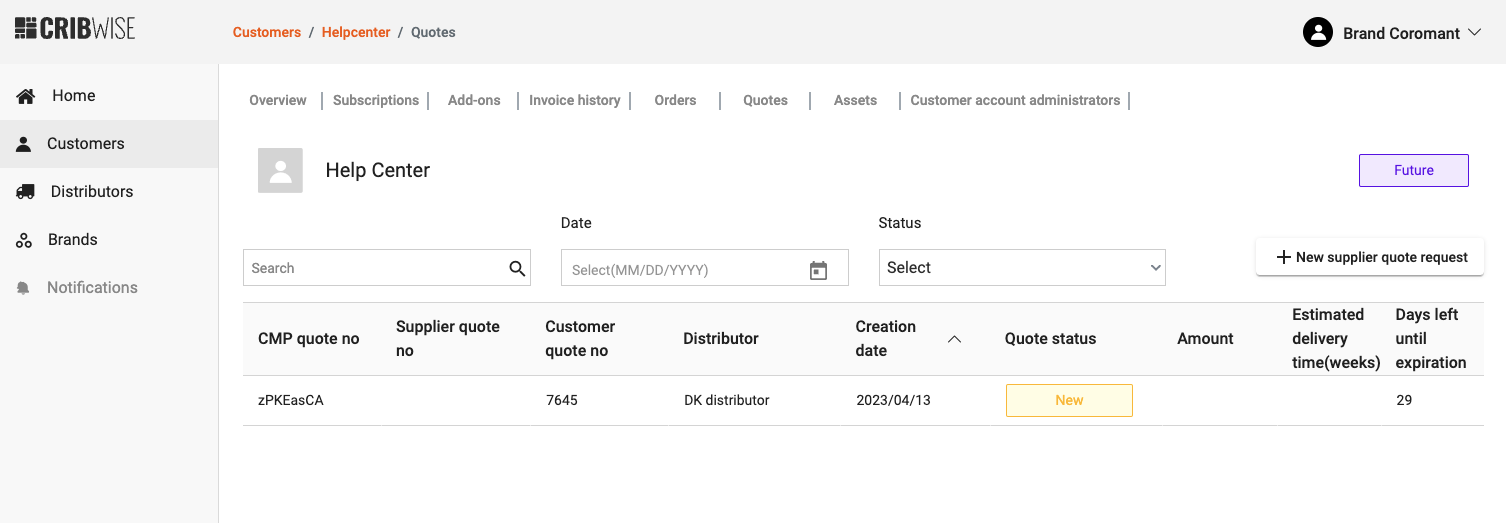
The request in the quote list with status New.
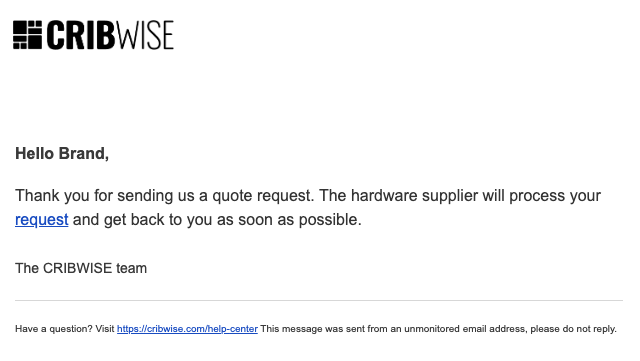
Both requester and supplier are notified by email.
Step 5 — Follow up and accept
Click the quote line on the Quotes tab, or the link in the email, to see the quote details.
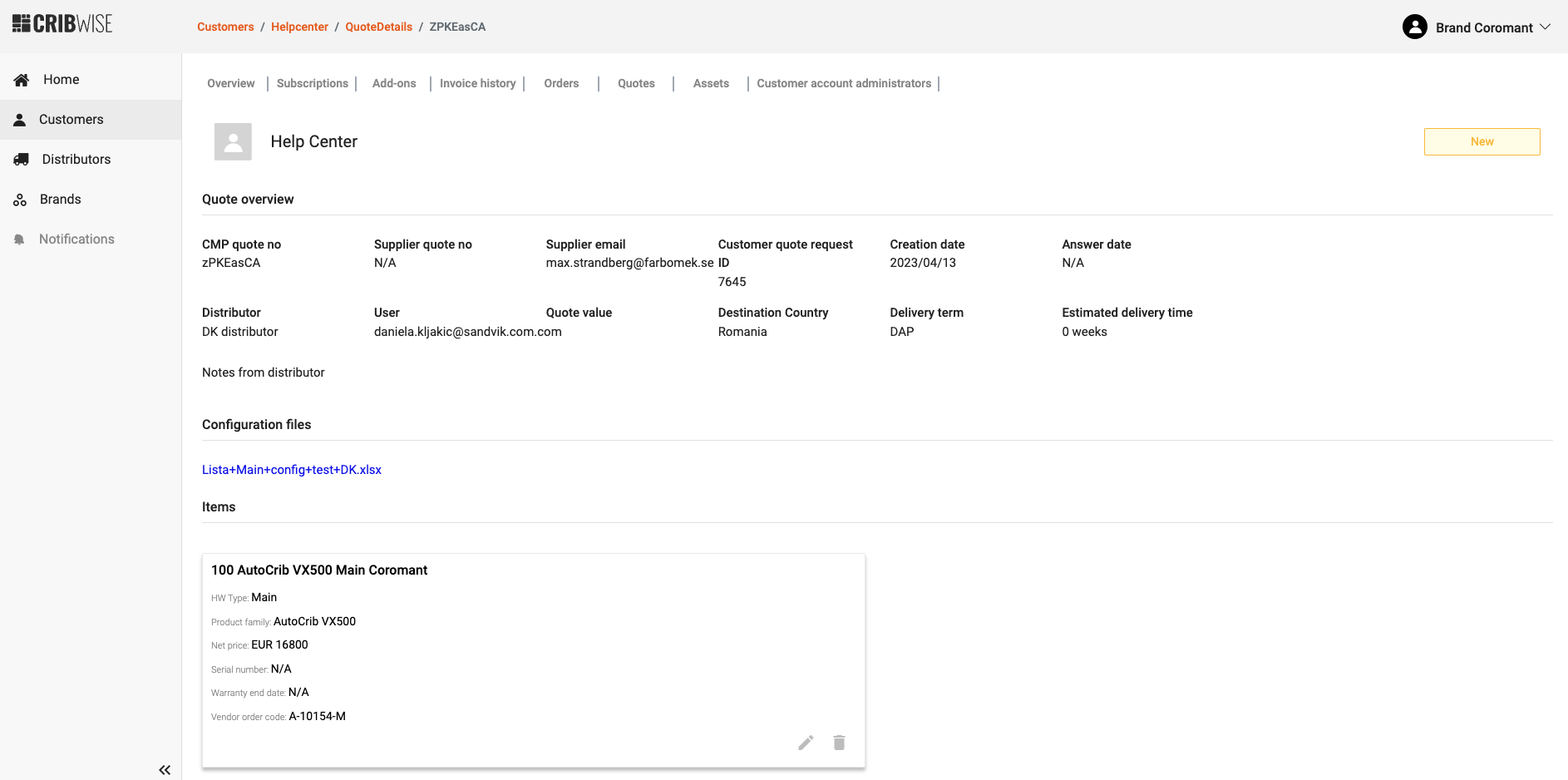
Quote details.
When the supplier answers, the status changes to Waiting answer and you can accept or reject the quote.
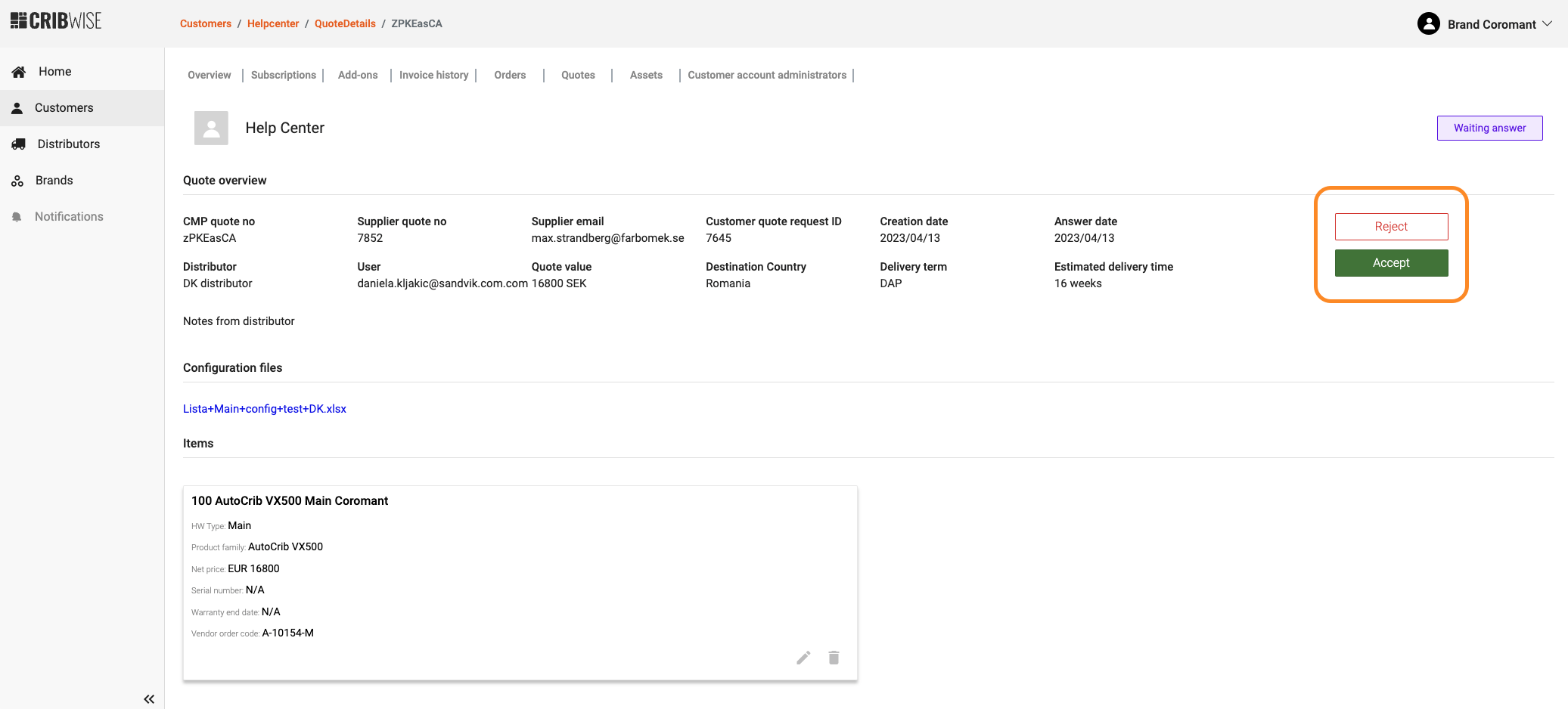
Accept or reject the supplier’s answer.
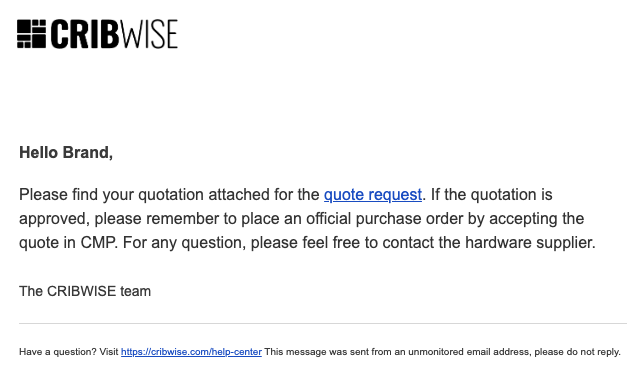
The requester is notified by email.
Accepting the quote takes you straight into the purchase order flow – see How to place a purchase order in CMP (distributors).
Troubleshooting
| Problem | Likely cause | Fix |
| The quote can no longer be accepted. | The 30-day validity ended, so the quote is Expired/Inactive. | Request a new quote for the same specification. |
| No distributor is filled in on the request. | Your user is assigned to more than one distributor. | Click Select distributor and choose the sales unit. |
| The customer is not in the company name dropdown. | They do not exist yet in the CMP. | Create them as a prospect from the pop-up in the quote flow. |
| You cannot request a quote at all. | Your user lacks the distributor account administrator role. | Ask an existing account administrator to grant it. |
Related articles
- How to place a purchase order in CMP (distributors) – what happens after you accept a quote.
- Understanding the hardware supplier flow (distributors) – how the supplier answers quotes and ships orders.
- How to create a customer account (distributors) – create the account a quote is requested for.
- How to manage customer account administrators (distributors) – who can act on a customer account.