
What you’ll learn
How a hardware supplier works in the Customer Management Portal: answering quote requests from distributors, confirming and updating hardware orders, and completing shipping with serial numbers and warranty dates.
You need a supplier user account role to log in at app.cribwise.com and manage quotes and orders from distributors.
Quote statuses at a glance
| Status | Meaning |
| New | A distributor registered a quote request. Both parties get an email with the details. |
| Waiting answer | You answered, and the distributor has not yet accepted or rejected. |
| Accepted | The distributor accepted the quote. |
| Rejected | The distributor rejected the quote. |
| Expired/Inactive | 30 days passed without an answer. The distributor must request a new quote. |
Managing quote requests
Open the Quotes tab to see every quote request from distributors.
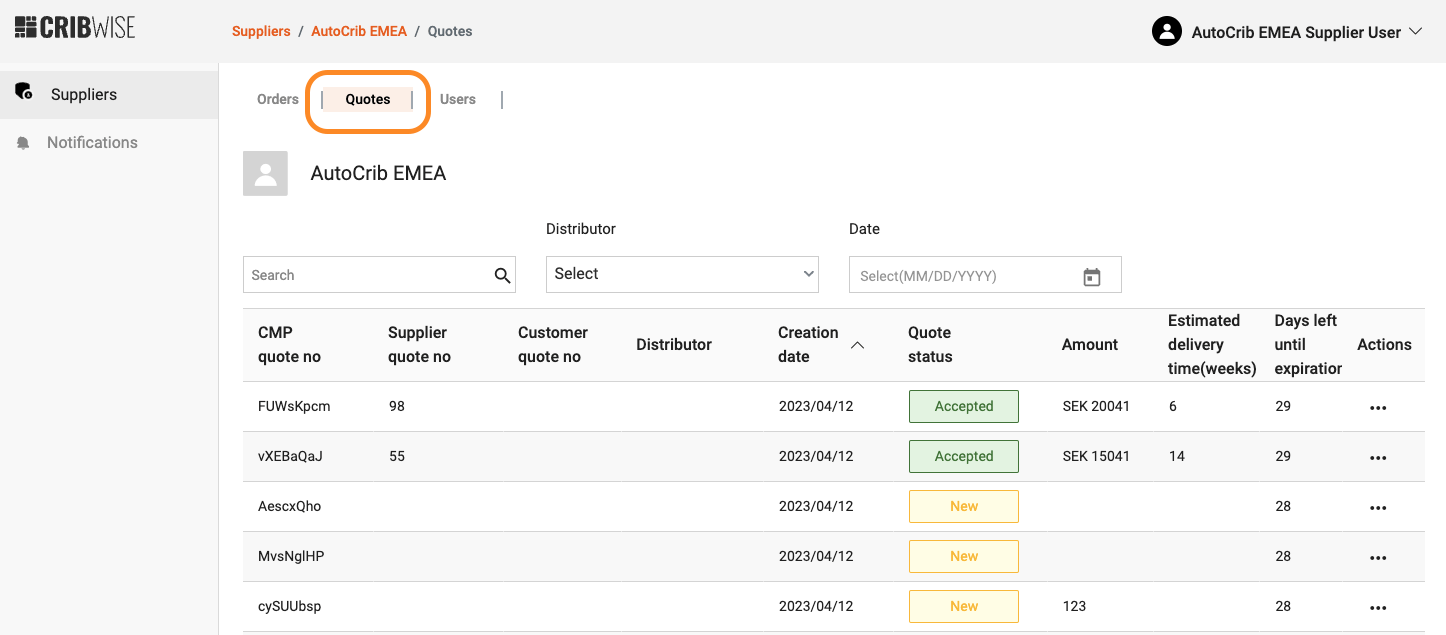
All quote requests in one list.
Click a quote line to open its details.
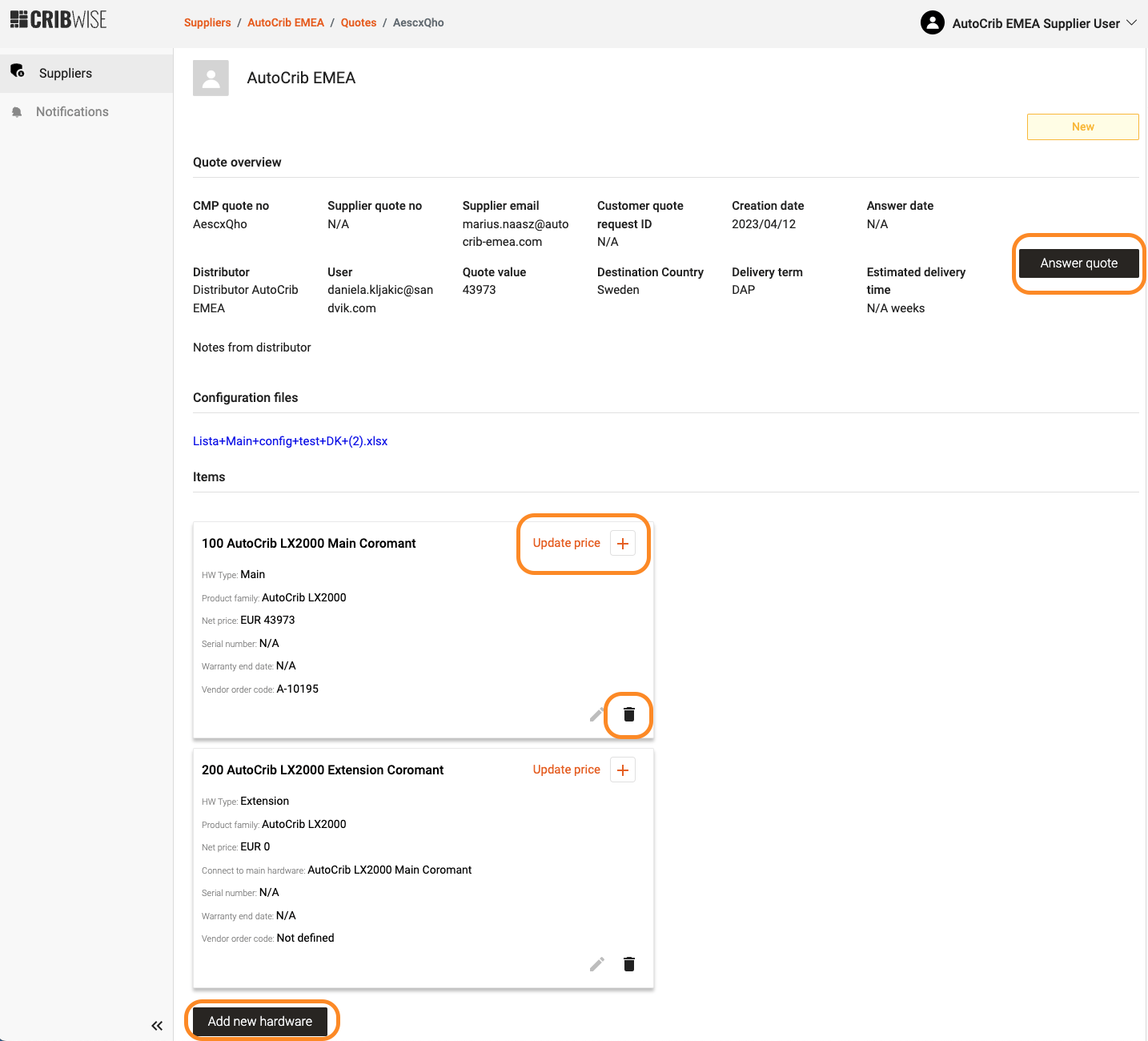
Quote details, where the item lines are maintained.
From here you can:
- Update prices.
- Add hardware items, including shipping as a separate item line.
- Delete hardware items.
- Answer the quote.
Answering opens a pop-up where you can upload an offer – a PDF with a reference number. That reference is shown on the quote details page next to the customer quote request id.
| Field | Mandatory | What it holds |
| Price | – | Calculated automatically from the item prices: the total value of the quote. |
| Estimated delivery time (weeks) | Yes | Estimated number of weeks to deliver a new order. |
| Supplier quote no | Yes | Your internal reference for the quote offer. |
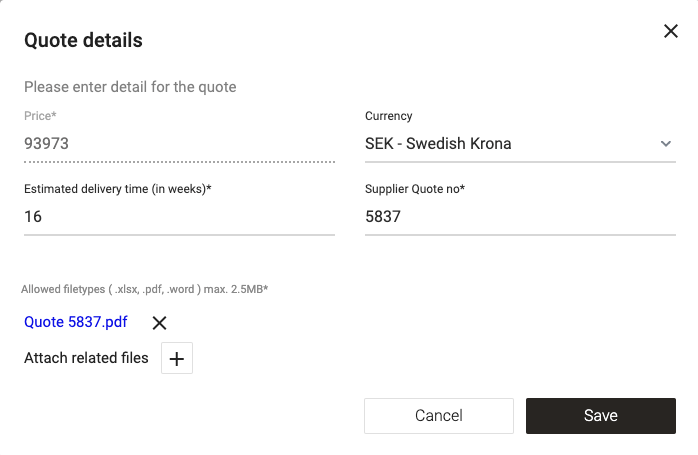
Answering a quote with an uploaded offer.
The quote then moves to Waiting answer, and the CMP emails the requester automatically.
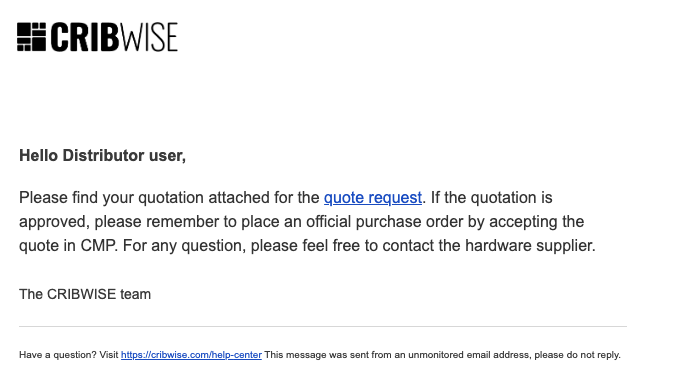
The distributor now decides.
Important: A hardware quote is valid for 30 days. After that it becomes Expired/Inactive and the distributor can no longer accept it – they have to request the same specification again.
Managing hardware orders
A distributor orders hardware for their customers directly from you. One order covers a main unit, extensions, options, spare parts and accessories from a single supplier, so items from different suppliers arrive as separate orders.
You receive an email whenever a new order is registered.
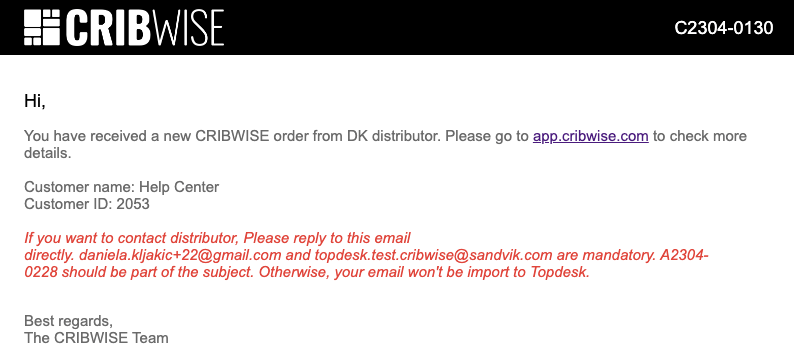
New order notification.
Note: The distributor cannot change an order after placing it. Only you can modify or cancel it.
Order statuses
| Status | Meaning |
| New | A new hardware order was registered by the distributor. |
| Confirmed | The order was received and you are working on it. |
| ETD updated | You updated the estimated delivery date. |
| Canceled | You cancelled the order. Distributors cannot cancel or change orders in the CMP. |
| Shipped | The order left your warehouse. |
Open an order line to reach the order details.
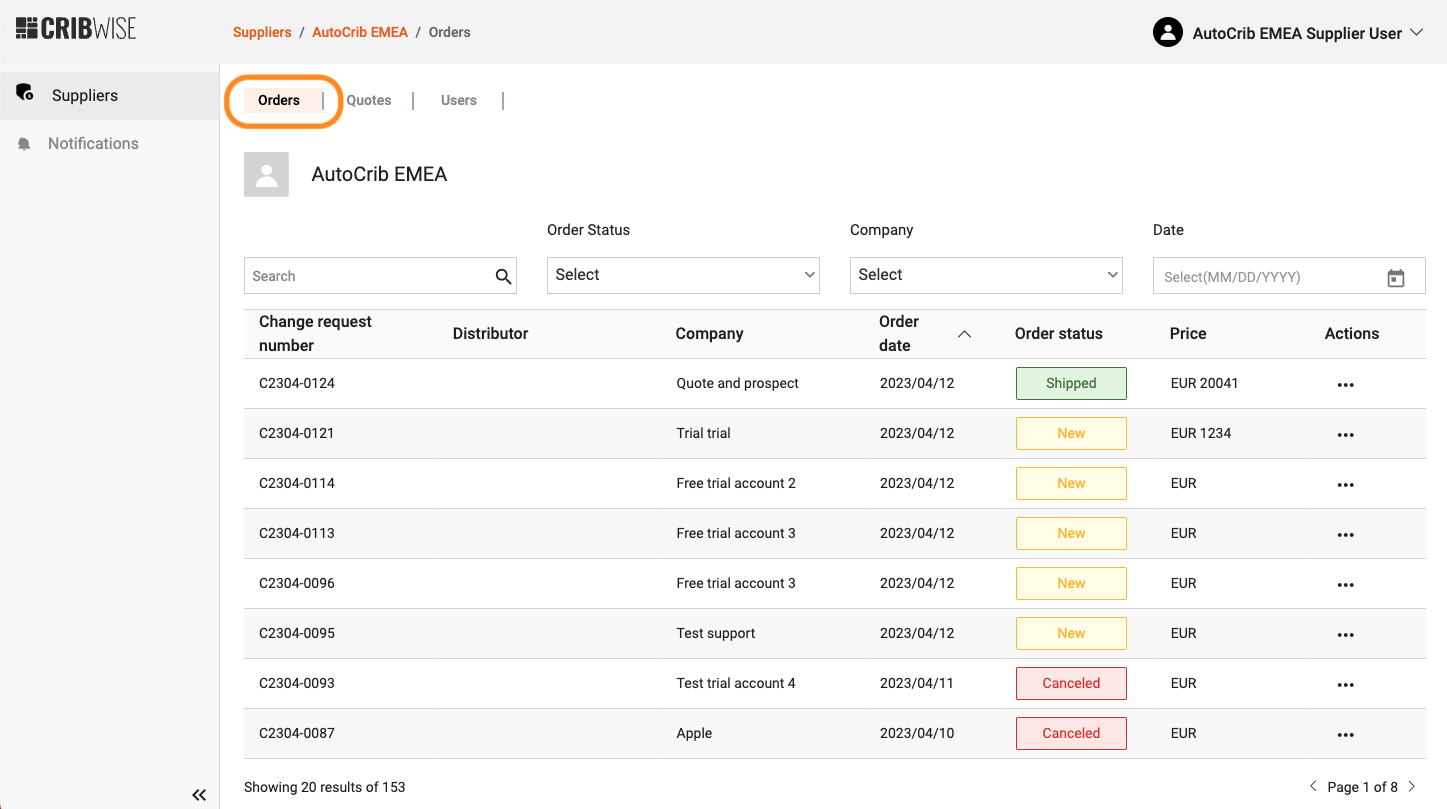
The supplier’s order list.
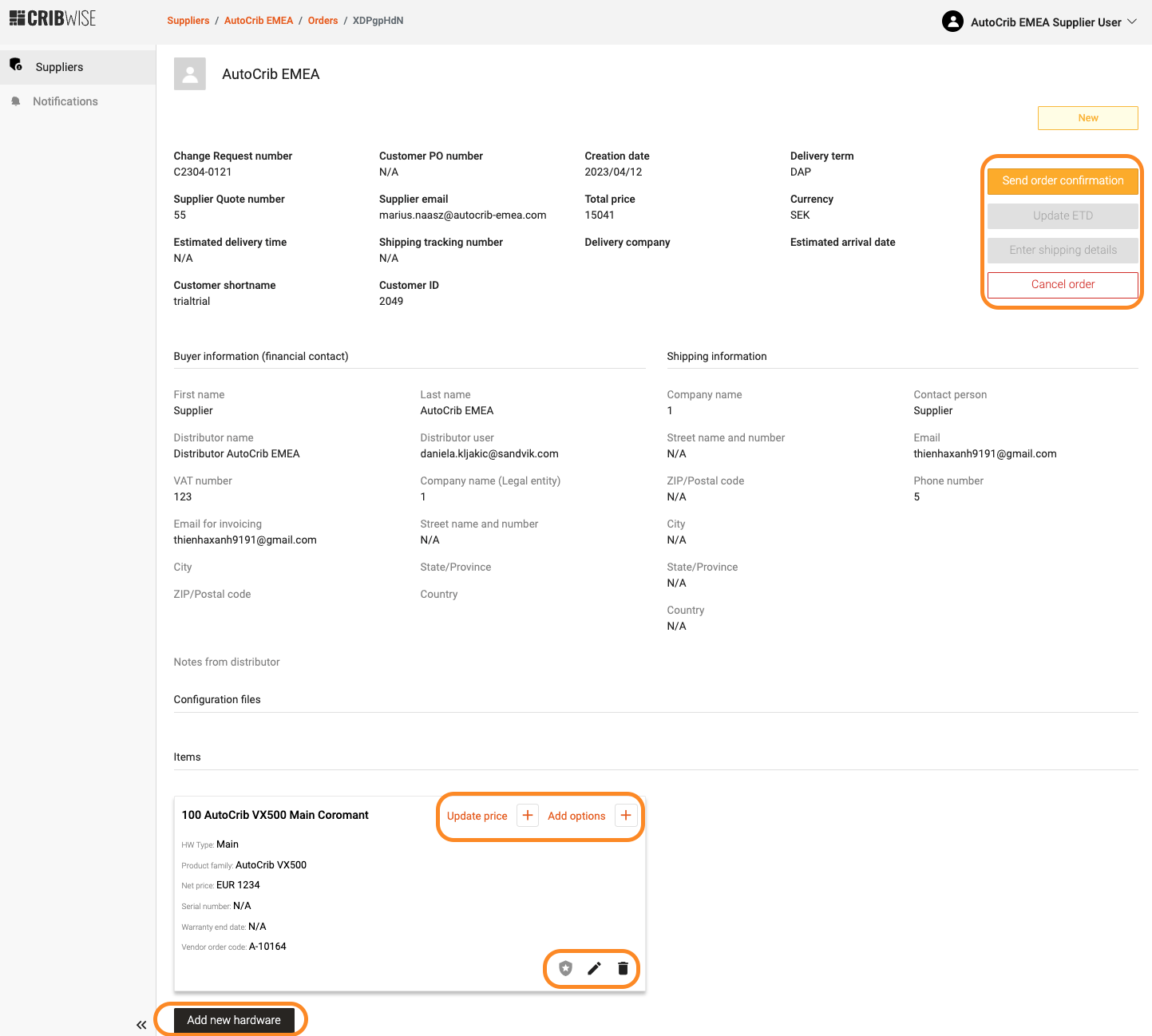
Order details, where items and prices are maintained.
From here you can add hardware items including shipping, delete items, update prices, add options, send the order confirmation, and cancel the order.
Send order confirmation
When every item is checked, shipping is added, the details are filled in and the necessary files are uploaded, click Send order confirmation. The order status changes to Confirmed and an email goes to the distributor who placed it.
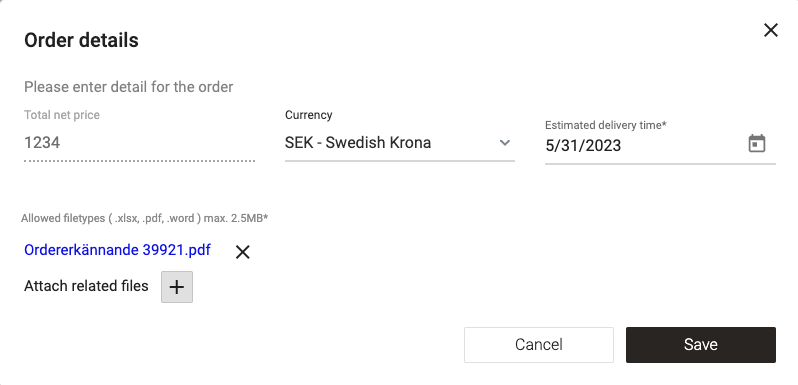
Confirming the order.
Update ETD
After confirming, press Update ETD to change the estimated delivery date. Only the date can be changed in the pop-up, and files can be uploaded with it. Saving sets the status to ETD updated and emails the distributor.
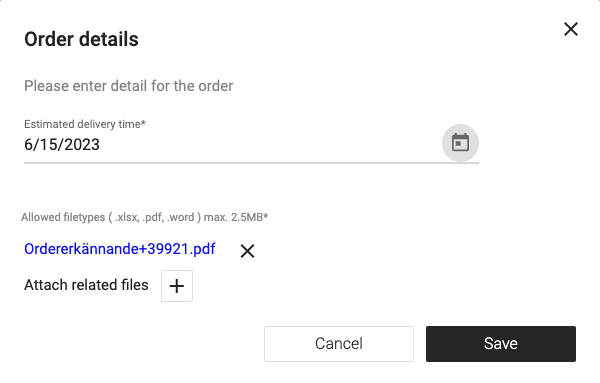
Updating the estimated delivery date.
Cancel order
Only a supplier user can cancel a hardware order. A cancellation reason is mandatory, and the distributor is notified.
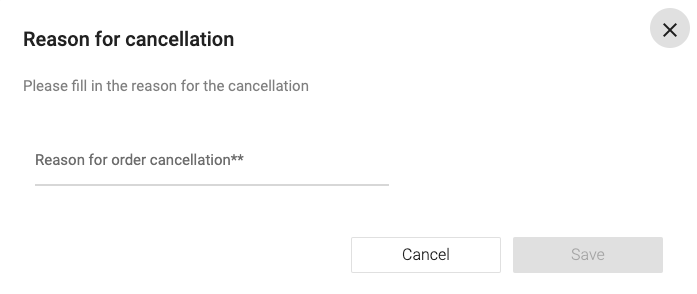
Cancelling an order.
Enter shipping details
Before shipping, fill in the hardware serial number and warranty for every serialized item. Click the icon on the item card to open the pop-up.
- Hardware serial number – free text.
- HW warranty end date – selected from a calendar.
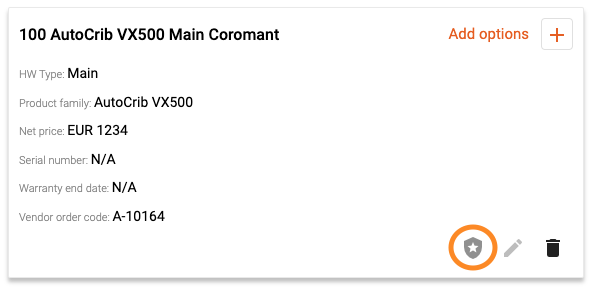
Opening the serial number and warranty pop-up.
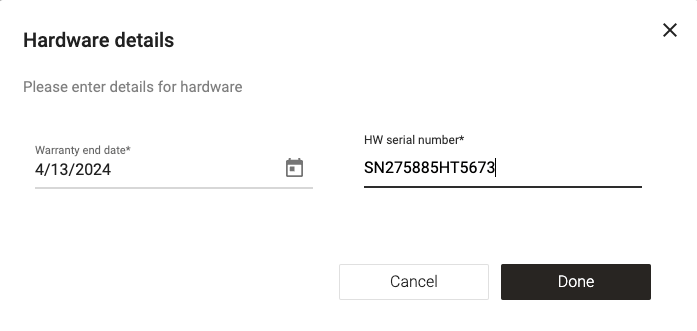
Serial number and warranty end date per serialized item.
Only when every serialized item has both fields filled in can you move to the shipping step. Otherwise a warning appears and shipping cannot be completed.
Then click Enter shipping details and complete the pop-up:
- Shipping tracking number – free text for the tracking link or the courier’s tracking ID.
- Estimated arrival date.
- Delivery company – free text.
- Attached file – the delivery document.
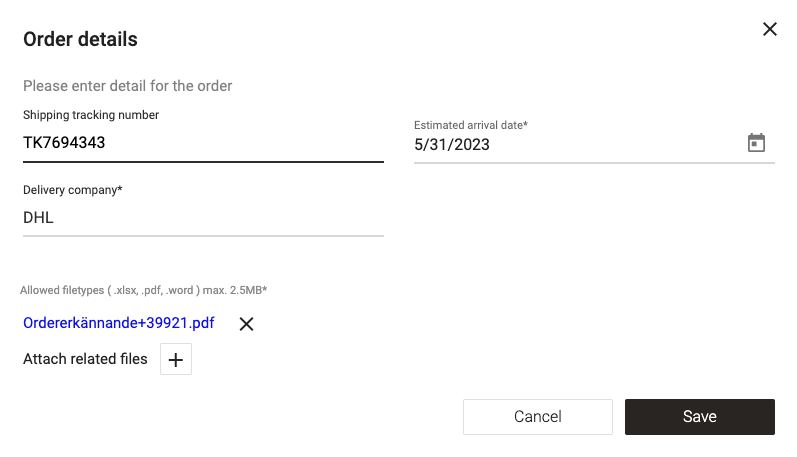
Completing the shipping details.
Once shipped, the status changes to Shipped and the distributor gets a confirmation email.
Warning: A shipped order cannot be cancelled.
Common confusion
| People often think… | But actually… |
| The distributor can correct an order they placed. | Only the supplier can change or cancel an order. |
| A quote stays open until someone answers. | It expires after 30 days and must be requested again. |
| Shipping can be completed and serial numbers added later. | Every serialized item needs its serial number and warranty end date before the shipping step opens. |
| A shipped order can still be cancelled. | Cancellation is impossible once the order is shipped. |
Take action
Need to reach the distributor about a specific order? Reply to the automatic email you received when the order was registered, and keep the reference number in the subject line.
Related articles
- How to request a quote from a supplier (distributors) – the same quote flow from the distributor’s side.
- How to place a purchase order in CMP (distributors) – how the orders you receive are created.
- How to manage customer account administrators (distributors) – who can act on a customer account.
- How to create a customer account (distributors) – where customer accounts come from.