
What you can do
Place a hardware purchase order with a supplier from the Customer Management Portal – either by accepting a supplier quote or by creating a new order on the customer account – and follow it through to shipping.
An order can cover a main unit, extensions, options, spare parts and accessories, but everything on one order must come from the same hardware supplier. Order from several suppliers and you need one order each.
Before you start
- You need the distributor account administrator role to log in at app.cribwise.com and place hardware orders.
- Have the customer account ready, and the quote from the supplier if you are accepting one.
- Have the shipping details and any configuration files or purchase order documents to hand.
Important: A distributor cannot change or cancel an order after it is placed. Only the supplier can.
Choose your method
| Method | Use it when |
| Accept a quote from the supplier | The supplier has already quoted the hardware. The items come across automatically. |
| Create a new order from the customer account | There is no quote. The hardware items are added by hand. |
Steps — accept a quote from the supplier
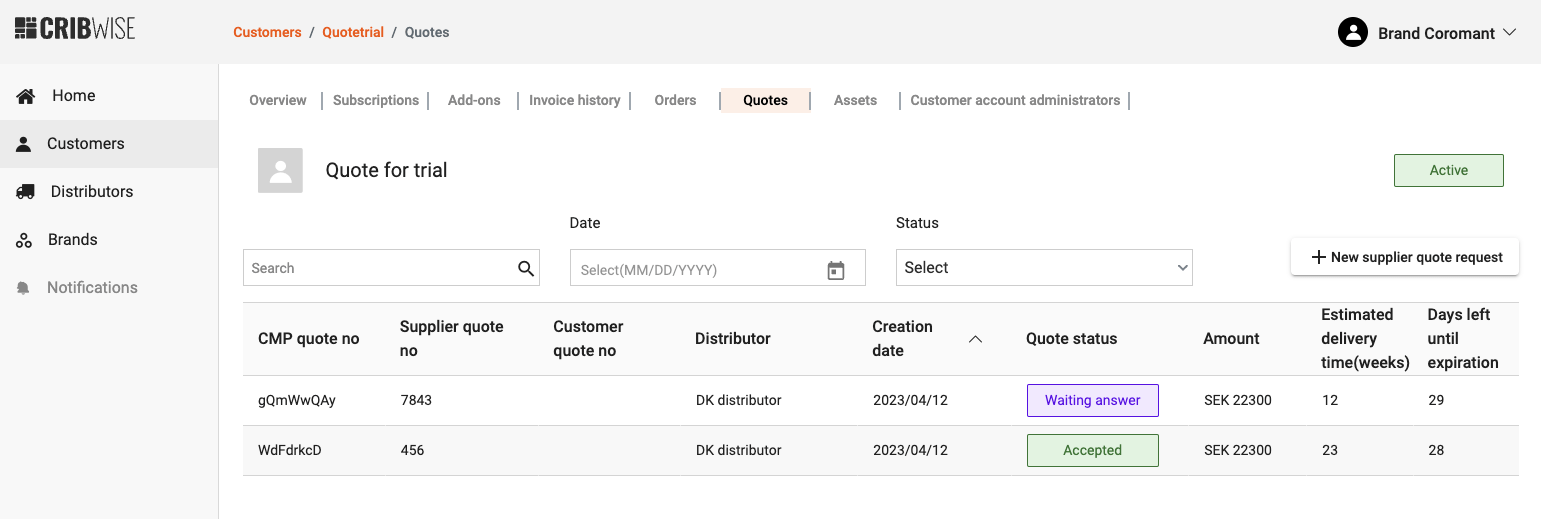
A quote from the supplier, ready to be accepted.
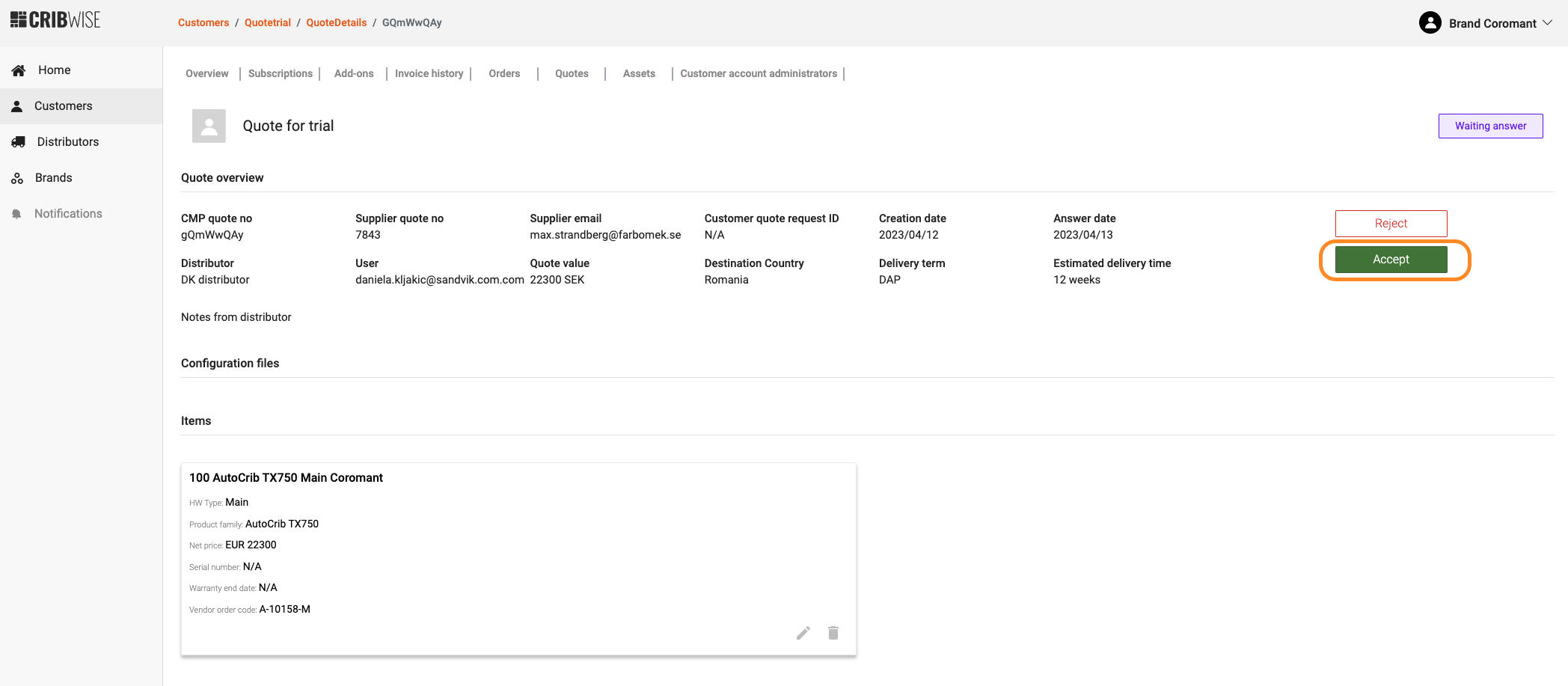
Accepting the quote opens the order flow.
Step 1 — Account details
What you fill in depends on the account type:
- Active account – you go straight into the order flow. All customer information is prefilled and cannot be changed.
- Trial account – the same, but you first confirm the account activation. Active account is preselected.
- Prospect account – you fill in all missing account details, as in the new customer sign-up flow.
Step 2 — Software information
Order add-ons here, or skip the step and go to hardware information. The subscription type and the number of main devices cannot be changed.
Read more about the software information step.
Step 3 — Hardware information
All hardware items from the quote are listed. Update them if needed, upload configuration files and purchase orders, then continue.
Step 4 — Shipping information
This step is mandatory for purchase orders. It gives the supplier the correct delivery information.
Step 5 — Summary and confirmation
- Press Next step to reach the summary page.
- Check the order details.
- Confirm the order.
Success: The order is registered, and both the distributor and the supplier receive an order confirmation email.

The summary page, where the order is confirmed.
New orders appear on the customer account under Order list with the status New.
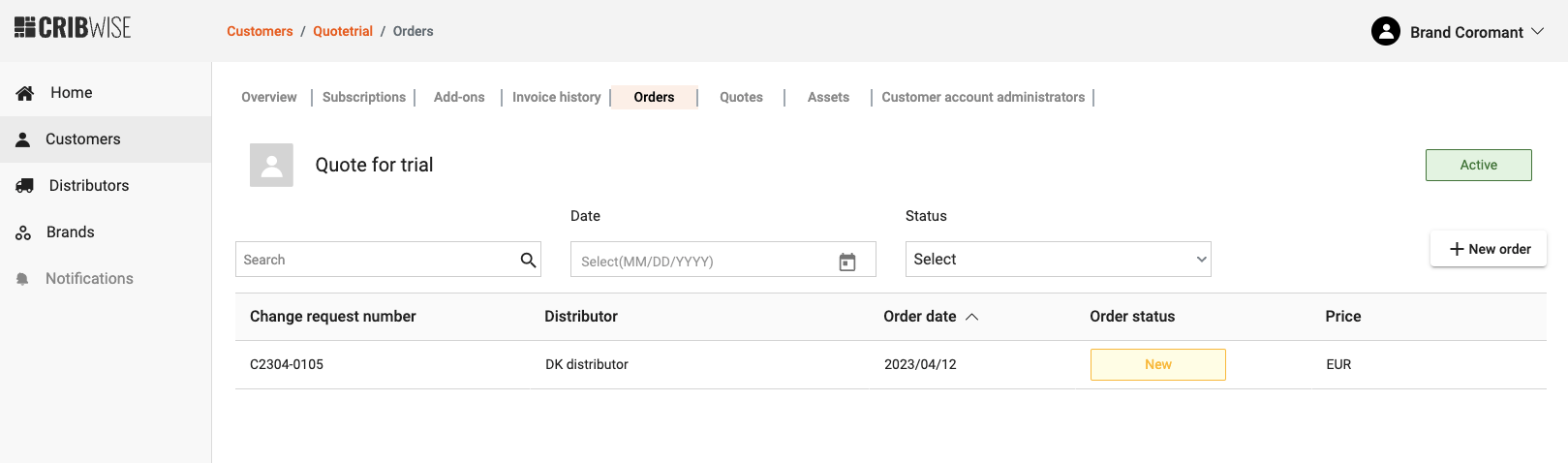
The order list on the customer account.
Click an order line to see its details. They are read-only.

Order details cannot be edited by the distributor.
Steps — create a new order from the customer account
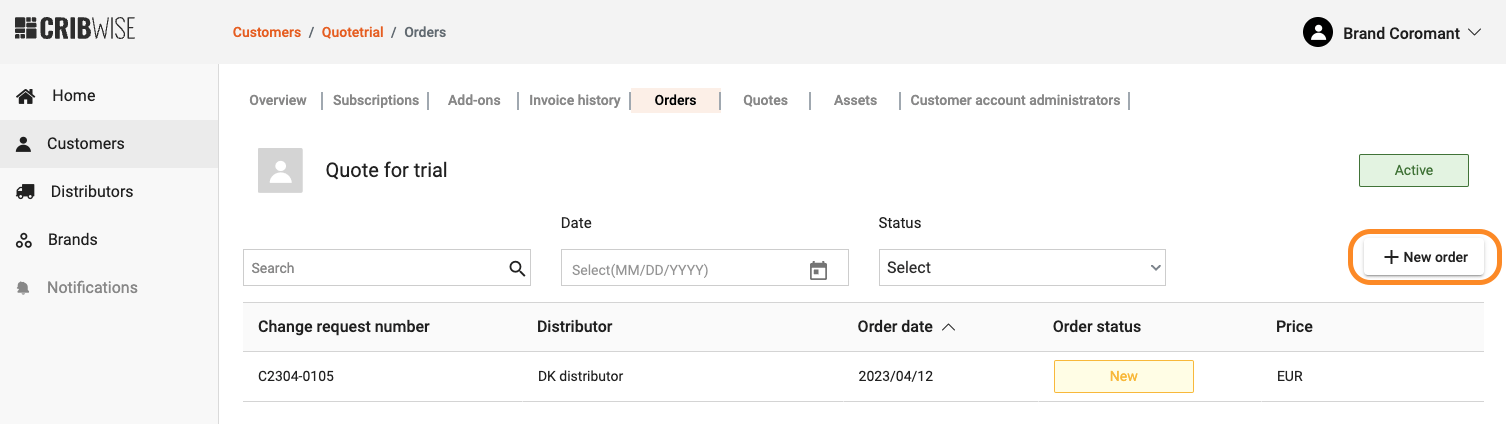
Starting an order without a quote.
You go through the same order flow as above, with one difference: the hardware items must be added by hand, because there is no quote to import them from.
Hardware order statuses
| Status | Meaning |
| New | A new hardware order was registered by the distributor. |
| Confirmed | The supplier received the order and is processing it. |
| ETD updated | The supplier updated the estimated delivery date. |
| Canceled | The supplier cancelled the order. Distributors cannot cancel or change orders in the CMP. |
| Shipped | The order left the supplier’s warehouse. |
The requester gets an email notification for every status change.

Status Confirmed after the supplier accepts the order.
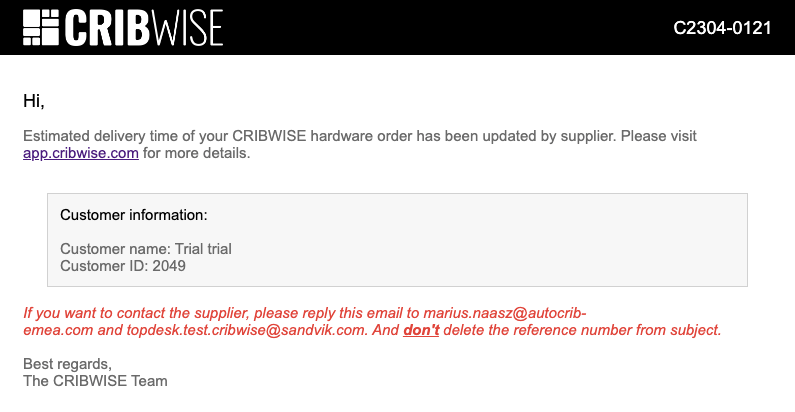
Notification: the estimated delivery date was updated.
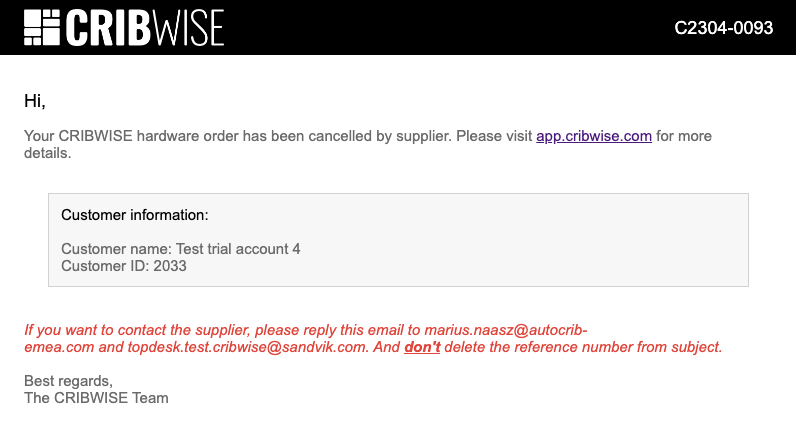
Notification: the supplier cancelled the order.
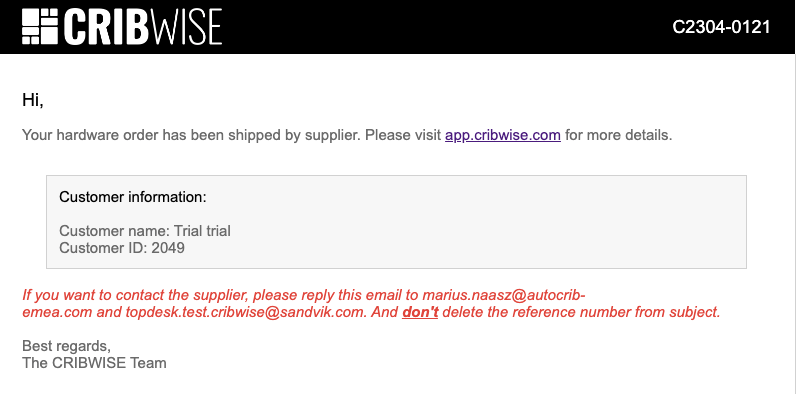
Notification: the order has shipped.
Next steps
- Watch the subscription – if the customer does not require installation, the subscription is activated automatically at shipping, moving from In future to Active. If installation is required, it is activated when the installation is performed.
- Contact the supplier about an order – reply to the automatic confirmation email, and keep the reference number in the subject line.
Troubleshooting
| Problem | Likely cause | Fix |
| You cannot place a hardware order. | Your user does not have the distributor account administrator role. | Ask an existing account administrator to grant it. |
| Items from two suppliers cannot go on one order. | An order is always tied to one hardware supplier. | Create one order per supplier. |
| An order needs to be changed after it was placed. | Distributors cannot edit or cancel placed orders. | Reply to the confirmation email so the supplier can change or cancel it. |
| The subscription is still In future after shipping. | The order requires installation. | The subscription activates when the installation is performed. |
Related articles
- How to create a customer account (distributors) – the sign-up flow these order steps are based on.
- How to request a quote from a supplier (distributors) – where the quote you accept comes from.
- Understanding the hardware supplier flow (distributors) – the same process seen from the supplier’s side.
- How to manage customer account administrators (distributors) – who can act on a customer account.