
What you can do
Set up a Signifi Toolbox cabinet in CRIBWISE: create the storage device in the Admin Portal, then scan the cabinet from the Shop Floor Interface to create its modules and locations – and rescan later when drawers change.
Storage device settings
| Setting | Value |
| Type | Location controlled |
| Manufacturer | Signifi Toolbox |
| COM port number | Set according to the physical connection to the device |
| Cabinet ID | The address of the cabinet when several cabinets share one COM port. Use 1 for a single cabinet. |
Module and location structure
- No setup of modules and locations is needed in the Admin Portal – both are created from the SFI, as described below.
- One module corresponds to one drawer.
- One location is created for each lockable position in a drawer.

How locations are laid out in the cabinet.
Before you start
- The Signifi controller must be connected to the PC where the SFI is installed, and reachable on the COM port set on the storage device.
- Your SFI user needs the Setup locations privilege. Without it, the option to manage Signifi locations is not shown.
Quick start
Experienced users – configure a new cabinet in 4 steps:
- Create the storage device in the Admin Portal.
- Release and sync it to the SFI.
- Open Stock management → Manage Signifi locations and press Rescan configuration.
- Press Update modules and confirm.
Steps
Step 1 — Create and release the storage device
- Create a new storage device in the Admin Portal with the settings above.
- Release the storage device and sync it to the SFI.
Step 2 — Scan the cabinet from the SFI
- In the SFI, go to Stock management → Manage Signifi locations.
- If there are several cabinets of this type, select the one to configure.
- Press Rescan configuration to read the configuration from the cabinet.
The list of locations is empty for a newly created device until the scan is done.

A new cabinet has no locations until you rescan its configuration.
Step 3 — Create the modules
Once the configuration is read, all modules are listed with the number of locations in each.
- Press Update modules.
- Confirm the change.
Success: The cabinet is configured and ready to use. The width, depth and height of each location come from the cabinet and are shown during item assignment.
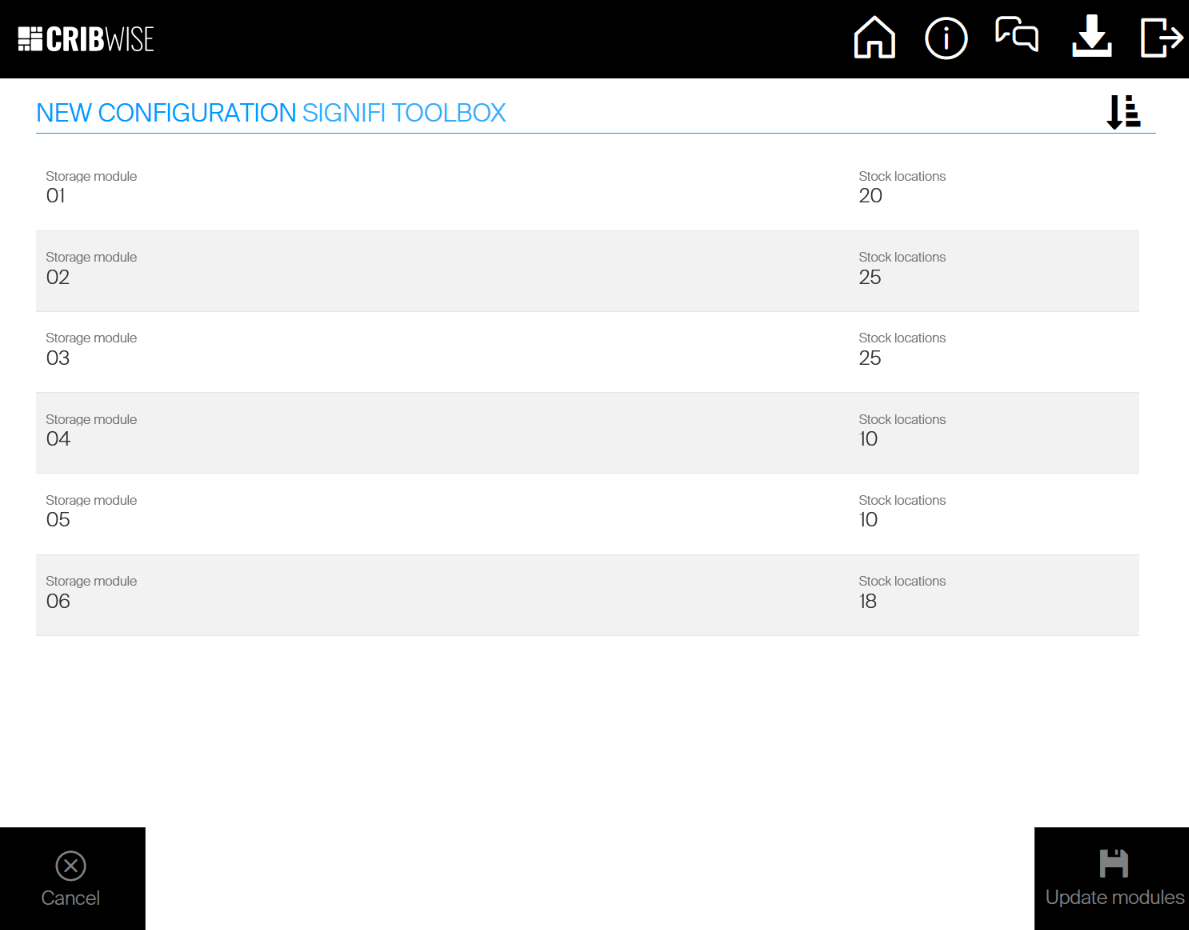
The configuration read from the cabinet, ready to be created in CRIBWISE.
Update cabinet configuration
Update the configuration when drawers are replaced with another type or the cabinet is extended. Modules and locations that stay the same are not affected – item assignments and physical quantities in them remain intact.
Note: When a drawer is replaced by a drawer of the same configuration – after a hardware failure, for example – there is no need to update the cabinet configuration.
- Go to Manage Signifi locations as when setting up a new cabinet.
- Press Rescan configuration.
- If the cabinet reports something different from what the SFI holds, the new configuration is shown with an Update modules option. Press it and confirm.

Rescanning an existing cabinet shows any differences.
Warning: If a module or location no longer exists after the update, every item assigned to it is removed, and a withdraw transaction is generated for any physical quantity in those locations.
Custom names of modules and locations are kept after an update.
Troubleshooting
| Problem | Likely cause | Fix |
| Manage Signifi locations is not in the SFI menu. | The user lacks the Setup locations privilege. | Grant the privilege to the SFI user, or use one that has it. |
| Rescan configuration returns nothing. | The controller is not reachable on the configured COM port. | Check the physical connection and the COM port on the storage device. |
| The wrong cabinet responds. | Several cabinets share the COM port and the cabinet ID is wrong. | Set the cabinet ID that matches the physical address of the cabinet. |
| Items disappeared after an update. | Their module or location no longer exists in the cabinet. | Expected behaviour – check the withdraw transactions and reassign the items to existing locations. |
Related articles
- How to configure storage devices – create and configure a storage device in the Admin Portal.
- How to create and manage devices – the device a storage device belongs to.
- Lista 2023 – storage device setup – the same scan-and-update flow for a Lista cabinet.
- Getting started with Shop Floor Interface: layout and menus – where stock management lives in the SFI.