
What you’ll learn
How a service script decides which worn items get sent to an outside service vendor: the single rule it uses, the two thresholds behind it, and why an item that clearly needs service is sometimes left behind.
A service script collects the items waiting for service in a device and puts them on a service order, so calibration and repair go out in batches instead of one piece at a time. It is the service half of CRIBWISE scheduled scripts – the purchase half is covered in understanding purchase order scripts.
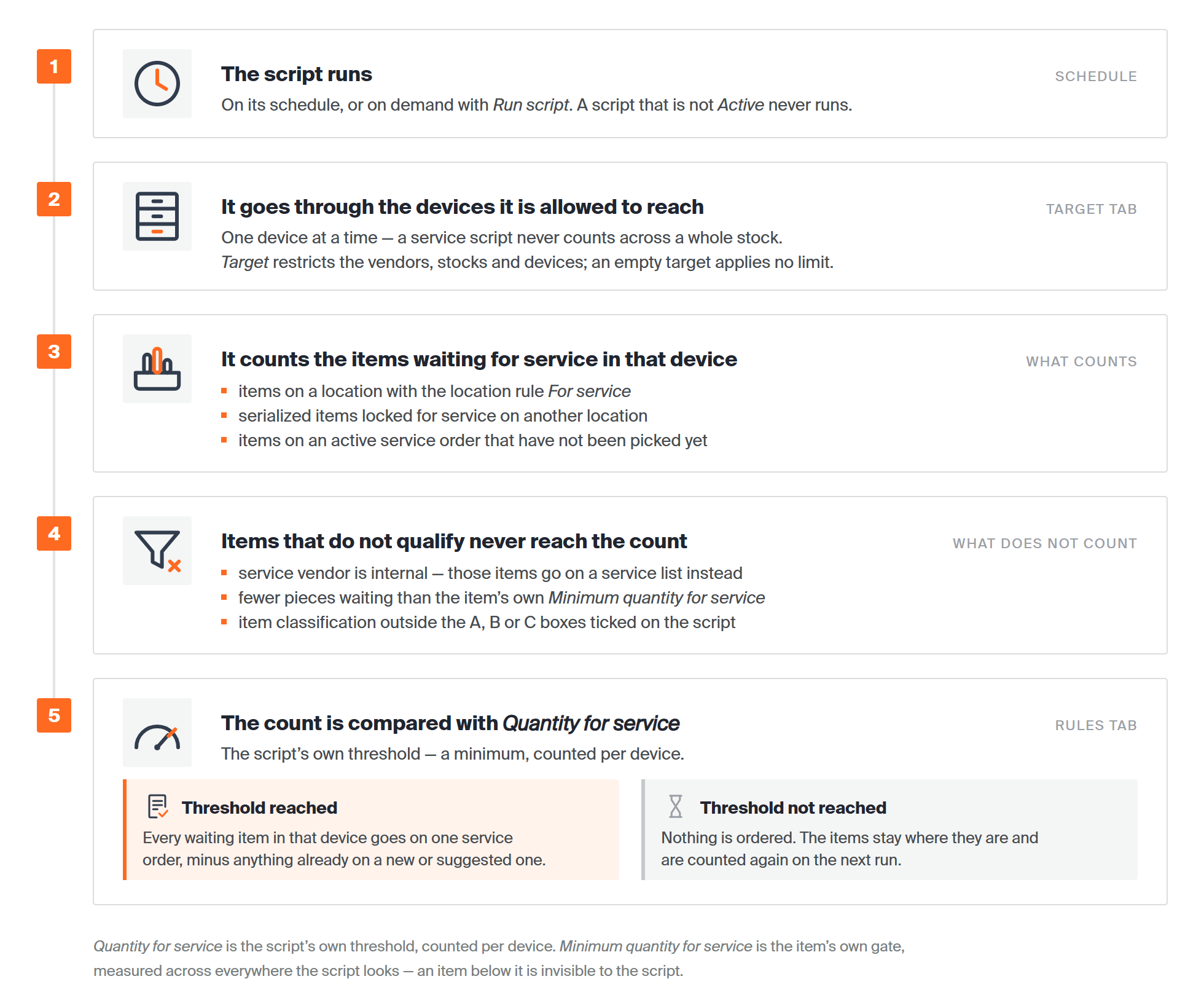
One run from start to finish, with every step described below. The schedule, Target and Rules are all set on the script itself; Minimum quantity for service belongs to the item.
What happens when the rule is fulfilled
When the rule is met for a device, every item waiting for service in that device goes out together. Where they go depends on one setting on the item – its service vendor:
| Service vendor | Result |
| External | The items are added to a service order, which can be sent to the vendor automatically depending on the script and vendor settings. |
| Internal | Nothing – the script never touches these items. They are added to a service list automatically when service is requested for them. |
Important: A service script only considers items with an external service vendor. If a script never picks up an item you expect it to, check the service vendor first – an internal one explains it on its own.
What the script skips
- Items whose service vendor is internal are ignored entirely, as above.
- Items with a minimum quantity for service of their own are ignored until that many pieces are waiting. They are not ordered, and they do not count towards the script’s rule either.
- Items outside the item classification the script was given – A, B or C – are never considered.
- Items outside the script’s Target – the vendors, stocks and devices it was restricted to – are never reached. An empty target list applies no limit.
The rule
Where a purchase script offers seven rules, a service script has exactly one: how many items must be waiting for service in a device before they are all sent away. In a classic script it is the single Quantity for service field.
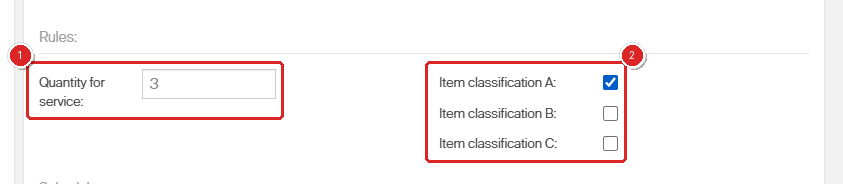
The whole Rules section of a classic service script: (1) Quantity for service, the only rule there is, and (2) the item classification, which decides which items the rule is applied to.
Important: At least one item classification must be ticked. Leave all three empty and Save script does nothing at all – the three checkboxes outline in red and no message is shown.
The custom service script spells the same rule out as a sentence, which is the clearest statement of it the product gives:
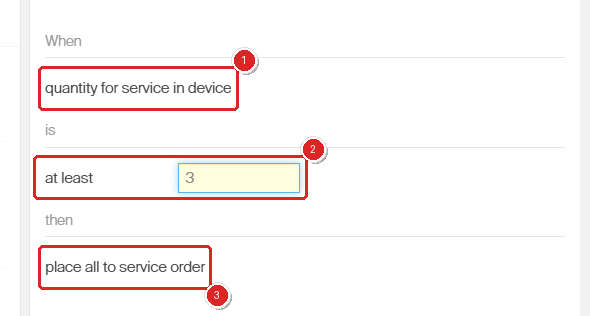
The service rule in the product’s own words: (1) the quantity counted is per device, (2) the threshold is a minimum – at least, not “more than”, and (3) when it is reached, all waiting items go, not just the ones above the threshold.
Three things follow from that sentence, and each of them catches people out:
- The count is per device, not per item and not across the whole stock. Five items waiting in one device fulfil a threshold of 5; one item waiting in each of five devices does not.
- The threshold is a minimum. The run fires when the count reaches it, not only once it goes past it.
- Everything waiting goes. The quantity placed is the whole count, minus anything already sitting on a new or suggested service order.
What counts as waiting for service
For each device the script adds up:
- items on a location with the location rule For service;
- serialized items locked for service that sit on some other location;
- items on an active service order that have not been picked for service yet.
An item reaches that state by being returned for service, by being restocked without an order in a condition that needs service, by being moved onto a For service location by an assign or inventory operation, or automatically – a serialized item with automatic service set changes status to For service on its own once its interval, due date, number of uses or time in production is reached. See how to set up tool life tracking and automatic service triggers.
Minimum quantity for service
The script’s threshold is not the only one. An item can carry a minimum of its own, on its Supplier tab, and it acts as a gate in front of the script rather than as part of it.
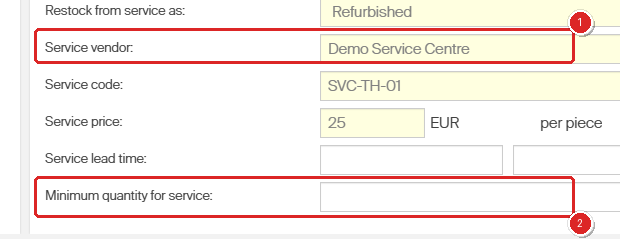
The service settings on an item’s Supplier tab: (1) the Service vendor, which decides between a service order and a service list, and (2) Minimum quantity for service, the item’s own threshold. Both appear only once Service is ticked on a durable item.
Until that many pieces of the item are waiting across everywhere the script looks, the script cannot see the item at all. Those pieces are not put on any order or list, and they do not count towards the script’s own rule. Note the difference in scope: the item’s minimum is measured across the whole area a script checks, while the script’s Quantity for service is counted per device.
Note: This gate applies to automatic scripts only. You can always add the item to a service order or service list by hand, whatever its minimum says.
Example
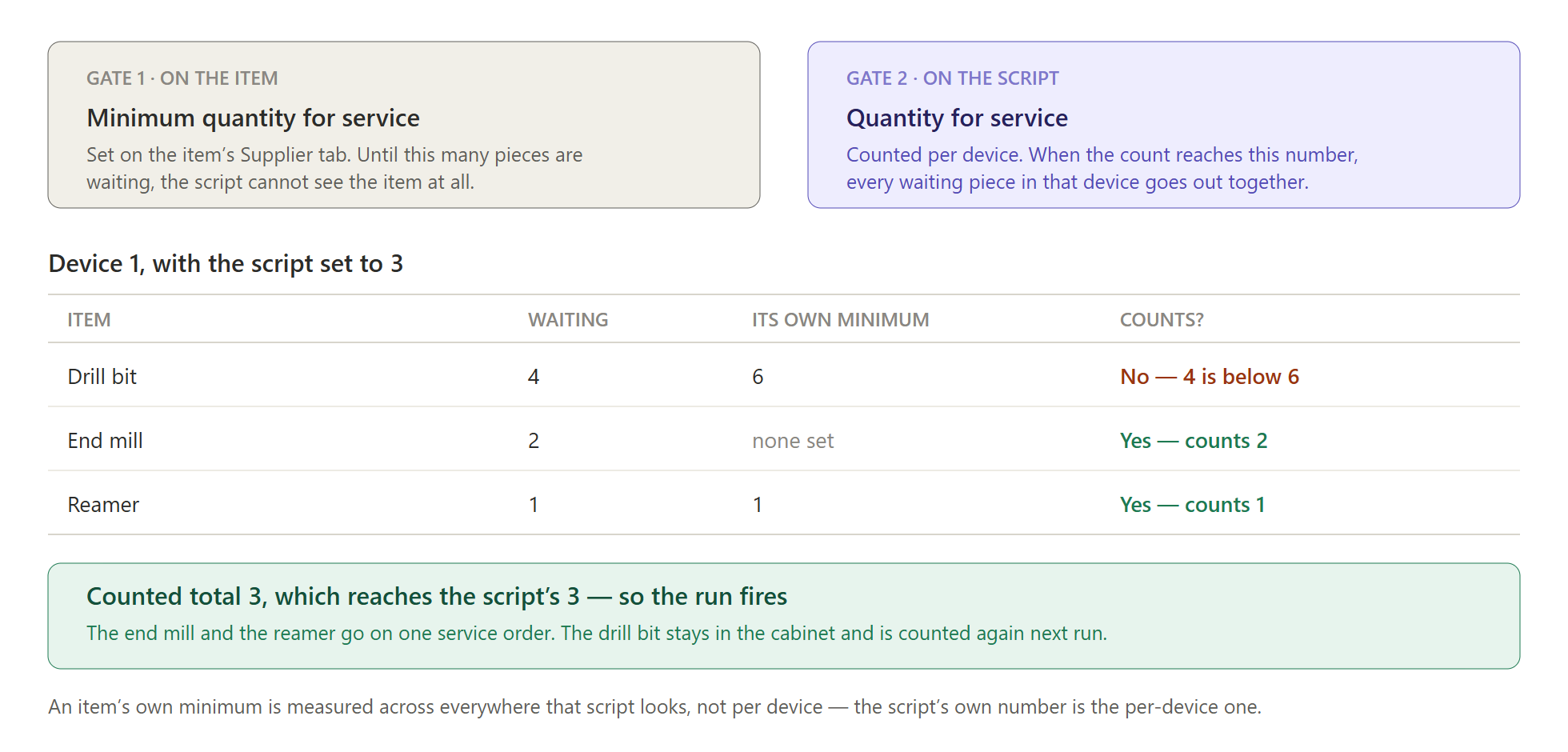
The same device seen through both thresholds. Only the end mill and the reamer clear their own minimum, so only they are counted – and their total of 3 is exactly enough to reach the script’s 3.
Classic or custom
Service scripts come in two shapes, chosen once under Order lists → Scheduled scripts → New script. The type cannot be changed afterwards.
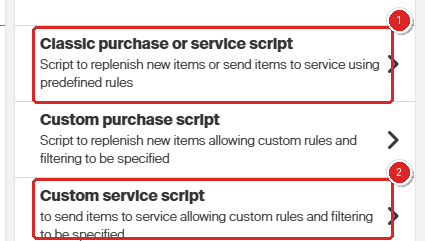
The two routes to a service script: (1) a classic script, with the one predefined rule described above, and (2) a custom script, where the same rule is written as a sentence and the items can be filtered freely.
| Classic purchase or service script | Custom service script | |
| Rule | The Quantity for service field. | The same rule, written as a When … is … then sentence. |
| Choosing items | Item classification A, B or C only. | Free item filters, on several kinds of item information. |
| Schedule | Weekdays and a clock time, or a number of repeats per hour or day. | Once, or every fifteen or thirty minutes, hourly, twice or four times a day, daily, weekly or monthly. |
| Restricting the run | Both use the Target tab – vendors, stocks and devices – which only unlocks once the script has been saved. | |
Common confusion
| People often think… | But actually… |
| The script fires once the count goes past the threshold. | The threshold is a minimum. The rule reads at least, so a count equal to the threshold is already enough. |
| Only the items above the threshold are sent away. | Everything waiting in that device goes on the order, minus whatever is already on a new or suggested service order. |
| Every item needing service is picked up by the script. | Items with an internal service vendor are never touched, and an item below its own Minimum quantity for service is invisible to the script. |
| The threshold counts across the stock. | It is counted per device. The item’s own minimum is the one measured across everywhere the script looks. |
| Service scripts have the same rule options as purchase scripts. | A purchase script has seven rules and two demand options. A service script has one number. |
| A saved script starts running. | It has to be set Active first. Run script is separate, and running it by hand does not shift the planned runs. |
Take action
Ready to set one up? Tick Service on the item’s Supplier tab and give it an external service vendor, make sure the device has a location with the rule For service, then create the script under Order lists → Scheduled scripts and set it Active. Step by step, that is how to set up scheduled purchase and service scripts.
Related articles
- How to set up scheduled purchase and service scripts – creating, scheduling and activating the script, step by step.
- Understanding purchase order scripts: automated reorder rules – the purchase half, with its seven rules.
- Custom scheduled scripts: flexible rules for automated ordering – the rule sentence, the item filters and the order settings in full.
- Item supplier settings reference – every service field on the item, including Minimum quantity for service.
- Understanding service lists – where items with an internal service vendor go instead.
- How to pick items for a service order – what happens after the script has built the order.
- How to set up tool life tracking and automatic service triggers – getting serialized items to flag themselves for service.