
What you’ll learn
Learn when to lock, unlock, notify users, force a synchronization, detach or copy a CRIBWISE device, and what each action does to the people using the Shop Floor Interface (SFI).
The buttons themselves are described in How to create and manage devices. This article explains when you need each one and what happens after you select it.

The device actions sit in the toolbar of the device detail, under Data management > Devices. (1) Device copy, (2) Force synchronization, (3) Notify users about device lock, (4) Lock device, (5) Detach device. (6) The indicator shows whether the Admin Portal can reach the device right now.
Device actions at a glance
| Action | Use it when | What happens on the shop floor | Needs the device online? |
|---|---|---|---|
| Notify users about device lock | You are about to lock a device that someone may be using. | Users logged in to that device get a warning to log out. Nothing is locked yet. | Yes |
| Lock device | You need to change the structure of the device, or count it from the Admin Portal. | Users are logged out and nobody can use the device until you unlock it. | Yes |
| Unlock device | Your changes or your count are finished. | Users can log in and work again. | Yes |
| Force synchronization | You changed a setting and want the device to pick it up now. | The device fetches the latest data and settings from the Admin Portal. | Yes |
| Detach device | The device ID must pair with new hardware, for example after a PC was replaced. | The hardware details stored for the ID are cleared, so another installation can pair with it. | No |
| Device copy | You want a new device with the same settings as an existing one. | Nothing. You get a new, unsaved device form. | No |
Important: Lock device, Unlock device, Force synchronization and Detach device start the moment you select them. There is no confirmation dialog, so check that the right device is open before you click.
Online and offline devices
Four of the actions only work while the Admin Portal can reach the device. The indicator at the right end of the toolbar tells you which case you are in: Online, Offline or Checking connection.
When a device is offline, Force synchronization, Notify users about device lock and Lock device are grey. Detach device and Device copy still work, because they only change the record in the Admin Portal.

A physical device that has not synchronized for a while. (1) The three actions that need a connection are grey. (2) The indicator reads Offline. Detach device stays available.
A physical device goes offline when its SFI is closed, the PC is off, or the network is down. Start the SFI on the device first, then come back to the Admin Portal.
Lock device and Unlock device explained
When you need a lock
The SFI and the Admin Portal write to the same data. A lock stops operators from picking, returning or restocking while you change the device, so the two sides cannot get in each other’s way.
Lock the device before you:
- Count stock from the Admin Portal. Only a locked device can be selected in Inventory. See How to run an inventory from the Admin Portal.
- Remove an item’s assignment from the device. Without a lock the change is refused with Changes cannot be performed within the non-locked device.
- Add, delete, disable or enable stock locations, or delete storage devices and modules on a released storage device.
The full list of what is blocked on a live device is in How to create and manage devices, under What you cannot change while a device is in use. Adding an assignment to a device and creating a storage device work without a lock.
What a lock does on the shop floor
A lock takes the whole device out of use, not only the locations you are working on.
- Users who are logged in to the device are logged out.
- Nobody can log in to the device until it is unlocked.
- On a cloud device, the SFI shows the list of devices instead of the main menu. The locked device is marked (locked) and cannot be selected.
After you select Lock device, the device status shows Waiting for lock until the device confirms, and then Locked. After Unlock device, it shows Waiting for unlock and then Synchronized.
Tip: Lock when the device is quiet, for example between shifts. Plan your changes first, lock, make them, and unlock straight away. Every minute the device is locked, nobody can pick from it.
When you can skip the lock
A device with status Not installed has never paired with an SFI installation, so nobody can use it. You can build its storage devices, locations and assignments without locking it. You can also change a cabinets all locations and assignments before the status is set to Released.
Notify users about device lock explained
Use Notify users about device lock a few minutes before you lock a device that is in use. It gives the operator time to finish a pick or a return instead of being logged out in the middle of it.
Users logged in to that device see the warning Device is about to be locked. Please logout. The notification does not lock the device and does not log anyone out. You still have to select Lock device yourself.
The notification shows up in the right upper corner, just like the usual information squares.
The button is grey when the device is offline or already locked.
Force synchronization explained
Most changes reach the SFI on their own. Use Force synchronization when you have changed something and the device does not show it yet.
The typical case is a system setting that the SFI reads during synchronization. For example, after you change Automatically set items as processed on open locations, the SFI keeps its old behaviour until the device synchronizes. A forced synchronization makes the change visible straight away. See Understanding the items to pick screen for what that setting changes.
Note: Force synchronization does not change the device’s schedule, and it does not fix a device that is offline. If the device is offline, the button is grey. Get the SFI running and connected first.
Detach device explained
A device ID pairs with one installation. CRIBWISE stores the hardware details it reports, such as the MAC address, operating system and application version, in the Device information section of the device.
Use Detach device when that pairing must end:
- The PC or cabinet computer was replaced, and the new one must use the same device ID.
- The SFI was installed again on different hardware.
- The new installation reports that the device ID is already attached to another MAC address. The product text is Last synchronization was not completed. Device ID is attached to another MAC address. Detach device to continue synchronization.
Detaching clears the stored hardware details. It does not delete the device: its name, ID and settings stay as they were. The next device that is first to connect to the portal will be linked to the Admin Portal. That means there is no problem to have the SFI installed on two devices at the same time, but you can only have one linked to the Admin portal.
Warning: Detach device runs at once, with no confirmation, and it works even when the device is offline. To remove hardware for good, delete the device instead. See How to create and manage devices.
Device copy explained
Use Device copy to set up a second device that should behave like an existing one, for example a second cabinet in the same stock.
Device copy opens a new device form filled in from the device you had open. Nothing is created until you select Save device.
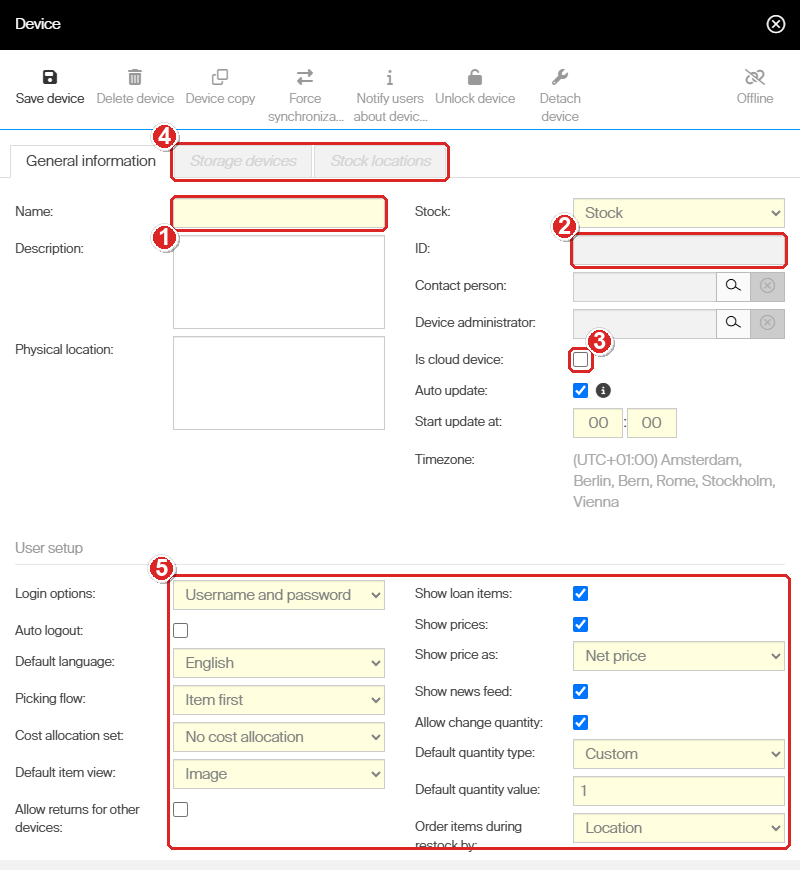
The form after Device copy. (1) Name and (2) ID are empty. (3) Is cloud device can still be changed. (4) Storage devices and Stock locations are grey, because they are not copied. (5) The User setup settings come from the source device.
What the copy takes and what it leaves out:
- Copied: the stock, the physical or cloud choice, the auto update settings and every User setup setting, such as login options, language, picking flow, cost allocation set and quantity settings.
- Not copied: the name, the ID, the storage devices with their locations, the item assignments and the hardware information.
After the first save, the new device gets its own ID and the status Not installed. Add its storage devices and assignments as you would for any new device.
Common confusion
| People often think… | But actually… |
|---|---|
| Notify users about device lock locks the device. | It only sends a warning. Select Lock device afterwards. |
| A lock only blocks the locations I am changing. | A lock takes the whole device out of use. Every user is logged out. |
| Finishing an Admin Portal inventory unlocks the device. | It does not. Select Unlock device when the count is finished. |
| Force synchronization brings an offline device back. | It needs a device that is already online. Start the SFI and check the connection first. |
| Detach device deletes the device or its stock. | It only clears the stored hardware details. The device record and its settings stay. |
| Device copy duplicates the cabinet with its items. | It copies settings only. Storage devices, locations and assignments are not copied. |
Troubleshooting
| Problem | Cause | Fix |
|---|---|---|
| Lock device, Notify users about device lock and Force synchronization are grey. | The device is offline. | Start the SFI on the device and wait until the indicator reads Online. |
| Removing an item from a device fails with Changes cannot be performed within the non-locked device. | The device is in use and not locked. | Notify users, lock the device, make the change, then unlock it. |
| The device cannot be selected in Inventory. | Only locked devices can be counted from the Admin Portal. | Lock the device first. See How to run an inventory from the Admin Portal. |
| Operators cannot use the device after an Admin Portal count. | The device is still locked. Finishing a count does not unlock it. | Finish the count, then select Unlock device. |
| The SFI does not show a setting you just changed. | The device has not synchronized since the change. | Open the device and select Force synchronization. |
| New hardware reports that the device ID is attached to another MAC address. | The ID is still paired with the old hardware. | Select Detach device on that device, then let the new installation synchronize. |
Take action
Ready to use these actions? Go to How to create and manage devices for the device toolbar, the lock sequence and the full list of changes that need a lock.
Related articles
- How to create and manage devices – the device form, statuses and every toolbar button.
- How to run an inventory from the Admin Portal – the most common reason to lock a device.
- How to configure storage devices – the structural changes a lock protects.
- How to assign many items to a device at once (Mass assign) – adding assignments, which works without a lock.
- All system settings quick reference – the settings that reach the SFI after a synchronization.
- Admin Portal permissions reference – the Device privileges behind these buttons.