
What you’ll learn
What the three item stock states mean, how CRIBWISE works them out from the numbers on a device assignment, and where a critical item shows up so you notice it in time.
A stock state answers one question: is there enough of this item in this device? It is based on the purchase options from the device assignment and the actual quantity in stock. States are visible in the item overview, in reporting, and in the BI and REST interfaces.
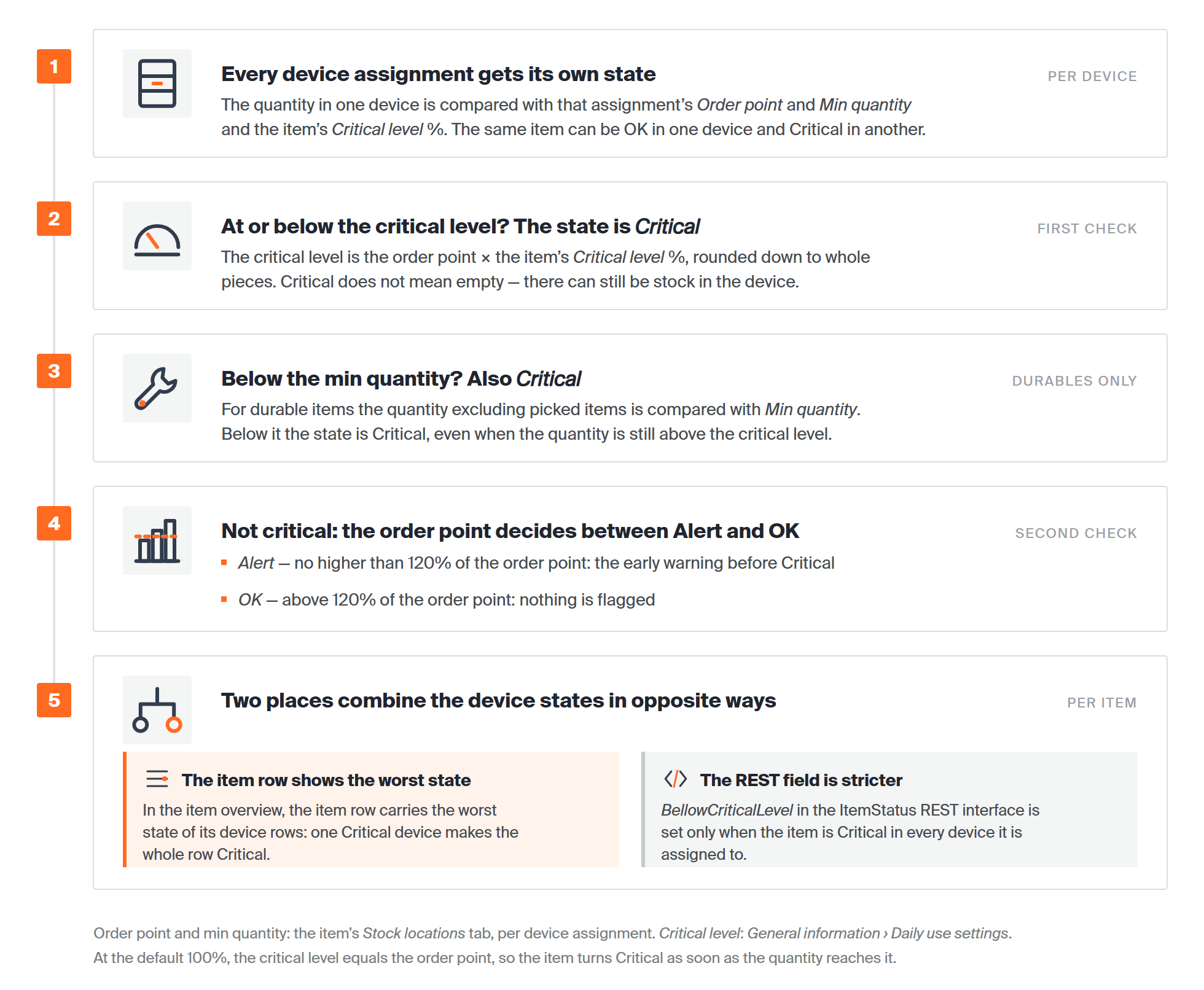
The checks CRIBWISE runs for every device an item is assigned to. Two Critical rules come first, one of them for durables only; the order point then separates Alert from OK. How the device states are combined depends on where you look.
The three states
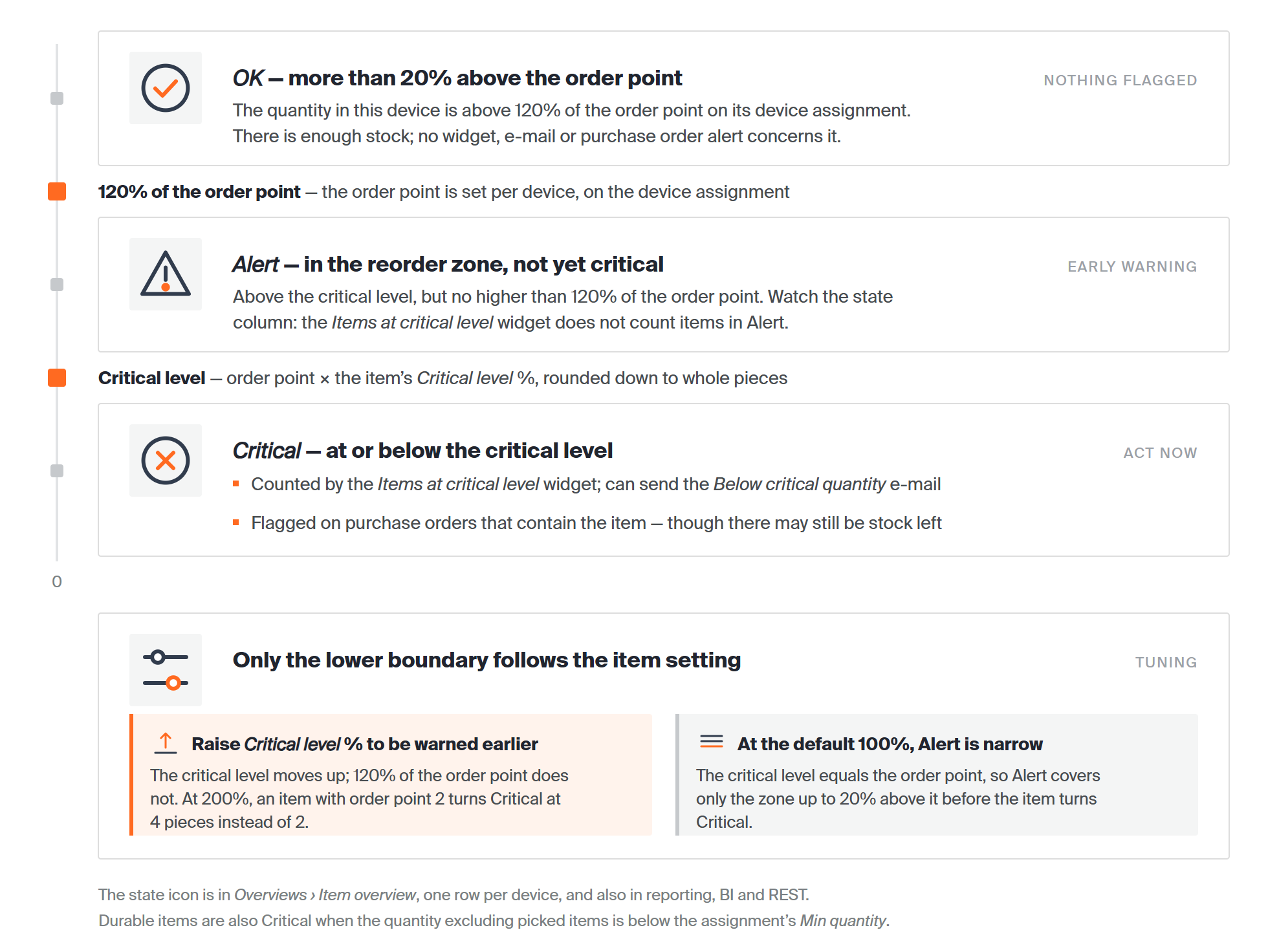
What each band means and what it triggers. Only Critical reaches the widget, the e-mail and purchase orders, so an item in Alert is visible only through its state icon.
Important: A state is always valid for one device. An item assigned in several devices can be in a different state in each of them, and the item row shows the worst of those states.
Where you see the state
Open Overviews > Item overview, pick your stock and expand the rows. Each item has one row per device it is assigned to, and the state column at the end of each row carries the icon.
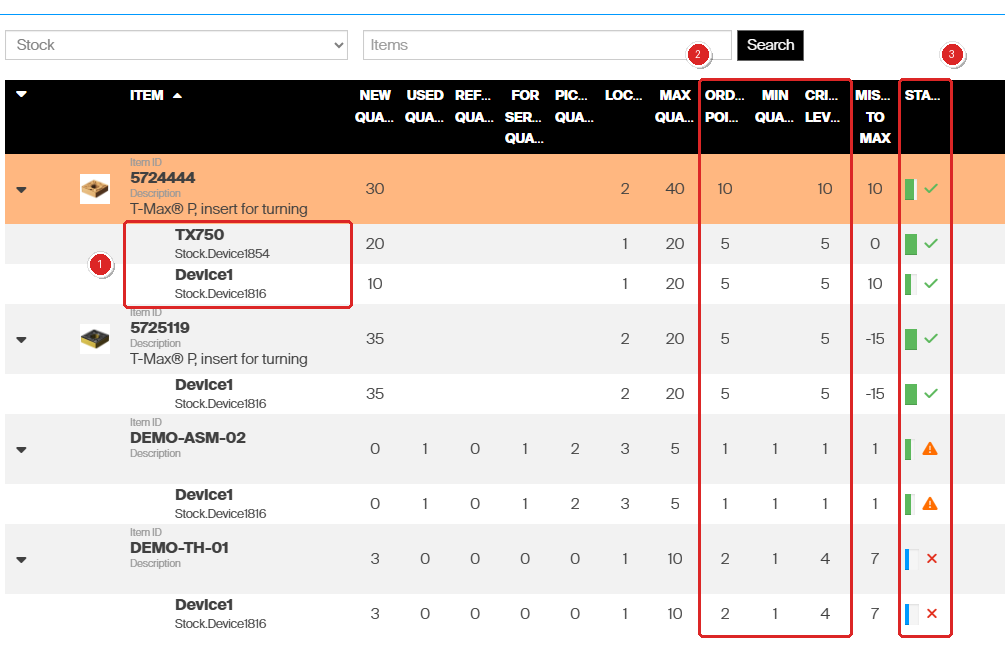
1 – each device the item is assigned to gets its own row and its own state. 2 – the numbers the state is calculated from. 3 – the state column: a green check for OK, an orange triangle for Alert, a red cross for Critical.
The numbers behind the state
Two settings decide where the boundaries sit, and they live in two different places.
Order point, min and max quantity – per device
Open the item, go to Stock locations and open a device assignment. The order point is the quantity you want to reorder at, and it is the number the Alert band is measured from.
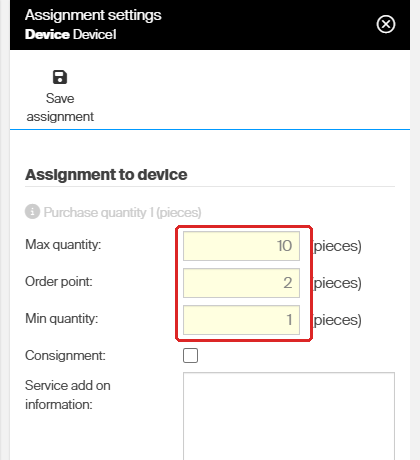
Each device assignment carries its own max quantity, order point and min quantity, which is why the same item can be OK in one device and Critical in another.
Critical level – per item
The critical level percentage is set once for the item, on the General information tab under Daily use settings. CRIBWISE multiplies the order point of each device assignment by it to get the critical level in pieces. At the default 100%, an item is Critical as soon as the quantity reaches the order point.
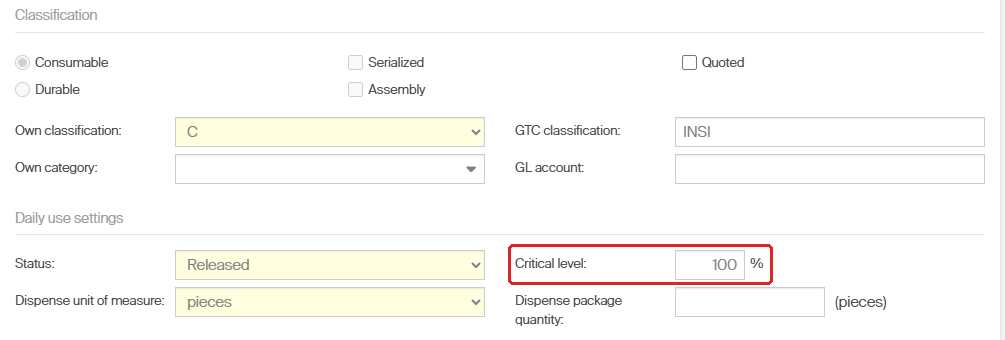
Raise the percentage to be warned earlier: at 200% an item with order point 2 turns Critical at 4 pieces instead of 2.
For durable items the quantity excluding picked items is also compared against the min quantity of the assignment. If it falls below that minimum, the state is Critical even when the quantity is still above the critical level.
Where a critical state shows up
When an item goes critical, CRIBWISE can bring it to an administrator’s attention in four places.
The Items at critical level widget
The dashboard widget counts the items that are currently Critical. Items in Alert are not counted.
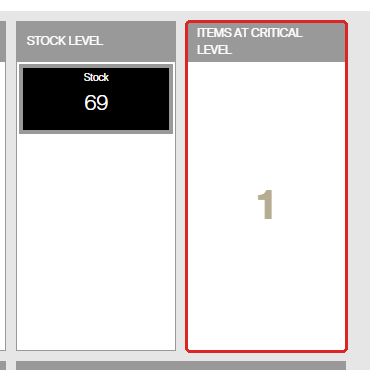
Add it from Customize on the Home dashboard if it is not there.
Item notifications
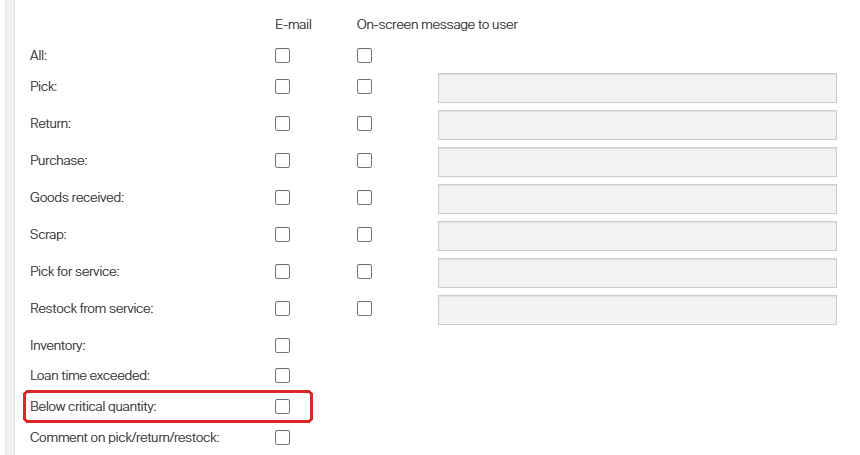
On the item’s Notifications tab, Below critical quantity sends an e-mail to the recipients address. There is no on-screen option for it.
Purchase orders and the REST interface
- Alerts on purchase orders, showing that an order contains an item at critical quantity.
- The ItemStatus REST interface, field BellowCriticalLevel, if the item is marked critical for every device it is assigned to.
Common confusion
| People often think… | But actually… |
| An item has one stock state. | It has one per device it is assigned to. The item row in the overview shows the worst of them. |
| Critical means the item is out of stock. | It means the quantity is at or below the critical level – there may still be stock. |
| Alert and Critical are measured from the same number. | Alert is measured from the order point, Critical from the critical level. They only coincide while the critical level percentage is 100%. |
| The REST field flags any critical item. | BellowCriticalLevel is set only when the item is critical in every device it is assigned to. |
| Picked durable items count towards the state. | For durables the comparison against the min quantity excludes picked items. |
Take action
Want to be told before an item runs out? Set the order point on the device assignment and the critical level on the item detail, then switch on item notifications or add the Items at critical level widget to your dashboard.
Related articles
- How to configure item notifications – get told when an item goes below critical quantity.
- How to configure dashboard widgets – the widget counting items at critical level.
- Understanding purchase order scripts: automated reorder rules – reorder before the state turns critical.
- How to optimize stock levels and order points – get the order point behind the state right.