
What you can do
Order quote-based development and services in the Customer Management Portal – feature development, integration development, scheduled support, support on demand and Kardex installation – after requesting a quote through Topdesk SSP.
Before you start
- Every order here is quote-based, so start with a quote request in Topdesk SSP.
- Keep the Topdesk ticket number from the quote – it is the quote reference you enter on the order.
- You need a CMP user allowed to buy add-ons.
Note: Costs are set per quote and invoiced on delivery. You are notified by email with the final cost when the work is delivered.
Choose your order type
| Order type | Add-on type | Covers |
| Development | Software | CRIBWISE Feature development, CRIBWISE Integration development. |
| Service | Service | Scheduled Support, Support on Demand, Kardex Installation. |
Steps — feature or integration development order
Feature development and integration development are both quote-based and customised to the request. Request the quote through Topdesk SSP first.
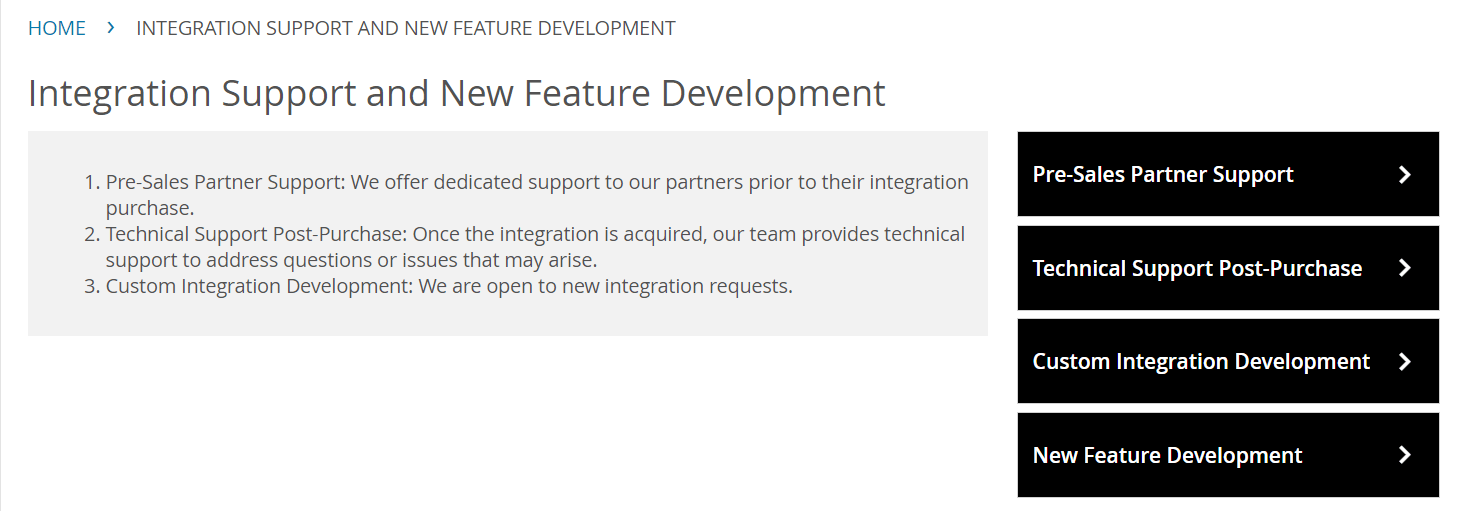
The quote request starts in Topdesk SSP.
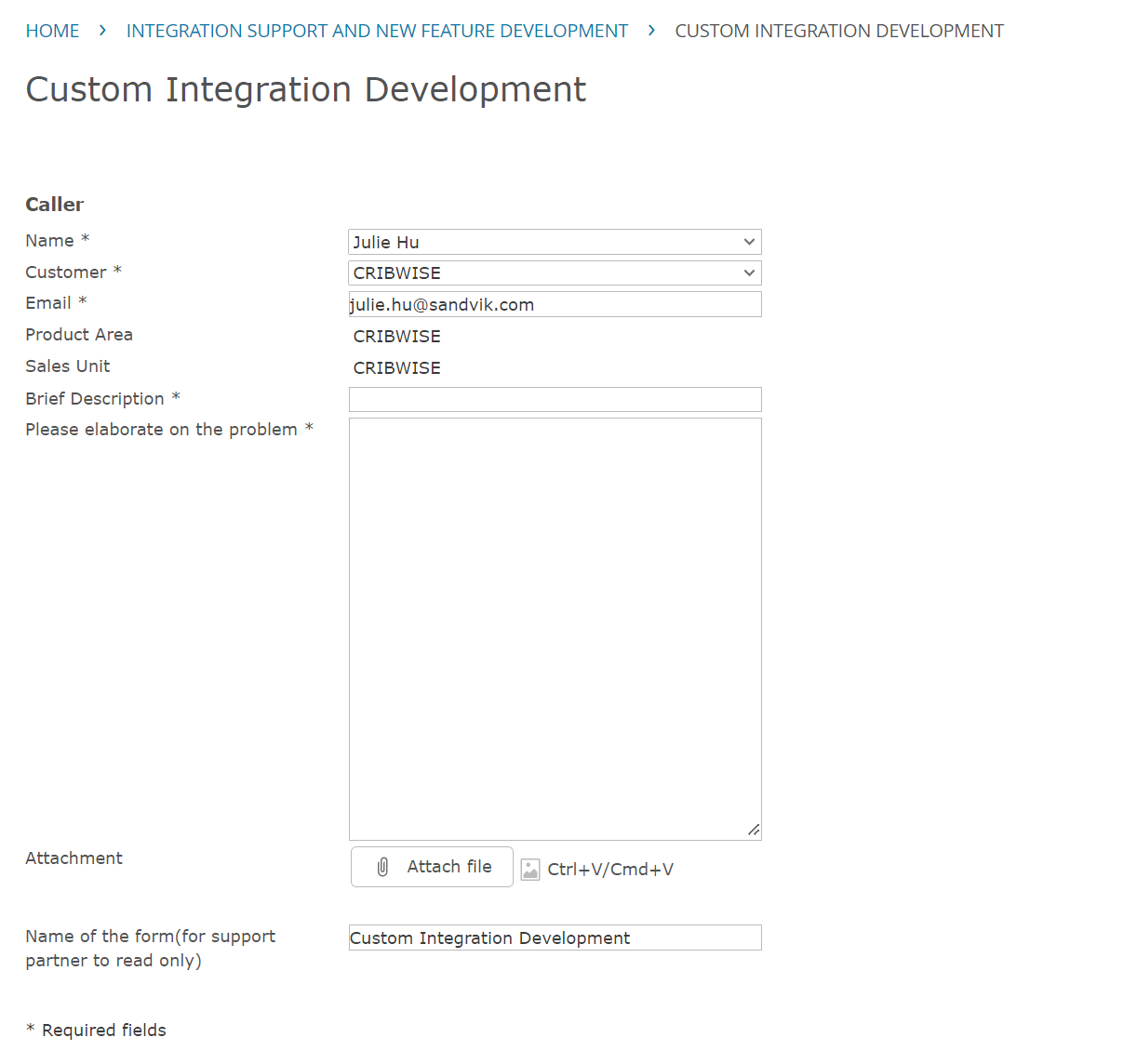
The quote comes back with a Topdesk ticket number.
When you have the quote, place the order in the CMP:
- Open the Add-ons tab and select Buy new add-on, or open Orders and click + New order.
- Click Add new addon, choose type Software, then CRIBWISE Feature development or CRIBWISE Integration development.
- Enter the quote reference – the Topdesk ticket number from the quote.
- Confirm the order.
Success: The order is registered. When development is complete and delivered, you get a notification email with the final cost, and an invoice follows.

Choosing the development add-on.
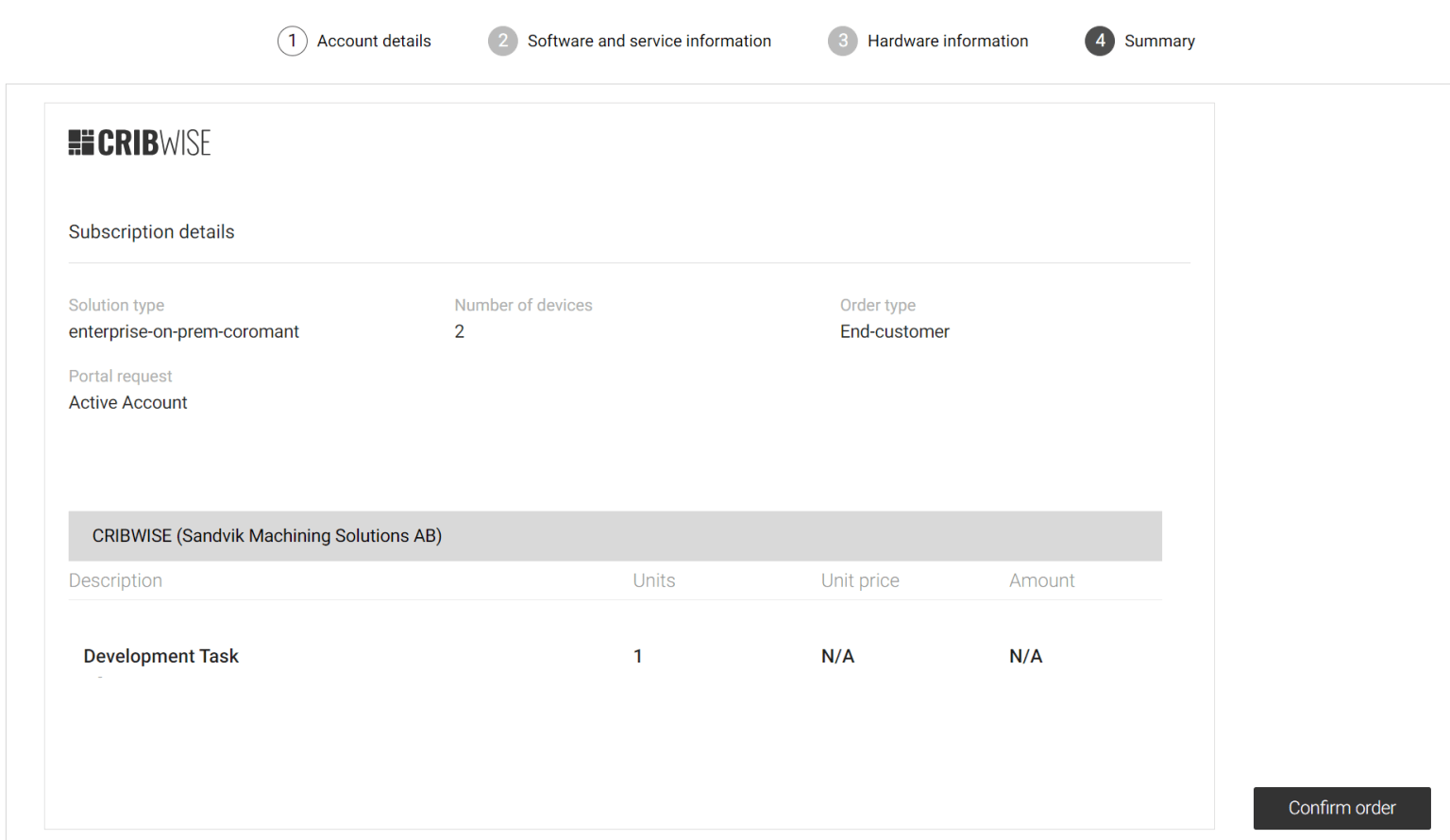
The quote reference ties the order to the Topdesk quote.
Steps — quote-based service order
Scheduled Support, Support on Demand and Kardex Installation are quote-based too. Send a normal support request through Topdesk SSP, and the support partners estimate the effort and send you a quote with the estimated hours.
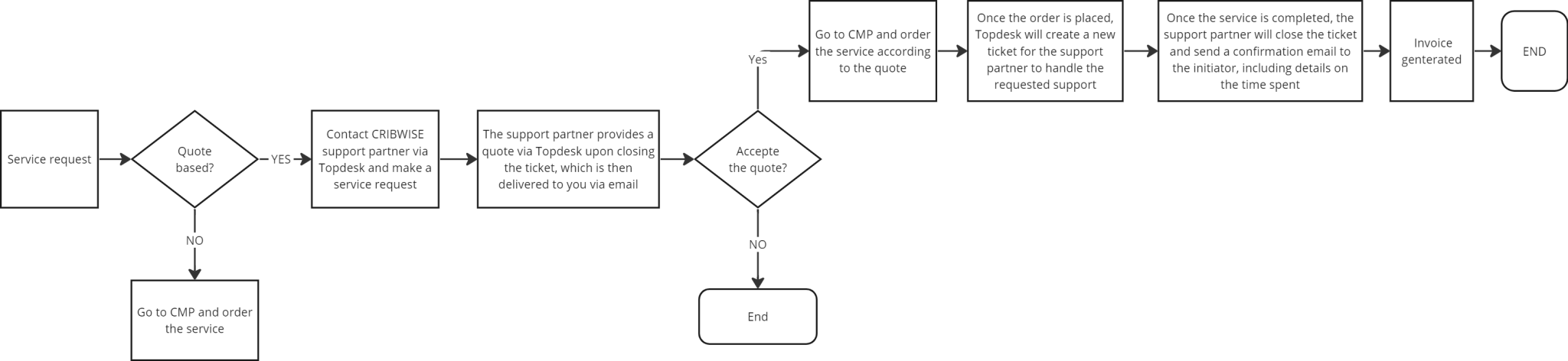
The service quote states the estimated hours.
- Open the Add-ons tab and select Buy new add-on, or open Orders and click + New order.
- Click Add new addon, choose type Service, then Scheduled Support, Support on Demand or Kardex Installation.
- Enter the quantity, based on the estimated hours in the quote.
- Enter the quote reference – the Topdesk ticket number.
- Confirm the order.
Success: The order is registered. On completion and delivery you get a notification email with the consumed hours, and an invoice follows.
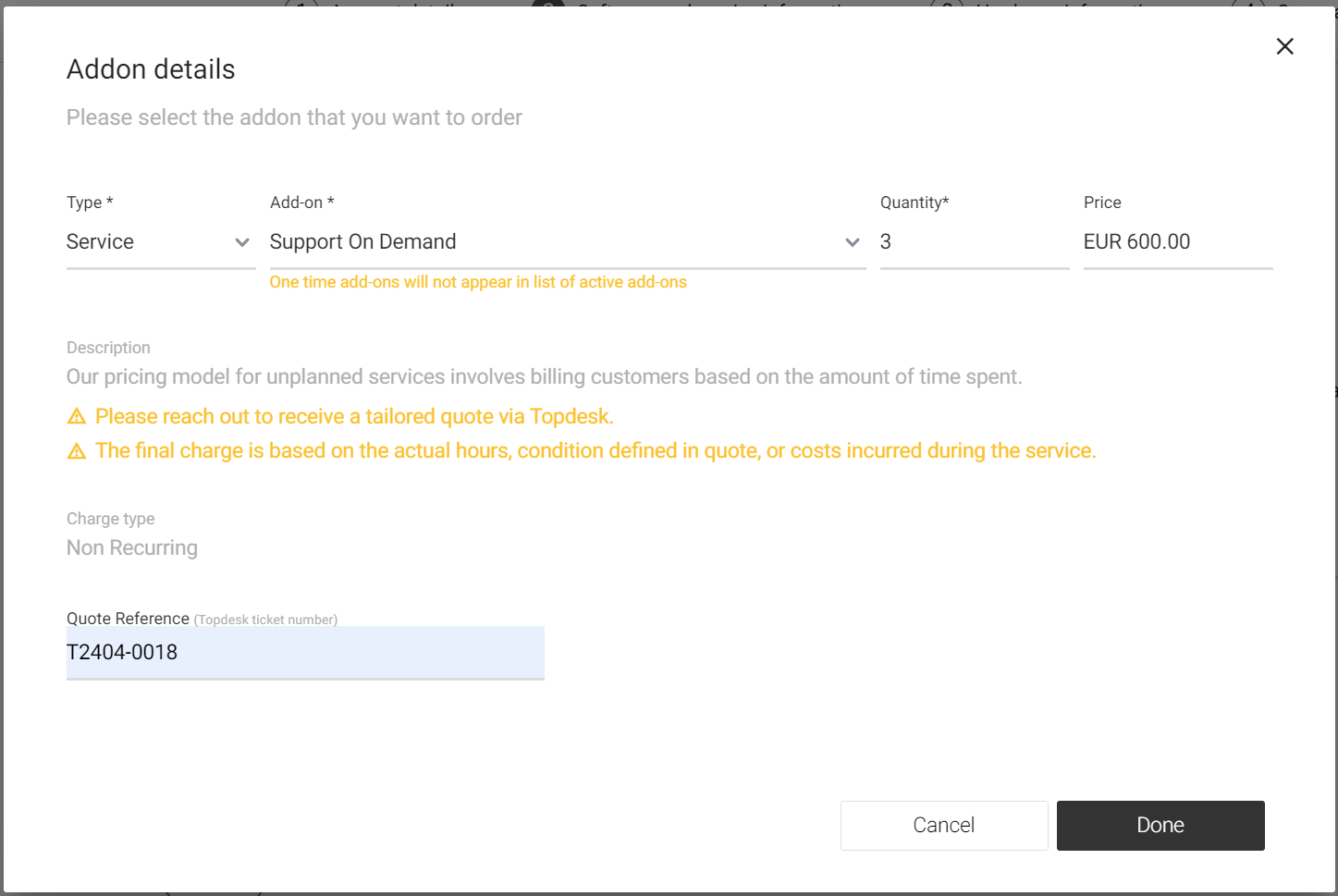
Choosing the service add-on.
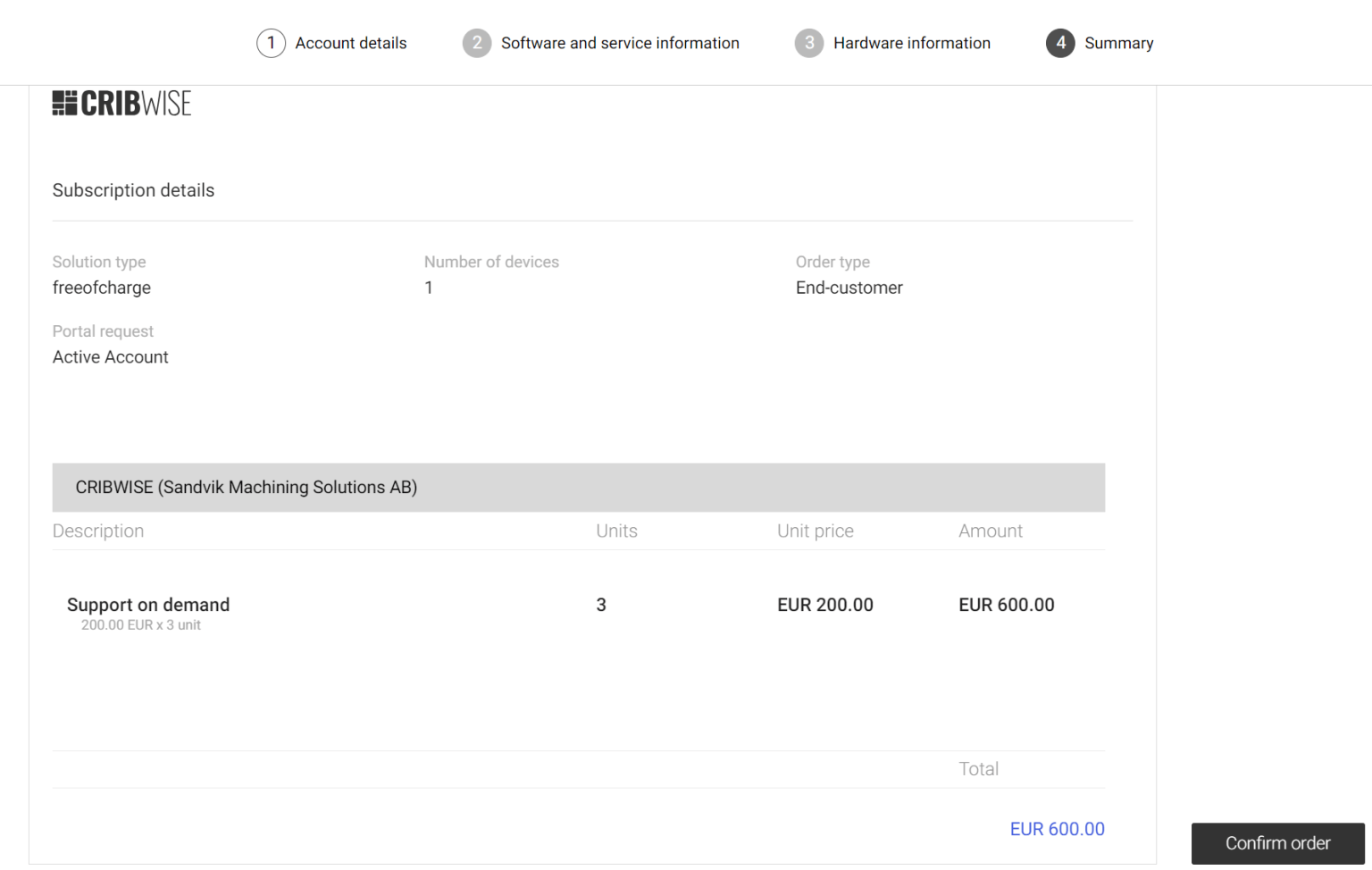
Quantity comes from the estimated hours in the quote.
Troubleshooting
| Problem | Likely cause | Fix |
| The order cannot be confirmed. | The quote reference is missing. | Enter the Topdesk ticket number from the quote. |
| The add-on you need is not in the list. | The wrong add-on type is selected. | Use type Software for development and Service for support and installation. |
| The invoiced amount differs from the quote. | Services are invoiced on consumed hours. | Check the notification email, which details the hours consumed. |
Related articles
- How to set up custom data export (FTP, Azure, email) – a typical integration development order.
- How to place a purchase order in CMP (distributors) – hardware orders, as opposed to services.
- How to manage users in the Customer Management Portal (CMP) – who can buy add-ons.
- Kardex Shuttle and Megamat – storage device setup – what a Kardex installation order covers.