
What you’ll learn
How a custom scheduled script decides when to buy items or send them for service: the three-part rule, the item filters, the scheduler, and the order settings that shape the orders it creates.
A script checks the quantity of items in stock against its rule. If the quantity is below the target, it triggers the purchase or service flow by adding the required quantity to orders or transfer lists.
Note: Compared with classic purchase and service scripts, custom scripts give more freedom in the rule, the items involved, and when the script runs.
Create one under Order lists → Scheduled scripts, select New script in the toolbar, then Custom purchase script or Custom service script.
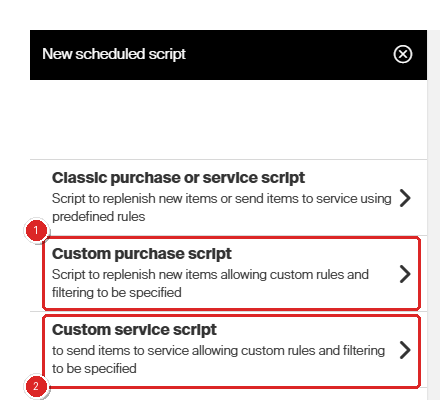
The three script types. 1 Custom purchase script replenishes items; 2 Custom service script sends items to service. Both allow custom rules and filtering.
The four parts of a script
| Part | What it decides |
| Rule | When purchase or service is triggered, and how much is ordered. |
| Filters | Which items the script considers at all. |
| Scheduler | When the script runs. |
| Order settings | How the resulting orders are created and sent. |
The first three sit on the Script overview tab; order settings have a tab of their own.
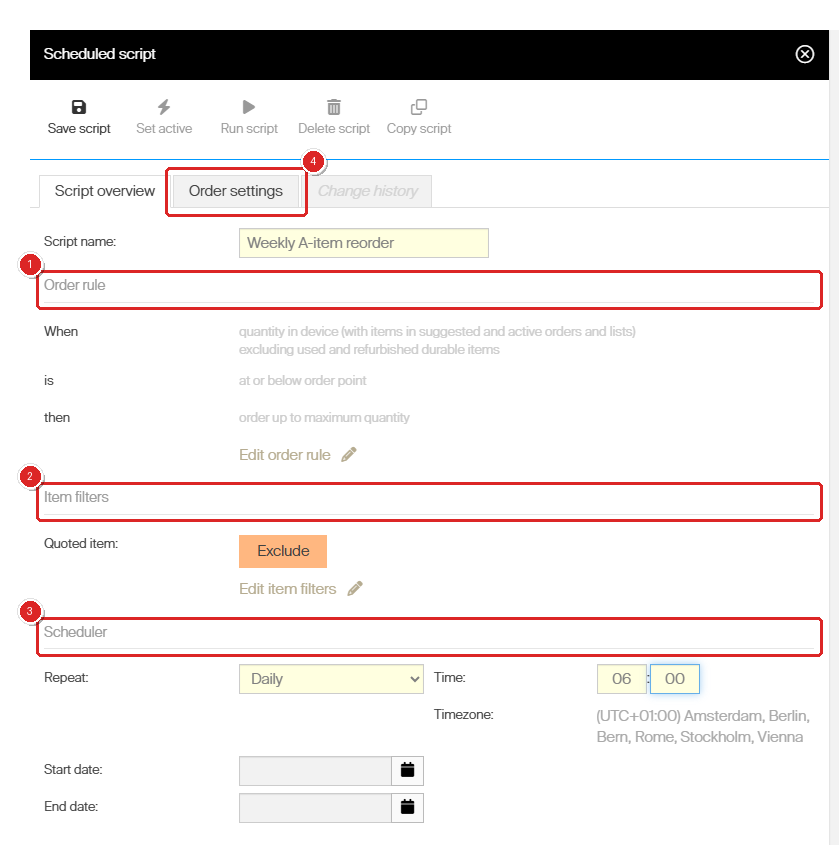
The Script overview tab. 1 Order rule, shown as a sentence once it is set. 2 Item filters. 3 Scheduler. 4 The Order settings tab.
Important: The script type – purchase or service – is chosen when the script is created and cannot be changed afterwards.
The rule
The rule reads as a sentence in three parts. Select Edit order rule on the Script overview tab to build it, then Apply.
- When – what quantity the script counts.
- is – the threshold that triggers purchase or service.
- then – what happens, meaning how many items are ordered.
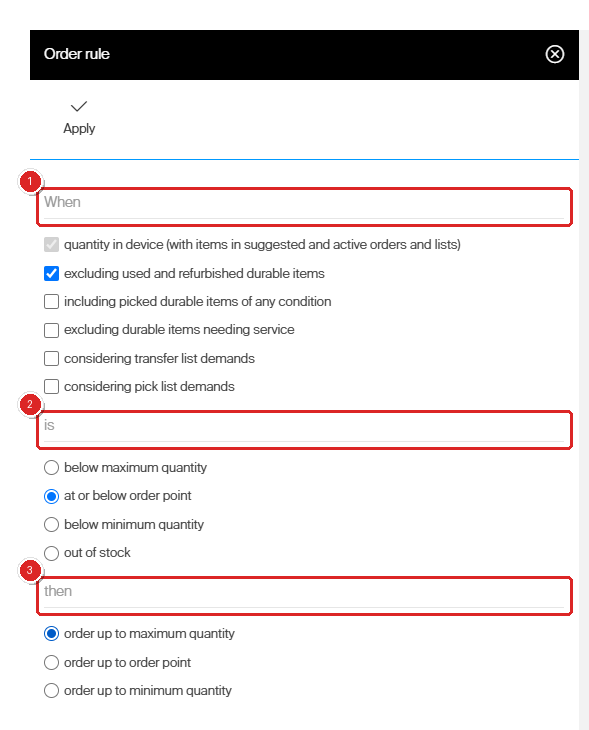
The order rule of a custom purchase script. 1 When – tick every quantity to count. 2 is – pick one threshold. 3 then – pick one order quantity.
Purchase script rule — When
| Option | What it counts |
| quantity in device (with items in suggested and active orders and lists) | Always active. All items currently in the device regardless of location rule, items in suggested purchase orders targeting it, items from active purchase orders pending restock, items from service orders and lists picked for service and pending restock, and quantities in transfer lists targeting the device. |
| excluding used and refurbished durable items | Deducts durable items in locations with the rule Used and Refurbished. |
| including picked durable items of any condition | Adds durable items currently in production – picked and not yet returned – whatever their condition. |
| excluding durable items needing service | Deducts durable items in locations with the rule For service, serialized instances locked for service that sit elsewhere, and items picked for service orders and lists that are not yet restocked or scrapped. |
| considering transfer list demands | For a device in a central stock: checks whether the quantity all transfer lists demand from the stock is covered by what is or will be available across its devices. If not, the missing quantity is requested on a random device of the stock that has the item assigned. See considering transfer demands. |
| considering pick list demands | Checks whether predefined pick lists targeting the device are covered by what is or will be available there, and requests the demanded quantity if not. See considering pick list demands. |
Tip: The first option is always on and cannot be cleared. The other five adjust that base count – tick as many as you need.
Purchase script rule — is
| below maximum quantity | Triggers when the When quantity is lower than the Maximum quantity on the item-device assignment. |
| at or below order point | Triggers when it is at or below the Order point on the assignment. |
| below minimum quantity | Triggers when it is below the Minimum quantity on the assignment. |
| out of stock | Triggers when it is 0. |
Purchase script rule — then
| order up to maximum quantity | Orders the Maximum quantity minus the When quantity. |
| order up to order point | Orders the Order point quantity minus the When quantity. |
| order up to minimum quantity | Orders the Minimum quantity minus the When quantity. |
Important: Minimum quantity can only be set for durable items. For consumables it is always 0.
Note: Purchase package quantity is always respected when items go on a purchase order – an item is not added if a whole package does not fit the requested quantity. When an item is requested from central stock through a transfer list, the dispense package quantity is used instead.
Service script rule
A service script has one option only: how many items needing service must be in each device before all of them are sent to service.
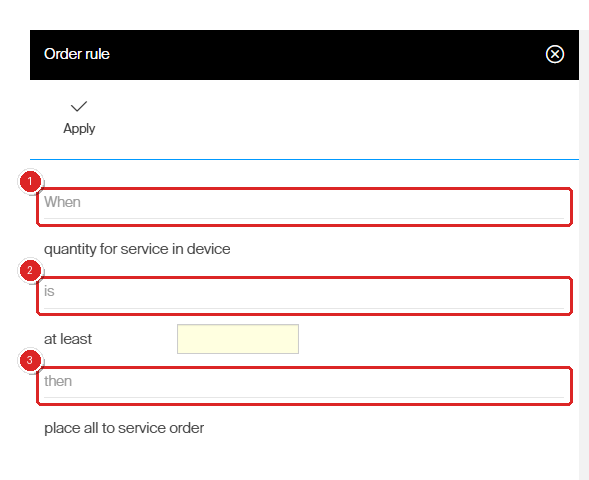
The order rule of a custom service script:
- When is fixed to quantity for service in device.
- is – type the minimum quantity.
- then is fixed to place all to service order.
The When quantity is the number of items in the device in locations with the rule For service, plus serialized durable instances locked for service that sit on other locations, plus items in active service orders waiting to be picked for service.
is defines the minimum quantity needed before all items needing service in the device are placed on service orders. then the quantity added is the When quantity minus what is already on new or suggested service orders.
Important: A service script only considers items with an external service vendor. Items with an internal service vendor go on service lists automatically when they are returned to the device.
Note: Items with a minimum quantity for service on their service settings are not counted until that minimum is reached.
Filters
Filters limit which items a run involves. Items outside the filters are not ordered and are ignored by the rule. Select Edit item filters on the Script overview tab to set them, then Apply.
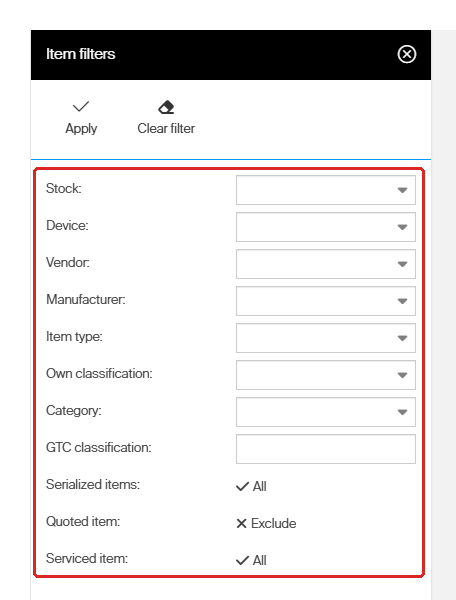
The eleven item filters. Clear filter in the toolbar resets them all at once.
| Filter | Limits the run to |
| Stock | Items assigned to devices in the selected stock. |
| Device | Items assigned to the selected device. |
| Vendor | Items whose purchase vendor is the selected one. |
| Manufacturer | Items from the selected manufacturer. |
| Item type | Items of the selected type. |
| Own classification | Items carrying your own classification value. |
| Category | Items in the selected category. |
| GTC classification | Items matching the typed GTC classification. |
| Serialized items | All, or only serialized or only non-serialized items. |
| Quoted item | Whether quoted items are excluded. Exclude is the default. |
| Serviced item | All, or only items that are serviced or only items that are not. |
An empty filter applies no limitation. Selecting a value excludes every item that does not match it.
Important: With several filters set, only items matching all selected values are considered.
Scheduler
The scheduler, also on the Script overview tab, defines when the script runs – once at a future date and time, or periodically.
| Once | Runs at the given date and time, then never automatically again. |
| Every fifteen minutes | Four times per hour, at 0, 15, 30 and 45 minutes past. |
| Every thirty minutes | Twice per hour, at 0 and 30 minutes past. |
| Hourly | Every hour, at the minute you specify. |
| Twice per day | At the time you specify and again 12 hours later. |
| Four times per day | At the time you specify and again after 6, 12 and 18 hours. |
| Daily | Every day at the specified time. |
| Weekly | Every week on the specified days, at the specified time. |
| Monthly | Every month on the specified day, at the specified time. |
Start date and End date limit the period in which the scheduler runs. Outside it the script is not started automatically. Leave them empty for no limit.
Note: Every option except Once shows the tenant Timezone next to the time, so 06:00 means 06:00 in that timezone – not in the reader’s local time.
Important: The script must be set active with Set active in the toolbar for the scheduler to run. Running it manually with Run script does not affect the scheduler or its planned runs.
Order settings
The Order settings tab defines how the script creates orders. These options do not affect a script running for satellite devices and ordering through transfer lists.
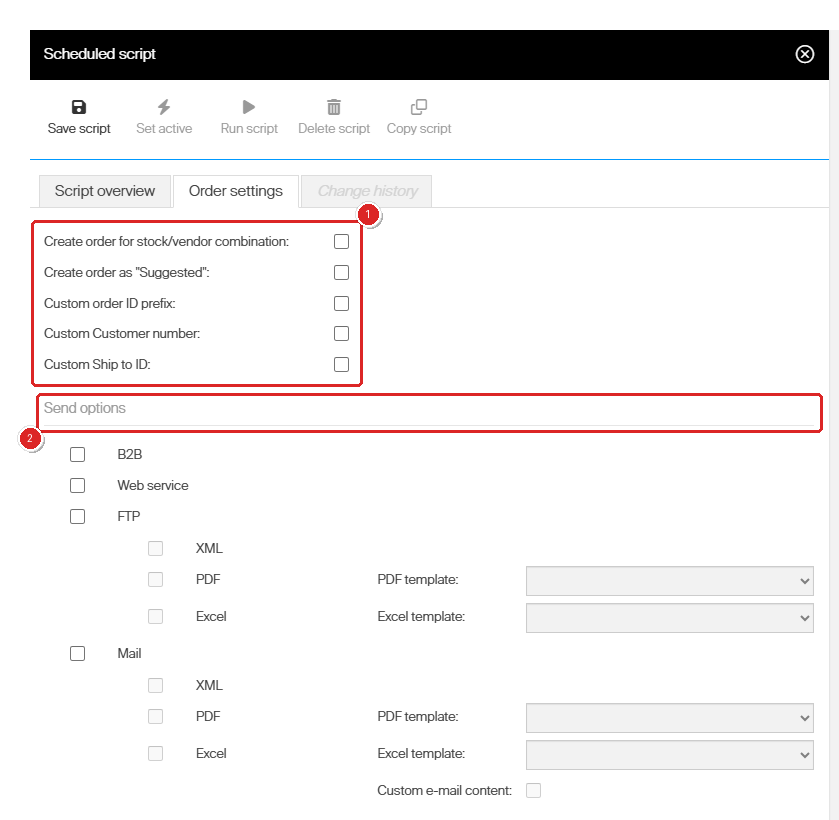
The Order settings tab. 1 The five order options. 2 Send options, which set the channel and file format used to reach the vendor.
| Option | What it does |
| Create order for stock/vendor combination | Creates orders per stock and vendor, so one order can cover several devices of a stock. Left blank, separate orders are created per device and vendor. |
| Create order as “Suggested” | Creates every order in state Suggested, so a user must set it Active to send it. Left blank, the script sets orders Active and sends them to the vendor – provided the minimum order value is reached and the maximum is not exceeded as set on the vendor, otherwise the order stays Suggested. |
| Custom order ID prefix | Uses a custom prefix instead of the default order ID prefix on the vendor. |
| Custom Customer number | Uses a custom customer number instead of the default on the vendor. |
| Custom Ship to ID | Uses a custom Ship to ID instead of the default on the vendor. |
Each option is a checkbox. Tick it to reveal the field where you type the custom value.
Send options
The send options section sets the channels and formats used to send the orders to the vendor. Orders created by the script carry the same send options as the script itself.
| Channel | Formats |
| B2B | No format choice. |
| Web service | No format choice. |
| FTP | XML, PDF or Excel. PDF and Excel each take a template, or Vendor default. |
| XML, PDF or Excel, with the same template choice, plus Custom e-mail content. |
Common confusion
| People often think… | But actually… |
| A script type can be corrected later. | Purchase or service is fixed when the script is created. |
| Running a script manually shifts the schedule. | Run script is independent – planned runs are unaffected. |
| A saved script starts running. | It must be set active with Set active first. |
| Several filters widen the selection. | They narrow it – only items matching every filter are considered. |
| A service script handles all items needing service. | Only items with an external service vendor. Internal ones go to service lists automatically. |
| The scheduler time is the reader’s local time. | It is the timezone shown beside the time field on the Script overview tab. |
Take action
Ready to build one? Go to Order lists → Scheduled scripts, select New script, choose Custom purchase script or Custom service script, set the rule, filters, scheduler and order settings, save it, then select Set active.
Related articles
- Classic purchase and service scripts – the simpler, fixed-rule alternative.
- Understanding service scripts: automated calibration checks – how items needing service are collected.
- How to manage vendors – order ID prefix, ship to ID and customer number defaults.
- How to optimize stock levels and order points – get the order points these rules compare against right.