
What you’ll learn
Know which picks and returns CRIBWISE books from the Items to pick screen, and what each tick and button there does.
Picks are done on a cloud device and the screenshots differ from a pick on a physical cabinet. A physical cabinet will open its position instead of showing the items in a list with checkmarks next to them, right after you tap Pick.
The screen at a glance
| Items to pick | |
|---|---|
| Shows | One row per item and location: location, lot number (if tracked), condition for durable items, and quantity |
| Books the transaction | Picking finished, for ticked rows only |
| Tick every row at once | Mark all as picked |
| Leave without booking | Cancel, needs the Cancel picking privilege |
| Change the quantity | Change picked quantity and Undo quantity change, need the Change quantity during picking privilege |
| What comes next | Pick summary |
Which buttons you see depends on your SFI privileges and on one system setting.
The Processed tick
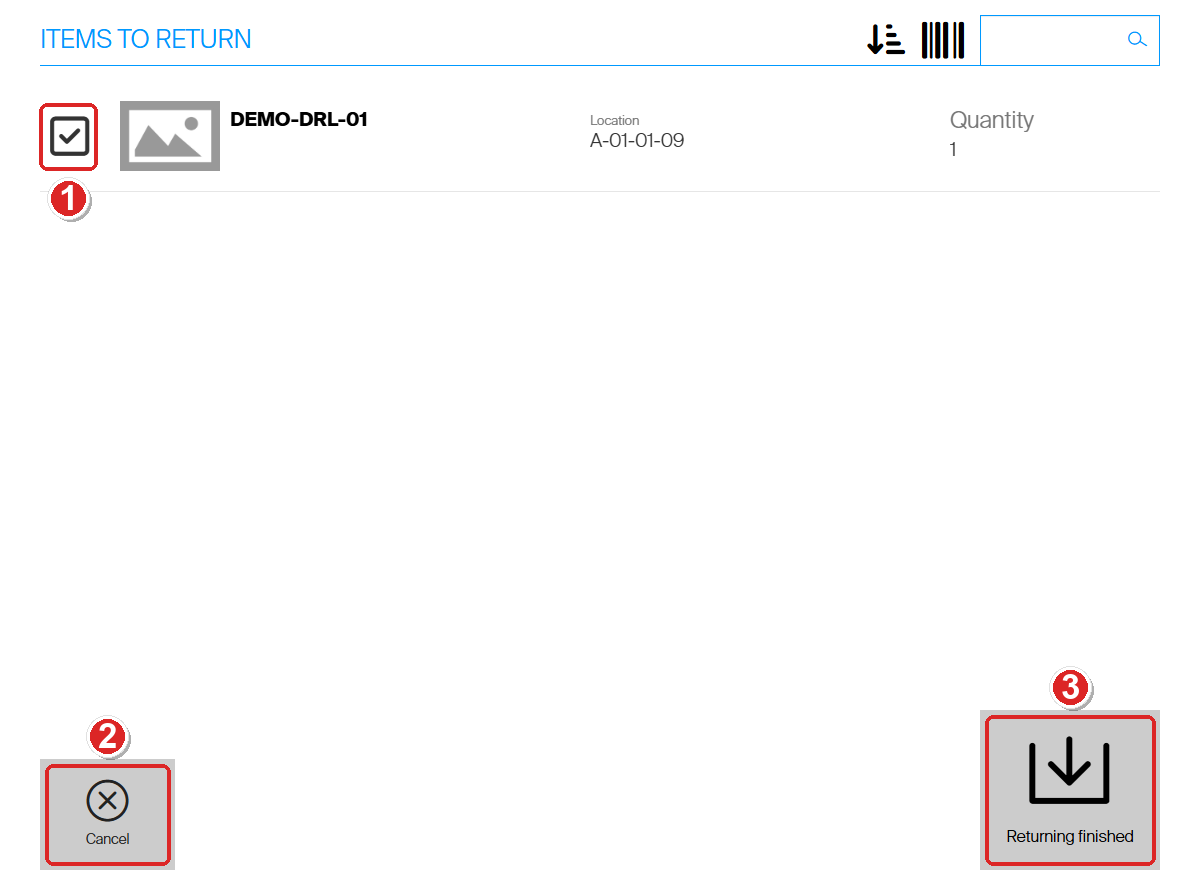
Each row starts with a checkbox, the Processed tick. A ticked row means “I took this item” on Items to pick, or “I put this item back” on Items to return.
When you tap Picking finished or Returning finished, CRIBWISE books only the ticked rows. An unticked row is not picked or returned, and its stock does not change. Tap a tick to clear it if you did not take that item.
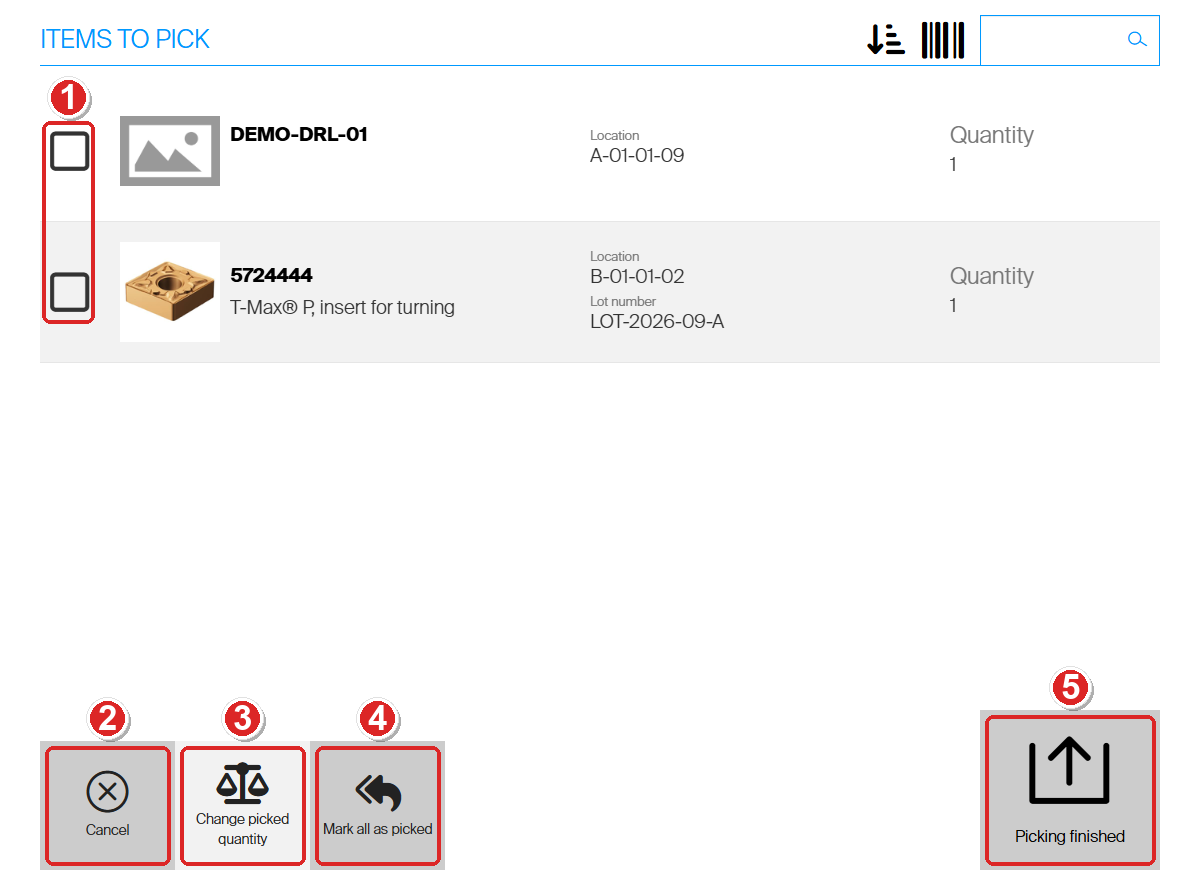
Items to pick for a user with every picking privilege, with the automatic tick switched off. An operator without these privileges sees fewer buttons.
Ticked for you, or not
Whether the rows arrive ticked is a system setting: Automatically set items as processed on open locations in Administration > System settings > Stock daily use.
- On: every row arrives ticked. Mark all as picked and Mark all as returned are hidden, because there is nothing left to tick. You only clear the rows you did not take.
- Off: every row arrives unticked, and you tick each item as you handle it. Mark all as picked or Mark all as returned appears, so you can tick every row with one tap.
Note: After an administrator changes this setting, the SFI can keep the old behavior until the device has synchronized. On our test system the change showed only after Force synchronization on the device detail in the Admin Portal.
When no row is ticked
If you tap Picking finished with no row ticked, CRIBWISE asks: No item is selected as picked. Do you want to finish operation anyway? On Items to return the question reads No item is selected as returned.
- No takes you back to the list, so you can tick the rows.
- Yes ends the operation and opens the summary. Nothing is booked.
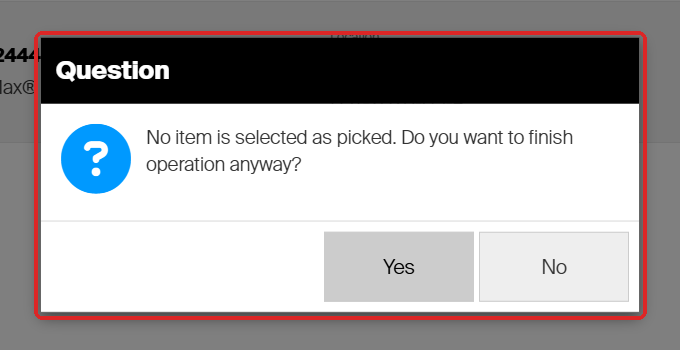
Answering Yes here does not pick anything. If you took the item, answer No and tick its row.
Changing the picked quantity
Sometimes you take fewer pieces than the list says, for example when the shelf holds less than the system expected. With the Change quantity during picking privilege you can correct the number before you finish.
Tap Change picked quantity and each row gets a quantity spinner (1). Set the number you actually took with − and +, then tap Picking finished. CRIBWISE books the new quantity.
Undo quantity change (2) puts every row back to the quantity it had before you tapped Change picked quantity.
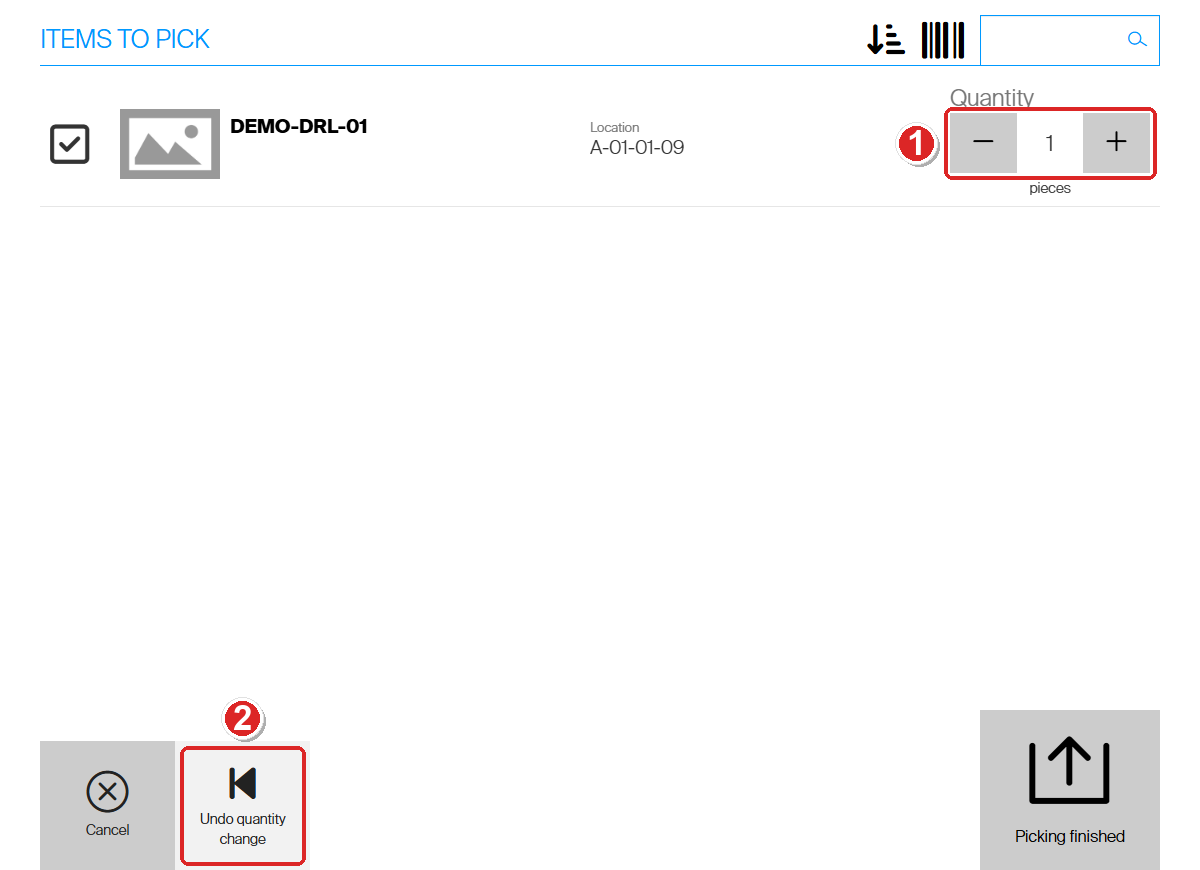
The list asked for 2 pieces. The spinner was set to 1, and the pick was booked as 1 piece.
The button exists only on Items to pick. On Items to return you set the quantity earlier, on the quantity step of the return.
Cancel
Cancel leaves the screen without booking anything. You go straight to the summary page, and every row there has an empty Processed box. Stock and picks stay as they were, and no pick or return appears in the Event log.
- On Items to pick, Cancel is shown only to users with the Cancel picking privilege. Without it, the operator must finish the pick.
- On Items to return, Cancel is always shown. The item stays picked, and you can return it later.
Preferred condition (durable items)
Durable items can be in stock as New, Used or Refurbished. Users with the Override pick rules privilege see Preferred condition on the quantity step, before Items to pick opens. It appears for durable items that are not serialized.
Choose a condition to tell CRIBWISE which pieces you want. Items to pick then shows the location and the Status of the pieces it chose.
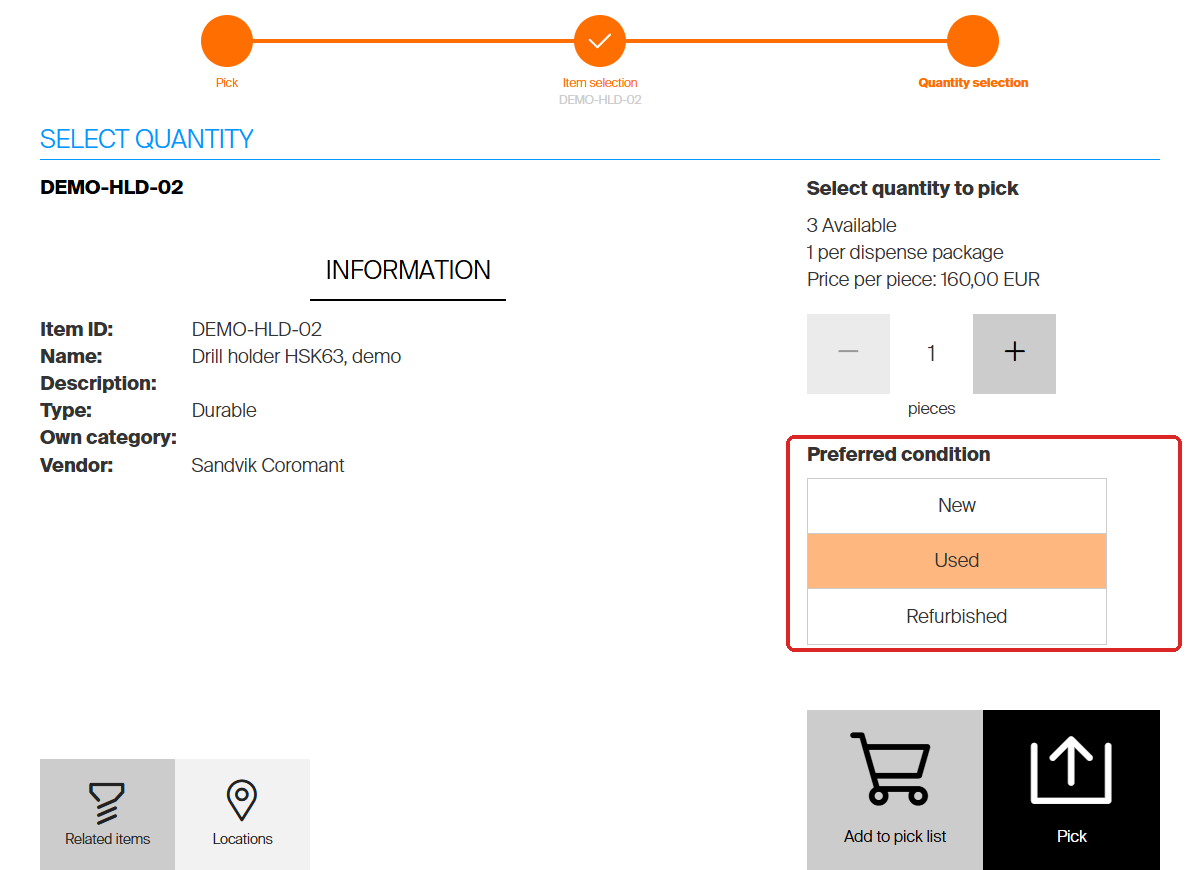
Preferred condition is on the quantity step. Nothing is selected until you tap an option.
It is a preference, not a filter. What we saw on a test device with new and used stock of the same holder:
- Used picked the piece from the used location, and New the piece from the new location.
- Refurbished, with no refurbished stock, still picked a used piece.
- With no option chosen, CRIBWISE picked the used piece first.
Always check the Status column on Items to pick before you take the item.
Common confusion
| People often think… | But actually… |
|---|---|
| A summary page means the pick was booked. | Cancel and an empty Yes also end on the summary. Look at the Processed box on each row. |
| Picking finished books every row on the list. | It books ticked rows only. Untick an item you did not take. |
| Mark all as picked is missing, so something is wrong. | It is hidden when rows arrive ticked automatically. There is nothing to mark. |
| Preferred condition guarantees the condition you chose. | When that condition is not in stock, CRIBWISE picks another one. Check the Status column. |
Troubleshooting
| Problem | Likely cause | Fix |
|---|---|---|
| There is no Cancel button on Items to pick | Your user or user group does not have the Cancel picking privilege. | Finish the pick, then return what you did not take. Or ask an administrator for the privilege (SFI Privileges > Picking Privileges). |
| There is no Change picked quantity button | You do not have the Change quantity during picking privilege, or you are on Items to return. | Ask an administrator for the privilege, or set the quantity on the quantity step before you tap Pick. |
| The pick summary shows the item, but stock did not change | The row was not ticked, or you tapped Cancel. The Processed box on the summary is empty. | Pick the item again and tick its row before you tap Picking finished. |
| Rows still arrive ticked after the setting was switched off | The SFI has not yet received the new setting. | Ask an administrator to select Force synchronization on the device in Data management > Devices, then start the pick again. |
Take action
Ready to pick? Go to How to pick an item for the step-by-step guide. To put something back, see How to return, scrap, and recycle items in SFI.
Related articles
- How to pick an item – the full pick flow, from the main menu to the pick summary.
- How to return an item as new – the return flow, including the return list.
- How to return, scrap, and recycle items in SFI – every return condition and where the item goes.
- How to create and configure a user group – where the SFI picking privileges are switched on.
- All system settings quick reference – what Automatically set items as processed on open locations and the other daily-use settings do.
- How to create and manage devices – including synchronizing a device.