
What you can do
Send an assembly to service and bring it back into stock as one piece. The service settings sit on the assembly item, so the assembly goes to service as a whole. You pick it for service on the Shop Floor Interface, the workshop or vendor services the tool, and you restock it when it comes back in the condition set on the item, such as Refurbished.
The parts inside the assembly are not sent, picked or restocked on their own. They travel with the assembly.
The example is DEMO-ASM-02, Turning tool assembly, demo, an assembly without serial numbers. Its service goes to the internal workshop Demo Service Centre, so it waits on a service list. With serial numbers you choose the serial number in each step, and service can also start on its own after a number of uses or a date. That is described in Assemblies: Serial numbers.
Before you start
- Service switched on for the assembly item on its Supplier tab in the Admin Portal, with a Service vendor and Restock from service as. See Assemblies: Setup for the item itself.
- A location with the rule For service on the device, where returned assemblies wait. DEMO-ASM-02 uses A-01-01-05.
- A location that accepts the restock condition, for example a location with the rule Refurbished or Any. DEMO-ASM-02 goes back to A-01-01-07.
- A Shop Floor Interface login with Stock management, for picking for service and restocking. Operators who only have Pick and Return cannot do these steps.
Important: The service vendor decides the route. An internal vendor puts the assembly on a service list as soon as it is returned for service. An external vendor needs a service order first, created by hand or by a service script. The steps on the Shop Floor Interface are the same for both.
How an assembly becomes For service
An operator returns the assembly with Return > For service when it needs regrinding, repair or calibration. It is booked into the For service location and can no longer be picked. The steps are in Assemblies: Picking and returning.
Rules that send an assembly to service on their own, after a number of uses or on a date, need serial numbers. See Assemblies: Serial numbers.
Quick start
Experienced users – service an assembly in 3 steps:
- Return the assembly with Return > For service.
- Open Stock management > Pick for service, select the service list, tick the assembly, set the quantity and pick it.
- Restock it from the service list when it comes back. It is back in stock in the condition set on the item.
Need more detail? Follow the full steps below.
The statuses you will see
| Stage | Assembly status | Where it is |
|---|---|---|
| Returned for service | For service | The For service location, here A-01-01-05 |
| Picked for service | In service | With the service vendor, on the service list |
| Restocked from service | Refurbished (per Restock from service as) | A location that accepts that condition, here A-01-01-07 |
Steps
Step 1 — Pick it for service
Sign in with an account that has Stock management.
- Select Stock management, then Pick for service.
- Select the service list.
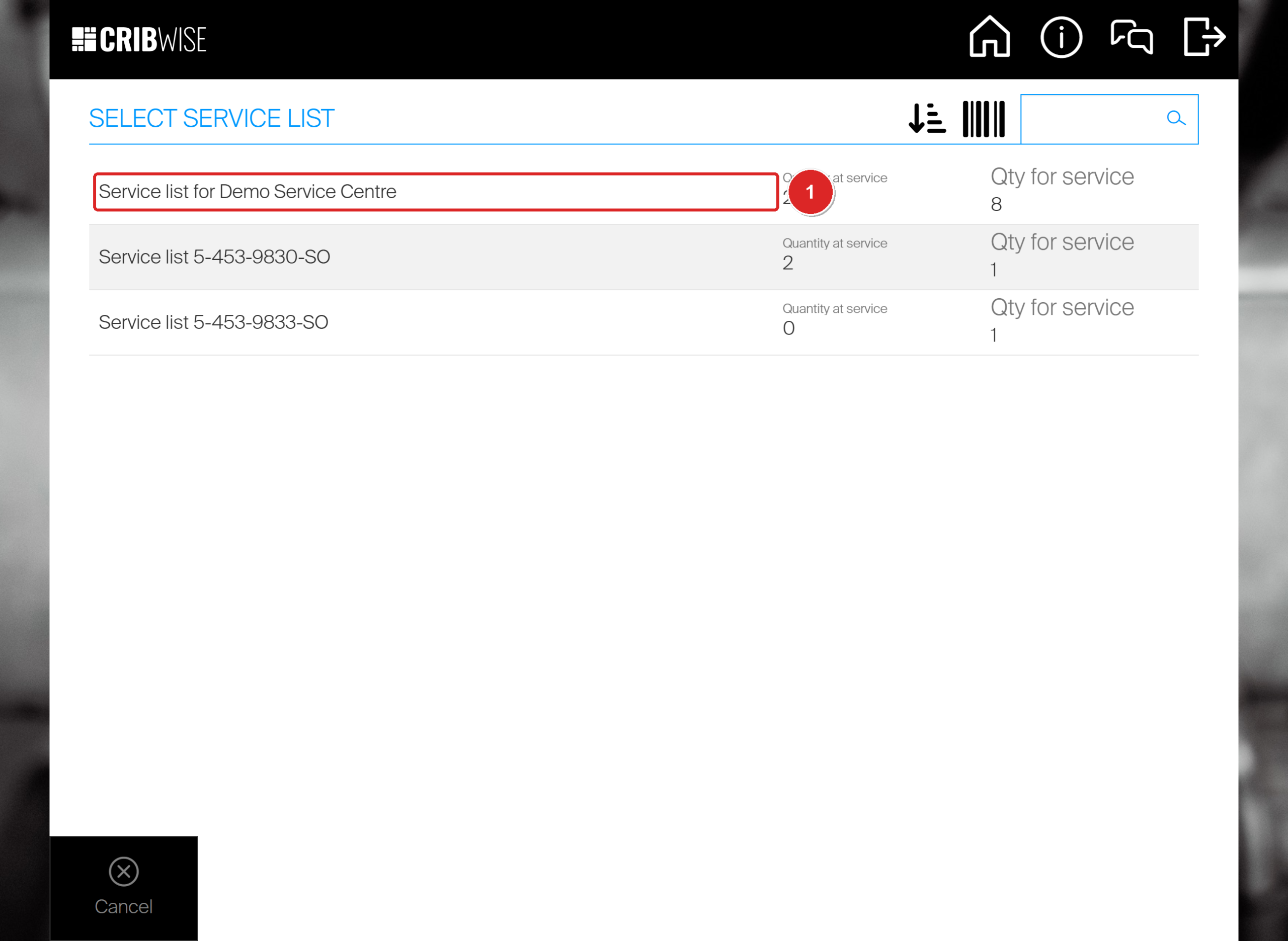
Select the list of your service vendor (1). A service order for an external vendor is listed here too, as Service list followed by the order number.
- Tick the assembly. It is listed once, by its item ID, like any other item. Qty for service shows how many are waiting.
- Set Quantity to pick to the number of assemblies you send.
- Select Confirm.
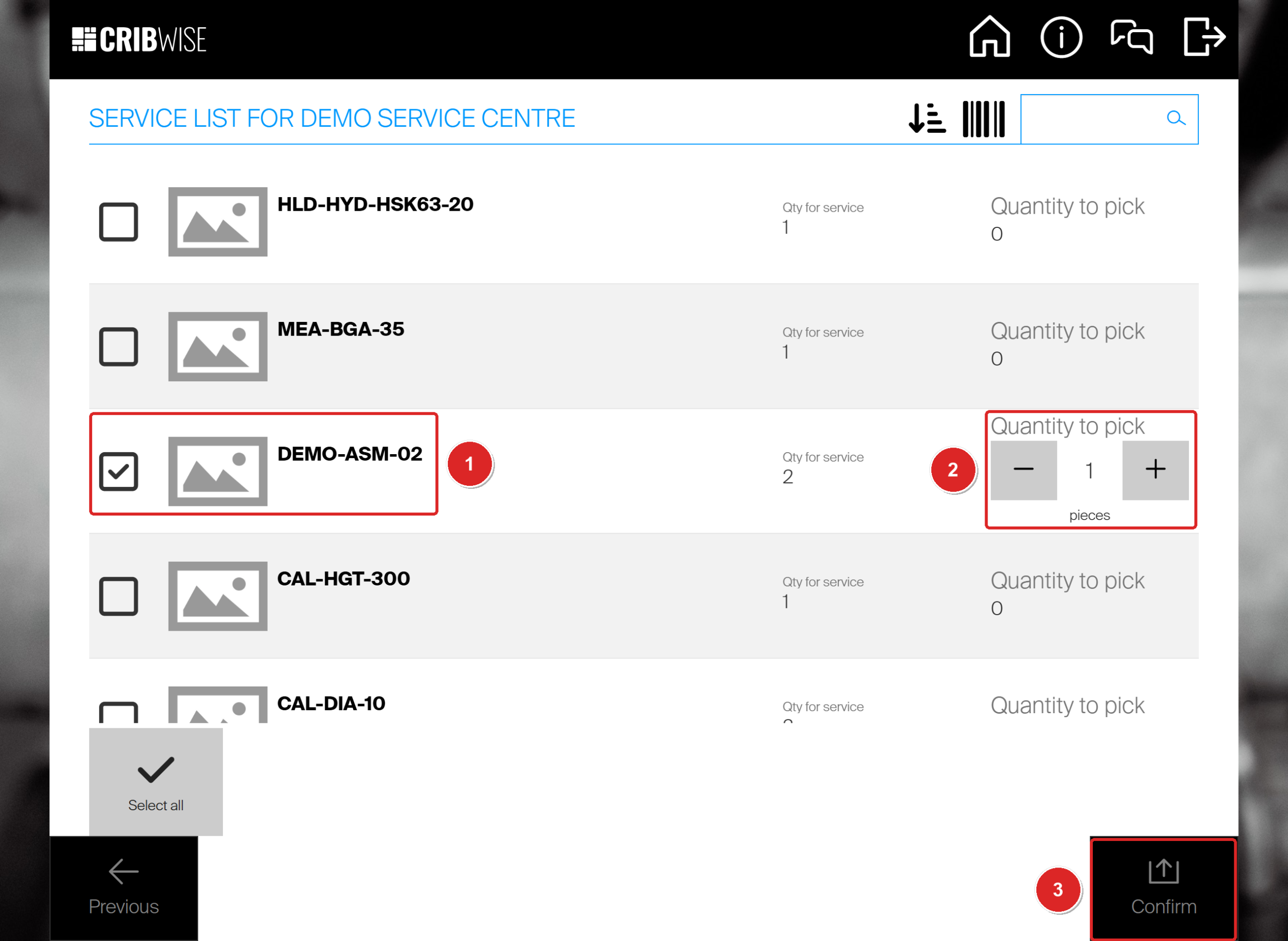
Two DEMO-ASM-02 are waiting. Tick the assembly (1), set the quantity (2), then Confirm (3).
- Take the assembly from the location shown. Its row on Items to pick is already ticked.
- Select Picking finished.
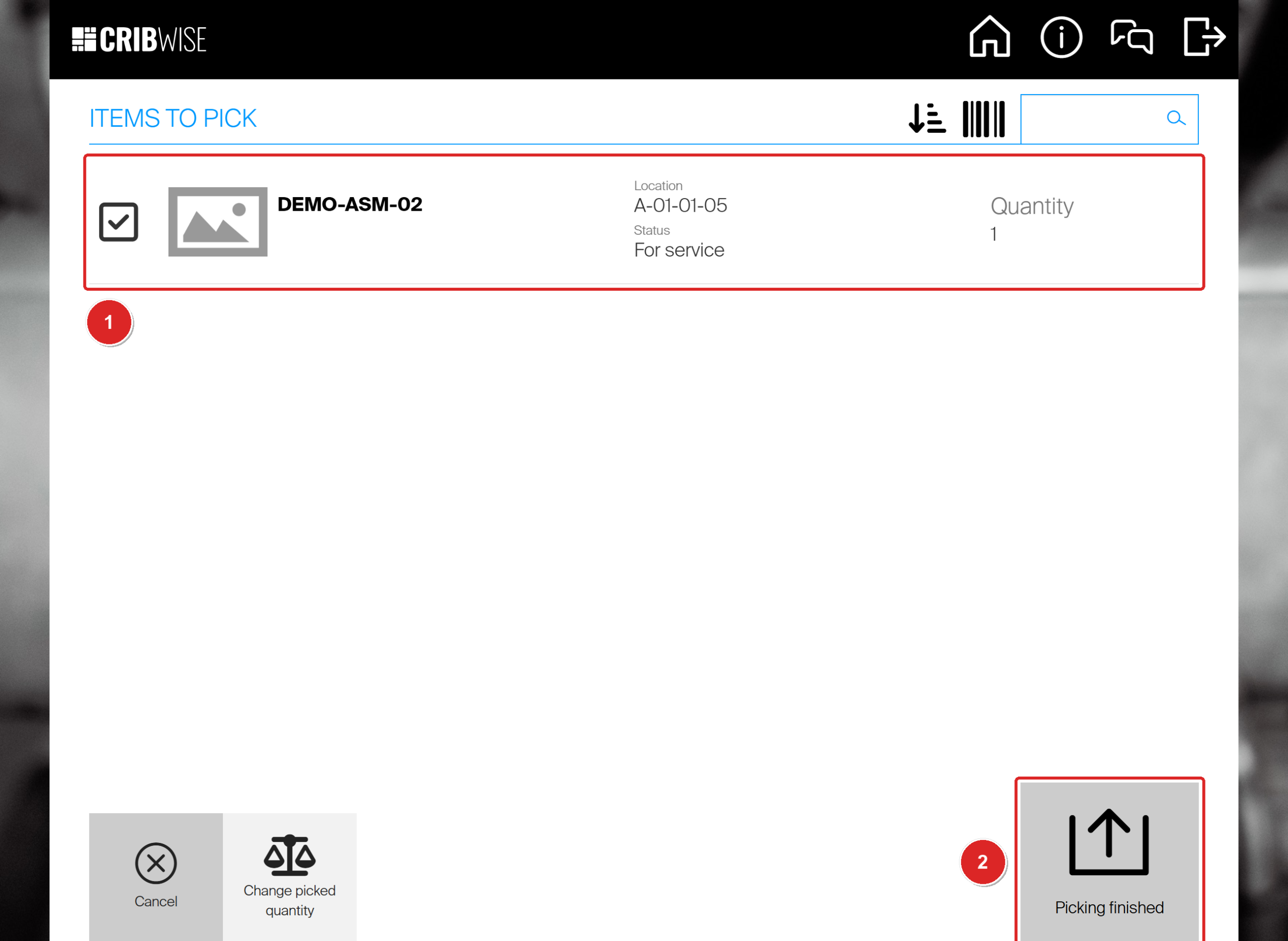
The assembly waits in the For service location A-01-01-05 (1). Select Picking finished (2).
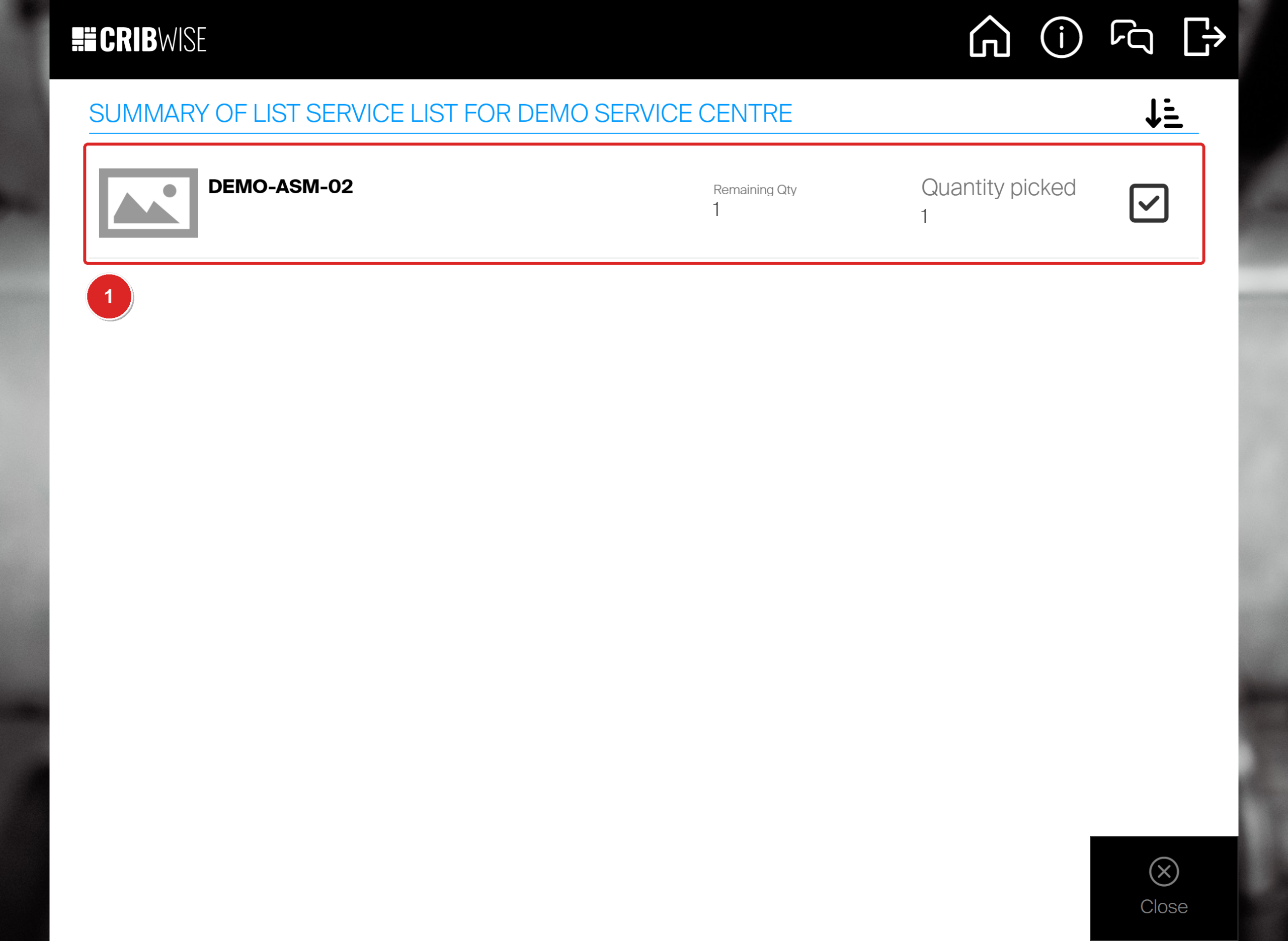
The summary shows what you picked and what is still waiting on the list (1). Select Close.
The assembly is now In service. It stays on the service list until you restock it.
Step 2 — Restock it from service
- Select Stock management, then Restock.
- Select the service list first, then the assembly.
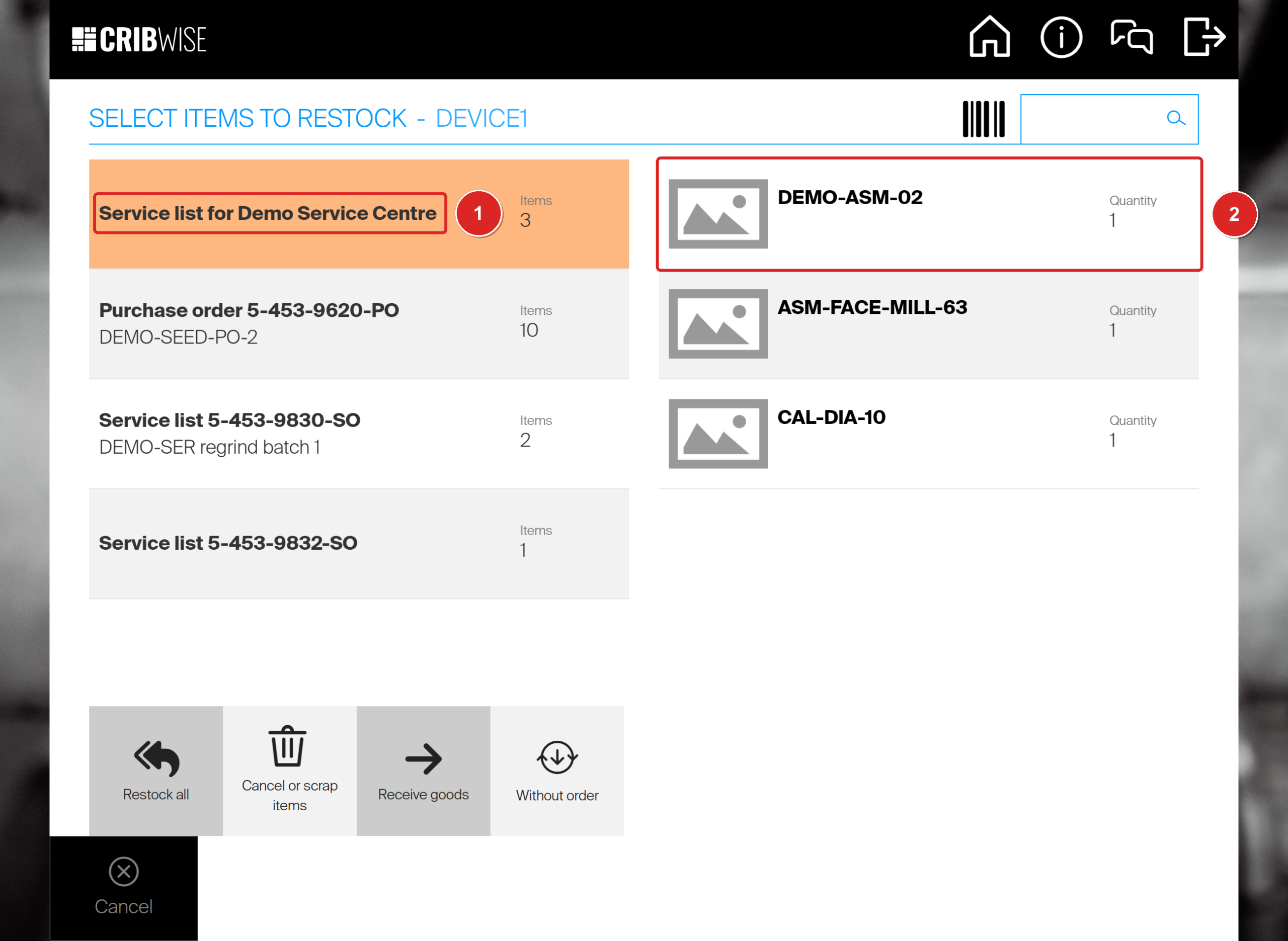
The service list (1) and the assembly that came back (2). Other items still at service, such as ASM-FACE-MILL-63, stay on the list until you restock them.
- Check the quantity and select Confirm. The rule shows the condition it comes back in.
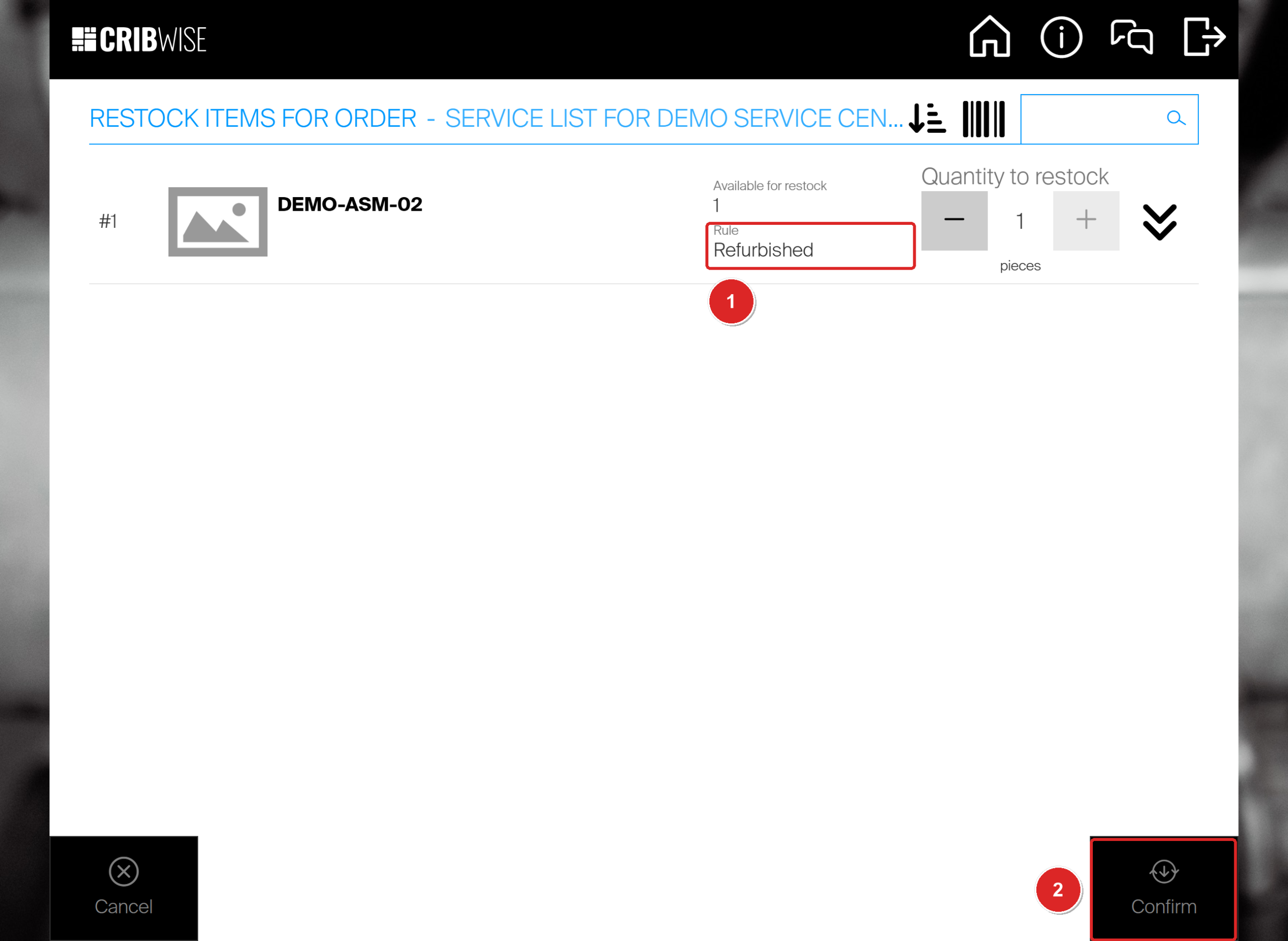
DEMO-ASM-02 comes back Refurbished (1). Select Confirm (2).
- Put the assembly in the location shown. Its row is already ticked.
- Select Restock finished, then Finish.
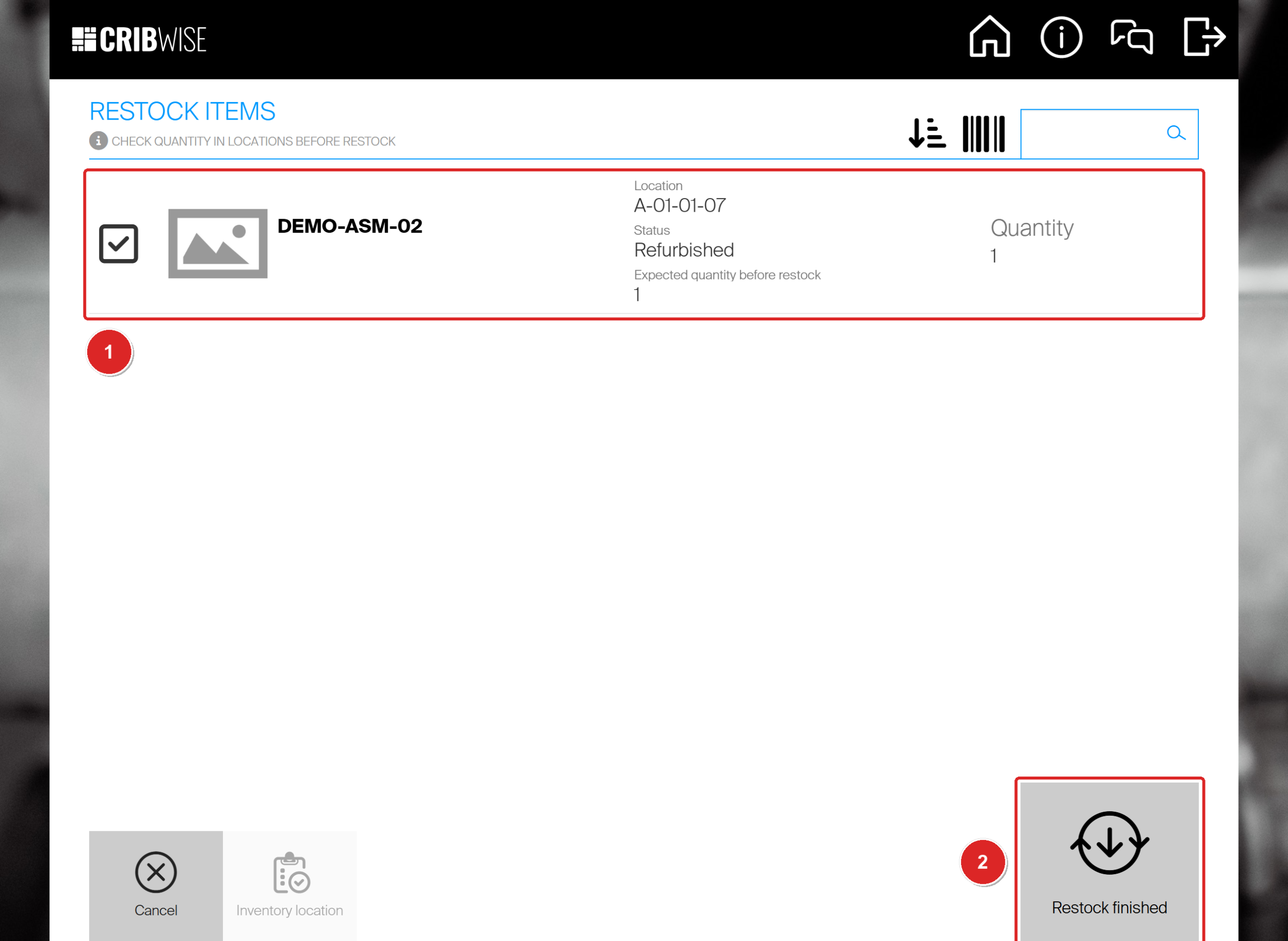
The assembly goes to A-01-01-07, a location for Refurbished items (1). Select Restock finished (2).
Success: The assembly is back in stock as Refurbished and can be picked again. It has left the service list: the list held 3 items before this restock and 2 after.
The condition after restock comes from Restock from service as on the assembly’s Supplier tab. Used and New are the other choices. On the restock summary, select Finish, not Scrap remaining quantity.
What happens to the component parts
Service is booked on the assembly only:
- The parts are not listed. Pick for service and the restock show the assembly as one line. They never ask about its parts.
- No transactions on the parts. Picking for service and restocking the assembly book nothing on the parts inside it.
- Put the service settings on the assembly. A part inside an assembly is not picked or returned on its own, so service settings on the part itself do not send the assembly to service.
For serialized parts, the status they show during service is described in Assemblies: Serial numbers. Assemblies: Tracking shows where to follow assemblies and their parts.
Troubleshooting
| Problem | Cause | Fix |
|---|---|---|
| For service is not offered under Return. | The login may not return for service, or service is not ticked on the assembly item. | Use a login that may return for service, and tick Service on the assembly’s Supplier tab. |
| The return stops at Available space 0. | The device has no For service location for the assembly. | Assign a location with the rule For service to the assembly. |
| Pick for service does not list the assembly. | Nothing is waiting, or the vendor is external and no service order exists yet. | Return the assembly for service first. For an external vendor, create a service order or let a service script do it. |
| Fewer assemblies can be picked than you have. | The ones waiting for or at service cannot be picked. | Finish the service and restock them. |
| Restock stops at Available space 0. | No location for the assembly accepts the condition it is restocked as. | Assign a location with the rule Any or the matching condition, for example Refurbished. |
Next steps
- Follow it up – see the status and history of your assemblies in Assemblies: Tracking.
- Let service start on its own – give the assembly serial numbers and a service rule, as shown in Assemblies: Serial numbers.
Related articles
- Assemblies: Picking and returning — the return for service that starts the cycle.
- Assemblies: Serial numbers — serial numbers on an assembly, and service rules that start on their own.
- Assemblies: Tracking — follow assemblies, their status and their parts.
- Understanding the service flow: from pick to restock — the same journey for every service item.
- Understanding service lists — the internal route used in this example.
- Understanding service order scripts — the external route, with automatic service orders.