
What you’ll learn
How a Kardex Megamat RS is set up as a storage device in CRIBWISE: the settings that point it at the Kardex controller, the module created per tray, and how locations are named when a tray has several shelves.
Storage device settings
| Setting | Value |
| Type | Location controlled |
| Manufacturer | Kardex Shuttle XP |
| IP address | Address including port number, pointing at the Kardex controller software |
| Opening address | Addresses the opening of the machine |
| Number of trays | How many trays the machine has |
| Grid size | Optional – the smallest possible location size on a tray |
Module structure
- Each tray is a separate module.
- An empty module is created for every tray, based on the number of trays set when the storage device was created.
Stock location structure
- Locations are created by the device admin on the Shop Floor Interface.
- Each location has its own width and depth, and a place on the tray defined by X and Y coordinates. Where a tray has several shelves, the Z coordinate determines which shelf a location belongs to.
Locations on a tray are always named from the front left corner to the back right corner, starting at 1. Sublocations are named the same way within their base location, extending the name of that base location.

How locations are numbered on a tray.
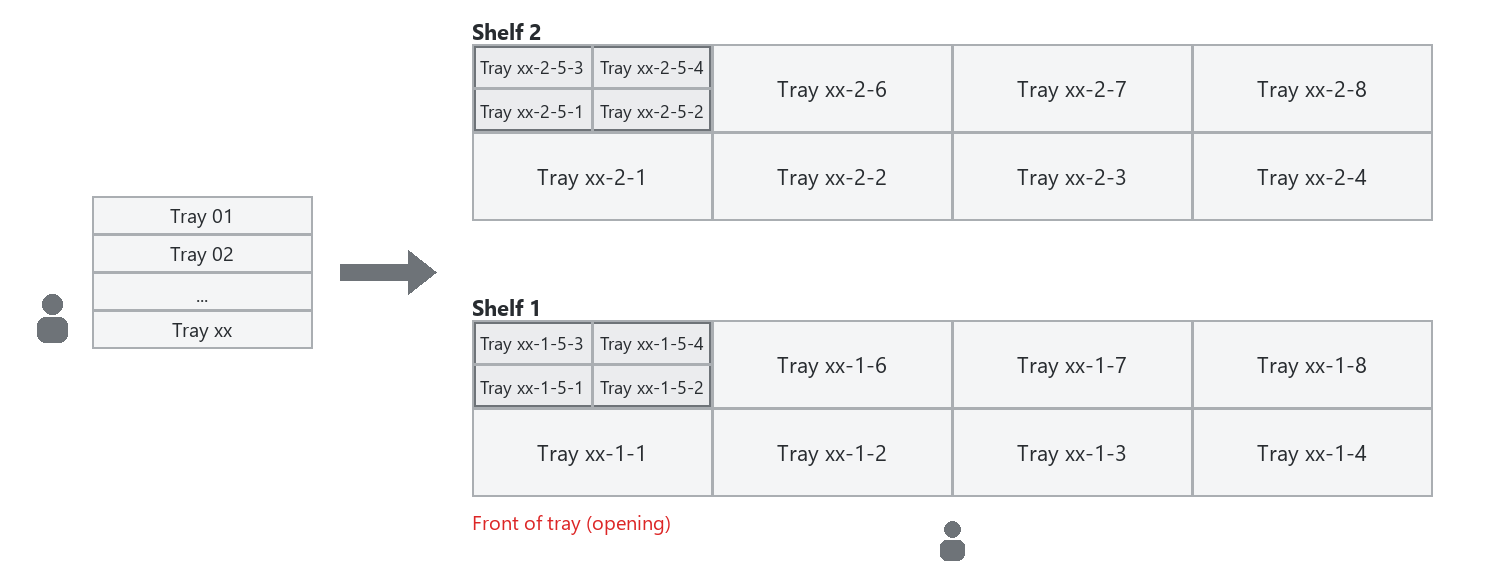
With several shelves in a tray, the shelf index is added in front of the location name.
Common confusion
| People often think… | But actually… |
| Locations are created together with the modules. | Modules are created automatically per tray; the locations on them are created by the device admin on the SFI. |
| CRIBWISE talks to the machine directly. | It connects to the Kardex controller software, which drives the machine. |
| Location names can be chosen freely. | Locations are named from the front left corner to the back right corner of the tray, starting at 1. |
| A tray is always a single shelf. | A tray can have several shelves. The Z coordinate places a location on one of them, and the shelf index is added in front of the location name. |
Take action
Ready to add the cabinet? Create the device and its storage device in the Admin Portal – see How to configure storage devices.
Related articles
- How to configure storage devices – create and configure a storage device in the Admin Portal.
- Kardex Shuttle and Megamat – storage device setup – the JMIF server and network prerequisites behind these settings.
- How to use lift machines (Kardex, Modula, Hänel) – daily picking and restocking on a lift.
- Kardex Shuttle XP – storage device setup – the same settings for the Shuttle XP.