
Serialized items – a series of 6 articles. Read them in this order:
- Understanding the concept
- Setup
- Picking
- Returning (this article)
- Service
- Tracking
What you can do
Hand a serialized item back on the Shop Floor Interface after you have used it. Every pick in the return list shows its serial number, so you return exactly the instance you took. The condition you choose sets the instance’s new status, and a return as Used counts towards the item’s service rule.
The example is item 5924287, Cartridge for CoroBore® XL, set up and picked earlier in this series. Its service rule sends a unit for service after two uses. Serial number CB-26-002 was picked as in Serialized items: Picking and is returned as Used.
Before you start
- The serial number is picked. Return works on picks, not on stock.
- A Shop Floor Interface login that may return items. The tiles follow your permissions. The operator in this example sees New, Used and Scrap.
- Know the condition of the item. You cannot change it later on the same return.
What each condition does to the instance
| Condition | Use it when | What happens to the instance |
|---|---|---|
| New | You never used the item, or took the wrong one. | The pick is cancelled and the item goes back as available stock. It still counts as one use for a Number of times used service rule. |
| Used | You used it and it is still fine. | Status Used. The return counts as one use for a Number of times used service rule. A passed target service date does not change this. The instance is locked later, when the task Lock serialized instances runs. |
| For service | It needs regrinding, calibration or repair. | Status For service, even if its target service date has not passed yet. It is locked and cannot be picked until it has been picked for service. Only shown for items with service switched on, and only if you may return for service. |
| Scrap | It is broken or worn out. | Status Scrapped. You choose a scrap reason, and nothing goes back to a location. |
Note: A return only locks the instance for service when you return it as For service, or when it uses up the last pick of its service rule. A passed Target service date is not applied by the return: the instance gets the condition you choose, and the task Lock serialized instances sets it to For service the next time it runs. What happens next is described in Serialized items: Service.
Quick start
Experienced users – return a serialized item in 5 steps:
- Select Return and the condition, for example Used.
- Select the pick that shows your serial number.
- Check the service counters with Serial number info if you want to.
- Select Return, put the item in the location shown and tick its row.
- Select Returning finished.
Need more detail? Follow the full steps below.
Steps
Step 1 — Choose the condition
- On the main menu, select Return.
- Select the tile that matches the item. Here it is Used.
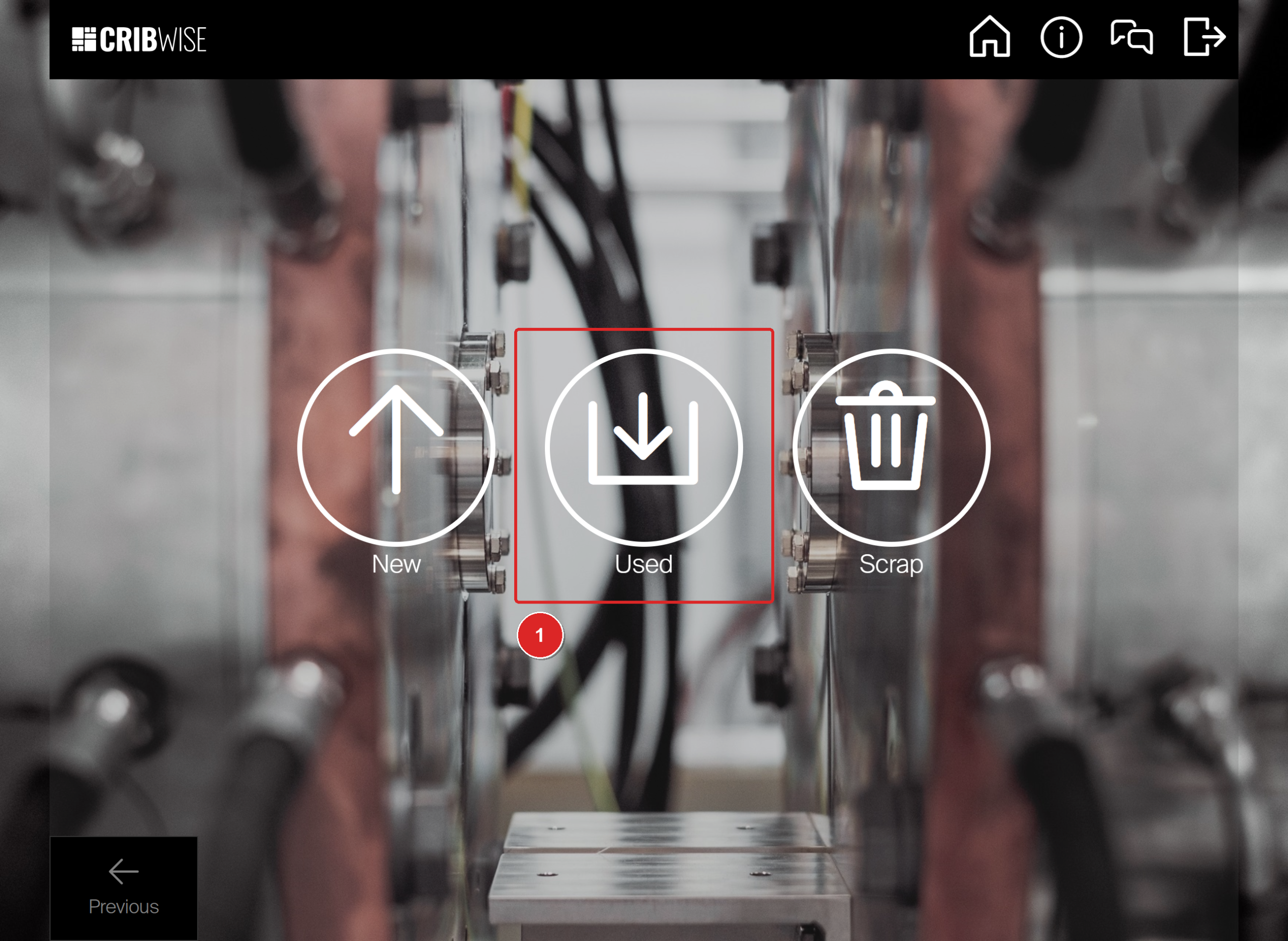
Select the condition. Used (1) puts the item back as used.
Step 2 — Select the pick with your serial number
The list shows every open pick on this device, newest first. Each row shows when it was picked and, for a serialized item, its serial number.
- Find the row with the serial number you are handing back.
- Select the row.
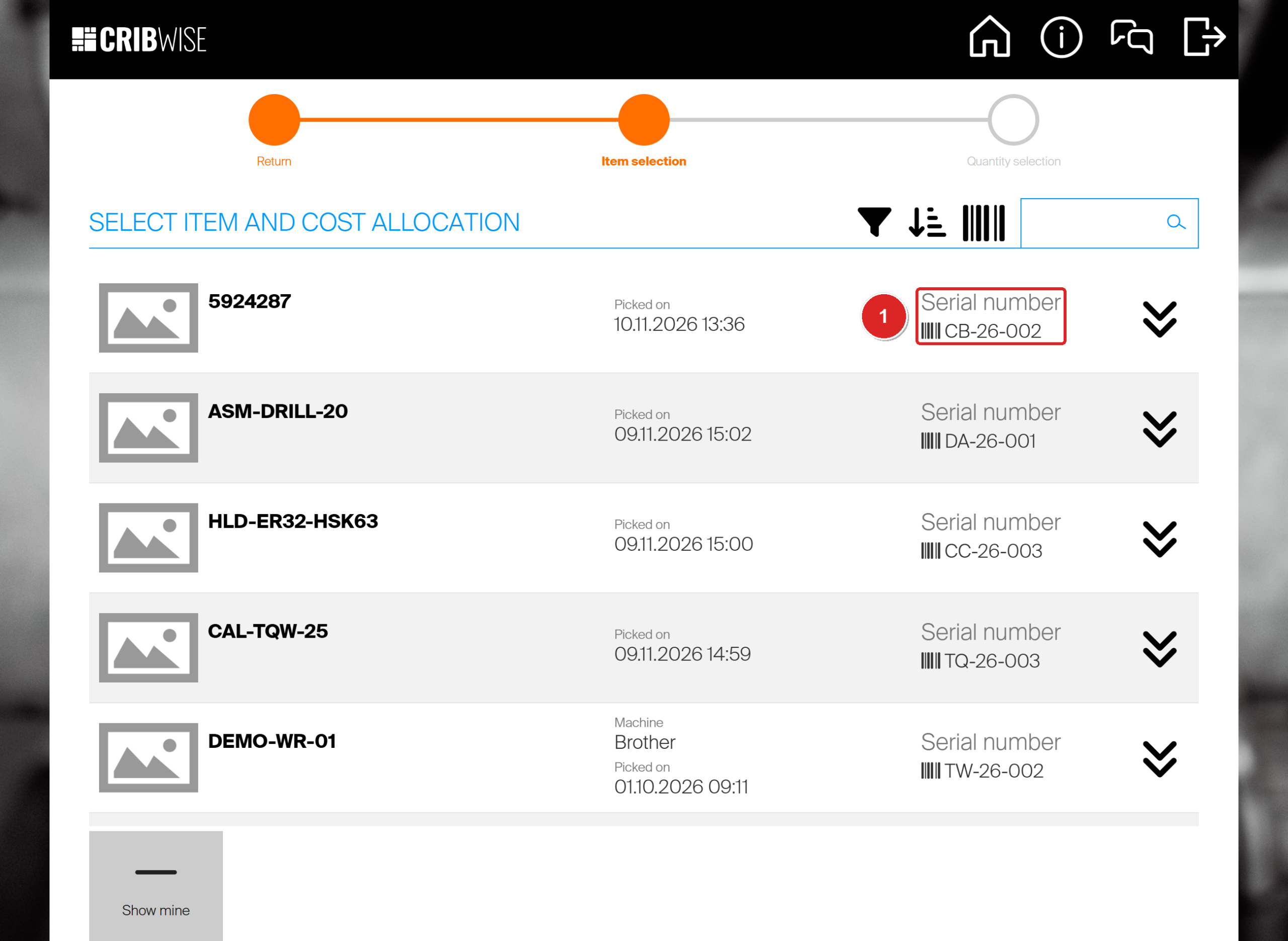
The serial number (1) tells two picks of the same item apart. Show mine hides picks made by other operators.
Step 3 — Check the service counters (optional)
The quantity screen shows the serial number under the barcode and 1 Picked. A serialized item is always returned one serial number at a time.
- To see how close the instance is to its next service, select Serial number info.
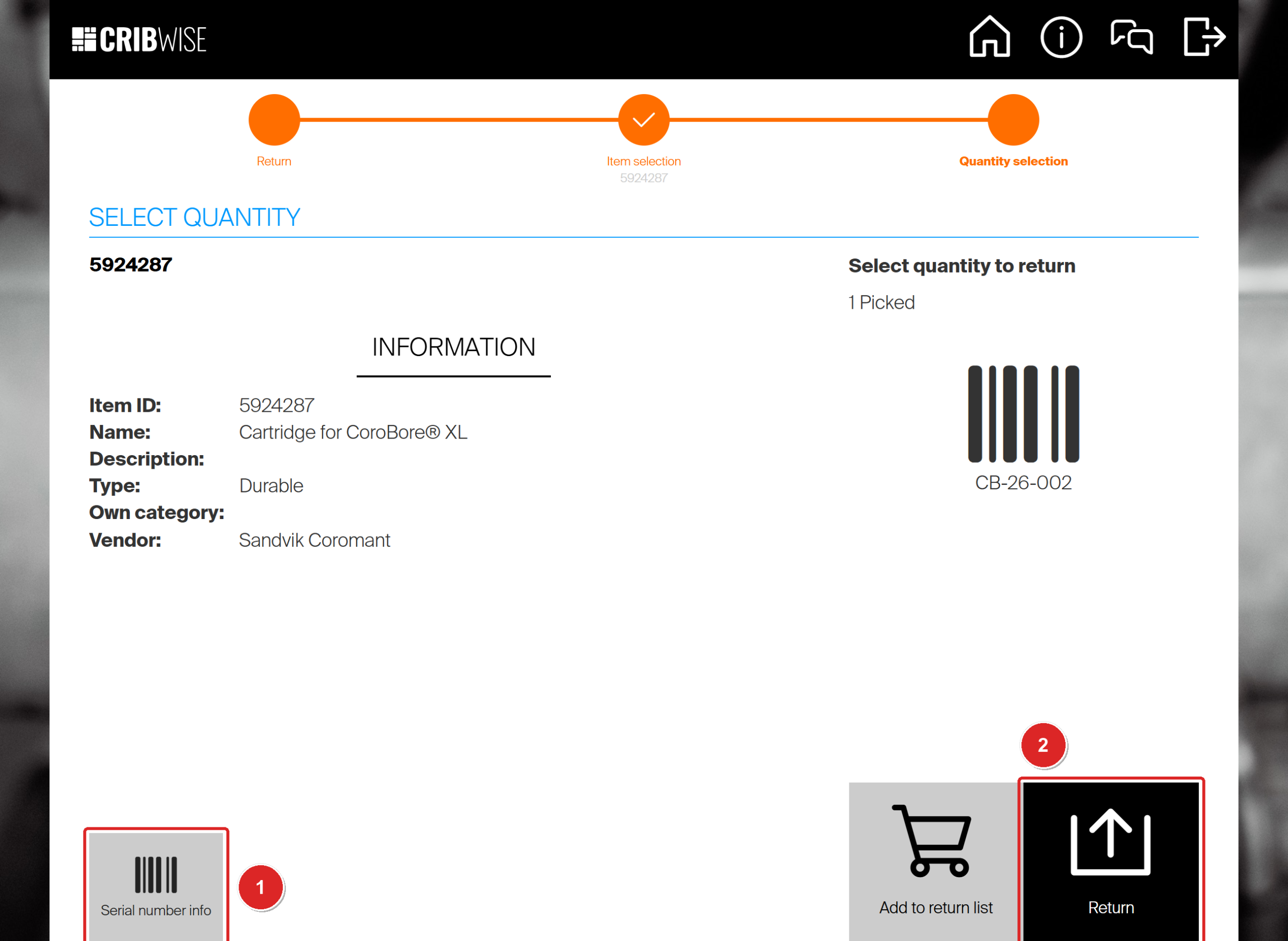
Serial number info (1) opens the service counters. Return (2) hands the item back.
The dialog shows the condition, Loan time ends, Last service, Target service date, Service interval ends, Time picked remaining and Remaining number of picks. A passed Target service date does not change what this return does. It is applied later by the task Lock serialized instances.
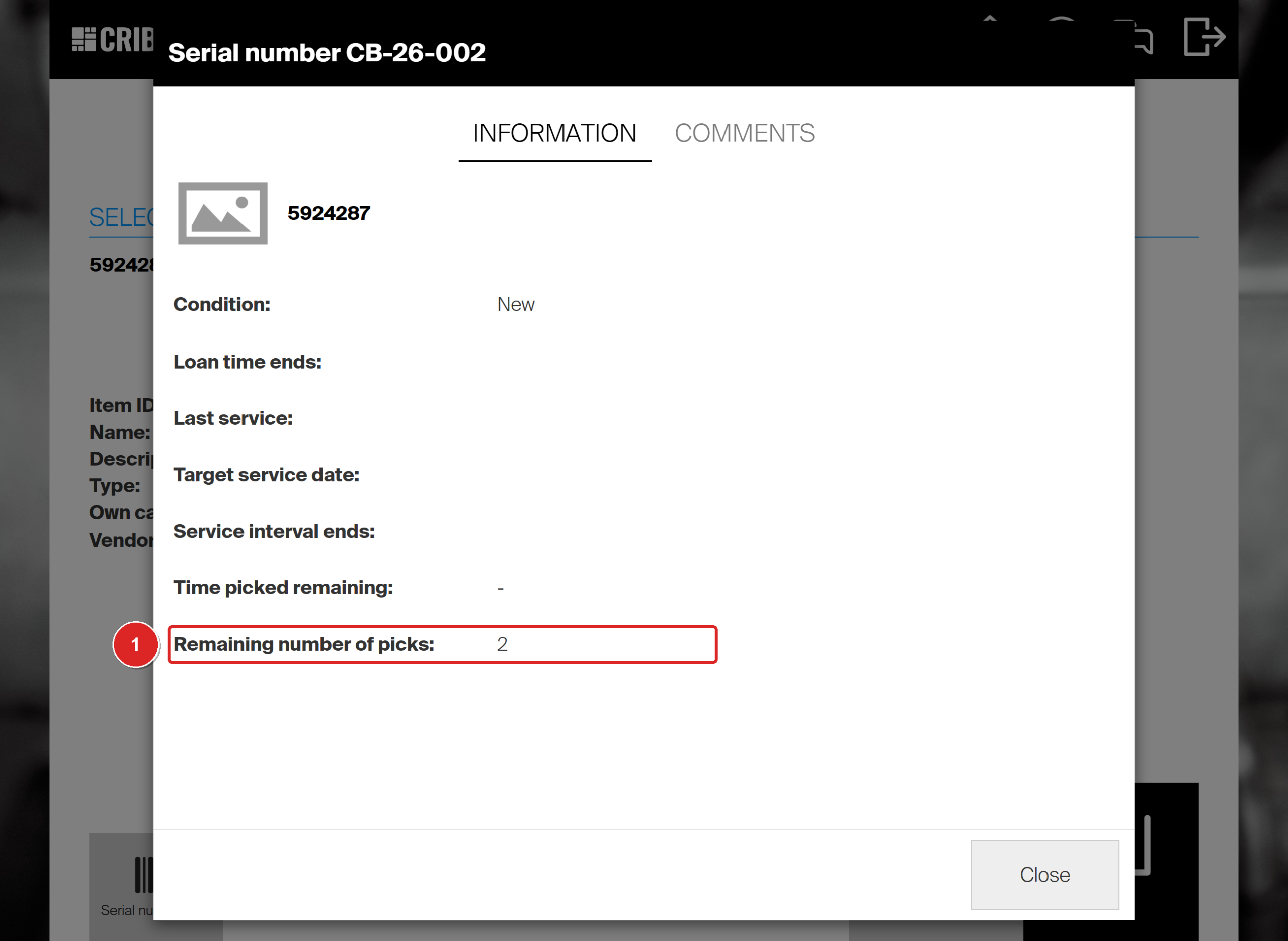
Before this return, 2 picks remain (1). The pick itself does not count. The return does.
- Select Close.
Note: The Admin Portal instance detail does not show the remaining picks. Besides Serial number info, you can see them in the optional Remaining # of picks column of the serialized item overview, described in Serialized items: Tracking.
Step 4 — Return the item and put it back
- Select Return.
- On Items to return, put the item in the location shown and tick its row.
- Select Returning finished.
Return summary lists the item, its location and the quantity.
Step 5 — Check the status in the Admin Portal
Open the item, go to its Serialized item tab and double-click the serial number.
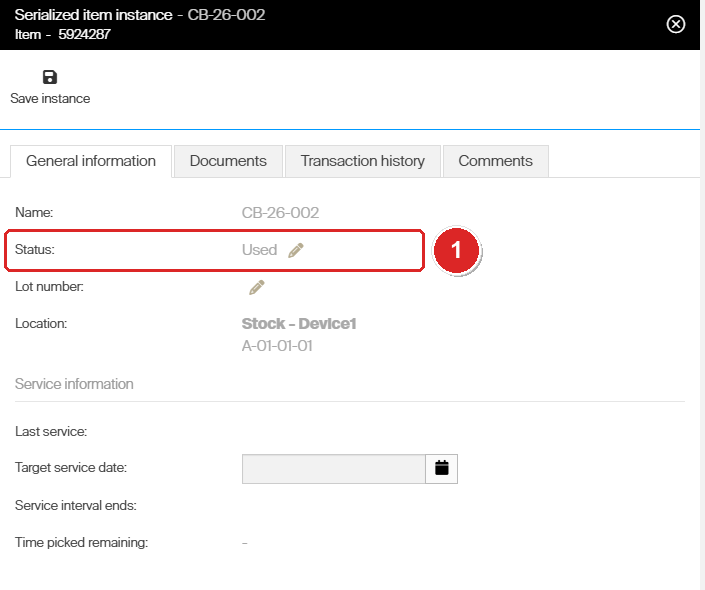
After the return the status reads Used (1), and the location is the stock location again.
Success: The instance is Used, back in its location and can be picked again. If this return used up the last pick of its service rule, the status is For service instead. It then waits for service, as shown in Serialized items: Service.
Next steps
- Send it for service – when an instance is For service, it goes to a service list or service order. The whole route is in Understanding the service flow.
- Look up its history – every pick and return of the serial number is on the instance detail, described in Serialized items: Tracking.
Troubleshooting
| Problem | Likely cause | Fix |
|---|---|---|
| Your serial number is not in the list. | It was picked on a different device. | Return it on that device, or ask an administrator to switch on Allow returns for other devices on this device. |
| Remaining number of picks did not go down after the pick. | Picks are counted on the return, not on the pick. | Finish the return, then check Serial number info again. |
| There is no For service tile. | You may not return for service, or service is not switched on for any item you have picked. | Ask an administrator to check your user group and the item’s Supplier tab. |
| The instance went to For service although you returned it as Used. | This return reached the limit of its service rule. | Nothing is wrong. Send it for service as shown in Serialized items: Service. |
| You returned it with the wrong condition. | The condition cannot be changed on the same return. | An administrator can change the instance status on the instance detail. See Serialized items: Tracking. |
Related articles
- How to return, scrap, and recycle items in SFI – every return option, return lists, scrap reasons and special handling.
- Understanding service lists – where an item goes when it is For service.
- Understanding the service flow: from pick to restock – the full service route.
- How to set up tool life tracking and automatic service triggers – entering consumed tool life at the return.