
What you can do
Submit a feature request to the CRIBWISE Ideas portal, vote and comment on other ideas, and follow your own idea through to release.
CRIBWISE uses an ideas portal where ideas are visible, discussed openly, and synchronised straight into the feature backlog.
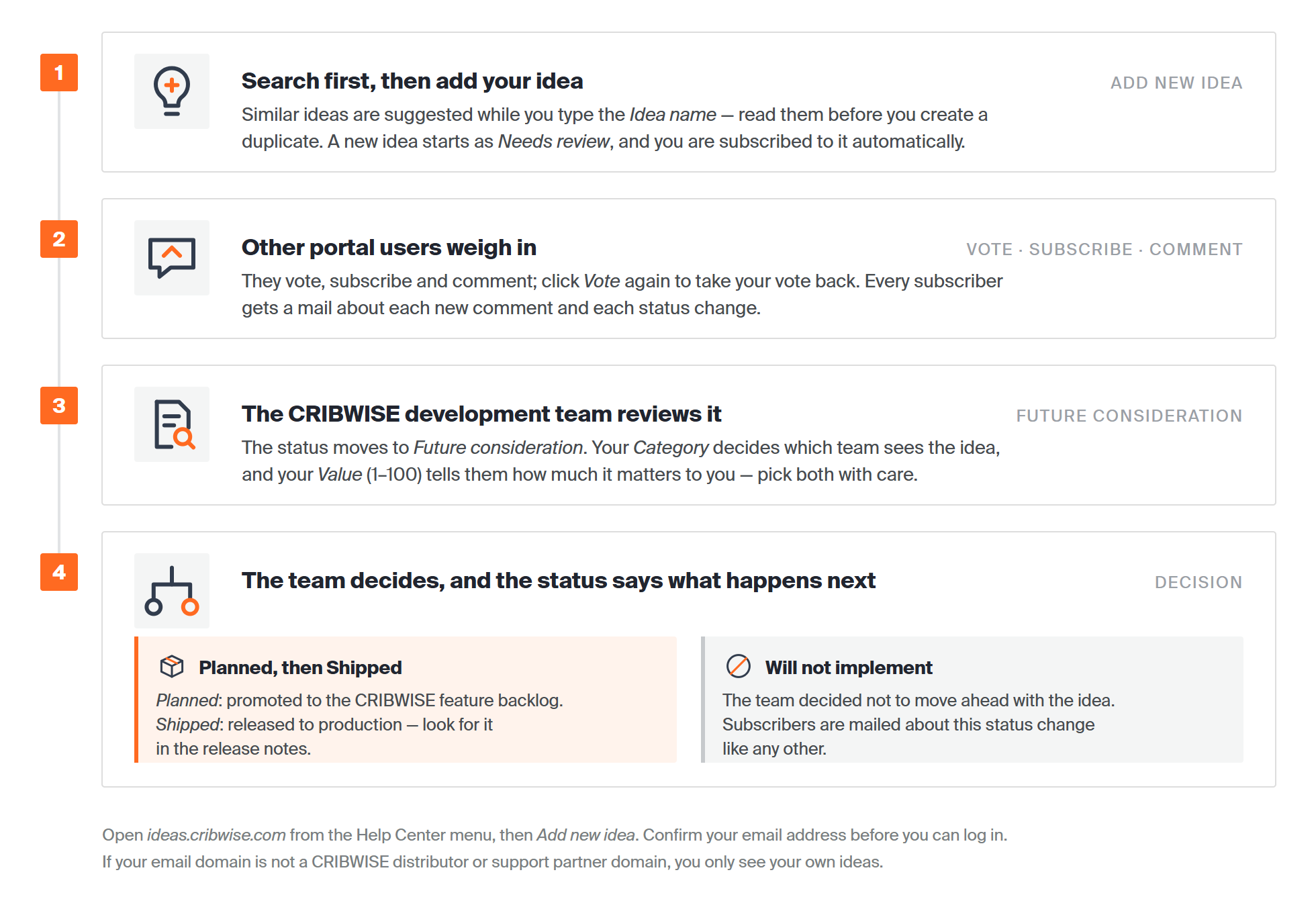
The life of an idea: you add it as Needs review, other users vote and comment, the development team reviews it, and the status ends as Planned and Shipped, or Will not implement. Subscribers are mailed at every change.
Why use the Ideas portal
- Status updates reach every stakeholder instantly.
- Ideas are synchronised directly to the CRIBWISE feature backlog, and the creator is notified when anything changes.

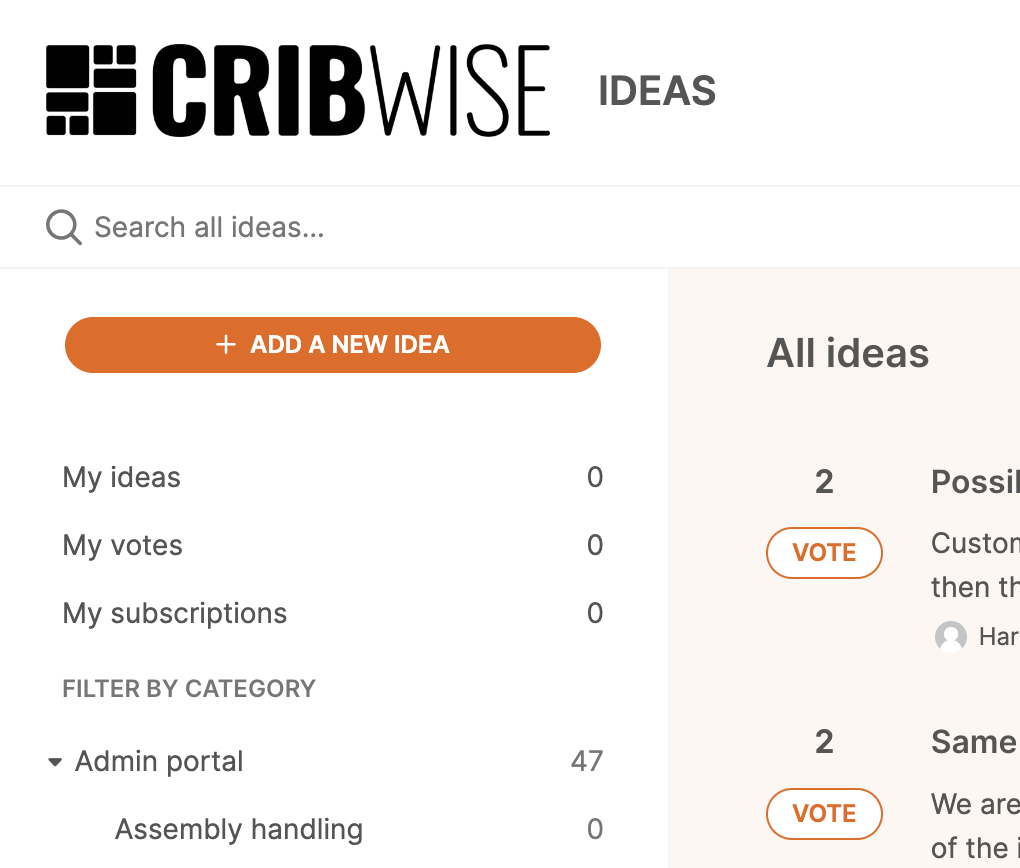
The Ideas portal, where feature requests are collected and discussed.
Before you start
- You don’t need an account on ideas.cribwise.com – it’s free to sign up and gives you the benefit to see all ideas ever created.
- Search for existing ideas first, so you do not create a duplicate.
Quick start
Experienced users – submit an idea in 4 steps:
- Open ideas.cribwise.com and log in.
- Search for similar ideas.
- Click Add new idea and fill in the form.
- Press Add idea.
Steps
Step 1 — Open the Ideas portal
Click the menu in the top right corner of the Help Center, or go straight to https://ideas.cribwise.com/.
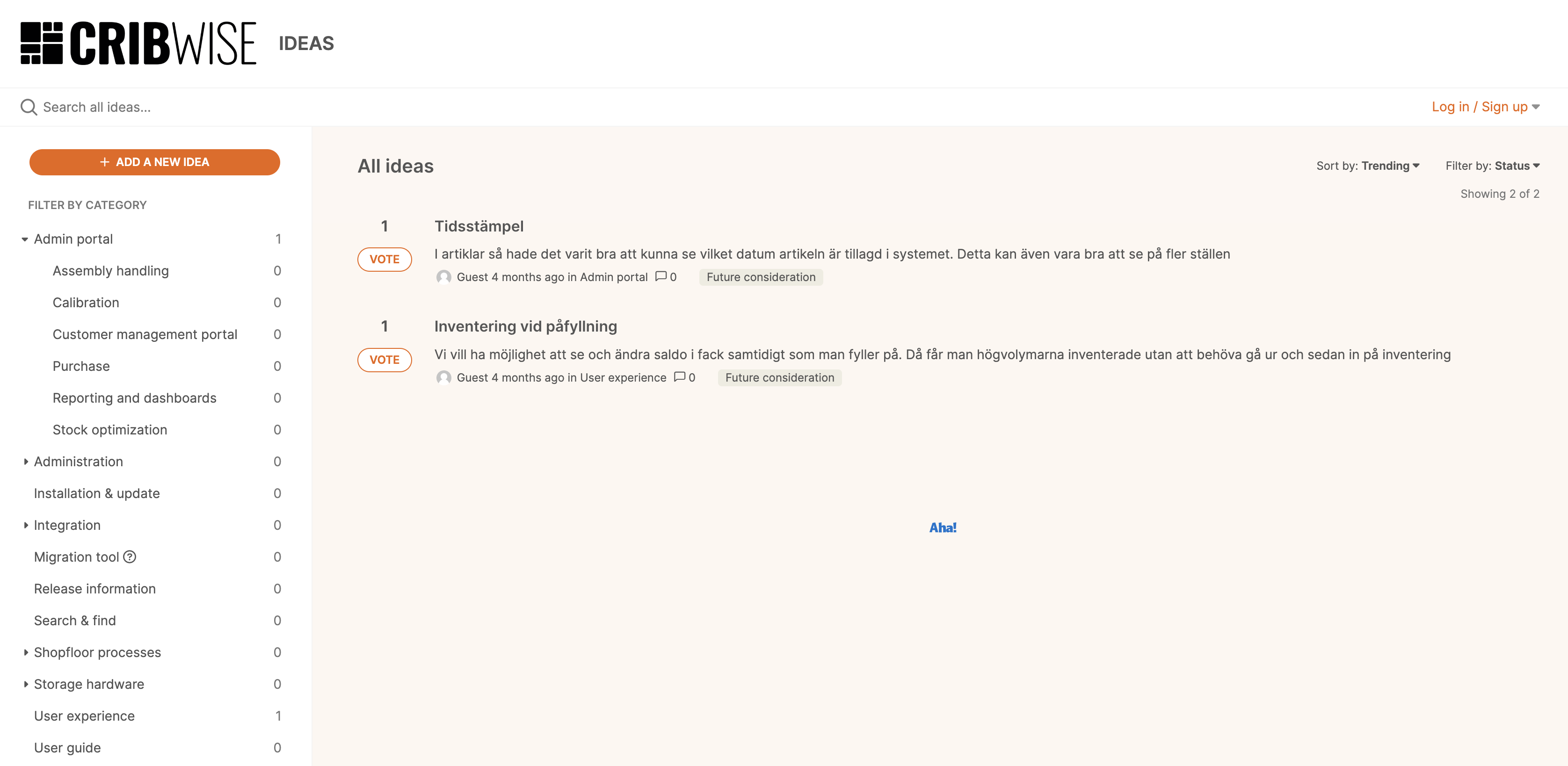
The Ideas portal is reachable from the Help Center menu.
Step 2 — Sign up or log in
The first time you visit, sign up or log in to get access to ideas.
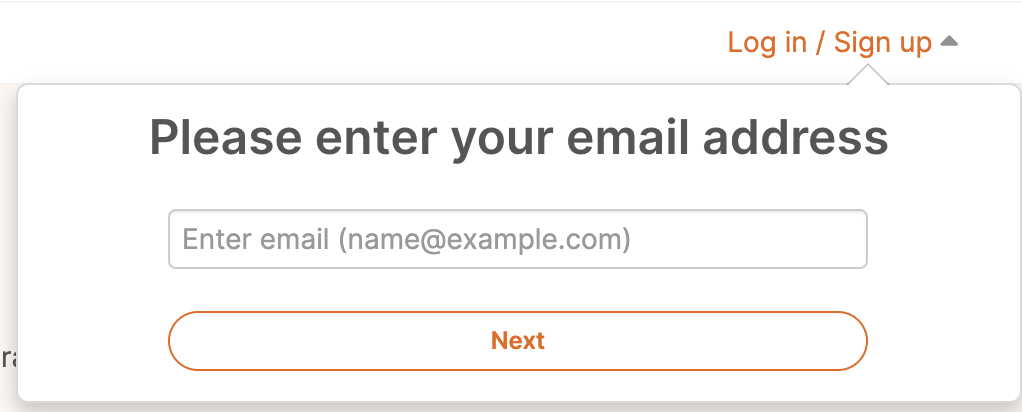
Sign up or log in before you can see or create ideas.
If you do not have a user yet, fill in your first and last name. Confirm your email address to log in and see your ideas.
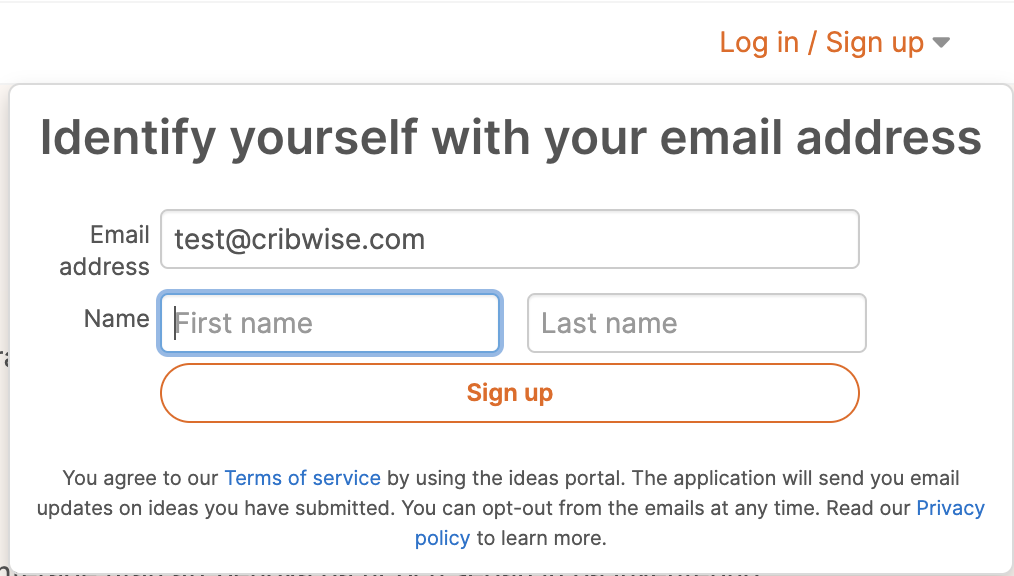
Creating a portal user.
Step 3 — Find existing ideas
Three ways to look around before you add anything:
- Free-text search and filter the ideas.
- Open My ideas, My votes or My subscriptions.
- Browse the category tree.

Search, personal lists and categories for finding ideas.
Step 4 — Create a new idea
- Click Add new idea.
- Fill in the form. Every field is explained in the table below.
- Press Add idea.
Fields on the new idea form
| Field | What to enter |
| Idea name | One short sentence saying what the idea is about. Similar ideas are suggested below the field while you type – read those first so you do not create a duplicate. |
| Category | The category that suits the idea best, for example the part of CRIBWISE it concerns. The category decides which team sees the idea, so pick the closest match rather than a general one. |
| Add more details | Describe the current issue or the missing feature, and how you would like it changed. Write what you are trying to achieve, not only the fix you have in mind. Attach pictures or files if they make the case clearer. |
| Value | A number between 1 and 100 for how important the idea is to you. Use the high end only for the things that really hold your work back. |
Success: The idea appears in the portal with the status Needs review, and you are subscribed to it automatically.
Starting a new idea.
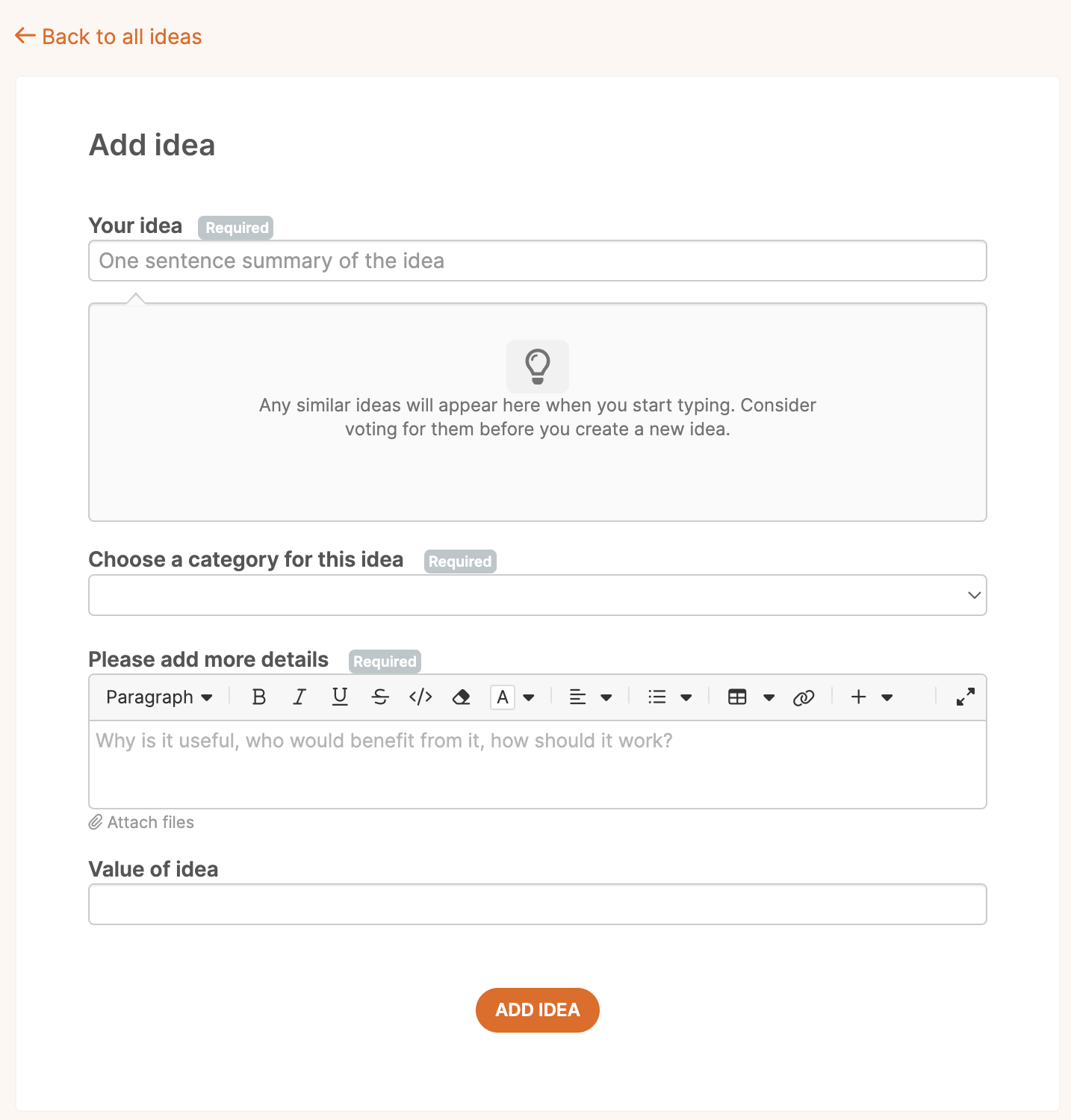
Similar ideas are suggested while you type the title.
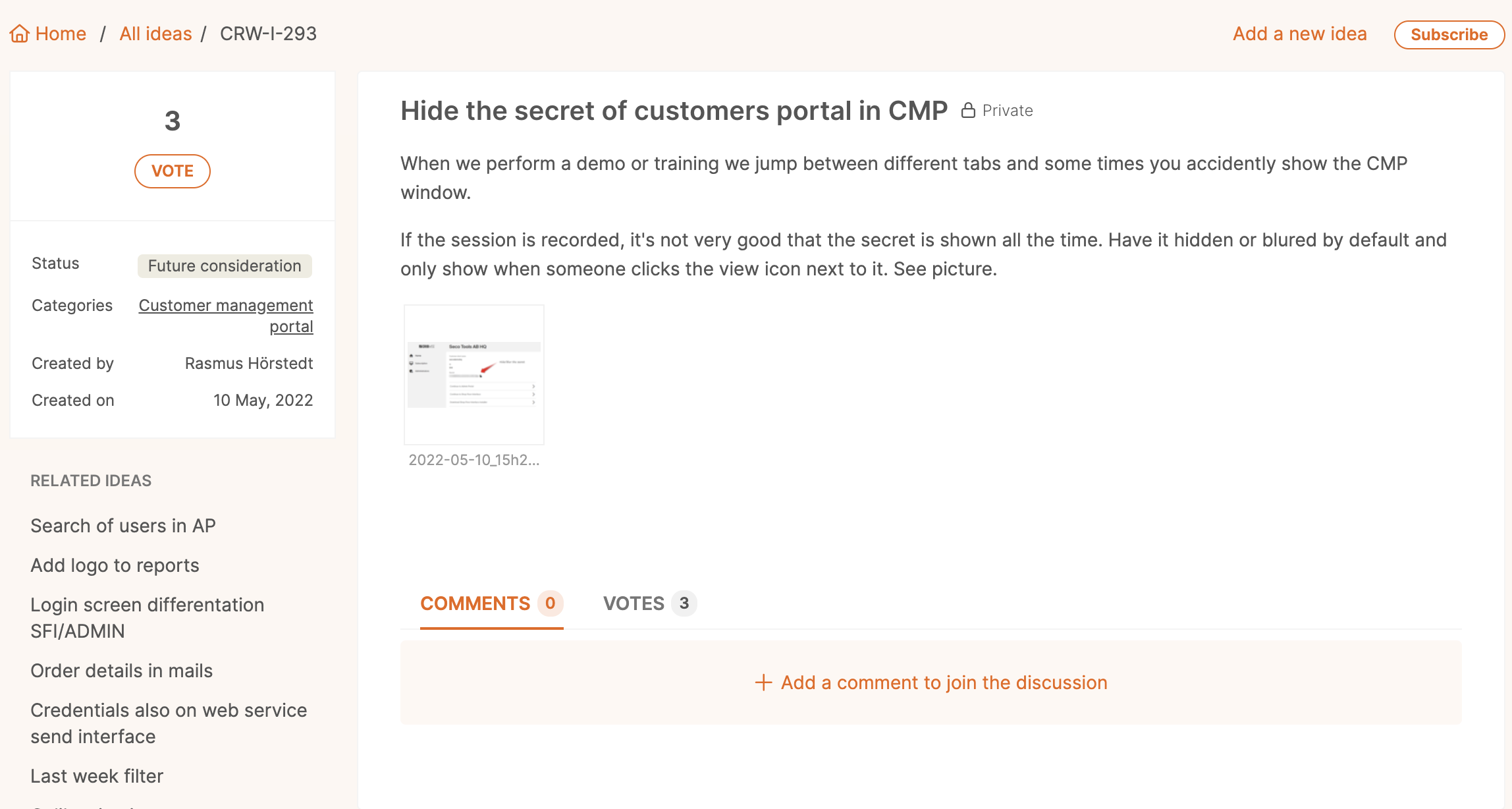
An idea with its vote, subscribe and comment options.
Step 5 — Vote, subscribe and comment
- Vote – vote for a topic, and click again to remove your vote.
- Subscribe – you always subscribe to your own ideas once your user is confirmed, and you can subscribe to other users’ ideas. Subscribers get mail notifications about comments and status changes.
- Comment – add a comment with the bar at the bottom of an idea.
Idea statuses
| Status | Meaning |
| Needs review | New idea |
| Future consideration | The idea is under review |
| Will not implement | Decided not to move ahead |
| Planned | Promoted to the CRIBWISE feature backlog |
| Shipped | Released to production |
Troubleshooting
| Problem | Likely cause | Fix |
| You only see your own ideas. | Your email domain is not a CRIBWISE distributor or support partner domain. | Expected behaviour. Ask your CRIBWISE contact if wider access is needed. |
| You cannot log in after signing up. | The email address has not been confirmed. | Open the confirmation mail and confirm the address, then log in again. |
| No notifications about an idea you follow. | You are not subscribed to it. | Open the idea and subscribe. You are subscribed to your own ideas automatically. |
Related articles
- How to get started with CRIBWISE – set up a portal before requesting changes to it.
- Glossary of CRIBWISE terms and definitions – the vocabulary to use when describing an idea.
- Release notes – where shipped ideas show up.