
Sielaff ASK200 and TB300 vending machines provides additional functionality and are managed in different way than other types of vending machines. This chapter describes way how to prepare a new ASK200 or TB300 machine for operation and how additional functionality can be used in daily use and stock management operations.
Prepare new device
In difference to other types of vending machines, ASK200 and TB300 is capable of fully customize location sizes and structure. Locations are not created by administrator when new storage device is defined, but by machine itself after SFI is installed.
Option to setup locations will not be available if user has no privilege to setup device
Perform following steps to prepare new ASK200 or TB300 storage device:
- Install SFI application to the ASK200 or TB300 machine. Make sure that storage device is created for device, which is defined during SFI installation (see AP Administration guide for more information how to create ASK200 storage device)
- When SFI starts and initial synchronization is finished, navigate to Stock management -> Manage ASK200 or TB300 locations
- In case of multiple cabinets, select cabinet which should be setup
- Door of the cabinet is opened to allow physical changes on locations inside the cabinet. Setup locations as needed in regard to items to be assigned (items can be placed in locations directly and assigned later after rescanning is complete)
Items must not reach the rear edge of a shelf during automatic scanning of locations. If item is pressed to the rear edge of a shelf, scanning will not be performed correctly
- Manage ASK200 or TB300 screen is showing current structure of all locations and shelves defined for the cabinet. Select to Rescan new/removed shelves to setup all installed shelves in the cabinet (1).
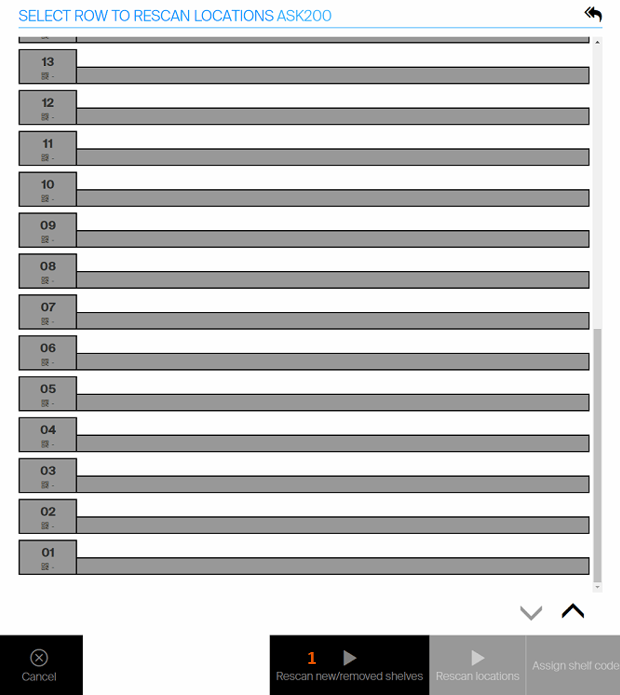
- Select shelf to scan its positions. Select specific shelves (2) or select all (3) installed shelves and start setup of locations by Rescan locations option (4).
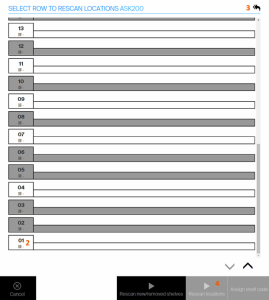
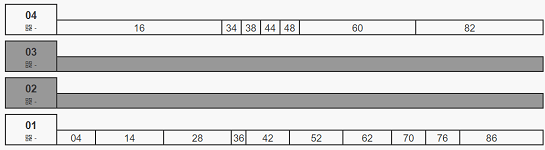
- Scanning of locations can take several minutes (approximately one minute for one shelf). SFI is not available during this time and will be available after process is completed. When done, all locations found are shown in Setup ASK200 or TB300 screen and are available for assigning of items.
- Close door of the cabinet
Assign shelf code to shelf
Each shelf is identified by unique shelf code. This code can be found on the right side of the shelf in form of six digits. Assign of this code to shelf in the system allows using code scanner for selection of location by scanning Data Matrix codes printed on shelves. When code is not assigned to a shelf, locations of this shelf cannot be selected by using code scanner To assign code for a new shelf, follow these steps:
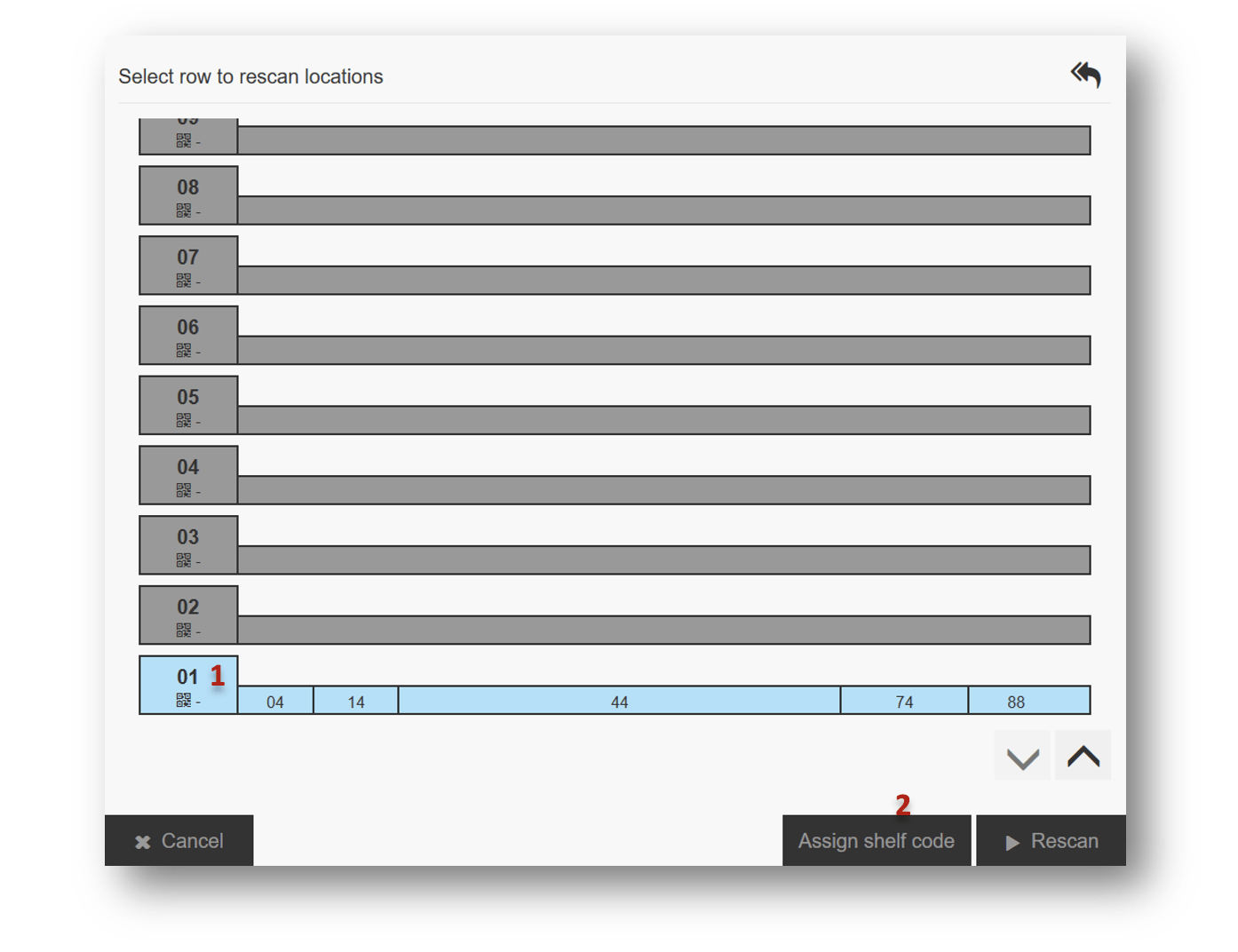
- Open Setup ASK200 or TB300 screen from Stock management. Door of the cabinet will automatically open. If code is not assigned for a shelf, dash is shown on shelf header (1).
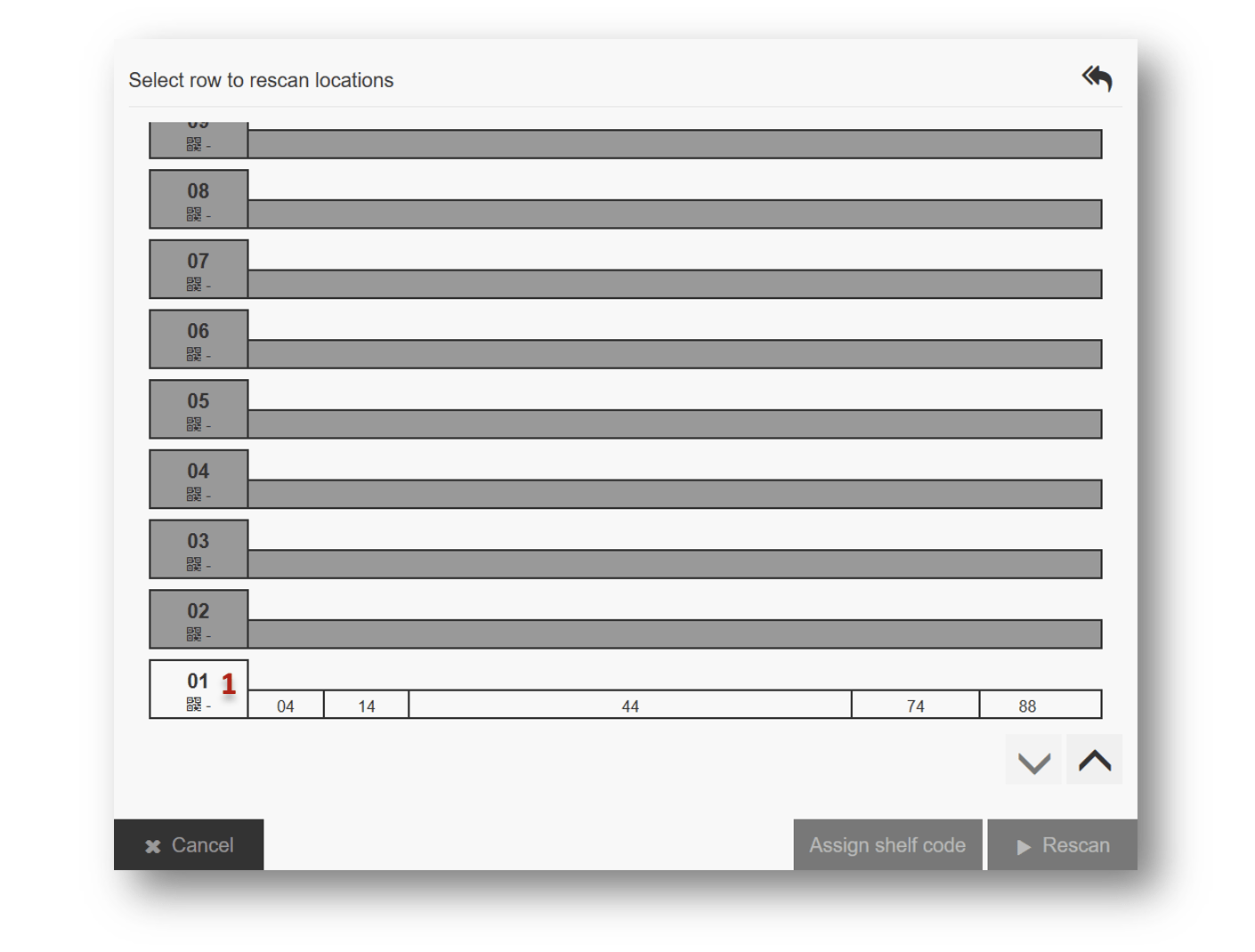
2. Select shelf, for which you want to assign a new code (1) and press Assign shelf code button (2)
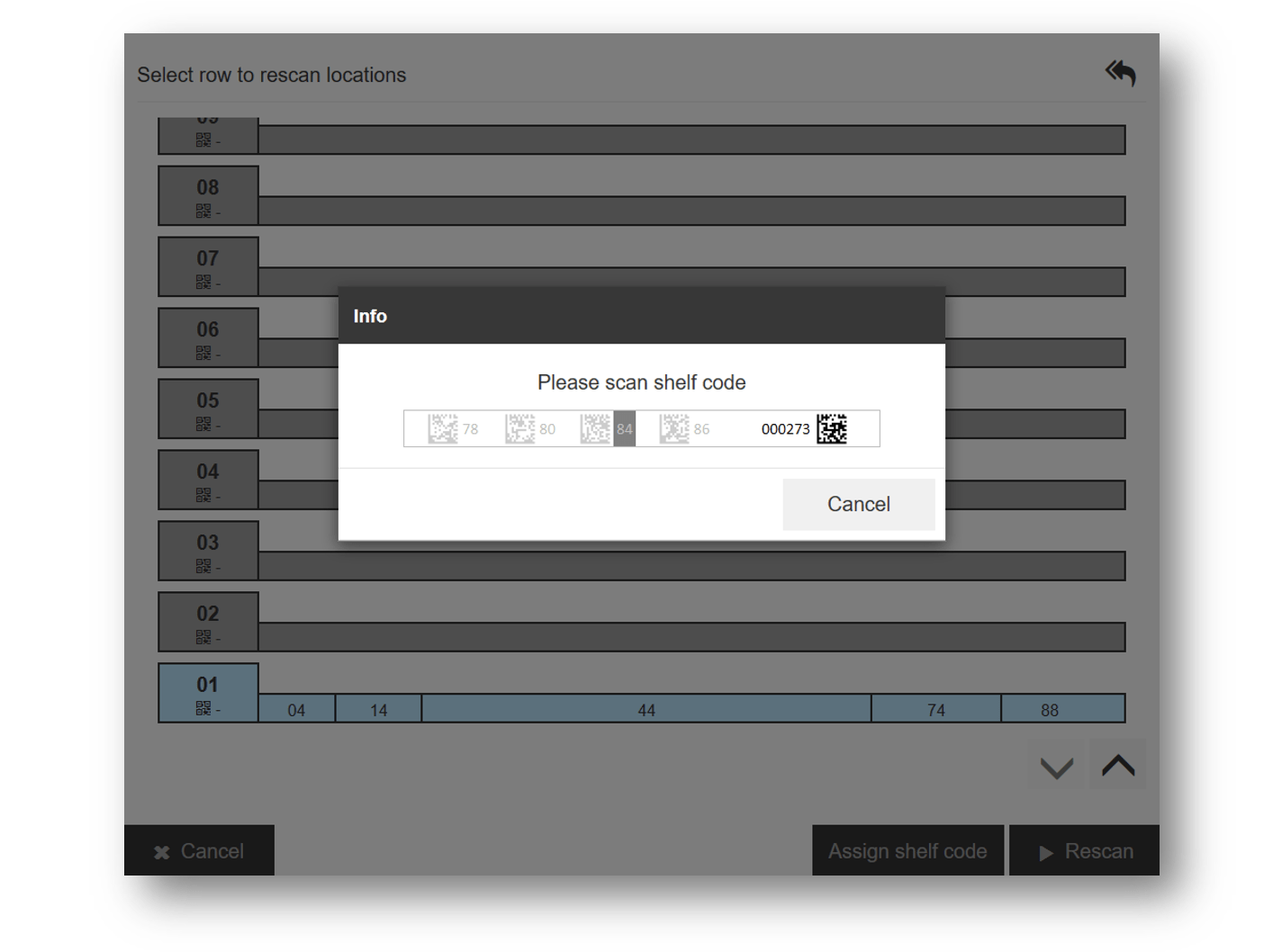
3. Using attached code scanner, scan shelf code printed on the shelf. Shelf code is located on the right side of the shelf, next to six digits code.
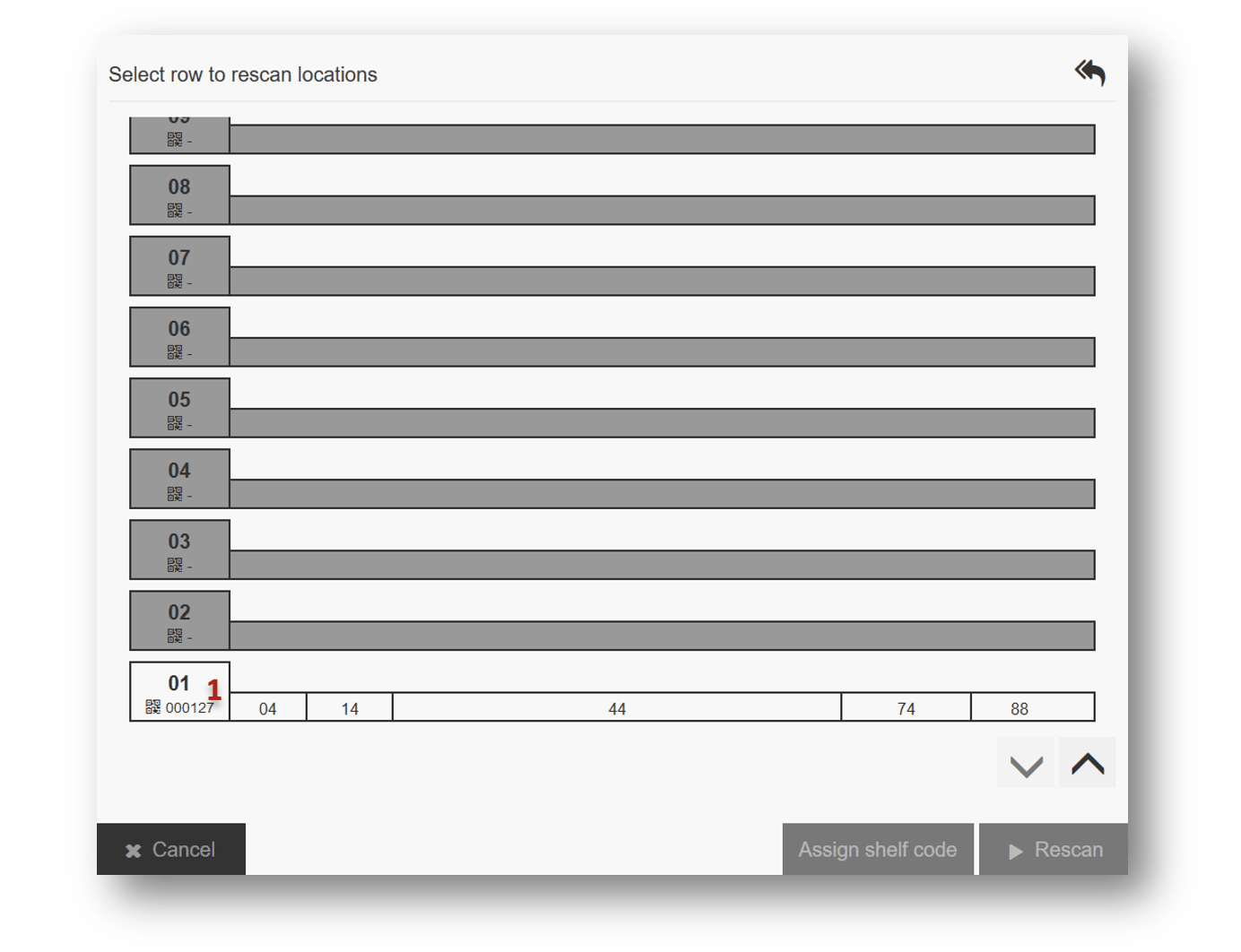
4. When code is successfully scanned, it is shown in the shelf header (1). Locations of this shelf and this shelf itself can be now selected using code scanner and codes printed on the shelf.
5. Close door of the cabinet
Change location structure
Changes in adding, removing and change location sizes or adding, removing shelves can be performed when cabinet is defined. Changes will affect item assignments currently created for changed locations and will not affect assignments on locations, which remains unchanged. When location with assigned item is changed (removed or its size is changed), this assignment is deleted even though there are physical items remaining.
Option to setup locations will not be available if user has no privilege to setup device
After changes are done on shelves, rescanning of these shelves is needed to reflect changes in the system.
Items in locations must not touch the rear edge of a shelf during scanning. Otherwise scanning will not be performed correctly
Follow these steps to change location structure:
- Enter Setup ASK200 or TB300 screen in Stock management menu to show structure of all shelves and locations. Door is automatically opened to allow access to locations
- Perform changes on physical locations. Keep in mind that item assignments in changed locations will be removed
- If any shelf has been added or removed, press Rescan new/removed shelves to reflect this change
- Select shelves, where update has been made. Shelf number corresponds with number printed on the cabinet on the left side (1-28)
- Select to Rescan locations. This operation will scan for any changes in positions of selected shelves
- When rescan is completed, location structure is updated according to changes. Rescan can take several minutes based on count of selected shelves (1 minute approximately for one shelf)
- Close doors of the cabinet
Light up locations
ASK200 and TB300 cabinets allow to light up locations during inventory and restock to inform user which location to work with.
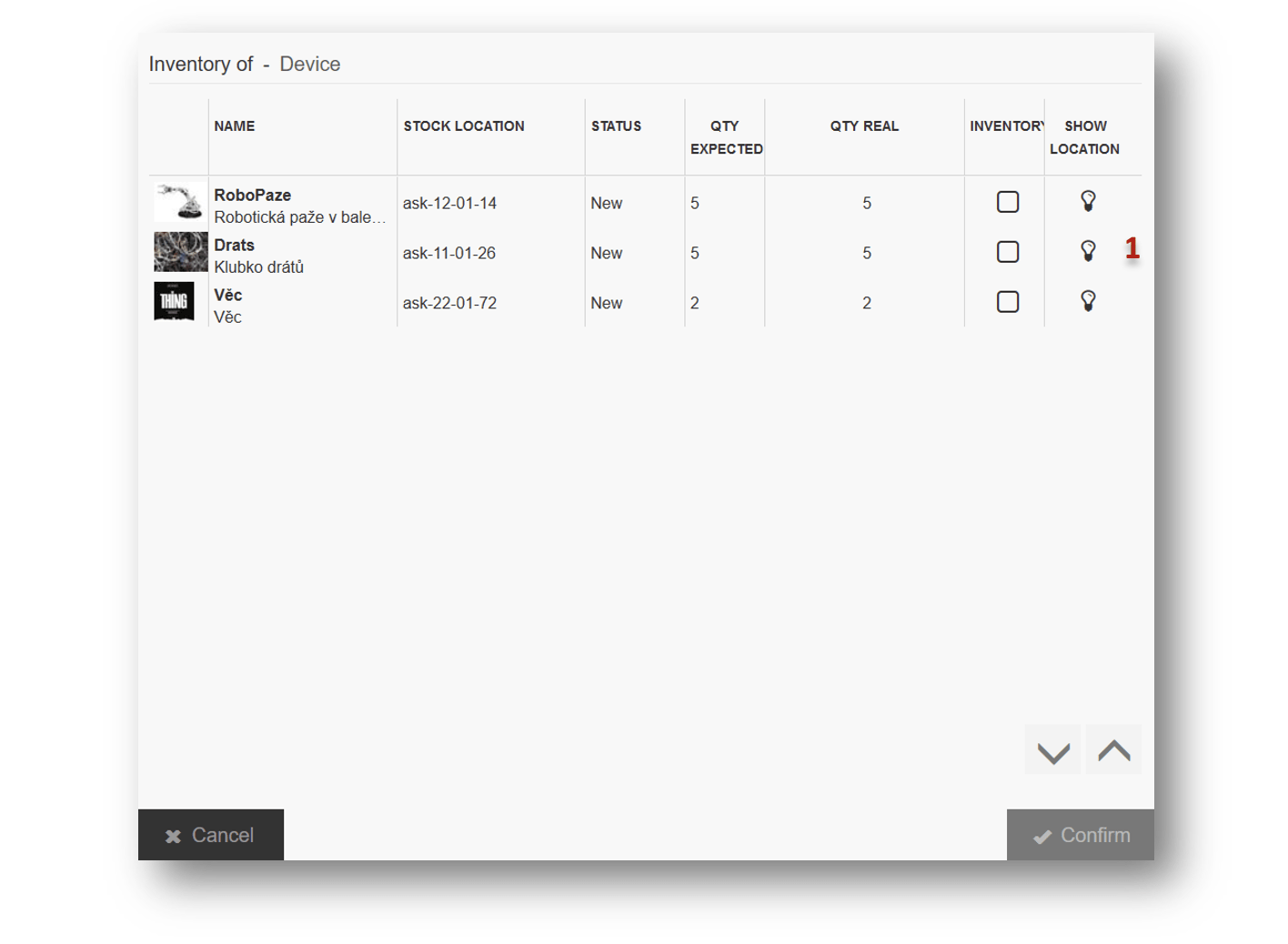
On inventory and restock screen, Show location icon (1) will be shown for all locations. Press the icon to light up location for 5 second.
If combination of ASK200 or TB3000 and other type of storage device is selected for inventory or restock, icon is shown only for locations from ASK200 and TB300 storage devices
Open doors
When there is only single ASK200 or TB300 cabinets, main door of the cabinet is opened automatically to allow access to physical locations during these operations:
- When user enters Update location screen
- When locations for inventory are about to be selected
- When unfinished inventory is started
- When restock of items is confirmed
- When new item is about to be assigned
When multiple cabinets of these types, user must select doors to open manually during operations described above. To open doors, select option Open doors during an operation and select cabinet to open. Doors must be closed manually after operation is completed. To close doors, hold them in closed position until automatic lock is engaged.
Doors must be closed to enable any picking operation
Selection of locations using scanner
When shelf codes are assigned to shelves, selection of locations using scanner can be performed during several flows:
If one location covers more codes, every code inside such location can be scanned to select this location
Update locations
On Update locations screen shelf for rescan can be selected directly using code scanner. Scan shelf code (the most right code printed on shelf) to start rescanning of the shelf.
Assign item
During assignment of item to location, location can be selected by scanning location code printed on the shelf. When you are on screen with location selection for new assignment, scan location code to automatically select location. Flow will automatically proceed to the next step.
Inventory
On screen with selection of items and locations for inventory, scan location code to start inventory of this location (if there is any item assigned). To select all locations on a shelf for inventory, scan shelf code. Besides mentioned flows scanner can be used to enter information (like item barcodes) in classic manner.