
When you need to adjust the configuration of a VX500/1000—for example, increasing the compartment size for certain items—you can do so by following the steps below.
Important! Please note that updating a configuration will erase all item assignments for the entire row of that column being modified (e.g., row 11X, level 1). For instance, if a location currently has 3 compartments and you update it to 6, all existing assignments on 11X‑1 will be removed once the new configuration is applied.
This applies in both directions. Whether you are increasing or decreasing the number of compartments, the system will clear all existing assignments and location quantities for that row.
Make a backup
Before making any configuration changes, create a backup of your current data.
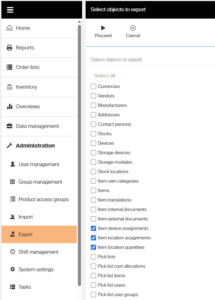
- Go to Administration > Export.
- Export the following datasets:
- Item device assignments
- Item location assignments
- Item location quantities
- If you prefer, you can also generate a full backup by selecting Select All at the top of the export list.
This ensures you have a complete record of your existing setup in case you need to restore it later.
Get the Current Configuration
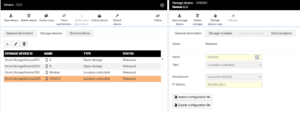
- Navigate to Data Management > Devices, then select your device.
- Lock the device to prevent any changes during the process. You find the Lock device option in the menu at the top.
- Once the device is locked, you will be able to Export and Import the configuration file.
Update the configuration file
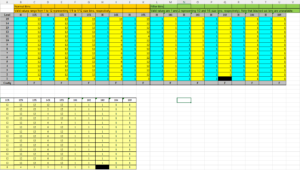
Make the necessary changes to you configuration by editing the yellow fields. The numbers indicate how many locations you have for that column and row.
Import the Updated Configuration
- Navigate to Data Management > Devices, then select your device and your cabinet.
- Click Import.
- Upload the updated Excel configuration file.
- Click Save
Go back to you device and click ‘Unlock device‘ at the top.