
What you can do
Order a Tools United CRIBWISE direct account voucher and redeem it on your Tools United account, so you can import item data from the Tools United catalog into CRIBWISE.
The voucher is a 12-month add-on ordered in the Customer Management Portal. Redeeming it links the flat-rate coupon to the Tools United user.
The add-on is a purchase, so contact your sales partner to buy it. The Customer Management Portal screenshots in steps 1 and 2 below are what a sales partner or distributor sees when they place the order – as a customer you will not normally work in those screens yourself.
The flow below shows who does what, from ordering the add-on to importing items.
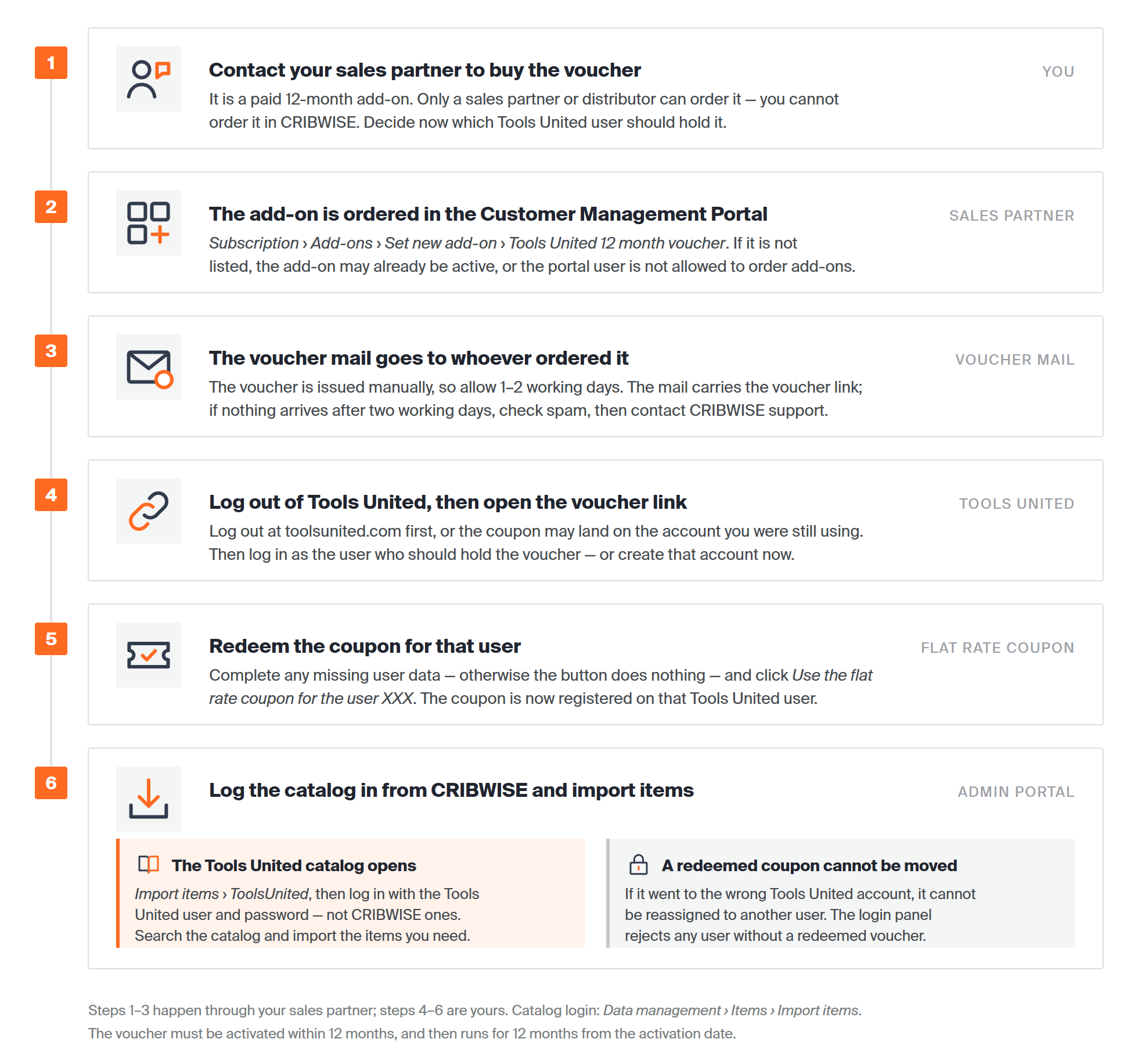
Steps 1 to 3 happen through your sales partner; steps 4 to 6 are yours. Redeem the coupon on the right Tools United user — it cannot be moved afterwards.
Before you start
- Contact your sales partner to purchase the add-on. Only a sales partner or distributor with access to the CRIBWISE Customer Management Portal can order it.
- You need an Admin Portal user with permission to import items, to log the catalog in afterwards.
- You need a Tools United account – or the details to create one – at toolsunited.com.
- Decide which Tools United user the voucher should belong to. The coupon is redeemed for one user.
Important: Ordering the voucher is a manual process. The voucher mail can take 1–2 working days to arrive. The voucher must be activated within 12 months and will last 12 month from activation date.
Quick start
Experienced users – activate the voucher in 6 steps:
- Ask your sales partner to order the add-on in the Customer Management Portal, menu Subscription → tab Add-ons.
- Choose Set new add-on and select Tools United 12 month voucher.
- Wait for the voucher mail (1–2 working days).
- Log out of Tools United, then open the link in the mail.
- Log in as the target Tools United user and use the flat rate coupon.
- Log the catalog in from the Admin Portal: Items → Import items → ToolsUnited.
Need more detail? Follow the full steps below.
Steps
Step 1 — Order the voucher
Sales partners and distributors: steps 1 and 2 are done in the Customer Management Portal, which customers do not have. If you are a customer, contact your sales partner and continue from step 3.
- Log in to the CRIBWISE Customer Management Portal.
- Go to the Subscription menu and open the Add-ons tab.
- Choose Set new add-on.
The add-on chooser opens.
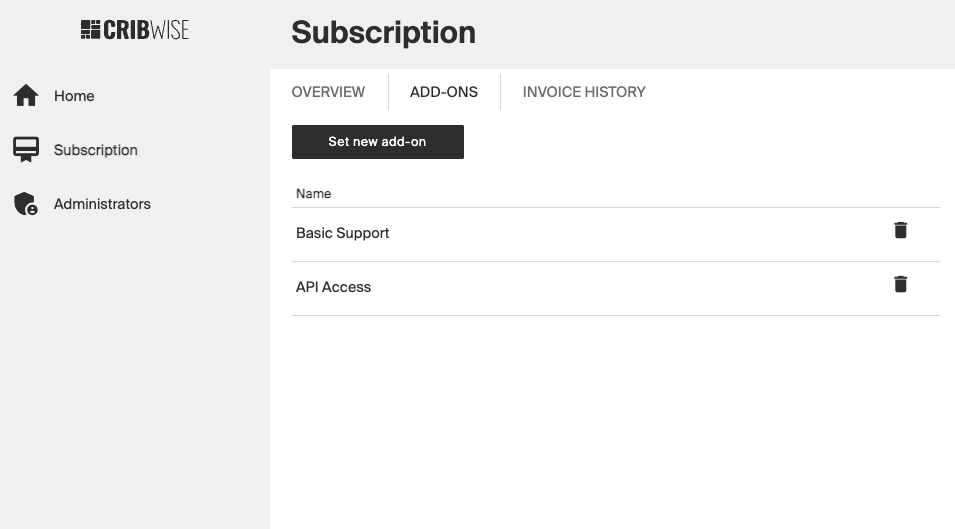
The Add-ons tab in the Customer Management Portal, where add-ons are ordered.
Step 2 — Select the Tools United add-on
- Select the Tools United 12 month voucher add-on.
- Confirm the order.
A mail with the voucher link is generated and sent to the requestor.
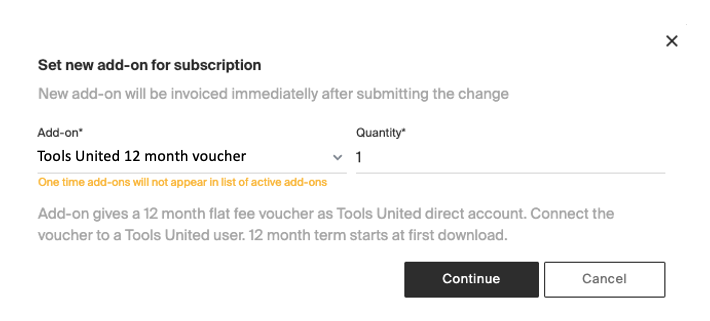
Selecting the Tools United 12 month voucher add-on.
Note: The voucher is issued manually, so allow 1–2 working days before the mail arrives.
Step 3 — Log out of Tools United
If you are logged in to any Tools United account, log out at https://www.toolsunited.com/App.
This prevents the coupon from being redeemed on the wrong account.
Step 4 — Open the voucher link
- Open the mail and click the voucher link.
- Log in as the Tools United user the voucher should belong to – or create that account now.
The coupon page opens for the user you logged in as.
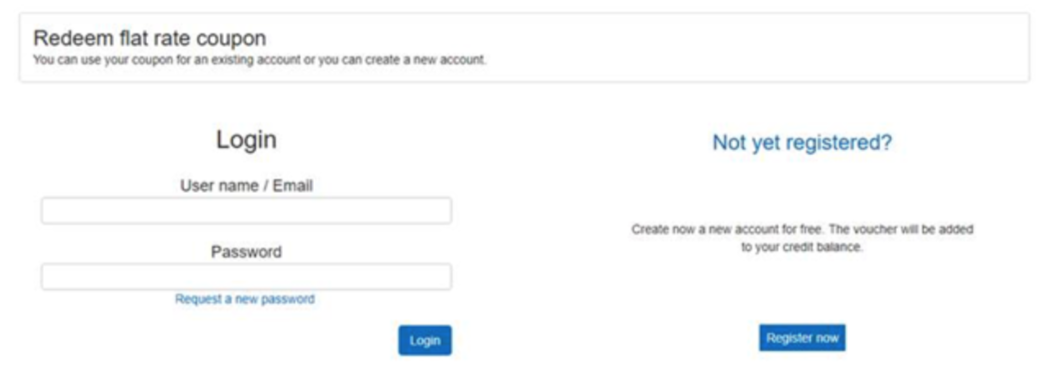
Log in as – or create – the account that should hold the voucher.
Step 5 — Redeem the coupon
- Complete any missing user data.
- Click Use the flat rate coupon for the user XXX, where XXX is the account you are logged in as.
Success: The flat rate coupon is registered on that Tools United user, and the account can be used from CRIBWISE.
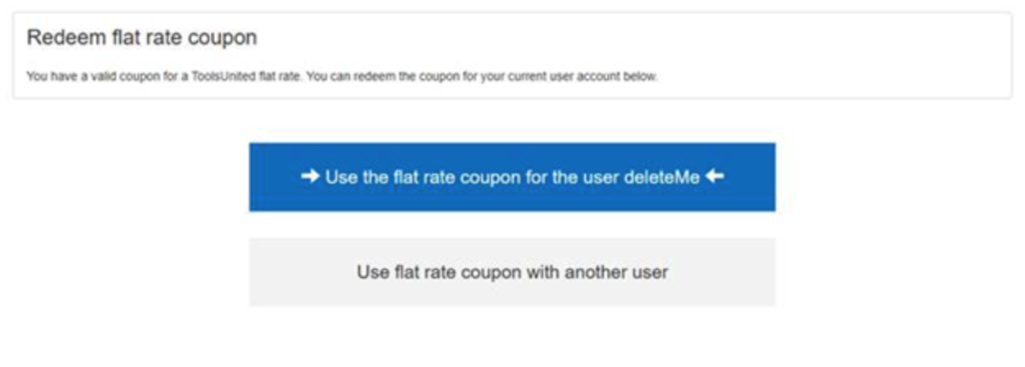
Redeeming the flat rate coupon for the logged-in user.
Step 6 — Log in to the catalog from CRIBWISE
The redeemed voucher lives on the Tools United user, not in CRIBWISE. The first time you import, CRIBWISE asks for that user:
- In the Admin Portal, go to Data management → Items and choose Import items (1).
- In the Item import panel, select ToolsUnited (2).
- Enter the User name / email and Password of the Tools United user that holds the voucher (3). Tick Remember me if you do not want to be asked again.
- Choose Login (4).
Success: the Tools United catalog opens and you can search it and import items.
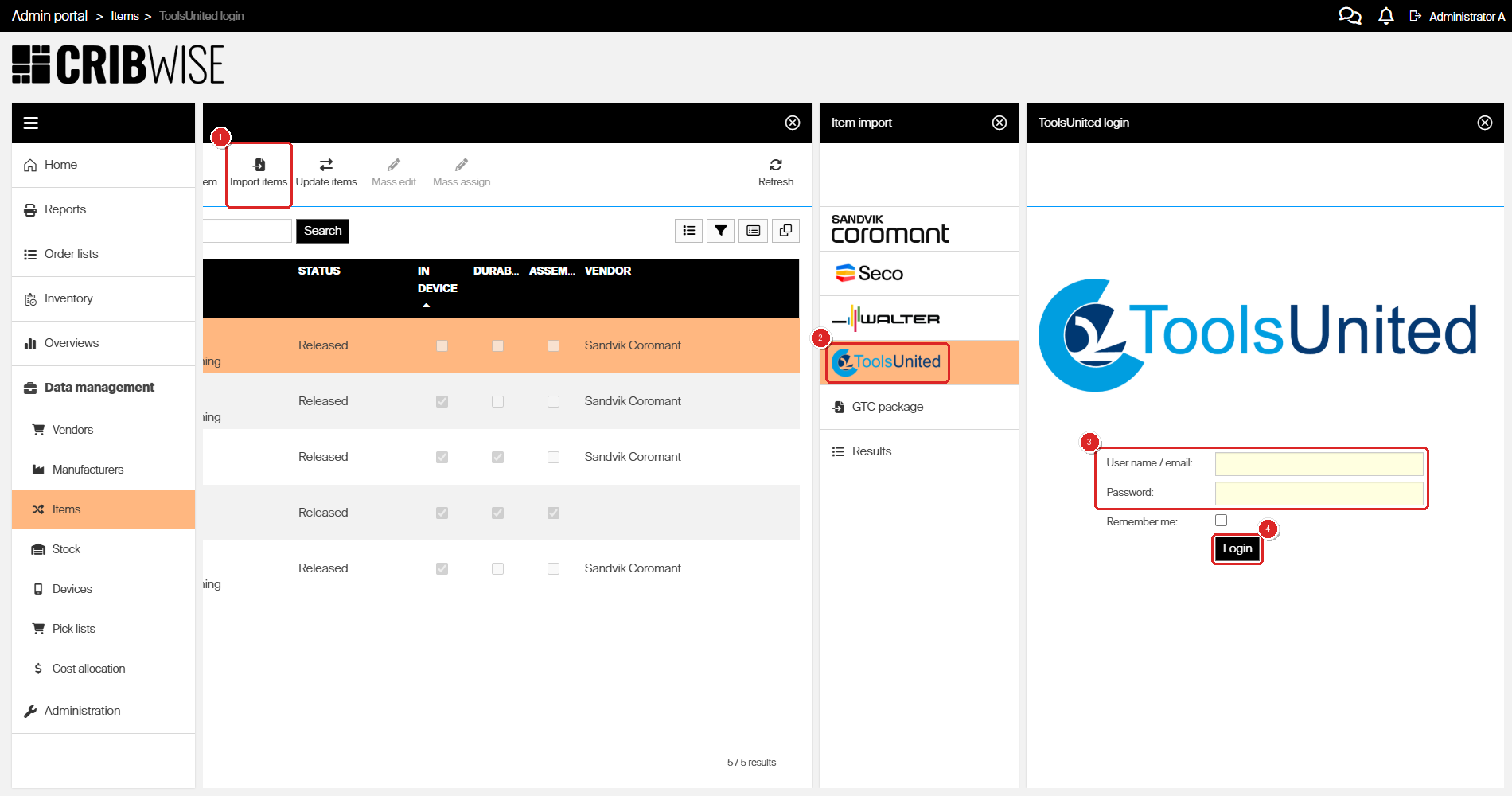
The ToolsUnited login panel, opened from Import items. These are Tools United credentials, not CRIBWISE ones.
Next steps
- Search the Tools United catalog in the Item import panel you just logged in to.
- Import items from the catalog – see How to import items from a catalog.
Troubleshooting
| Problem | Likely cause | Fix |
| No voucher mail arrives. | The voucher is issued manually and takes 1–2 working days. | Wait two working days, check your spam folder, then contact CRIBWISE support. |
| The coupon was redeemed on the wrong Tools United account. | You were still logged in to another account when you opened the link. | An activated coupon can not be reassigned to a different tools united user. |
| The Use the flat rate coupon button does nothing. | Required user data is missing on the Tools United account. | Complete every required field on the account, then click the button again. |
| The ToolsUnited login panel rejects the user name and password. | The credentials are for a Tools United user without a redeemed voucher, or they are CRIBWISE credentials. | Use the Tools United account the coupon was redeemed for in step 5, and check it at toolsunited.com. |
| The Tools United 12 month voucher add-on is not listed. | Your Customer Management Portal user cannot order add-ons, or the add-on is already active. | Check the Add-ons tab for an existing entry, and ask an account administrator to order it. |
Related articles
- Tools United import details – what the Tools United catalog delivers into CRIBWISE.
- How to import items from a catalog – create items in CRIBWISE from catalog data.
- How to update items from an external catalog – refresh existing items with catalog data.