
What you’ll learn
How lot (batch) tracking works in CRIBWISE: what turning it on changes in restock, assignment and inventory, how lot numbers bind to locations, and how tracking differs for serialized items.
Every transaction on a tracked item carries its lot number, so any movement – pick, return, restock – can be traced to a specific lot or batch.
Lot tracking is switched on per item.
How lot tracking behaves
Once tracking is active for an item, restock asks the operator for the lot numbers being restocked. Those numbers are stored for the item and added automatically to every transaction made for it. Operators doing daily work – picking, returning – cannot influence which lot is involved.
To keep lot numbers of non-serialized items from mixing, each item-location assignment can hold only items sharing one lot number. An item with another lot number can go into that location only once all items of the previous lot are taken out. Lot numbers are not bound permanently to a location: the location is free for any other lot as soon as it is empty.
Important: This can increase the storage capacity an item needs, when several lots exist at the same time.
Note: If one durable item is assigned to a single location with multiple conditions, each condition can carry a different lot number.
For serialized items the lot number is set per serial number, so instances of different lots can share one location. See Lot tracking for serialized items below.
Turning tracking on
Open the item detail, General information tab, and turn on Track lot numbers. From then on:
- Every restock – from order, service, transfer or without order – requires the lot numbers of what is restocked.
- Every assignment to a location requires a lot number when physical quantity is placed during the process.
- Every inventory requires a lot number where a location holds quantity but no lot number. This happens when tracking is switched on for an item already in locations.
- Changing the quantity in a location through Excel import requires the lot number in that location.
- Every operation shows which lot number is involved when an item is taken out of a location or placed into it.
Important: Switching this on for an item already in a location leaves the lot number of those units unknown. An inventory of that location then forces the lot number to be specified.
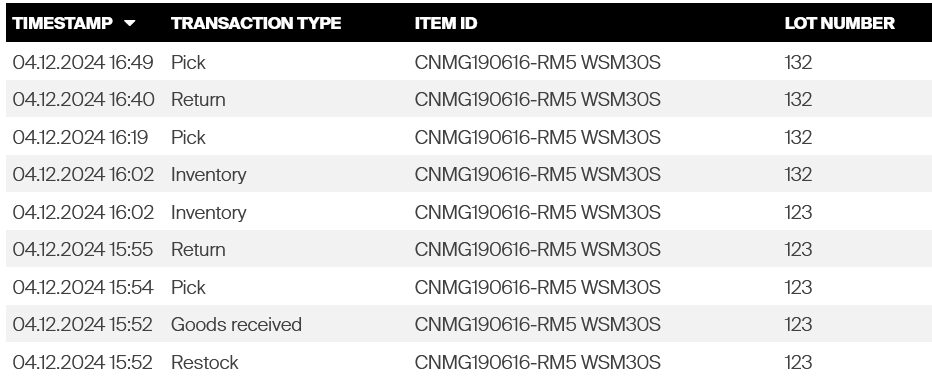
Transactions store the lot number involved. Show it in reporting by adding the Lot number column to reports based on Transactions data. To see which lot sits in which location, add the same column to reports based on Locations data.

The Lot number column in reporting.
Restocking a tracked item
When a restock includes an item that tracks lot numbers, the operator is asked for the lot number right after the quantity to restock is confirmed.
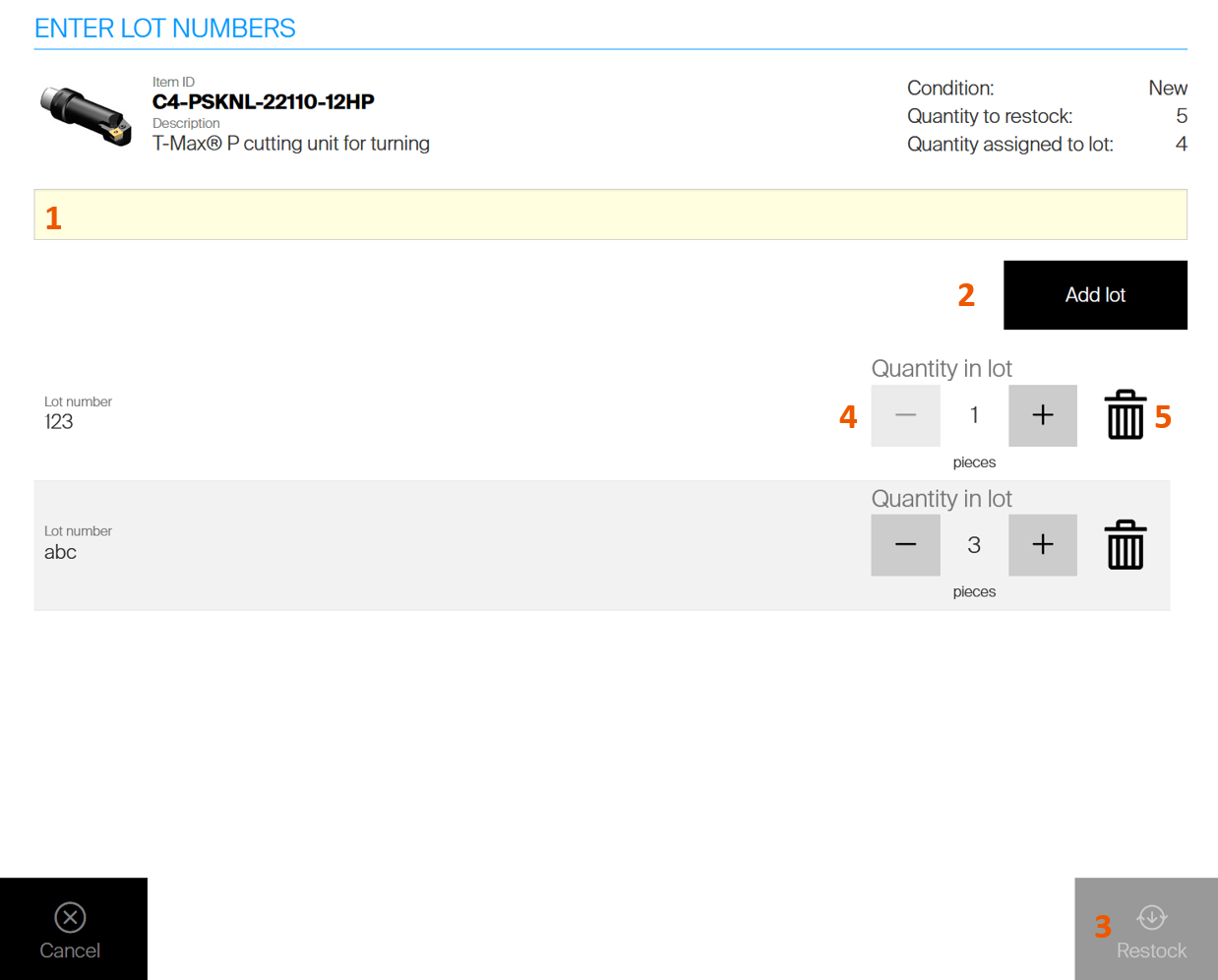
Assigning lot numbers to the quantity being restocked.
All of the selected quantity must have lot numbers before the restock can continue:
- Enter the lot number (1) and confirm it (2).
- The flow stays blocked until the full quantity has lot numbers (3).
- For several lots, reduce the quantity on one lot number (4) and add another.
- Clear an entered lot number with the trash bin icon (5).
Clicking Restock (3) places the item into the target locations and finishes that item, before the flow continues with the remaining items.
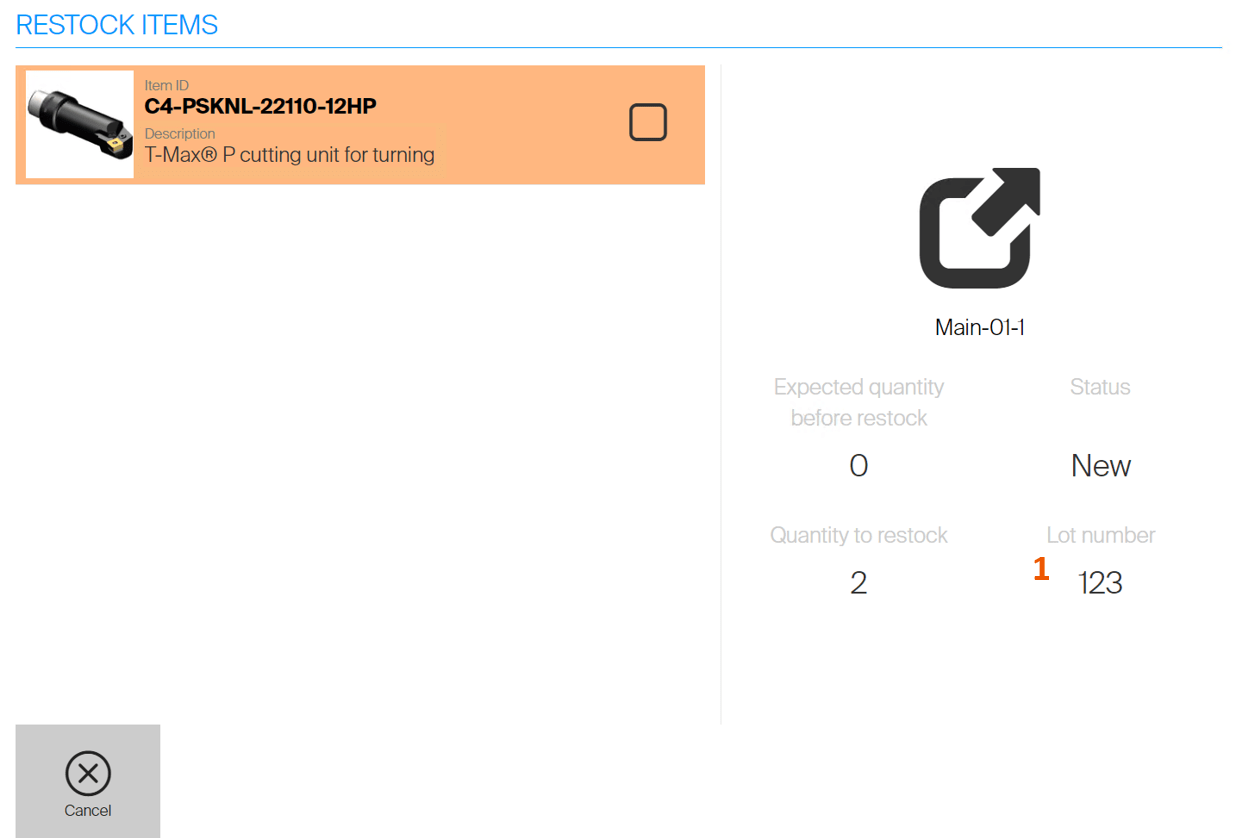
The lot number and quantity to place into a location are shown.
Note: If no suitable location is available, a “not enough space” message appears. Create a new assignment or lower the restocked quantity to proceed.
Items with special handling
When a tracked item also has special handling, a lot number must be entered for every location the item goes into.
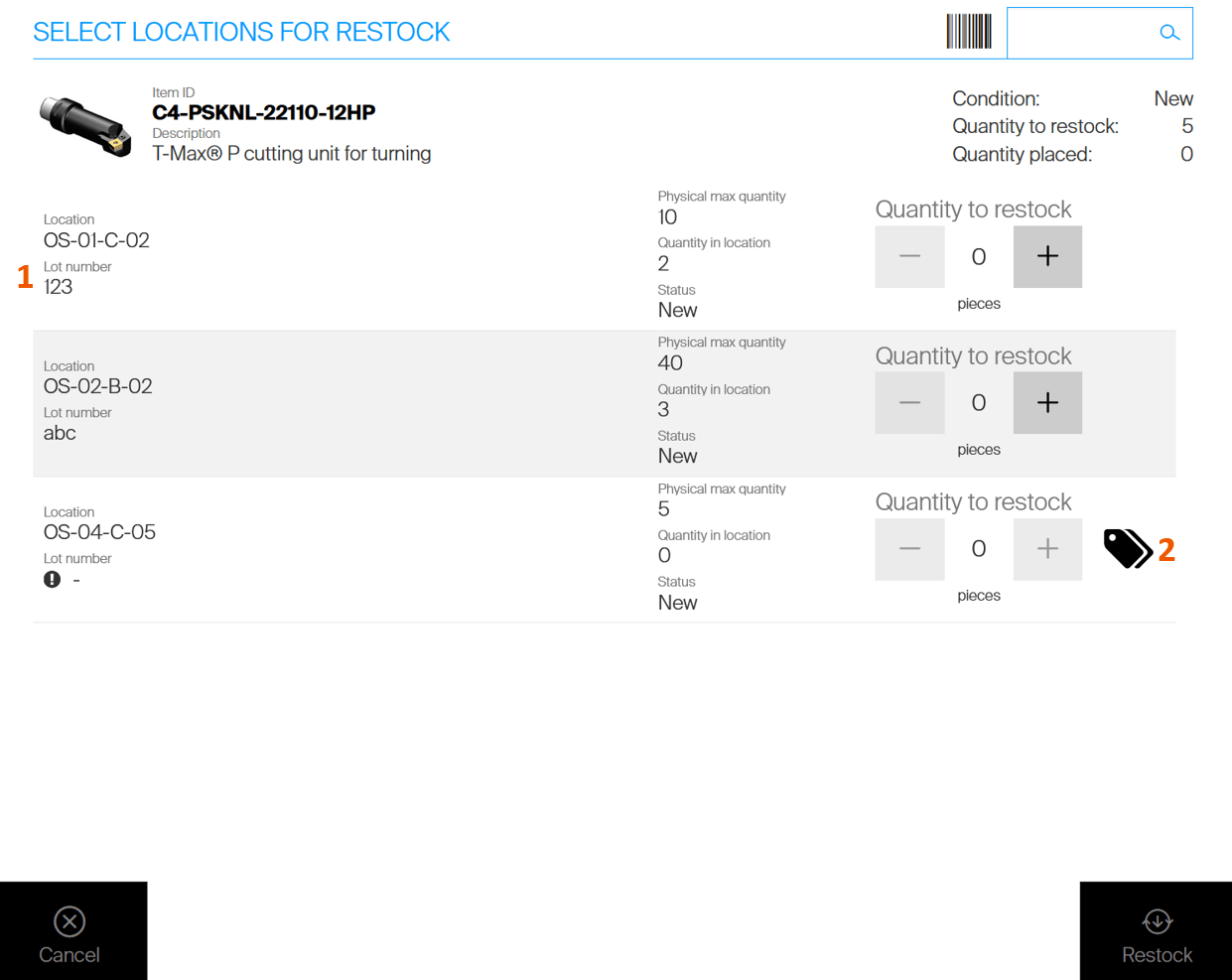
Each location shows the lot number assigned to it.
Locations that already hold the item show their lot number (1). If the restocked items share that lot and there is space, the quantity can be added. If the lot differs, or the occupied locations are full, assign the new lot number to an empty location (2). The lot number must be assigned before the item can be restocked there.
Assigning a tracked item to a location
When a tracked item is assigned to a new stock location and physical quantity is placed during the process, the lot number for that location is required.
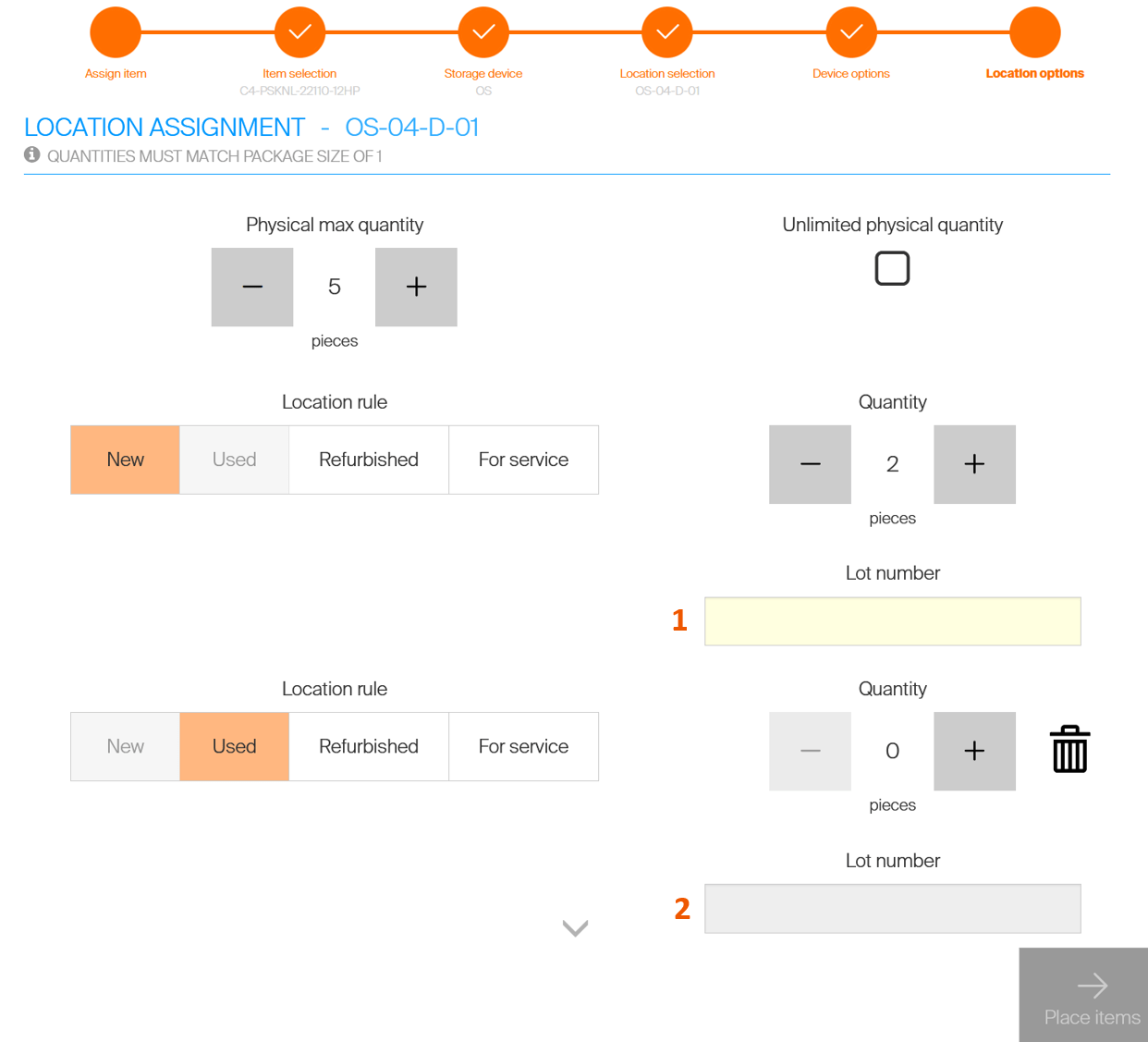
The lot number is required whenever quantity is placed.
On the Locations options step of the assignment wizard, a non-zero Quantity requires a lot number (1) before you can proceed. When the item is assigned with several conditions, a lot number is required per condition (2).
Inventory
During inventory of a tracked item, the expected lot number is shown next to the expected quantity in the location (1). If it is wrong or missing, it can be changed (2).
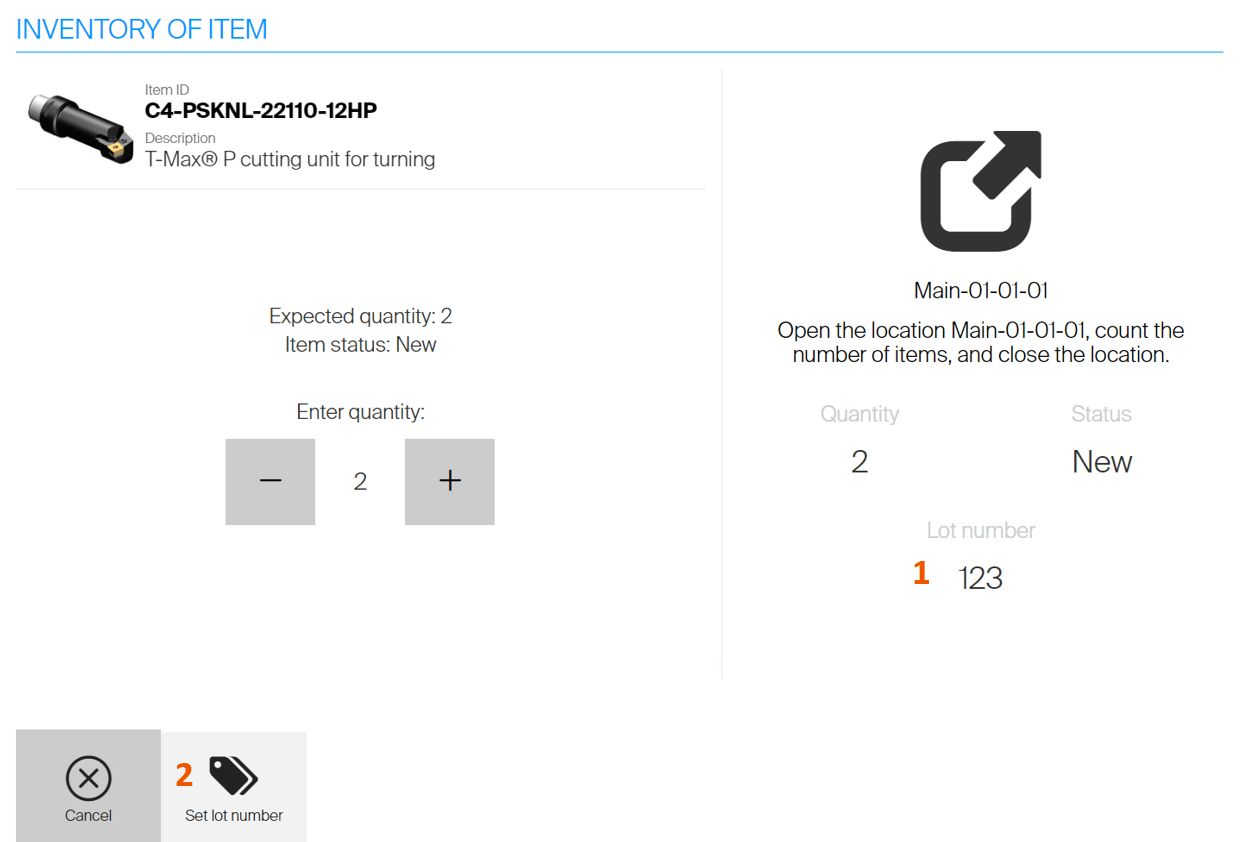
Correcting the lot number during inventory.
Changing it generates two inventory transactions: one removing the former lot number, one placing the new one.
Important: Inventory cannot be finished while a location has no lot number.
Changing a lot number
A lot number given during restock or assign is bound to the item in that location and cannot be changed freely. The only ways to change it are an inventory, or a quantity adjustment in the location through the SFI or an Excel import. Both are tracked as two transactions – removal of the old lot, then placement of the new one.
Lot tracking for serialized items
Because a serialized item tracks each instance, the lot number is stored per serial number. Instances with different lot numbers can share a location, and every transaction on a serial number still carries its lot.
When a new serial number is created – in restock or assign on the SFI, or by Excel import – a lot number must be entered for each one.
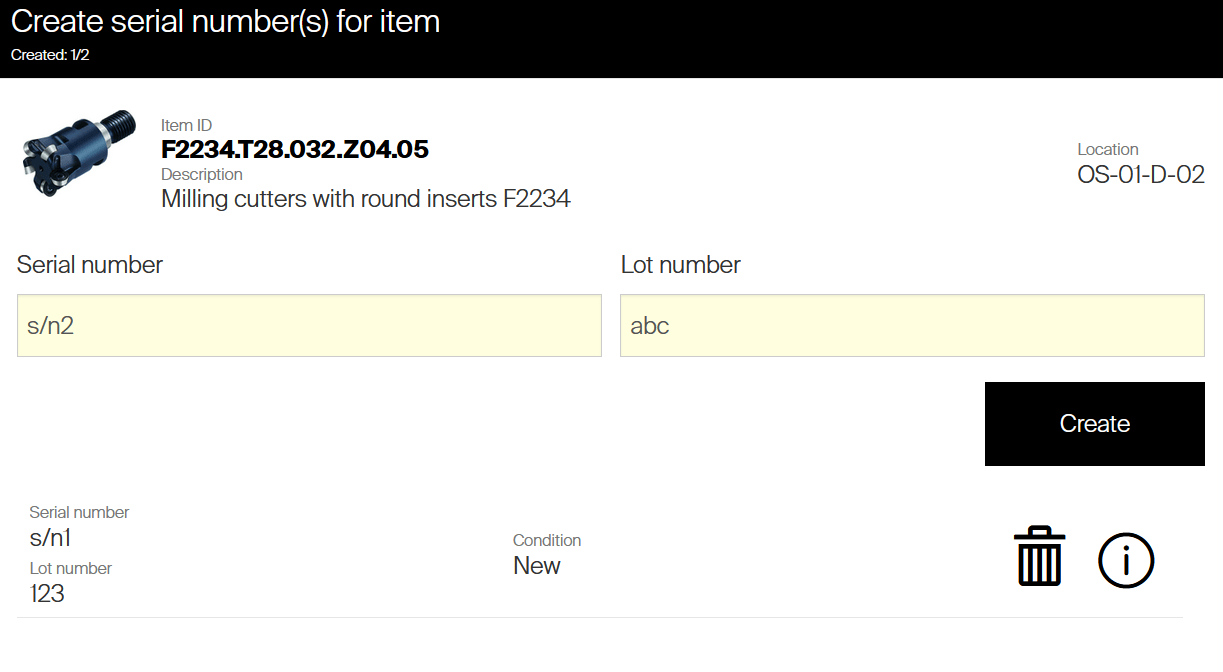
Each new serial number gets its own lot number.
Whenever an existing serial number is selected for an operation, its lot number is shown.
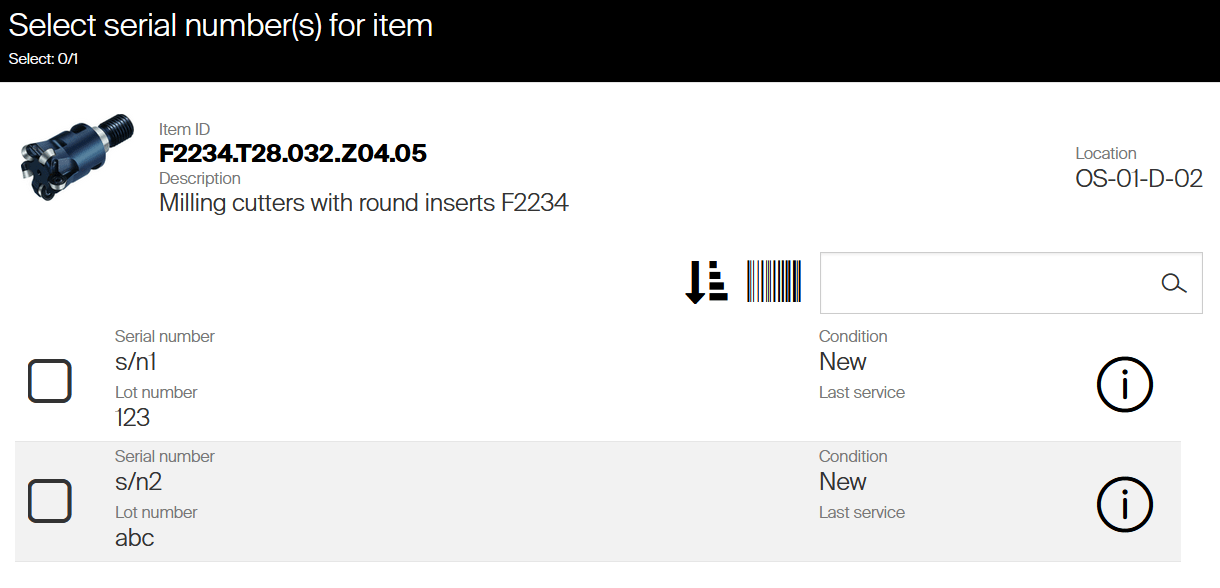
Lot numbers are visible when selecting a serial number.
The lot number of a serial number is also on the detail of that instance, and can be added as a column to the serialized items overview in the Admin Portal.
Changing the lot number of an instance
Unlike non-serialized items, the lot number of a serialized item cannot be changed during inventory. If a discrepancy is found, change it from the instance detail in the Admin Portal:
- Go to the serialized items overview and click the serial number, or open the item detail and select the serial number on the Serialized item tab.
- Select Edit for the current lot number.
- Confirm the new number.
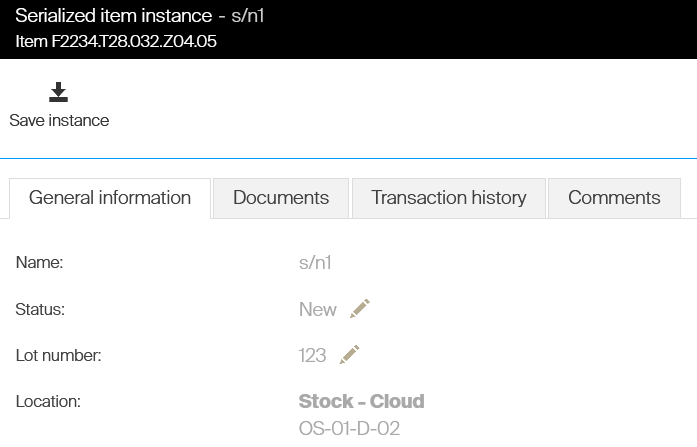
Changing the lot number of one serial number.
As with inventory, the change is covered by a transaction removing the former lot number from the location and one placing the new one.
Note: If the lot number is changed for a serial number that is not in any location, no transaction covers the change.
Common confusion
| People often think… | But actually… |
| Operators choose the lot when picking. | The lot follows from the location. Daily operations cannot influence it. |
| A lot number belongs to a location for good. | The location is free for any other lot as soon as it is emptied. |
| A wrong lot number can be corrected in the field. | For non-serialized items only through inventory or a quantity adjustment; for serialized items only from the instance detail in the Admin Portal. |
| Serialized items follow the one-lot-per-location rule. | They do not – the lot is stored per serial number, so one location can hold several lots. |
| Turning tracking on labels the existing stock. | Units already in a location have an unknown lot until an inventory forces one. |
Take action
Ready to start? Turn on Track lot numbers on the item’s General information tab, then run an inventory of the locations that already hold the item so their lot numbers are recorded.
Related articles
- Managing serialized items and serial numbers – the instance detail where a serialized lot number is changed.
- Default reports reference: 19 built-in reports – the transactions and locations data the Lot number column belongs to.
- How to configure storage devices – the locations that lot numbers bind to.
- How to pick an item – the daily flow that records the lot automatically.