
Read time: ~3 minutes
Applies to: Admin Portal
What you can do
Activate your new Admin Portal and log in for the first time using the temporary password from your activation email.
Before you start
- You are the designated portal owner and have received an activation email from noreply@cribwise.com.
- You have access to the email inbox of the portal owner address.
- The temporary password in the email is valid for 7 days. If it has expired, see Reset an expired password section below.
Quick start
Experienced users — activate your portal in 4 steps:
- Open the activation email and click the login link.
- Enter your email and temporary password.
- Create a new password for your account.
- Login using the key icon on the first page if you are not redirected
- Accept the Terms & Conditions (scroll through all 3 pages).
Need more detail? Follow the full steps below.
Steps
Step 1 — Open the activation email
When your portal is created, an activation email is sent to the portal owner’s email address. The email contains a temporary password and a link to the Admin Portal login page.
- Open the activation email from noreply@cribwise.com.
- Click the button in the email to open the Admin Portal login page.
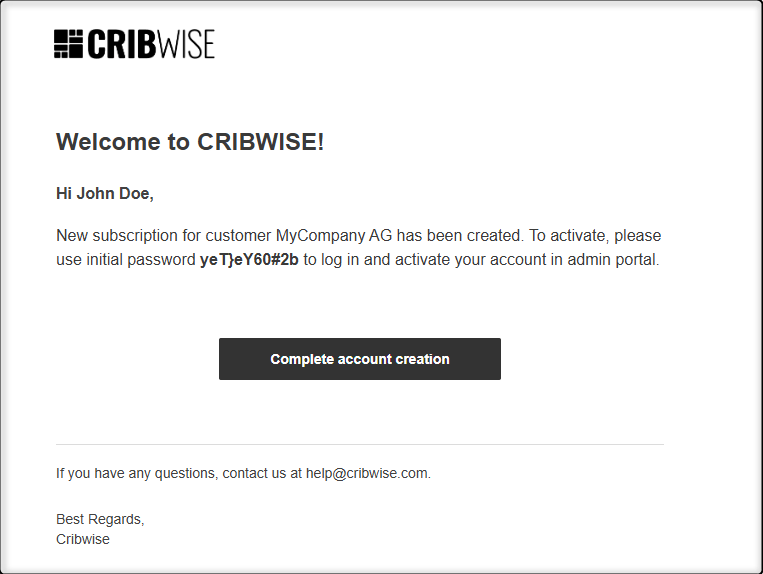
The activation email contains your temporary password and a link to the login page.
Step 2 — Log in with the temporary password
- Enter your email address in the login form.
- Enter the temporary password from the activation email.
- Click Sign in.
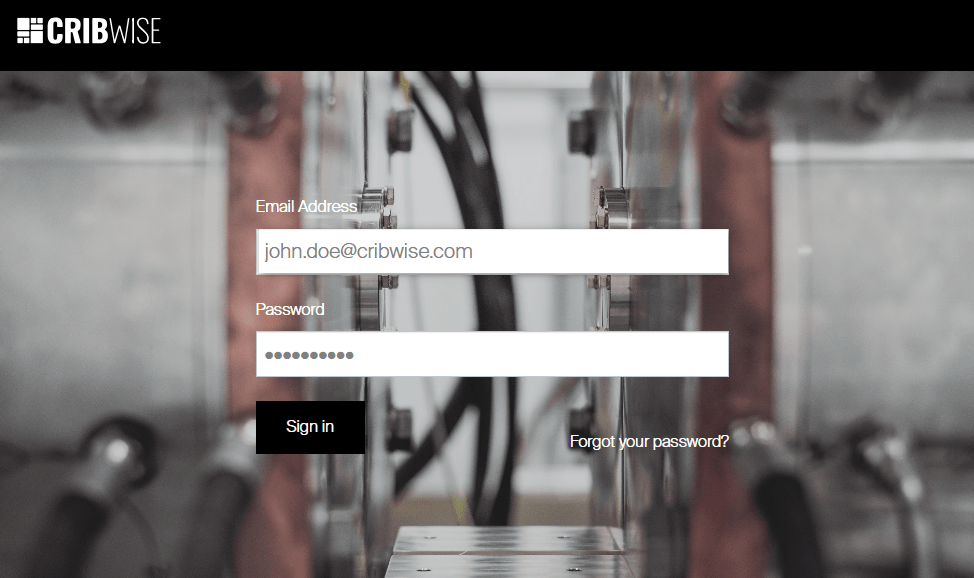
The Admin Portal login page where you enter your email and temporary password.
Step 3 — Create a new password
After signing in, the system prompts you to create a new password for your account.
- Enter a new password that meets the displayed requirements.
- Confirm the new password.
- Click Submit.
Step 4 — Accept the Terms & Conditions
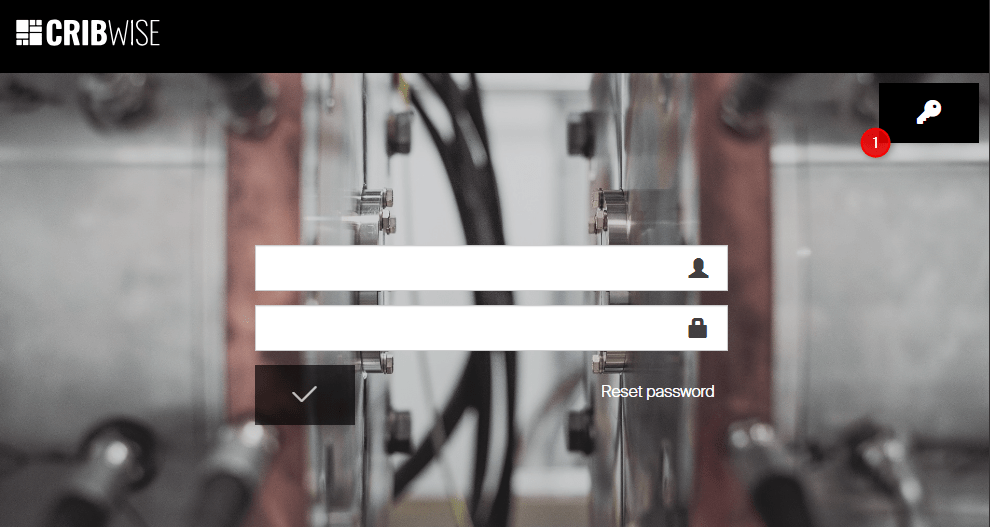
- Go back to the portal and use the key icon to login with your service user.
- Read and scroll to the end of each of the 3 Terms & Conditions pages.
- Accept each page to proceed.
Important: You must scroll to the bottom of each page before you can accept it.
Success: Your portal is now activated. You are logged in as a service user (the portal owner). This account remains available until the owner is changed or the Admin Portal subscription is cancelled.
Reset an expired password
If more than 7 days have passed and the temporary password has expired, you can still access the portal by resetting your password.
- Click the link in the activation email, or go to
https://app.cribwise.com/AdminPortal/<shortname>(the exact URL may vary depending on your reseller). - Click the Key icon in the top-right corner.
- Enter your email address and click Sign in.
- On the next page, click Forgot your password?
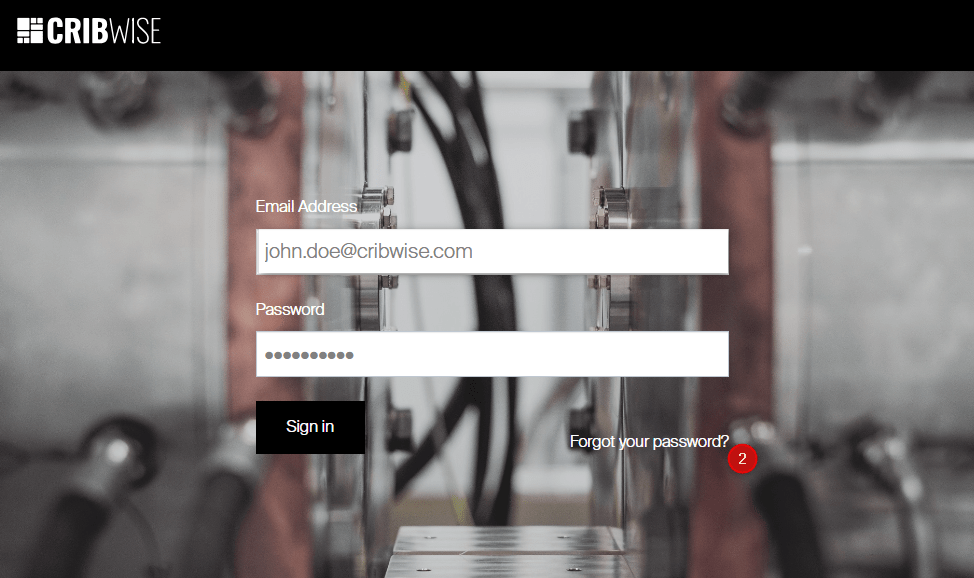
Click Forgot your password? to request a verification code.
- Check your email for a temporary verification code.
- Enter the code and create a new password.
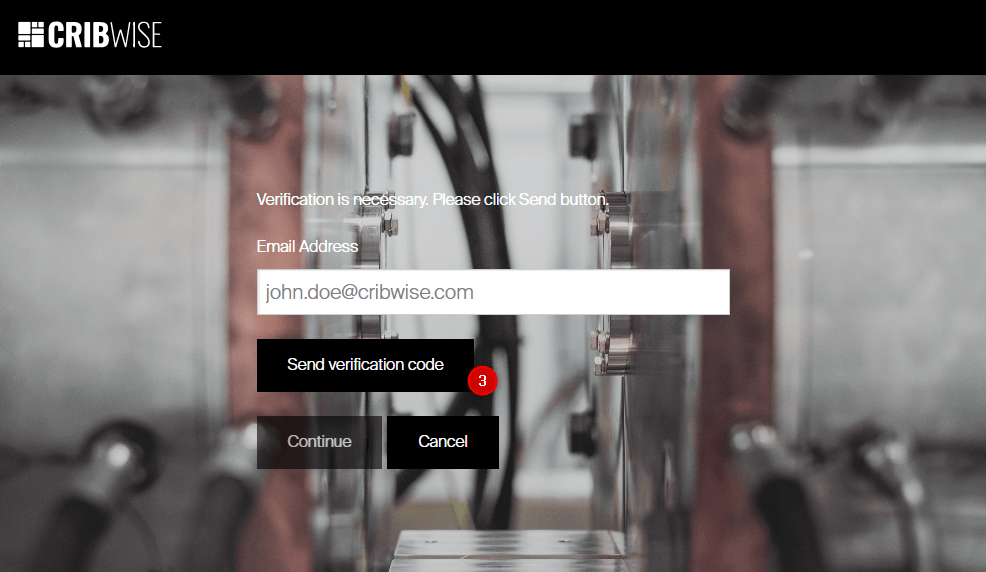
Enter the verification code sent to your email to set a new password.
Troubleshooting
| Problem | Likely cause | Fix |
|---|---|---|
| No activation email received | The email went to the spam/junk folder, or the wrong email address was used during sign-up | Check your spam folder. If not found, contact your reseller to verify the portal owner email address. |
| Temporary password does not work | The password has expired (valid for 7 days) or was copied with extra spaces | Copy the password carefully without leading/trailing spaces. If expired, follow the Reset an expired password steps above. |
| Cannot scroll through Terms & Conditions | Browser zoom or screen resolution prevents scrolling to the bottom of each page | Reset browser zoom to 100% (Ctrl+0) and try again. |
| Login page does not load | Incorrect portal URL or network issue | Verify the URL matches the format https://app.cribwise.com/AdminPortal/<shortname>. Check your internet connection and try a different browser. |
Related articles
- How to log in to Admin Portal — regular login steps for returning users
- How to recover your account administrator password — reset your password if you are locked out
- How to add an administrator user — create additional admin accounts after activation
- How to create and manage users — add users and assign roles in Admin Portal
- Getting started with Admin Portal: layout, navigation, and lists — learn the Admin Portal interface after your first login