Custom reports
System allows to create customer’s specific reports above available reporting data. Read more details about available data sources. To create a new report, select New report in list of reports (Reports -> Report viewer from the main menu).
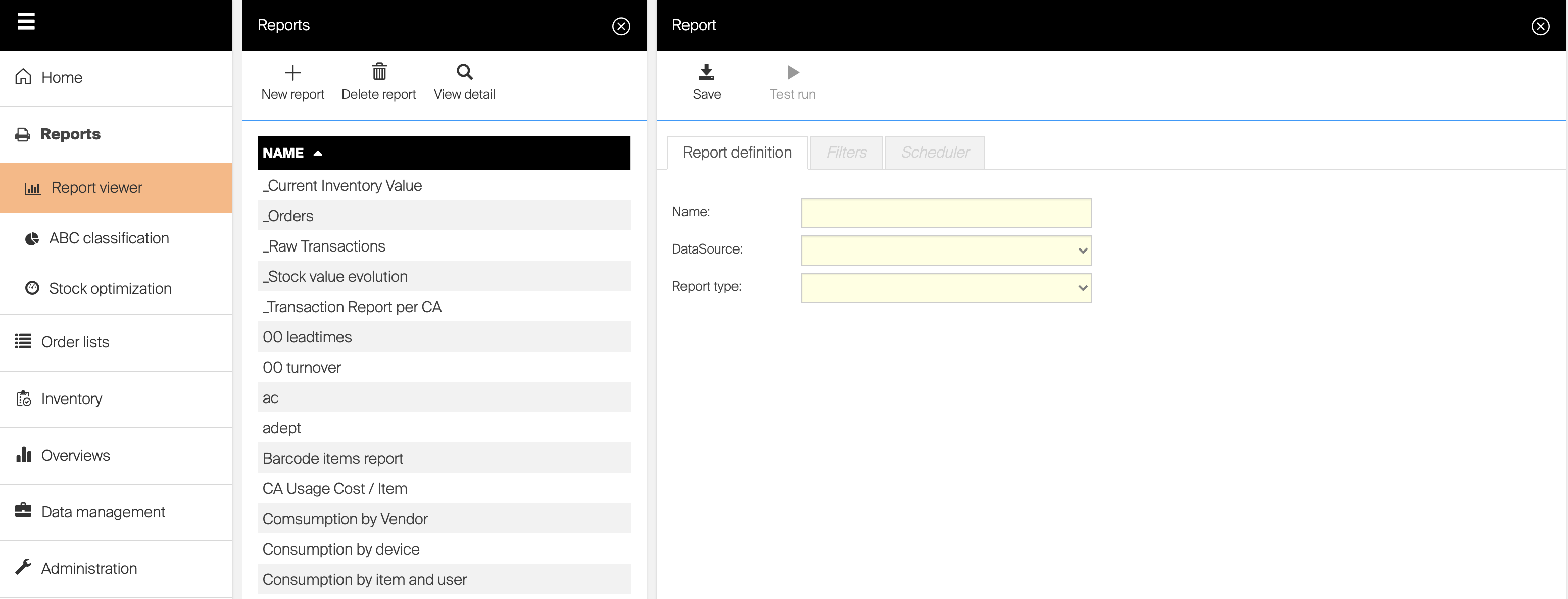
To update predefined report according customer’s needs, open the report and select to copy. Report than can be saved as custom report allowing to change report content.
Following actions are available on the report designer:  Saves current definition. Option is not available for default reports and when user has no privilege to update reports
  Saves changes and shows current report in report viewer.
Functionality of report viewer is limited in this case (Copy report and Edit report options are not available)
Report definition
| Option name | Functionality |
| Name | Defines name of a report. Name of report must be unique in set of existing reports |
| Data source | Defines data used for the report. Data source must be selected and report initially saved before report definition can continue. Data source cannot be changed for already saved reports. |
| Report type | Defines, how data will be visualized. Definition of each type can consist from different settings. Each type is described further in this chapter. Report type cannot be changed for already saved reports. |
| Available fields | Shows all available information, which can be used in the report based on selected data source. If column is a value type (can be aggregated), it is marked in the list by  icon. Columns can be moved to different report’s sections using drag and drop icon. Columns can be moved to different report’s sections using drag and drop |
Sorting  |
Data in report can be sorted according selected data field used in report definition. To activate sorting, click to sorting icon for selected data field (  ). Change sorting order by following click. Remove the sorting by clicking the icon for the third time or by activating sorting for another data field. ). Change sorting order by following click. Remove the sorting by clicking the icon for the third time or by activating sorting for another data field. |
Slicing  |
Only top/bottom records by value can be shown in report by activating slicing. Slicing can be set by one data field used in Values section of report definition. To activate slicing, select slicing icon shown for value data field (  ), and define slicing options (number of shown Top/Bottom records). To deactivate slicing, select the icon again and select Clear filter. ), and define slicing options (number of shown Top/Bottom records). To deactivate slicing, select the icon again and select Clear filter. |
Tabular report
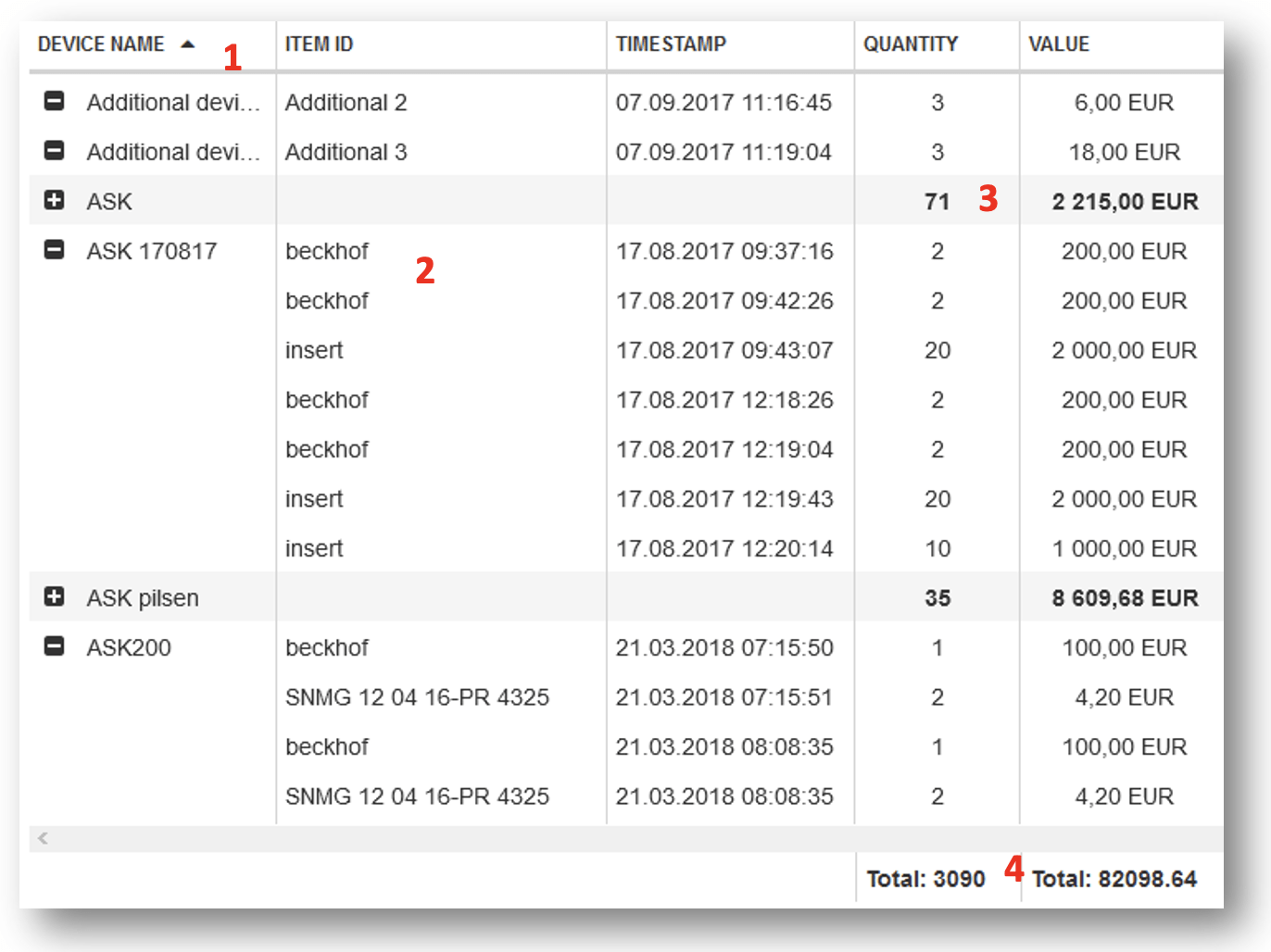
Tabular report shows data in form of a table. Information in the table can be grouped by specific values or can be displayed in flat structure.
| Group by | Contains fields which will be used to group data by. In report viewer, these fields will be able to collapse and expand to show all related information. Fields from the group can be moved to different section or back to available fields section using drag and drop |
| Columns | Contains fields which will be used in the report to present data in flat form. Fields from the group can be moved to different section or back to available columns section using drag and drop |
| Values | Contains fields of value type which will be used in the report to show aggregated values (sum of values) per each field selected in Group by section. Grand totals per all data are always shown at the bottom of the report. Only fields marked as values ( ) can be placed to this section.Fields from the group can be moved to different section or back to available fields section using drag and drop |
Example In following example, report definition is defined as follows: Group by device name, allowing to show all operations per each device. Reporting data can be expanded and collapsed per device
(1). Columns set to show Item ID and Timestamp. For each transaction, information in these columns are shown, even if contains the same value
(2). Values set to show Quantity and Value. These values are aggregated for each collapsed group
(3) and per complete report
(4).
Values will not be aggregated in case, when collapsed group contains values in different currencies.
Pie chart
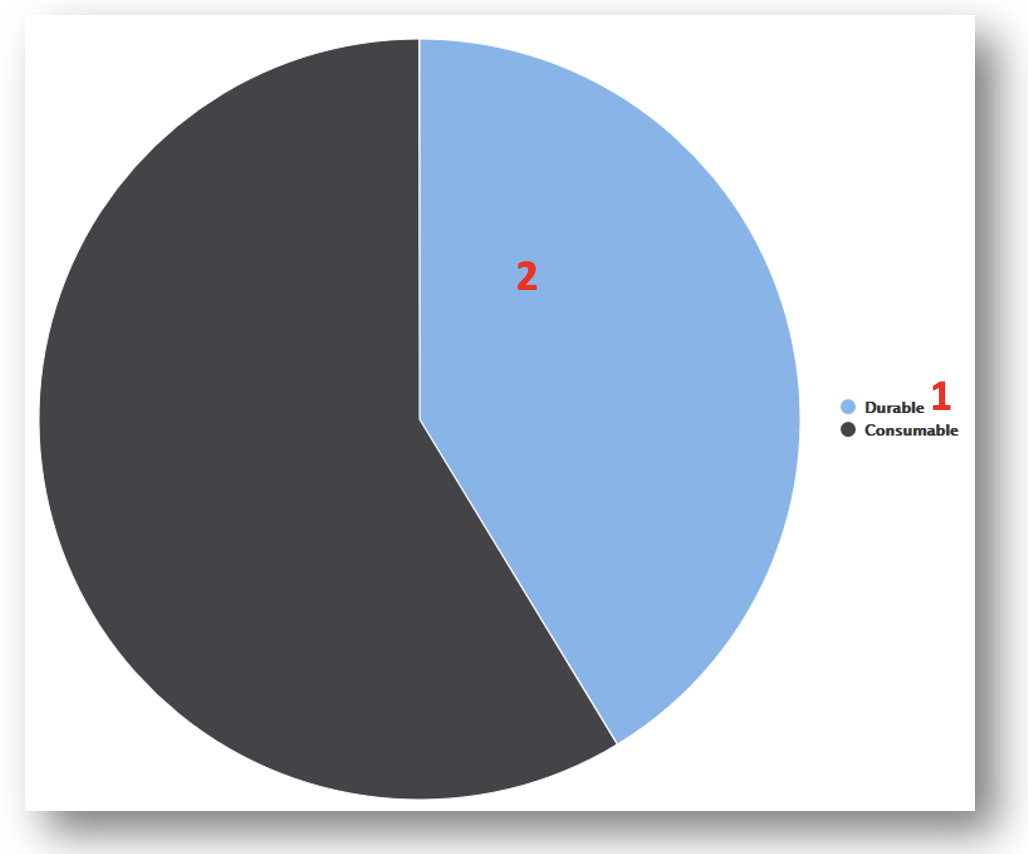
Pie chart report shows specific value according single axis
| Categories | Contains field which will be used as axis for the chart. All data fields allowing grouping a data can be used. One data field must be specified to allow report to be saved and executed. Fields from the group can be moved to different section or back to available fields section using drag and drop |
| Values | Contains field of value type which will be used in the report to show aggregated values (sum of values) per each category selected in Categories section. Only fields marked as values ( ) can be placed to this section.One data field must be specified to allow report to be saved and executed. Fields from the group can be moved to different section or back to available fields section using drag and drop |
Example In following example, report definition is defined as follows:
Categories set to item type
(1). Value set to consumed quantity
(2).
Column chart
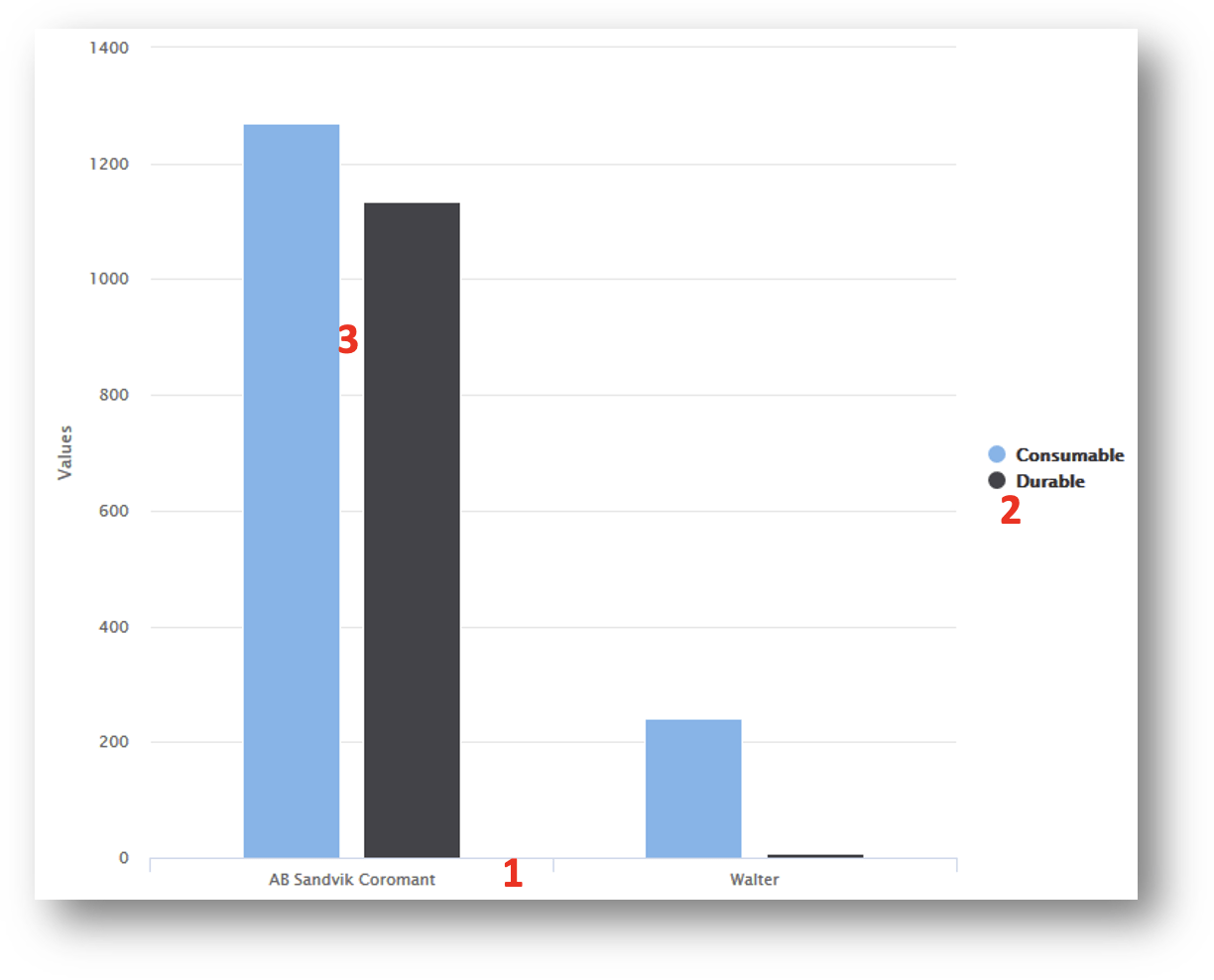
Column chart allows to show reporting data using two axis by side-by-side comparison.
| Categories | Contains field which will be used as X for the chart. All data fields allowing grouping a data can be used. One data field must be specified to allow report to be saved and executed. Fields from the group can be moved to different section or back to available fields section using drag and drop |
| Series | Contains field which will further separate categories per another dimension. Option is mandatory. If series is not specified, single default series will be used in report. Fields from the group can be moved to different section or back to available fields section using drag and drop |
| Values | Contains field of value type which will be used in the report to show aggregated values (sum of values) per each category selected in Categories section and Series (if set). Only fields marked as values ( ) can be placed to this section.One data field must be specified to allow report to be saved and executed. Fields from the group can be moved to different section or back to available fields section using drag and drop |
Example In following example, report definition is defined as follows:
Categories set to vendor name
(1). Series set to item type
(2). Value set to consumed quantity
(3).
Column chart stacked
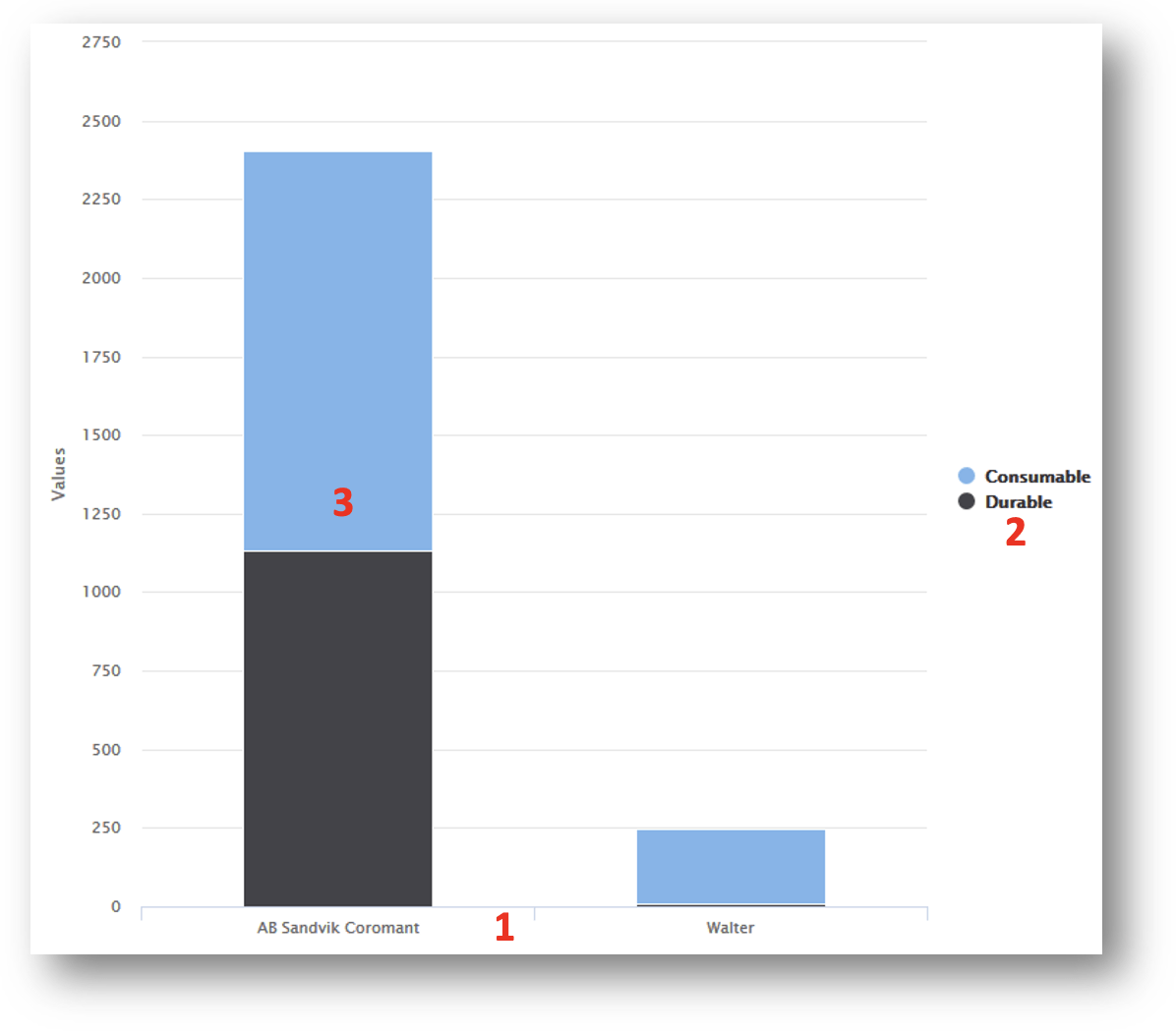
Column chart allows to show reporting data using two axis by total value comparison.
| Categories | Contains field which will be used as X for the chart. All data fields allowing grouping a data can be used. One data field must be specified to allow report to be saved and executed. Fields from the group can be moved to different section or back to available fields section using drag and drop |
| Series | Contains field which will further separate categories per another dimension. Option is mandatory. If series is not specified, single default series will be used in report. Fields from the group can be moved to different section or back to available fields section using drag and drop |
| Values | Contains field of value type which will be used in the report to show aggregated values (sum of values) per each category selected in Categories section and Series (if set). Only fields marked as values ( ) can be placed to this section.One data field must be specified to allow report to be saved and executed. Fields from the group can be moved to different section or back to available fields section using drag and drop |
Example In following example, report definition is defined as follows:
Categories set to vendor name
(1). Series set to item type
(2). Value set to consumed quantity
(3).
Bar chart
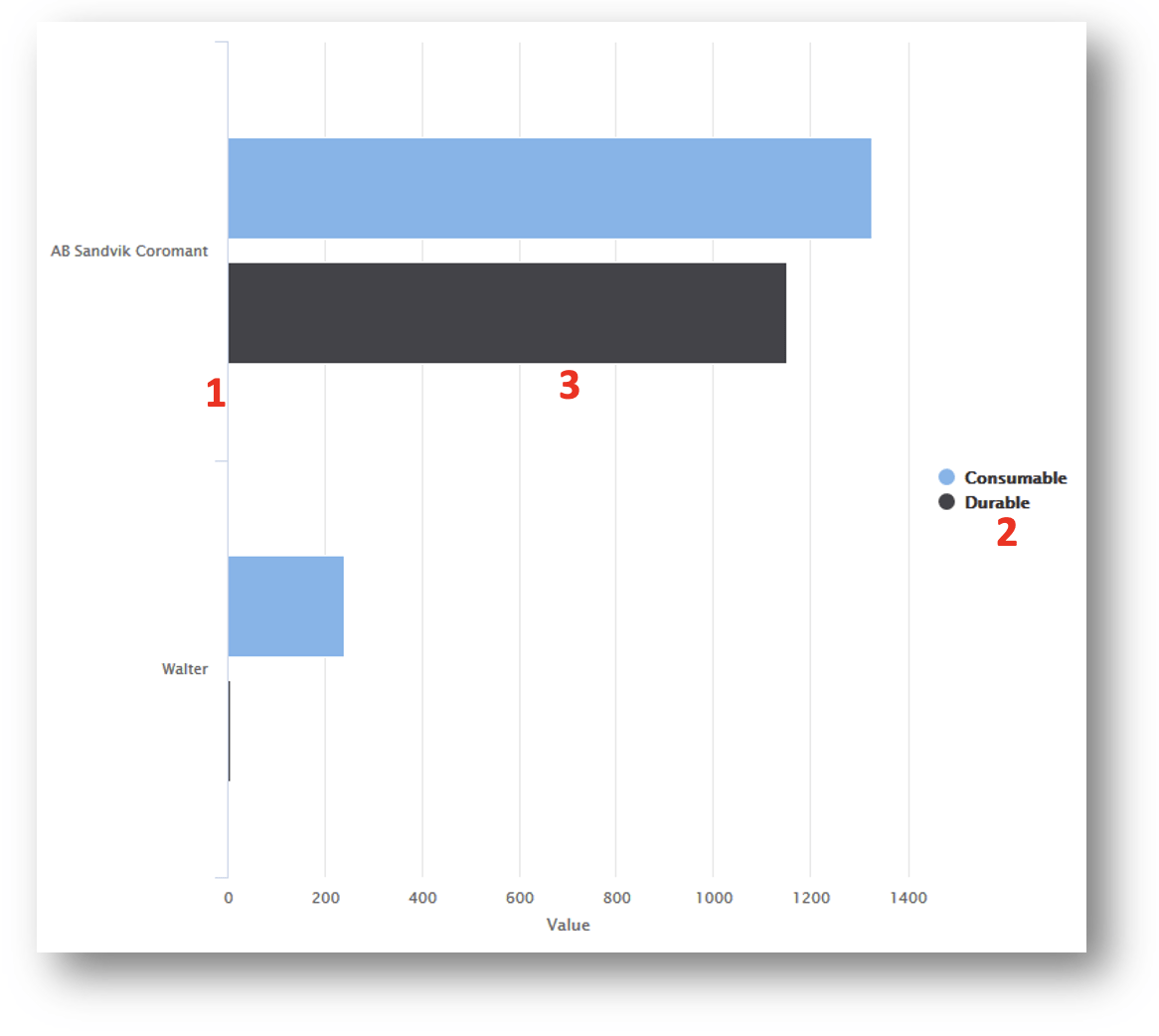
Bar chart allows to show reporting data using two axis by side-by-side comparison. In principle, it is column chart with switched axis.
| Categories | Contains field which will be used as Y for the chart. All data fields allowing grouping a data can be used. One data field must be specified to allow report to be saved and executed. Fields from the group can be moved to different section or back to available fields section using drag and drop |
| Series | Contains field which will further separate categories per another dimension. Option is mandatory. If series is not specified, single default series will be used in report. Fields from the group can be moved to different section or back to available fields section using drag and drop |
| Values | Contains field of value type which will be used in the report to show aggregated values (sum of values) per each category selected in Categories section and Series (if set). Only fields marked as values ( ) can be placed to this section.One data field must be specified to allow report to be saved and executed. Fields from the group can be moved to different section or back to available fields section using drag and drop |
Example In following example, report definition is defined as follows:
Categories set to vendor name
(1). Series set to item type
(2). Value set to consumed quantity
(3).
Bar chart stacked
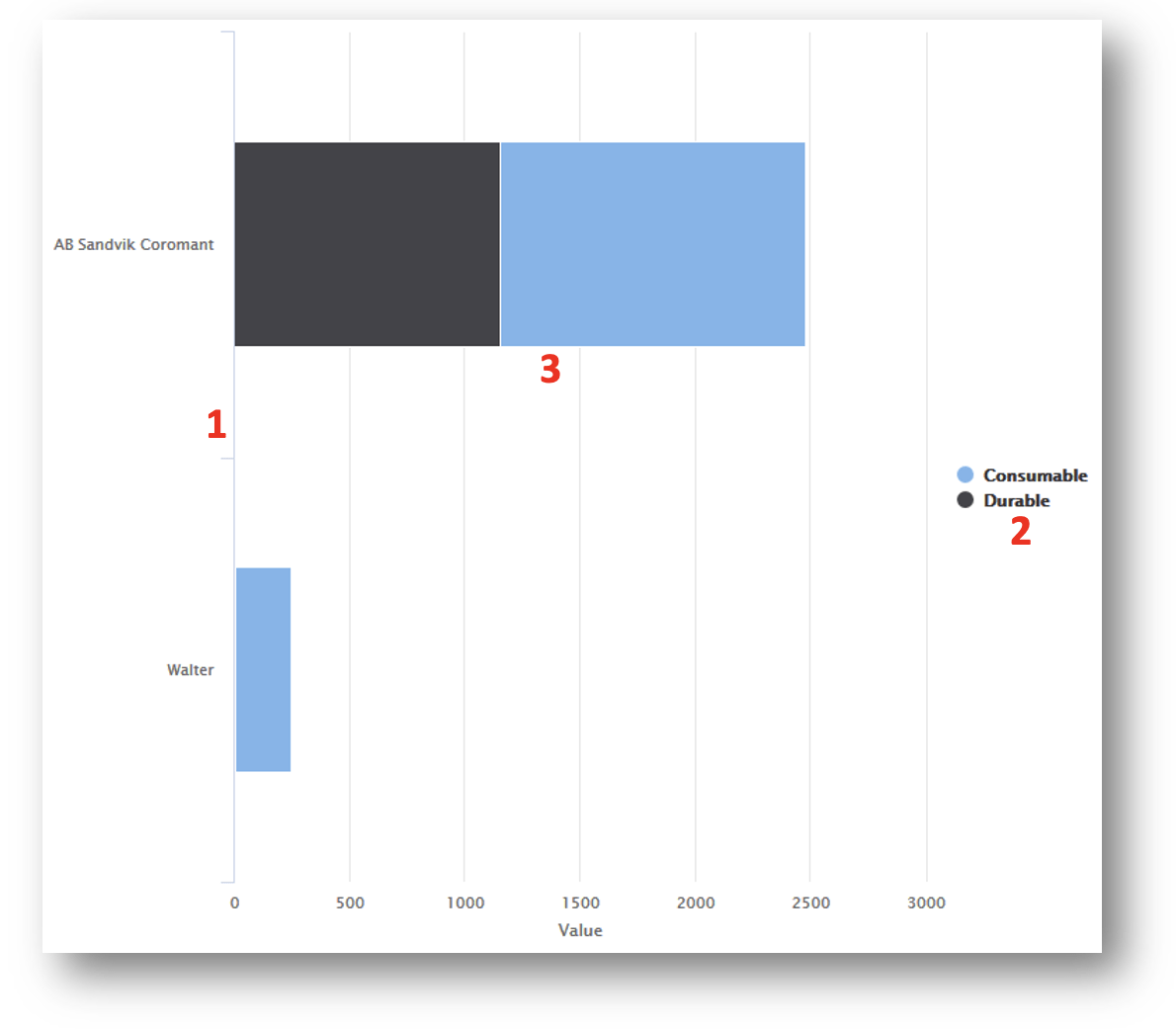
Column chart allows to show reporting data using two axis by total value comparison. In principle, it is column chart stacked with switched axis.
| Categories | Contains field which will be used as Y for the chart. All data fields allowing grouping a data can be used. One data field must be specified to allow report to be saved and executed. Fields from the group can be moved to different section or back to available fields section using drag and drop |
| Series | Contains field which will further separate categories per another dimension. Option is mandatory. If series is not specified, single default series will be used in report. Fields from the group can be moved to different section or back to available fields section using drag and drop |
| Values | Contains field of value type which will be used in the report to show aggregated values (sum of values) per each category selected in Categories section and Series (if set). Only fields marked as values ( ) can be placed to this section.One data field must be specified to allow report to be saved and executed. Fields from the group can be moved to different section or back to available fields section using drag and drop |
Example In following example, report definition is defined as follows:
Categories set to vendor name
(1). Series set to item type
(2). Value set to consumed quantity
(3).
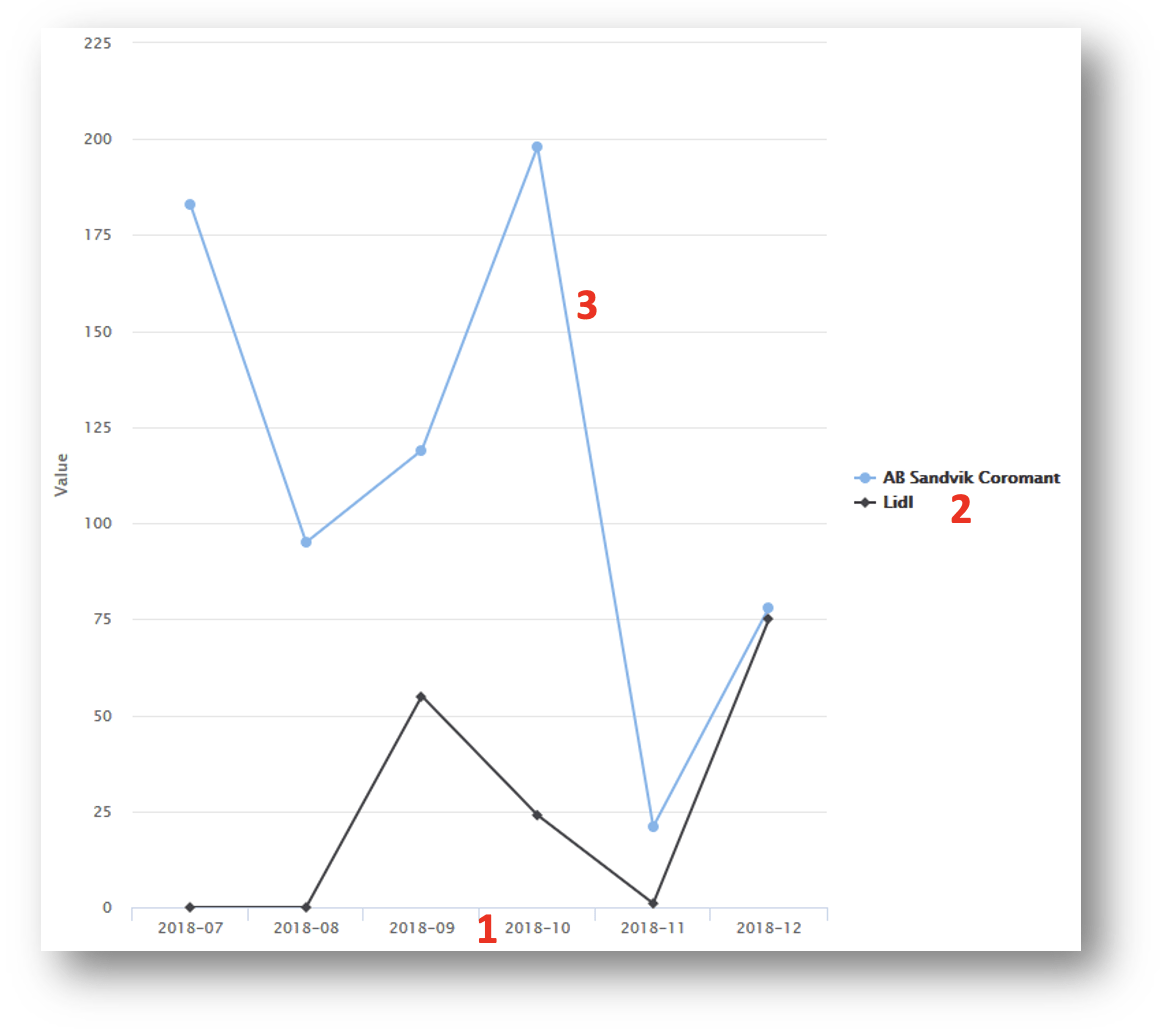
Line chart
Line chart allows to show reporting data using two axis by total value comparison. It is suitable for showing development of monitored value in time.
| Categories | Contains field which will be used as X for the chart. All data fields allowing grouping a data can be used. For line charts, typical category can be point in time. One data field must be specified to allow report to be saved and executed. Fields from the group can be moved to different section or back to available fields section using drag and drop |
| Series | Contains field which will further separate categories per another dimension. For line chart, separate line is displayed of each series. Option is mandatory. If series is not specified, single default series will be used in report. Fields from the group can be moved to different section or back to available fields section using drag and drop |
| Values | Contains field of value type which will be used in the report to show aggregated values (sum of values) per each category selected in Categories section and Series (if set). Only fields marked as values ( ) can be placed to this section.One data field must be specified to allow report to be saved and executed. Fields from the group can be moved to different section or back to available fields section using drag and drop |
Example In following example, report definition is defined as follows:
Categories set to year-month
(1). Series set to vendor name
(2). Value set to consumed quantity
(3).
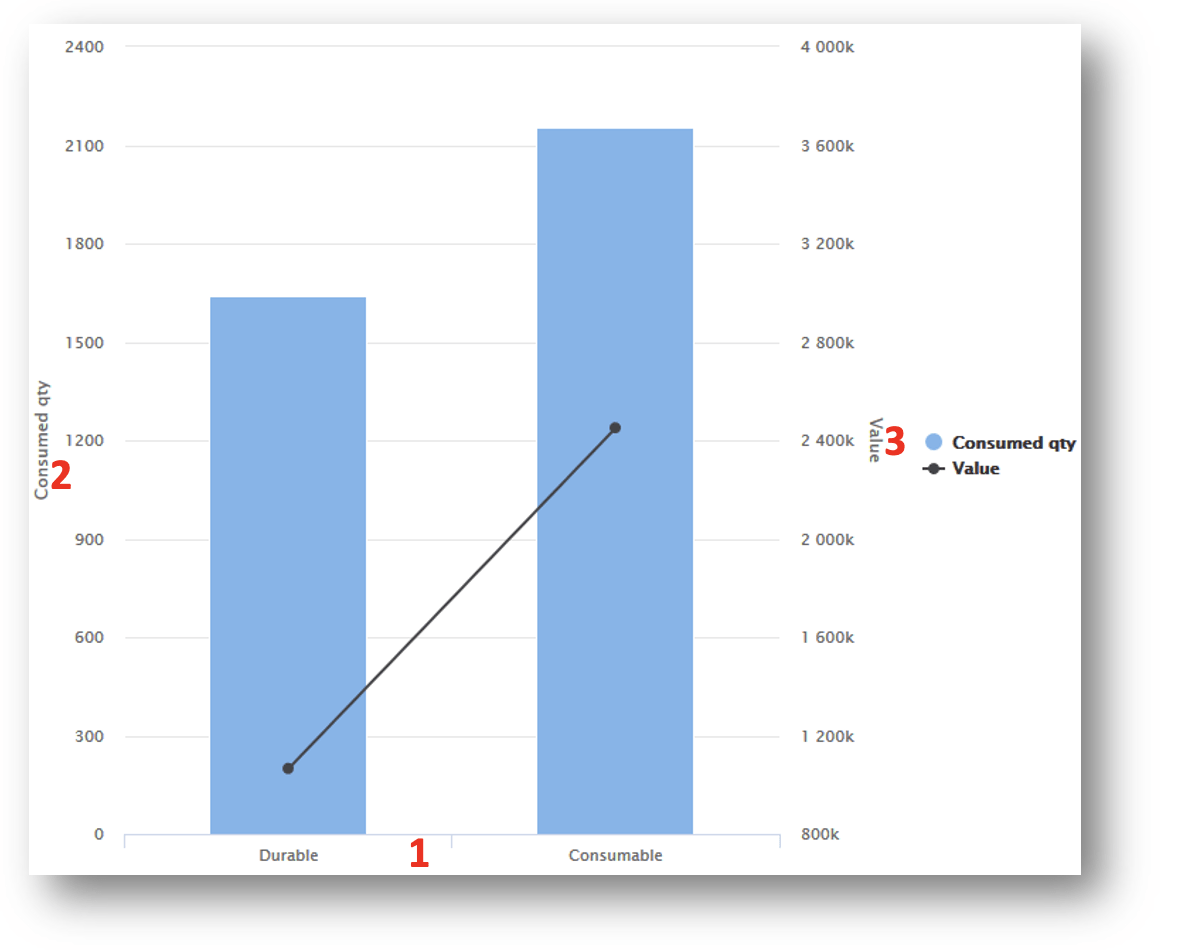
Combined chart
Chart allows to show two value axis in single chart (using column and line visualization) allowing to compare two values for single category.
| Categories | Contains field which will be used as X for the chart. All data fields allowing grouping a data can be used. One data field must be specified to allow report to be saved and executed. Fields from the group can be moved to different section or back to available fields section using drag and drop |
| Value | Contains field of value type which will be used in the report to show aggregated values (sum of values) per each category selected in Categories section and Series (if set). Value will be shown on left Y axis. Only fields marked as values ( ) can be placed to this section.One data field must be specified to allow report to be saved and executed. |
| Value 2 | Contains field of value type which will be used in the report to show aggregated values (sum of values) per each category selected in Categories section and Series (if set). Value will be shown on right Y axis.Only fields marked as values ( ) can be placed to this section.One data field must be specified to allow report to be saved and executed. Fields from the group can be moved to different section or back to available fields section using drag and drop |
Example In following example, report definition is defined as follows:
Categories set to item type
(1). Value set to consumed quantity
(2). Value 2 set to consumed value
(3).