Shop floor interface application (SFI) can be started on physical device or accessed with a web browser on URL address provided by system administrator (for cloud devices). Functionality and layout of both application types are equal. When authentication is successfully finished, main menu of the application show.
Application layout
Workspace of the application is divided in two main parts, as shown below:

On workspace header (1) system controls are shown. These controls are show on every screen of the application. Allow user to do following actions:
 |
Show/hide system keyboard. On most of the devices keyboard is shown automatically after entering a text field |
 |
Return to main menu. |
 |
Show information about current device and logged in user. Allows to assign RFID card or Coges key. If there are more devices available, allows to switch to another device (for cloud SFI only) |
 |
Send message to support team. Actual state of the application with screenshot is sent |
 |
When update of the application is available, this option is shown to start the update. Application will be inaccessible during the update process. Option to start update of SFI application is visible based on user’s permission |
 |
Logout |
 |
Exit SFI application. This setting is hidden when logged in user does not have required permissions |
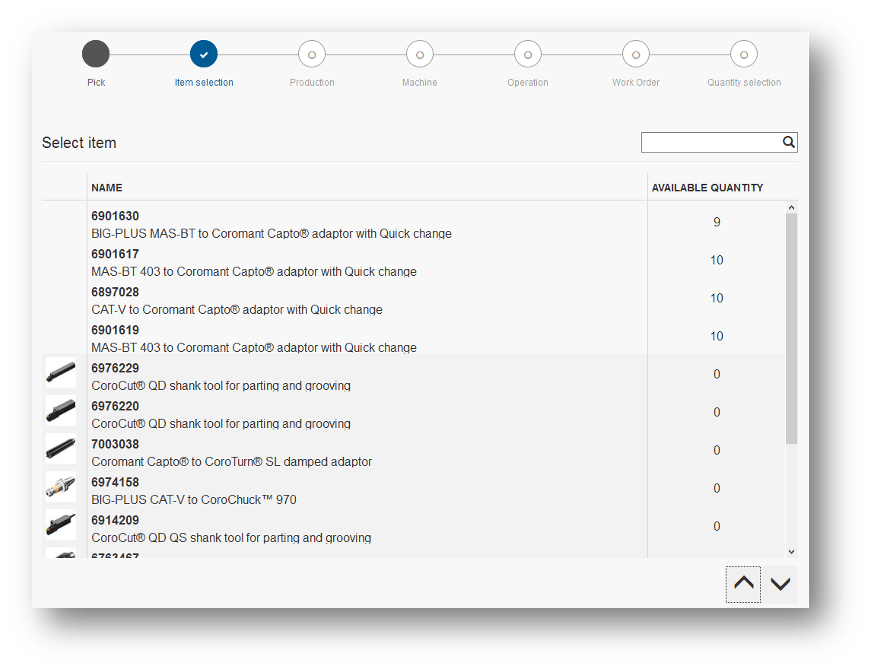
Main application area contains all information about currently performed action or menu to start an action. For basic operations, like picking, returning and moving, this area is extended with graphical illustration of operation progress (shown below). This graphical flow can be used to navigate between performed steps.
Menu structure
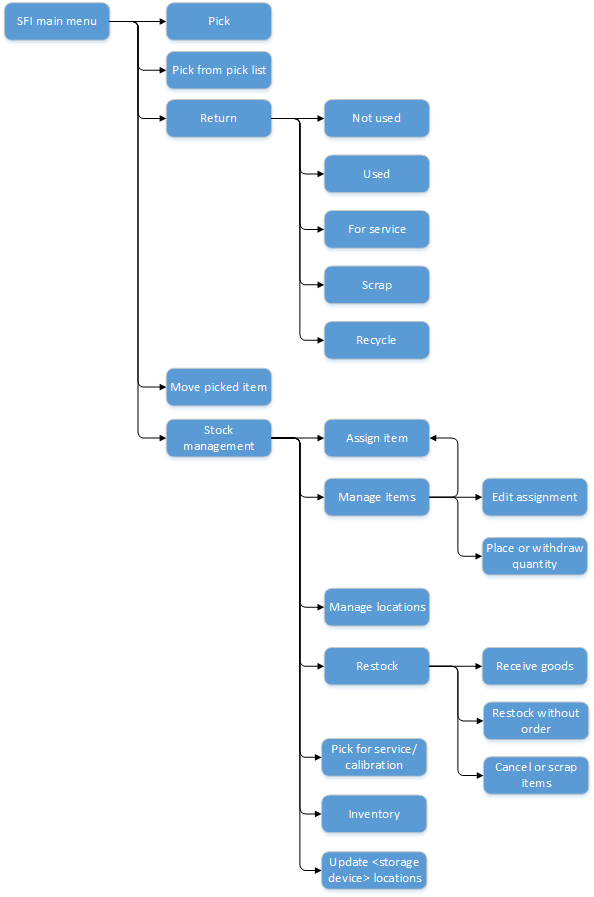
Below it is displayed the structure of SFI application menus and illustrate, how each operation can be accessed.
If user is not allowed to perform specific action, this action is not shown in the menu.